by Mark | Jul 18, 2016 | Deployment, How To, Microsoft HyperV
Revolutionizing Document Archiving for SharePoint Online
How to Create a Hyper-V Template for Deployment
If you ever need to deploy Virtual Machines often a great time saving way is to create a VM Template for quick and easy deployment.
The main reason for creating a Hyper-V Template is to save time and effort when deploying Virtual Machines. By having a standardised and consistent configuration, deploying a new VM becomes a streamlined process that can be accomplished quickly and easily. This also reduces the chances of human error and helps ensure that all VMs deployed from the template have the same configuration, reducing the need for manual intervention and troubleshooting. Additionally, using a template helps enforce best practices and promotes standardisation across an organisation, improving the overall management and efficiency of the virtual infrastructure.
VM templates give you the advantage of a consistent configuration that is standardised format that is reusable.
To create a Hyper-V VM Template follow these steps;
What Are Hyper-V Templates?
A Hyper-V template is a pre-configured virtual machine (VM) that can be used to quickly create new VMs with identical configurations. Templates can include operating systems, applications, settings, and configurations. This means that you can deploy new VMs with just a few clicks, without having to manually install and configure each one.
Why Use Hyper-V Templates?
Using Hyper-V templates can save time and effort when deploying new VMs. Instead of creating each VM manually, you can simply select a pre-configured template that meets your needs. This can be especially useful for creating multiple VMs with identical configurations, such as in a test environment or for a specific application.
Templates also ensure consistency and standardization across your virtual infrastructure. By using the same template for each new VM, you can ensure that each VM has the same configuration and settings. This can make it easier to manage and troubleshoot your virtual infrastructure.
Hyper-V Template Benefits
There are several benefits to creating a Hyper-V template, including:
- Consistency and Standardization: By creating a Hyper-V template, administrators can ensure that all virtual machines (VMs) created from the template have a consistent configuration and operating system setup. This can help to reduce administrative overhead and minimize the risk of configuration errors.
- Faster Deployment: Creating a Hyper-V template allows administrators to deploy new VMs much faster compared to manually installing the operating system and configuring the necessary software on each individual VM.
- Reduced Storage Requirements: Hyper-V templates are stored as a single VHD (virtual hard disk) file, which can be much more efficient in terms of storage compared to storing multiple VMs each with their own VHD file.
- Increased Scalability: By using a Hyper-V template, administrators can quickly and easily create new VMs as needed to support business growth and changing requirements.
- Improved Disaster Recovery: With a Hyper-V template in place, administrators can quickly recreate VMs in the event of a disaster, reducing downtime and minimizing the impact on the business.
- Enhanced Security: By using a Hyper-V template, administrators can enforce security policies and configuration standards for all VMs created from the template, helping to maintain a secure computing environment.
- Improved Compliance: For organizations that must comply with industry or regulatory standards, using a Hyper-V template can help ensure that all VMs meet the necessary requirements.
Open System Centre Virtual Machine Manager
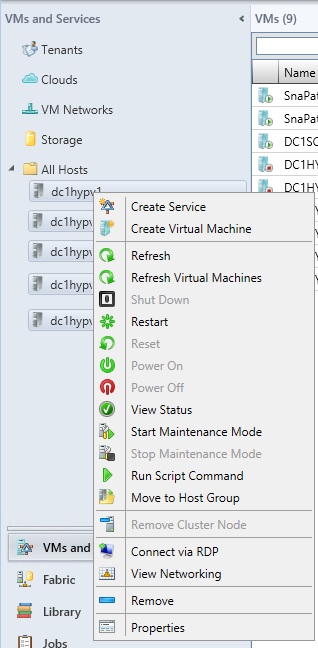
Open your SCVMM (Microsoft System Centre Virtual Machine Manager) console, click Hosts then Right Click and choose Create Virtual Machine.
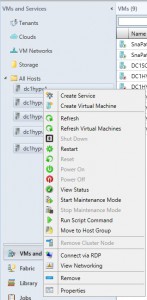
Create Virtual Machine Wizard
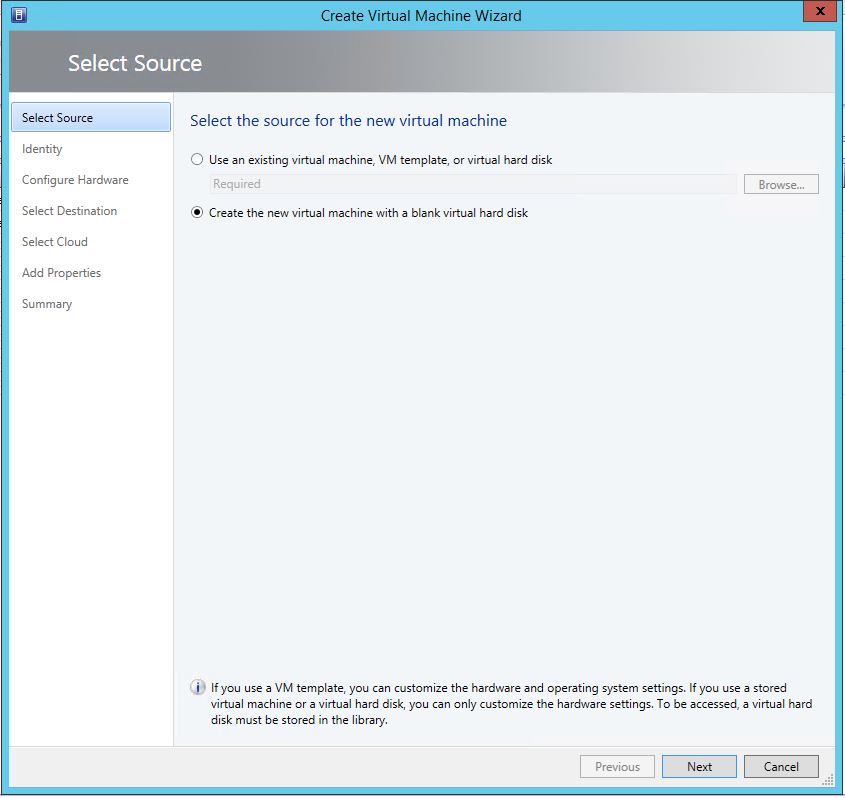
Next, the Create Virtual Machine Wizard will start up. Choose Create the new virtual machine with a blank virtual hard disk and click Next.

Create Virtual Machine Wizard
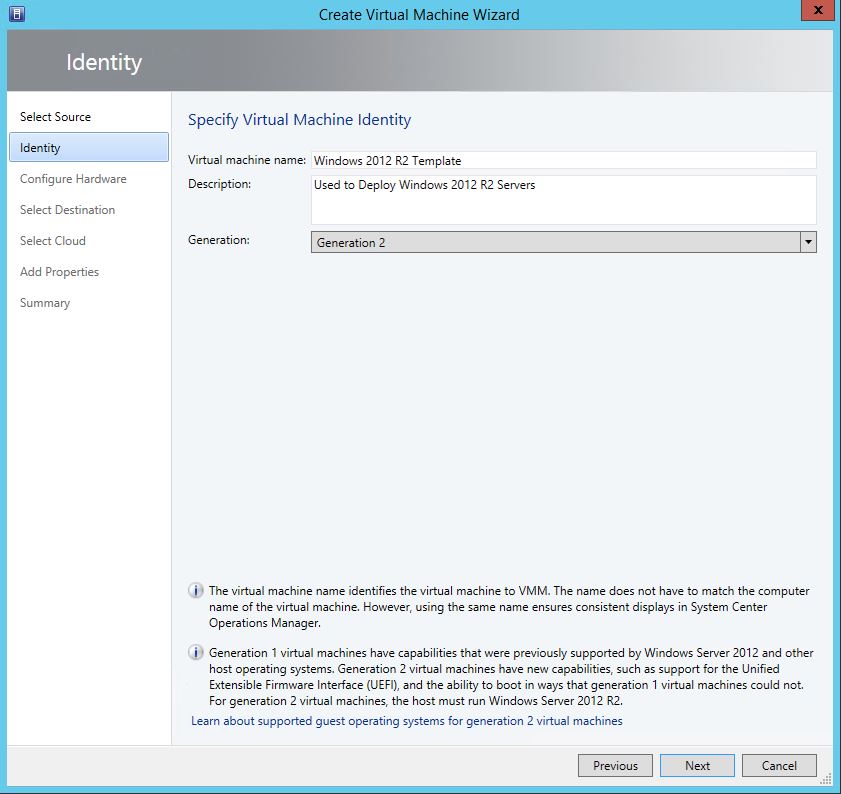
Now we need to give the VM a name and description. In this example I am using the Windows 2012 R2 operating system so the name and description are shown as such. As the Hyper-V host is Windows 2012 R2 as well, I can choose either Generation 1 or Generation 2 VM. Generation 2 VMs add the following new functionality;
- PXE boot by using a standard network adapter
- Boot from a SCSI virtual hard disk
- Boot from a SCSI virtual DVD
- Secure Boot (enabled by default)
- UEFI firmware support
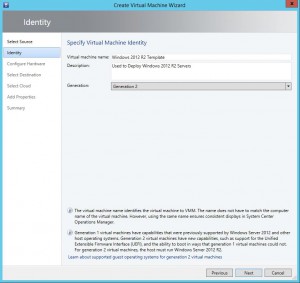
Edit Virtual Machine Hardware Configuration
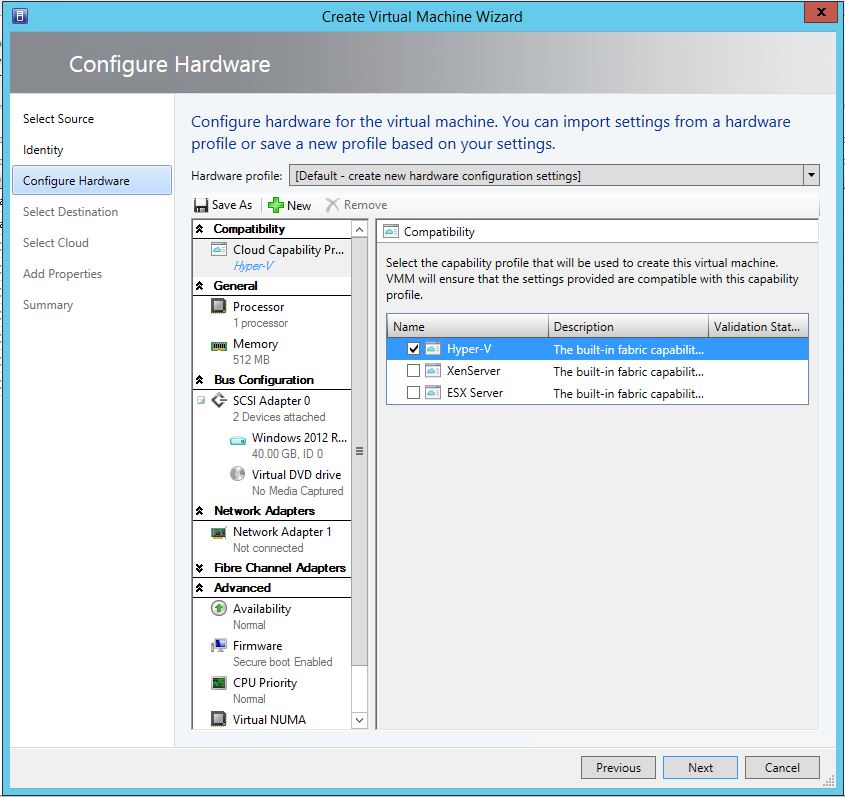
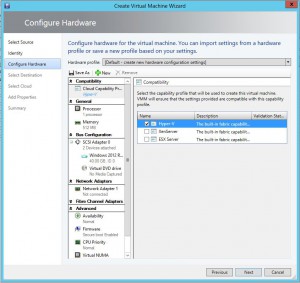
We can now edit the VMs hardware configuration. Choose the appropriate hardware settings you wish, make sure to have selected your installation media and then selected Hyper-V for compatibility and click on Next
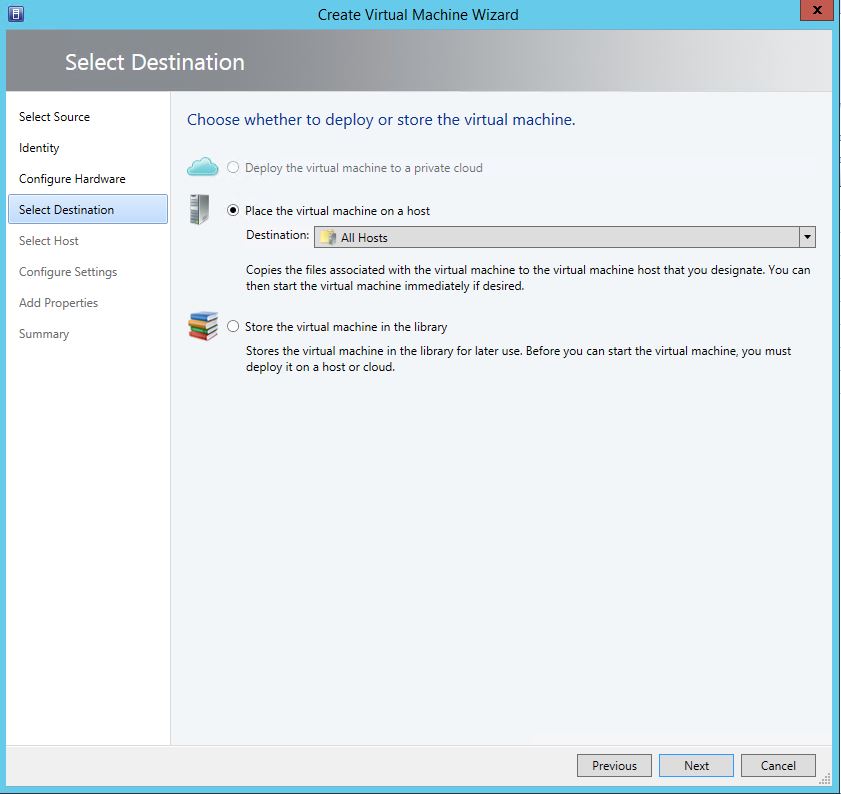
Choose where your Hyper-V VM Destination
Select the Destination where the VM will reside.
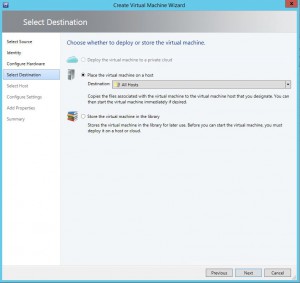
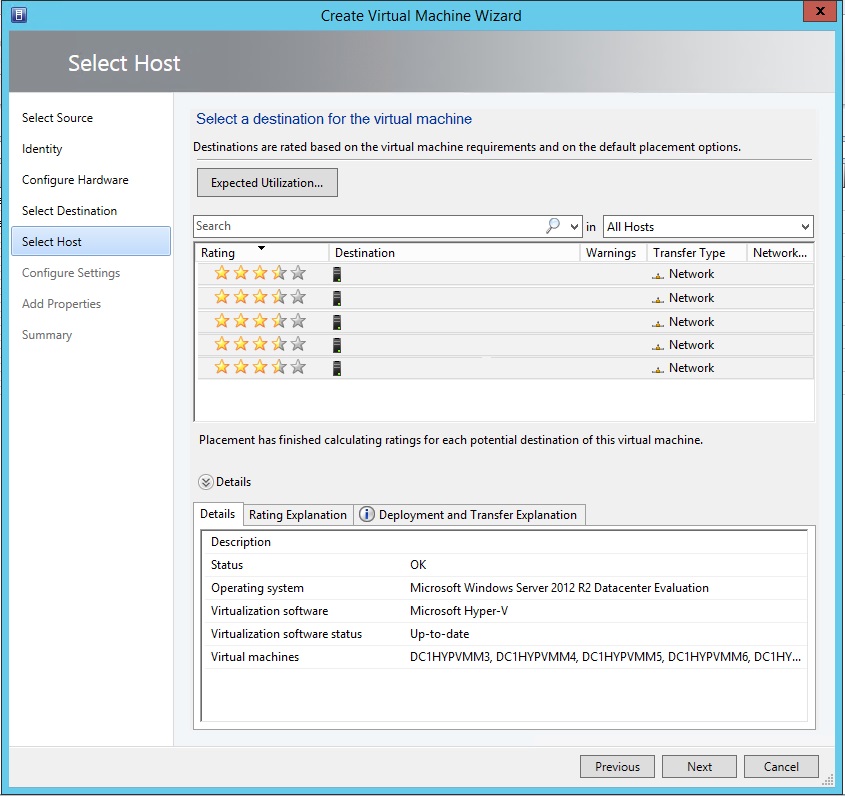
Select your Hyper-V Host
Now Select the Host to deploy to and then click Next.
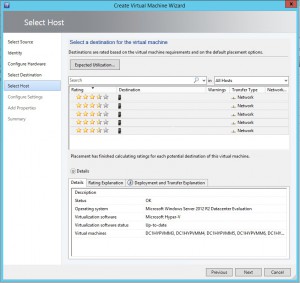
Select your Hyper-V Host
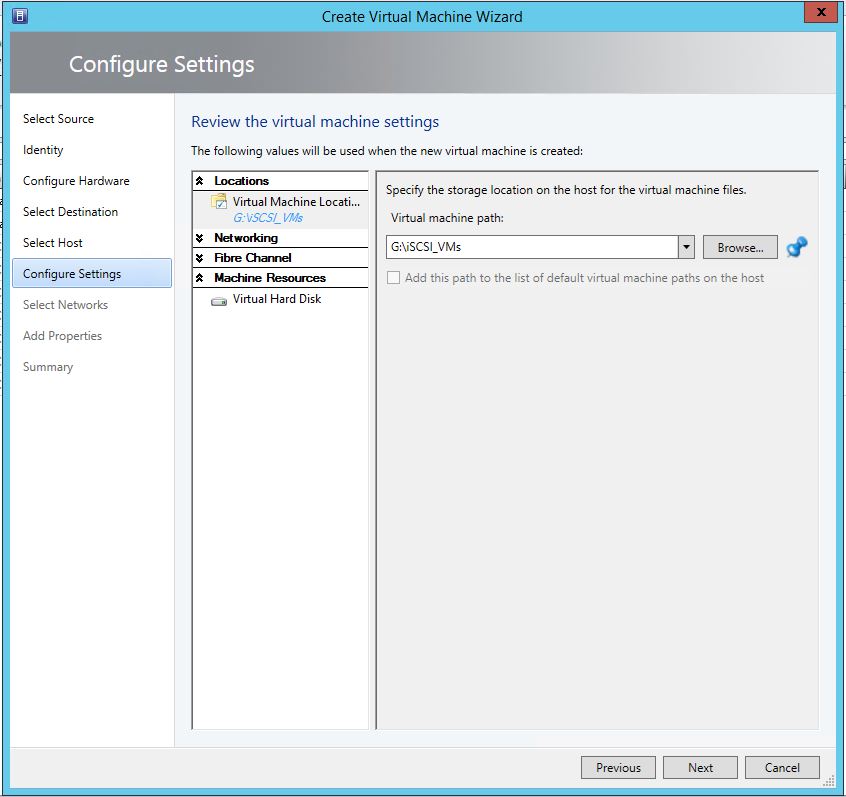
On the Configure Settings tab, choose the location where the VM will keep its virtual hard disk and then click Next.
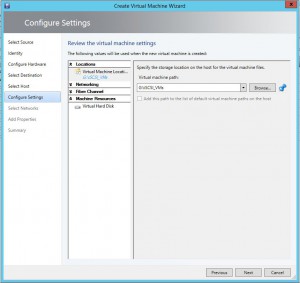
Configure your Hyper-V Template Settings
On the Configure Settings tab, choose the location where the VM will keep its virtual hard disk and then click Next.
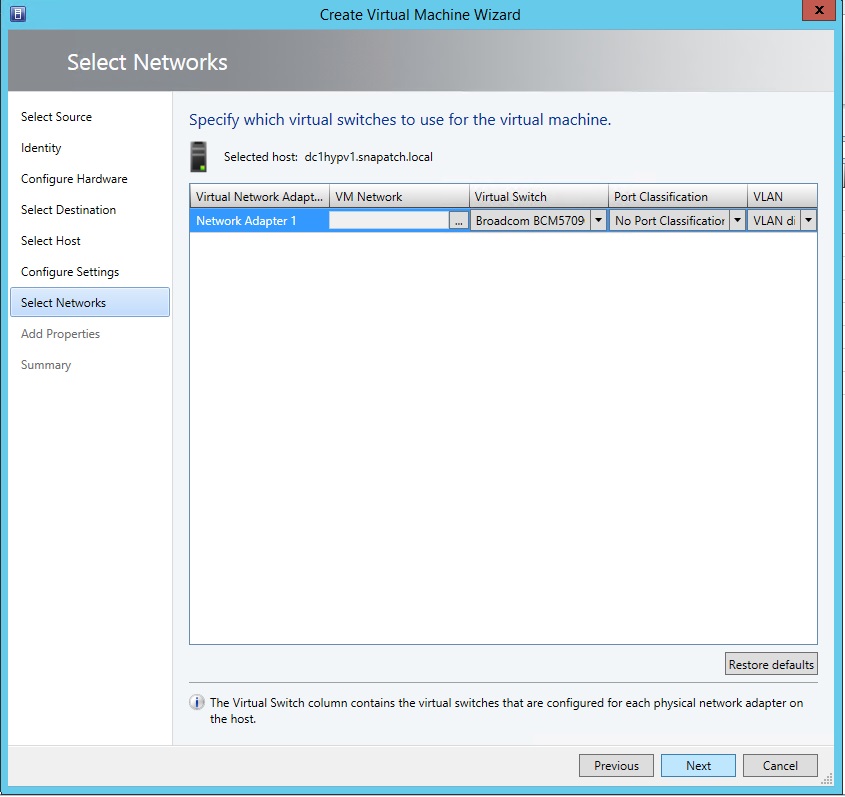
Choose your network adapter
Select the appropriate network, adapter and virtual switch then click Next.
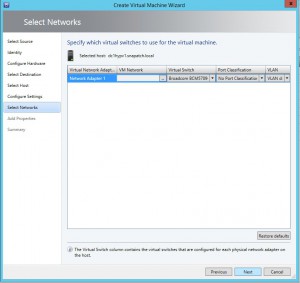
Template Hardware Options
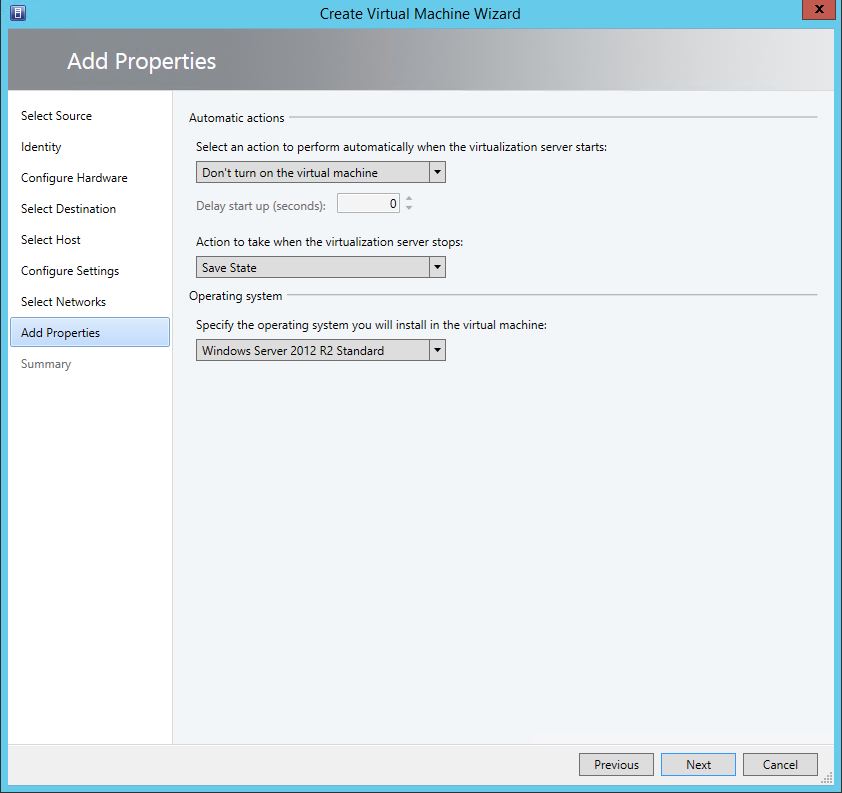
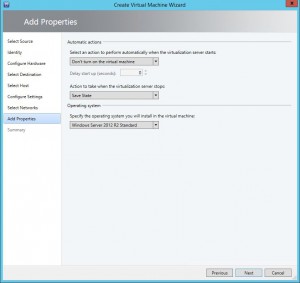
You can now choose a few options including if you wish to Turn the machine on automatically and specify the operating system that you will install.
Ready to create the Hyper-V Template
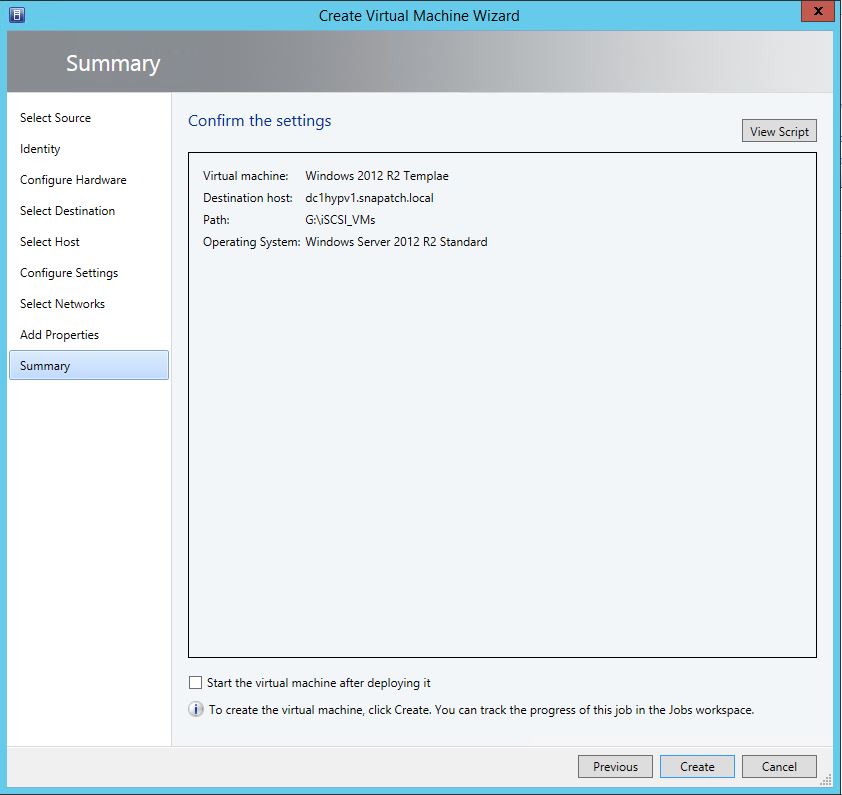
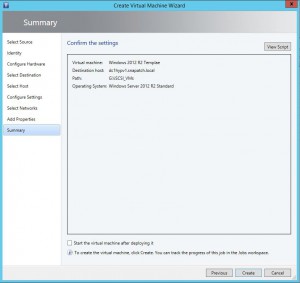
Check that the settings are correct, and when you are ready to, click Create.
Power On the Hyper-V Template
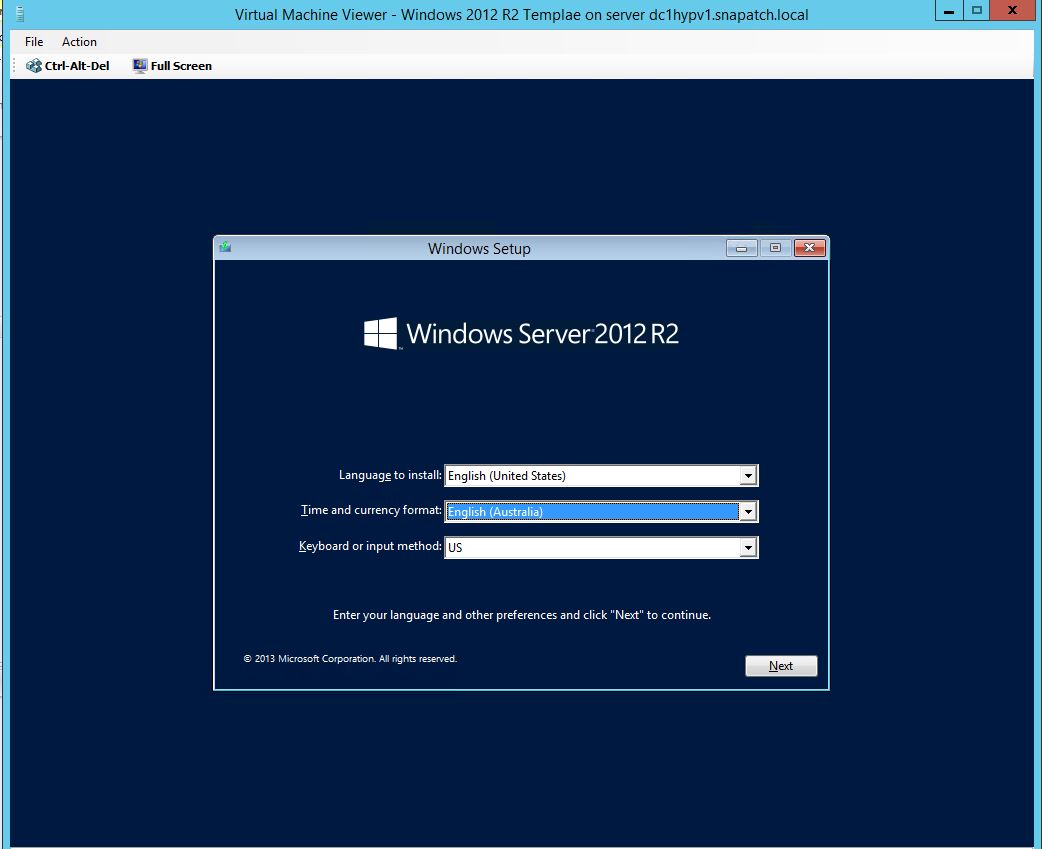
Now power on the VM if you have done so already, and install the operating system of your choice

Power On the Hyper-V Template
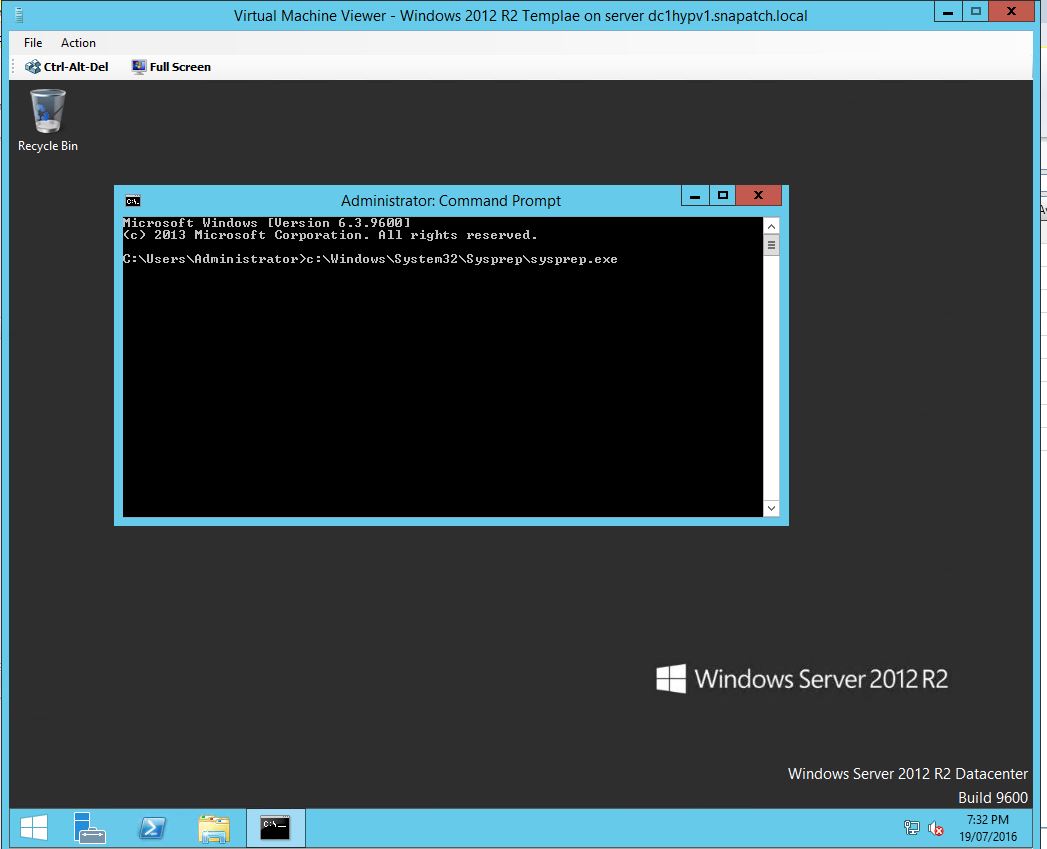
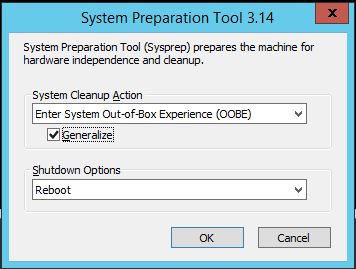
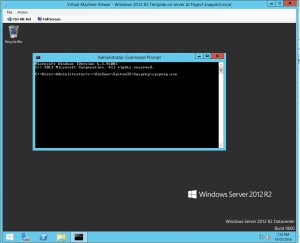
Now once you have installed the Windows Operating System, do not join the domain. Log on to the VM, open a command prompt and go to the Windows, System32, Sysprep folders then run sysprep.exe
Sysprep (System Preparation) is a Microsoft utility tool designed for system administrators to automate the deployment of Windows operating systems. It is used to prepare an operating system for disk cloning or for delivery to end-users.
Sysprep performs several key tasks, including:
- Generalizing the system: Sysprep removes specific information from the Windows installation that is unique to the system, such as the security identifier (SID), computer name, and drivers.
- Configuring the Windows Security settings: Sysprep can reset security settings to default settings, ensuring that all new installations of the operating system will have the same security settings.
- Removing the activation files: Sysprep can remove activation files, allowing the cloned operating system to be activated on a new computer.
- Shutting down the system: After preparing the operating system, Sysprep shuts down the computer, making it ready for disk imaging or delivery to an end-user.
Sysprep is a critical component in the deployment of Windows operating systems and is an essential tool for system administrators. It enables them to efficiently and easily deploy operating systems to multiple computers, ensuring that each installation is fully configured and ready to use.
Power On the Hyper-V Template
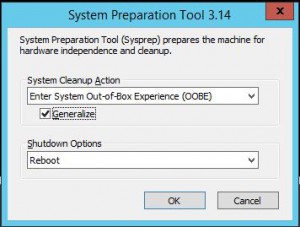
You will now be presented with the System Preparation tool. Make sure to check the Generalize checkbox as well as Shutdown in the shutdown options dropdown then click OK.
Once the system has been prepared, the VM will power off.
Power On the Hyper-V Template
Now that the VM has powered off, we need to convert it to a template. Highlight the powered off VM, right click and then Create and Create VM template to start the wizard.
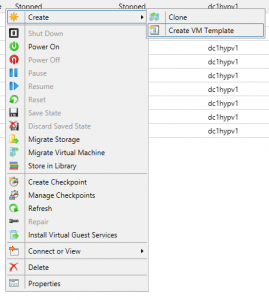
Hyper-V Template Creation Warning
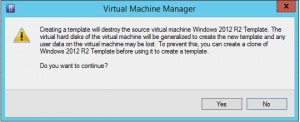
Next a warning is shown that you are about to convert this VM to a template. “Creating a template will destroy the source virtual machine “vm name”. The virtual hard disk of the virtual machine will be generalized to create the new template and any user data of the virtual machine may be lost. To prevent this, you can create a clone of “vm name” before using it to create a template.
Make sure you understand what you are committing this VM to and click Yes to continue.
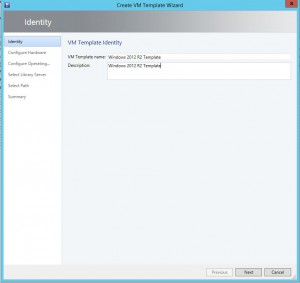
Create Hyper-V Template Wizard Starts
Now the Create VM Template Wizard starts. Give the template a name and description then click Next.
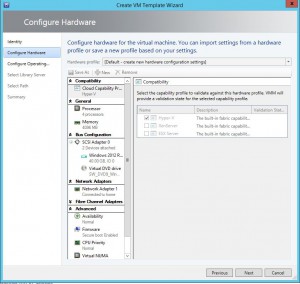
Confirm Template Hardware Configuration
Check you are happy with the hardware configuration then click Next.
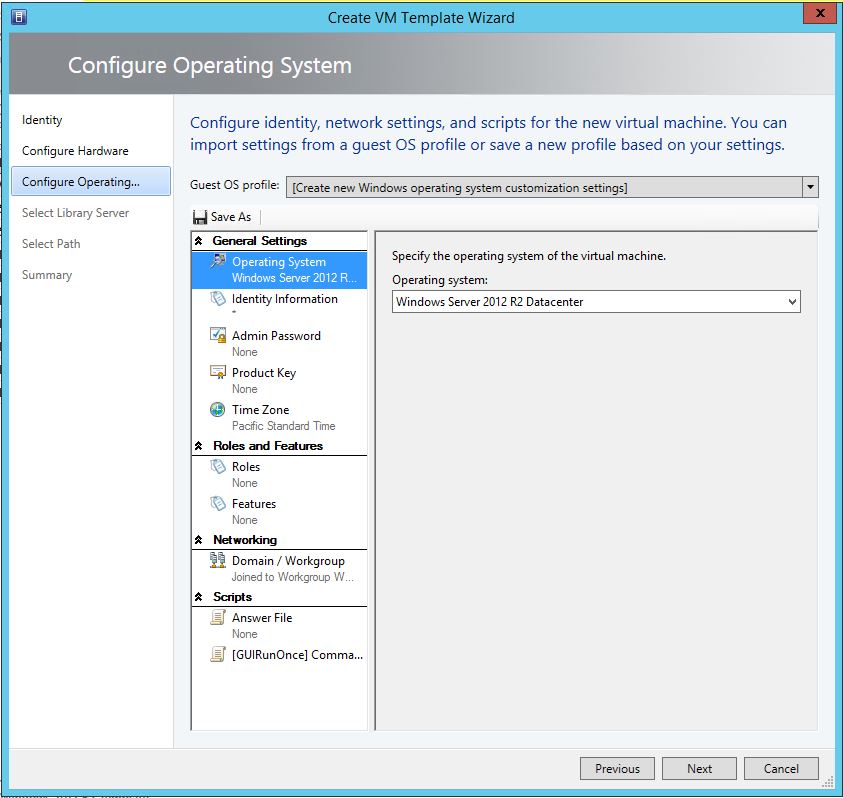
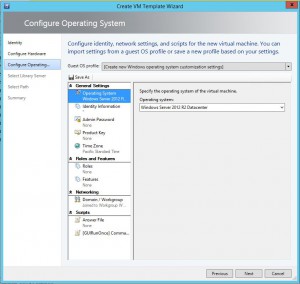
Configure Operating System Settings
The Configure Operating System Tab we can change settings for the OS. Time Zones, whether you wish it to join a domain automatically or not, and any additional Operating System Roles or Features you wish can be configured here. Change what you need and then click Next.
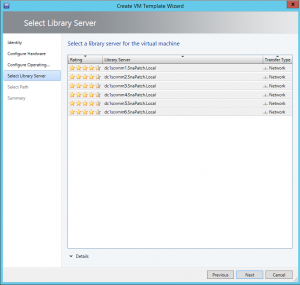
Choose a Server Library
On the Select Library Server tab, choose one of your library servers and choose Next.
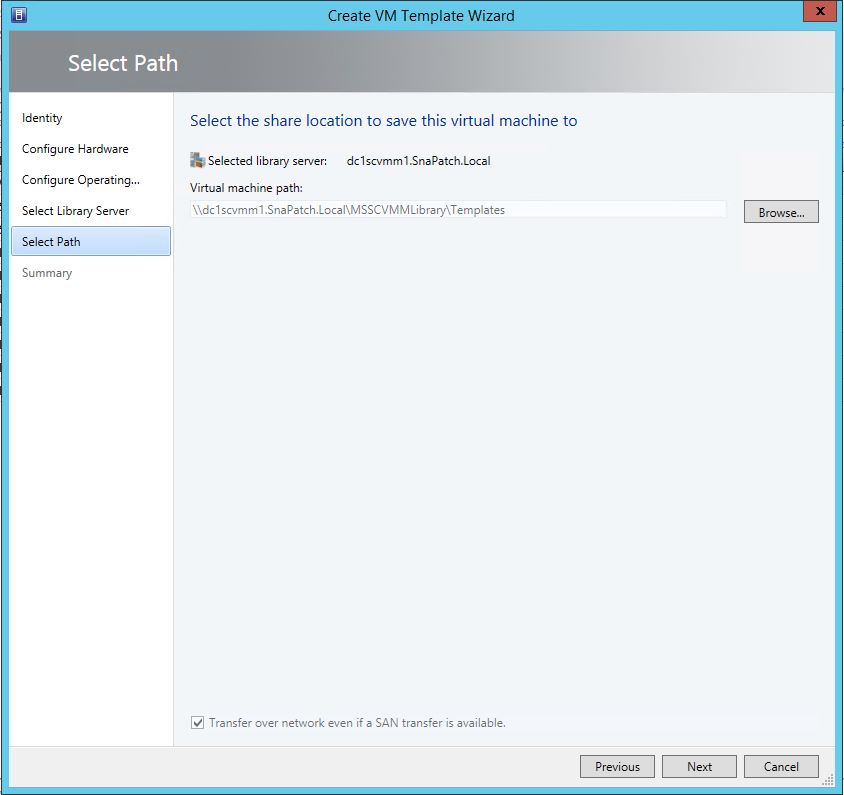
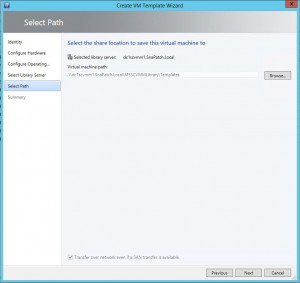
Choose a Server Library
Select the UNC Path location for the files to save to. Be mindful that other Hyper-V servers within your environment will require access to this folder.
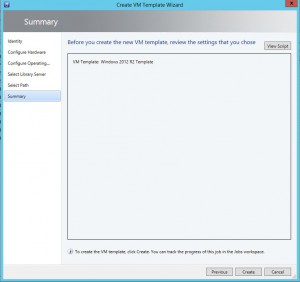
Choose a Server Library
Finally, on the Summary Tab, you can view the script details to see the settings you have chosen. Confirm you are happy with the settings then click on Create.
Thats all there is to it. Your SCVMM and Hyper-V environment should now be preparing the selected VM and converting it to a template for consistent deployment to your virtual environment.
Hyper-V templates can be a valuable tool for businesses looking to streamline their virtual infrastructure. By creating pre-configured templates, you can save time and effort when deploying new VMs, ensure consistency and standardization, and make it easier to manage your virtual infrastructure. By following best practices for managing templates, you can ensure that your virtual infrastructure is efficient, reliable, and scalable.
FAQ about Hyper-V templates
- What is a Hyper-V template?
A Hyper-V template is a pre-configured virtual machine image used as a starting point for creating new virtual machines. It allows administrators to standardize virtual machine configurations, reducing the time and effort required to deploy new virtual machines.
- How do I create a Hyper-V template?
To create a Hyper-V template, you need to create a new virtual machine and configure it as desired. Then, shut down the virtual machine and convert it to a template. This can be done through the Hyper-V Manager or through PowerShell.
- What are the benefits of using a Hyper-V template?
The benefits of using a Hyper-V template include reduced deployment time, standardization of virtual machine configurations, and the ability to easily update virtual machines. Templates also allow administrators to quickly deploy new virtual machines, reducing the risk of human error.
- What should I include in my Hyper-V template?
Your Hyper-V template should include all of the necessary software and configurations for your virtual machines. This might include operating systems, applications, security updates, and network configurations.
- Can I use a Hyper-V template for different types of virtual machines?
Yes, Hyper-V templates can be used for different types of virtual machines, including domain controllers, file servers, and web servers.
- How do I update a Hyper-V template?
To update a Hyper-V template, you need to update the virtual machine that the template is based on. After making the desired updates, shut down the virtual machine and then update the template.
- What are the limitations of using a Hyper-V template?
The main limitation of using a Hyper-V template is that it only provides a starting point for virtual machines. Administrators still need to configure each virtual machine individually, as the template does not automatically configure unique settings such as IP addresses.
- What are some best practices for creating Hyper-V templates?
Some best practices for creating Hyper-V templates include ensuring that all software and configurations are up-to-date, including only necessary software, and testing the template before deploying it to production. Additionally, it is important to regularly update templates to ensure that virtual machines are always running the latest software and configurations.

by Mark | Jul 13, 2016 | How To, Patch Management, Patch Releases, Security
The following eleven Patch Tuesday updates / patches have been released by Microsoft for the July 2016 Update deployment.
Are you ready to start deploying and remove the patching risk using SnaPatch Patch Management Software?
MS16-084 – Critical
Cumulative Security Update for Internet Explorer (3169991)
This security update resolves vulnerabilities in Internet Explorer. The most severe of the vulnerabilities could allow remote code execution if a user views a specially crafted webpage using Internet Explorer. An attacker who successfully exploited the vulnerabilities could gain the same user rights as the current user. If the current user is logged on with administrative user rights, an attacker could take control of an affected system. An attacker could then install programs; view, change, or delete data; or create new accounts with full user rights.
MS16-085 – Critical
Cumulative Security Update for Microsoft Edge (3169999)
This security update resolves vulnerabilities in Microsoft Edge. The most severe of the vulnerabilities could allow remote code execution if a user views a specially crafted webpage using Microsoft Edge. An attacker who successfully exploited the vulnerabilities could gain the same user rights as the current user. Customers whose accounts are configured to have fewer user rights on the system could be less impacted than users with administrative user rights.
MS16-086 – Critical
Cumulative Security Update for JScript and VBScript (3169996)
This security update resolves a vulnerability in the JScript and VBScript scripting engines in Microsoft Windows. The vulnerability could allow remote code execution if a user visits a specially crafted website. An attacker who successfully exploited the vulnerability could gain the same user rights as the current user. If the current user is logged on with administrative user rights, an attacker who successfully exploited the vulnerabilities could take control of an affected system. An attacker could then install programs; view, change, or delete data; or create new accounts with full user rights.
MS16-087– Critical
Security Update for Windows Print Spooler Components (3170005)
This security update resolves vulnerabilities in Microsoft Windows. The more severe of the vulnerabilities could allow remote code execution if an attacker is able to execute a man-in-the-middle (MiTM) attack on a workstation or print server, or set up a rogue print server on a target network.
MS16-088 – Critical
Security Update for Microsoft Office (3170008)
This security update resolves vulnerabilities in Microsoft Office. The most severe of the vulnerabilities could allow remote code execution if a user opens a specially crafted Microsoft Office file. An attacker who successfully exploited the vulnerabilities could run arbitrary code in the context of the current user. Customers whose accounts are configured to have fewer user rights on the system could be less impacted than those who operate with administrative user rights.
MS16-089– Important
Security Update for Windows Secure Kernel Mode (3170050)
This security update resolves a vulnerability in Microsoft Windows. The vulnerability could allow information disclosure when Windows Secure Kernel Mode improperly handles objects in memory.
MS16-090 – Important
Security Update for Windows Kernel-Mode Drivers (3171481)
This security update resolves vulnerabilities in Microsoft Windows. The more severe of the vulnerabilities could allow elevation of privilege if an attacker logs on to an affected system and runs a specially crafted application that could exploit the vulnerabilities and take control of an affected system.
MS16-091 – Important
Security Update for .NET Framework (3170048)
This security update resolves a vulnerability in Microsoft .NET Framework. The vulnerability could cause information disclosure if an attacker uploads a specially crafted XML file to a web-based application.
MS16-092– Important
Security Update for Windows SMB Server (3164038)
This security update resolves a vulnerability in Microsoft Windows. The vulnerability could allow elevation of privilege if an attacker logs on to the system and runs a specially crafted application.
MS16-093 – Important
Security Update for Adobe Flash Player (3174060)
This security update resolves vulnerabilities in Adobe Flash Player when installed on all supported editions of Windows 8.1, Windows Server 2012, Windows RT 8.1, Windows Server 2012 R2, and Windows 10.
MS16-094– Important
Security Update for Secure Boot (3177404)
This security update resolves a vulnerability in Microsoft Windows. The vulnerability could allow Secure Boot security features to be bypassed if an attacker installs an affected policy on a target device. An attacker must have either administrative privileges or physical access to install a policy and bypass Secure Boot.
See how SnaPatch can help and remove the risk of Patch Tuesday updates.

by Mark | Jul 12, 2016 | Errors, Fixes, How To, VMWare
VMWare PowerCLI Installation Failed
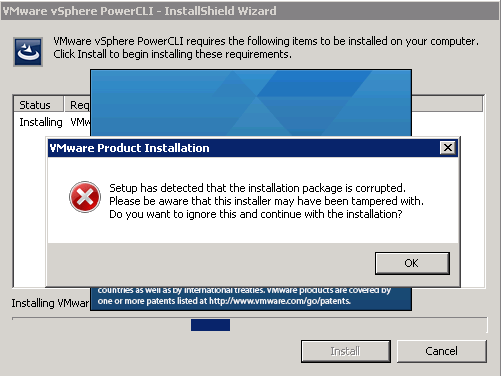
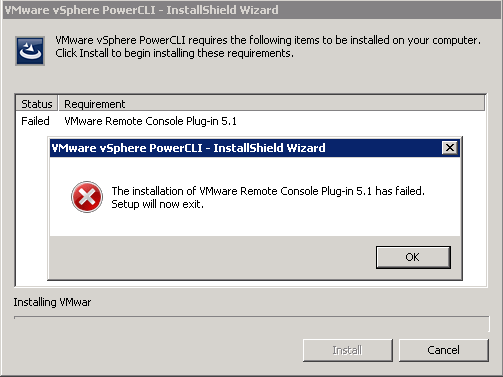
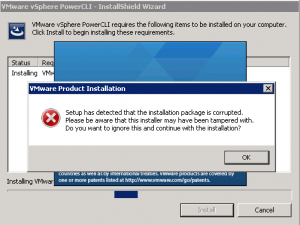
If you are installing VMWare’s PowerCLI for remote administration of your VMWare farm, or for SnaPatch or Snapshot Master you may at times receive the following error, “Setup has detected that the installation package is corrupted. Please be aware that this installer may have been tampered with.” One of the possible causes for this is that the root certificate for VeriSign isnt installed on your computer. There are a few ways to fix this issue, one is to download the root certificate from VeriSign themselves and then to install it to the local computer account under Third-Party Root Certification Authorities-Certificates, or to export it from the VMWare PowerCLI installation package.
VMWare PowerCLI setup error
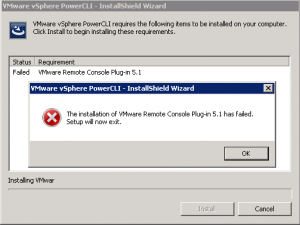
These screenshots show the error you would receive while trying to install the VMWare PowerCLI installer.
How to Manually install the root certificate
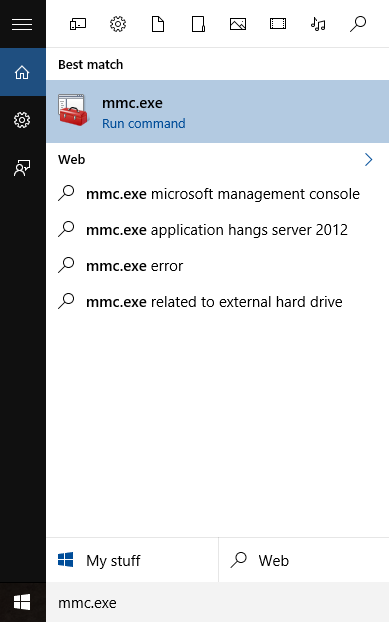
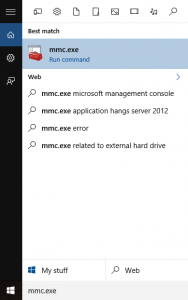
First off we will see if the root certificate is in fact already installed or not. From a command prompt type mmc.exe to open up the Microsoft Management Console.
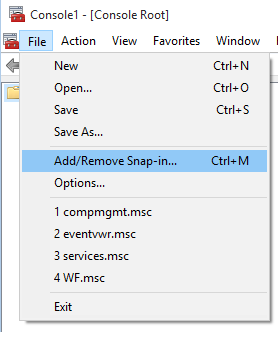
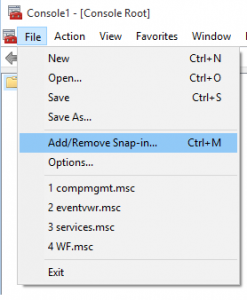
Now go to File, then Add/Remove Snap-in
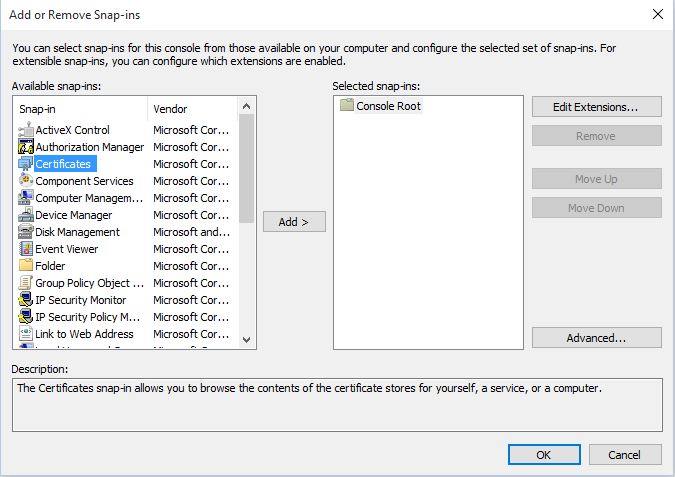
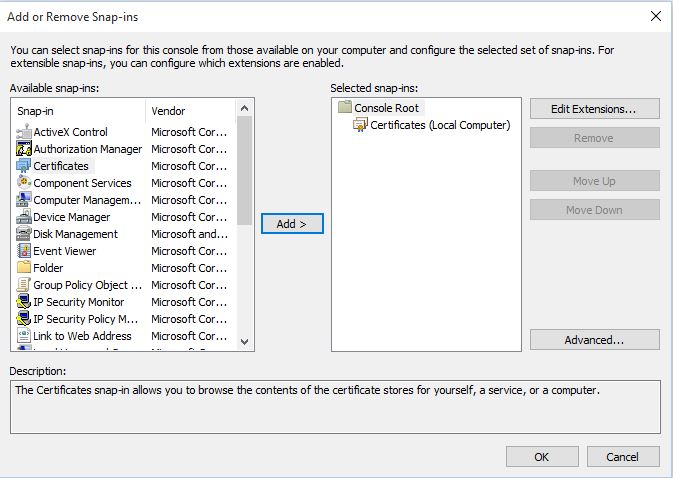
Next we have to choose the Certificates addin. Highlight Certificates then click on Add.
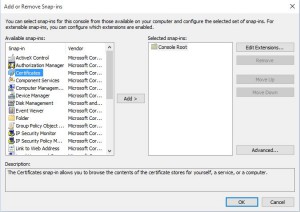
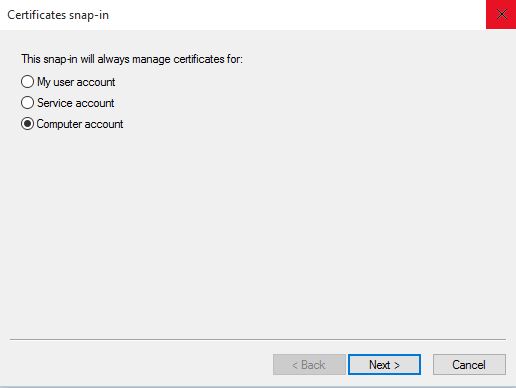
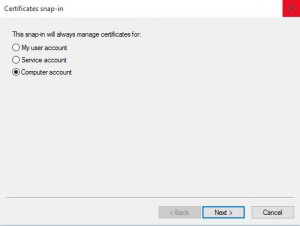
You will now need to select Computer Account and then click Next.
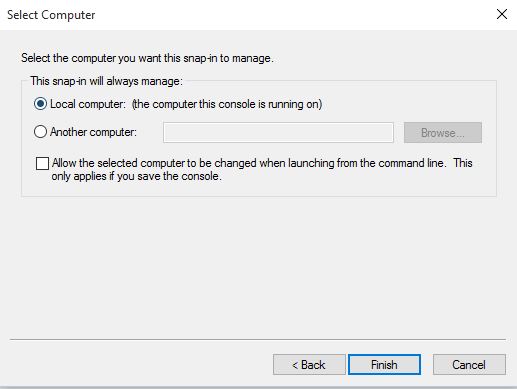
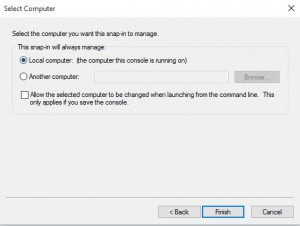
Choose Local Computer for the location that this snap-in will manage then click Next.
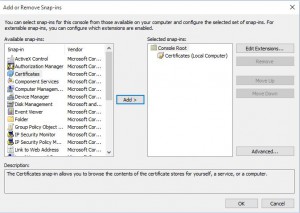
Now click OK and the Certificates Snap-in will be available.
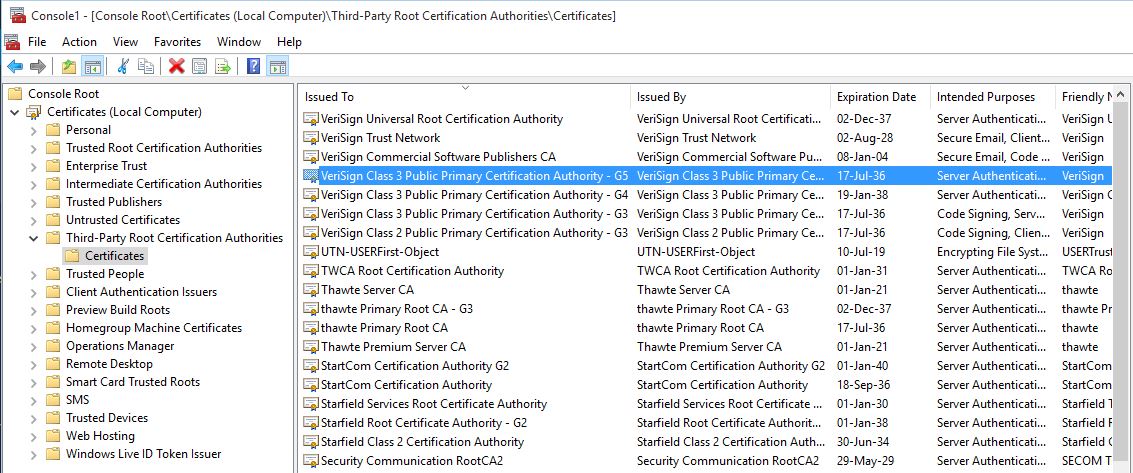
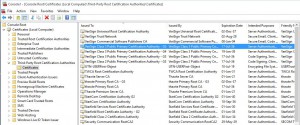
Expand Certificates, then Third-Party Root Certification Authorities and finally Certificates. You will now need to look for the Root Certificate, VeriSign Class 3 Public Primary Certification Authority – G5. In this example you can see that the certificate is installed. If it isnt installed you can download and install the certificate to the shown location. If you cannot download the root certificate it is possible to import the certificate from the VMWare PowerCLI installation package, as shown in further steps.
How to import the certificate from the VMWare package
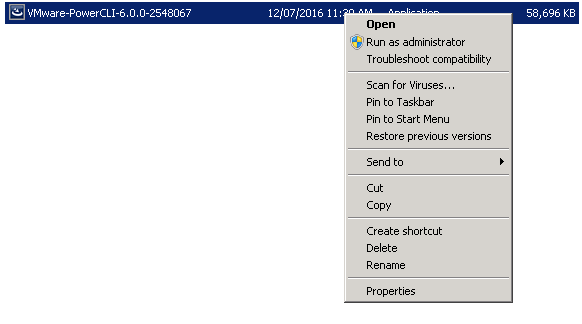
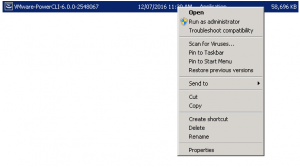
Now you will need to export the Root Certificate from the VMWare PowerCLI installation package. To do so, locate the EXE file and right click it then choose properties.
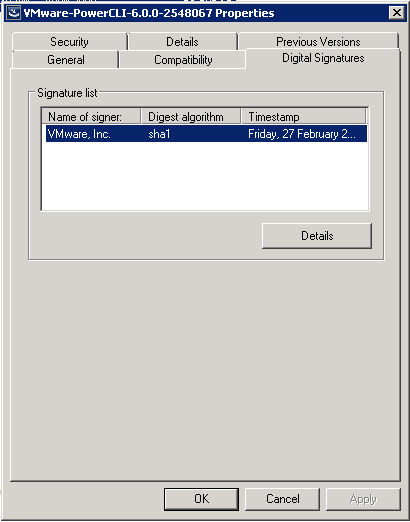
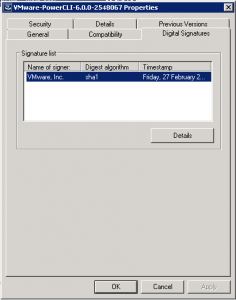
Change the tab to Digital Signatures then click Details.
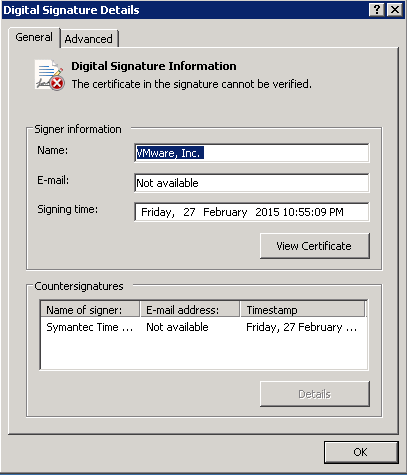
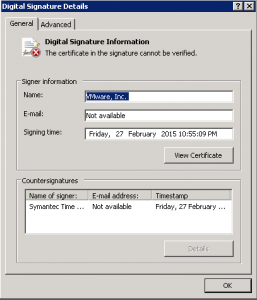
As you can see in this example, “the certificate in the signature cannot be verified”. Click View Certificate to proceed.
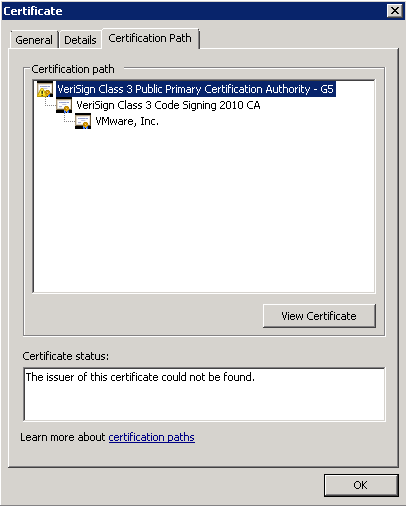
Change to the Certification Path tab and make sure you select the top of the certification path. In this example, you can see it highlighted as VeriSign Class 3 Public Primary Certification Authority – G5. Once selected click View Certificate.
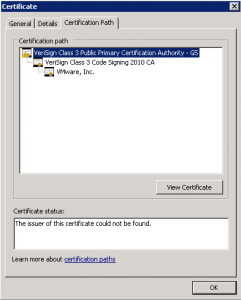
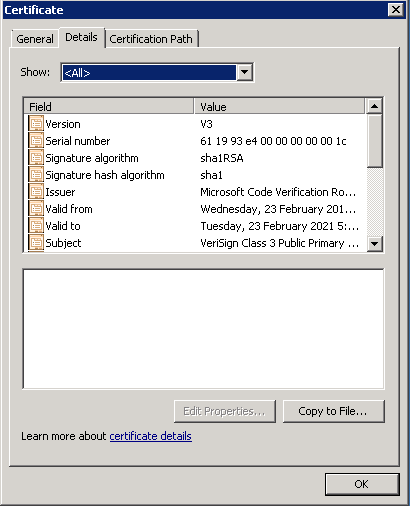
Again, in the next window go to the Details tab then click Copy to File.
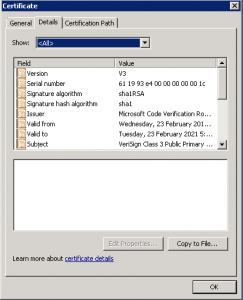
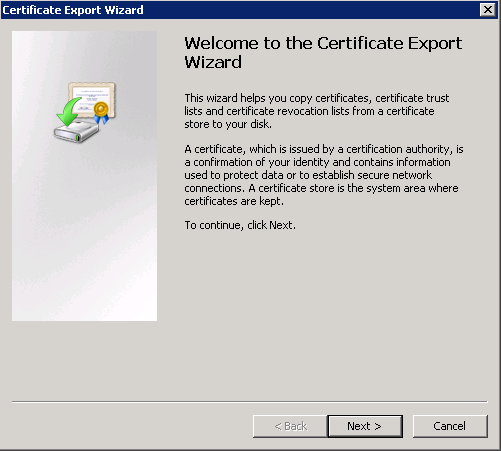
The Certificate Export Wizard starts next. Click on Next to proceed with the Wizard.
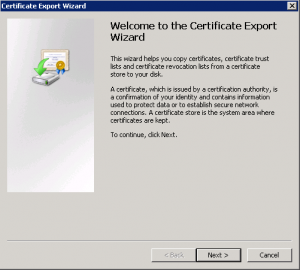
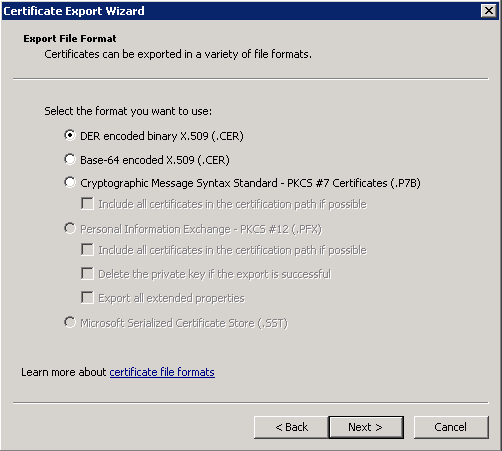
Leave the Format as DER and then click on Next.
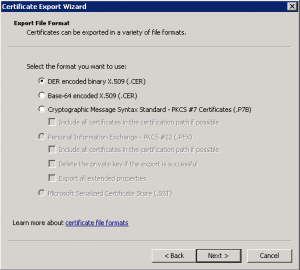
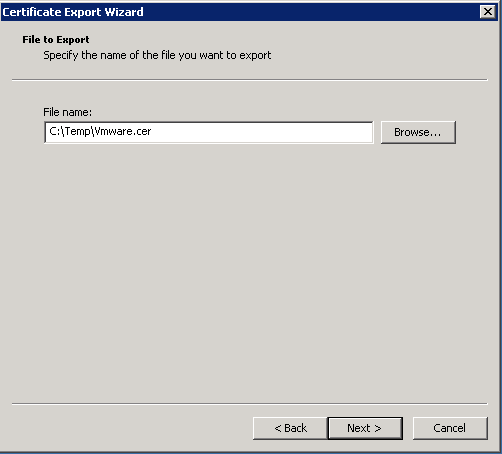
Choose the location and filename where you want to save the exported certificate and then click Next.
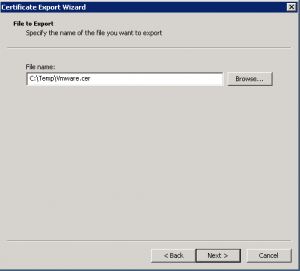
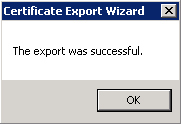
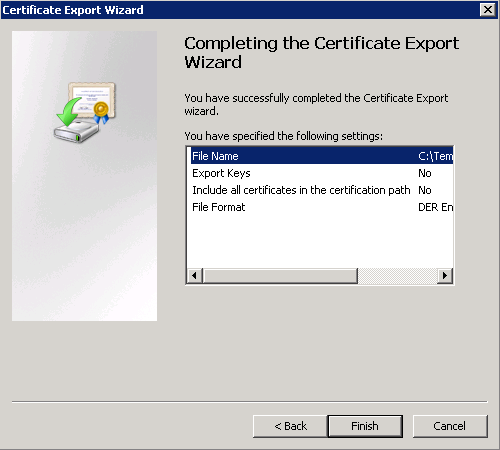
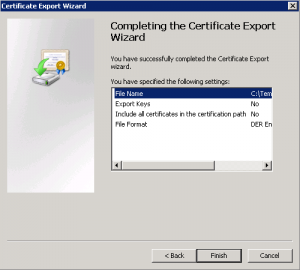
You can now click Finished and the Certificate Export Wizard will then close.
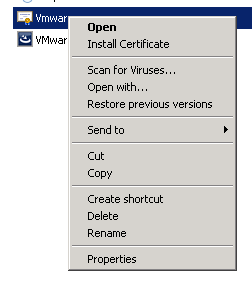
Next we need to import the VeriSign Root Certificate to the correct location. Right click the exported certificate and select Install Certificate.
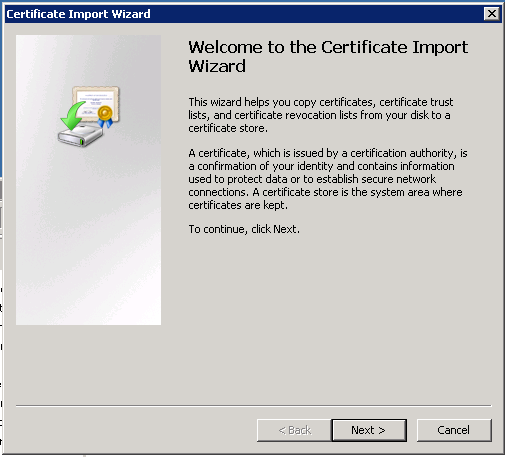
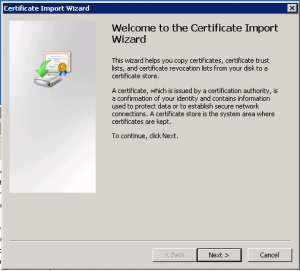
The Certificate Import Wizard now starts. Click Next.
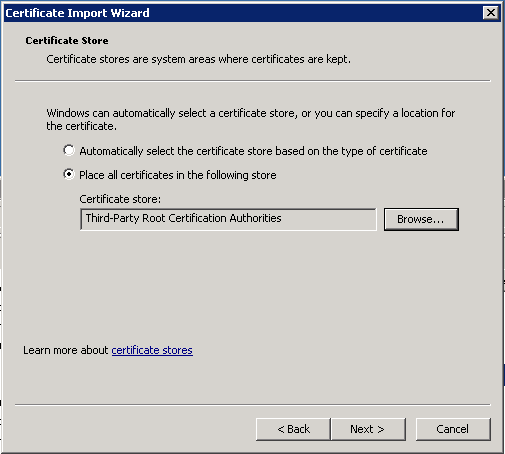
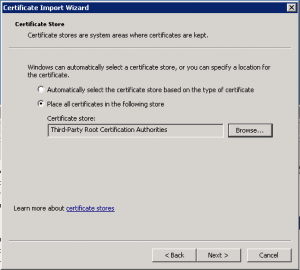
Select Place all certificates in the following store and then choose Third-Party Root Certification Authorities. Click Next when ready to do so.
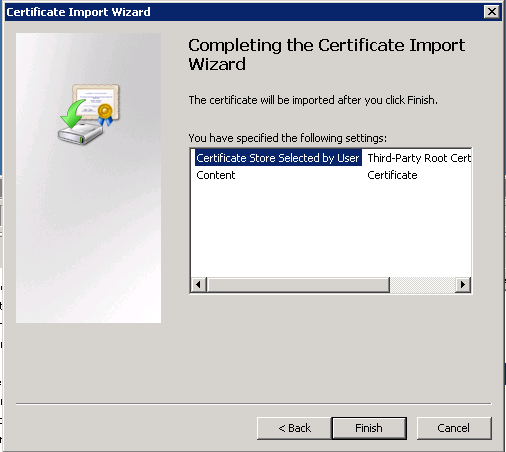
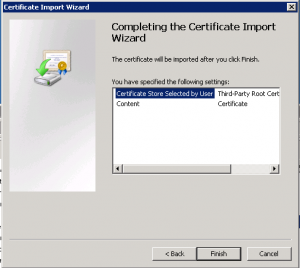
Now click Finish.
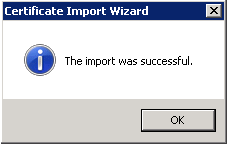
The Root Certificate from VeriSign should now have installed in to the correct location and you can then restart the installation of VMWare PowerCLI.

by Mark | Jul 11, 2016 | How To, VMWare
How to Create a VMWare Template for Deployment
So you are deploying Servers regularly and ask becoming sick of completing this the manual way. Well to create a template for quick deployment is relatively easy, just follow the steps in this blog post and you will be deploying VMs in no time.
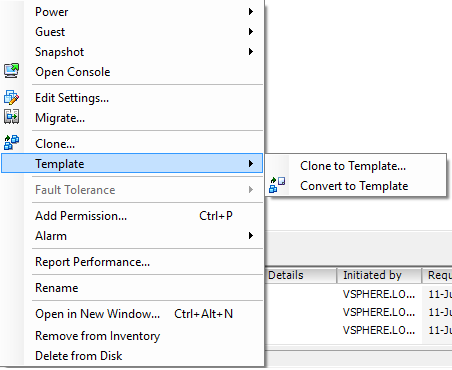
There are two methods to create a VMWare template, Clone to Template or Convert to Template.
Clone to Template
Clone to Template does exactly that. It creates an exact copy of the VM and leaves the original VM you choose intact. Choosing this option allows you to change the format of the Virtual Disk to either Thick or Thin Provisioning. Thin Provisioning the disk will allow the VM to use only the disk space it requires, and grow with time. Thick Provisioning the VM will use the amount of Disk Space you specify. Creating a Clone to Template VMWare duplicates the Virtual Disks and the .VMX file that holds all the configuration settings for that Virtual Machine.
Convert to Template is the other possible method available to you. (This is what I use in this example). It is much faster than using Clone to Template as it is not required to duplicate the source Virtual Machine disks. What it does is changes this VM to a Template format.
Once you have finished creating a VMWare Template following this post, Click this link to see how to make a VM automatically join a Windows Domain.
Convert to Template
Convert to Template is the other possible method available to you. (This is what I use in this example). It is much faster than using Clone to Template as it is not required to duplicate the source Virtual Machine disks. What it does is changes this VM to a Template format.
Once you have finished creating a VMWare Template following this post, Click this link to see how to make a VM automatically join a Windows Domain.
VMWare Template FAQs
What is a VMWare template?
VMWare template is a pre-configured virtual machine that can be easily duplicated and deployed.
Why should I create a VMWare template?
Creating a VMWare template can save you time and effort when deploying multiple virtual machines with the same configuration.
What are the two methods for creating a VMWare template?
The two methods are Clone to Template and Convert to Template.
What is the difference between Clone to Template and Convert to Template?
Clone to Template creates an exact copy of the virtual machine, while Convert to Template changes the virtual machine to a template format.
Which method is faster, Clone to Template or Convert to Template?
Convert to Template is generally faster as it doesn’t require duplicating the source virtual machine disks.
What are the steps to create a VMWare template?
The steps are: log in to your VMWare console, create a new virtual machine, specify the name, host/cluster, storage, operating system, network, and disk settings, install the operating system, shut down the virtual machine, and finally convert it to a template.
How can I customize the hardware settings of my VMWare template?
You can customize the hardware settings by selecting “Edit Settings” on the virtual machine and changing the appropriate settings.
How can I deploy a virtual machine using my VMWare template?
To deploy a virtual machine using your VMWare template, right-click the template, choose “New Virtual Machine,” and follow the prompts.
Can I change the configuration of a VMWare template after it has been created?
Yes, you can edit the settings of a VMWare template by converting it back to a virtual machine, making the necessary changes, and then converting it back to a template.
Are there any considerations to keep in mind when creating a VMWare template?
Yes, it’s important to ensure that the operating system is properly licensed and that any necessary updates and patches are applied before creating the template. It’s also important to follow best practices for securing virtual machines.
Create a VMware Template in the VMware Console
Login to your VMWare Console
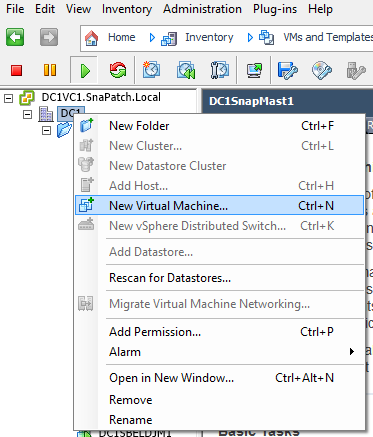
Log in to your VMWare console and then Right Click your datacentre and choose New Virtual Machine.
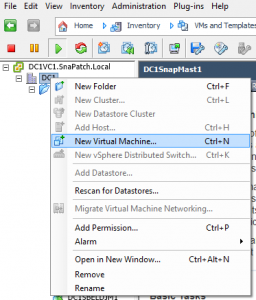
VMware Templation Creation
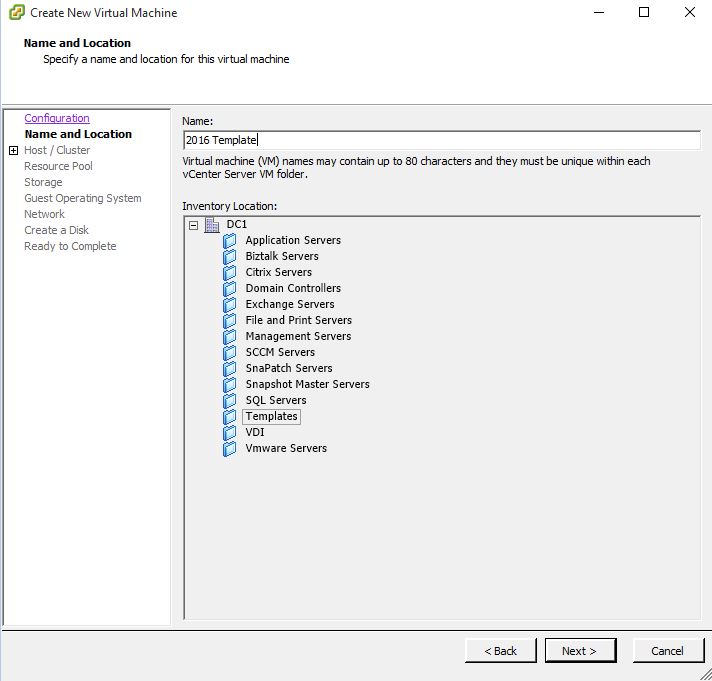
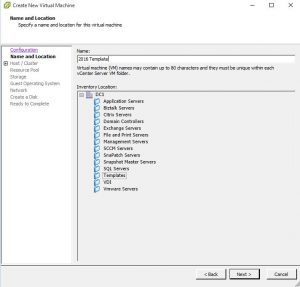
Now give the VM a name. As this is going to be a template for future deployment of Windows Server 2016, I have chosen 2016 Template to make it easier to see which Operating System this template will install.
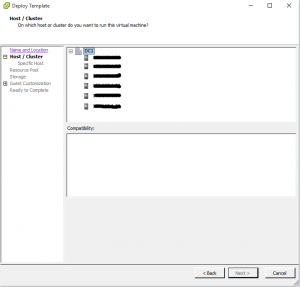
VMware Host / Cluster Tab
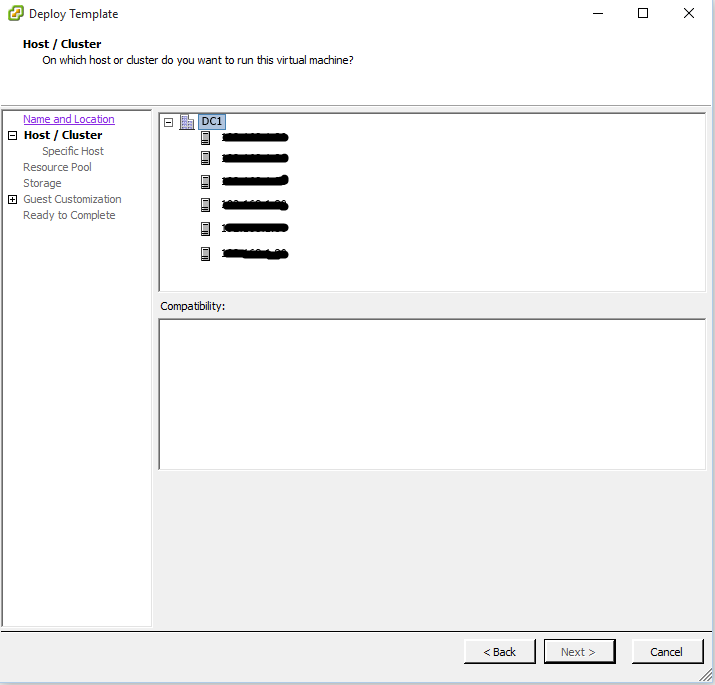
Chose the Host or Cluster you want the VM to be deployed to then click on Next.
VMware Host / Cluster Tab
Chose the Host or Cluster you want the VM to be deployed to then click on Next.
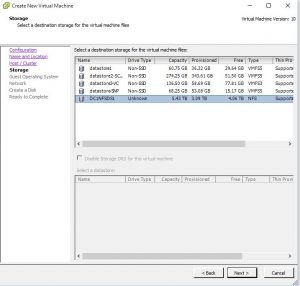
VMware Storage Tab
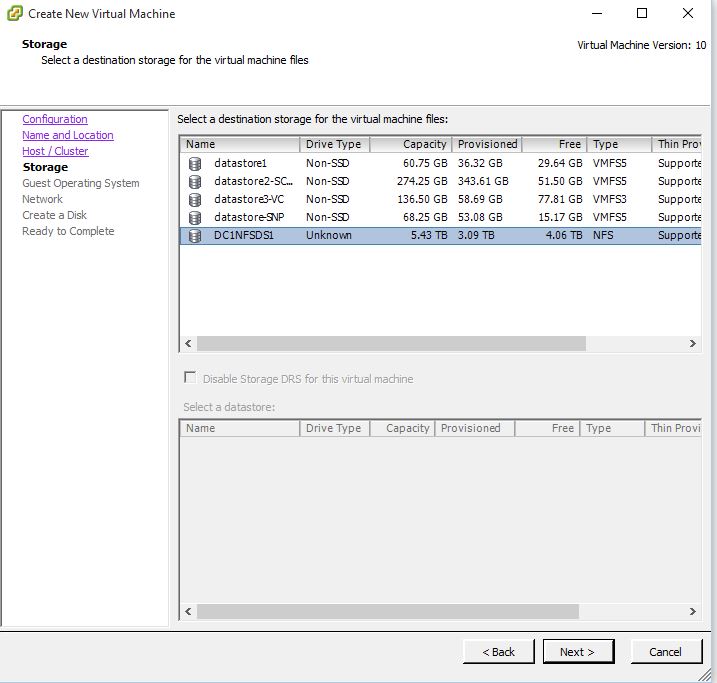
Next you specify the storage location for the VM to reside on. Select the appropriate VM datastore and then click on Next.
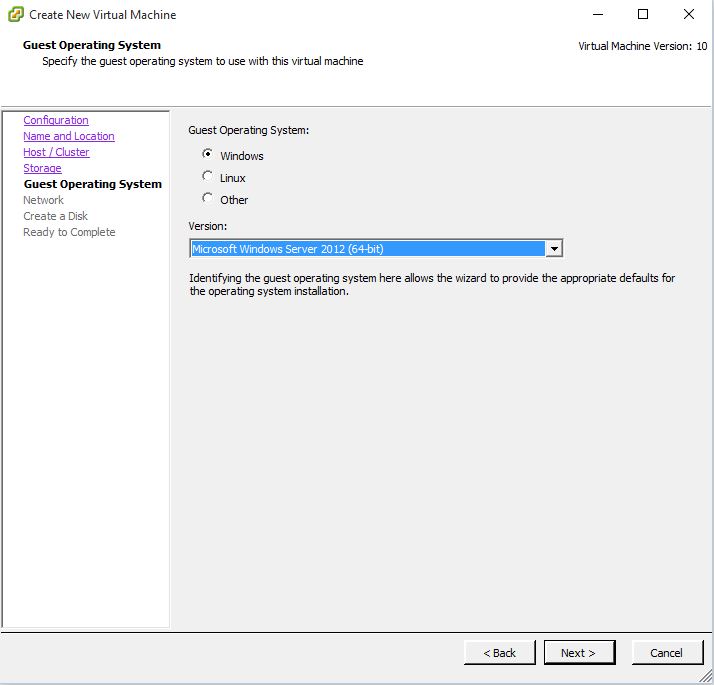
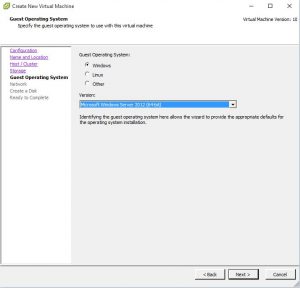
VMware Guest Operating System Tab
Choose the Operating System you want to install on the VM and click Next.
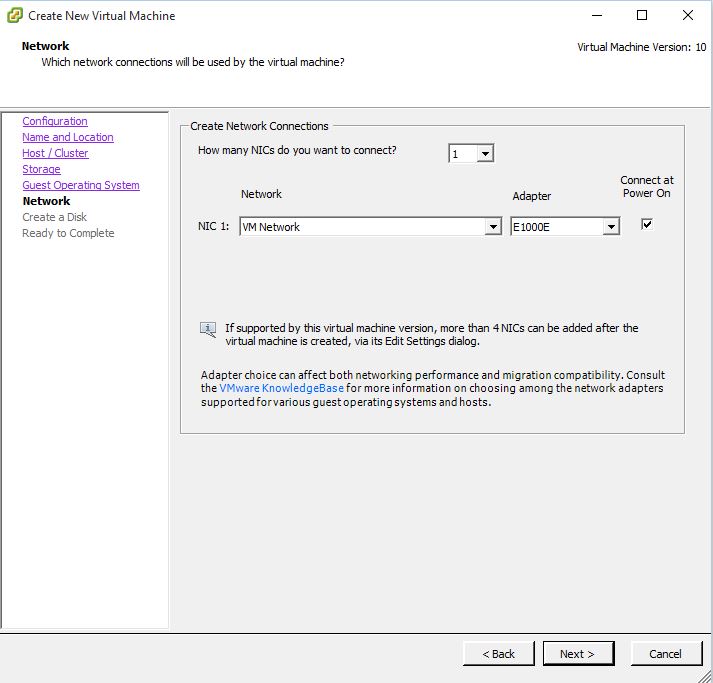
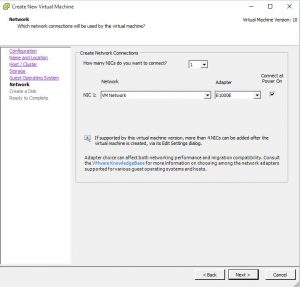
VMware Template Creation Network TAB
Select the VMware network you want this VM to communicate on and click Next.
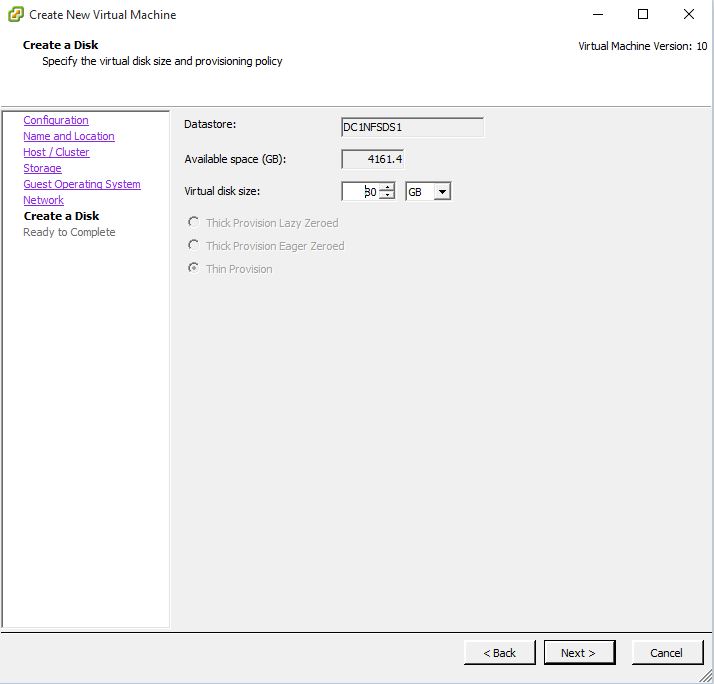
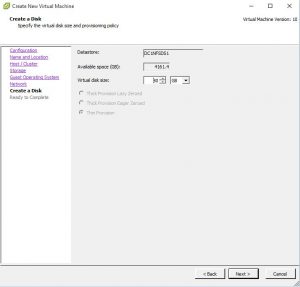
VMware Template Disk Creation
Specify the size of the Operating System Disk then click Next.
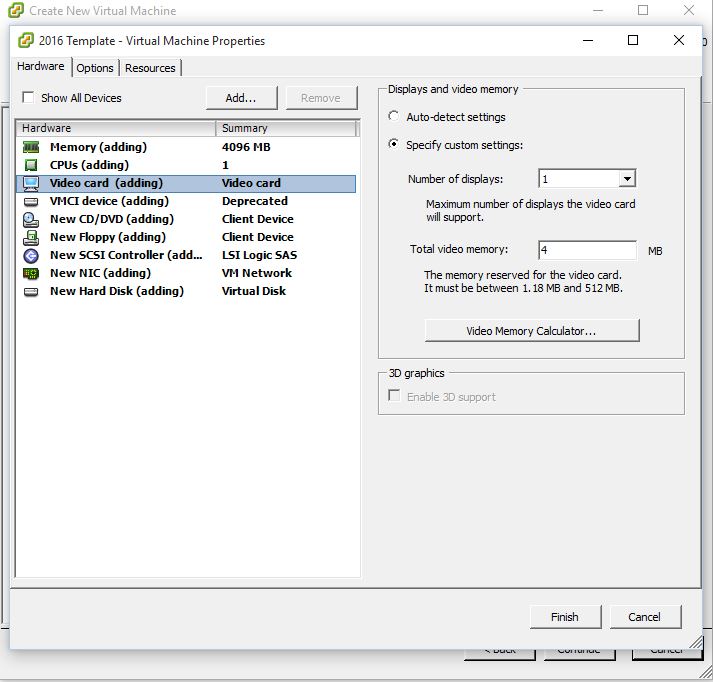
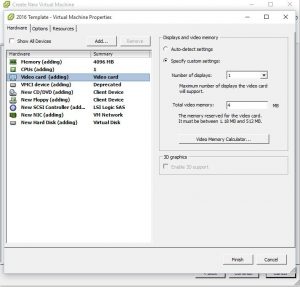
VMware Template Completion
Confirm the settings are correct and click on Finish. In this example I checked the checkbox for Edit the virtual machine settings before completion to show you what hardware settings you can change. Click Finish when ready.
VMware Template Settings
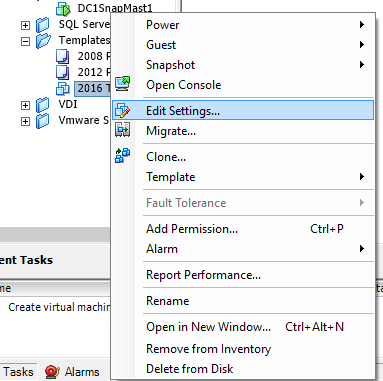
Now the VM is ready to install the operating system, you will have to attach an ISO file for the installation. Find the VM then Right Click the Virtual Machine and select Edit Settings.
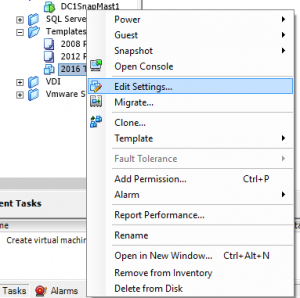
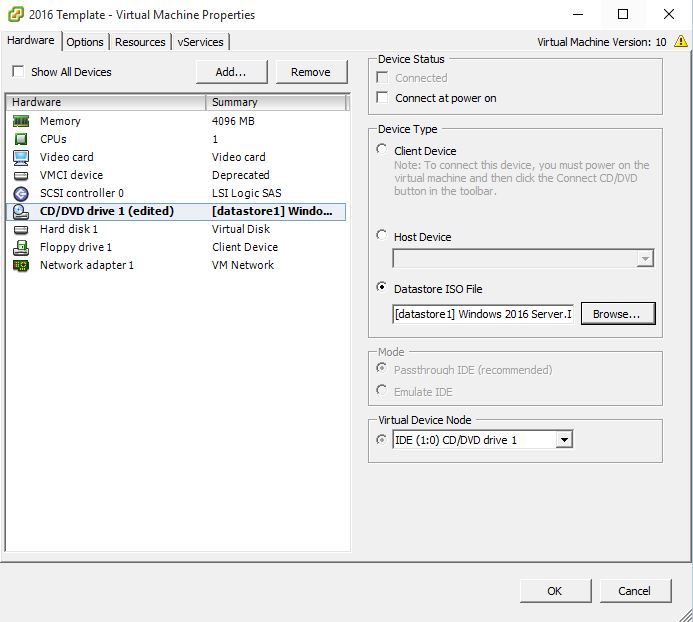
Edit VMware VM Settings
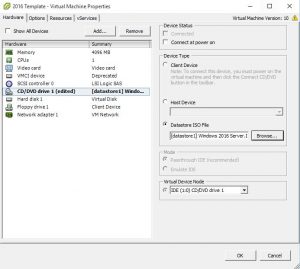
Select CD/DVD drive then Datastore ISO file. Browse to the datastore location of your Operating System installation media and select the appropriate media then click on OK. You can also change other hardware settings for this template.
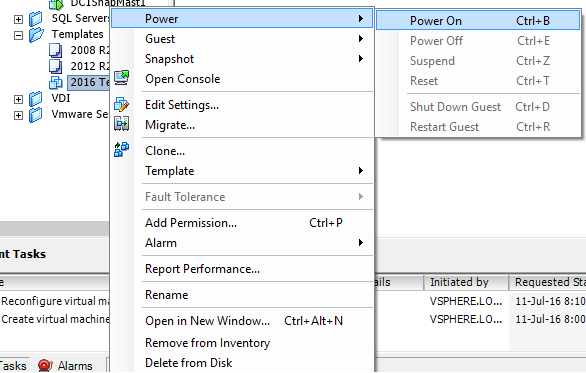
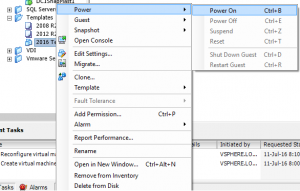
VMware Template – Power On
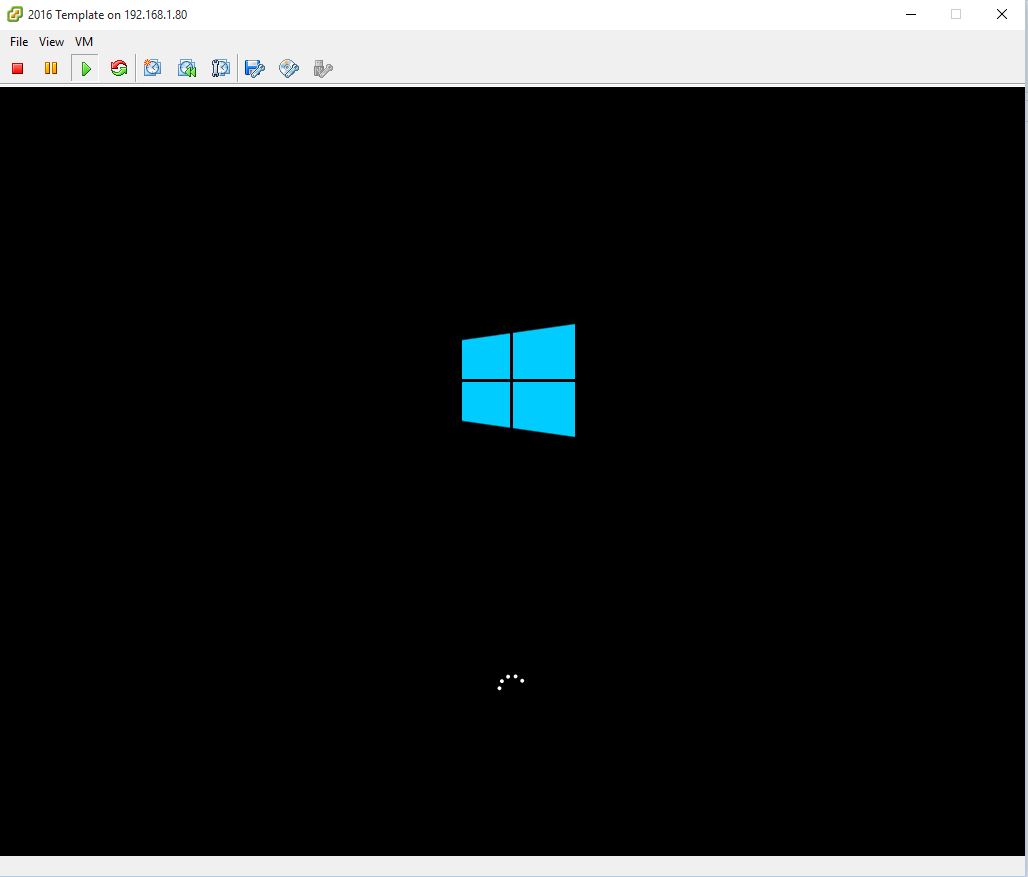
Now we need to install the Operating System so that we can easily redeploy this VM as a template. Right Click the VM and choose Power On.
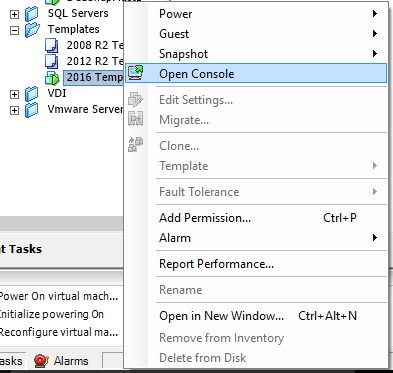
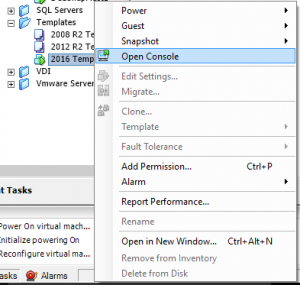
VMware Template – Open the VM Console
Right Click the VM again and choose Open Console so that you can install the Operating System.
Install the VM Operating System
Next will require you to install the Operating System. Please note that if you are going to change this to a VM Template, do not join your Windows Domain.
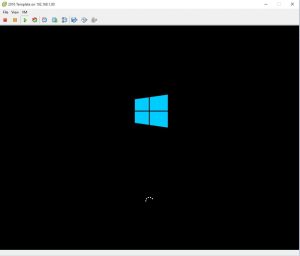
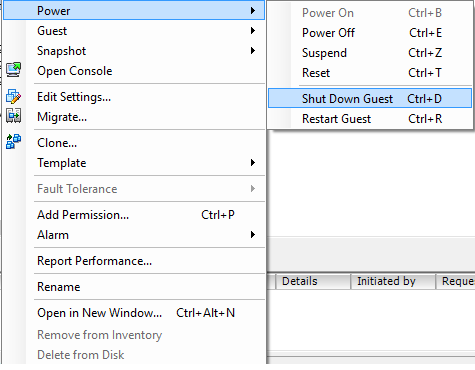
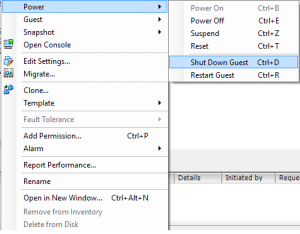
Shutdown the VM
Once the machine has logged in to Windows for the first time, shut the machine down.
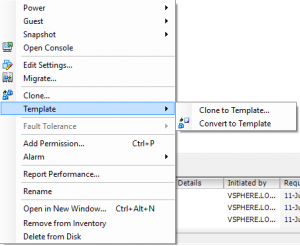
Create a VMWare Template
Once the installation of the Operating System has completed and the Virtual Machine is powered off we can now create a VMWare Template. Right Click the Virtual Machine, go to Template, then Convert to Template. This will now change the Virtual Machine and convert it to a ready to deploy Template for quick and easy future deployment.
Creating a VMWare template can save you time and effort when deploying servers regularly. By following the steps in this post, you can create a VMWare template using the Convert to Template method. Remember to shut down the VM after the first Windows login and then convert it to a template. With a VMWare template, you can deploy VMs in no time and focus on other tasks that need your attention.

by Mark | Jul 11, 2016 | How To, VMWare
Virtual machines have become an essential part of modern IT infrastructure, as they allow administrators to create and manage multiple computing environments on a single physical machine. This can be incredibly useful for tasks such as testing, development, and training. When deploying a virtual machine, it is often necessary to perform customizations, such as joining the machine to a domain, setting network configurations, and specifying local administrator password, among others. This article provides a step-by-step guide to deploying a virtual machine and joining it to a domain automatically using VMWare Customization script. The article covers each step of the customisation process, including how to specify domain information, set the computer name, configure the Windows license, set the time zone, and much more. This guide is intended for administrators who want to automate the process of deploying virtual machines and joining them to a domain, and it provides detailed, actionable instructions for achieving this goal.
How to Deploy a VM and join a Domain Automatically
If you ever have the need to deploy a Virtual Machine and have some customisations for deployment (i.e. Network Settings or have the automatically join a domain), this post will show you how to.
The VMWare Customistation script will allow you to specify;
- Domain to join automatically
- Network settings
- Registration Settings
- Computer Name
- Windows License
- Time Zone
- Local Administrator Password
- Operating System Settings.
Assuming here (I know, never assume anything) that you have already created a VM template to deploy (If you havent already created one, click the link to see a blog post on How to Create a VMWare Template) follow these steps to create your very own VMWare Customisation Script.
VMWare vCentre Console
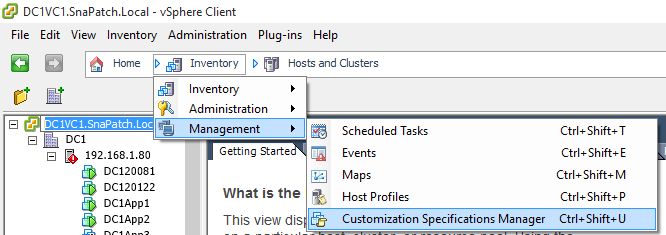
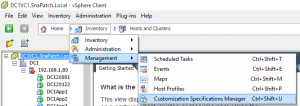
1. Log in to your Vmware vCentre Console. Choose Home, then Inventory, Management and finally Customistation Specifications Manager.
VM Properties Tab
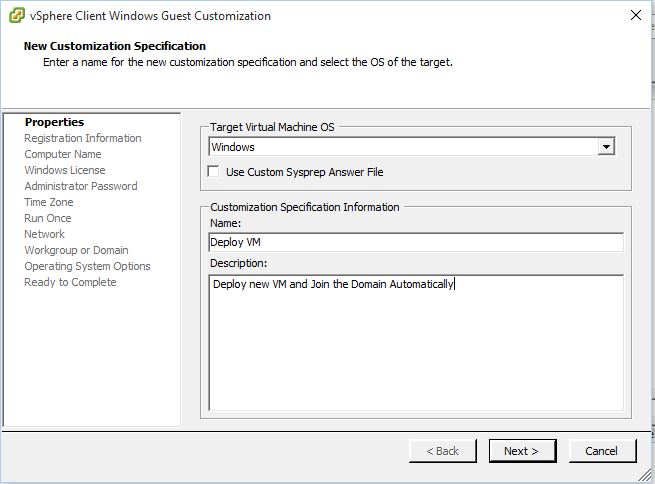
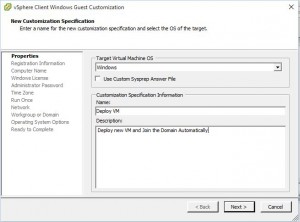
2. The VMware Customisation Wizard starts. Choose the Operating System and provide a Name and Description then click Next.
Registration Information Tab
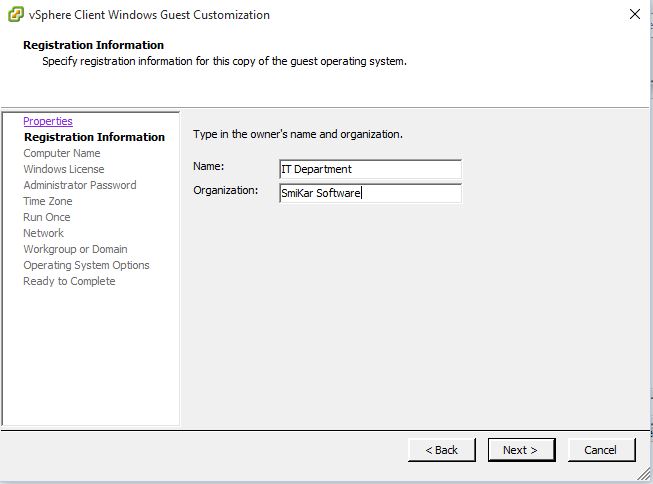
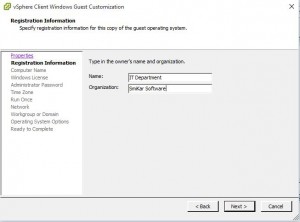
3. Provide the Name and Organisation that the server will belong to then click Next.
Virtual Machine Computer Name Tab
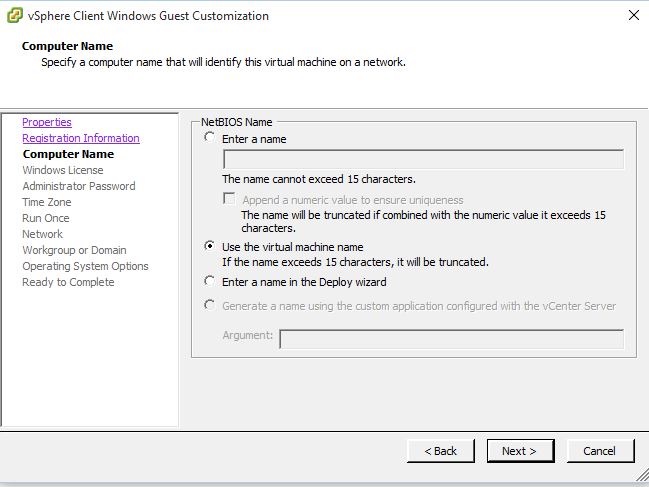
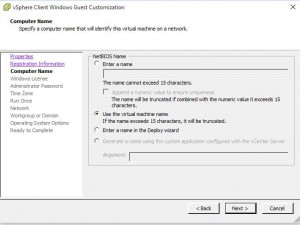
4. Next we need to configure the name of the VM. In this example, I am choosing to use the Virtual Machine name as this will match against Vmware and Active Directory making it easier to identify. Click Next when ready to proceed.
Windows License Tab
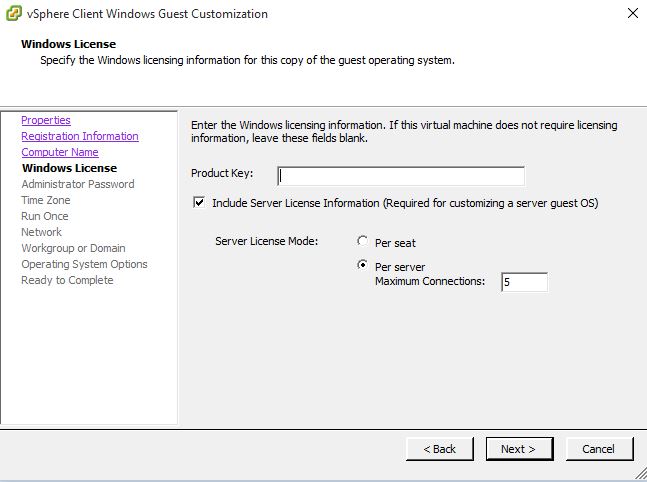
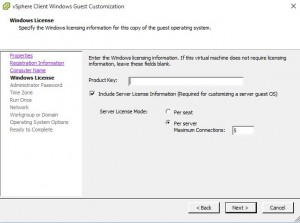
5. If you have a product key you can enter it here. As I am using KMS in my domain for Windows Licensing, I chose to leave this blank. Again, click Next when ready.
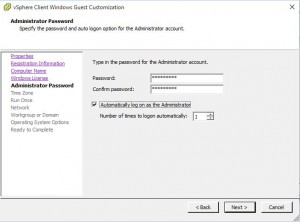
Administrator Password Tab
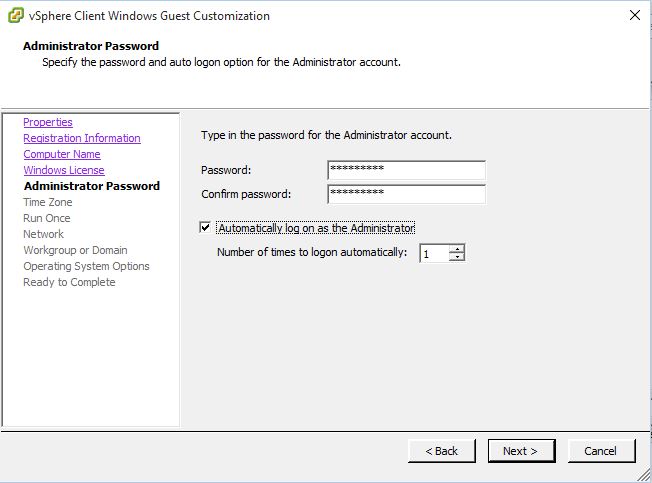
6. Add the Administrator password and how many times you wish for the Administrator account to login. This is used for the Local Administrator account not a Domain Administrator. Click Next.
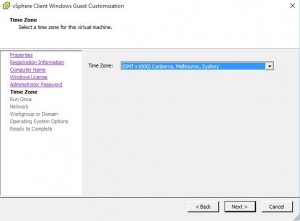
Time Zone Tab
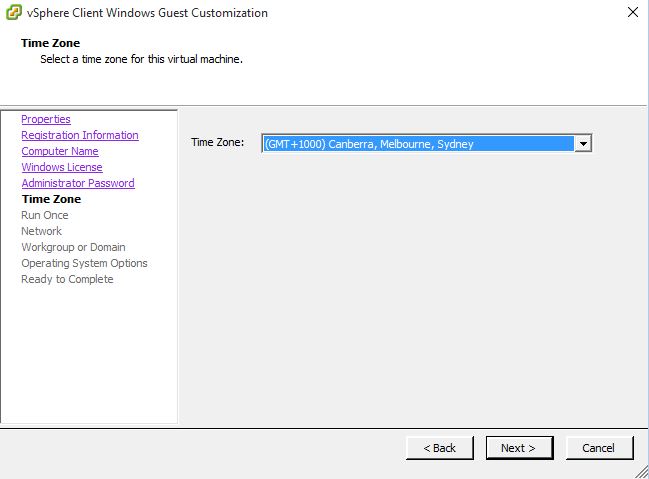
7. Choose the Time Zone relevant to your environment then click Next.
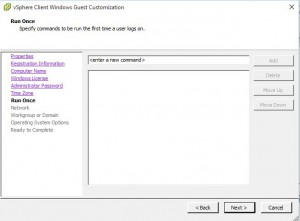
Run Once Tab
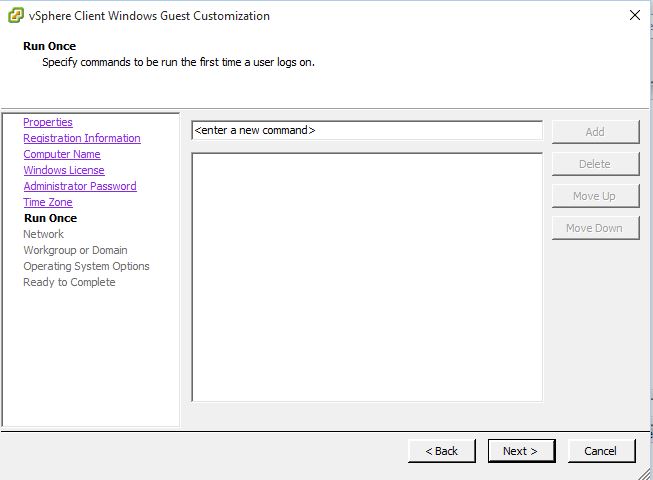
8. If you wish for any commands to run (ie scripts to customise your server further) you can enter them here. I havent any for this Customisation so have left this as black. Click Next.
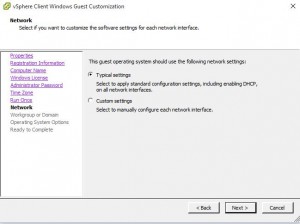
Network Tab
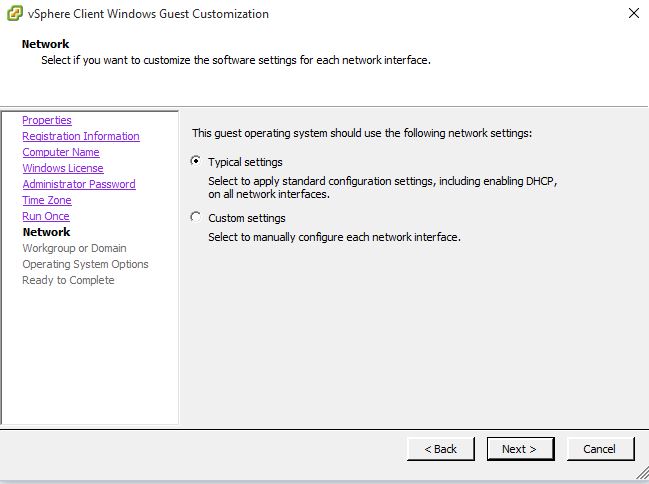
9. For the Network portion of the wizard, you can choose custom settings if required (i.e DNS server and IP address settings). Im using the typical settings (i.e. DHCP). Click Next when you have chosen the settings you require.
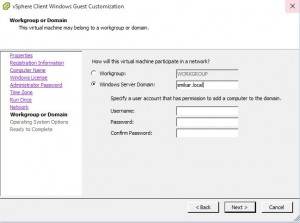
Workgroup or Domain Options Tab
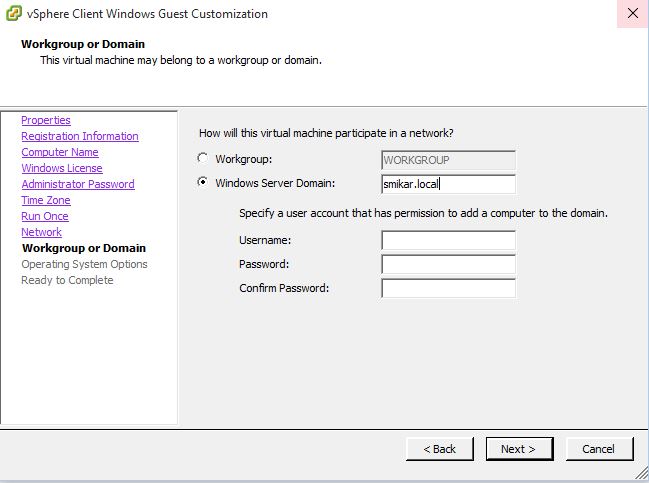
10. Now the important part. If you want the VM to deploy and then to automatically join your Windows domain you will need to add the Domain Name, Administrator Account and Password. Click Next when ready.
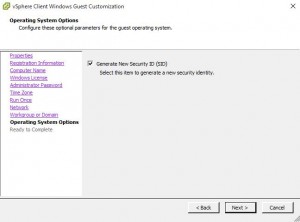
Operating System Options Tab
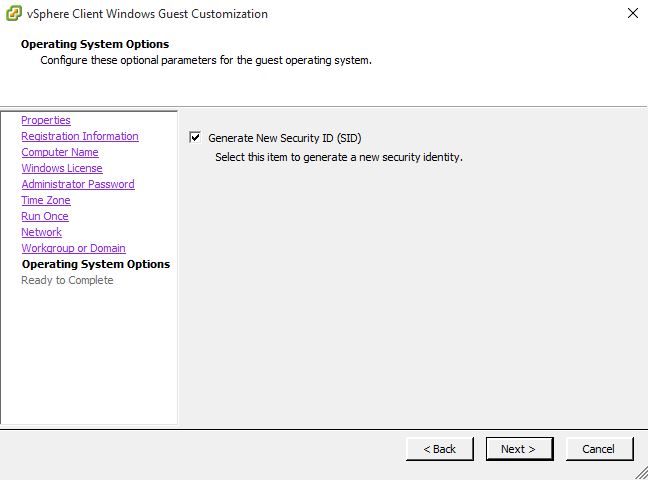
11. Allow the VMWare customisation script to Generate New Security ID (SID) then click Next.
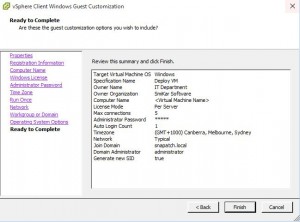
Ready to Complete Tab
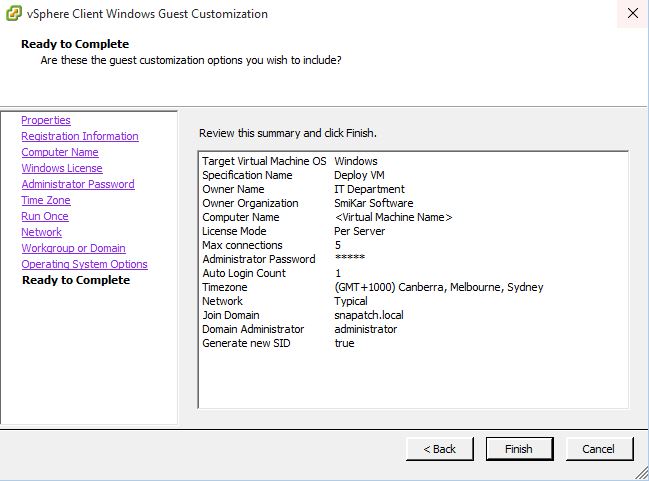
12. Finally, check the settings are correct then click Finish to proceed.
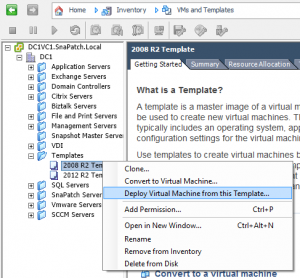
Deploy Virtual Machine from this Template.
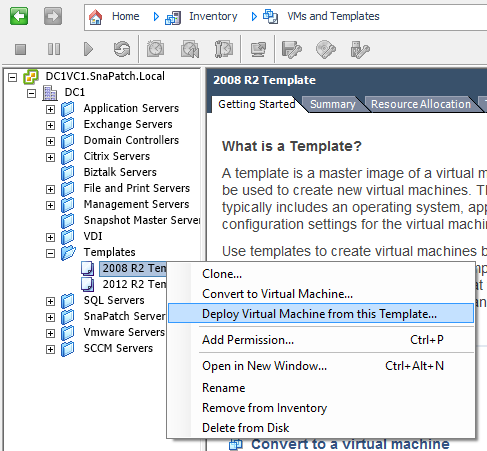
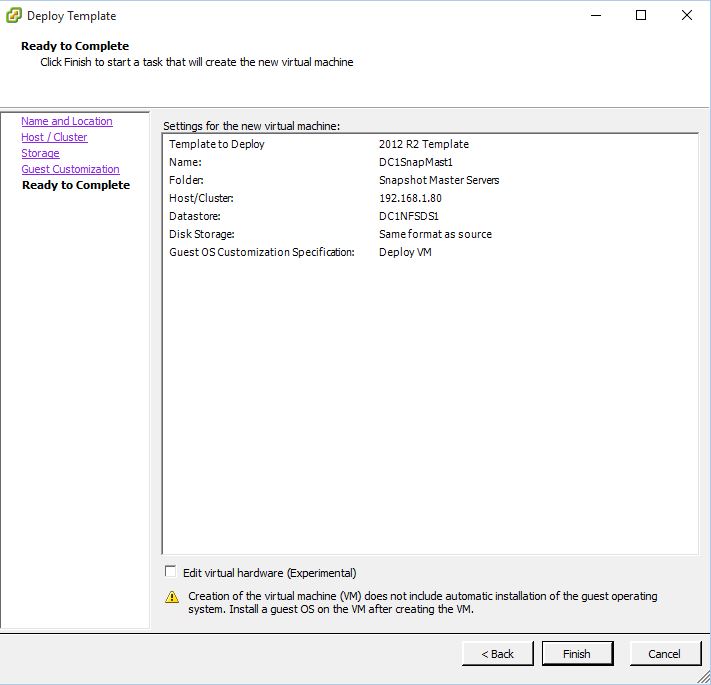
13. Now hopefully everything went well and you are ready to start using the VMWare Customisation Script you created and deploy your first VM with these settings. Choose the template you wish to apply this customisation to, Right Click and choose Deploy Virtual Machine from this Template.
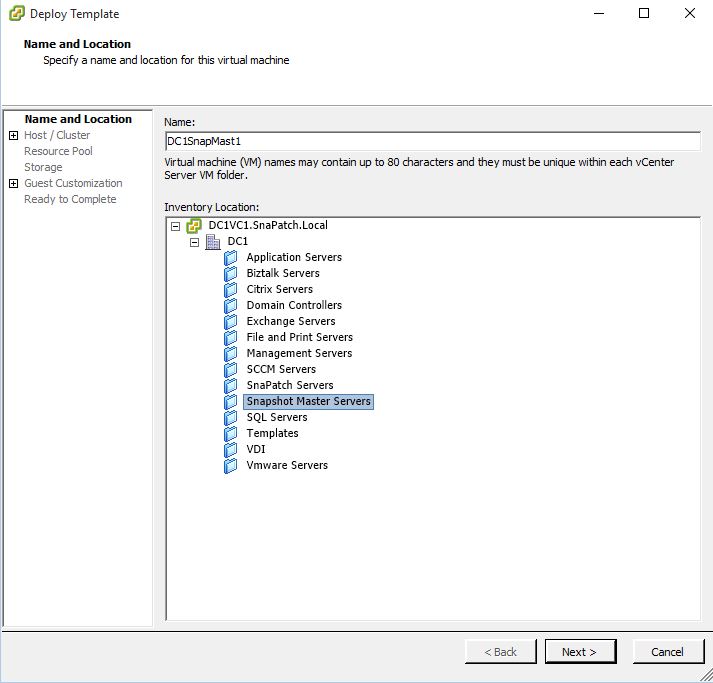
Name and Location Tab
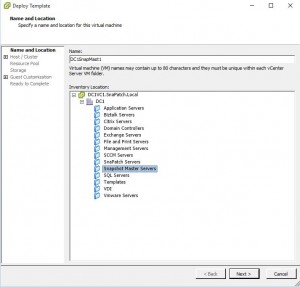
14.Give the VM a name and then the Inventory Location the machine will reside in and then click Next.
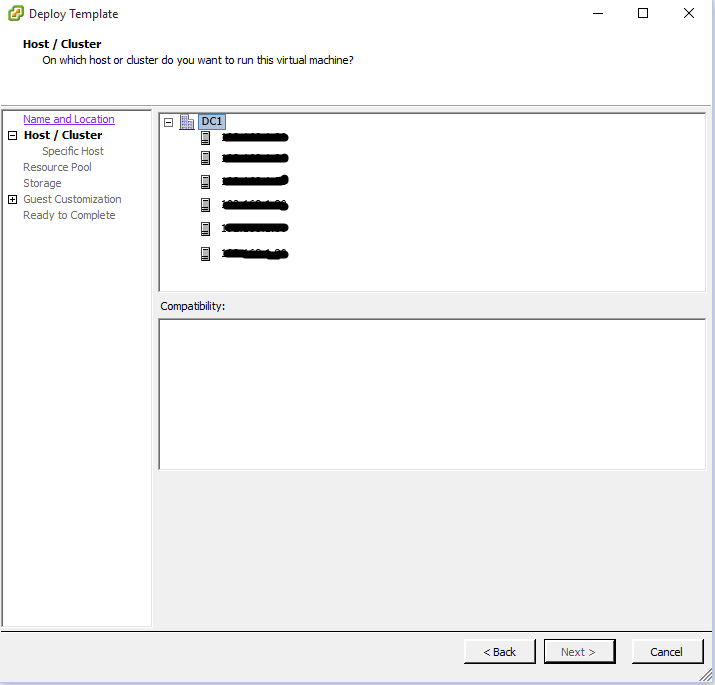
Host and Cluster Tab
15. Choose a Host or Cluster for the VM to run on then click Next.

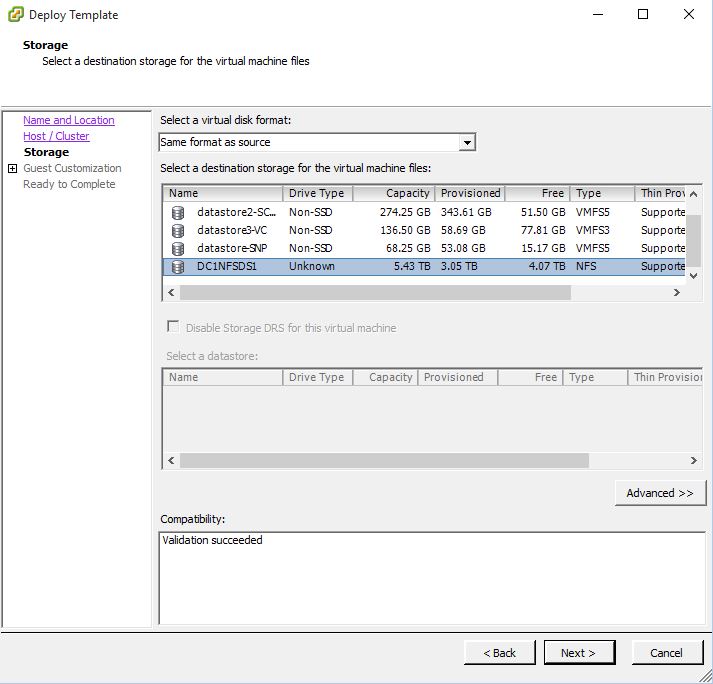
Storage Tab
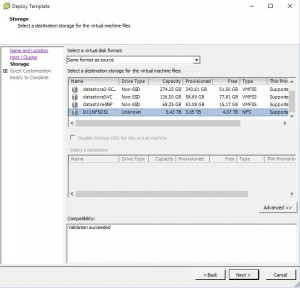
16. Next you choose the storage location that the VM will use to store its files (VMDK). Select the storage destination then click Next.
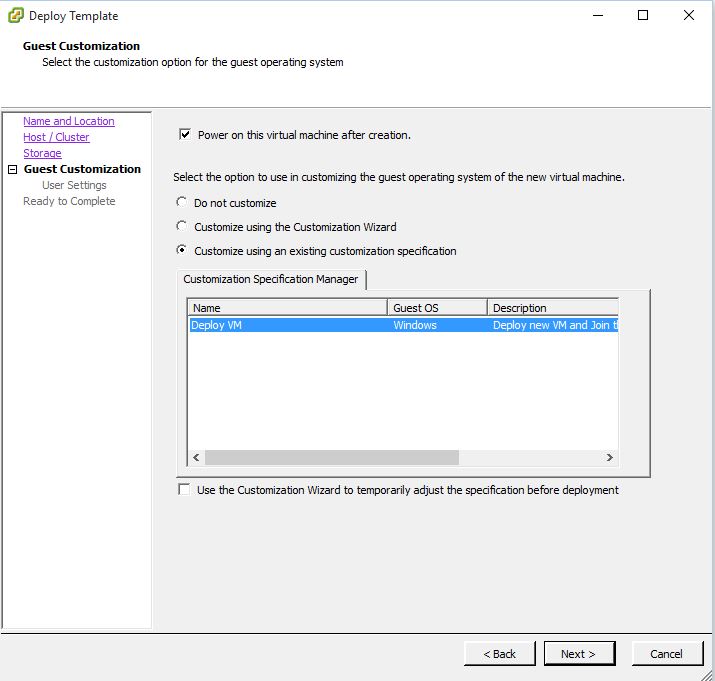
Guest Customisation Tab
17. This is another important part of the VM deployment process. You can choose not to customise but since this blog post is about using the customisation we created earlier, choose Customise using an existing customisation specification. Select the VMWare customisation you created then click Next.

Ready to Complete Tab
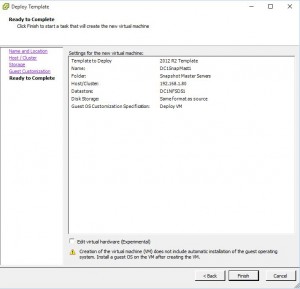
18. Check the settings that are specified in this screen are what you have selected and when confirmed click Next. You can also edit the Virtual Machines hardware if you wish to do so (i.e. set CPU, Ram, Disk Space etc)
Finished 🙂
19. You should now be able to see that your new Virtual Machine is deploying using the VMWare Customisation Script you created. It will now automatically join the Windows Domain and be ready to use once the installation has completed.