Empower End Users to Drive Archiving
Self-service archiving puts you in control of when and what to archive. By letting teams decide which files should be moved off archive storage, Squirrel makes it easy to keep SharePoint clutter-free and ensures essential documents remain front and center.
Self-Service Archiving with Squirrel
Squirrel Self-Service Archiving is a SharePoint-integrated solution that empowers end-users to archive and restore their documents easily-without IT intervention. Designed to reduce SharePoint clutter, improve storage efficiency, and lower operational costs, Squirrel gives your team complete control while ensuring quick access to archived files.
Beyond Squirrel’s automated Lifecycle Policies, which intelligently archive files based on predefined rules, we also offer a self-service option that puts control directly in the hands of end users.
With the Archive and Restore buttons integrated into SharePoint, users can manage their own document storage without relying on IT or waiting for scheduled policies to take effect.
The Archive button allows users to instantly move inactive files to optimized storage, reducing clutter while keeping SharePoint organized. Stub files remain in place, ensuring visibility and quick access when needed. If a file needs to be retrieved, users can simply click the Restore button to bring it back.
This self-service (On-Demand Archiving) functionality enhances flexibility, allowing teams to maintain an efficient SharePoint environment while keeping their important documents just a click away.
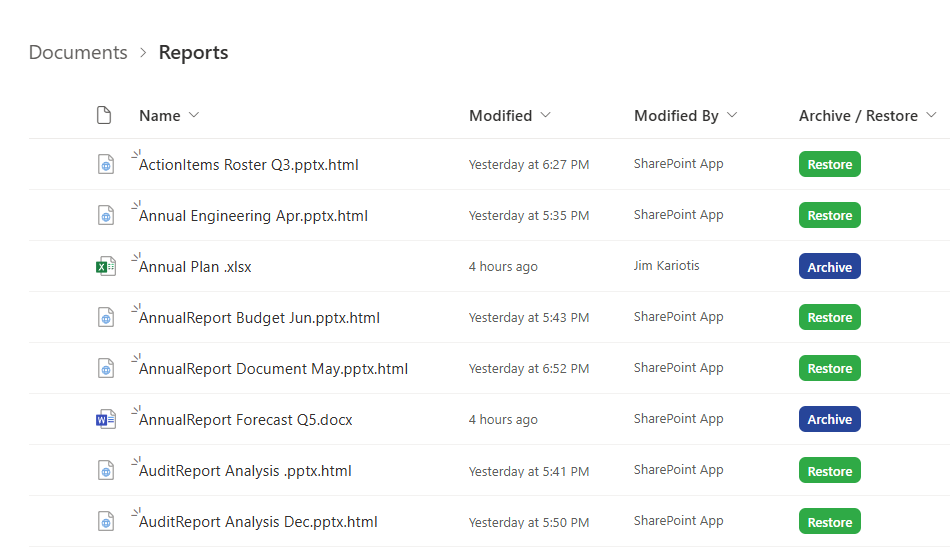
SharePoint Document Library with Archive/Restore Buttons
This screenshot shows the Archive and Restore buttons integrated into the SharePoint document library. Users can easily see which files have already been archived (indicated by the stub files) and which files are still active.
The Restore button appears next to stub files, allowing users to bring them back instantly, while active files display the Archive button for quick archiving.
This intuitive interface makes it simple for users to manage their storage without leaving SharePoint.
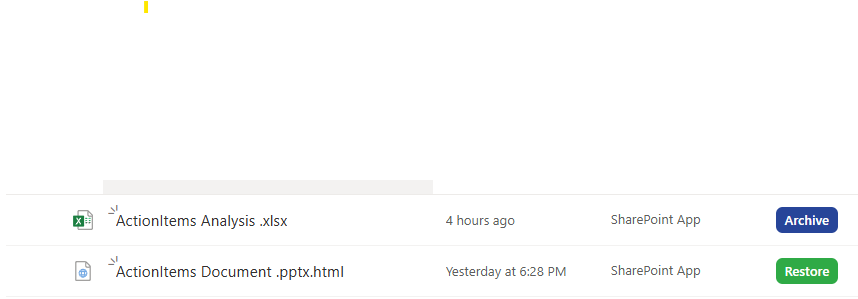
Archived and Active Files
In this view, a mix of active files and stub files is shown, demonstrating how users can archive individual files on demand. Files that have already been archived retain their original names and locations, ensuring a familiar structure within SharePoint.
The Archive button remains available for files that are still active, allowing users to optimize their storage at their discretion.
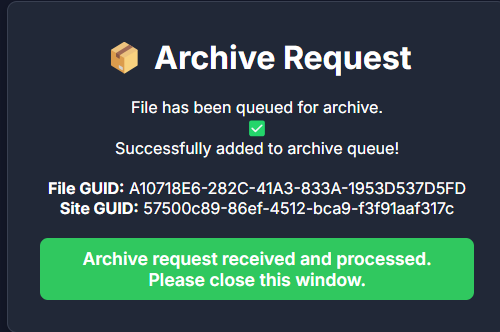
Archive Request Confirmation
After clicking the Archive button, users receive a confirmation message indicating that their file has been successfully queued for archiving.
The message includes the File GUID and Site GUID, providing a reference for tracking the archive request.
This feedback ensures that users are informed about the status of their actions, reinforcing confidence in the archiving process while maintaining full transparency.
How End Users Can Easily Archive Files
Self-service archiving (User-Driven Archiving) with Squirrel is designed to be intuitive and seamless. With the Archive button integrated into SharePoint, users can quickly move inactive files to optimized storage without IT intervention. Stub files remain in place, ensuring visibility and easy restoration if needed. This user-driven approach keeps SharePoint organized while allowing individuals to manage their own data efficiently.
Step 1: Locate the Archive and Restore Buttons in SharePoint
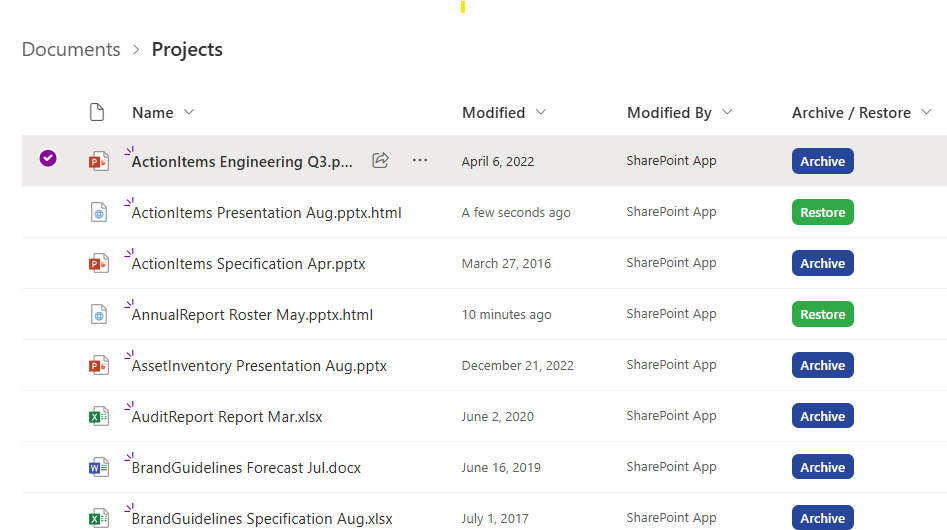
In the SharePoint UI, your document libraries will include an Archive/Restore column, displaying the Squirrel Archive and Restore buttons.
- The Restore button appears when a file has already been archived. Users can either open the stub file or click Restore to retrieve the document instantly.
- The Archive button is shown for files that can be archived. Clicking it initiates the archiving process, moving the file to optimized storage while leaving a stub in its place.
In this example, we are archiving the file “ActionItems Engineering Q3.pptx“. To begin, simply click the Archive button.
Step 2: Archive Request Confirmation
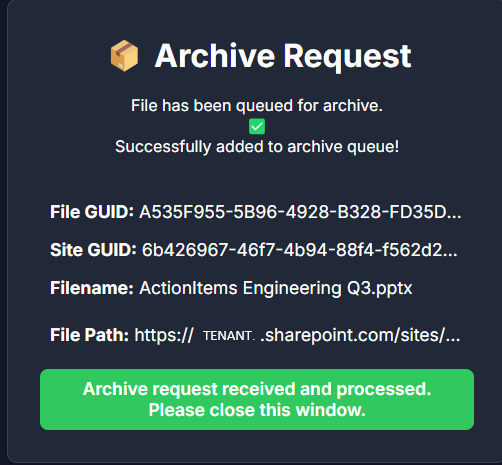
After clicking the Archive button, a new browser tab will open, displaying the Archive Request confirmation page.
This page confirms that the file has been successfully added to the archive queue and provides key details, including the File Name, File GUID and Site GUID, for tracking purposes. The green confirmation message ensures that the request has been processed, and users can simply close the window once they see this notification.
At this point, the file is being archived, and a stub file will remain in SharePoint, preserving its location and visibility for easy restoration if needed.
Step 3: Archived File Appears as a Stub in SharePoint
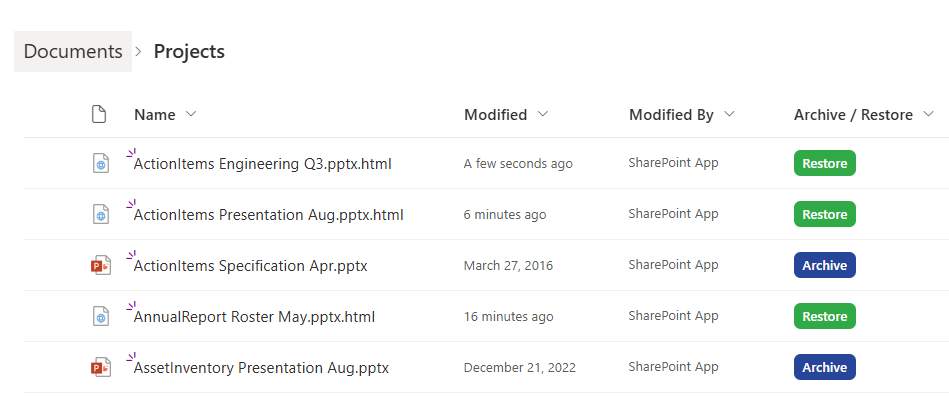
Back in the document library, the archived file (__ActionItems Engineering Q3.pptx.html) has now been replaced with a stub file. The stub retains the original file name but is appended with .html, indicating that the file is archived.
Additionally, the Restore button has now replaced the Archive button, signaling that the file is no longer actively stored in SharePoint but can be quickly rehydrated when needed. This ensures users can still see and locate their archived files while keeping SharePoint storage optimized.
Why Self-Service Archiving Reduces IT Workload
In most SharePoint environments archiving is entirely IT-driven. IT teams identify inactive content, decide what to archive, run the archiving process, and handle any restore requests that come back from users. This creates a recurring IT overhead that scales with the size of the organisation.
Squirrel’s self-service feature distributes this responsibility to the people who best understand whether a document is still needed - the users themselves. When a user finishes working on a project and knows a set of files will not be needed for several months, they can archive those files themselves with a single click. The files move to Azure Blob Storage immediately, SharePoint storage is freed up, and a stub file remains so they can restore in seconds when they need to come back to the work.
For IT teams managing large SharePoint environments, this is a meaningful operational shift. Archiving decisions that previously required IT involvement are handled by users. Helpdesk tickets for both archiving requests and restore requests drop significantly.
Self-Service Archiving vs Automated Lifecycle Archiving - Which Do You Need?
Squirrel supports both approaches and most enterprise deployments use both together.
Automated lifecycle archiving runs in the background continuously - identifying documents that meet your configured criteria and archiving them without any user action. This handles the bulk of archiving work and ensures storage costs reduce automatically over time.
Self-service archiving gives users the ability to archive content on demand, outside the automated policy schedule. This is useful for content that users know is inactive but has not yet triggered the automated policy criteria, large project files users want to move immediately at project completion, and personal productivity - users can keep their own document libraries clean without waiting for IT.
Together the two approaches ensure that both scheduled and on-demand archiving are covered without any IT bottleneck.
Frequently Asked Questions About Squirrel Self-Service Archiving
Q: What is self-service SharePoint archiving?
A: Self-service archiving allows end users to archive and restore their own SharePoint documents directly from within the SharePoint interface using Archive and Restore buttons added by Squirrel. Users can move documents to Azure Blob Storage on demand without raising an IT ticket or waiting for an automated policy to run.
Q: How do users archive a document with Squirrel self-service?
A: Squirrel adds Archive and Restore buttons directly into the SharePoint document library interface. Users select a document and click the Archive button. The document is moved to Azure Blob Storage immediately and a stub file is left in the original location. The entire process takes seconds.
Q: Can users restore their own archived documents without IT help?
A: Yes. Users click the Restore button or the restore link in the stub file. The document rehydrates from Azure Blob Storage and is back in SharePoint within seconds. No IT ticket is required at any point.
Q: Does self-service archiving work alongside automated lifecycle policies?
A: Yes. Squirrel supports both approaches simultaneously. Automated lifecycle policies archive content based on your configured criteria in the background. Self-service archiving gives users the ability to archive content on demand outside the automated schedule. Both approaches write to the same Azure Blob Storage account and both leave stub files in SharePoint.
Q: Can IT administrators control which users have access to self-service archiving?
A: Yes. Squirrel’s self-service archiving feature can be configured by administrators to control which users or groups have access to the Archive and Restore buttons. This allows organisations to roll out self-service capabilities to specific teams or sites while keeping other areas under automated policy control only.
Q: Is self-service archiving included with Squirrel?
A: Yes. Self-service archiving is a built-in feature of Squirrel and does not require a separate purchase. It is enabled and configured through the Squirrel dashboard.
Squirrel: Smart Archiving, Simple Control
Many organizations struggle with bloated SharePoint environments, leading to performance issues and high storage costs. Squirrel provides an affordable, user-friendly way to archive old files while maintaining easy access to important documents when needed.