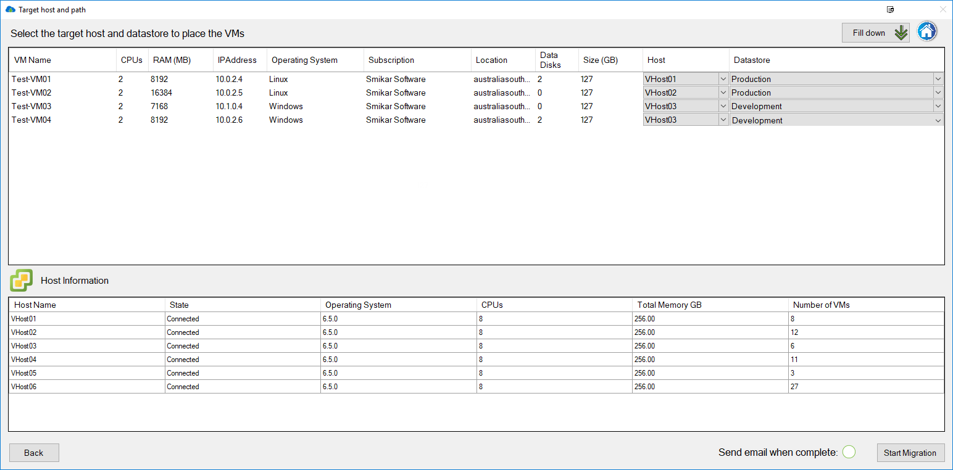
Carbon Installation Guide
Step-by-step guide to install Carbon, SmiKar Software's powerful migration tool for Azure VM migrations to on premise
This installation guide will help you deploy Carbon, the ultimate solution for cloud repatriation, enabling seamless migration of workloads and data from the cloud back to on-premise environments. Whether you’re optimising costs, improving performance, or meeting compliance requirements, Carbon automates the entire process to ensure a smooth and efficient transition.
Step 1: Download the Carbon Installation File
Before proceeding with the installation, ensure you have the Carbon installation file ready. If you haven’t downloaded it yet, you can request and download the latest version of the installation file by visiting the Carbon Main Page. Having the correct installation file ensures a smooth setup process and guarantees that you’re using the most up-to-date version of Carbon with all the latest features and improvements.
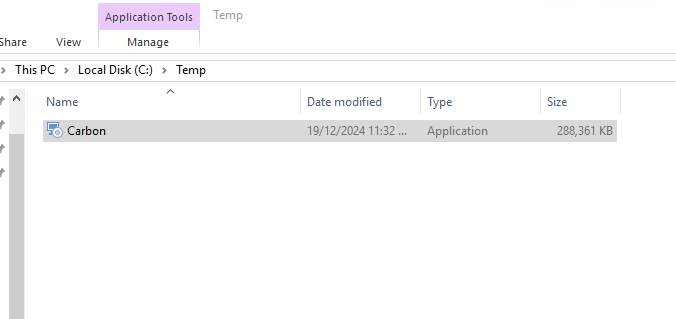
Once you have successfully downloaded the Carbon installation file, locate the executable file on your system. Double-click the executable to launch the Carbon installer. This will initiate the setup process, guiding you through the necessary steps to complete the installation. Ensure that you have the appropriate administrative privileges on your machine before proceeding.
Step 2: Prerequisites Setup Wizard
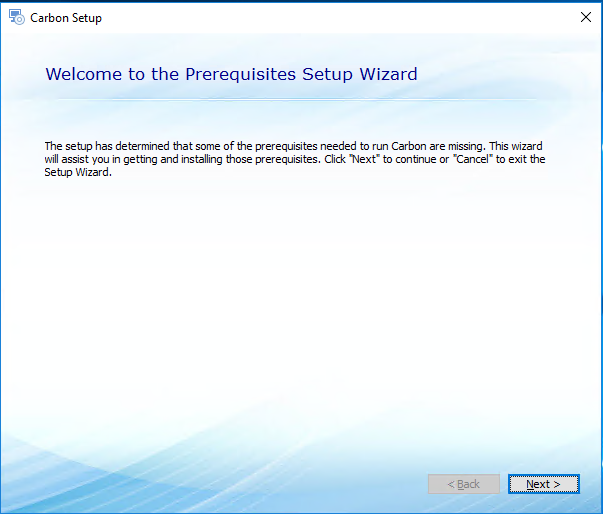
After launching the Carbon installer, the Prerequisites Setup Wizard will appear if any required components are missing. This wizard will guide you through downloading and installing the necessary prerequisites for Carbon to function properly.
Simply click Next to proceed, and follow the prompts to ensure your system meets all the requirements before continuing with the main installation process.
Step 3: Select Prerequisites to Install
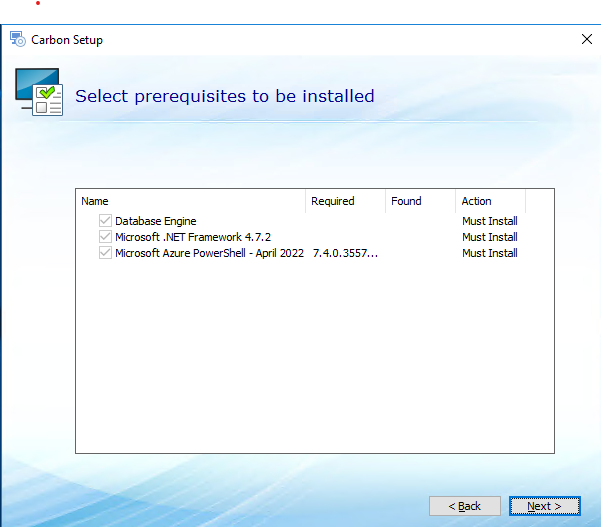
In this step, the Prerequisites Setup Wizard will display a list of essential components required to run Carbon, such as the Database Engine, Microsoft .NET Framework 4.7.2, and Microsoft Azure PowerShell. These prerequisites are automatically selected for installation, ensuring that your system is properly configured.
Simply click Next to proceed, and the wizard will begin installing the necessary components. This step ensures that Carbon is fully supported and ready to function in your environment.
Step 4: Allow Installation of Prerequisites
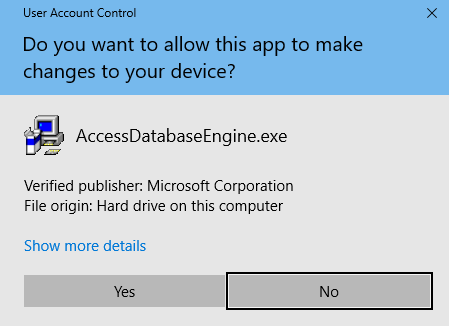
During the installation of the prerequisites, a User Account Control (UAC) prompt may appear, asking if you want to allow the application (e.g., AccessDatabaseEngine.exe) to make changes to your device.
Click Yes to continue with the installation. This is a standard security prompt to confirm that you want to install the required components from a verified publisher, ensuring that Carbon can be properly set up.
Step 5: Confirm Installation of .NET Framework
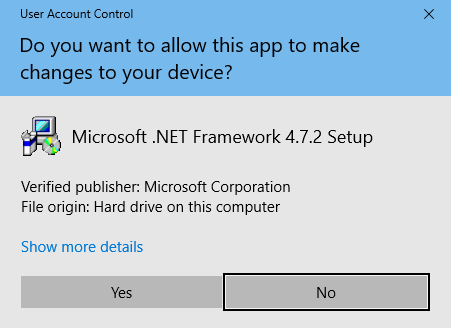
As part of the prerequisite installation process, you may receive another User Account Control (UAC) prompt for the Microsoft .NET Framework 4.7.2 Setup. This is required for Carbon to run effectively.
Click Yes to proceed with the installation. Ensuring that the .NET Framework is correctly installed is essential for the smooth operation of Carbon.
Step 6: Accept License Terms and Install .NET Framework
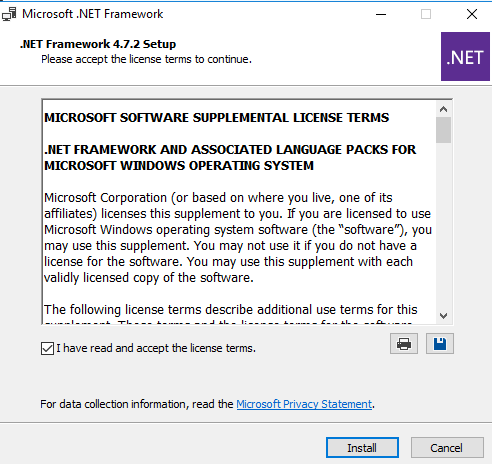
The Microsoft .NET Framework 4.7.2 Setup window will appear, displaying the license terms. To proceed with the installation, read through the terms, tick the checkbox for “I have read and accept the license terms”, and then click Install.
This step is crucial, as the .NET Framework is a core requirement for running Carbon efficiently. Once the installation begins, wait for it to complete before proceeding to the next step.
Step 7: Confirm Installation of Azure Command-Line Tools
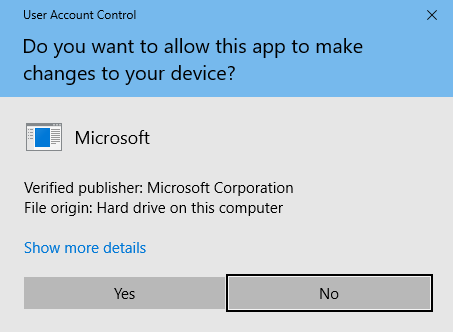
During the prerequisite installation, a User Account Control (UAC) prompt will appear for the Azure Command-Line Tools. These command-line tools are essential for Carbon to interact with Azure services and execute necessary commands during operations.
Click Yes to allow the installation to proceed. This step ensures that Carbon has all the required tools to support cloud repatriation tasks and manage Azure resources effectively.
Step 8: Completion of Carbon Installation
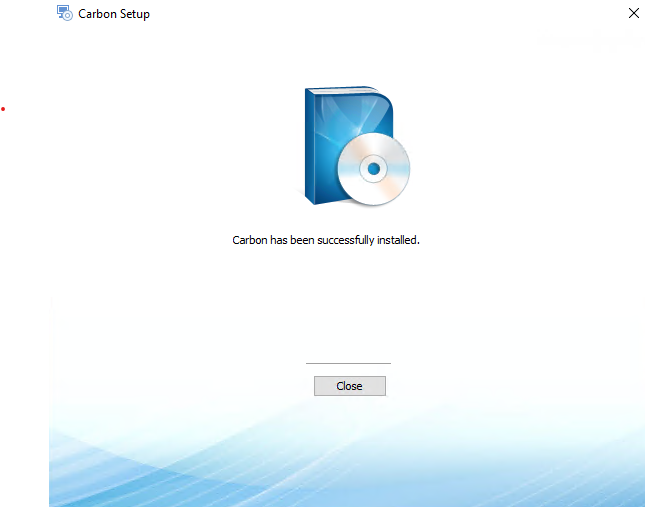
Once all prerequisites have been installed and the main setup process is complete, you will see a confirmation message indicating that “Carbon has been successfully installed”. This means the installation process has finished, and Carbon is ready to be used. Click Close to exit the installer and proceed to configure Carbon according to your environment’s requirements. You can now begin using Carbon to streamline your cloud repatriation tasks.
Step 9: Restart Your System
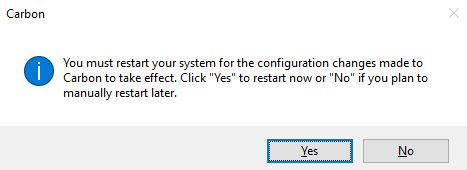
After the installation is complete, a prompt will appear, requesting you to restart your system to apply the configuration changes made during the setup. Click Yes to restart your system immediately, or click No if you prefer to restart manually later. Restarting ensures that all components are correctly initialised and ready for use.
Once your system has rebooted, proceed with the initial configuration of Carbon to tailor it to your environment’s specific needs.
Carbon: Moving You Forward by Bringing You Back
Carbon empowers businesses to take control of their IT strategy with seamless cloud repatriation, reducing costs, improving performance, and ensuring compliance-all with a streamlined, automated solution designed for efficiency and ease.