Squirrel – Data Rehydration Overview
Squirrel helps you optimize storage costs by archiving files and their versions to your own Azure Blob storage-a significantly cheaper storage option-while leaving behind a convenient placeholder (a “stub”) in SharePoint. Whenever you need the original file, simply restore (rehydrate) it in a few clicks.
This page describes the restore side of Squirrel, SmiKar's SharePoint archiving product. Squirrel moves inactive files into your own Azure Blob Storage on a policy and leaves a stub in the library; restoring is how a user gets the original back.
A walkthrough of stub files, and how end users restore single documents, restore multiple files at once, and archive files and folders themselves, all from within SharePoint and without raising a ticket.
## **What Is a Stub File?** A **stub file** is a placeholder left behind by Squirrel after it archives an original file from SharePoint. Rather than permanently deleting the file from your document library, Squirrel replaces it with a small, lightweight “stub” that acts as a marker for the archived content. The stub retains the appearance and location of the original file, ensuring users can easily find and restore it when needed.Stub files are an essential feature of Squirrel, allowing organizations to reduce storage costs and optimize SharePoint performance while maintaining accessibility to archived content. Here’s how it works:
Archiving the Original File: When a file is archived, its full content-including all versions-is moved to secure, cost-effective storage (such as Azure Blob Storage). This reduces the size of your SharePoint environment while still keeping the file accessible.
Creating the Stub: The stub is left behind in the same location as the original file, retaining key metadata such as the file name, location, and modification details. For example, if the original file is example.docx, the stub will be named example.docx.html. This stub is in HTML format and can be opened in a browser.
On-Demand Restoration: When a user needs the original file, they simply open the stub file. The stub provides a Restore link, allowing the user to rehydrate the file seamlessly, restoring it to its original format and location, including all historical versions.

Why Stub Files Are Useful?
Storage Efficiency: By archiving the actual content of files, stub files drastically reduce the amount of storage required in SharePoint.
User Transparency: Stub files appear in the same location as the original files, so users can find and restore files without needing to access a separate archive.
Preserved Metadata: Stub files retain important metadata, ensuring seamless integration with existing workflows and tools.
Version History: All file versions are archived alongside the original file and are restored together, maintaining full historical records.
Stub files provide a balance between cost-saving storage optimization and the user-friendly accessibility of archived content, ensuring that businesses can manage their data effectively without disrupting daily workflows.
Restoring Files in SharePoint with Squirrel
Squirrel offers flexible and intuitive options for restoring archived files, making it simple for end users to bring their content back into SharePoint when needed. Depending on the user’s workflow and preference, there are three primary ways to restore (rehydrate) archived files. These options ensure that users can access their data with minimal effort, while maintaining all associated file versions and metadata.
Each method is designed to seamlessly reintegrate the archived content back into the SharePoint environment. Whether users prefer working through the SharePoint interface, leveraging mapped drives, or using OneDrive-synced folders, Squirrel provides an end-to-end solution for efficient file restoration.
All methods ensure that the restored files are returned to their original location in SharePoint-complete with their version history, and full functionality-so users can work with them as if they were never archived. These flexible options allow Squirrel to integrate into various workflows, making it accessible and efficient for a wide range of use cases.
Restoring Archived Files Using A Stub Within the SharePoint UI
Opening the Stub & Clicking “Restore”
End users can open a stub file directly within the SharePoint document library to initiate the restore process. This option provides detailed information about the file being restored and tracks progress, making it ideal for single-file restores.
Step 1: Find the Stub
Look for the archived file’s stub in your SharePoint library (e.g., example.docx.html).
In this example, we are going to restore the file called AssetInventory Roster Jan.xlsx.html You can see that the file is a Stub File, as it has the original file name and has amended .html at the end.

Step 2: Open the Stub
Click on it as if you’re opening the original file.
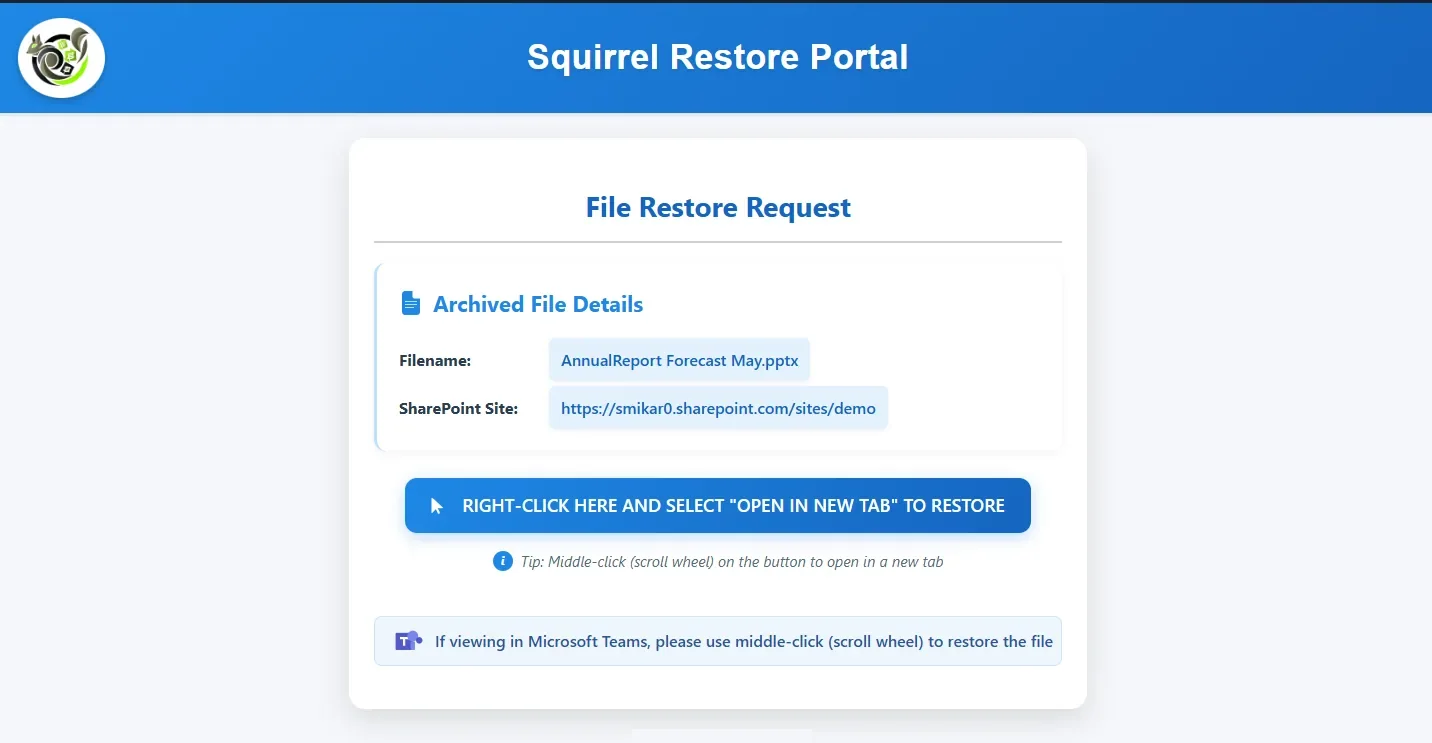
When you locate the stub in your SharePoint document library (for example, filename.docx.html), click on it as if you’re opening any standard file. Instead of opening the original document, you’ll be directed to a Squirrel Restore Portal page headed File Restore Request, which shows:
Filename – The name of the original file you’re trying to rehydrate (e.g., AssetInventory Roster Jan.xlsx).
SharePoint Site – The SharePoint site where the file originally resided, such as:
https://CUSTOMERSHAREPOINTSITE.sharepoint.com/sites/SalesDept
The restore button – A large button reading “Right-click here and select ‘Open in new tab’ to restore”. Right-click it and choose Open in new tab (or middle-click it with the scroll wheel) to start the restore. In Microsoft Teams, use the middle-click. Squirrel will retrieve the file (including all versions) from its Azure Blob storage archive and replace the stub with the original document back in SharePoint.
Step 3: Restoration Process
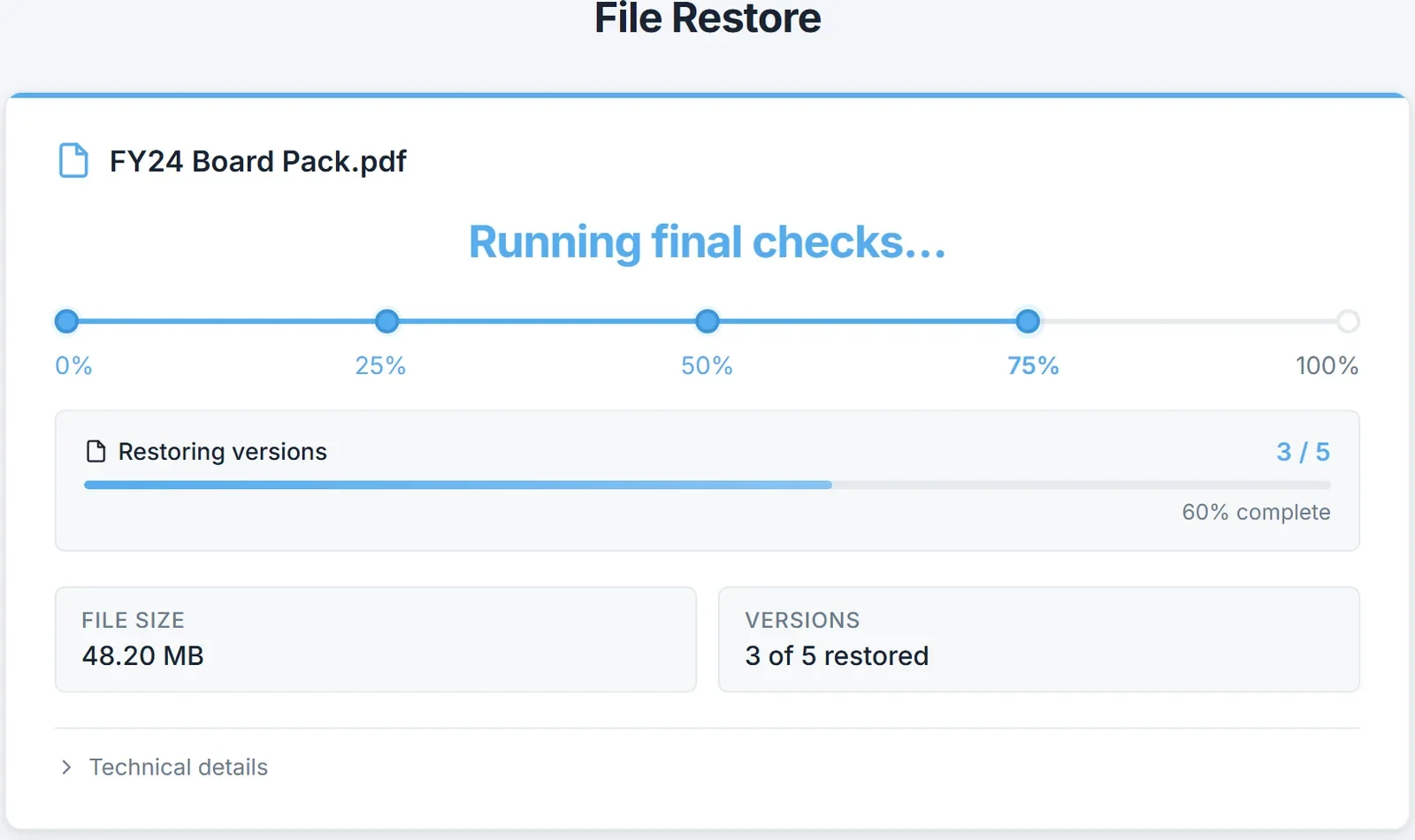
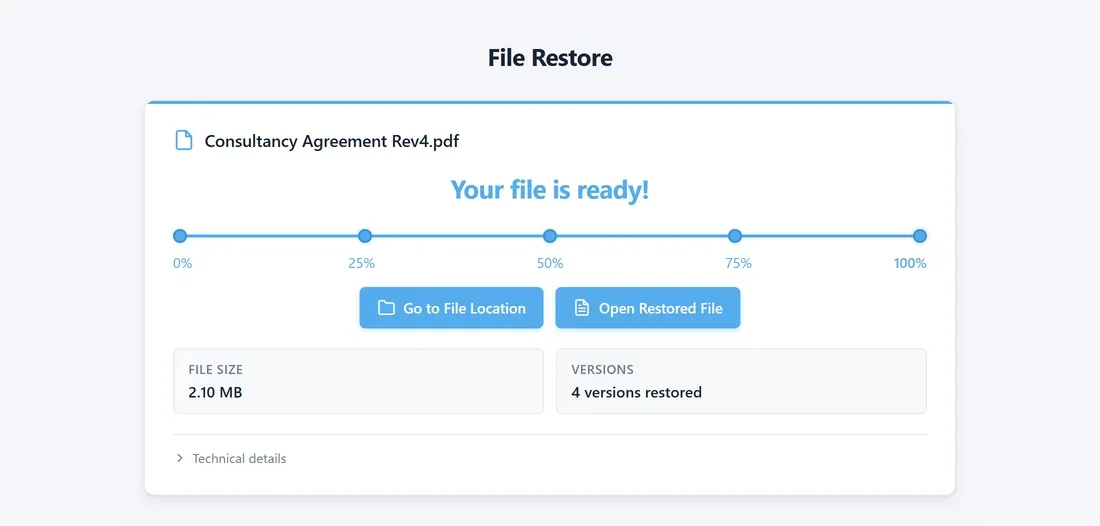
The new tab opens the File Restore page. It shows the name of the file and a progress bar from 0% to 100%, with a message at each step:
Your request is in the queue (0%)
Preparing your file (25%)
Restoring your file (50%)
Running final checks (75%)
Your file is ready! (100%)
While the versions are restored, a Restoring versions bar shows how many of the file’s versions are back, and the page shows the file size and the number of versions restored. Technical details expands to show the dates and identifiers Squirrel uses to track the request.
The process begins the moment you start the restore. Squirrel fetches the archived file from its secure storage and transfers it back into SharePoint along with all versions.
Step 4: Full Content Restored
When the restore finishes, the page reads Your file is ready! and shows two buttons:
Open Restored File – Opens the restored file in your browser.
Go to File Location – Opens the SharePoint folder the file is in.
The page also confirms the file size and how many versions were restored. The stub in your SharePoint library has been replaced by the fully accessible original file, including all its versions.
With this confirmation, you can open or edit your document as needed.
Step 5: Access Your Restored File
Once Squirrel’s restore process completes, you’ll see the fully rehydrated file back in your SharePoint library with its original name-no more “.html” at the end. As shown in the adjacent screenshot, the file appears just like any other document:
File Restored: The stub is replaced by the actual file, complete with all its historical versions.
Open & Edit: Click to open, edit, or share it just as you would any standard SharePoint document.
Version History: Right-click on the filename (or use SharePoint’s native version history feature) to view or revert to prior versions-Squirrel preserves the entire revision record.
At this point, your archived file is once again fully accessible, ensuring a seamless user experience and peace of mind that all data is intact.

Restoring Archived Files Using the Restore Button Within the SharePoint UI
SharePoint’s Restore button, visible in the ArchiveRestore column, allows users to quickly rehydrate files with a single click. This streamlined method is perfect for users who want a fast, no-frills restore option directly from the library interface.

Step 1: Locate the File Stub
In your SharePoint document library, look for the stub file created by Squirrel.
You may notice an ArchiveRestore column in the SharePoint view; if an item is recognized as a Squirrel stub, you’ll see a Restore button next to it.
This button indicates the file has been archived and can be rehydrated with just a click.

Step 2: Restore Progress View
After clicking the Restore button in the previous step, a new tab opens with the File Restore page.
This page starts the file restoration process and shows progress from 0% to 100% as it happens: the request is queued, the file is prepared and restored, and Squirrel runs its final checks. It also shows the file size and how many versions have been restored.
Step 3: Restoration Complete
When the restore is finished, the page reads Your file is ready! and shows two buttons:
Open Restored File opens the file in your browser.
Go to File Location opens the SharePoint document library where the file now sits.
The page also shows the file size and the number of versions restored. The restored file replaces the stub and is ready for immediate use, complete with its version history and metadata.
Step 4: File Restored and Available in SharePoint:
After the restoration process is complete, the file is now fully available in your SharePoint document library. The stub has been replaced by the original file, and you can open or edit it as needed. The restored file retains all its metadata and includes the full version history, ensuring you have access to every prior iteration of the document.
Here’s what you’ll see in the SharePoint UI:
Restored File: The file appears in its original location, with no “.html” extension, indicating it has been fully rehydrated.
Version History: You can access the file’s version history via the native SharePoint functionality, ensuring that all previous versions are preserved and available.
Ready for Use: The file can now be opened, edited, or shared just like any other document in SharePoint.
This final step demonstrates how seamlessly Squirrel integrates with SharePoint, restoring archived files while preserving their full history and usability. Users can proceed with their work without any interruptions or loss of data.
Now Supporting Folder-Level Restores
In addition to restoring individual files, Squirrel now supports restoring entire folders. If a folder has been previously archived (and its contents replaced by stub files), users can now restore all archived files within that folder-and any subfolders-with a single click.
Just like file-level restore, this action is available directly within the SharePoint interface. Once the Restore button is selected next to a folder, the system will prompt for confirmation and then begin rehydrating only the files that have been archived. Any files in the folder or subfolders that were not archived will be left untouched and remain exactly as they are.
A confirmation screen will appear once the request is processed, showing how many files were restored and providing traceable metadata, including the Site GUID and folder path.
This enhancement significantly reduces the time and effort needed to recover large batches of content, making it ideal for restoring entire projects, department folders, or archived structures-whether a few files or hundreds have been archived.
er structures.
How to Restore a SharePoint Folder
Step 1. Navigate to the Document Library
Go to your SharePoint site and open the document library that contains the archived folder. This can usually be accessed via the “Documents” section in your SharePoint navigation.

Step 2. Locate the Archived Folder
Browse the folder list to find the archived folder you want to restore. Even though the contents have been archived, the folder itself-and any stub files-will still be visible. In the “Archive / Restore” column, you’ll see both Archive and Restore buttons next to the folder name.

Step 3. Click the “Restore” Button
Click the Restore button next to the folder. This initiates a request to restore all files that were archived from within that folder and its subfolders.

Step 4. Confirm the Restore Action
A confirmation prompt will appear, displaying the full path of the folder you selected. This is your opportunity to confirm that the correct folder has been chosen. Once verified, click “OK” to begin the rehydration process.

Step 5. View Confirmation
Once the folder restore is queued, a confirmation screen will display. This screen includes the total number of files being restored, the folder path, and the Site GUID, confirming that your request has been received and is being processed.

From Within Windows Explorer
Restoring Archived Files Within a SharePoint Mapped Drive or a OneDrive Synced Folder
For users who prefer accessing SharePoint files through File Explorer, stub files can be restored from a mapped network drive or a OneDrive-synced folder. This option offers a familiar desktop workflow for interacting with and restoring archived files.
Step 1: Locate the File to Restore
In this example, the SharePoint site has been synced using OneDrive Sync, making the files accessible directly in Windows Explorer.
Within the synced folder, you’ll see several stub files, such as AssetInventory Presentation.pptx.html, which represent archived files.
To restore the file, the user simply opens the desired stub to initiate the restore process.

Step 2: The Stub File is Displayed
When the stub file is opened, it launches in the end user’s web browser. The page displays the same details about the archived file as previously mentioned, providing clarity on the file being restored.
To initiate the restoration, the user simply needs to right-click the restore button and select ‘Open in new tab’ (or middle-click it) to begin the process.
Step 3: The Restore Process Begins
Once the link is opened, the restore process is initiated.
The steps involved in the restoration are the same as previously detailed, ensuring the file is seamlessly rehydrated and returned to its original location.
Step 4: The File is Restored
Once the restore process completes, the File Restore page reads Your file is ready!. The progress bar has reached 100%, and the page shows the file size, the number of versions restored, and the Open Restored File and Go to File Location buttons.
Step 5: The File is Fully Restored
After the restoration process is complete, the file is fully rehydrated and appears in the synced folder or mapped drive, as shown in the example. In this case, the file AssetInventory Presentation.pptx has been restored to its original format and is now ready for use.
Original Format Restored: The file is no longer a stub (e.g., .html) but is restored to its original format (e.g., .pptx), ready to open, edit, or share.
All Versions Restored: Along with the current version, all historical versions of the file are also restored, ensuring that the full version history is available for review or rollback if needed.
Ready for Use: The restored file integrates seamlessly back into your SharePoint or synced folder, retaining all metadata and usability.
This step confirms that Squirrel’s restoration process fully preserves the file and its version history, making it accessible as though it had never been archived. The user can now continue working with the file without any interruptions.

Why Self-Service Restore Matters for Enterprise IT Teams
In most archiving solutions, restoring archived content requires an IT administrator to intervene. A user raises a helpdesk ticket, an administrator locates the file in the archive, exports it, and returns it to the user - a process that can take hours or days depending on your helpdesk queue.
Squirrel eliminates this entirely. Because every archived document leaves a stub file in the original SharePoint location, end users can find and restore their own archived content without any IT involvement. The restore request goes directly to the Squirrel system, not to the helpdesk. The document rehydrates within seconds. The user continues working.
For enterprise IT teams managing thousands of users, this is a significant operational benefit. Helpdesk tickets for archived content restoration drop to near zero. IT time that was previously spent handling restore requests is freed up for higher value work.
What Happens to Version History During Archiving and Restore
One of the most common concerns about SharePoint archiving is whether version history is preserved. With Squirrel the answer is yes - completely.
When Squirrel archives a document it captures all versions of that document, not just the most recent one. All version history is stored in Azure Blob Storage alongside the current version. When a user restores the document, the full document including all historical versions is returned to SharePoint exactly as it was before archiving.
This means your organisation can still access previous versions of archived documents for compliance, audit, or operational purposes - without needing to keep those versions in expensive SharePoint Online primary storage.
Next steps
Frequently Asked Questions About Squirrel Data Rehydration
Q: What is data rehydration in SharePoint archiving?
A: Data rehydration is the process of restoring an archived document from Azure Blob Storage back into SharePoint Online. With Squirrel, rehydration is triggered by a user clicking the stub file left in the original SharePoint location. The full document is retrieved from Azure Blob Storage and returned to SharePoint within seconds.
Q: Do end users need IT help to restore archived SharePoint files?
A: No. Squirrel’s self-service restore feature allows end users to restore their own archived documents directly from within SharePoint. They click the stub file, the restore request is triggered automatically, and the full document rehydrates within seconds. No IT ticket is required.
Q: How long does it take to restore an archived SharePoint document?
A: Individual document restores typically complete within seconds for documents archived in Azure Blob Cool tier. Documents archived in Azure Blob Archive tier may take longer to rehydrate as Archive tier requires a rehydration step before transfer. Most enterprise deployments use Cool tier for documents that may need occasional access.
Q: What is a stub file in SharePoint?
A: A stub file is a small placeholder that Squirrel leaves in the original SharePoint location after a document is archived. The stub retains the original file name and metadata so the document still appears in SharePoint Search results and folder views. When a user opens the stub file it displays a restore link that triggers the rehydration process.
Q: Is version history preserved when SharePoint documents are archived with Squirrel?
A: Yes. Squirrel captures all versions of a document when archiving, not just the current version. When a document is restored, the full document including all historical versions is returned to SharePoint exactly as it was before archiving.
Q: Can archived SharePoint documents be found through search before they are restored?
A: Yes. Stub files retain the original file metadata so documents still appear in SharePoint Search results after archiving. Squirrel’s AI Summarisation feature also embeds AI-generated summaries into stub files that are indexed by Microsoft Copilot - so archived content remains discoverable by Copilot without needing to be restored first.
Q: What happens to the stub file after a document is fully restored?
A: Once the document is fully restored to SharePoint, the stub file is replaced by the full document. The document appears in SharePoint exactly as it did before archiving. If the document becomes inactive again in the future and meets your lifecycle policy criteria, it will be archived again and a new stub file created.
For the full technical reference on how Squirrel stubs behave - filename and extension behavior, metadata preservation, permission inheritance, restore mechanics, and external guest access - see how Squirrel SharePoint stubs work.
Squirrel: Smart SharePoint Archiving, Seamless Restoring!
Optimize your storage, reduce costs, and retrieve your files effortlessly with Squirrel-the ultimate solution for intelligent archiving and seamless restoration in SharePoint.