SCCM, standing for System Center Configuration Manager, now known as Microsoft Endpoint Configuration Manager, is a software suite from Microsoft’s stable of products. Often dubbed as the cornerstone of IT administration, SCCM offers a comprehensive management solution. It assists IT administrators in managing the deployment and security of devices and applications within an organization. From serving as a unified management console to providing a set of automated administrative tools, SCCM empowers IT professionals to manage software deployment, data protection, health monitoring, and compliance enforcement across all devices within the enterprise.
The Journey of SCCM: From SMS to Current Incarnation
Tracing the history of SCCM gives us a fascinating timeline, reflecting its evolution as a critical tool in IT management.
The Dawn of Systems Management Server
In 1994, Microsoft launched a tool named “Systems Management Server” (SMS). This early incarnation was a stripped-down version focusing on three core functionalities – hardware inventory, software inventory, and software metering. Despite its limited offerings, SMS marked a significant step towards organized and efficient IT administration.
SCCM: The New Identity and Advanced Features
As the world of IT management started becoming increasingly complex, the demand for an advanced, comprehensive management tool grew. Meeting these changing needs, SMS underwent a major overhaul, emerging as SCCM. This new avatar brought a broader feature set, including software distribution, OS deployment, and system health reporting, enhancing its value for IT administrators.
The Emergence of Microsoft Endpoint Configuration Manager
The evolution didn’t stop at SCCM. The most recent update in 2019 marked another significant transition – the rebranding of SCCM to “Microsoft Endpoint Configuration Manager”. This change not only acknowledged the rapidly growing field of endpoint management but also positioned the tool as a leading solution in this space.
The Architecture of SCCM: Core Components
SCCM’s sophisticated capabilities owe their existence to its complex yet efficient architecture.
Site Systems: The Pillars of SCCM
Site systems form the backbone of SCCM’s architecture. These are servers that host different roles critical to the functioning of SCCM, including distribution point, management point, reporting services point, and software update point, to name a few.
The Command Center: SCCM Console
The SCCM Console serves as the command center, offering a centralized interface for managing all administrative tasks. Whether it’s deploying software updates, managing system health, or overseeing hardware and software inventory, the SCCM Console is the nerve center where all these operations converge.
The Operatives: SCCM Clients
SCCM Clients are essentially the devices that SCCM manages. This could range from servers and desktop computers to laptops and mobile devices. Once these devices have the SCCM client software installed, they can be managed from the SCCM server.
The Multifaceted Functionality of SCCM
SCCM is more than just a unified management console. It is a powerhouse that offers a wide range of functionalities.
Comprehensive Hardware and Software Inventory
One of the core capabilities of SCCM is its ability to manage hardware and software inventory. It allows IT administrators to monitor and track all hardware assets and software applications used within the organization.
Streamlined Software Distribution and Deployment
Software distribution is another critical feature offered by SCCM. It provides tools for administrators to distribute, install, update, and uninstall software applications across computers within an organization, ensuring that every device is equipped with the necessary software it needs to function efficiently.
Automation of Software Updates
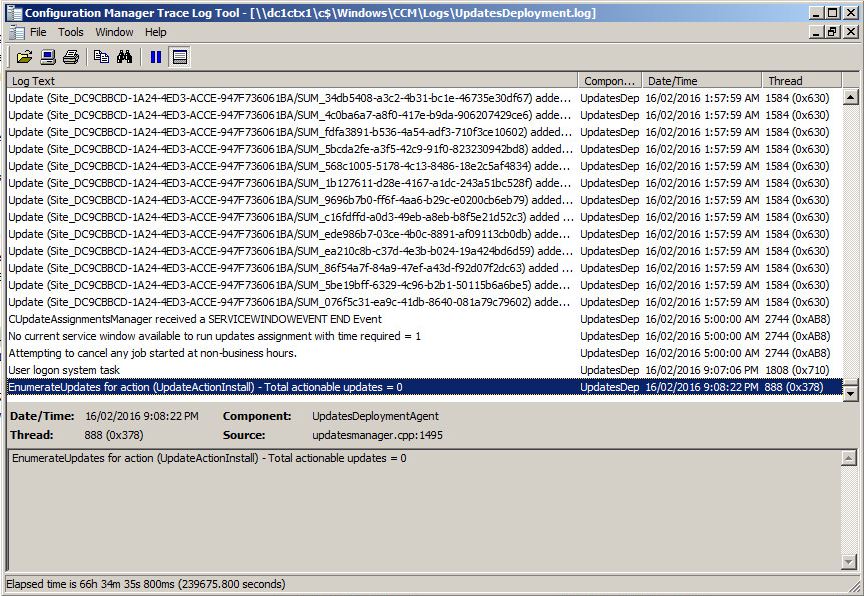
SCCM also integrates with Windows Server Update Services (WSUS) to facilitate the seamless distribution of updates. This feature automates the traditionally time-consuming process of software updates, freeing up IT staff to focus on other critical tasks.
Robust Operating System Deployment (OSD)
SCCM is not just about managing existing systems; it’s also about setting up new ones. With its Operating System Deployment (OSD) feature, SCCM can deploy new operating systems to computers across an organization, simplifying the process of onboarding new hardware.
Integrated Endpoint Protection and Compliance Settings Management
In a world where data breaches and cyber threats are rampant, the security of endpoints is critical. SCCM offers integrated endpoint protection, enabling IT administrators to manage security policies, monitor system status, and respond to threats in real-time.
The Inner Workings of SCCM: A Peek Under the Hood
SCCM operates on a client-server model. Once the client software is installed on devices, the SCCM server takes over the management of these clients. IT administrators can create policies for updates, security, and deployment that are then distributed to the clients.
The Value of SCCM in IT Ecosystem
SCCM is not just a tool; it’s an asset that adds significant value to IT management.
Simplification of IT Administration
With SCCM, IT administration is simplified. Its comprehensive feature set offers a unified solution to handle IT tasks, including remote support, updating applications and operating systems, managing PCs and servers, and much more.
Enhancement of System Security
The importance of system security cannot be overstated, and this is another area where SCCM shines. It provides the tools and capabilities to manage security policies, keep a close eye on system health, and take immediate action in response to any threats.
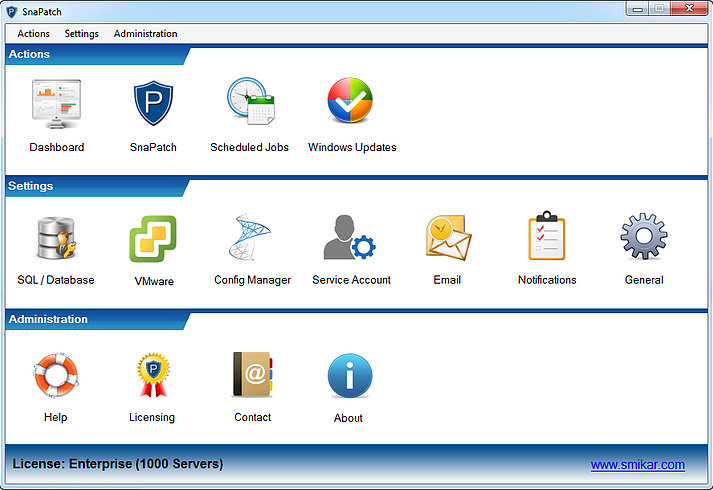
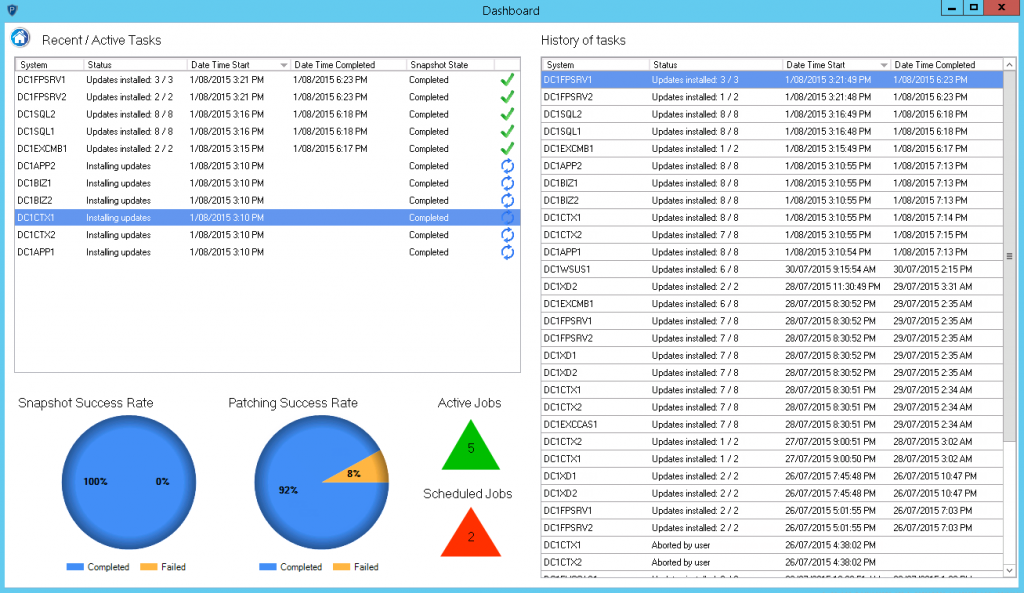
SnaPatch Patch Management Dashboard
SCCM Versus Its Peers: A Comparative Overview
While there are other tools available for IT management, SCCM stands out due to its comprehensive feature set, ability to scale as per the organization’s needs, and its seamless integration with other Microsoft products.
Leveraging SCCM for Success: Final Thoughts
As the IT landscape continues to evolve, tools like SCCM that offer comprehensive, centralized, and automated IT management will become increasingly indispensable. Leveraging SCCM effectively can pave the way for streamlined operations, enhanced security, and successful IT management.
SCCM Feature Set
Feature
Description
Hardware and Software Inventory
Enables IT administrators to monitor and manage all hardware assets and software applications used within the organization.
Software Distribution and Deployment
Allows administrators to distribute, install, update, and uninstall software applications across all computers within an organization.
Software Updates Automation
Integrates with Windows Server Update Services (WSUS) to automate the process of software updates distribution, saving time for IT staff.
Operating System Deployment (OSD)
Provides the ability to deploy new operating systems to computers across an organization, easing the process of setting up new systems.
Endpoint Protection
Facilitates the management of security policies, system status monitoring, and real-time threat response, enhancing the security of all endpoints.
Compliance Settings Management
Provides tools to enforce compliance with company policies regarding system configurations, security, and other settings.
Remote Control
Allows IT administrators to remotely control client computers for troubleshooting or administration tasks.
Reporting
Offers robust reporting features to track and analyze data on hardware, software, and SCCM operations.
Power Management
Enables IT administrators to monitor and manage the power consumption of devices across the organization.
Internet-Based Client Management
Facilitates management of internet-based clients outside of the organization’s network.
Please note that this is not an exhaustive list of all the features that SCCM provides, but it covers the most commonly used and powerful functionalities.
FAQs
What is SCCM? SCCM, or System Center Configuration Manager, is a management suite from Microsoft that enables IT administrators to manage the deployment and security of devices and applications across an organization.
How has SCCM evolved over the years? SCCM started as Systems Management Server (SMS) with basic functionalities. Over the years, it has evolved to include advanced features such as software distribution, OS deployment, and system health reporting. The latest update renamed SCCM as Microsoft Endpoint Configuration Manager, reflecting the industry’s focus on unified endpoint management.
What are some core functionalities of SCCM? SCCM offers functionalities like comprehensive hardware and software inventory management, software distribution and deployment, automation of software updates, robust operating system deployment, and integrated endpoint protection.
What is the value of SCCM in IT management? SCCM simplifies IT administration by offering a unified solution to manage multiple IT tasks. It enhances system security through its integrated endpoint protection and offers tools to manage security policies and monitor system health.
How does SCCM compare to its peers? While there are other IT management tools available, SCCM stands out due to its comprehensive feature set, scalability, and seamless integration with other Microsoft products.
As the digital world continues to evolve, the realm of virtualization is gaining increasing traction. At the heart of this evolution is the System Center Virtual Machine Manager (SCVMM), a pivotal component of Microsoft’s System Center suite. By providing comprehensive management capabilities for virtualized datacenter environments, SCVMM presents a modern solution for today’s complex IT infrastructures. This article delves into the intricacies of SCVMM, outlining its history, core features, benefits, and how it fares against other virtualization management tools.
Unveiling the Core of SCVMM
Developed atop a .NET Framework, SCVMM is engineered to harness the power of leading virtualization technologies, such as live migration, storage migration, and high availability. It was conceived during the advent of virtualization technologies when the need for advanced tools to oversee burgeoning virtual infrastructures became apparent. Over time, SCVMM has continually evolved, bringing forward new features, heightened compatibility, and better integration with various platforms.
Navigating the SCVMM Landscape
SCVMM serves as a centralized management tool for virtual environments, offering diverse capabilities. It’s responsible for intelligent placement of VMs, automatic load balancing across hosts, and rapid provisioning of new VMs through VM templates. SCVMM also accommodates PowerShell scripting for automation, which allows for streamlining repetitive administrative tasks. The cherry on top? It manages VMs across multiple hypervisors, including Microsoft Hyper-V, VMware ESXi, and Citrix XenServer.
scvmm hyper-v
The Distinct Features of SCVMM
Here are some of the features that make SCVMM stand apart:
Centralized Management: SCVMM offers a unified console to manage VMs across various hypervisors, including Hyper-V, VMware ESXi, and Citrix XenServer.
Intelligent Placement: It determines the optimal placement of VMs on hosts based on specific criteria such as load, performance, and resource allocation.
Virtual Machine Templates: These allow for rapid and standardized deployment of new VMs, ensuring consistency across deployments.
PowerShell Support: This feature allows admins to automate various management tasks, enhancing efficiency and reducing potential errors.
Dynamic and Power Optimization: SCVMM continually monitors resource usage and can automatically balance VMs across hosts for optimal performance. It also supports power optimization by managing power usage based on demand.
Private Cloud Creation: SCVMM enables the creation of private clouds from pooled resources, granting users self-service capabilities while maintaining underlying control.
Bare Metal Deployment: SCVMM can deploy Hyper-V hosts and Scale-Out File Server clusters to bare metal computers, eliminating the need for a pre-installed OS on the host.
Library Services: SCVMM includes a library for storing resources like VM templates, virtual hard disks, ISO images, scripts, hardware, and guest OS profiles.
Network Management: SCVMM provides robust network management capabilities, including the management of virtual switches, MAC address pools, and logical networks.
Storage Management: With SCVMM, admins can classify and pool storage based on capabilities and dynamically allocate storage to VMs.
Update Management: SCVMM can orchestrate the servicing of fabric servers in the SCVMM fabric, all while minimizing downtime.
Integration with Operations Manager: SCVMM integrates with System Center Operations Manager for comprehensive infrastructure monitoring.
SCVMM: Integrating with VMware, Hyper-V, and Azure
A standout feature of SCVMM is its ability to integrate with VMware, Hyper-V, and Azure. Its integration with VMware’s vCenter server offers a unified platform for managing ESX hosts and their VMs. With Hyper-V, SCVMM provides a centralized interface for managing hosts and clusters, creating and configuring VMs, implementing live migrations, and setting up failover clustering for high availability. As for Azure, SCVMM allows for managing Azure VMs and services, supporting a hybrid cloud management approach.
Features
Hyper-V
VMware
Azure
Centralized Management
Yes
Yes (through vCenter integration)
Yes
Intelligent VM Placement
Yes
Yes
Limited
VM Templates
Yes
Yes
Yes
PowerShell Automation
Yes
Limited (PowerCLI support)
Limited (Azure CLI support)
Dynamic & Power Optimization
Yes
Yes
No
Private Cloud Creation
Yes
Yes
Not applicable (Is a public cloud service)
Bare Metal Deployment
Yes
No
No
Library Services
Yes
Yes
No
Network Management
Yes
Yes
Yes
Storage Management
Yes
Yes
Yes
Update Management
Yes
Yes
Managed by Microsoft
Integration with Operations Manager
Yes
Yes
Yes
Please note that the “Limited” label signifies that the feature exists, but may not offer as extensive functionalities as compared to SCVMM. Similarly, “Managed by Microsoft” implies that certain aspects are managed by Microsoft themselves and thus may not require user intervention in the context of Azure.
Advantages of Deploying SCVMM
Using SCVMM brings forth numerous advantages, especially in complex virtual environments. These include centralized management of physical and virtual resources, intelligent VM placement, and the creation of private clouds. Plus, SCVMM provides comprehensive monitoring and reporting capabilities, enabling informed decisions about capacity planning and resource allocation.
SCVMM versus Other Virtualization Management Tools
When compared to other management tools like VMware vCenter, SCVMM shines due to its ability to manage both VMware and Hyper-V environments. This dual functionality gives it a competitive edge in the market, making it a preferred choice for IT administrators globally.
SnapShot Master Power On
Incorporating Snapshot Master into SCVMM
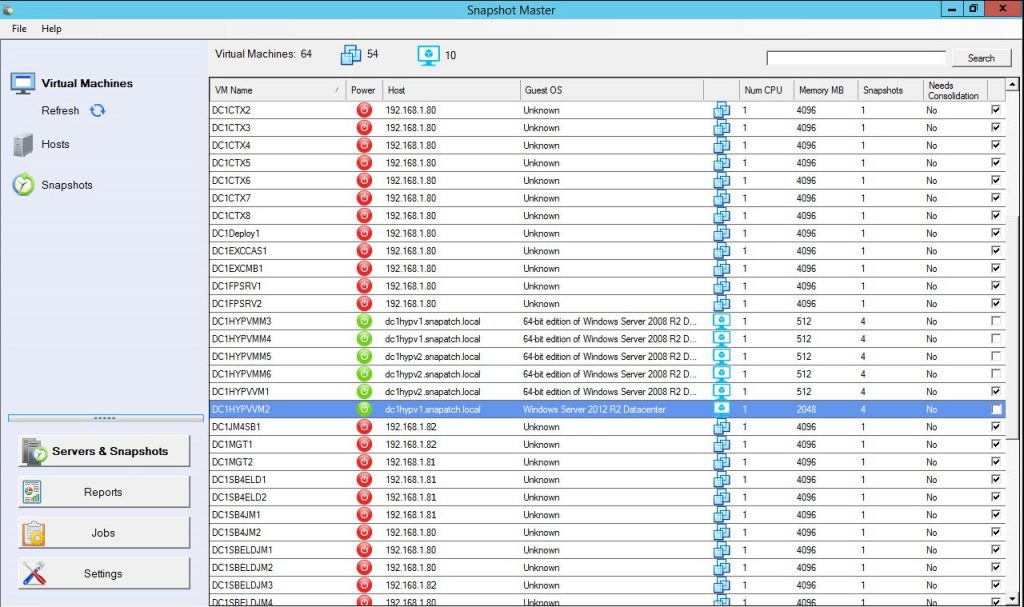
While SCVMM is a powerful standalone tool, its capabilities can be extended even further with additional software like Snapshot Master. This tool integrates with SCVMM, VMware’s vCenter, and Azure, providing enhanced control over VM snapshots, checkpoints, and data stores. From scheduling snapshot creations and deletions to consolidating VMs snapshots, Snapshot Master enhances SCVMM’s already potent feature set.
In conclusion, SCVMM is an all-encompassing tool designed to make virtual machine management straightforward, efficient, and dynamic. By understanding its core features and functionalities, IT administrators can leverage its capabilities to streamline and optimize their virtual environment management tasks.
SCVMM FAQs
What is System Center Virtual Machine Manager (SCVMM)?
SCVMM is a component of Microsoft’s System Center suite that provides a unified management interface for virtualized datacenter environments, enabling administrators to manage physical servers, virtual machines, and services across multiple hypervisors.
Which hypervisors does SCVMM support?
SCVMM supports multiple hypervisors, including Microsoft Hyper-V, VMware ESXi, and Citrix XenServer.
How does SCVMM aid in the management of virtual machines?
SCVMM aids in the management of virtual machines by offering intelligent placement, load balancing, rapid provisioning through VM templates, and automation of tasks through PowerShell scripting.
What is the role of PowerShell in SCVMM?
SCVMM has robust PowerShell support, allowing administrators to automate various management tasks and create scripts for frequently performed operations, thereby enhancing efficiency and reducing potential errors.
How does SCVMM optimize performance and power usage?
SCVMM continually monitors resource usage and automatically balances virtual machines across hosts for optimal performance. It also optimizes power usage by turning off underutilized hosts during periods of low demand and turning them back on when needed.
Can SCVMM manage private clouds?
Yes, SCVMM allows for the creation of private clouds from pooled resources, granting users self-service capabilities while maintaining underlying control.
What is bare metal deployment in SCVMM?
Bare metal deployment in SCVMM is the capability to deploy Hyper-V hosts and Scale-Out File Server clusters to bare metal computers, eliminating the need for a pre-installed operating system on the host.
How does SCVMM handle storage management?
With SCVMM, administrators can classify and pool storage based on capabilities and dynamically allocate storage to virtual machines.
How does SCVMM compare to other virtualization management tools like VMware vCenter?
SCVMM provides a unique advantage over other tools like VMware vCenter due to its ability to manage both VMware and Hyper-V environments. This dual functionality gives SCVMM a competitive edge in the market.
What additional benefits does Snapshot Master provide when integrated with SCVMM?
Snapshot Master enhances SCVMM’s capabilities by providing enhanced control over VM snapshots, checkpoints, and data stores. This includes scheduling snapshot creations and deletions, consolidating VMs snapshots, and more.
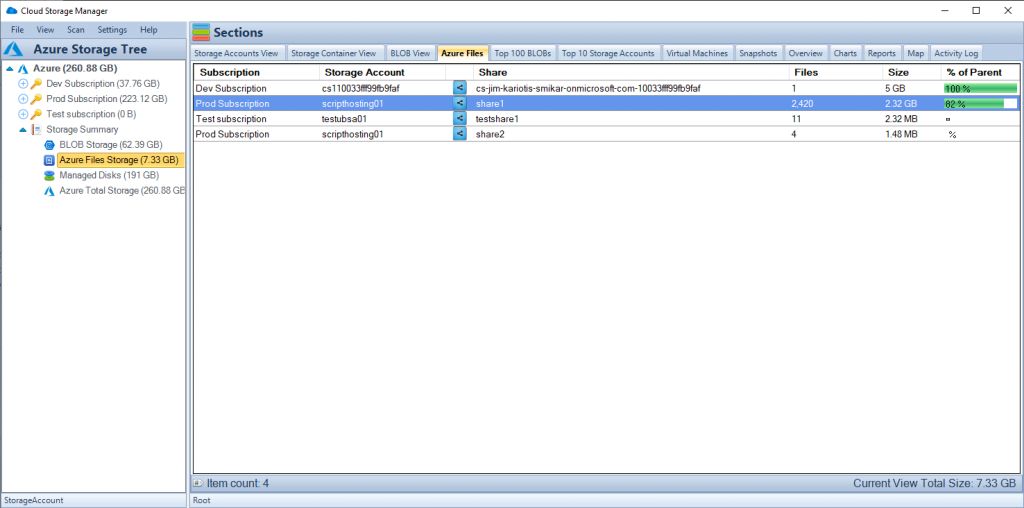
Azure File Storage, a component of Microsoft Azure’s broader cloud services, is a managed file storage service for the cloud. Its fundamental design is to create, manage, and share file systems securely and easily using standard protocols supported by most operating systems. It offers fully managed file shares in the cloud accessible via the industry-standard Server Message Block (SMB) and Network File System (NFS) protocols.
Key Protocols: NFS and SMB Explained
To comprehend Azure File Storage fully, we must unpack the two critical protocols it uses: NFS and SMB.
NFS: Detailed Technical Overview
Network File System (NFS) is a distributed file system protocol originally developed by Sun Microsystems. The protocol, based on the Remote Procedure Call (RPC) model, allows all network users to access shared files stored on computers of different types.
The latest version supported by Azure, NFS 4.1, introduces several enhancements over previous versions:
Stateful and Stateless Operations: NFS 4.1 supports both stateful and stateless operations. While stateful operations require the server to maintain state information, stateless operations do not. Stateful operations include actions such as locking files, while stateless operations include reading and writing to files.
Compound Operations: NFS 4.1 also introduces compound operations. In previous versions of NFS, each operation sent over the network would necessitate a response before another could be sent. Compound operations allow clients to send multiple operations to the server in a single request, reducing the latency associated with waiting for responses.
Security Enhancements: NFS 4.1 offers better security with the Kerberos V5 authentication protocol. It also uses string-based names to identify users and groups, which eases the integration of NFS into a multi-domain environment.
SMB: In-depth Technical Examination
Server Message Block (SMB) is a networking file share protocol included in Windows 10 that provides the ability to read and write files and perform other service requests to network devices. SMB operates as an application-layer network protocol mainly used for offering shared access to files, printer access, serial ports, and miscellaneous communications between nodes on a network.
Azure supports SMB 3.1.1 protocol, which has several improvements:
Persistent Handles: SMB 3.1.1 supports persistent handles, which are durable handles that can withstand brief network disruptions without disconnecting the user’s session. This provides users with a continuous connection even when there are network interruptions.
Multichannel: SMB 3.1.1 also introduces multichannel, which allows clients to establish multiple network paths for the SMB session. This not only increases performance by enabling concurrent network input/output (I/O), but it also provides redundancy and failover capabilities.
Encryption: To increase security, SMB 3.1.1 offers end-to-end encryption. This ensures that data is not compromised while in transit over the network, providing additional security for sensitive data.
Azure Files Complete Overview
NFS vs. SMB: A Comparative Analysis in Azure File Storage
To make an informed choice between NFS and SMB for Azure File Storage, it’s crucial to compare them across several key areas.
Interoperability and System Compatibility
When it comes to system compatibility, NFS has traditionally been the go-to choice for Unix and Linux systems. However, it’s worth noting that NFS 4.1, with its enhanced features, has significantly improved NFS’s interoperability with non-Unix environments.
On the other hand, SMB is natively supported on all versions of Windows and has excellent compatibility with other systems. SMB 3.1.1 is especially well-suited to Azure environments due to its support for persistent handles and multichannel operations.
Performance and Efficiency
Performance-wise, NFS shines in handling heavy data loads due to its support for stateful and stateless operations, as well as compound operations that reduce network latency. This makes NFS a robust choice for applications requiring the processing of large files or high-performance computing.
SMB, with its support for multichannel operations, provides superior performance in scenarios involving smaller file transactions or when used with applications that can take advantage of multichannel’s concurrent network I/O.
Security
Both NFS and SMB offer robust security features. NFS 4.1 uses the Kerberos V5 authentication protocol, providing robust security for Unix/Linux environments. SMB 3.1.1, however, provides end-to-end encryption, securing data in transit over the network. This is particularly beneficial for applications requiring a high level of data security.
Cost Considerations
The cost of implementing NFS or SMB in Azure File Storage will depend on your specific needs and the Azure storage tier you select. It’s crucial to consider the potential trade-offs between cost, performance, security, and compatibility when making your choice.
Practical Use Cases
Both NFS and SMB have practical applications that further shape the choice between them. NFS is typically the protocol of choice in scenarios where multiple users need to share and collaborate on large files in Unix/Linux environments. In contrast, SMB is often favored in Windows environments for sharing files and printers across the network.
Cloud Storage Manager Map View
The Pros and Cons: Evaluating NFS and SMB
Every protocol has its strengths and weaknesses, and NFS and SMB are no exceptions. NFS provides robust performance for large data sets and is ideal for Unix/Linux-based environments. However, it may pose some compatibility issues in non-Unix environments.
SMB offers excellent compatibility and is efficient for small file transactions, but it may not perform as well as NFS when handling large data sets.
In Conclusion: Making Your Choice
When deciding between NFS and SMB in Azure File Storage, the choice boils down to your specific needs, system environment, and performance requirements. Understanding the technical details, strengths, and weaknesses of both protocols will guide you in making an informed choice.
Frequently Asked Questions
What is Azure File Storage?Azure File Storage is a managed file storage service for the cloud that allows for the creation, management, and sharing of file systems securely and easily using standard protocols supported by most operating systems.
What are NFS and SMB? NFS (Network File System) and SMB (Server Message Block) are network protocols used to access and share files over a network. NFS is commonly used in Unix/Linux environments, while SMB is typically used in Windows environments.
What are the key differences between NFS and SMB in Azure File Storage? NFS and SMB differ in terms of compatibility, performance, security, and cost. NFS tends to perform better with large data sets, while SMB is more efficient with smaller file transactions. NFS is commonly used in Unix/Linux environments, and SMB is native to Windows. In terms of security, both offer robust features but through different mechanisms—NFS uses the Kerberos V5 protocol, while SMB provides end-to-end encryption.
Can I use both NFS and SMB protocols for the same Azure File share? No, an Azure File share can be accessed either via NFS or SMB protocol but not both simultaneously. The choice depends on your application requirements, operating system, and specific needs.
How secure are NFS and SMB in Azure File Storage? Both NFS and SMB protocols in Azure File Storage offer robust security features. NFS 4.1 uses the Kerberos V5 authentication protocol, while SMB 3.1.1 provides end-to-end encryption to secure data in transit over the network.
Is there a performance difference between NFS and SMB in Azure File Storage? Yes, NFS and SMB have different performance characteristics. NFS shines when handling large data loads due to its support for compound operations, making it ideal for processing large files or high-performance computing. On the other hand, SMB performs exceptionally well with smaller file transactions, and it’s particularly efficient when used with applications that can take advantage of its multichannel feature.
What are the cost implications of using NFS vs. SMB in Azure File Storage? The cost of using NFS or SMB in Azure File Storage will depend on your specific needs and the Azure storage tier you select. Both protocols have different strengths that may impact your performance, security, and compatibility requirements, all of which could influence the overall cost.
Which protocol should I choose for my Azure File Storage: NFS or SMB? The choice between NFS and SMB depends on various factors, including your system environment, specific needs, and performance requirements. NFS is typically better suited to Unix/Linux environments and applications requiring processing of large files, while SMB is favored in Windows environments and scenarios involving smaller file transactions. Understanding these details can guide you in making an informed decision.
Hyper-V is a native hypervisor from Microsoft that allows users to create and manage virtual machines (VMs). It’s an integral part of Windows Server and provides a virtualized environment for running multiple operating systems on a single physical machine. This technology has revolutionized the way businesses operate by enabling them to maximize hardware usage, reduce costs, and improve disaster recovery processes.
The Evolution of Hyper-V
Hyper-V was first released with Windows Server 2008, and it has since become a staple in the realm of virtualization technologies. With each new iteration, Microsoft has added more features and capabilities, making Hyper-V a robust and versatile solution for various IT needs. Over the years, Hyper-V has evolved from a simple virtualization platform to a comprehensive solution that supports complex multi-tier applications, large-scale virtual desktop infrastructure (VDI), and hybrid cloud environments.
Hyper-V Architecture
Understanding the architecture of Hyper-V is key to leveraging its full potential. The architecture comprises several components, including the hypervisor, virtual machines, and virtual networks.
Hypervisor
The hypervisor is the core component of Hyper-V. It’s responsible for creating, running, and managing VMs. The hypervisor operates directly on the hardware, allowing for improved performance and efficiency. It’s designed to ensure that each VM operates independently, without interference from other VMs on the same host. This isolation is crucial for maintaining the security and stability of each VM.
Virtual Machines
Virtual machines are software emulations of physical computers. They run their own operating systems and applications, just like a physical computer. Hyper-V supports the creation of both Generation 1 and Generation 2 VMs, each with its own set of capabilities and limitations. Generation 1 VMs support legacy hardware and are compatible with most operating systems. On the other hand, Generation 2 VMs support modern features such as Secure Boot and larger boot volumes but are only compatible with certain versions of Windows and Linux. You can learn more about the differences between Generation 1 and Generation 2 VMs here.
Virtual Networks
Virtual networks in Hyper-V allow VMs to communicate with each other and with the outside world. They can be configured in various ways to suit different networking requirements. For example, you can create private networks for VMs that don’t require external connectivity, internal networks for communication between VMs and the host, or external networks for connecting VMs to the physical network.
SnapShot Master Home Screen
Key Features of Hyper-V
Hyper-V comes with a host of features that enhance its functionality and usability. These features are designed to improve the performance, scalability, and manageability of virtual environments.
Live Migration
Live Migration is a feature that allows you to move running VMs from one Hyper-V host to another without any downtime. This is particularly useful for performing maintenance tasks without disrupting services. Live Migration works by transferring the VM’s memory and state from the source host to the destination host while the VM continues to run. Once the transfer is complete, the VM is switched over to the destination host, and the user experiences no noticeable downtime.
High Availability
Hyper-V, when used in conjunction with other Microsoft technologies like Failover Clustering, can provide high availability for your VMs. This ensures that your services remain available even in the event of a host failure. Failover Clustering works by grouping multiple Hyper-V hosts into a cluster. If one host fails, the VMs on that host are automatically moved to another host in the cluster, minimizing downtime.
Extensible Switch
The Hyper-V extensible switch is a virtual network switch that you can extend and customize to suit your networking needs. It supports a variety of third-party extensions, allowing for greater flexibility and control. With the extensible switch, you can implement advanced networking features such as intrusion detection, traffic shaping, and network isolation directly on the virtual switch.
Snapshot Master Restart
Hyper-V and Virtual Machine Snapshots
One of the powerful features of Hyper-V is its ability to create snapshots of VMs. But what exactly are snapshots, and how can they be effectively managed?
Understanding Snapshots
A snapshot is a point-in-time image of a VM. It captures the state of the VM, including its configuration, operating system, applications, and data. Snapshots can be used to revert a VM to a previous state, which can be incredibly useful in various scenarios, such as testing new software or updates, troubleshooting issues, and so on. However, it’s important to note that snapshots are not a replacement for backups. While they can help recover from immediate issues, they don’t protect against data loss in the event of a storage failure. You can learn more about the usage of snapshots here.
Managing Snapshots with Snapshot Master
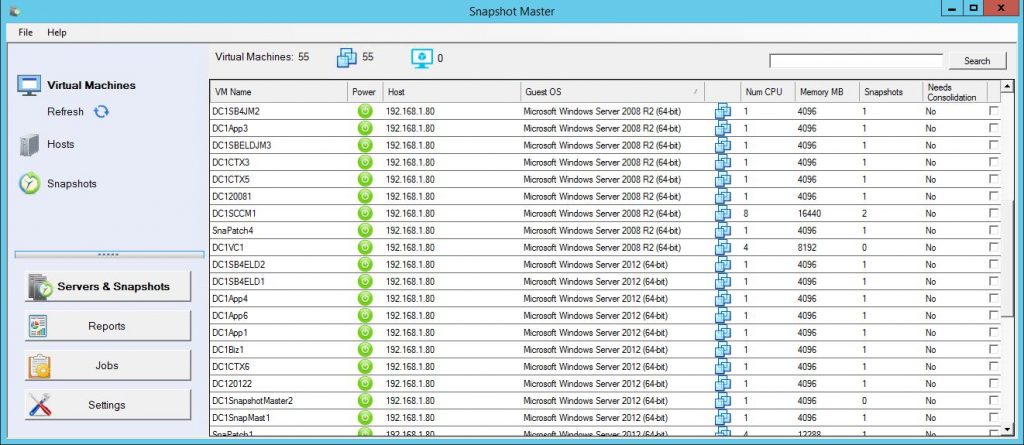
While Hyper-V provides native snapshot capabilities, managing these snapshots, especially in large environments, can be challenging. This is where tools like Snapshot Master come in. Snapshot Master is a comprehensive solution for managing VM snapshots, checkpoints, and data stores for VMware, Hyper-V, and Azure.
Scheduling Snapshots
Snapshot Master allows you to schedule snapshot creations and deletions, automating what would otherwise be a manual and time-consuming process. This ensures that you always have up-to-date snapshots when you need them. You can set up schedules based on your specific needs, whether it’s creating daily snapshots for critical VMs or weekly snapshots for less critical ones.
Snapshot Reports
In addition to managing snapshots, Snapshot Master also provides detailed reports. You can receive email notifications about your snapshots, giving you a complete view of your virtual environment. These reports can include information such as the number of snapshots, their size, and their age, helping you keep track of your snapshots and identify any potential issues.
hyperv vs vmware
Hyper-V vs. Other Virtualization Technologies
While Hyper-V is a powerful virtualization technology, it’s not the only one out there. How does it compare to others like VMware and Azure?
Hyper-V vs. VMware
Both Hyper-V and VMware offer robust virtualization solutions, but there are some key differences. For instance, while VMware has traditionally been seen as the more feature-rich solution, Hyper-V has made significant strides in recent years, especially with its integration with other Microsoft products and services. VMware excels in areas such as performance and scalability, while Hyper-V stands out with its cost-effectiveness and deep integration with Windows. You can read more about the comparison here.
Hyper-V vs. Azure
Azure is Microsoft’s cloud computing platform, and it also offers virtualization capabilities. While Hyper-V is typically used for on-premises virtualization, Azure is used for cloud-based virtualization. However, the two can work together in a hybrid environment, providing even more flexibility. With Azure, you can take advantage of the scalability and agility of the cloud, while Hyper-V allows you to maintain control over your on-premises resources. You can learn more about Azure VMs here.
Conclusion
Hyper-V is a versatile and powerful virtualization technology that has become a key player in the IT world. Whether you’re running a small business or a large enterprise, Hyper-V can provide the virtualization solutions you need. With tools like Snapshot Master, managing your virtual environment becomes even easier. As virtualization continues to evolve, Hyper-V is well-positioned to remain at the forefront of this technology.
Frequently Asked Questions
What is the difference between Hyper-V and VMware?
Both are powerful virtualization technologies with their own strengths. While VMware has traditionally been seen as more feature-rich, Hyper-V has made significant strides in recent years. The best choice depends on your specific needs and environment. You can read more about the comparison here.
Can Hyper-V run on Windows 10?
Yes, Hyper-V can run on Windows 10, but it requires a 64-bit system that has Second Level Address Translation (SLAT).
What are Hyper-V snapshots?
Snapshots are point-in-time images of a VM. They capture the state of the VM, allowing you to revert to a previous state if needed. You can learn more about snapshots here.
What is Snapshot Master?
Snapshot Master is a tool that helps manage VM snapshots, checkpoints, and data stores for VMware, Hyper-V, and Azure.
Can Hyper-V and Azure work together?
Yes, Hyper-V and Azure can work together in a hybrid environment, allowing you to leverage the benefits of both on-premises and cloud-based virtualization. You can learn more about Azure VMs here.
What are the key features of Hyper-V?
Some key features of Hyper-V include live migration, high availability, and an extensible switch. These features enhance the functionality and usability of Hyper-V.
What is the difference between Generation 1 and Generation 2 VMs in Hyper-V?
Generation 1 VMs support legacy hardware and are compatible with most operating systems. Generation 2 VMs support modern features such as Secure Boot and larger boot volumes but are only compatible with certain versions of Windows and Linux. You can learn more about the differences between Generation 1 and Generation 2 VMs here.
What is the role of the hypervisor in Hyper-V?
The hypervisor is the core component of Hyper-V. It’s responsible for creating, running, and managing VMs. The hypervisor operates directly on the hardware, allowing for improved performance and efficiency.
What is the difference between a snapshot and a backup?
A snapshot is a point-in-time image of a VM, while a backup is a copy of data that can be used to restore and recover data. Snapshots are useful for reverting a VM to a previous state, but they don’t protect against data loss in the event of a storage failure. You can learn more about the usage of snapshots here.
What is live migration in Hyper-V?
Live Migration is a feature that allows you to move running VMs from one Hyper-V host to another without anydowntime. This is particularly useful for performing maintenance tasks without disrupting services.
VMware, Inc., a subsidiary of Dell Technologies, is a leading provider of cloud computing and virtualization software and services. Since its establishment in 1998, VMware has been at the forefront of the IT industry, revolutionizing the way businesses operate with its innovative virtualization technology. This article aims to provide an in-depth understanding of VMware, its suite of products, and its transformative impact on the business landscape.
The Concept of Virtualization
To fully comprehend VMware’s contributions, it’s crucial to first understand the concept of virtualization. Virtualization refers to the process of creating a virtual version of something, such as a server, storage device, network, or even an operating system. This process allows for the creation of multiple simulated environments or dedicated resources from a single, physical hardware system. Virtualization has become a cornerstone of modern IT strategies due to its efficiency, flexibility, and cost-effectiveness.
VMware’s Role in Virtualization
As a global leader in virtualization and cloud infrastructure, VMware enables businesses to transform the way they build, deliver, and consume Information Technology (IT) resources. This transformation is not a one-size-fits-all process but is tailored to meet specific business needs.
VMware’s approach to virtualization, which is embedded directly in the hardware, is fundamentally different from other software-based virtualization solutions. This unique approach has led to over 500,000 customers worldwide choosing VMware as their virtualization solution provider.
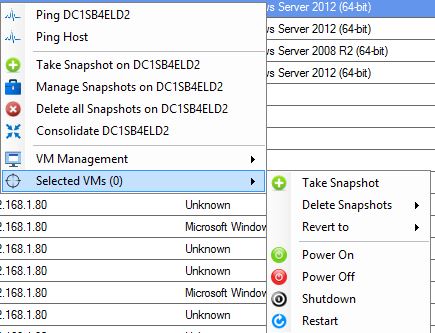
Snapshot Master Restart
VMware’s Product Suite
VMware offers a wide range of products, each serving different purposes. Here are some of the key products:
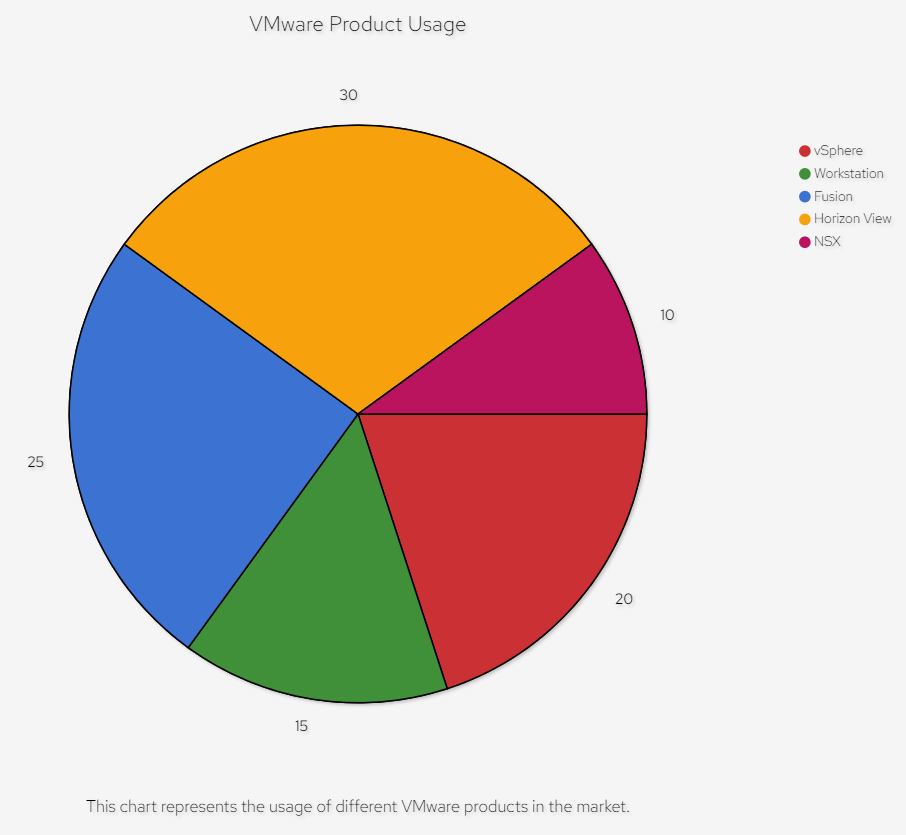
VMware vSphere: vSphere is VMware’s flagship virtualization platform. It serves as a complete platform for implementing and managing virtual machine infrastructure on a large scale.
VMware Workstation: This product allows users to run multiple instances of x86 or x86-64-compatible operating systems on a single physical PC.
VMware Fusion: Similar to Workstation, but for the Macintosh platform. It allows Intel-based Macs to run virtual machines with a variety of operating systems.
VMware Horizon View: A commercial desktop-virtualization product developed by VMware for its enterprise customers.
VMware NSX: A virtual networking and security software product family created from VMware’s vCloud Networking and Security (vCNS) and Nicira Network Virtualization Platform (NVP).
The distribution of these products in the market can be visualized in the following pie chart:
The Impact of VMware
VMware’s virtualization technology has had a profound impact on IT services. Here are some of the key areas where VMware has made a significant difference:
Cost Efficiency: Virtualization reduces the need for physical hardware systems. Fewer hardware systems mean reduced IT costs.
Energy Efficiency: Fewer physical servers mean lower energy costs. It’s not just about saving money; it’s also about reducing a company’s carbon footprint.
Improved Disaster Recovery: Virtualization offers an organization three important components: a method to back up fully functional virtual machine installations, a way to quickly restore those backups, and a way to migrate a virtual machine from one physical server to another in case of server failure.
Increased IT productivity, efficiency, agility, and responsiveness: Virtualization allows IT departments to deploy, manage, maintain and protect applications and servers more efficiently.
Conclusion
VMware has been a game-changer in the IT industry. Its innovative approach to virtualization has not only changed the way businesses operate but also paved the way for new technological advancements. As we move towards a more digital and interconnected world, the role of VMware and virtualization will only continue to grow in significance.
VMware’s Future Outlook
As we look to the future, VMware is poised to continue its leadership in the virtualization and cloud services industry. The company is investing heavily in research and development to further enhance its product offerings and meet the evolving needs of businesses. VMware is also expanding its partnerships with other tech giants to deliver more comprehensive and integrated solutions to its customers.
In the era of digital transformation, VMware is focusing on areas such as multi-cloud environments, networking, security, and the digital workspace. The company’s vision is to provide a ubiquitous software layer across application infrastructure and endpoints, independent of the underlying physical infrastructure.
VMware’s Contribution to the IT Community
Beyond its products and services, VMware has also made significant contributions to the broader IT community. The company is a major contributor to open-source projects and has launched several initiatives to promote technology education and digital literacy. VMware’s commitment to fostering innovation and advancing the state of technology is evident in its active participation in industry conferences, forums, and other knowledge-sharing platforms.
VMware Certification and Training
For IT professionals looking to specialize in virtualization and cloud services, VMware offers a range of certification programs. These certifications validate the knowledge and skills needed to effectively install, deploy, manage and support VMware’s products and solutions. VMware’s certification paths are designed to cover various levels of expertise, from entry-level to advanced, providing IT professionals with a valuable resource for career advancement.
SnapShot Master Home Screen
Wrapping Up
In conclusion, VMware has played a pivotal role in shaping the IT landscape with its pioneering virtualization technology. Its comprehensive suite of products has enabled businesses to operate more efficiently, reduce costs, and improve service delivery. As the digital transformation journey continues, VMware’s innovative solutions will undoubtedly remain at the forefront, driving the future of virtualization and cloud services.
What is VMware? VMware is a leading provider of virtualization and cloud computing software and services. It allows businesses to run multiple operating systems and applications on a single server, improving system efficiency and flexibility.
What is virtualization? Virtualization is the process of creating a virtual version of something like a server, storage device, network, or operating system. This allows you to run multiple virtual machines on a single physical machine, sharing resources and reducing hardware costs.
What are some of the key products offered by VMware? Key products offered by VMware include VMware vSphere (a platform for managing virtual machines), VMware Workstation (allows running multiple operating systems on a single PC), VMware Fusion (similar to Workstation, but for Mac), VMware Horizon View (a desktop virtualization product), and VMware NSX (a virtual networking and security software).
How does VMware improve business operations? VMware improves business operations by allowing businesses to run multiple applications and operating systems on a single server, reducing the need for physical hardware and thus lowering IT costs. It also improves disaster recovery processes and increases IT productivity, efficiency, agility, and responsiveness.
What is VMware vSphere? VMware vSphere is VMware’s flagship product. It’s a complete platform for implementing and managing a virtual machine infrastructure on a large scale. vSphere allows for increased capacity utilization, minimized downtime, and automated operations.
What is the difference between VMware Workstation and VMware Fusion? Both are products that allow you to run multiple operating systems on a single machine. The difference is that Workstation is designed for use on a PC, while Fusion is designed for use on a Mac.
What is VMware NSX? VMware NSX is a virtual networking and security software. It delivers a completely new operational model for networking that forms the foundation of the Software-Defined Data Center (SDDC).
What is VMware Horizon View? VMware Horizon View, also known as Horizon VDI, is a desktop virtualization product that allows IT administrators to host and manage virtual desktops centrally. It provides remote desktop capabilities to users using VMware’s virtualization technology.
What are the benefits of getting a VMware certification? A VMware certification validates your knowledge and skills in managing and operating VMware’s products and solutions. It can enhance your credibility as an IT professional, increase your job opportunities, and potentially lead to a higher salary.
What is the future outlook for VMware? VMware continues to be a leader in the field of virtualization and cloud services. The company is investing heavily in research and development to further enhance its product offerings and meet the evolving needs of businesses. The future outlook for VMware looks promising with a focus on areas such as multi-cloud environments, networking, security, and the digital workspace.