SharePoint against Onedrive Comparison

SharePoint against Onedrive Comparison


SharePoint vs. OneDrive: A Comprehensive Comparison

In today’s digital age, the need for efficient document storage and collaboration tools is more pressing than ever. Microsoft, being a leader in the enterprise solutions sector, offers two standout products in this category: SharePoint and OneDrive. While both tools hail from the same Microsoft family and integrate seamlessly with other Microsoft 365 apps, they serve distinct purposes.

SharePoint is a collaborative platform designed for managing content, workflows, and team collaboration, ideal for organizations that need structured document management and intranet solutions. On the other hand, OneDrive focuses on personal cloud storage, enabling individuals to store, sync, and access files across devices, with limited sharing capabilities. While SharePoint is better suited for team projects and large-scale collaboration, OneDrive excels in individual productivity and personal file management.

Let’s delve deeper into the nuances of each and understand their primary differences.

Key takeaways

Aspect SharePoint OneDrive
Purpose Comprehensive collaboration platform tailored for business needs. Personal cloud storage solution primarily designed for individual use.
Collaboration Offers advanced tools like Team Sites and Communication Sites. Geared towards individual file sharing with limited collaboration features.
Storage Designed for organizational use with default storage of 1 TB per team site. Focuses on individual users with starting storage of 1 TB per user.
Integration Deep integrations with the Microsoft ecosystem and extensible via SharePoint Framework. Seamless integration with Office apps and provides offline sync capabilities.
Security Enterprise-level security features with detailed audit logs for compliance. Tailored for individual security needs with features like personal vaults.
Pricing Bundled with Microsoft 365 enterprise plans. Available in various Microsoft 365 subscriptions or as a standalone service.
Best Use Cases Ideal for intranet portals, managing projects, and setting up workflows. Best for storing personal files or for businesses that require simple storage.

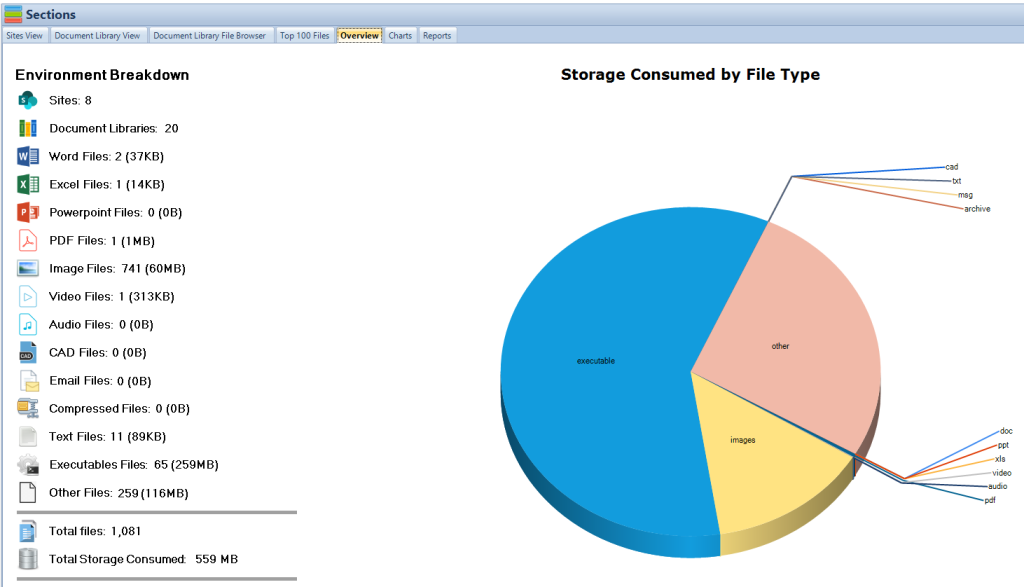
SharePoint Storage Explorer Overview


Purpose and Core Functionality

SharePoint: Originally designed as an enterprise content management system, SharePoint has evolved into a comprehensive platform for intranet portals, document & file management, collaboration, and more. It is best suited for businesses that require a shared space where teams can post updates, collaborate on documents, and maintain complex workflows.

OneDrive: OneDrive, at its heart, is a personal cloud storage solution. It’s akin to a digital locker where users can store documents, photos, and other files. While it does offer sharing capabilities, it’s primarily designed for individual use.

SharePoint: Collaboration is where SharePoint shines. It offers Team Sites for group projects, Communication Sites for company-wide announcements, and integration with Microsoft Teams for chat-based collaboration. Its robust permission system ensures that only authorized personnel can access specific content.

OneDrive: OneDrive allows users to share files and folders with others, both within and outside their organization. It’s perfect for quick file sharing but lacks the advanced collaboration tools and structures found in SharePoint.

Storage Capacity

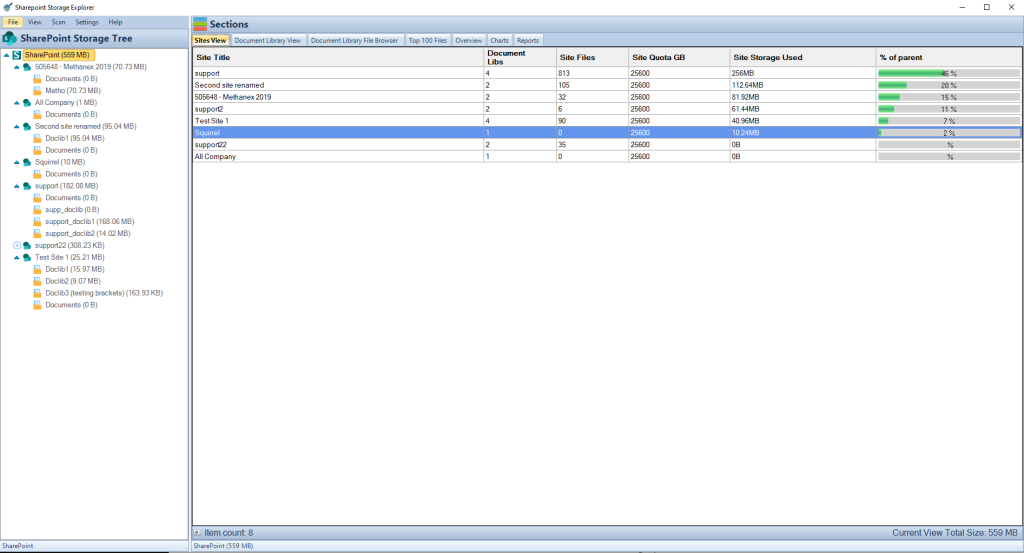
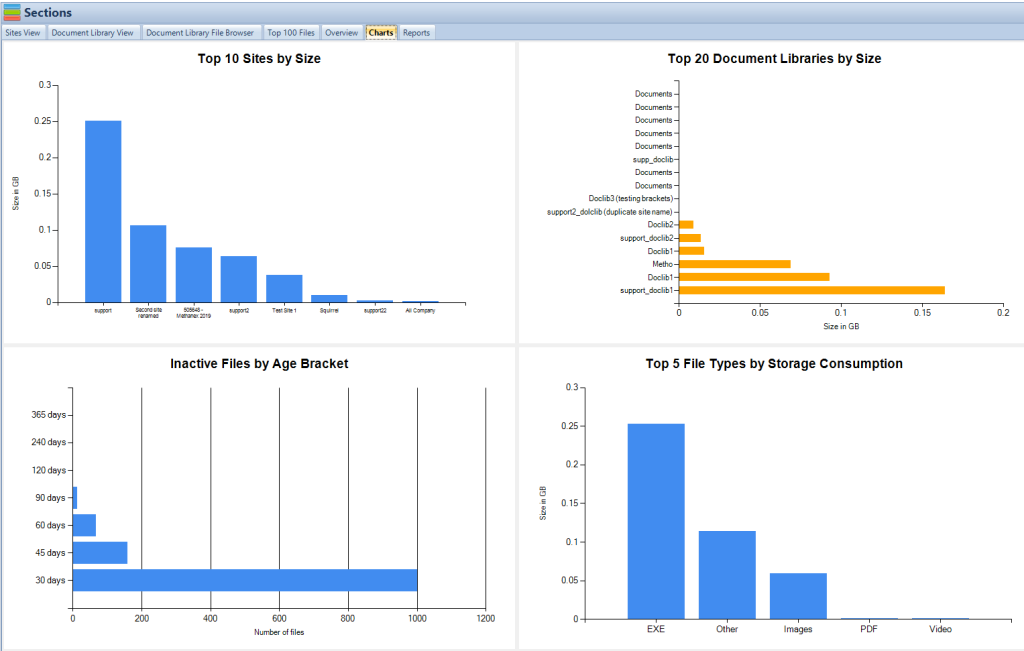
SharePoint: SharePoint’s storage is designed for broader organizational use. The default storage for a SharePoint Online team site is 1 TB. However, more space can be added based on the number of licensed users. Use SharePoint Storage Explorer to see how much SharePoint Online storage you are using.

OneDrive: For OneDrive for Business users, the starting storage capacity is 1 TB per user. This can be increased for licensed users, up to 5 TB per user, if needed.
SharePoint Storage Explorer Charts


Integration with Other Tools

SharePoint: SharePoint offers deep integrations with the Microsoft ecosystem, including Power BI for analytics, Power Automate for workflow automation, and more. It can also be extended using the SharePoint Framework for custom development.

OneDrive: OneDrive integrates well with Microsoft Office apps. Users can co-author Word, PowerPoint, and Excel documents in real-time. It also offers a sync client that allows offline access to files.

Security Features

SharePoint: SharePoint provides advanced security features suitable for organizational needs. This includes data loss prevention, in-transit and at-rest encryption, and advanced threat protection. It also offers detailed audit logs for compliance purposes.

OneDrive: OneDrive boasts robust security features, including personal vaults for sensitive files, ransomware detection & recovery, and two-factor authentication. While it offers strong security for individual use, it may lack some of the advanced controls required for larger organizations.

Price Point

SharePoint: SharePoint pricing is based on organizational needs and the chosen plan. It’s generally bundled with Microsoft 365 enterprise plans, which also include other services.

OneDrive: OneDrive for Business is available as part of Microsoft 365 subscriptions or as a standalone service. For personal use, there’s a free version with limited storage, and paid plans offer more storage and features.
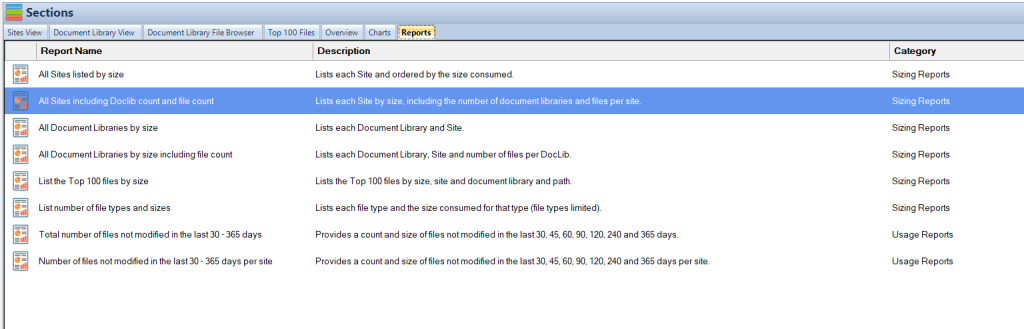
SharePoint Storage Explorer ReportsBest Use Cases

SharePoint: Ideal for businesses looking for an all-in-one collaboration platform. It’s perfect for creating intranet portals, managing projects, and setting up workflows.

OneDrive: Best suited for individuals or businesses that need a simple, secure cloud storage solution. It’s great for storing personal files or for businesses that primarily require file storage without the need for advanced collaboration tools.

Download SharePoint Storage Explorer

Unleash the Full Power of SharePoint – Download Our Free Tool Now!
Say hello to efficient storage management with SharePoint Storage Explorer. Your solution to the complex world of SharePoint is just a click away and absolutely free. Download now and join the community of savvy SharePoint users who are managing their storage smarter!

Conclusion

Both SharePoint and OneDrive are powerful tools, each with its strengths. While SharePoint is a comprehensive collaboration platform tailored for business needs, OneDrive is a versatile cloud storage solution designed primarily for individual use. Organizations should assess their specific requirements, be it simple file storage or advanced collaborative features, before choosing the right tool.

FAQs

What is the primary difference between SharePoint and OneDrive? SharePoint is an enterprise collaboration platform, while OneDrive is a personal cloud storage solution.

Can I use both SharePoint and OneDrive in my organization? Yes, many organizations use both for different purposes. SharePoint for collaborative projects and OneDrive for individual file storage.

Is OneDrive suitable for team collaboration? While OneDrive offers file sharing capabilities, it lacks the advanced collaboration structures of SharePoint.

How secure is my data on these platforms? Both platforms offer robust security features, with SharePoint providing more advanced controls suitable for larger organizations.

Can I access my OneDrive files offline? Yes, OneDrive offers a sync client that allows offline access to your files.

How does the storage capacity differ between SharePoint and OneDrive? SharePoint’s default storage for a team site is 1 TB, expandable based on licensed users. OneDrive starts at 1 TB per user, which can increase up to 5 TB for licensed users.

Do I need separate licenses for SharePoint and OneDrive? Both are available as part of Microsoft 365 subscriptions, but the exact licensing depends on the chosen plans.

Which platform is better for creating an intranet portal for my company? SharePoint is the recommended choice for creating intranet portals due to its comprehensive collaboration and customization features.

How does the integration with Microsoft Office work on these platforms? SharePoint integrates with the broader Microsoft ecosystem, while OneDrive provides direct integration with Office apps for real-time co-authoring.

Can external partners or clients access my files on these platforms? Both platforms allow external sharing, but the permissions and controls vary. SharePoint offers more granular access controls suitable for organizational collaborations.
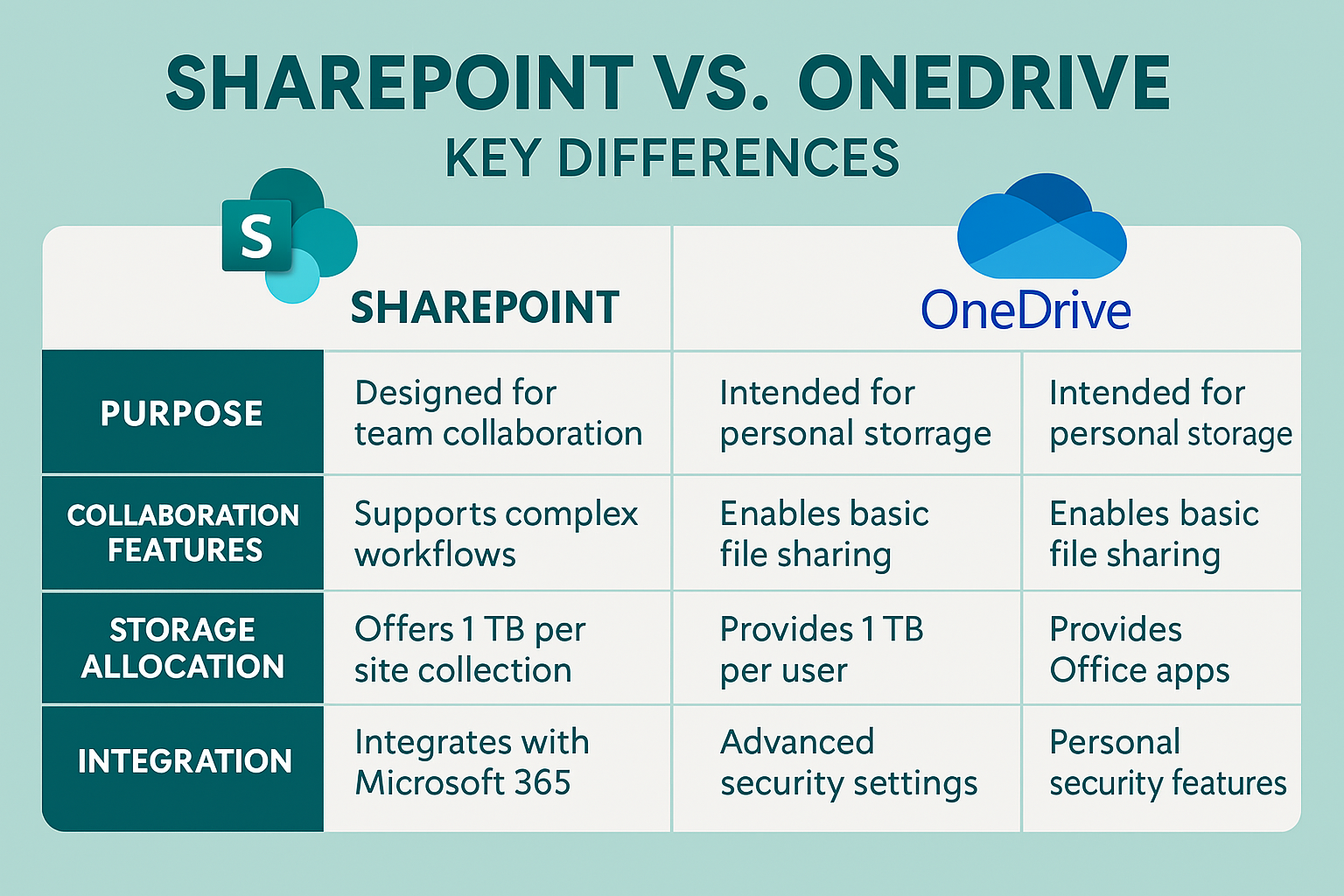
SharePoint vs. OneDrive key differences

Key Features Comparison

Feature SharePoint OneDrive
Document Management Advanced capabilities with metadata, version history, and workflows. Supports complex file organization and categorization. Basic document management suitable for personal use or small teams.
Team Collaboration Ideal for team collaboration with dedicated team sites, shared document libraries, and integration with Microsoft Teams. Supports basic collaboration features, such as real-time co-authoring and file commenting.
Security and Compliance Extensive security and compliance features, including data loss prevention, eDiscovery, and compliance with industry standards. Provides robust security features, suitable for both personal and business use, but with fewer compliance tools.
Integration Seamless integration with other Microsoft 365 apps and services, enhancing productivity and data analysis. Integrates with Microsoft 365 apps, providing a seamless experience for users.
Customizability Highly customizable with options for web parts, custom apps, and more, supporting extensive customization to fit unique business requirements. Limited customization options compared to SharePoint.
Pricing and Storage Included in Microsoft 365 business plans, with varying storage options based on the plan. Additional storage can be purchased as needed. Available as part of Microsoft 365 subscriptions or as a standalone service, with options for additional storage.
Exploring the 2023 Enhancements in SharePoint Online

Exploring the 2023 Enhancements in SharePoint Online

Key Takeaways:

  • Enhanced integration and document management functionalities
  • Introduction of exciting features like Syntex image tagger and Loop components in Outlook Mobile
  • Addressing user challenges through new updates


SharePoint Storage Explorer Charts

Enhanced Integration and Document Management

In the realm of collaborative platforms, SharePoint Online stands as a robust solution that continually evolves to meet the dynamic needs of modern enterprises. The 2023 updates have notably elevated the platform’s capabilities, particularly in terms of file and document management and integration with other Microsoft 365 offerings.

File and Document Management Improvements

SharePoint Online has always been recognized for its superior file and document management capabilities. The 2023 updates have brought a more streamlined approach to managing files, with enhancements allowing for the storage of documents in structured “document collections” within designated spaces like OneDrive or team sites. Furthermore, the robust permissions feature ensures a secure environment by allowing users varying access levels, from full control to view-only, ensuring that sensitive information remains protected​1​.

Mastering Group Creation in SharePoint – Delve into SharePoint Groups, a fundamental feature for collaboration.

Mastering SharePoint Online

Please fill out the form below to get our free Ebook "Mastering SharePoint Online" emailed to you

FREE DOWNLOAD

Send download link to:

I confirm that I have read and agree to the End User License Agreement.

Integration with Other Microsoft 365 Offerings

The integration between SharePoint Online and other Microsoft 365 offerings has been significantly enriched. Features like a customizable Viva Connections mobile dashboard and Loop components in Outlook Mobile have been introduced, providing a more cohesive and interactive user experience across the Microsoft ecosystem. These features not only promote ease of access but also facilitate seamless communication and collaboration among teams, irrespective of their geographic locations​2​.

Unveiling SharePoint – Explore SharePoint as a cornerstone for fostering collaboration and managing content.

SharePoint Storage Explorer Overview

New Offerings and User Experience Enhancements

The 2023 updates bring forth a bounty of new offerings and user experience enhancements that are designed to tackle the contemporary challenges faced by organizations. These updates are a testimony to Microsoft’s commitment to delivering a user-centric platform that addresses real-world challenges.

Microsoft Syntex Enhancements

Microsoft Syntex has seen notable enhancements with the introduction of an image tagger and a prebuilt model for contracts. These features leverage AI to provide intelligent content services that automate the tagging and categorization of images and documents, thereby saving time and reducing manual effort.

What is a SharePoint Site Collection? – Understand the basic structure of SharePoint and its utility in handling internal processes.

Addressing Challenges and The Growing Ecosystem

In the rapidly evolving digital landscape, user challenges are inevitable. Microsoft, with its SharePoint Online 2023 updates, aims to address some of these challenges, making the platform more user-friendly and efficient. Meanwhile, the SharePoint ecosystem continues to grow, reflecting the platform’s robustness and adaptability.

Addressing User Challenges
The latest SharePoint updates bring a range of exciting features designed to further enhance its capabilities and functionalities, aiming to address some of the most pressing challenges faced by users. Whether it’s streamlining workflow processes or ensuring data security, SharePoint Online is continually evolving to meet the diverse needs of its user base​

Microsoft SharePoint Best Practices – Explore best practices to enhance user engagement and experience.
The Expanding SharePoint Ecosystem

SharePoint’s rapid growth is a testament to its efficacy as a collaborative platform. Now powering over 200 petabytes per month, SharePoint is facilitating new experiences across Microsoft 365, OneDrive, Microsoft Teams, and more. The integration and interoperability between these platforms enhance productivity and ensure a seamless user experience​

SharePoint Storage Explorer

Gain insights in to your SharePoint Online Storage Consumption


Download our completely FREE TOOL

FREE DOWNLOAD

Send download link to:

I confirm that I have read and agree to the End User License Agreement.

SharePoint Storage Explorer

Step Up Your SharePoint Game – Free Download Available!
Ready to elevate your SharePoint storage management? SharePoint Storage Explorer is your ticket to a streamlined and cost-effective SharePoint experience. Download it for free today and discover how easy and impactful managing your SharePoint can be!

Conclusion

The 2023 updates to SharePoint Online signify a significant stride towards a more integrated, user-friendly, and robust platform. As SharePoint continues to expand its ecosystem, integrating seamlessly with other Microsoft 365 offerings, it’s evident that the platform is evolving to meet the contemporary needs of modern enterprises. The new features and enhancements not only address the challenges faced by users but also pave the way for a more collaborative and efficient digital workspace.
Differences Between SharePoint On-Premise and SharePoint Online – A comparison to understand the evolution and the benefits of SharePoint Online.

Mastering Group Creation in SharePoint

Mastering Group Creation in SharePoint

In the digital world, SharePoint holds a significant position, being a highly robust platform that caters to a multitude of collaborative needs. Among the rich features it offers, SharePoint Groups stand out as a fundamental building block for creating a conducive collaborative environment. These groups not only enhance interaction among team members but also provide a structured framework for managing permissions and access to resources. Before delving into the intricacies of creating a SharePoint group, it’s pivotal to grasp the basics of SharePoint and understand the significance of groups within this robust platform.

SharePoint Storage Explorer Overview

Understanding SharePoint

SharePoint, by Microsoft, is more than just a platform. It’s a collaborative environment that facilitates document management, information sharing, and communication within teams and organizations. With SharePoint, you can create websites, document libraries, and secure data storage spaces, making it a one-stop solution for many organizational needs.

  • Core Functionalities:
    • Document Management: Store, share, and manage documents with ease.
    • Team Collaboration: Create collaborative spaces for teams to work together seamlessly.
    • Information Sharing: Share information and updates in a structured and secure manner.

SharePoint Storage Explorer

Gain insights in to your SharePoint Online Storage Consumption


Download our completely FREE TOOL

FREE DOWNLOAD

Send download link to:

I confirm that I have read and agree to the End User License Agreement.

Importance of Groups in SharePoint

The essence of SharePoint is collaboration, and groups are the heartbeats of this collaboration. They provide a structured and secure way for team members to interact, share resources, and work together towards common goals.

  • Enhanced Collaboration:
    • Groups create a centralized space for team members, making collaboration efficient and effective.
    • They foster communication and ensure that everyone is on the same page.
  • Improved Security and Permissions Management:
    • Groups help in managing permissions, ensuring that only authorized individuals have access to certain information.
    • They provide a layer of security, ensuring that sensitive data remains protected.
SharePoint Storage Explorer Charts

Prerequisites for Creating a Group

Before you venture into creating a SharePoint group, there are certain prerequisites that you need to ensure are in place.

  • Required Permissions:
    • You need to have the necessary permissions to create a group in SharePoint. Typically, you would need to be a SharePoint administrator or have similar rights.
  • Necessary User Information:
    • Have a list of users and their email addresses who you wish to add to the group.

Getting to the group creation page is your first step in creating a SharePoint group. Here’s how you can navigate to the group creation page:

Navigating to the Group Creation Page

  • Steps to Reach Group Creation Page:
    • Log in to your SharePoint site.
    • Click on the settings (gear icon) at the top right corner of the page.
    • Select ‘Site Settings’ from the drop-down menu.
    • Under the ‘Users and Permissions’ section, click on ‘People and groups’.
  • Importance of Correct Navigation:
    • Navigating to the correct page is crucial as it’s the gateway to creating your group.
    • Ensuring that you’re on the right page will save time and prevent any confusion.

Creating a New Group

Now that you’ve navigated to the group creation page, it’s time to create your new group.

  • Choosing the Group Type (H3):
    • SharePoint offers various types of groups such as Owners, Members, and Visitors, each tailored for different levels of access and control. Select the one that aligns with your needs.
  • Naming the Group (H3):
    • Choose a descriptive and intuitive name for your group to ensure everyone understands its purpose.
  • Setting Group Permissions (H3):
    • Assign the necessary permissions based on the role and level of access each member should have.
StepActionDescription
1Login to SharePointAccess your SharePoint site and login with your credentials.
2Navigate to Group Creation Page– Click on the settings (gear icon) located at the top right corner of the page.<br>- Select ‘Site Settings’ from the drop-down menu.<br>- Under the ‘Users and Permissions’ section, click on ‘People and groups’.
3Initiate Group CreationOn the ‘People and groups’ page, find and click on the ‘New Group’ option.
4Configure Group Settings– Choose a name for your group that clearly represents its purpose.<br>- Select a group owner who will manage the group settings and memberships.<br>- Set up the group permissions based on the role and level of access each member should have.<br>- You can also set up how membership requests are handled in this step.
5Add Members– Add members by entering their email addresses or user names.<br>- Alternatively, if you have a list of members, use the ‘Import’ feature to add them in bulk.
6Customize Group AppearanceCustomize the group’s logo and navigation settings to align with your brand or team identity.
7Utilize Group FeaturesCreate document libraries, calendars, and task lists to facilitate collaboration within your group.
8Review and Save– Review all the settings to ensure they are correctly configured.<br>- Click on the ‘Create’ button to finalize the creation of your SharePoint group.

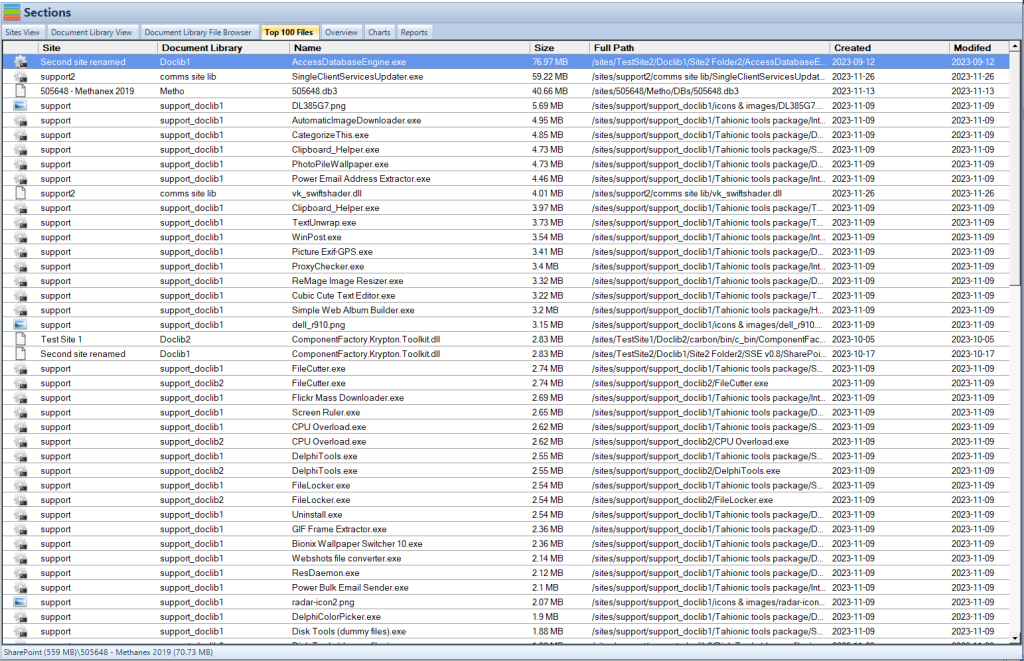
SharePoint Storage Explorer Top 100 Files

Mastering SharePoint Online

Please fill out the form below to get our free Ebook "Mastering SharePoint Online" emailed to you

FREE DOWNLOAD

Send download link to:

I confirm that I have read and agree to the End User License Agreement.

Configuring Group Settings

Once the group is created, configuring its settings to suit your team’s needs is imperative.

  • Setting up Group Owner (H3):
    • Assign a group owner who will have the administrative rights to manage the group settings and memberships.
  • Managing Group Membership Requests (H3):
    • Set up how membership requests are handled, whether they require approval and who can approve them.

Adding Members to Your Group

With the group now created and configured, it’s time to add members.

  • Inviting Members:
    • You can invite members by sending them an email invitation or by adding them directly if you have their user information.
  • Importing Members:
    • If you have a list of members, you can import them in bulk to save time.

Table of Key Takeaways (Halfway through the article)

TakeawayDescription
Group TypesChoose the right group type to align with the level of access required.
Naming ConventionA well-thought-out name helps in identifying the group’s purpose.
Permissions SettingProper permissions ensure secure and structured access to resources.
Group OwnershipAssigning a responsible group owner is crucial for effective management.
Membership ManagementStreamline how members are added and how membership requests are handled.

Managing Group Permissions

Managing permissions effectively is crucial to maintain the security and functionality of your SharePoint group.

  • Understanding Permission Levels (H3):
    • SharePoint has several permission levels like Full Control, Edit, and Read. Understanding these levels helps in assigning the right permissions to group members.
  • Customizing Permissions (H3):
    • You can customize permissions to fit the specific needs of your group, ensuring that members have the access they need to perform their tasks.

Customizing Group Appearance and Navigation

Personalizing your SharePoint group can enhance user experience and align with your organizational branding.

  • Changing Group Logo (H3):
    • Customize the group logo to reflect your brand or the group’s identity.
  • Customizing Navigation Settings (H3):
    • Tailor the navigation settings to make it easy for members to find what they need.

Utilizing Group Features

SharePoint groups come with a variety of features to improve collaboration and manage resources.

  • Document Libraries (H3):
    • Utilize document libraries to organize, share, and manage documents within your group.
  • Calendars and Task Lists (H3):
    • Use calendars and task lists to keep track of deadlines, meetings, and project timelines.

Maintaining Your Group

Regular maintenance is essential to ensure that your SharePoint group remains effective and secure.

  • Regular Updates:
    • Keep your group updated with the latest information, and ensure that all members are aware of any changes.
  • Member Management:
    • Regularly review the member list, update permissions as needed, and handle membership requests promptly.
SharePoint Storage Explorer Main Windows

Common Challenges and Solutions

Creating and managing a SharePoint group can present some challenges. However, with the right approach, these can be easily mitigated.

  • Permission Issues:
    • Problems with permissions are common. Ensure you have a clear structure in place and that all members understand their level of access.
  • Communication Challenges:
    • Effective communication is vital. Utilize SharePoint’s communication features to keep everyone informed and engaged.

SharePoint Storage Explorer

Join the Revolution in SharePoint Management – Download Free Now!
Embark on a journey of unparalleled efficiency with SharePoint Storage Explorer. This free tool is your key to unlocking advanced storage analysis and optimization in SharePoint. No more guesswork or cumbersome management tasks! Download our tool today and embrace a future where managing SharePoint storage is streamlined, insightful, and cost-effective. Your smarter SharePoint strategy is just a download away!

Conclusion

Mastering the creation of a SharePoint group requires a solid understanding of SharePoint’s functionalities, the importance of groups, and the steps involved in setting up a group. Through this comprehensive guide, you have learned the prerequisites for creating a group, the process of setting up a group, managing permissions, customizing your group’s appearance, and maintaining your group for long-term success. With this knowledge, you’re well on your way to harnessing the power of SharePoint to foster a collaborative and efficient working environment.

FAQs

  1. What are the different types of groups in SharePoint?
    • SharePoint offers various types of groups like Owners, Members, and Visitors, each with different levels of permissions and capabilities.
  2. How do I manage permissions in my SharePoint group?
    • Navigate to the permissions settings in your group to assign, modify, or revoke permissions based on user roles within the group.
  3. Can I customize the appearance of my SharePoint group?
    • Absolutely, SharePoint allows customization of group appearance including logos and navigation settings to align with your brand or team identity.
  4. How do I add members to my SharePoint group?
    • Adding members can be done through the ‘Add Members’ option within the group settings, where you can invite members via email or import a list of members.
  5. What should I do if I encounter challenges in managing my SharePoint group?
    • Revisit the permissions settings, consult SharePoint documentation, engage with the SharePoint community, or consider seeking assistance from a SharePoint expert.

Unveiling Microsoft SharePoint

Unveiling Microsoft SharePoint

SharePoint Online

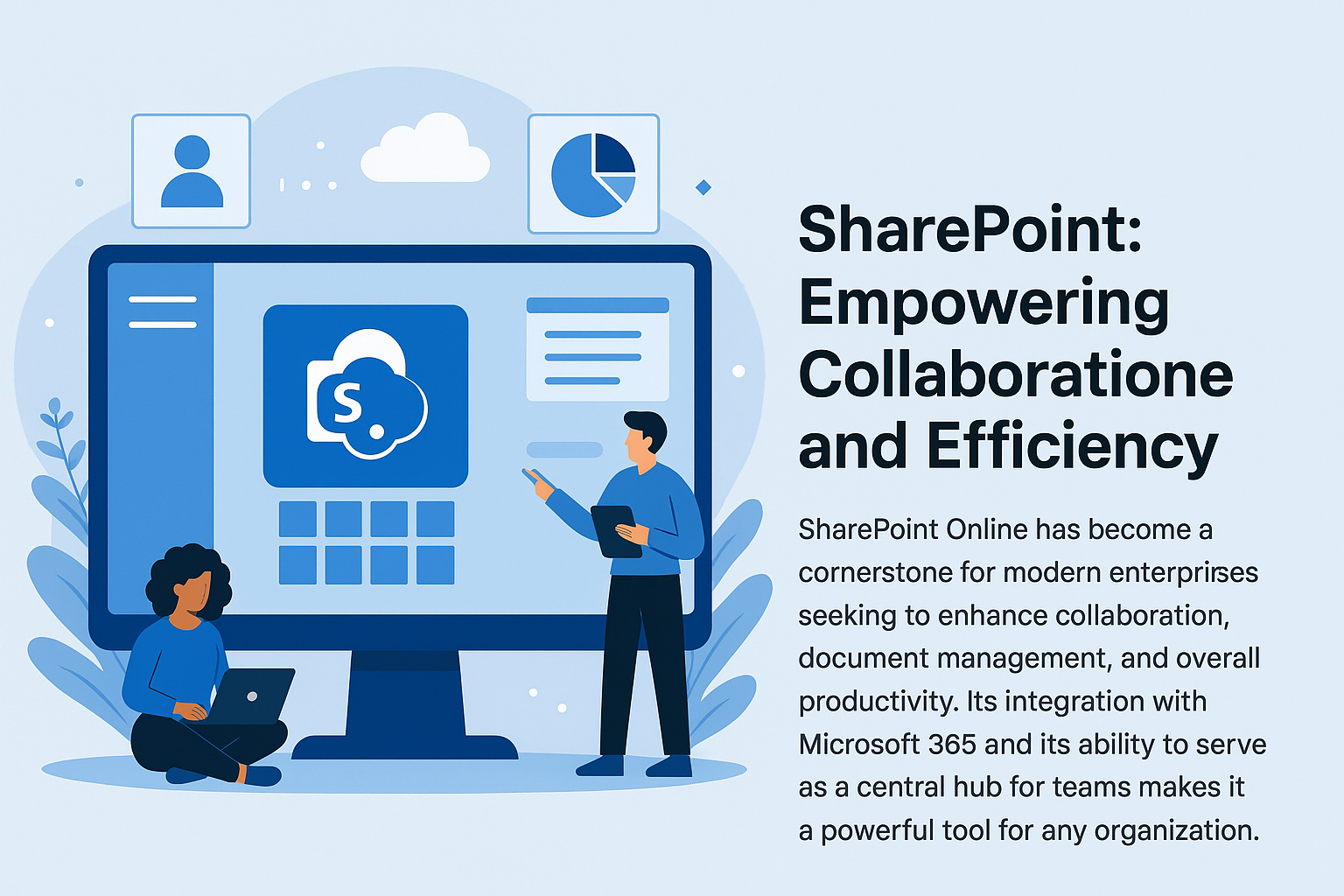
SharePoint: Empowering Collaboration and Efficiency

SharePoint Online is the backbone of modern teamwork and content management within Microsoft 365. Whether you’re sharing documents, building intranet portals, or automating workflows, SharePoint empowers organizations to work smarter and faster.

SharePoint Collaboration Overview

What Makes SharePoint So Valuable?

  • Document Management & Version Control: Maintain a single source of truth with built-in versioning, co-authoring, and metadata tagging.
  • Microsoft 365 Integration: Seamlessly connect with Teams, Outlook, and OneDrive for a unified collaboration experience.
  • Custom Intranets: Build department or project-specific sites to centralize communication and content.
  • Enterprise-Grade Security: Enjoy encryption, MFA, access controls, and compliance with industry regulations.
  • Powerful Search: Quickly find documents, people, and conversations across your entire organization.

Unlocking SharePoint’s Full Potential

SharePoint is more than a file server. It’s a flexible, secure, and scalable platform that adapts to your business needs. With features like metadata, retention policies, and Power Automate integration, you can streamline operations while improving compliance and collaboration.

Enhance SharePoint with Squirrel

As your document libraries grow, archiving becomes essential. Squirrel helps you manage SharePoint storage costs, performance, and compliance by automating the archiving of stale content to Azure Blob — without disrupting user access.

Learn More About Squirrel

Modernize Your SharePoint Experience

SharePoint is a foundation for digital transformation. With the right setup and tools like Squirrel, you can reduce costs, increase efficiency, and stay ready for whatever comes next.

Frequently Asked Questions About Microsoft SharePoint

1. What is SharePoint used for?
SharePoint is primarily used for document management, collaboration, intranet portals, and automating business processes within organizations.

2. Is SharePoint included with Microsoft 365?
Yes. SharePoint Online is included with most Microsoft 365 business and enterprise plans. It works alongside Teams, OneDrive, and other Microsoft services.

3. What’s the difference between SharePoint and OneDrive?
OneDrive is personal cloud storage for individual users, while SharePoint is designed for team collaboration, document libraries, and site-based content sharing.

4. Can I use SharePoint without Teams?
Yes. SharePoint is a standalone service and can be used independently. However, Teams uses SharePoint as its backend for file storage.

5. Is SharePoint good for small businesses?
Absolutely. Even small businesses benefit from SharePoint’s secure document sharing, centralized storage, and workflow automation.

6. Can I build an intranet with SharePoint?
Yes. SharePoint Online is ideal for building modern intranet portals with news, navigation, branding, and employee resources.

7. Does SharePoint support version history?
Yes. SharePoint tracks version history automatically, allowing you to view or restore previous document versions.

8. Is SharePoint secure?
Yes. SharePoint Online includes enterprise-grade security, compliance, encryption, access controls, and integration with Microsoft Purview (formerly Compliance Center).

9. Can I access SharePoint on mobile devices?
Yes. There’s a SharePoint mobile app available, and SharePoint Online is fully responsive in mobile browsers.

10. What’s the difference between SharePoint Lists and Libraries?
Lists are used to manage structured data like tasks or contacts, while libraries are for storing and managing files with metadata and versioning.

Indepth Overview of Microsoft Office 365 Services

Indepth Overview of Microsoft Office 365 Services

core 0365 services overview

What Are Microsoft 365 Services?

Microsoft 365 services—formerly known as Office 365—are a suite of enterprise-grade cloud solutions designed to power the modern workplace. These aren’t just apps like Word and Excel; they’re integrated services that handle communication, collaboration, data security, and productivity at scale.

Hosted in Microsoft’s secure cloud, these services eliminate the need for on-prem infrastructure while delivering unmatched flexibility, mobility, and control.

Core Microsoft 365 Services

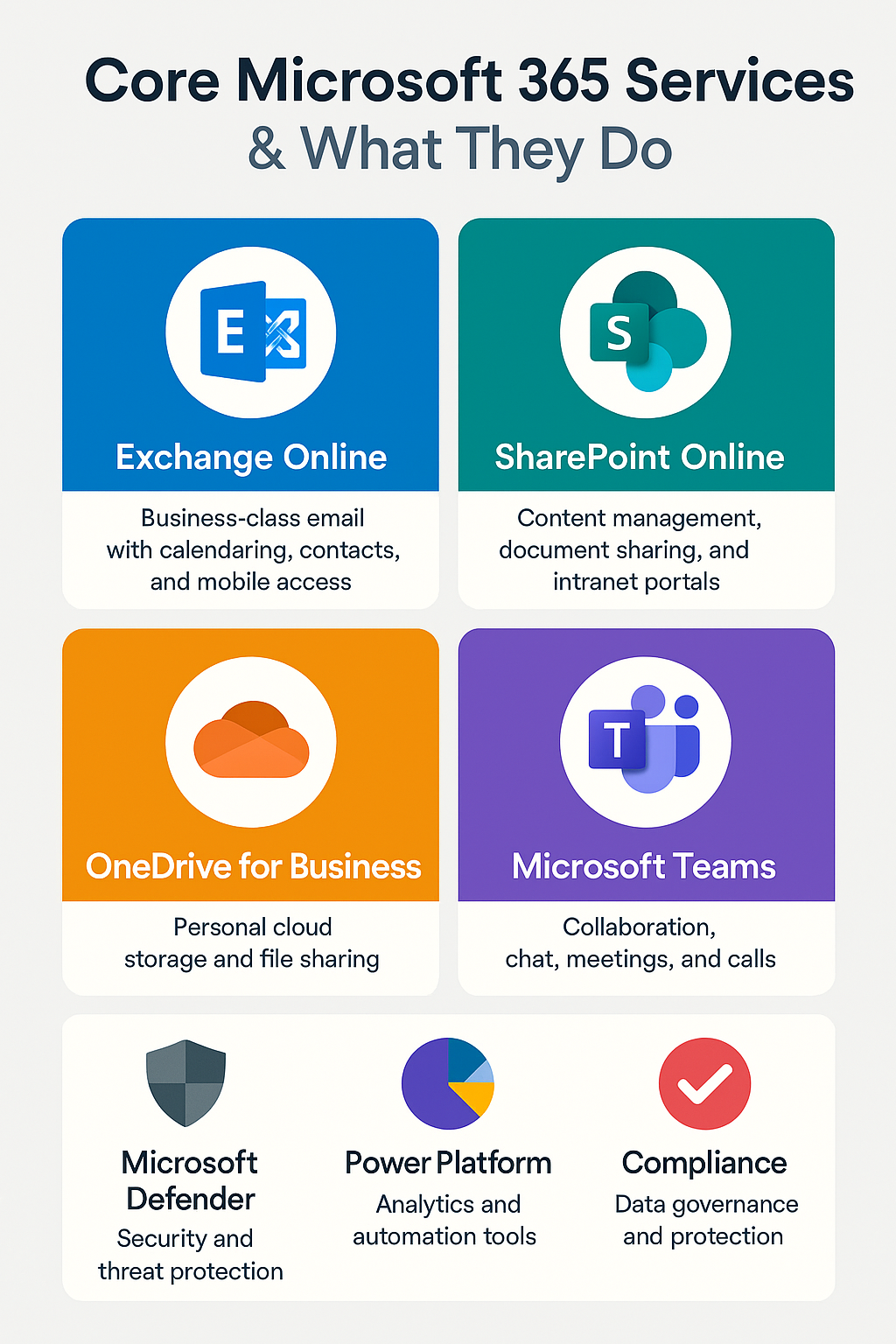
  • Exchange Online: Enterprise-grade email, calendar, and contacts with built-in anti-spam and data protection.
  • SharePoint Online: Document management and team collaboration portals.
  • OneDrive for Business: Secure, personal cloud file storage with enterprise sharing controls.
  • Microsoft Teams: Chat, meetings, calls, and integrated workflows in one collaboration hub.
  • Microsoft Defender & Compliance Center: Advanced security, identity protection, and compliance features.
  • Power Platform: Power BI (analytics), Power Automate (workflow automation), and Power Apps (custom low-code apps).

Why It Matters

Microsoft 365 services offer a secure, scalable, and collaborative foundation for organizations of all sizes. Whether you’re a small team or a global enterprise, these services streamline your operations and unify your digital workplace under a single, trusted platform.

Overview of Office 365

Benefits and Use Cases of Microsoft 365 Cloud Services


1. Exchange Online: Modern Business Email

With Exchange Online, you get a professional-grade email platform hosted by Microsoft. Users benefit from 50GB+ mailboxes, shared calendars, and mobile access—without the burden of maintaining an on-premises Exchange server.

2. SharePoint Online: Content and Knowledge Management

SharePoint Online is the backbone of internal collaboration. Create intranet sites, document libraries, workflows, and automated processes to keep your teams organized and efficient.

3. OneDrive for Business: Secure File Access Anywhere

Store personal work files securely in the cloud, and access them from any device. OneDrive integrates directly with Office apps and Microsoft Teams, allowing for seamless real-time collaboration and sharing.

4. Microsoft Teams: Communication & Collaboration Hub

Teams consolidates chat, video meetings, file sharing, and app integration into one platform. Create channels for departments or projects, host online meetings, and collaborate in real-time—whether you’re remote or in-office.

5. Microsoft Defender & Compliance Tools

Advanced security features protect your organization from phishing, ransomware, and data loss. Use tools like Data Loss Prevention (DLP), Microsoft Purview, and Conditional Access to stay compliant and secure.

6. Power Platform: Automate and Analyze

  • Power BI: Turn your business data into interactive dashboards.
  • Power Automate: Eliminate manual tasks with drag-and-drop workflow automation.
  • Power Apps: Create custom apps tailored to your business needs—no dev team required.

7. Real-World Use Cases

  • Enable hybrid work with secure remote access and cloud file sharing
  • Use Teams + SharePoint for project management and documentation
  • Implement Power Automate for automatic approvals and notifications
  • Protect sensitive data with DLP and eDiscovery in Microsoft Purview