Microsoft Teams has emerged as a cornerstone of modern workplace collaboration, offering a suite of tools designed to streamline communication and project management. Despite its widespread adoption, it’s crucial to acknowledge that no platform is without its limitations. Understanding these constraints is essential for organizations to navigate potential roadblocks effectively and make informed decisions about their communication infrastructure.
Key Takeaway Table
Key Takeaways
Description
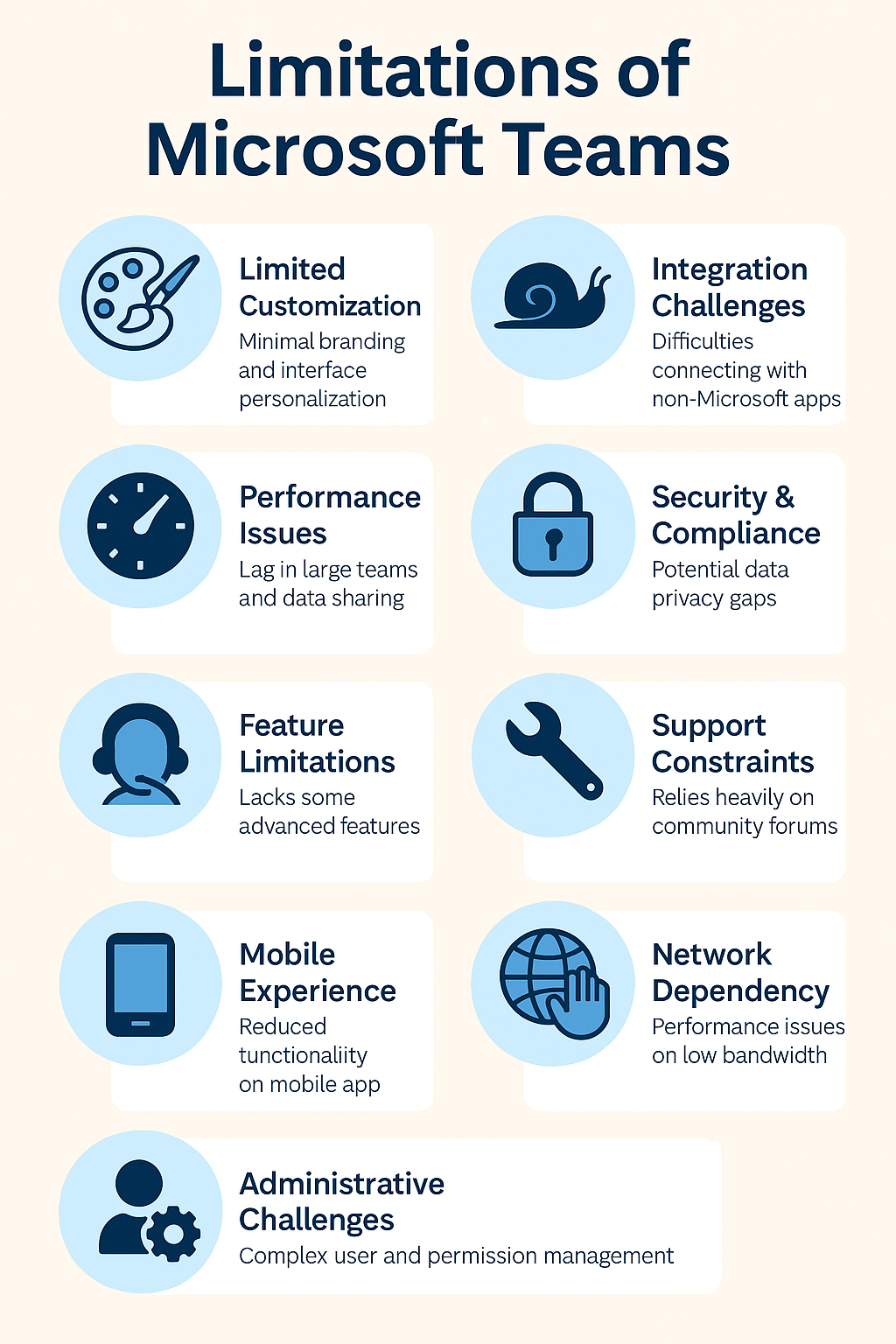
Customization Limits
Teams offers limited personalization, affecting brand identity integration.
Integration Challenges
Difficulty integrating non-Microsoft products can lead to workflow disruptions.
Performance Issues
May experience lag with large teams or extensive data sharing.
Usability
New users face a learning curve due to feature complexity.
Security & Compliance
Potential gaps in data privacy and international compliance.
Feature Set
Some advanced features are lacking or only in the paid version.
Support Limitations
Relies on community support, which may not meet all user needs.
Mobile Experience
The mobile app is less functional compared to the desktop version.
Network Reliance
Performance heavily depends on stable and strong internet connectivity.
Administrative Challenges
Admin controls can be insufficient for complex user management.
Core Features of Microsoft Teams
At its core, Microsoft Teams provides chat-based collaboration, video conferencing, file storage, and integration with the Microsoft Office suite of products. Its user-friendly interface encourages real-time collaboration and communication within organizations of all sizes. However, its very integration with the Microsoft ecosystem, while a strength for some, can present limitations for others.
Limitations of Microsoft Teams
Area of Limitation
Specific Limitation
Impact
Customization
Limited branding and interface customization
Reduced brand presence within the platform
Integration
Compatibility issues with external apps
Fragmented workflows
Performance
Speed issues in large groups
Decreased efficiency
Usability
Inconsistent user experience
Steeper learning curve
Security
Data privacy concerns
Potential risk exposure
Compliance
Varies with international standards
Compliance challenges
Features
Absence of some advanced features
Limited functionality
Support
Limited depth in technical support
Longer resolution times
Mobile Experience
Reduced functionality on mobile
Hindered collaboration on the go
Network Dependency
Poor performance on low bandwidth
Disruption in communication
Administration
Complex user management
Inefficient administrative processes
Limitations in Customization
Microsoft Teams shines in providing a cohesive environment for team collaboration, but when it comes to personalizing that environment, users may find themselves at a crossroads. The platform offers limited options for branding and customization, which can be a setback for organizations looking to maintain a unique brand identity within their communication tools.
Integration and Compatibility Issues
While Teams integrates seamlessly with Microsoft’s own products, users often report challenges when incorporating external applications. This can lead to fragmented workflows, especially for teams that rely on a diverse set of tools outside the Microsoft ecosystem. Moreover, organizations heavily invested in non-Microsoft products may find this lack of flexibility to be a significant impediment.
Performance and Scalability Concerns
High-performance teams require tools that can keep up with their pace. In this regard, Microsoft Teams has been noted to sometimes lag, especially when dealing with large numbers of users or extensive data sharing. Organizations scaling up must consider whether Teams can sustain the increased load without compromising on speed or efficiency.
Usability Challenges
The user experience with Teams is generally straightforward, but inconsistencies persist. New users, in particular, may find the platform’s multitude of features overwhelming, leading to a steeper learning curve than some of its competitors. Consistency in user experience is key to ensuring that all team members can collaborate without friction.
Security and Compliance Gaps
Security is paramount in today’s digital workspace, and while Teams offers robust security features, gaps remain, particularly in data privacy and compliance with international standards. Businesses operating across borders need to be vigilant and may require additional measures to ensure compliance.
Feature Limitations
Some advanced features that users have come to expect from collaboration platforms are either absent or only available in the paid version of Teams. This can be a limitation for small businesses or startups that are budget-conscious but still require comprehensive collaboration tools.
Support and Troubleshooting Limitations
When issues arise, the quality of support can make or break the user experience. Microsoft Teams often relies on community forums for troubleshooting, which may not always provide the timely or specialized support some users need.
Limitations in Mobile Experience
The mobile experience with Teams is functional but can be improved. Notifications can be cumbersome, and the mobile app doesn’t always offer the same level of functionality as the desktop version, which can be a hindrance for users who need to collaborate on the go.
Network Dependency and Connectivity
Teams is heavily dependent on a stable and robust network connection. Users with limited bandwidth or those in areas with unreliable internet may find Teams less effective, leading to disruptions in communication and productivity.
Administrative and Management Limitations
Administrative controls are crucial for managing a collaborative platform, but Teams can sometimes fall short in offering the depth of control and monitoring tools that IT departments require. User management and administrative tasks can become cumbersome, impacting the overall efficiency.
Conclusion
While Microsoft Teams is a powerful tool for collaboration, it’s not without its shortcomings. By understanding these limitations, organizations can better plan for contingencies and decide if Teams is the right fit for their collaborative needs.
FAQs
Is Microsoft Teams suitable for large enterprises?
Teams is designed to scale, but large enterprises may encounter performance issues and should evaluate whether Teams aligns with their complex requirements.
Can Microsoft Teams be used effectively with limited internet connectivity?
Teams requires a reliable internet connection for optimal performance, which can be a challenge in areas with limited connectivity.
How does the integration of third-party apps in Teams compare to its competitors?
While Teams integrates well with Microsoft products, it may not offer the same level of integration for third-party apps as some competitors do.
What are the main complaints from long-term users of Microsoft Teams?
Common complaints include issues with customization, performance, and support.
Are there any workarounds for some of the limitations of Microsoft Teams?
Some limitations can be mitigated with additional configurations or third-party tools, but this may require extra resources and expertise.
Optimizing Data Management with Azure Files Snapshots
Key Takeaway Table
Azure Files Snapshot Essentials: Capture the state of SMB file shares at specific times.
Benefits: Protection against accidental changes and application errors.
Efficiency: Incremental snapshots reduce storage space and costs.
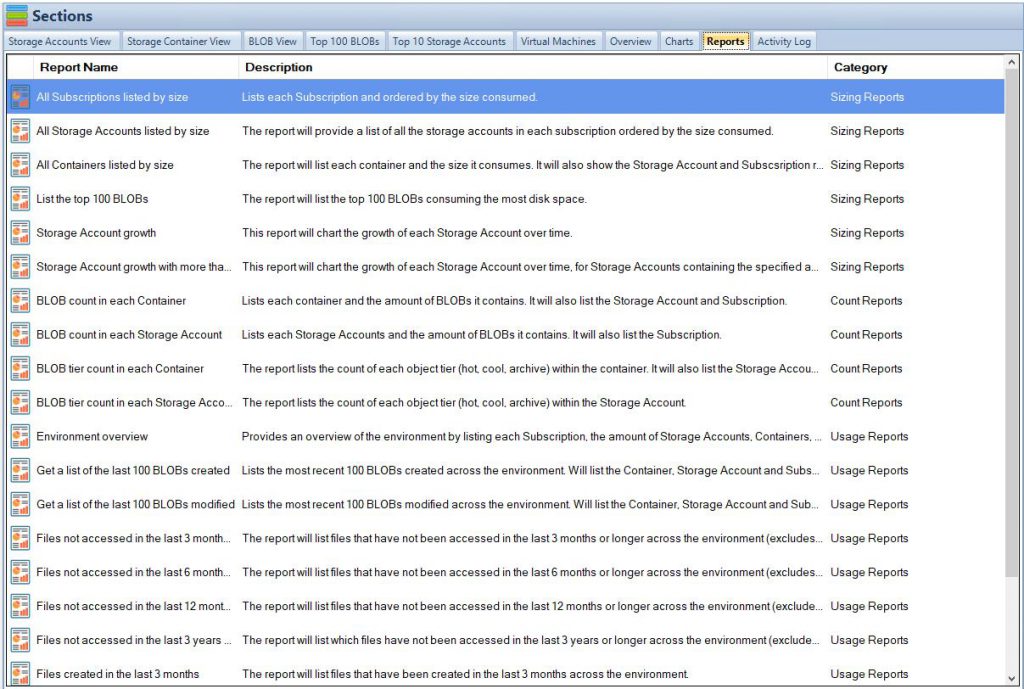
Cloud Storage Manager Reports Tab
Understanding Azure Files Snapshots
Introduction Azure Files snapshots are a crucial component in the landscape of cloud computing, offering robust solutions for data protection and management. These snapshots capture the exact state of SMB file shares at distinct moments, providing a critical safety net against data loss and corruption. Understanding their functionality and proper utilization is essential for any organization leveraging Azure cloud services for file storage and management.
What are Azure Files Snapshots? Azure Files snapshots are point-in-time, read-only versions of file shares. When a snapshot is taken, it records the current state of the file share, preserving its data exactly as it is at that moment. This feature is invaluable for recovering from accidental deletions or overwrites and for maintaining data integrity during software updates or other changes.
External Links for In-Depth Understanding:
Azure Files Overview: This link provides a comprehensive overview of Azure Files snapshots, detailing their basic functionality and application scenarios.
Snapshot Capabilities and Retrieval Options: Here, you can explore the various capabilities of Azure Files snapshots, including how they can be retrieved and utilized in different scenarios.
Managing Snapshots: This resource offers guidance on managing snapshots, covering best practices for creation, storage, and retrieval.
List of Benefits and Uses:
Data Backup and Recovery: Regular snapshots can serve as a backup, enabling quick recovery to a known good state in case of accidental data modifications or deletions.
Disaster Recovery: In the event of a system failure or other catastrophic event, snapshots provide a reliable method for restoring data.
Compliance and Auditing: Maintaining snapshots can be a part of compliance strategies, ensuring that historical data is available for audits or investigations.
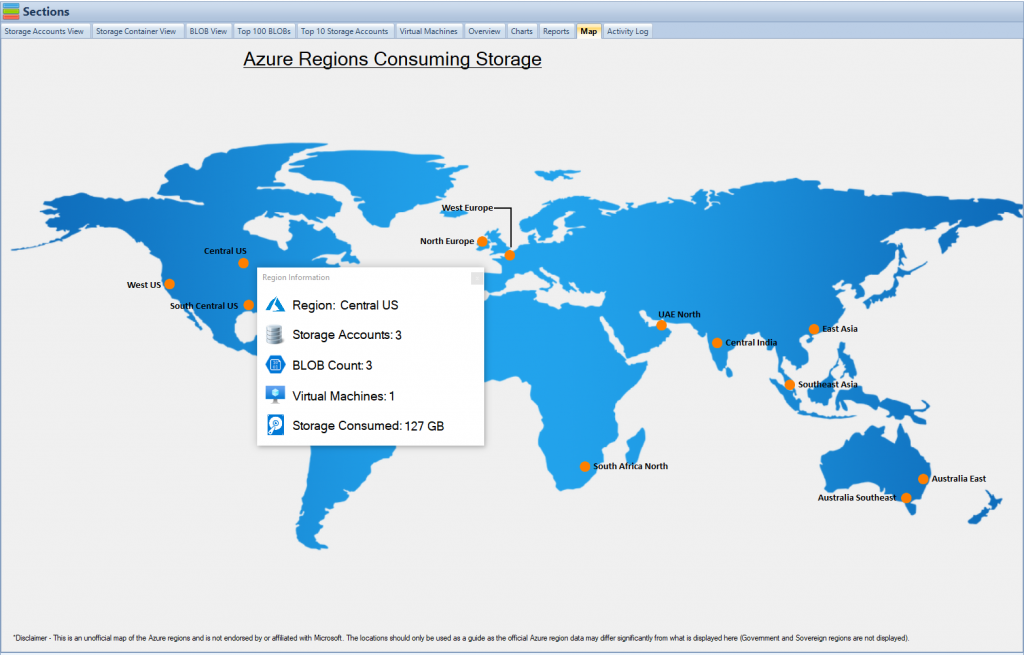
Cloud Storage Manager Map View
Advanced Snapshot Features and Best Practices
Enhancing Data Protection with Advanced Features Azure Files snapshots aren’t just a basic backup tool; they’re an advanced data protection solution. Their incremental nature is a game-changer, ensuring that only data changed since the last snapshot is stored. This approach not only saves storage space but also reduces the time needed to create each snapshot. It’s a smart way to handle data backups, especially in environments where data changes are frequent but usually minor.
Maximizing Efficiency with Snapshots Efficiency is key when managing cloud storage, and Azure Files snapshots excel in this area. By saving only the data that has changed since the last snapshot, storage costs are significantly reduced. This efficiency makes snapshots an ideal solution for regular data backups, even in large-scale environments.
Links for Advanced Understanding:
Snapshot Space Usage: Learn how Azure Files snapshots optimize space usage and storage costs.
Snapshot Limits and Retention Policies: Understand the limits and retention policies that govern the use of snapshots, ensuring that your backup strategy aligns with Azure’s standards.
Copying Data from Snapshots: Discover how to copy data from snapshots, a crucial step in data recovery and analysis.
Ordered List of Steps for Effective Snapshot Management:
Creating Snapshots: Establish a routine schedule for snapshot creation. Regular snapshots ensure that your data is consistently backed up, providing a series of recovery points.
Managing Snapshots: Regularly review your snapshots. This includes checking their integrity and ensuring they align with your data retention policies.
Restoration from Snapshots: Know how to restore data from a snapshot. Whether it’s a single file or an entire file share, understanding the restoration process is crucial for quick and effective data recovery.
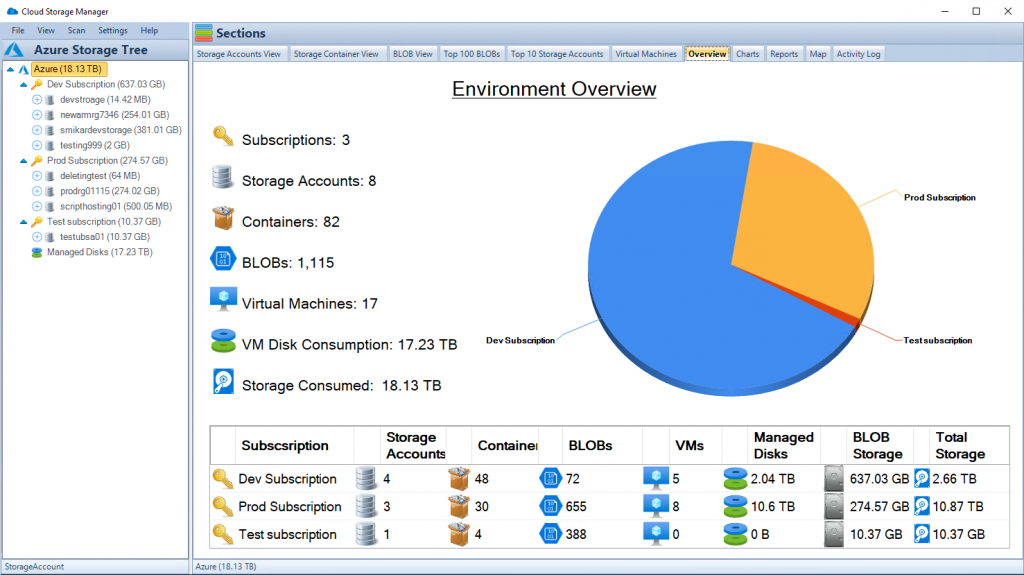
Cloud Storage Manager Main Window
Conclusion: Elevating Snapshot Management with Cloud Storage Manager
Streamlining Management with Tools While Azure Files snapshots are powerful on their own, pairing them with the right management tools can elevate their efficiency and effectiveness. This is where Cloud Storage Manager comes into play, offering a suite of features designed to streamline the management of Azure Files snapshots.
Understanding Cloud Storage Manager’s Role Cloud Storage Manager is more than just a tool; it’s a solution that offers deep insights into your Azure storage usage. It helps in identifying where your storage is being consumed and provides options to optimize it. This not only aids in better snapshot management but also contributes to overall cost reduction and improved operational efficiency.
Cloud Storage Manager:
Cloud Storage Manager: Delve into how Cloud Storage Manager can enhance your Azure Files snapshot experience, offering features and capabilities that simplify and improve snapshot management.
List of Cloud Storage Manager Benefits:
Enhanced Visibility: Gain a clear view of your storage usage and snapshot management, helping you make informed decisions.
Cost Management: Identify potential savings by optimizing storage usage and snapshot schedules.
Operational Efficiency: Streamline snapshot management processes, saving time and resources, and reducing the chances of human error.
Frequently Asked Questions About Azure Files Snapshots
What are Azure Files snapshots?
Azure Files snapshots are point-in-time, read-only copies of Azure file shares that capture their state at a specific moment, useful for backup and recovery purposes.
How are Azure Files snapshots different from traditional backups?
Azure Files snapshots are incremental, storing only the data that has changed since the last snapshot, making them more storage-efficient compared to traditional backups.
Can Azure Files snapshots be automated?
Yes, Azure Files snapshots can be automated using various tools, including Azure Backup and Cloud Storage Manager, to schedule and manage snapshots effectively.
How long can Azure Files snapshots be retained?
Azure Files allows snapshot retention for up to 10 years, but it’s essential to manage them according to your storage capacity and data retention policies.
Are there any size limitations for Azure Files snapshots?
Snapshots don’t count towards the maximum share size limit, but total storage account limits still apply. Azure Files supports up to 200 snapshots per share.
Can I restore a single file from an Azure Files snapshot?
Yes, Azure Files snapshots support individual file level retrieval, allowing you to restore specific files without restoring the entire file share.
Is it possible to copy Azure Files snapshots to another storage account?
While you cannot copy an entire snapshot to another account, you can copy individual files from a snapshot to any location using tools like AzCopy.
How does Azure Files handle snapshot deletion?
Azure Files snapshots persist until explicitly deleted. When a snapshot is deleted, only the data unique to that snapshot is removed.
What is the role of Cloud Storage Manager in managing Azure Files snapshots?
Cloud Storage Manager provides a comprehensive view of Azure storage usage, helps in optimizing snapshot management, and assists in reducing storage costs.
Are Azure Files snapshots suitable for disaster recovery?
Yes, Azure Files snapshots are an effective tool for disaster recovery as they allow you to revert to a previous state of your data, ensuring continuity.
Planning a SharePoint Migration? Here’s How to Prepare — And What Comes Next
Migrating to SharePoint is a major milestone in any digital transformation strategy. While SmiKar doesn’t provide migration services, we support organizations before and after migration with tools that enhance performance, reduce storage costs, and simplify SharePoint management.
Common SharePoint Migration Challenges
Organizations migrating to SharePoint often encounter several key challenges:
Data Integrity: Avoiding data loss during the move.
User Adoption: Ensuring your team is ready for the switch.
Audit your existing environment — know what you’re moving.
Classify your data — archive what’s inactive, migrate only what’s needed.
Define your structure — plan your SharePoint architecture.
Test and validate — catch issues before full rollout.
Educate your users — prepare your workforce for change.
Post-Migration Optimization Tools
Once your data is in SharePoint, the real work begins — managing costs, improving performance, and keeping everything secure. That’s where SmiKar’s tools help:
Squirrel: Archive old or inactive SharePoint documents to Azure Blob to reduce storage costs and improve site performance.
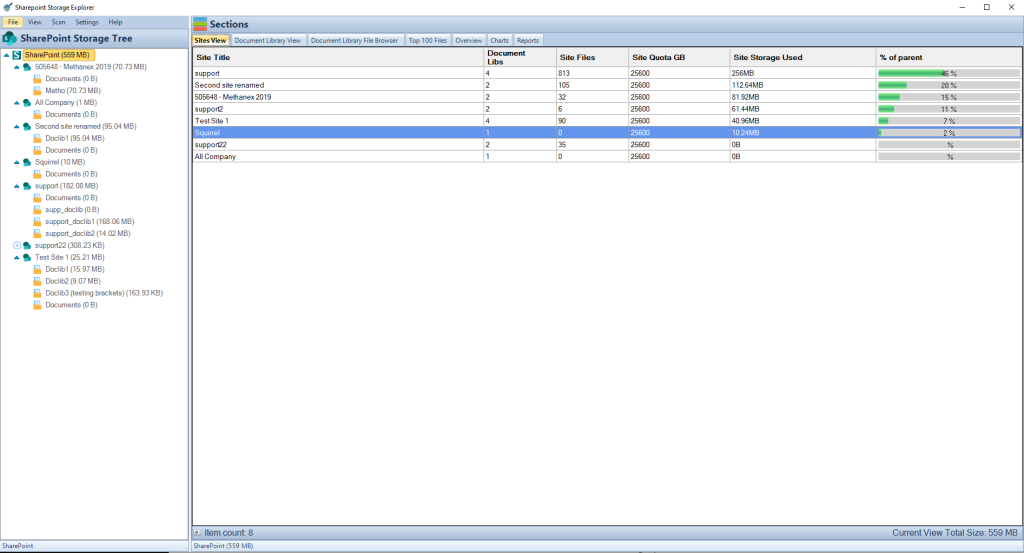
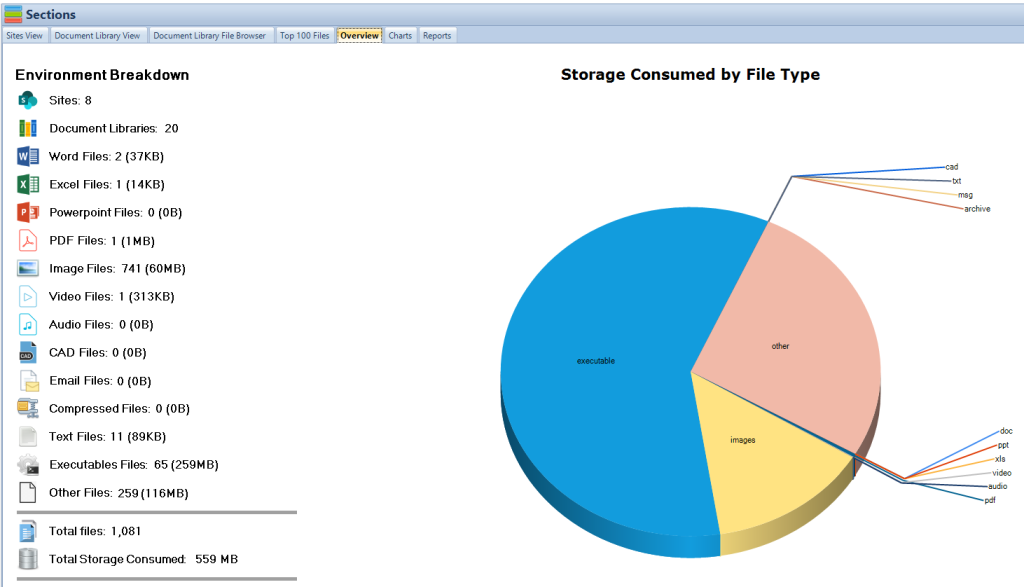
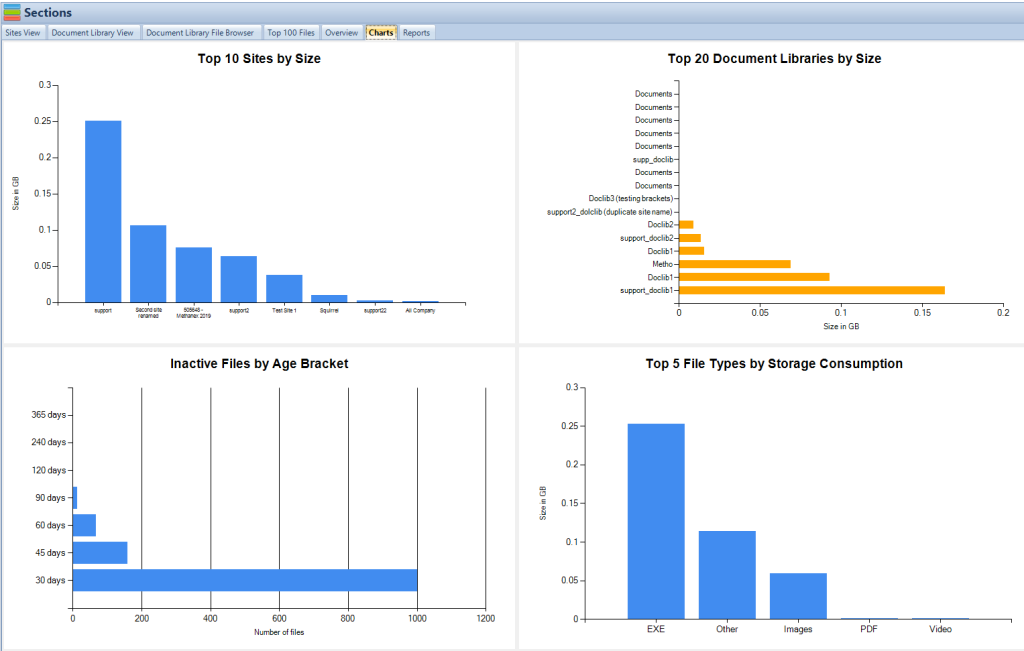
Storage Explorer: Visualize your SharePoint usage by site, file size, and age — and generate cleanup reports instantly.
Your SharePoint Journey Doesn’t End at Migration
Migration is only the beginning. To make the most of SharePoint, you’ll need to:
Train your users to take advantage of new capabilities.
Monitor costs and site growth regularly.
Implement retention and archiving policies to prevent future sprawl.
Get a Demo or Trial
Ready to optimize your SharePoint environment after migration? Request a free demo or proof of concept for Squirrel or Storage Explorer today.
SharePoint Storage Explorer
Gain insights in to your SharePoint Online Storage Consumption
Download our completely FREE TOOL
FREE DOWNLOAD
Send download link to:
FAQs About SharePoint Migration and Post-Migration
Does SmiKar perform SharePoint migrations? No. We provide tools that help with SharePoint optimization after you migrate.
Can I reduce costs after migrating to SharePoint? Yes — tools like Squirrel can archive old files to cheaper storage tiers, saving you money.
How do I see what’s taking up storage in SharePoint? Use our SharePoint Storage Explorer to view site-level analytics and generate reports.
Is my data secure when archived? Absolutely. Squirrel encrypts files both at rest and in transit.
When you enter a query in SharePoint Online‘s search box, you are tapping into a complex system designed to interpret your needs and retrieve the most relevant content. It’s a system built not only to understand what you’re looking for but also to respect the security and organization of your company’s data. By mastering SharePoint Online’s advanced search capabilities, you unlock the potential to transform vast data stores into actionable insights swiftly.
Key Takeaways
Aspect
Detail
Search Architecture Understanding
Foundation for configuring and optimizing search capabilities.
Managed Properties Configuration
Essential for refining search results and improving accuracy.
Customization of Search Results
Enhances user experience and efficiency in finding information.
Search Center Implementation
Centralizes search experience and allows for further refinement.
Query Rules Application
Tailors search results to user behavior and preferences.
Search Health Monitoring
Ensures long-term success and relevance of search functionality.
User Training on Search Features
Empowers users to leverage advanced search capabilities.
The search architecture in SharePoint Online is comprised of several components that work together to index content and respond to search queries.
Step 1: Explore the Search Service Application (SSA)
The Search Service Application (SSA) is the overarching service that encompasses all the search features and configurations in SharePoint Online. Here’s how to approach it:
Access the SSA: Find this in the SharePoint admin center, where you can manage various settings.
Review the Topology: The topology refers to the arrangement of search components within the SSA. It’s essential to have an understanding of this for scaling search capabilities as your organization grows.
Configure Search Components: Within the SSA, you can configure crawl, content processing, analytics processing, and more.
Step 2: Get Familiar with the Crawl Component
The Crawl Component is essential for making content searchable. It ‘crawls’ through your content, indexing information so that it can be retrieved through search queries.
Define Content Sources: Identify where your content lives. This could be site collections, web applications, or file shares.
Manage Crawl Schedules: Set up schedules to determine how often your content sources are crawled. This ensures your search results are up-to-date.
Monitor Crawl Logs: Review these logs to troubleshoot any issues with the crawl process, such as permissions errors or unindexed content.
Mastering SharePoint Online
Please fill out the form below to get our free Ebook "Mastering SharePoint Online" emailed to you
FREE DOWNLOAD
Send download link to:
Step 3: Understand the Content Processing Component
After content is crawled, it goes through the Content Processing Component, where it is parsed and processed.
Document Parsing: This breaks down the content into searchable elements.
Property Mapping: Managed properties are assigned to content so that users can search based on document properties like author, date, or custom metadata.
Content Enrichment: Apply custom processing to enrich content, such as entity extraction or content transformation, improving the search experience.
Step 4: Configure Search Schema and Managed Properties
The Search Schema is where you define what information gets indexed and how it is stored in the search index. Managed properties are key to this process:
Access the Search Schema: Through the SharePoint Online admin center, navigate to the search schema settings.
Create or Modify Managed Properties: These properties dictate how content is indexed. For example, if you frequently search by project number, you can ensure there’s a managed property for that.
Map Crawled Properties to Managed Properties: Connect the dots between the raw data from your crawled content to the managed properties, which users can search against.
SharePoint Storage Explorer Main Windows
Step 5: Set Up Search Result Types and Display Templates
Search result types and display templates determine how search results are presented to users:
Identify Common Result Types: Determine what kind of content you search for most often—documents, list items, people—and set up result types for these.
Customize Display Templates: Tailor how each result type looks and what information is displayed, improving the user’s ability to find what they need quickly.
Step 6: Implement Search Center
The Search Center is your user-facing search interface:
Create a Search Center Site: This dedicated site will be where users go to perform searches.
Customize the Search Experience: Adjust the look and feel, add refiners, and configure search pages to match how your organization searches for information.
SharePoint Storage Explorer
Gain insights in to your SharePoint Online Storage Consumption
Download our completely FREE TOOL
FREE DOWNLOAD
Send download link to:
Step 7: Refine Search with Query Rules
Query rules help you manage how search queries are processed and can be a powerful tool for tailoring search results:
Create Query Rules: Based on user queries, create rules that promote or demote results, or even change the query entirely.
Test and Refine Rules: Continually test the impact of your query rules and refine them based on user feedback and search analytics.
SharePoint Storage Explorer Overview
Step 8: Monitor and Maintain Search Health
Regular monitoring and maintenance are crucial for the long-term success of your search setup:
Review Search Analytics: Keep an eye on what users are searching for and how they are interacting with search results.
Perform Regular Maintenance: Check for crawl errors, ensure content sources are up-to-date, and refine your search schema as necessary.
Step 9: Train Users on Advanced Search Features
User training can dramatically improve the search experience:
Develop Training Material: Create guides and cheat sheets for using advanced search features like boolean operators or property searches.
Conduct Training Sessions: Hold workshops to demonstrate effective search techniques and answer user questions.
By following these steps, you can optimize your SharePoint Online environment for both basic and advanced searches, ensuring users can find the information they need quickly and efficiently.
Conclusion
Embracing the advanced search capabilities of SharePoint Online is crucial for any organization looking to leverage the platform’s full potential. By understanding the intricacies of search architecture, customizing search components, and engaging users through training, businesses can ensure that their employees have the tools they need to find information swiftly and accurately. This guide has outlined the steps to enhance your SharePoint Online search experience, from the initial setup to ongoing maintenance. With these strategies in place, your organization can transform its data into a well-oiled retrieval system that supports productivity and innovation.
FAQs
What is the importance of understanding SharePoint Online’s search architecture? Understanding the search architecture is essential for effectively customizing and managing search functions.
How can managed properties improve my search results? Managed properties allow you to refine search results based on specific content attributes, making searches more accurate.
Can I customize how search results are displayed in SharePoint Online? Yes, by using result types and display templates, you can tailor how search results are presented.
What is a Search Center in SharePoint Online? A Search Center is a dedicated site for performing searches, offering a centralized and customizable search experience.
Why are query rules important in SharePoint Online? Query rules can promote or demote search results, impacting the relevancy of the content that users see.
How often should I monitor SharePoint Online search health? Regular monitoring is recommended to maintain optimal search functionality and address any issues promptly.
What are some common issues with SharePoint Online search? Common issues include crawl errors, outdated content sources, and misconfigured search schemas.
Can I restrict search results based on user permissions? Yes, SharePoint Online’s security trimming ensures users only see search results they have permission to access.
How does SharePoint Online’s search integrate with other Microsoft 365 apps? SharePoint search can be enhanced with insights and content from other Microsoft 365 apps via Microsoft Graph.
Is user training necessary for SharePoint Online search? Training users on advanced search features can significantly improve their search efficiency and effectiveness.
In the labyrinthine corridors of modern enterprise software, SharePoint Online stands as a beacon of collaboration and efficiency. It’s not just a tool; it’s a multifaceted platform that has been meticulously refined to meet the multifarious demands of today’s businesses. Whether you’re a seasoned SharePoint veteran or a newcomer eager to tap into its potential, the advanced features of SharePoint Online promise a treasure trove of possibilities that can transform the way you work.
SharePoint Storage Explorer Charts
Introduction: The SharePoint Online Panorama
Imagine a world where your digital workspace isn’t just a repository of files but a dynamic ecosystem brimming with intelligence, automation, and deep integration. That’s the realm SharePoint Online offers. It’s a world where data dances gracefully to the tune of your command, where collaboration doesn’t just mean sharing documents, but co-authoring the future in real-time.
Key Takeaways:
Robust Security: Unleash the power of Azure AD and advanced threat protection for ironclad security.
Seamless Office 365 Integration: Discover the seamless tapestry woven with Office 365, enhancing productivity and collaboration.
Document Management Mastery: Control the historical narrative of your documents with superior versioning.
Cost Management: Navigate the financial aspects of SharePoint Online without sacrificing performance.
Custom Development: Extend the realm of the possible with the SharePoint Framework (SPFx).
With these pivotal themes setting the stage, let’s embark on a journey to unpack the sophisticated arsenal of features that SharePoint Online brings to your digital doorstep.
SharePoint Storage Explorer
Gain insights in to your SharePoint Online Storage Consumption
Download our completely FREE TOOL
FREE DOWNLOAD
Send download link to:
Fortifying the Fort – Enhanced Security Measures
In this digital age, the security of your data is tantamount to the security of your kingdom. SharePoint Online doesn’t take this lightly. With features that stand guard like sentinels, it ensures that your data is safe from the marauding bands of cyber threats.
The Azure AD Alliance An alliance with Azure AD imbues SharePoint Online with superpowers. It’s like having an elite guard at your gate, with multi-factor authentication and conditional access policies that work tirelessly to ensure that only the right eyes gaze upon your digital treasures.
SharePoint Storage Explorer Main Windows
The Office 365 Confluence
Imagine a symphony where each musician is in perfect harmony with the others, and you’ll begin to understand the integration of SharePoint Online with Office 365. It’s a concert of applications where real-time collaboration isn’t just an idea; it’s the reality—a place where documents are living entities, and analytics tell stories that drive business forward.
The SharePoint Evolution To truly appreciate this feature, one must delve into the history of SharePoint—its past, present, and the prospects of its future within the Office 365 suite. This understanding isn’t just academic; it’s practical, guiding users through the labyrinth of the platform’s capabilities.
The Art of Document Management
With SharePoint Online, document management becomes an art. Version control is the paintbrush, and your documents are the canvas. Every stroke, every edit, is a part of a grander design, meticulously captured and preserved in the annals of your digital repository.
Tracking Changes with Precision This isn’t just about tracking who changed what. It’s about understanding the story behind each change, the intent, the purpose. It’s about reverting with a click when the narrative takes an unwanted turn, ensuring that the integrity of your documents is unblemished.
The Economics of SharePoint Online
The finance of SharePoint Online isn’t just a matter of dollars and cents; it’s about optimizing your investment to ensure that every byte of data and every feature you use gives you the best return. It’s about understanding the economy of storage, the currency of collaboration.
Strategic Financial Management Here, we break down the costs, dissecting the storage pricing tiers and strategies to manage them effectively. It’s a masterclass in SharePoint economics, ensuring that your use of the platform is as cost-effective as it is powerful.
Mastering SharePoint Online
Please fill out the form below to get our free Ebook "Mastering SharePoint Online" emailed to you
FREE DOWNLOAD
Send download link to:
Customization at Your Fingertips
Enter the realm of SPFx, where the only limit to what you can create is your imagination. Here, SharePoint Online isn’t just a tool; it’s a canvas, a stage, a sandbox where you can build custom solutions that whisper directly to the unique needs of your business.
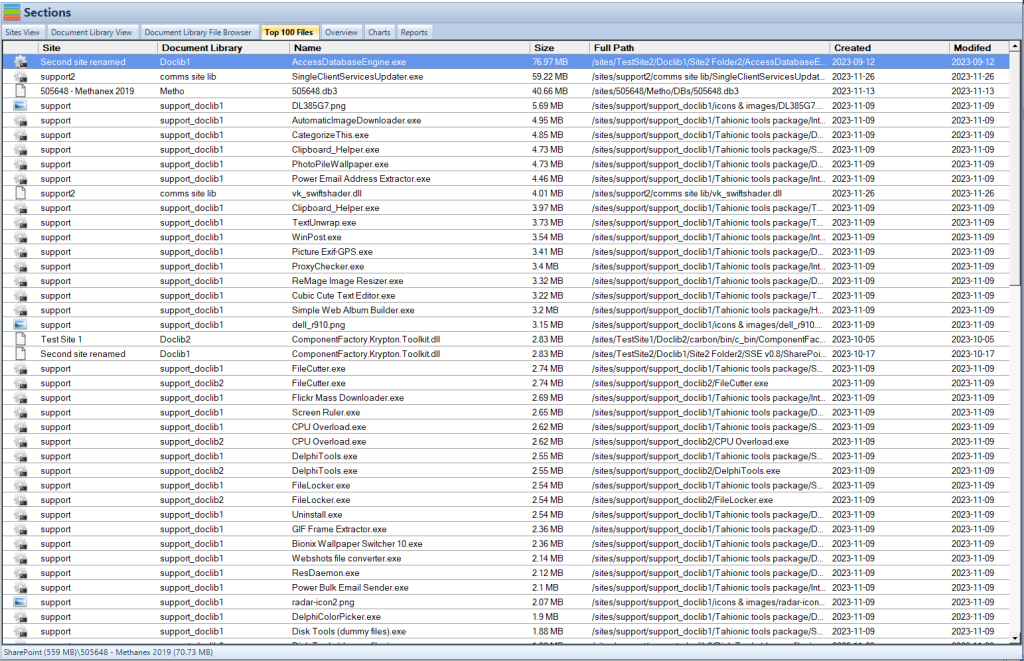
SharePoint Storage Explorer Top 100 Files
Automation: The Power Automate Integration
Imagine a workplace where mundane tasks are handled by a virtual maestro, orchestrating workflows with precision and intelligence. This is the domain of Power Automate in SharePoint Online, where automation transforms repetitive chores into automated processes, freeing human creativity for higher pursuits.
Workflow Automation: A Symphony of Efficiency Within this section, we’ll illustrate how to harness the power of Power Automate to create custom workflows that streamline operations. From simple notifications to complex multi-step processes, we’ll guide you through creating flows that not only work but also evolve with your organization’s needs.
Navigating the Data Deluge: Large Data Management in SharePoint Online
With ever-increasing data volumes, organizations must employ sophisticated strategies to manage SharePoint Online content effectively.
Effective Data Structuring
Optimal data structuring is achieved through careful planning of metadata schema and content types. Metadata, consisting of data about the files, like author or creation date, allows for powerful sorting, filtering, and searching capabilities that transcend traditional folder hierarchies. Indexing is another critical aspect, where SharePoint Online automatically indexes the first 20,000 items, but beyond that, manual indexing of columns is necessary to maintain performance.
Leveraging Content Types
Content Types encapsulate fields, forms, workflows, and behaviors associated with different kinds of documents. By creating and applying content types, you ensure standardization across different teams and departments. For instance, a “Contract” content type may include metadata fields for the contract date, parties involved, and expiration date, along with associated workflows for review and approval processes.
SharePoint Storage Explorer Overview
Gleaning Insights: Business Intelligence Tools with SharePoint Online
Business intelligence in SharePoint Online is about turning raw data into meaningful insights that can inform business decisions.
Power BI and SharePoint: A Data Duo
By integrating SharePoint Online with Power BI, users can tap into a rich set of analytics features. You can create reports and dashboards that draw from SharePoint lists and libraries, offering dynamic data visualization. For instance, Power BI can help visualize sales trends from a SharePoint list that tracks customer orders, providing interactive tools to slice and dice the data.
Advanced Analytics in SharePoint
SharePoint Online’s built-in analytics tools provide a comprehensive dashboard of site usage statistics, such as the number of users, activity levels, and content interaction. These insights are crucial for site owners to structure their content effectively and identify focus areas. For instance, if a specific library shows low engagement, it might benefit from better visibility or improved metadata for easier access.
In conjunction with these built-in tools, SharePoint Storage Explorer adds another dimension to your SharePoint analytics and management. Our tool specializes in in-depth storage analysis, offering detailed insights into the size and usage of each document library and site. With SharePoint Storage Explorer, you can identify not only which libraries are underutilized but also understand their storage impact. This information is vital for optimizing storage space and enhancing overall site performance.
For example, SharePoint Storage Explorer can reveal if a low-engagement library is consuming a disproportionate amount of storage or if there are large, outdated files that need attention. By integrating this storage-focused analysis with SharePoint Online’s user interaction metrics, site owners can make more informed decisions. They can restructure content not just based on user engagement but also considering optimal storage practices, leading to a more efficient and cost-effective SharePoint environment.
The Modern Site Experience: Branding and Design in SharePoint Online
The visual and interactive experience of SharePoint Online can significantly impact user engagement and adoption.
Customizing the Look and Feel
SharePoint Online offers extensive branding and customization options. With the modern SharePoint experience, site owners can apply custom themes that align with corporate branding, including logos, color palettes, and font styles. Additionally, the modern experience offers new web parts for embedding content like videos, integrating forms, or showcasing dynamic content.
Responsive Design for All Devices
SharePoint Online’s modern sites are built with a mobile-first approach, ensuring that content is readable and navigable on any device. This includes responsive menus, flexible grid layouts, and touch-friendly interfaces. For organizations, this means that employees can access SharePoint resources while on the go, without the need for zooming or side-scrolling, which is crucial in today’s mobile-centric world.
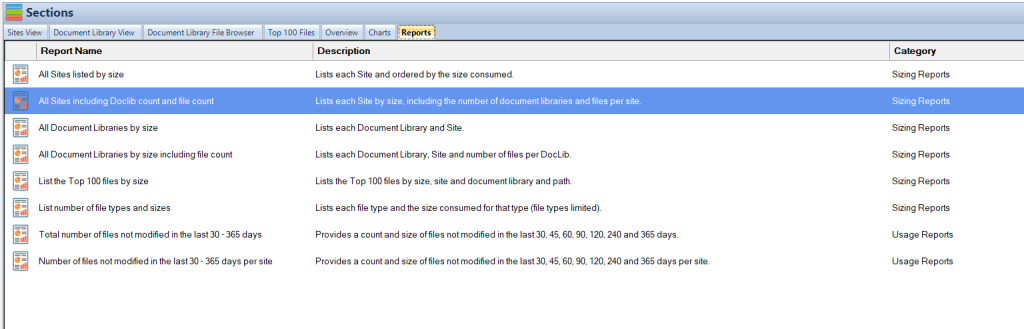
SharePoint Storage Explorer Reports
Conclusion: Embracing the Future with SharePoint Online
As businesses continue to rely on SharePoint Online, they must adapt to and prepare for its evolving landscape.
Preparing for SharePoint Updates
Staying up-to-date with SharePoint Online updates requires an active approach. Organizations should regularly check the Microsoft 365 Message Center and participate in the SharePoint community to learn about upcoming changes. Admins can use the SharePoint Online Management Shell to manage sites, automate tasks, and apply new settings across their tenant.
Encouraging Adoption and Change Management
Driving user adoption involves more than just technical readiness; it requires cultural change within the organization. Successful strategies include creating a network of SharePoint champions within various departments, providing comprehensive training, and gathering regular feedback to improve the platform continuously. It’s also vital to communicate the practical benefits SharePoint brings, such as improved collaboration and information management.
Cloud Storage Manager Map View
FAQs: Answering Your Advanced SharePoint Online Questions
To wrap up the article, we’ll address some of the most common questions users have about SharePoint Online’s advanced features.
How does SharePoint Online enhance data security? SharePoint Online enhances data security through features like advanced threat protection, which guards against malware and phishing attempts. Multi-factor authentication adds an extra layer of security before access is granted, while data loss prevention policies help prevent sensitive information from being shared inappropriately. Additionally, eDiscovery capabilities allow for the identification, holding, and analysis of content across SharePoint, which is crucial for compliance and legal cases.
Can SharePoint Online integrate with other Office 365 applications? Yes, SharePoint Online is designed to integrate seamlessly with the Office 365 suite, including Microsoft Teams for collaboration, OneDrive for individual file storage, and Office applications like Word and Excel for document creation and editing. This integration enables real-time co-authoring, sharing, and communication within the same ecosystem, providing a unified user experience.
What versioning capabilities does SharePoint Online provide? SharePoint Online’s versioning feature allows you to maintain a history of changes made to documents and lists, providing the ability to view and restore previous versions if needed. It tracks who made changes and when, offering a transparent audit trail. This is particularly useful for regulatory compliance and for maintaining the integrity of documents as they are updated.
How can I optimize SharePoint Online storage costs? To optimize SharePoint Online storage costs, you should regularly review and clean up unused content, implement retention policies, and utilize external storage solutions when appropriate. Understanding how SharePoint calculates storage usage and taking advantage of the default storage provided before purchasing additional space can also help control costs.
Is it possible to automate processes in SharePoint Online? Absolutely. SharePoint Online can be integrated with Power Automate to create automated workflows that streamline business processes, from simple tasks like notifications and approvals to complex operational workflows. These automations can help reduce manual workloads and improve efficiency across your organization.
How does SharePoint Online handle large datasets? SharePoint Online is equipped to handle large datasets with features like large list threshold management, indexed columns, and managed metadata. These features help in organizing and retrieving data efficiently, even when dealing with extensive libraries and lists. Additionally, SharePoint Online offers modern list and library experiences that support quick editing, bulk editing, and easy navigation of large volumes of data.
Can I use business intelligence tools with SharePoint Online? SharePoint Online can be integrated with business intelligence tools like Power BI to create interactive, data-rich reports and dashboards. You can connect SharePoint lists as data sources, use the insights to drive decisions, and even publish reports directly to SharePoint for broader access within your organization.
What customization options are available in SharePoint Online? SharePoint Online provides a range of customization options, including the ability to create custom site themes, design page layouts, and develop bespoke web parts with the SharePoint Framework (SPFx). These options allow organizations to tailor their SharePoint environment to align with their branding and functional requirements.
Are SharePoint Online sites mobile-responsive? SharePoint Online sites are designed to be mobile-responsive, meaning they automatically adjust to provide an optimal viewing experience on different devices, including smartphones and tablets. This responsiveness ensures that users can access SharePoint resources conveniently, regardless of the device they are using.
How can I prepare for future updates to SharePoint Online? Preparing for future updates in SharePoint Online involves staying informed about Microsoft’s release schedules, participating in the SharePoint community, and possibly joining the Office 365 targeted release program to get early access to new features. Additionally, regular training and adoption of best practices will ensure that your organization can smoothly transition to new updates when they become available.