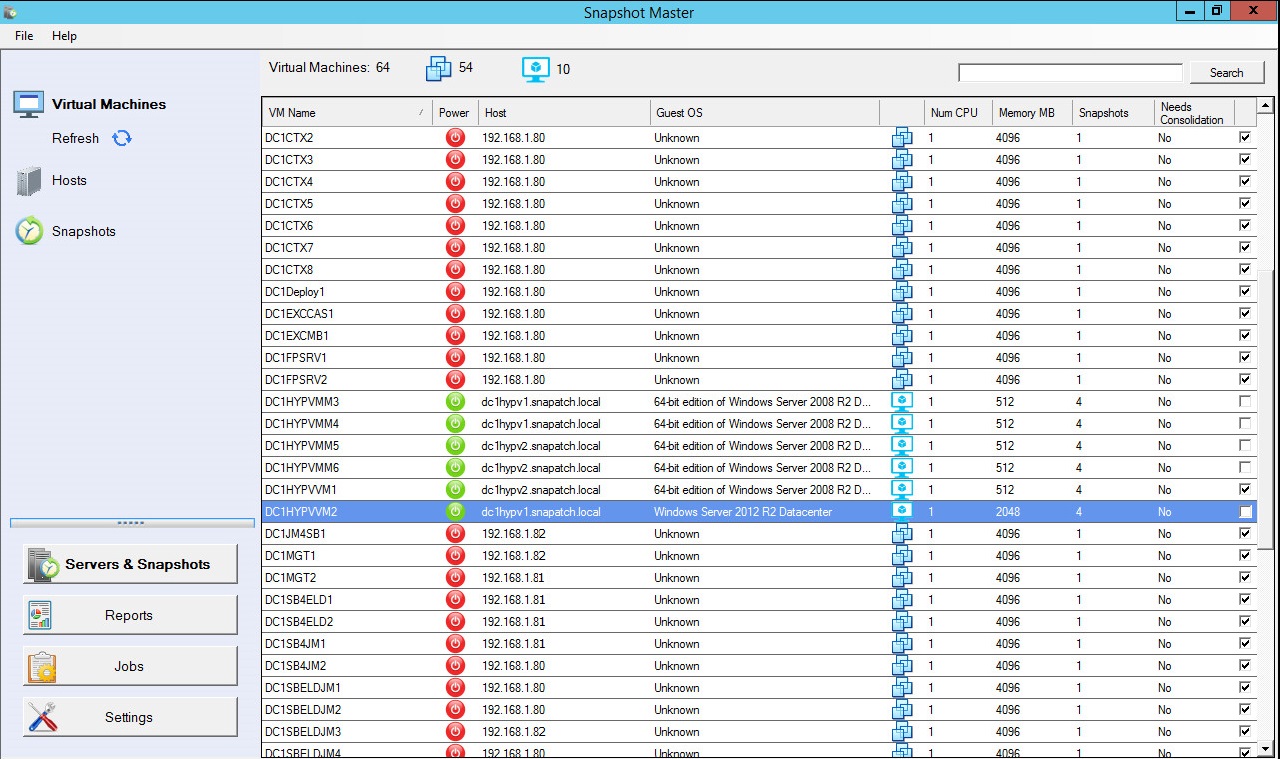
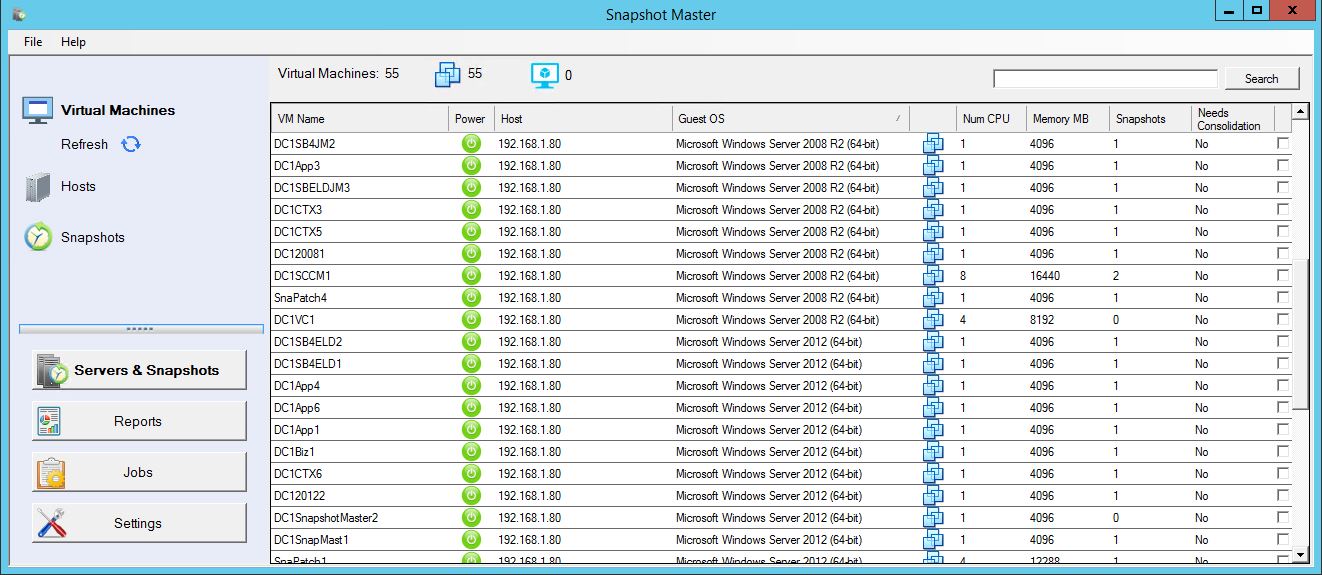
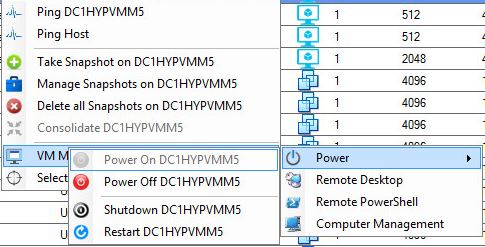
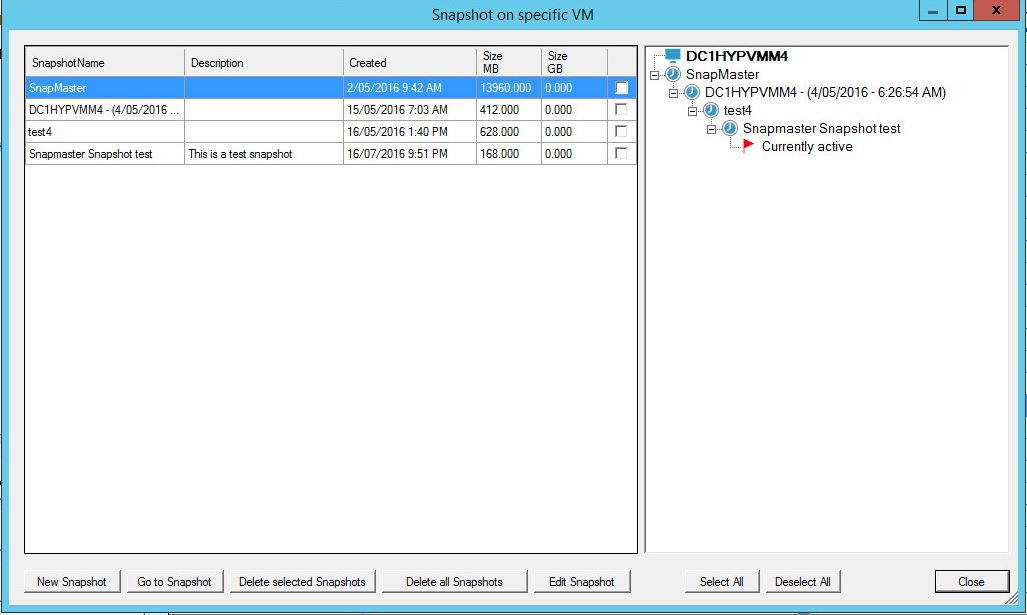
Hyper-V has rapidly become an indispensable tool in the system administrator’s toolkit. Not only does it provide a robust, feature-rich platform for virtualization, but it also seamlessly integrates with Windows Server, making it a must-have for any Windows-based enterprise environment. As a system administrator, you’ve probably realized that managing Hyper-V manually through its GUI can be time-consuming. That’s where PowerShell steps in, offering automation capabilities and more nuanced control of your Hyper-V environment.
Why Use PowerShell for Hyper-V Management
PowerShell and Hyper-V together are like Batman and Robin for system administrators. PowerShell brings with it an extensive range of commands specifically tailored for Hyper-V management. This means you can manage virtual machines, set configurations, and even perform monitoring tasks without having to click through countless windows. Plus, PowerShell allows you to automate repetitive tasks, so you can set it and forget it, freeing up more time for you to deal with those pressing tickets piling up in your inbox.
What to Expect in this Article
This article will serve as your comprehensive guide to understanding Hyper-V PowerShell commands. Whether you’re new to Hyper-V or you’ve been a sysadmin for years, we’ll walk you through the essential commands, how to automate tasks, and best practices for optimizing your virtual environment.
Understanding Hyper-V PowerShell Module
What Is Hyper-V PowerShell Module
The Hyper-V PowerShell module is a set of cmdlets for managing Hyper-V that are available in the Hyper-V role on Windows Server. These cmdlets enable the automation of the Hyper-V platform, allowing you to orchestrate and automate virtual machine deployments, configurations, and even the underlying storage and networking components. Think of it as the control panel of your virtualized environment, but with the ability to script every knob and button.
Installing the Hyper-V PowerShell Module
The Hyper-V PowerShell module is typically installed by default when you install the Hyper-V role on Windows Server. However, if for some reason it isn’t installed, you have two methods for installing it:
Using Install-WindowsFeature
The Install-WindowsFeature cmdlet enables you to install specified roles, role services, and features on a computer that is running Windows Server. It’s as simple as running Install-WindowsFeature -Name Hyper-V -IncludeAllSubFeature.
Using Enable-WindowsOptionalFeature
If you prefer a more granular approach, the Enable-WindowsOptionalFeature cmdlet allows you to enable or disable optional features in Windows. Here, you’d simply run Enable-WindowsOptionalFeature -Online -FeatureName Microsoft-Hyper-V-All.
Importing the Hyper-V Module into Your Session
Once you’ve confirmed the Hyper-V PowerShell module is installed, you can import it into your PowerShell session by using the Import-Module Hyper-V command. This will give you access to all the Hyper-V cmdlets, effectively turning your PowerShell session into a control center for managing Hyper-V.
Essential Hyper-V PowerShell Commands
Basic Commands
Now that you’re equipped with the background knowledge and have the Hyper-V PowerShell module at your fingertips, let’s delve into the essential commands. When you’re starting out, these are your bread and butter.
Get-VM
The Get-VM command allows you to retrieve the state, status, and other important details of virtual machines. It’s the first thing you’d typically run when you log in, giving you an overview of what’s running, what’s stopped, and what’s in a critical state.
New-VM
Creating a new VM is as easy as pie with the New-VM command. By specifying parameters like name, the path where the VM files will be stored, and initial configurations, you can spin up a new VM in no time.
Start-VM and Stop-VM
Starting and stopping VMs are basic tasks that you’ll often need to do. The Start-VM and Stop-VM commands let you do this efficiently, without having to navigate through the GUI. If you need to force stop a VM, the -Force switch is your go-to option.
Advanced Commands
As you gain more experience, you’ll find yourself wanting to do more than just the basics. That’s where advanced commands like Set-VMProcessor, Convert-VHD, Add-VMHardDiskDrive, and Remove-VMHardDiskDrive come in. These allow you to modify VM configurations, convert VHD files to different formats, add or remove hard disk drives, and more.
Monitoring Commands
Keeping an eye on resource usage is a crucial part of system administration. Hyper-V PowerShell offers a range of monitoring commands like Get-VMHost, Measure-VM, and Get-VMResourceMetering that allow you to keep tabs on VM performance, the Hyper-V host’s capabilities, and even measure the resources consumed by individual VMs.
Troubleshooting Commands
When things go south, and they inevitably will at some point, you have a toolbox of troubleshooting commands at your disposal. Test-VMReplicationConnection can test the connection between two Hyper-V hosts, while Repair-VM can be used to fix a malfunctioning VM.
Command Reference Table
Command
Switch
Description
Get-VM
-Name
Retrieves the state of a specified VM
New-VM
-Name, -Path
Creates a new VM with specified parameters
Start-VM
-Name
Starts a specified VM
Stop-VM
-Name, -Force
Stops a specified VM, with the option to force shutdown
Tests the replication connection between two hosts
Repair-VM
-Name
Repairs a malfunctioning VM
Automation with Hyper-V PowerShell Scripts
Automation is not just a buzzword; it’s a lifesaver for system administrators. Hyper-V PowerShell scripts allow you to automate routine tasks, thereby freeing you up to focus on more pressing issues. While the basics are great for day-to-day management, mastering automation scripts can
transform you from a regular sysadmin to a Hyper-V wizard. The idea is simple: you write a PowerShell script using the commands you’ve learned, specify triggers or schedules, and let the system do the work for you. It’s like setting up a bunch of dominos, then just tapping the first one and watching them all fall down in perfect order.
For instance, let’s say you need to run backups for all your VMs. Instead of going through each one, you could write a script that uses Checkpoint-VM to create snapshots, then stores them in a designated location. Once written, you can schedule this script to run at a specific time, say 2:00 a.m., when server traffic is at its lowest.
Another powerful use-case for automation is in scaling operations. Suppose you monitor your virtual machines and notice they’re consistently hitting high CPU usage. Instead of manually allocating more resources, a well-crafted PowerShell script could automatically add extra CPUs to VMs reaching a certain threshold, without any downtime or manual intervention.
Best Practices for Using Hyper-V PowerShell Commands
While PowerShell offers incredible utility, it also demands responsibility. A wrongly executed command can have significant consequences, so it’s vital to follow best practices.
Test Commands in a Sandbox Environment: Before running any new commands or scripts on your production environment, test them in a sandbox. It’s like the rehearsal before the grand play; if something goes wrong, it’s far better for it to happen here.
Document Your Scripts and Commands: Good documentation serves as a roadmap for anyone who follows, ensuring that they understand the what, why, and how behind each command or script.
Use Commenting Liberally: When writing scripts, always add comments to explain what each part does. A few months down the line, even you might not remember why you wrote a particular line of code.
Limit the Scope of Administrative Privileges: Not every script or task needs full admin rights. Limit the scope to what’s absolutely necessary for that specific task to minimize security risks.
Regularly Update and Review Scripts: As your infrastructure evolves, so should your scripts. Regular updates and reviews ensure they remain effective and secure.
Conclusion
PowerShell’s integration with Hyper-V provides system administrators with a powerful set of tools to manage and automate tasks in virtual environments. By understanding and utilizing the available commands and following best practices, you can streamline operations, enhance efficiency, and bolster the security of your virtual machines. So why click when you can script? Elevate your sysadmin game and make PowerShell your go-to tool for managing Hyper-V.
FAQs
Is the Hyper-V PowerShell module automatically installed with Hyper-V?
Typically, yes. The module is usually installed by default when you add the Hyper-V role. However, it’s always good to double-check and manually install if necessary.
Can I manage multiple Hyper-V hosts using PowerShell?
Absolutely. PowerShell enables you to manage multiple Hyper-V hosts through remote sessions. Commands like Enter-PSSession or Invoke-Command can help you administer multiple hosts efficiently.
How do I find a list of all available Hyper-V PowerShell commands?
You can list all the Hyper-V cmdlets available to you by running Get-Command -Module Hyper-V. This will provide a complete list, and you can dive into each command’s specifics with Get-Help <CommandName>.
Is it safe to run PowerShell scripts for critical operations?
Provided you have thoroughly tested and documented your scripts, using PowerShell for critical operations is generally considered safe and efficient. Always make sure to run new scripts in a sandbox environment first.
Can I revert actions taken through PowerShell on Hyper-V?
The reversibility of actions depends on what you’ve done. While some actions, like creating or deleting VMs, are irreversible, changes to configurable settings like memory or CPU allocation can usually be undone.
What are the benefits of automating tasks in Hyper-V with PowerShell?
Automation saves time, reduces the chances of human error, and allows you to focus on more critical tasks. It’s an efficient way to manage resources and can be particularly helpful in scaling operations.
How can I schedule PowerShell scripts to run at specific times?
You can use the Task Scheduler in Windows to run PowerShell scripts at specified times. Just set up a new task that triggers the script and define your preferred timing.
Do I need administrative rights to run Hyper-V PowerShell commands?
Many Hyper-V PowerShell commands do require administrative rights to execute, especially those that make changes to VM configurations. However, you should always apply the principle of least privilege and use only the permissions necessary for the task at hand.
Is there a way to log the output of PowerShell commands for auditing?
Yes, you can redirect the output of PowerShell commands to a text or log file for auditing purposes. Simply append > Output.txt or >> Output.txt to save the output to a file.
Can I use PowerShell to manage Hyper-V on remote servers?
Yes, PowerShell remoting allows you to manage Hyper-V instances on remote servers. You’ll need to set up remoting with commands like Enable-PSRemoting and use Enter-PSSession or Invoke-Command to execute commands on the remote server.
Command Line Interface (CLI) for VMware is not just a feature but a cornerstone for effective virtualization management. Think of it as the hidden trapdoor that takes you straight to the control room of a spaceship. It’s less fancy than the graphical user interface (GUI), but it gets you direct access to the nuts and bolts of your VMware environment.
Importance of CLI over GUI
While GUIs are visually appealing and easier for beginners, they can be restrictive. The CLI allows for a level of granularity and automation that you simply can’t achieve with a GUI. It’s like comparing a multi-tool Swiss knife (CLI) with a regular knife (GUI); both have their uses, but one clearly offers more functionality.
Carbon Hypervisor Screen
Prerequisites
Setting Up the VMware Environment
Before you start commanding your virtual empire, you’ll need to install VMware and set up your virtual environment. This is the equivalent of setting up your chess board before starting the game. You’ll need to ensure you have the proper hardware requirements, software dependencies, and sufficient storage space.
Gaining CLI Access
Once your environment is set up, gaining access to the CLI is your next step. This usually involves opening a terminal window within your VMware environment or connecting remotely via SSH (Secure Shell). It’s like unlocking the door to your control room with a special key.
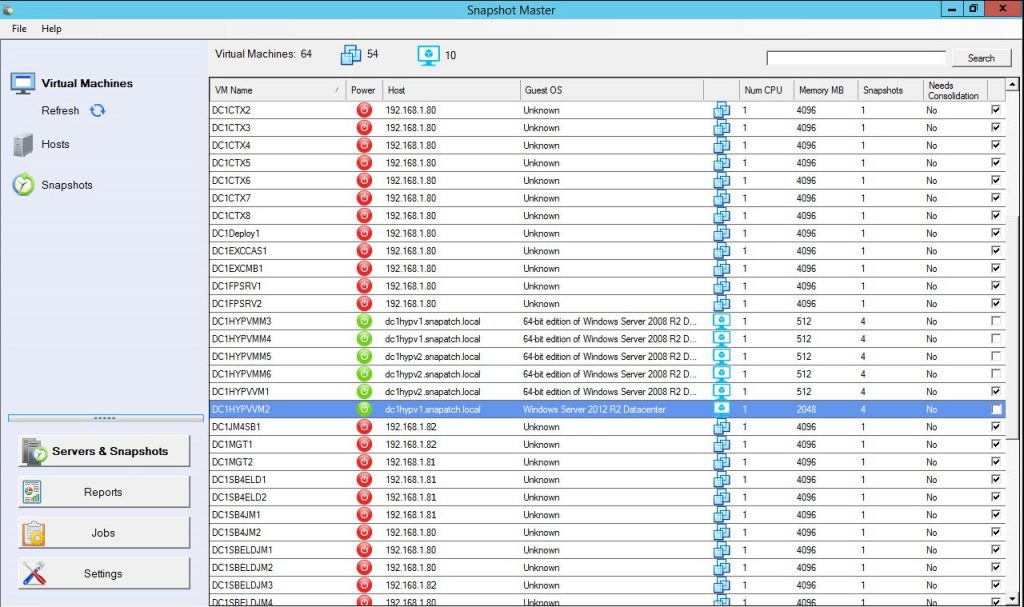
SnapShot Master Power On
Virtual Machine Management
Creating a New VM
A virtual machine (VM) in VMware is like a simulated computer running within your physical computer. Creating a new VM via the CLI is akin to setting up a new office in an empty room. You need to define its size (disk space), capacity (RAM and CPU), and connections (networking). The primary tool for this is a configuration file with a .vmx extension, which acts as your blueprint. Here, you define parameters like memsize, numvcpus, and ethernet0.connectionType.
Starting, Stopping, and Suspending VMs
Just as you wouldn’t leave all the devices in your house running when you’re not using them, you also need to manage the state of your VMs effectively. VMware CLI provides simple yet powerful commands for these operations. For instance, the vmware-cmd /path/to/vm.vmx start command fires up your VM, while vmware-cmd /path/to/vm.vmx stop will shut it down. To pause it, you’d use vmware-cmd /path/to/vm.vmx suspend, effectively freezing the VM’s state for later use.
CLI Commands: The Core Syntax
Essential Commands for Beginners
As a beginner, you don’t have to know all the commands; you just need to master a few to get started. Here are some essentials:
vmware -v: Displays the installed VMware version.
vmrun list: Lists all running VMs.
vmware-cmd: The Swiss Army knife of VMware CLI, used for various operations such as creating, modifying, and controlling VMs.
Advanced Commands for Seasoned Users
For those who are more comfortable, diving deeper into VMware CLI’s command set can unlock powerful functionalities. Commands like vicfg-vswitch for intricate network configurations or esxtop for real-time system monitoring are tools that offer granular control over your environment.
Network Management
Configuring Virtual Networks
Networks are the highways that data travels on, and managing them efficiently is paramount. VMware CLI allows you to configure virtual switches, port groups, and more. For example, to create a new virtual switch, you can use the vicfg-vswitch command:
vicfg-vswitch --add vSwitch1
This command is akin to laying down a new highway for your data to travel. You’re essentially giving your virtual machines more lanes to move data around.
Understanding NAT and Bridged Modes
In VMware, the NAT (Network Address Translation) and Bridged modes define how your VM interacts with your network. Bridged mode allows the VM to appear as its own entity on the network, whereas NAT places the VM behind a private network. It’s like deciding whether you want your kid to have their own room (Bridged) or share it with a sibling (NAT). The CLI lets you toggle these settings, tailoring each VM’s network access according to your needs.
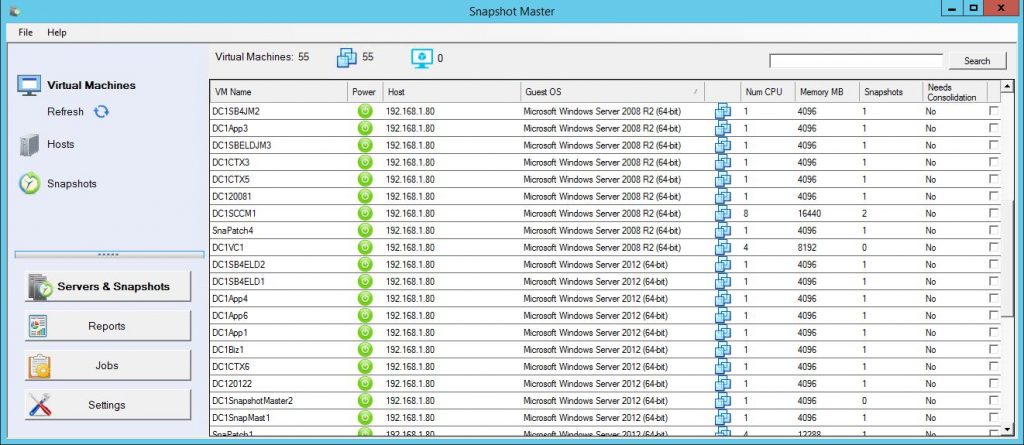
SnapShot Master Home Screen
Storage and Disk Management
Creating Virtual Disks
The primary command for creating a new virtual disk is vmkfstools. For instance, to create a 10GB disk, you would run:
vmkfstools -c 10G NewVirtualDisk.vmdk
This would allocate a 10GB disk with the label “NewVirtualDisk.”
Managing Disk Space
Over time, as data accumulates, you might need to expand your disk. The CLI makes this straightforward:
vmkfstools -X 15G NewVirtualDisk.vmdk
This resizes the disk to 15GB. This action is similar to extending a partition on a physical drive. But remember, you’ll also need to resize the partition inside the VM to make use of the new space.
Resource Allocation and Monitoring
Allocating CPU and Memory
Let’s say you have a VM that’s sluggish and needs a power boost. You can reallocate resources like CPU and RAM using various CLI commands or by directly editing the VM’s .vmx configuration file.
vi /path/to/your/vm.vmx
Inside this file, you can modify the numvcpus and memsize parameters to adjust the number of CPUs and RAM size, respectively.
Monitoring Tools in VMware CLI
Awareness is key to maintaining a healthy virtual environment. VMware CLI has commands like esxtop for real-time monitoring. It shows you an ocean of metrics like CPU usage, memory usage, and network stats—think of it as your personal weather report for the virtual environment.
Automation and Scripting
Basics of Scripting in VMware
Automation is the art of teaching your systems to do tasks without your manual intervention. In VMware CLI, this often involves writing scripts that use a series of CLI commands. Simple scripts can automate tasks like backups, while more complex ones can handle failover procedures and more.
Real-World Scripting Examples
One practical example might be a script that takes snapshots of all running VMs. Such a script would loop through all active VMs, using the vmware-cmd command to create snapshots. This is a time-saving tool that could be invaluable in a production environment.
Security Aspects
Secure Login and SSH
Secure Shell (SSH) allows for secure remote access to your VMware host. SSH is like a secure tunnel in a mountain; it ensures that no unauthorized users can snoop on your data as it travels.
Encryption and Data Protection
VMware CLI also offers options to encrypt your virtual disks, making unauthorized access to data almost impossible. It’s like installing a high-tech security system in your home, making it impenetrable to burglars.
Table of VMware CLI Commands and Their Explanations
Command
Parameters
Description
Example Usage
vmware -v
N/A
Displays the installed VMware version.
vmware -v
vmrun list
N/A
Lists all currently running VMs.
vmrun list
vmware-cmd
Multiple
A multipurpose command for VM operations like creating, modifying, and controlling VMs.
vmware-cmd /path/to/vm.vmx start
vicfg-vswitch
--add, --delete
Manages virtual switches.
vicfg-vswitch --add vSwitch1
vmkfstools
-c, -X
Used for disk operations like creating and resizing virtual disks.
vmkfstools -c 10G NewVirtualDisk.vmdk
esxtop
N/A
Provides real-time monitoring for ESXi and associated VMs.
Another multipurpose command for managing VMs and ESXi hosts.
vim-cmd vmsvc/power.on VM-ID
vicfg-route
--add, --delete
Adds or removes routes in the VMkernel.
vicfg-route --add 192.168.1.0/24 192.168.1.1
vicfg-dns
--dns
Configures the DNS servers used by ESXi.
vicfg-dns --dns 192.168.1.1
vicfg-user
--adduser
Adds a new user to the ESXi host.
vicfg-user --adduser new_user --password password
vicfg-advcfg
Multiple
Allows for advanced configuration options for ESXi.
vicfg-advcfg -g /Net/FollowHardwareMac
vicfg-syslog
--server
Specifies a syslog server for logging.
vicfg-syslog --server syslog.example.com
This table provides a quick reference for the most commonly used CLI commands in VMware. Each of these commands plays a vital role in configuring, managing, and optimizing your virtual environments. Feel free to bookmark this section for easy future reference.
This wraps up our in-depth exploration of managing VMware through its CLI. The CLI offers an unparalleled level of control and customization, making it an essential tool for VMware users of all levels. From managing VMs and networks to automating complex tasks, CLI offers a robust set of features designed to make your life easier.
Carbon Hypervisor Screen
Conclusion
So, what’s the verdict? Is CLI a rudimentary, old-fashioned tool? Far from it! In the context of VMware, CLI is a powerful, intricate system that can streamline complex tasks, optimize resource allocation, and even bolster security measures. Whether you’re a beginner or a seasoned expert, there’s always more to learn and explore in VMware’s CLI.
FAQs
Is VMware CLI difficult to learn?
While it has a learning curve, the VMware CLI is highly rewarding to master, offering capabilities that the GUI often can’t match.
Can I manage multiple VMs at once with CLI?
Absolutely, automation and scripting capabilities allow you to manage multiple VMs simultaneously.
Is CLI secure for remote management?
Yes, with SSH and various encryption options, CLI is designed with security in mind.
Can I use CLI to monitor real-time system performance?
Yes, tools like esxtop provide comprehensive real-time statistics.
Where can I find more resources to learn VMware CLI?
VMware’s own documentation is an excellent start. Online forums, webinars, and courses are also available for deeper understanding.
I hope you found this guide both informative and engaging! Feel free to explore the expansive world of VMware CLI.
The Azure Files update in 2023 introduced Azure Active Directory support for REST API, enabling SMB file share access with OAuth authentication. This advancement improved the scalability of Azure Virtual Desktop by increasing the root directory handle limit from 2,000 to 10,000. Additionally, the public preview of geo-redundant storage for large file shares enhanced capacity and performance, while the Premium Tier now guarantees a 99.99% uptime SLA for all premium shares.
In 2022, Azure AD Kerberos authentication for hybrid identities was a highlight, as it built upon FSLogix profile container support. Also, SUSE Linux gained compatibility with SAP HANA System Replication and Pacemaker.
In 2021, premium Azure file shares received heightened baseline and burst IOPS, catering to POSIX-compliant, distributed file shares. NFSv4.1 protocol was enabled for premium file shares, enhancing flexibility and alignment with standard shares. SMB Multichannel was introduced, offering parallel connections for network optimization, along with SMB 3.1.1 with additional encryption modes. Azure Files started supporting storage reservations for premium, hot, and cool tiers, optimizing cost efficiency. The portal experience for domain joining was simplified, and Azure Files management became accessible through the control plane, streamlining management actions through various tools.
These updates represent a continual effort by Microsoft to improve the functionality, performance, and security of Azure Files, reflecting their commitment to providing a robust and efficient file-sharing service.
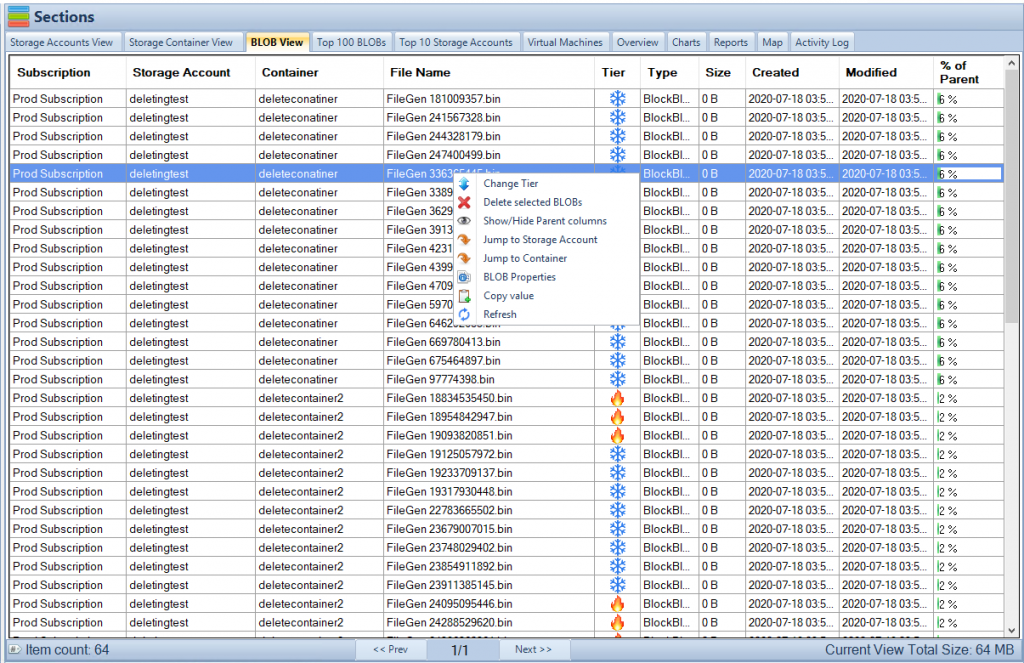
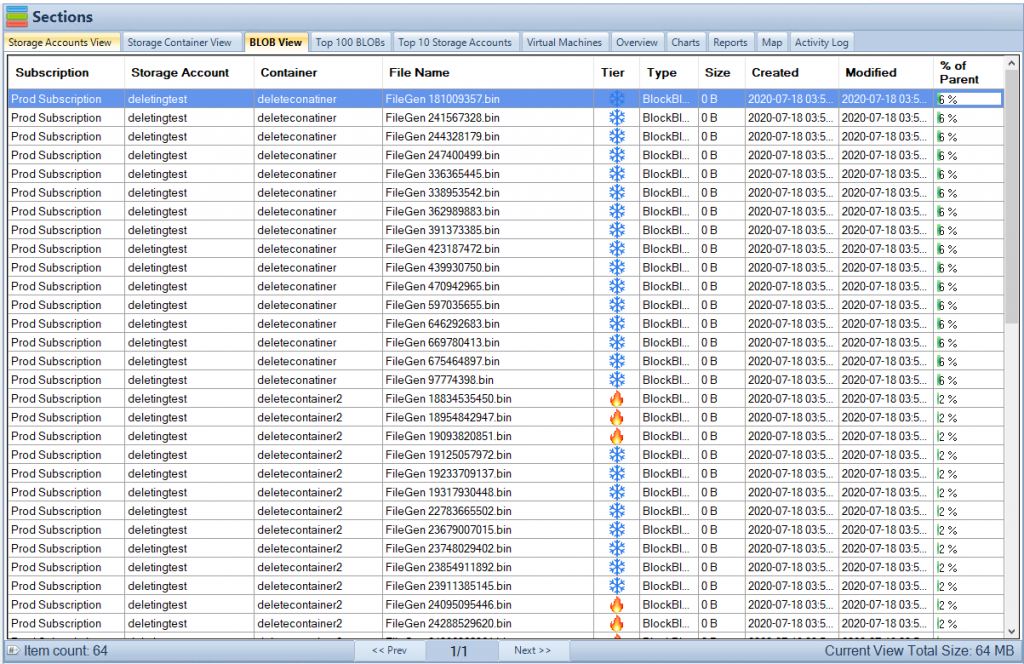
Cloud Storage Manager Blobs Tab
Enhanced Features of Azure Files
Azure Active Directory Support for REST API
Azure Active Directory (Azure AD) support for REST API is a significant enhancement as it enables Server Message Block (SMB) file share access using OAuth authentication. This feature enhances security by allowing only authenticated users to access file shares. It is particularly beneficial for organizations that have already integrated Azure AD and want to leverage it for secure file access.
Increased Root Directory Handle Limit
The scalability of Azure Virtual Desktop was improved by increasing the root directory handle limit from 2,000 to 10,000. This enhancement allows for more simultaneous connections to the root directory, enabling larger organizations to use Azure Virtual Desktop more effectively.
Geo-Redundant Storage for Large File Shares
The introduction of geo-redundant storage for large file shares in public preview is another noteworthy update. This feature boosts both the capacity and performance of file shares, making it easier for organizations to manage large amounts of data across different geographical locations.
99.99% Uptime SLA for Premium Shares
The Premium Tier of Azure Files now guarantees a 99.99% uptime Service Level Agreement (SLA) for all premium shares. This improvement ensures higher availability and reliability of premium file shares, which is crucial for businesses that require continuous access to their data.
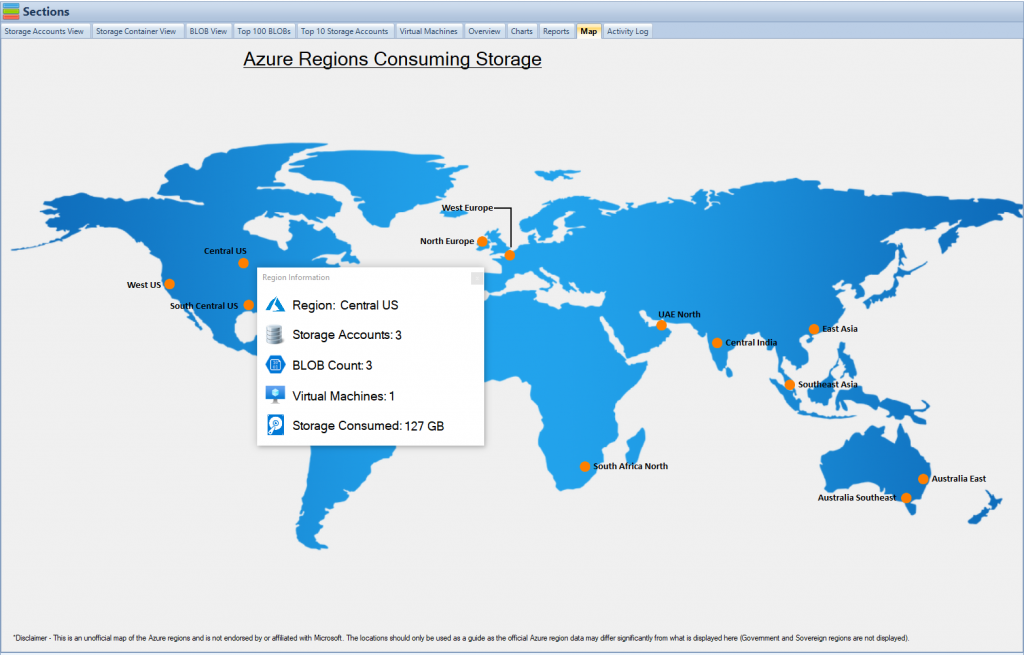
Cloud Storage Manager Map View
Highlighted Updates from Previous Years
Azure AD Kerberos Authentication for Hybrid Identities (2022)
In 2022, Azure AD Kerberos authentication for hybrid identities was a significant update. This feature further built upon FSLogix profile container support, enhancing the security and ease of use for organizations with hybrid identities.
Compatibility of SUSE Linux with SAP HANA System Replication and Pacemaker (2022)
Also in 2022, SUSE Linux gained compatibility with SAP HANA System Replication and Pacemaker. This update is essential for organizations that use SAP HANA for their database needs and want to ensure high availability and disaster recovery.
Heightened Baseline and Burst IOPS for Premium Azure File Shares (2021)
In 2021, premium Azure file shares received heightened baseline and burst Input/Output Operations Per Second (IOPS), which caters to POSIX-compliant, distributed file shares. This improvement enhances the performance of file shares, making it easier for organizations to manage large amounts of data.
Enablement of NFSv4.1 Protocol for Premium File Shares (2021)
Also in 2021, the NFSv4.1 protocol was enabled for premium file shares, enhancing flexibility and alignment with standard shares. This update allows organizations to use the NFSv4.1 protocol, which is essential for applications that require POSIX compliance.
Introduction of SMB Multichannel (2021)
SMB Multichannel was introduced in 2021, offering parallel connections for network optimization. This feature enhances the performance of file shares by allowing multiple simultaneous connections, improving data transfer rates and network utilization.
Additional Encryption Modes with SMB 3.1.1 (2021)
Also in 2021, SMB 3.1.1 was introduced with additional encryption modes, enhancing the security of file shares. This update provides more options for organizations to encrypt their data, ensuring that it is protected from unauthorized access.
Support for Storage Reservations (2021)
In 2021, Azure Files began supporting storage reservations for premium, hot, and cool tiers, optimizing cost efficiency. This feature allows organizations to reserve storage capacity in advance, ensuring that they have enough space for their data and reducing costs by avoiding over-provisioning.
Simplified Portal Experience for Domain Joining (2021)
The portal experience for domain joining was simplified in 2021, making it easier for organizations to integrate their Azure Files with their existing Active Directory domain. This update streamlines the process of domain joining, reducing the administrative effort required.
Accessible Azure Files Management through Control Plane (2021)
Azure Files management became accessible through the control plane in 2021, streamlining management actions through various tools. This update makes it easier for administrators to manage their file shares, reducing the time and effort required.
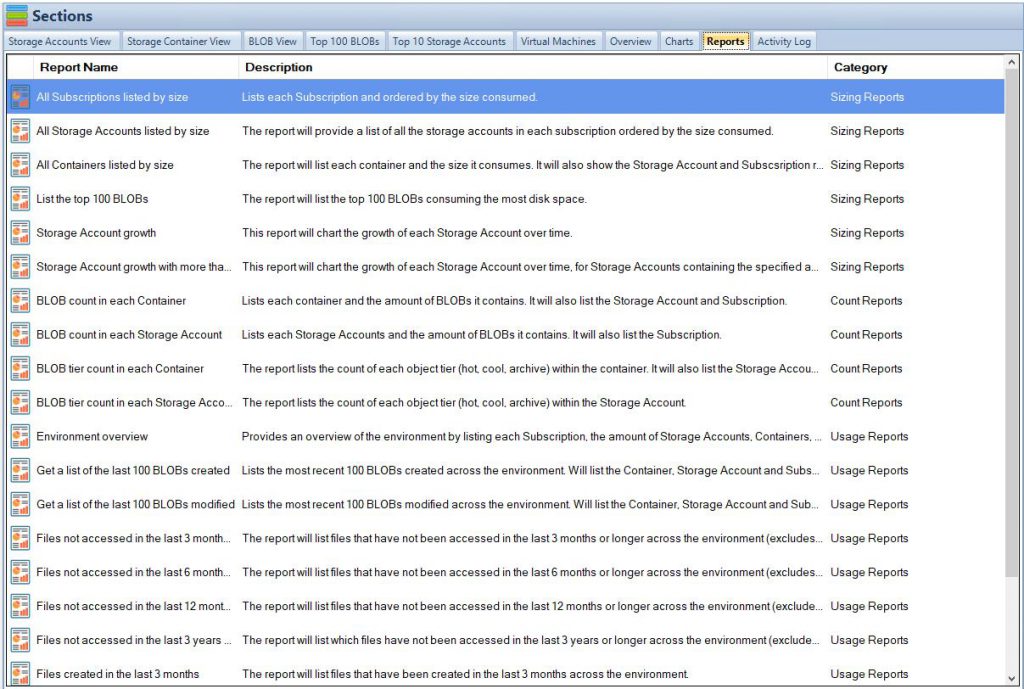
Cloud Storage Manager Reports Tab
Reducing your Azure Files Costs
Saving money with Azure Files using Cloud Storage Manager is a strategic and efficient solution for businesses looking to optimize their cloud storage costs. This robust software offers a comprehensive set of tools that enable users to effectively manage, monitor, and optimize their Azure Files storage resources. By leveraging features such as automated tiering, data compression, and deduplication, Cloud Storage Manager empowers organizations to make the most of their storage budget. Its intuitive interface and advanced analytics provide valuable insights into usage patterns, allowing businesses to identify opportunities for cost reduction and resource allocation refinement. With Cloud Storage Manager, companies can achieve a higher level of control over their Azure Files storage, ultimately leading to minimized expenses and maximized return on investment in the cloud infrastructure.
Conclusion
The Azure Files update in 2023 brought several significant enhancements, including Azure AD support for REST API, increased root directory handle limit, geo-redundant storage for large file shares in public preview, and a 99.99% uptime SLA for premium shares. These updates, along with the highlighted updates from previous years, reflect Microsoft’s commitment to continuously improving the functionality, performance, and security of Azure Files. Organizations can leverage these enhancements to optimize their file-sharing operations, ensuring secure, reliable, and efficient access to their data.
AzCopy is a command-line utility designed for copying data to and from Microsoft Azure Blob and File storage. It is a very powerful tool provided by Microsoft that helps users to copy and transfer data efficiently and securely. One of the key features of AzCopy is the ability to schedule transfers. Scheduled transfers can be extremely useful in managing data and ensuring that data is moved or backed up at the most appropriate times. AzCopy is particularly useful for businesses and individuals who handle large volumes of data and need a reliable and efficient way to manage data transfers. The ability to schedule transfers allows users to plan ahead and ensure that important data is transferred at the right times, without having to manually initiate the transfer each time.
Why Schedule Transfers?
Scheduling transfers can be incredibly beneficial for a number of reasons.
Importance of Scheduling
Firstly, scheduling transfers can help manage the load on your network. Transferring large amounts of data can be very resource-intensive and can impact the performance of other applications and services. By scheduling transfers for off-peak times, you can reduce the impact on your network and ensure that other services continue to run smoothly. This is particularly important for businesses that rely on their network for critical operations and cannot afford any downtime or reduced performance. Additionally, scheduling transfers can also help in managing costs. Many cloud providers charge based on the amount of data transferred and the time at which the transfer occurs. By scheduling transfers for off-peak times, you may be able to take advantage of lower rates and save on costs.
Use Cases
Another use case for scheduling transfers is for regular backups or data synchronizations. For example, if you have a database that needs to be backed up daily, you can schedule a transfer to occur every night at a specific time. This ensures that your data is always backed up and protected. Regular backups are essential for protecting against data loss due to hardware failure, data corruption, or other unforeseen events. By scheduling transfers, you can automate the backup process and ensure that it is always completed on time. Another common use case is for data synchronization between different systems or locations. For example, you may have a production environment and a backup environment that need to be kept in sync. By scheduling transfers, you can ensure that any changes made in the production environment are automatically replicated to the backup environment.
Cloud Storage Manager Main Window
How to Schedule Transfers
Scheduling transfers in AzCopy involves a few steps.
Installation and Setup
Before you can schedule transfers, you need to ensure that AzCopy is installed on your machine. The installation process is straightforward and involves downloading the AzCopy executable file from the Microsoft website and configuring it on your machine. It is important to ensure that you have the appropriate permissions to install software on your machine and to access the source and destination locations for the transfer. Additionally, you may need to configure your firewall or network settings to allow AzCopy to access the internet or other network resources.
Using the Command Line
AzCopy is a command-line tool, so you will need to use the command line to schedule transfers. The basic syntax for scheduling a transfer with AzCopy is as follows:
In this example, C:\source is the source directory, and https://destination.blob.core.windows.net/container is the destination URL. The --schedule parameter specifies the schedule for the transfer using a cron expression. The cron expression 0 2 * * * specifies that the transfer should occur at 2 AM every day.
Cloud Storage Manager Reports Tab
Tips and Best Practices
It’s important to consider a few things when scheduling transfers with AzCopy.
Handling Errors
Errors can occur during the transfer process, and it’s important to handle them appropriately. AzCopy provides several options for handling errors, such as retrying the transfer, logging the error, or stopping the transfer completely. It is recommended to review the documentation for AzCopy and configure the appropriate error handling options for your use case. For example, you may want to configure AzCopy to retry the transfer a certain number of times before logging an error and stopping the transfer. Additionally, you may want to configure AzCopy to generate a log file that you can review after the transfer is completed to identify any issues or errors that occurred during the transfer.
Monitoring Transfers
Monitoring transfers is also important to ensure that they are completed successfully. AzCopy provides several options for monitoring transfers, such as generating a log file or displaying the status of the transfer in the command line. It is recommended to review the documentation for AzCopy and configure the appropriate monitoring options for your use case. For example, you may want to configure AzCopy to generate a log file that you can review after the transfer is completed to confirm that all files were transferred successfully. Additionally, you may want to monitor the status of the transfer in the command line to identify any issues or errors that occur during the transfer.
Automating Transfer Schedules
Automating transfer schedules can help streamline the process and ensure that transfers occur as planned.
Using Scripting
Scripting can be a powerful way to automate transfer schedules. You can create a script that contains the AzCopy command with the appropriate parameters for your transfer and then schedule the script to run at the desired times. There are several scripting languages available, such as PowerShell or Bash, that you can use to create your script. It is recommended to review the documentation for your preferred scripting language and the AzCopy command-line reference to create your script.
Using Task Scheduler
Another way to automate transfer schedules is by using the Task Scheduler on Windows. You can create a task that runs the AzCopy command at the desired times. The Task Scheduler provides a user-friendly interface for configuring tasks and allows you to specify various options, such as the start time, recurrence, and actions to take if the task fails. It is recommended to review the documentation for the Task Scheduler and the AzCopy command-line reference to create your task.
Conclusion
Scheduling transfers with AzCopy can be incredibly useful for managing data and ensuring that data is moved or backed up at the most appropriate times. By using the command line, scripting, or the Task Scheduler, you can automate transfer schedules and streamline the process. Remember to handle errors appropriately and monitor transfers to ensure they are completed successfully. Additionally, it is important to test your scheduled transfers thoroughly before relying on them in a production environment. By following these best practices, you can take full advantage of the scheduling capabilities of AzCopy and ensure that your data is always transferred on time and securely.
Cloud Storage Manager Blobs Tab
Frequently Asked Questions
Can I schedule transfers to occur at multiple times throughout the day? Yes, you can schedule transfers to occur at multiple times throughout the day by specifying multiple cron expressions in the --schedule parameter. For example, if you want to schedule a transfer to occur at 2 AM and 2 PM every day, you would use the following command: azcopy copy "C:\source" "https://destination.blob.core.windows.net/container" --schedule="0 2 * * *,0 14 * * * In this example, the cron expression 0 2 * * * specifies that the transfer should occur at 2 AM every day, and the cron expression 0 14 * * * specifies that the transfer should occur at 2 PM every day.
Can I schedule transfers from multiple sources to a single destination? Yes, you can schedule transfers from multiple sources to a single destination by running multiple AzCopy commands with different source and destination parameters. Each command will create a separate transfer, and you can schedule them to occur at the same time or at different times. For example, you may have two directories that you want to back up to the same destination, but at different times. You can create two separate AzCopy commands with the appropriate source and destination parameters and schedule them to occur at the desired times.
Can I cancel a scheduled transfer? Yes, you can cancel a scheduled transfer by stopping the AzCopy process or by deleting the scheduled task in the Task Scheduler. If you are using a script to automate your transfer schedule, you can stop the script or remove the scheduled task that runs the script. It is important to cancel a scheduled transfer carefully to avoid any data loss or corruption. For example, if you stop the AzCopy process while a transfer is in progress, some files may be partially transferred or not transferred at all.
Can I schedule transfers to occur on specific days of the week? Yes, you can schedule transfers to occur on specific days of the week by specifying the appropriate days in the cron expression. For example, if you want to schedule a transfer to occur on Mondays and Fridays at 2 AM, you would use the following command: azcopy copy "C:\source" "https://destination.blob.core.windows.net/container" --schedule="0 2 * * 1,5" In this example, the cron expression 0 2 * * 1,5 specifies that the transfer should occur at 2 AM on Mondays and Fridays.
Can I schedule transfers between different Azure accounts? Yes, you can schedule transfers between different Azure accounts by specifying the appropriate source and destination parameters in the AzCopy command. For example, you may have an Azure Blob Storage account in one Azure subscription and an Azure File Storage account in another Azure subscription. You can create an AzCopy command with the appropriate source and destination parameters and schedule it to occur at the desired times.
In today’s rapidly transforming digital landscape, virtualization and cloud computing have become pivotal technologies. Among the leaders in these fields, VMware and Microsoft Azure stand as two monumental names, each carving out unique niches and empowering businesses to reach new heights. The integration between VMware’s virtualization solutions and Azure’s vast cloud services is not merely a technical novelty but a strategic alignment that reshapes the way enterprises operate. This article delves into the intricate world of VMware and Azure integration, exploring its technical depth, business relevance, and future implications.
Definition of VMware and Azure
VMware, a pioneer in virtualization technology, offers robust solutions that allow organizations to create and manage virtual machines, networks, and storage. With a portfolio ranging from vSphere for server virtualization to NSX for network virtualization, VMware has revolutionized how businesses deploy and manage their IT infrastructure.
On the other hand, Microsoft Azure is a comprehensive cloud computing platform that offers everything from Infrastructure-as-a-Service (IaaS) to Platform-as-a-Service (PaaS) and Software-as-a-Service (SaaS). Azure’s global footprint and integration with a wide range of Microsoft products make it a one-stop destination for businesses seeking flexibility, scalability, and innovation.
Overview of VMware
In the world of virtualization, VMware has etched an indelible mark. Its extensive portfolio of products and solutions forms the backbone of many enterprise IT infrastructures. Let’s explore VMware’s key aspects to understand how it dovetails with Azure to create a seamlessly integrated environment.
A. Introduction to VMware
Virtualization Technology: VMware’s success stems from its breakthrough in server virtualization. With products like vSphere, VMware has provided tools to harness the true power of virtualization, allowing multiple operating systems to run on a single physical server. This not only maximizes resource utilization but also adds a new layer of agility and flexibility.
Key Products and Services: VMware’s ecosystem isn’t confined to server virtualization alone. It encompasses network virtualization (NSX), cloud management (vCloud Suite), virtual storage (vSAN), and more. VMware Horizon even extends virtualization to desktops, providing secure and efficient remote access solutions.
B. Benefits and Use Cases
Cost Savings: VMware’s virtualization leads to significant cost reduction. By consolidating physical servers and optimizing resource allocation, businesses can decrease hardware expenses and energy consumption.
Efficiency: The automation features in tools like vRealize Operations allow for streamlined management. Predictive analytics and intelligent operations enable proactive issue resolution, reducing downtime and enhancing overall efficiency.
Scalability: VMware’s infrastructure is designed for seamless scaling. Whether expanding a single server’s capabilities or extending a data center’s reach, VMware provides the tools to adapt quickly to changing business needs.
Integration Capabilities: One of VMware’s standout features is its ability to integrate with various cloud platforms, including Microsoft Azure. VMware’s Hybrid Cloud Extension (HCX) provides a secure and optimized way to interconnect on-premises and cloud environments, enabling a true hybrid cloud experience.
Overview of Microsoft Azure
Azure is more than just a cloud provider; it’s a multifaceted platform that serves as a catalyst for business innovation. Let’s unravel its components and see how they align with VMware’s offerings.
A. Introduction to Azure
Cloud Computing Platform: Azure offers a broad spectrum of services, ranging from IaaS to PaaS and SaaS. Its global network of data centers allows businesses to deploy applications and services with unprecedented reach and reliability.
Key Services and Features: With over 200 services, Azure’s offerings span across computing, databases, AI, IoT, and more. Azure Virtual Machines, Azure Kubernetes Service, and Azure SQL Database are just a few examples of the myriad solutions available.
B. Benefits and Use Cases
Flexibility: Azure’s vast array of services provides unparalleled flexibility. Businesses can choose precisely the services they need, scaling up or down according to demand.
Global Reach: Azure’s data centers span the globe, enabling a truly international presence. This global reach enhances performance and availability, catering to customers in various geographical locations.
Integration with Other Microsoft Products: Azure’s seamless integration with other Microsoft products like Windows Server, Active Directory, and SQL Server creates a cohesive and familiar environment for developers and IT professionals.
Interoperability with VMware: Perhaps most relevant to our discussion is Azure’s ability to integrate with VMware through Azure VMware Solution (AVS). This service enables full-stack integration, allowing VMware workloads to run natively on Azure.
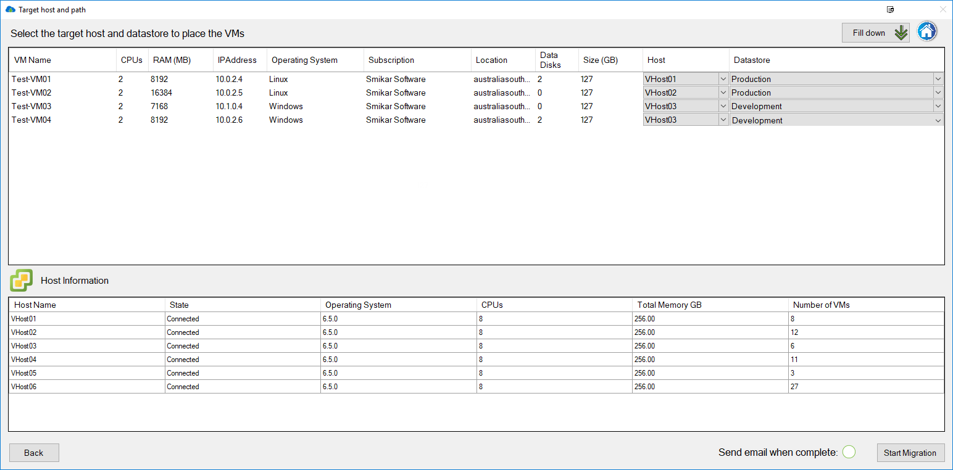
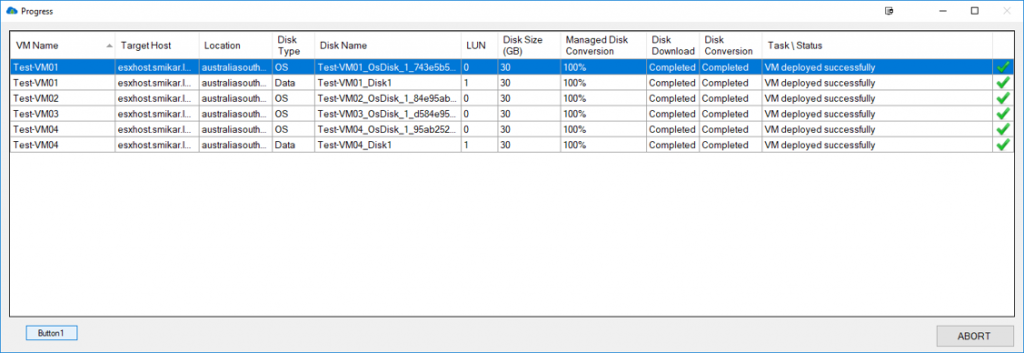
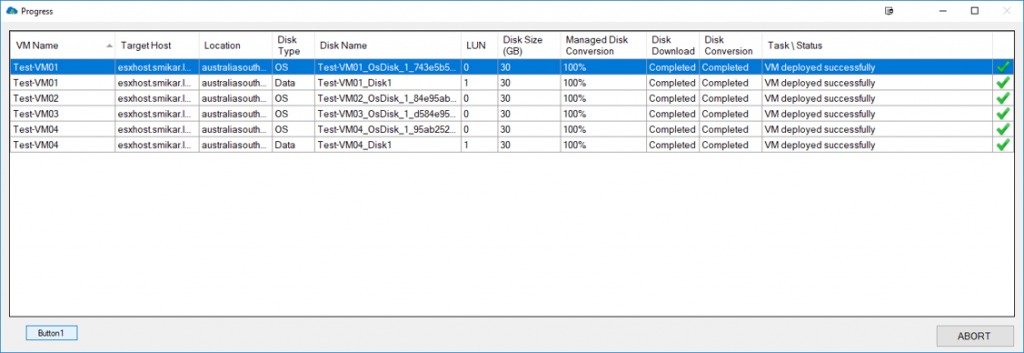
Carbon Azure Migration Progress Screen
The Need for Integration
In an era where agility, scalability, and security are paramount, the integration of VMware’s virtualization technology with Azure’s cloud services is more than a cutting-edge innovation. It’s a response to the complex demands of modern businesses. Let’s explore the driving factors that make this integration crucial.
A. Modern Business Needs
Hybrid Cloud Environment: The transition from traditional on-premises infrastructure to the cloud is often not an all-or-nothing move. Organizations prefer the flexibility of a hybrid model that integrates existing VMware workloads with Azure’s cloud services. This hybrid approach enables businesses to leverage the best of both worlds.
Seamless Connectivity and Management: Operational consistency is key in managing a hybrid environment. VMware’s tools, in conjunction with Azure’s services, ensure a uniform experience across on-premises and cloud infrastructures.
Risk Mitigation: Integration provides a phased approach to cloud adoption, allowing organizations to move workloads at their own pace, reducing risk and ensuring compliance.
B. Hybrid Cloud Environment
Architectural Consistency: With solutions like Azure VMware Solution (AVS), businesses can migrate existing VMware workloads to Azure without modifying the applications or operating model. This ensures consistency in operations and governance across the entire infrastructure.
Cost-Efficiency: A well-integrated hybrid environment can optimize costs by utilizing on-premises resources efficiently and scaling into the cloud as needed.
Innovation and Agility: Leveraging Azure’s cloud services within a VMware environment opens up new avenues for innovation, from implementing AI and IoT to utilizing Azure’s development and analytics tools.
C. Seamless Connectivity and Management
Unified Control Plane: Integration tools provide a single pane of glass for managing resources both on-premises and in the cloud. This unified management layer simplifies operations, enhances visibility, and reduces complexity.
Migration Simplicity: Tools like Azure Migrate with VMware integration offer a seamless migration experience, making it easier for organizations to move workloads between on-premises and Azure.
Security and Compliance: Integration ensures that security policies and compliance standards are consistently enforced across the entire infrastructure. This includes utilizing Azure’s advanced security services within the VMware environment.
D. Security Considerations
Data Integrity: Ensuring data integrity and protection across a hybrid environment requires meticulous planning and execution. Integration solutions consider these factors, providing encryption, identity management, and other security mechanisms.
Compliance Adherence: VMware and Azure both offer a range of compliance certifications and enable alignment with various regulatory requirements. The integration ensures consistent compliance management across all platforms.
The need for integration between VMware and Azure stems from the growing complexity and diversity of business requirements in today’s digital landscape. It’s not just about connecting two technological platforms; it’s about creating a synergistic ecosystem where the strengths of both are amplified. As we explore further, we will uncover the specific techniques, tools, and strategies that make this integration not only possible but also a fundamental part of modern IT strategy. The convergence of VMware’s virtualization prowess with Azure’s cloud capabilities has paved the way for a new era of efficiency, innovation, and growth.
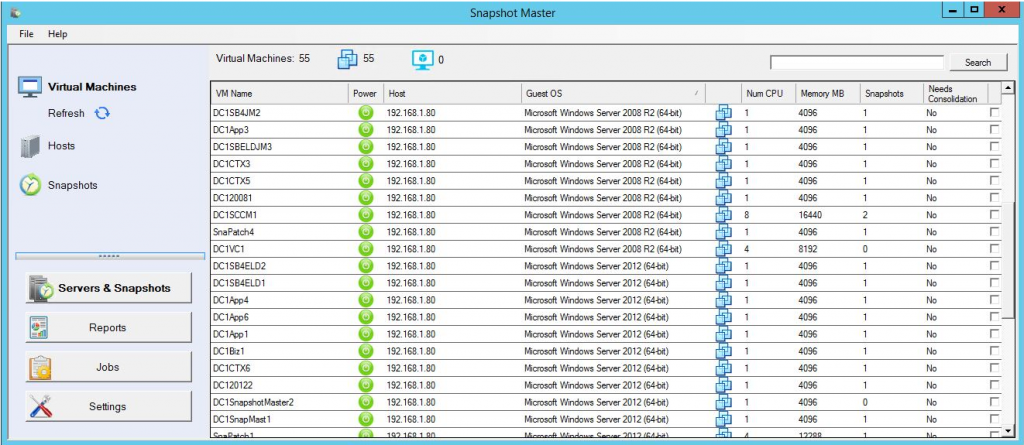
SnapShot Master Main Console Window
Integration Techniques and Strategies
The collaboration between VMware and Azure is not a mere juxtaposition of technologies; it’s a complex weaving of two robust platforms to create a cohesive, flexible, and powerful hybrid environment. Here’s a technical look into how this integration is achieved:
A. VMware’s Azure Integration Tools and Services
Hybrid Cloud Extension (HCX): VMware HCX is designed to simplify application migration and mobility between different environments, including Azure. It allows for secure and efficient migration without downtime.
vRealize Automation: Utilizing vRealize Automation with Azure lets organizations create and manage cloud templates that work across both VMware and Azure environments, ensuring consistent deployment and management.
Azure VMware Solution (AVS): A fully-managed service that enables organizations to run VMware natively on Azure. AVS simplifies the migration, extends data centers, and provides a unified approach to maintaining the infrastructure.
B. Azure’s VMware Solutions
Azure Migrate: Azure Migrate, with VMware integration, simplifies the process of assessing and migrating VMware workloads to Azure. It offers a centralized hub for migration activities, including assessment, migration, and resource tracking.
Azure Site Recovery (ASR): This tool offers a robust disaster recovery solution for VMware workloads. It enables replication, failover, and recovery of VMware virtual machines directly to Azure.
Azure ExpressRoute: By connecting VMware workloads directly to Azure through ExpressRoute, organizations can achieve private, high-speed connectivity, ensuring optimal performance and security.
C. Migration Strategies
Assessment and Planning: Utilize tools like Azure Migrate to assess VMware workloads and plan a tailored migration strategy. This includes compatibility checks, performance analysis, and cost estimations.
Lift-and-Shift Migration: This approach involves moving existing VMware workloads to Azure without major modifications. It’s often the fastest way to migrate and benefits from native integration tools.
Application Refactoring: For applications that may benefit from cloud-native features, a refactoring strategy might be appropriate. This involves redesigning parts of the application to take full advantage of Azure’s services.
D. Monitoring and Management Tools
Azure Monitor: Integration with Azure Monitor allows for comprehensive monitoring of VMware workloads running on Azure, offering insights, alerts, and analytics.
Unified Management Platform: Utilize platforms like vCenter Server that enable a single view of resources across both VMware and Azure. This simplifies administration and ensures a consistent management experience.
Security and Compliance Management: Leverage Azure Security Center with VMware to have a unified security management system, ensuring that policies and compliance requirements are consistently applied across the hybrid environment.
The technical intricacies of integrating VMware with Azure are more than a combination of individual tools and services. It’s the orchestration of a seamless experience that merges two powerful platforms into a unified whole. Through strategic migration planning, robust connectivity solutions, consistent management, and vigilant security oversight, VMware and Azure integration forms a resilient, agile, and efficient ecosystem.
This intricate dance of technologies is leading the way towards a new era of hybrid cloud computing, opening doors to innovation, scalability, and endless possibilities. In the following sections, we’ll explore real-world applications and case studies that demonstrate the tangible benefits of this integration in various industries and scenarios.
Cloud Storage Manager Reports Tab
Challenges and Considerations in VMware and Azure Integration
The collaboration between VMware and Azure provides tremendous value, but it’s not without its challenges. Understanding these complexities, and knowing how to navigate them, is vital for a successful integration.
A. Compatibility and Migration Challenges
Assessment Complexity: Properly assessing the compatibility of existing VMware workloads with Azure requires careful consideration. Utilizing tools like Azure Migrate can help, but a deep understanding of the existing architecture is crucial.
Migration Strategies: Choosing between lift-and-shift, refactoring, or re-platforming requires a nuanced understanding of both VMware and Azure. Incorrect choices can lead to increased costs and complexity.
B. Security and Compliance
Data Security Across Environments: Ensuring consistent security policies between on-premises VMware and Azure cloud can be complex. Integration must include encryption, access controls, and other security measures.
Regulatory Compliance: Maintaining compliance across a hybrid environment requires careful planning. It’s essential to understand the regulatory landscape and how both VMware and Azure meet those requirements.
C. Network and Connectivity
Network Design: The architecture of the network connecting VMware and Azure must be meticulously designed. Considerations include bandwidth, latency, redundancy, and more.
Connection Stability: Utilizing services like Azure ExpressRoute ensures a stable, high-speed connection. However, proper configuration and monitoring are essential to prevent potential connectivity issues.
D. Cost Management
Understanding Cost Implications: The hybrid nature of VMware and Azure integration can lead to unforeseen costs. Understanding and monitoring these costs through tools like Azure Cost Management is vital.
Optimizing Resource Utilization: Careful planning of resource scaling and utilization between VMware and Azure can prevent unnecessary expenses. This includes optimizing both on-premises and cloud resources.
E. Skills and Knowledge Gap
Technical Expertise: Successful integration requires a team that understands both VMware and Azure deeply. A skills gap can lead to inefficiencies, security risks, and other challenges.
Continuous Learning: As both VMware and Azure continue to evolve, ongoing education and training are essential. Staying abreast of new features, tools, and best practices ensures a robust, up-to-date integration.
F. Monitoring and Management Complexity
Unified Monitoring: Implementing a unified monitoring solution that covers both VMware and Azure can be challenging. Integration with tools like Azure Monitor is essential for a comprehensive view.
Lifecycle Management: Managing the complete lifecycle of applications across both environments requires a cohesive strategy. Automation tools, like vRealize Automation, play a key role here.
Integrating VMware and Azure is a multifaceted process that requires careful planning, technical expertise, and an understanding of the potential challenges. By recognizing and addressing these complexities, organizations can unlock the full potential of this powerful collaboration. This section provides a guide to the critical considerations that must be navigated, acting as a compass to guide businesses through the maze of technological intricacies. The resulting synergy between VMware and Azure promises a dynamic, resilient, and efficient hybrid cloud ecosystem, but only when shaped with precision, foresight, and understanding.
Schedule VM Snapshot Selection
The Future of VMware and Azure Integration: Trends and Innovations
The integration between VMware and Azure has already revolutionized the way organizations approach hybrid cloud environments. As technology continues to evolve, here’s a look at the trends, innovations, and potential future directions for this integration:
A. Artificial Intelligence and Machine Learning
Adaptive Automation: Future integration may leverage AI and machine learning to create self-optimizing systems. This could include automatic scaling, predictive maintenance, and intelligent security measures.
Data-Driven Insights: Enhanced AI algorithms can provide deeper insights into performance, security, and efficiency, guiding decision-making and strategy in real-time.
B. Edge Computing Integration
Seamless Edge Connectivity: As edge computing gains traction, integration between VMware’s edge solutions and Azure’s edge services like Azure IoT Edge could become more profound, enabling real-time analytics and processing at the edge.
Unified Edge Management: Future tools may offer centralized management of edge devices and data across both VMware and Azure, facilitating the rapid deployment and monitoring of edge computing applications.
C. Containerization and Kubernetes
Kubernetes Integration: Enhanced integration between VMware Tanzu and Azure Kubernetes Service (AKS) may allow for more seamless container orchestration, enabling hybrid containerized applications.
Microservices Architecture: Continued growth in microservices might lead to more refined tools and practices for managing containerized applications across both platforms, strengthening the hybrid cloud approach.
D. Quantum Computing Collaboration
Quantum-Ready Platforms: Though still in early stages, quantum computing may become a game-changer. Future integration might see the development of quantum-ready platforms within both VMware and Azure, paving the way for new computational possibilities.
E. Sustainability and Green Computing
Energy Efficiency: Collaborative efforts to enhance energy efficiency through intelligent resource allocation and optimization might be a key focus, aligning with global sustainability goals.
Green Cloud Initiatives: Integration could also align with specific green computing initiatives, leveraging renewable energy and sustainable practices across data centers and cloud services.
F. Cybersecurity Innovations
Zero Trust Security Models: Continued advancements in security might see tighter integration of zero trust models within both VMware and Azure, ensuring a more robust defense against evolving cyber threats.
AI-Driven Security: Leveraging AI for continuous monitoring, threat detection, and response could become a cornerstone in the integration between VMware and Azure.
The future of VMware and Azure integration holds the promise of continued innovation, agility, and transformation. From harnessing the power of AI to embracing edge computing and forging new frontiers with quantum computing, the possibilities are vast and exciting. The alignment of VMware’s virtualization expertise with Azure’s cloud prowess is not merely a convergence of technologies but a symbiosis that drives the industry forward. This vision of the future reflects not just a technological evolution but a continuous journey towards a more intelligent, efficient, and responsive digital world. It’s a testament to human creativity, a commitment to excellence, and a glimpse into a future filled with endless potential.
Cloud Storage Manager Main Window
Best Practices for Implementing and Managing VMware and Azure Integration
The integration of VMware and Azure is a complex undertaking, but adhering to established best practices can smooth the process, enhance performance, and ensure that the hybrid cloud functions harmoniously. Below, we outline essential best practices:
A. Planning and Assessment
Conduct a Thorough Assessment: Understand the existing VMware workloads, network configurations, and security policies. Tools like Azure Migrate can aid in evaluating compatibility and planning the migration.
Set Clear Objectives: Define the business goals, requirements, and expected outcomes of the integration. Consider scalability, resilience, compliance, and cost-efficiency.
B. Migration and Deployment
Choose the Right Migration Strategy: Select an appropriate migration path, whether it’s lift-and-shift, re-platforming, or refactoring, based on workload analysis.
Leverage VMware’s HCX Technology: Utilize VMware HCX for seamless migration, reducing downtime and ensuring consistent performance.
Test Before Going Live: Implement a thorough testing phase to detect and resolve any potential issues prior to full deployment.
C. Security and Compliance
Implement Unified Security Policies: Ensure consistent security measures across both VMware and Azure environments, including encryption, access controls, and monitoring.
Stay Abreast of Compliance Standards: Regularly review and update compliance protocols to match current regulations. Collaboration with legal and compliance teams is essential.
D. Network Design and Connectivity
Optimize Network Architecture: Design the network for optimal performance, with considerations for bandwidth, latency, and redundancy.
Utilize Azure ExpressRoute: For a secure, high-speed connection between VMware and Azure, employ Azure ExpressRoute, carefully configuring and monitoring to maintain stability.
E. Cost Management and Optimization
Monitor and Analyze Costs: Use Azure Cost Management to track and understand costs, allowing for ongoing optimization.
Implement Automated Scaling: Utilize tools that enable automatic scaling of resources, both on-premises and in the cloud, to meet demand without over-provisioning.
F. Monitoring, Management, and Automation
Utilize Unified Monitoring Tools: Implement solutions like Azure Monitor that provide a comprehensive view of both VMware and Azure environments.
Leverage Automation: Automation tools like vRealize Automation can streamline lifecycle management, deployments, and routine tasks, enhancing efficiency.
Provide Ongoing Training: Ensure that the IT team stays current with the latest technologies, tools, and best practices related to VMware and Azure.
G. Collaboration and Support
Foster Cross-Team Collaboration: Encourage collaboration between various teams, including development, operations, security, and compliance, for a more cohesive integration.
Utilize Expert Support: Consider leveraging the expertise of VMware and Azure support teams or third-party specialists to guide and assist in complex integrations.
By following these best practices, organizations can navigate the intricate path of integrating VMware and Azure with greater confidence and success. These guidelines provide a roadmap for achieving a robust, agile, and secure hybrid cloud environment that is aligned with both technical needs and business objectives. They represent not just a set of instructions but a philosophy of continuous improvement, strategic alignment, and technical excellence. Adhering to these practices is a testament to an organization’s commitment to leveraging the true potential of the VMware and Azure integration, ensuring a future-ready, resilient, and thriving digital ecosystem.
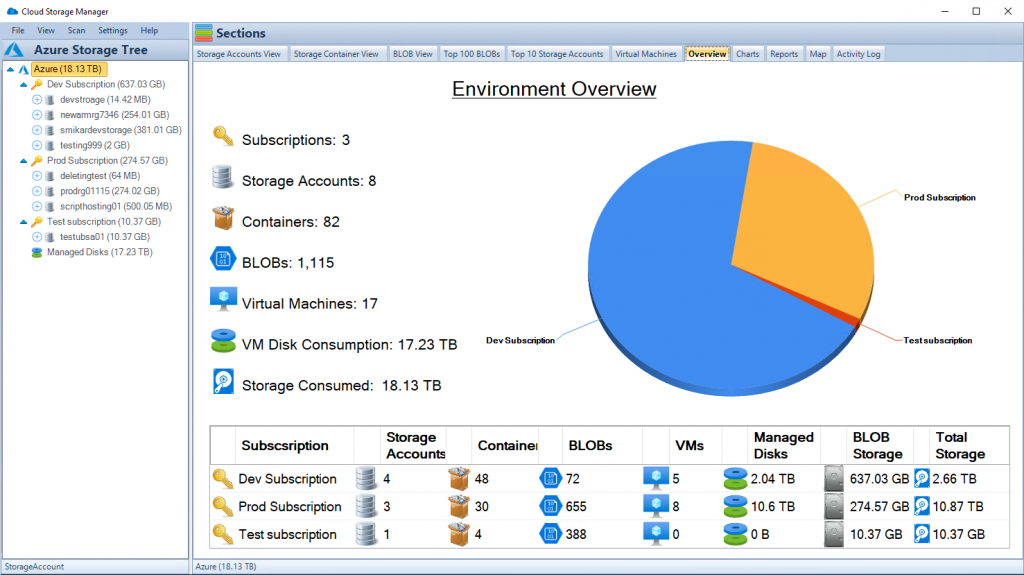
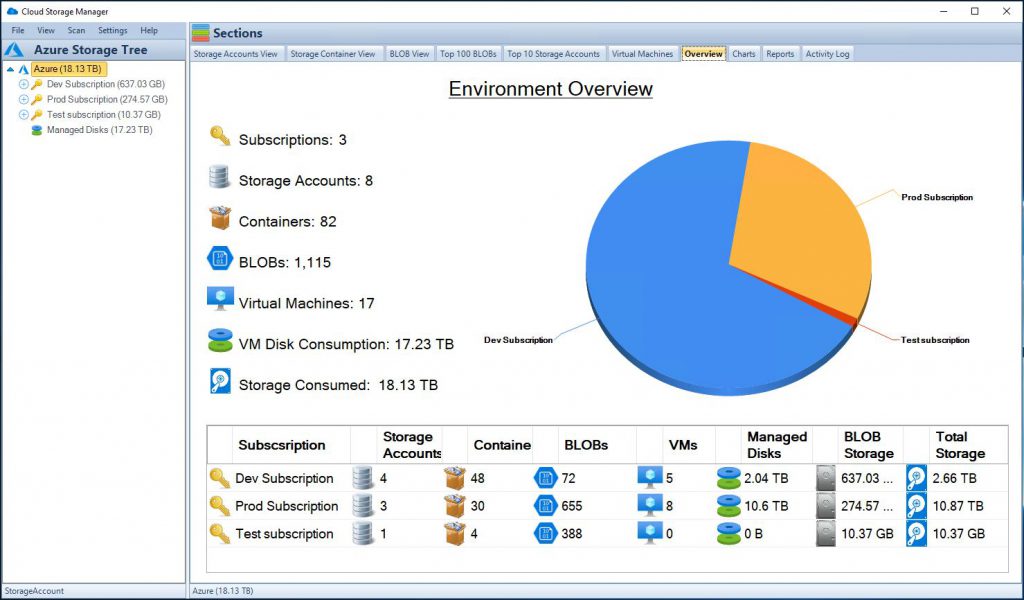
Cloud Storage Manager Overview Tab
Challenges and Pitfalls in VMware and Azure Integration
The integration of VMware and Azure, while providing numerous benefits, also comes with its own set of challenges and potential pitfalls. Careful consideration of these aspects is vital for a successful implementation.
A. Compatibility and Integration Complexity
Challenge: Ensuring compatibility between on-premises VMware configurations and Azure services.
Solution: Comprehensive assessment and planning, utilizing tools like Azure Migrate, and possibly engaging experts to ensure smooth integration.
B. Security and Compliance Concerns
Challenge: Maintaining consistent security policies and compliance standards across hybrid environments.
Solution: Implementing unified security measures, continuous monitoring, and staying up-to-date with relevant regulations.
C. Network Performance and Latency
Challenge: Achieving optimal network performance and minimal latency between VMware and Azure environments.
Solution: Designing a robust network architecture, using services like Azure ExpressRoute, and monitoring network performance.
D. Cost Management and Budgeting
Challenge: Unexpected costs and budget overruns in managing hybrid cloud infrastructure.
Challenge: Ensuring that the IT team has the necessary skills and expertise to manage VMware and Azure integration.
Solution: Investing in training and possibly engaging specialists to bridge the skills gap.
F. Disaster Recovery and High Availability
Challenge: Ensuring business continuity, disaster recovery, and high availability across both VMware and Azure.
Solution: Developing a comprehensive disaster recovery plan, utilizing Azure Site Recovery, and regularly testing the strategy.
G. Migration Challenges
Challenge: Seamless migration of workloads without downtime or performance degradation.
Solution: Employing VMware HCX or other specialized migration tools, conducting careful planning, and executing a phased migration approach.
H. Monitoring and Management Complexity
Challenge: Unifying monitoring and management across a complex hybrid environment.
Solution: Implementing unified monitoring solutions like Azure Monitor and vRealize Operations, and automating routine tasks.
While these challenges and potential pitfalls may seem daunting, they are not insurmountable. With proper planning, understanding, and adherence to best practices, organizations can navigate these complexities successfully. The road to integrating VMware and Azure may have its twists and turns, but it’s a journey filled with learning, growth, and transformation. Recognizing the challenges is not an impediment but a stepping stone towards achieving a resilient, agile, and efficient hybrid cloud environment. These challenges prompt innovation, foster resilience, and catalyze the pursuit of excellence. They remind us that in the intricate dance of technology, the missteps are as valuable as the triumphs, and the path to success is a winding one, rich with lessons, insights, and endless possibilities.
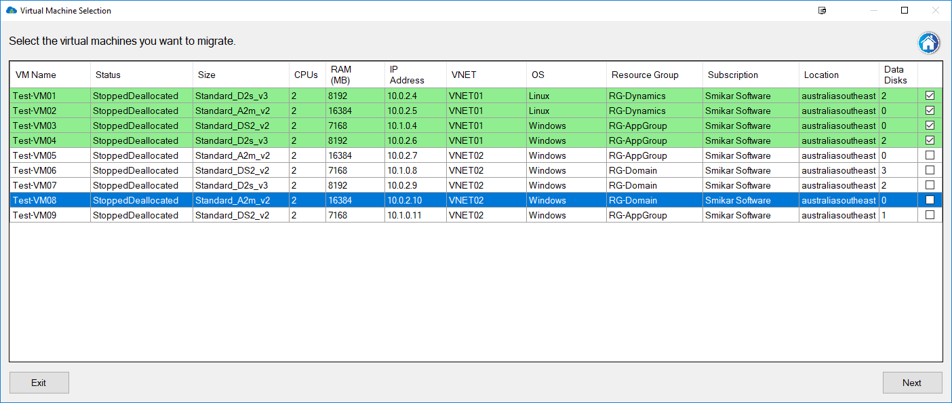
Carbon Azure VM Selection Screen
Future Trends and Emerging Technologies in VMware and Azure Integration
The integration of VMware and Azure is by no means static. It’s a continually evolving field influenced by emerging technologies, industry demands, and innovative practices. Below, we highlight some of the trends and technologies that are poised to shape the future of VMware and Azure integration.
A. AI and Machine Learning Integration
Trend: Leveraging AI and machine learning for intelligent automation, predictive analytics, and enhanced performance monitoring.
Impact: Organizations could benefit from more intelligent decision-making, streamlined operations, and proactive problem resolution.
B. Multi-Cloud and Cross-Cloud Strategies
Trend: Growing adoption of multi-cloud and cross-cloud strategies, involving integration with multiple cloud providers beyond Azure.
Impact: Increased flexibility, risk mitigation, and the ability to leverage unique services from different cloud providers.
C. Edge Computing and IoT Integration
Trend: Expanding VMware and Azure capabilities to edge locations and integrating with IoT devices.
Impact: Enhanced real-time data processing and analytics at the edge, leading to more responsive and efficient operations.
D. Serverless Computing
Trend: Integration of serverless computing capabilities, such as Azure Functions, within the VMware environment.
Impact: Increased agility, reduced infrastructure management complexity, and cost-efficient scaling.
E. 5G and Enhanced Connectivity
Trend: Utilization of 5G technology to enhance connectivity and reduce latency in hybrid cloud environments.
Impact: Improved network performance and the ability to support demanding applications, such as augmented reality (AR) and virtual reality (VR).
F. Sustainability and Green Computing
Trend: Emphasis on energy efficiency, sustainability, and responsible resource utilization in both VMware and Azure.
Impact: Potential reduction in operational costs, alignment with environmental regulations, and positive contribution to sustainability goals.
G. Quantum Computing and Cryptography
Trend: Exploration of quantum computing capabilities and quantum-resistant cryptographic methods.
Impact: Potential to revolutionize computation and security practices, although still in the early stages of development.
H. Blockchain Integration
Trend: Leveraging blockchain technology for enhanced security, transparency, and decentralized control.
Impact: Opportunities for secure collaboration, smart contracts, and immutable record-keeping within the hybrid cloud environment.
The interplay between VMware and Azure will continue to evolve, shaped by these and other emerging trends. Organizations that stay attuned to these developments will be better positioned to innovate, adapt, and leverage the full potential of their hybrid cloud environments. As the frontier of technology continues to expand, so does the horizon of possibilities for VMware and Azure integration. What may seem like distant possibilities today could become the new norms of tomorrow. The future is not a fixed destination but an exciting journey, filled with discovery, innovation, and endless potential. Embracing these trends and emerging technologies is not merely about staying current; it’s about reaching for the future, daring to redefine the boundaries, and sparking the flame of creativity and excellence that propels us into the uncharted territories of what might be. In the symphony of progress, VMware and Azure play a harmonious tune, resonating with the melody of transformation and the rhythm of change. The next chapter is yet to be written, and the pen is in our hands.
Cloud Storage Manager Map View
Best Practices and Guidance for VMware and Azure Integration
Integrating VMware and Azure is a complex process that requires careful planning, execution, and ongoing management. Here are some proven best practices and guidance that can facilitate a smooth and effective integration.
A. Thorough Assessment and Planning
Evaluate Current Infrastructure: Understand the existing VMware setup, including versions, configurations, and dependencies.
Determine Integration Goals: Outline the specific business and technical objectives for the integration.
Choose the Right Azure Services: Select the Azure services that align with the goals, compliance needs, and budget considerations.
B. Security and Compliance Alignment
Implement Unified Security Policies: Ensure that security policies are consistent across both VMware and Azure environments.
Stay Updated with Compliance Regulations: Regularly review and align with industry-specific compliance standards and regulations.
C. Seamless Migration and Integration
Utilize Migration Tools: Employ tools like VMware HCX or Azure Migrate for a smooth migration of workloads.
Test Before Full Migration: Conduct pilot migrations and thoroughly test the environment before a full-scale migration.
Monitor Integration Performance: Regularly monitor and optimize the performance of the integrated environment using tools like Azure Monitor.
D. Network Optimization and Performance Tuning
Design Robust Network Architecture: Plan and implement a network architecture that ensures optimal connectivity and performance.
Leverage Azure ExpressRoute: Utilize Azure ExpressRoute for private, high-speed connectivity between VMware and Azure.
Automate Regular Maintenance Tasks: Employ automation for routine maintenance and updates to reduce manual effort.
H. Invest in Training and Skills Development
Train the IT Team: Provide training and support to ensure the IT team has the required skills for successful integration.
Consider Engaging Experts: If needed, engage specialists or consultants with experience in VMware and Azure integration.
The integration of VMware and Azure is not a one-size-fits-all approach, and these best practices should be tailored to the specific needs and context of each organization. By following these guidelines and continuously adapting to changes and challenges, organizations can build a resilient, efficient, and future-ready hybrid cloud environment.
The art of integrating VMware and Azure lies not just in the technology itself but in the thoughtful application of practices, principles, and wisdom garnered from collective experiences. It’s a journey that requires a harmonious blend of strategic vision, technical expertise, and relentless pursuit of excellence. These best practices are not merely a roadmap but a compass guiding us through the intricate landscape of integration. They are beacons of wisdom, illuminating the path, enriching the journey, and empowering us to reach new heights of success, innovation, and fulfillment. In the grand tapestry of technology, each thread we weave carries the essence of insight, creativity, and the eternal spark of human ingenuity.
Carbon Azure Migration Progress Screen
Conclusion: The Strategic Imperative of VMware and Azure Integration
The integration of VMware and Azure represents a significant milestone in the evolution of hybrid cloud technology. By merging the strength and familiarity of VMware’s on-premises solutions with the scalability and innovation of Azure’s cloud services, organizations can embark on a transformative journey that reshapes the very core of their IT landscape.
A. Summarizing Key Insights
Compatibility & Complexity: Understanding and addressing the challenges of integration, from compatibility to security, is crucial for success.
Embracing Future Trends: Engaging with emerging technologies, such as AI and edge computing, fosters innovation and sustains growth.
Adhering to Best Practices: Implementing best practices and guidance ensures an efficient, secure, and resilient integration.
B. The Strategic Advantage
Business Agility: VMware and Azure integration empowers businesses to respond swiftly to market changes, ensuring a competitive edge.
Innovation and Transformation: This integration paves the way for continuous innovation, digital transformation, and growth.
C. Looking Forward
Continued Evolution: As technology evolves, so will the opportunities and challenges in VMware and Azure integration.
Embracing Change: Organizations must remain adaptable, continually learning, and embracing change to maximize the benefits.
Building a Collaborative Ecosystem: Leveraging community support, engaging with experts, and nurturing a culture of collaboration enhances success.
The integration of VMware and Azure is more than a mere technical endeavor; it’s a strategic imperative for modern businesses. In a world where technology is both a catalyst and a reflection of change, this integration stands as a beacon of what’s possible when creativity, strategy, and technology converge.
As we navigate the complexities, celebrate the triumphs, and learn from the challenges, we recognize that the VMware and Azure integration journey is not a solitary pursuit but a collective endeavor. It’s a symphony composed of countless notes, each representing an insight, a decision, a moment of innovation. It’s a dance that celebrates the harmony of vision and execution, technology and strategy, dreams and reality.
As we stand on the threshold of a new era, we realize that the future of VMware and Azure integration is not a distant horizon but a dynamic landscape, continually unfolding and inviting exploration. It’s a realm where imagination meets implementation, where ideas take flight, and where the ordinary transcends into the extraordinary.
In the grand narrative of technological advancement, VMware and Azure integration is not merely a chapter but a defining moment. It’s a testament to human ingenuity, a reflection of our relentless pursuit of excellence, and a glimpse into a future where the boundaries of possibility are ever-expanding. It’s a call to action, an invitation to innovate, and a reminder that the future is not something we wait for; it’s something we create.
In the words of a visionary, “The best way to predict the future is to invent it.” The integration of VMware and Azure is not just a step into the future; it’s a leap into a world of endless potential and infinite possibilities. It’s a journey that we embark on together, with eyes wide open, minds ignited, and hearts inspired. The road ahead is filled with promise, and the path is ours to shape. Here’s to the adventurers, the innovators, the dreamers, and the doers. Here’s to the future, and here’s to us.
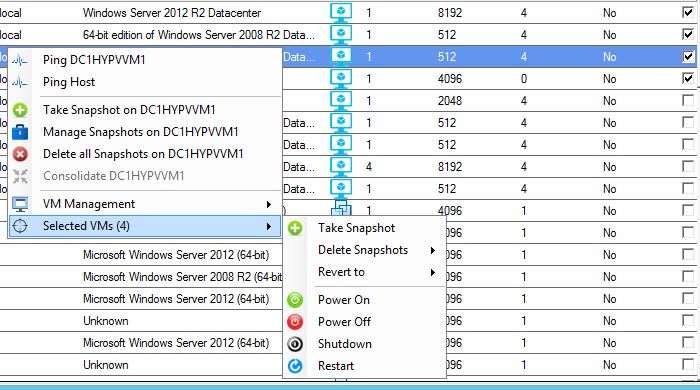
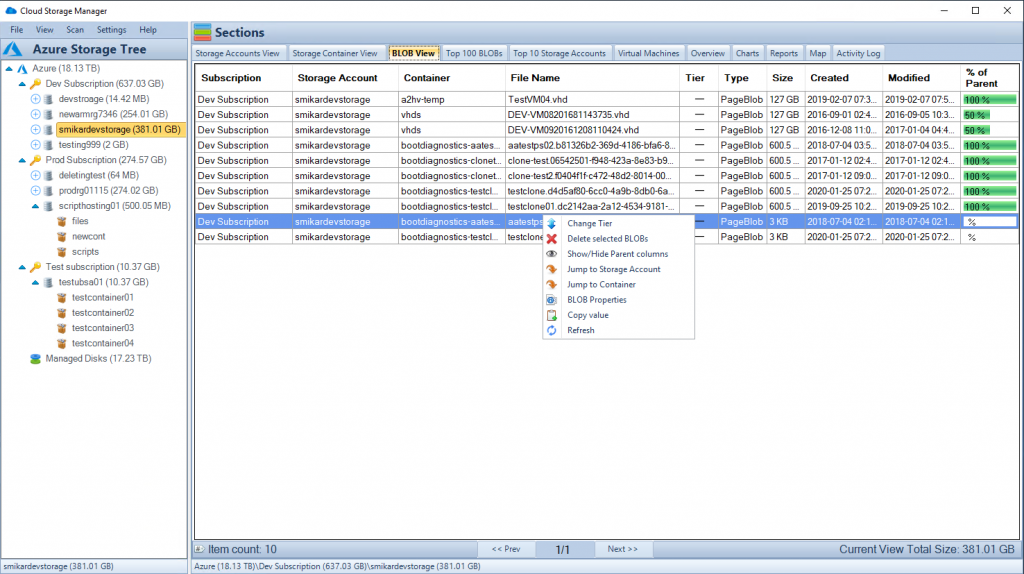
Cloud Storage Manager Screen with right click
ppendix: Technical Resources, Tools, and References
The successful integration of VMware and Azure requires not only understanding and strategizing but also utilizing a variety of tools, resources, and references. Here’s a collection of essential assets that can guide professionals in their journey of VMware and Azure integration.
A. Official Documentation and Guides
VMware Official Documentation: Comprehensive guides, how-tos, and best practices provided by VMware.
The technical landscape of VMware and Azure integration is rich and multifaceted. These resources, tools, and references serve as valuable companions in the journey, providing insights, support, and the practical means to turn vision into reality.
Whether embarking on a new project or optimizing an existing integration, the availability of well-documented guides, specialized tools, supportive communities, and educational opportunities enables professionals to proceed with confidence, clarity, and competence.
In the end, technology is not merely a collection of tools and codes but an embodiment of knowledge, creativity, collaboration, and the human spirit. These resources are not just reference points but the bridges that connect ideas, the wings that elevate ambitions, and the keys that unlock new horizons.
The pursuit of excellence in VMware and Azure integration is a continuous exploration, and these resources light the path, nourish the mind, and inspire the journey. Here’s to the explorers, the learners, the builders, and the visionaries. Here’s to the world of endless discovery, where every click is a step forward, and every insight is a leap into the unknown. Here’s to the adventure, and here’s to you.