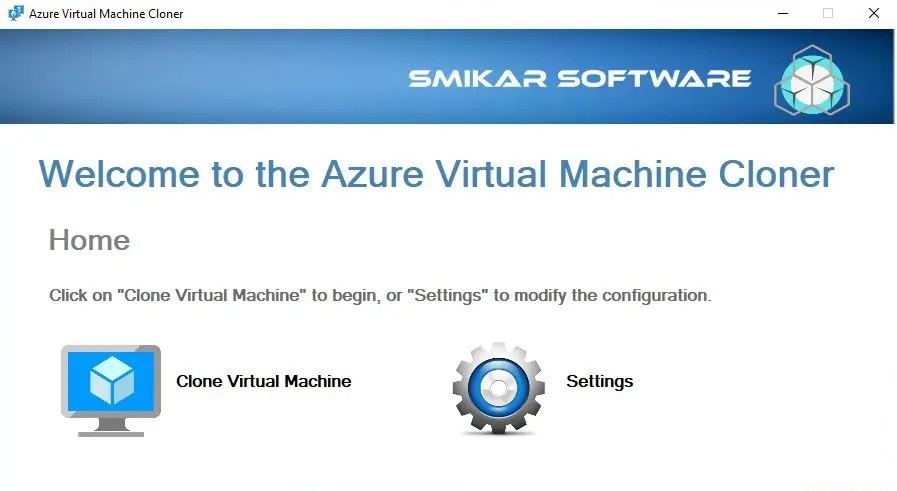
If you ever need to duplicate or clone your Azure VMs or perhaps even migrate your Azure VMs from Azure Service Manager (ASM) to Azure Resource Manager (ARM) you can use one of our Azure Management Tools, Azure VM Cloner (AVMC) to quickly and easily do this for you. (You can download a fully functioning trial here)
In the last blog post I showed you how you could schedule the deployment of Azure VMs. Using those same VMs and Azure Subscription I will now show you how we can clone your Azure VMs.
Why clone your Azure VM?
| Use Case | Description |
|---|---|
Disaster Recovery
| In case of a disaster or outage, having a cloned VM in a different Azure region or datacenter can provide a quick failover option and ensure business continuity. | |
Testing and Development
| Cloning a VM can provide a safe and isolated environment for testing and development purposes without affecting the production environment. | |
Scaling Out
| Cloning a VM can help quickly and easily scale out an application or service by creating multiple copies of the same VM to distribute the workload. | |
Migrating to a New Subscription
| When migrating to a new Azure subscription, cloning a VM can help ensure that all the necessary configurations and settings are preserved. | |
Creating a Backup
| Cloning a VM can also serve as a backup option in case the original VM experiences any issues or failures. |
Cloning an Azure Virtual Machine
Start cloning your Azure VM
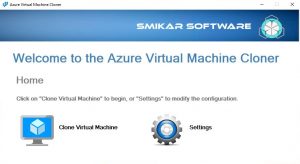
Start up the Azure VM Cloner tool then click on Clone Virtual Machine in the home window
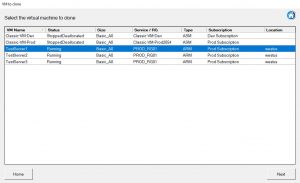
Select the Azure VM to Clone
Next we are presented with a list of the Azure VMs you have in your subscription. Highlight one of the Virtual Machines and then click on Next.
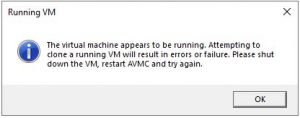
Shutdown your Azure VM to be Cloned
Note if the VM is running you will get the following error. Best to shutdown any virtual machines within Azure that you need to clone.
Choose the Destination for your cloned Azure VM
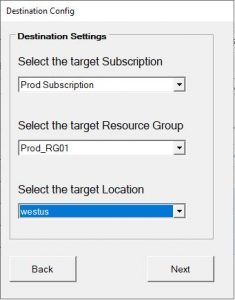
We are next presented on some destination settings we need to migrate the cloned Azure VM to. Choose your Azure Target Subscription (you can clone your Azure VMs across subscriptions only if you have access)
Select a target Azure Resource Group and then finally the Azure Location for the VM to reside in.
Click on NEXT to continue with the cloning process.
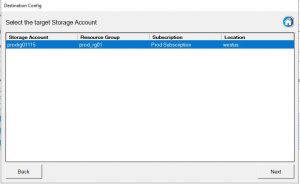
Cloned Azure VM Destination Storage Account
Now we need to choose which Azure storage account to place the cloned Azure VM in.
Highlight the correct storage account then click on NEXT.
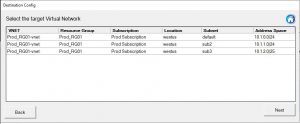
Cloned Azure VM Destination vNet
The next selection window we are presented with is the Azure Virtual Network that you would like the cloned virtual machine in.
Highlight the correct Azure vNet and again click on NEXT. The Azure VM Cloner will read the vnet configuration before continuing.
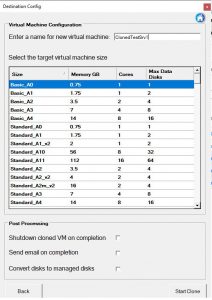
Choose the VM Size for your cloned VM
The last configuration window before the cloning of the Azure VM kicks off is the VM sizing window. Choose an Azure VM size and give the server a name.
You can also select whether to shutdown the cloned VM on completion, Send an email to let you know once done and even convert the disks to Azure Managed Disks if they were in an Azure Storage Account before.
Click on START CLONE to continue.
Ready to start the cloning of your Azure VM
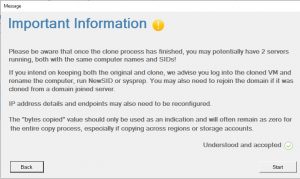
You are now ready to proceed with the cloning process. The Cloning Warning screen informs you that may have two servers with the same SIDs and computers names after the server has been cloned, this is of course not something you want to have happen in a Production environment.
Read the warning and when you are ready to do so, check the Understood and Accepted then click on START.
Cloning process for your Azure VM
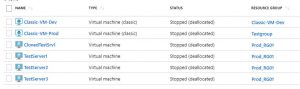
In the Console Output you can see the tasks and status of your Azure VM cloning and as seen in the Azure Portal you can see that the VM has now cloned successfully.
Now the last things you will need to do if it is a Microsoft Windows virtual machine that you cloned, is to login with its local Administrator account and password and possibly run a Sysprep to change the server name and SSID before you rejoin it to the domain.
Mark Smith co-founded SmiKar Software in 2015 and has spent the past decade helping organisations solve Microsoft 365 data management challenges. He works with the SmiKar team to build solutions for SharePoint archiving, storage optimisation, governance and compliance, supporting customers from growing businesses through to Fortune 500 enterprises.
More about SmiKar