SharePoint and Microsoft Information Protection

SharePoint and Microsoft Information Protection

Handling Microsoft Information Protection (MIP) in Archived SharePoint Documents

Managing sensitive information within an organization is no easy task, particularly when it involves archiving documents that are protected by Microsoft Information Protection (MIP). The challenge lies not only in the act of archiving but in ensuring that these documents remain secure, compliant, and accessible when needed. In this article, we’ll explore the intricacies of handling MIP-protected documents in SharePoint, especially when archiving them using Squirrel. Whether you’re new to MIP or an experienced professional, you’ll find valuable insights on how to navigate the complexities of this essential process.

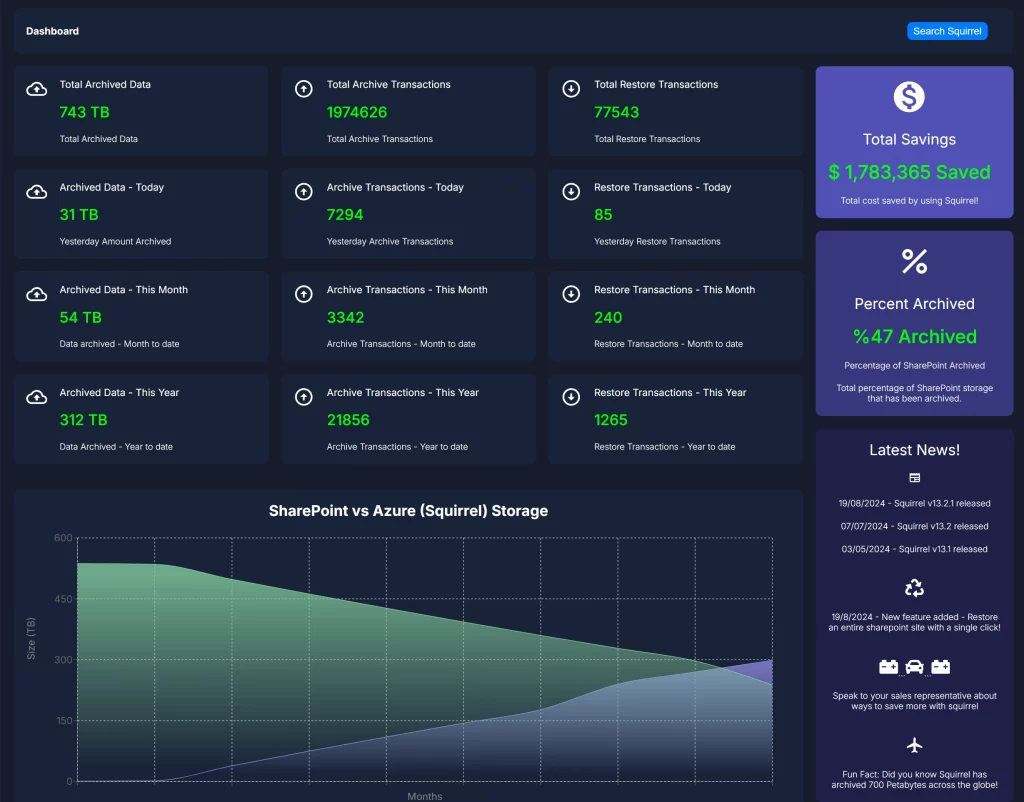
Squirrel Main Dashboard
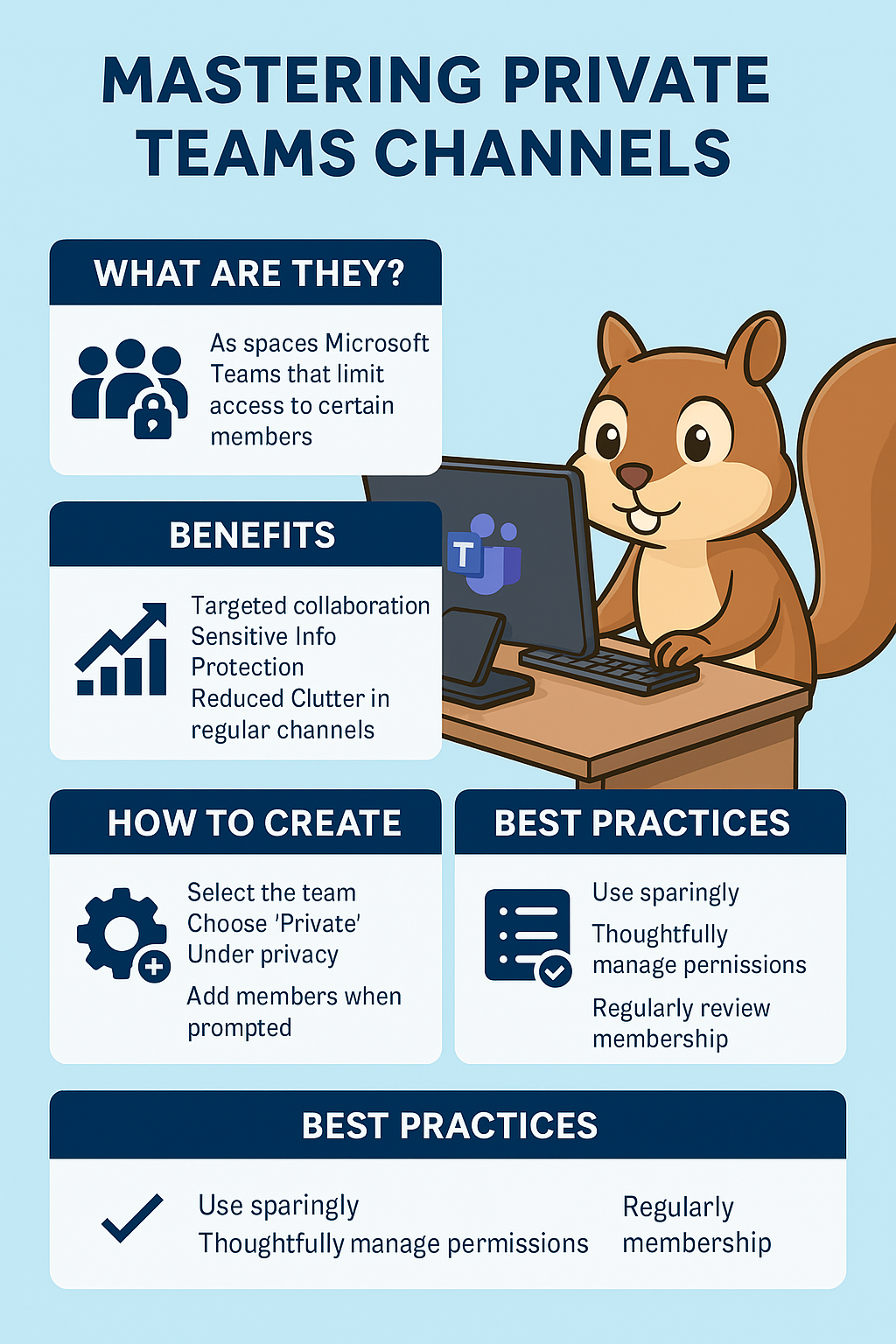
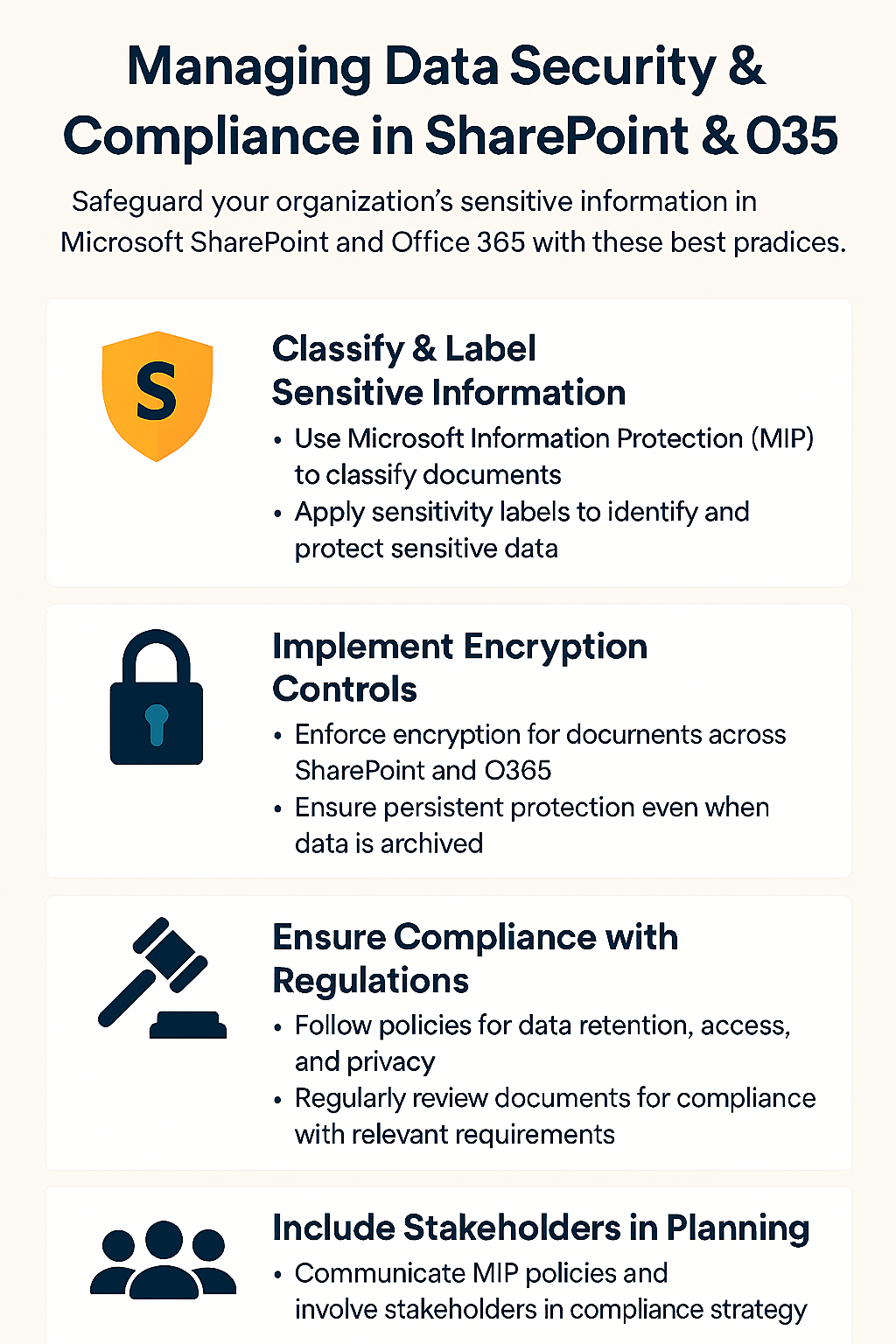
SharePoint MIP Infographic

Introduction to Microsoft Information Protection (MIP)

Let’s start by getting a clear understanding of what Microsoft Information Protection, or MIP, really is. MIP is a comprehensive suite of tools and services designed to help organizations protect their sensitive data. It works across Microsoft 365 and other environments to ensure that critical information is labeled, encrypted, and governed according to your company’s policies. But why is MIP so important, especially when it comes to archiving? To answer that, we need to delve deeper into how MIP works and the challenges it presents when integrating with archiving solutions like Squirrel.


What is Microsoft Information Protection (MIP)?

At its core, MIP is all about safeguarding information. It allows organizations to classify, label, and protect data based on its sensitivity. For instance, a document containing personal data might be labeled as “Confidential,” while financial records might receive a “Highly Confidential” label. These labels dictate how the data can be accessed, shared, and stored. More importantly, MIP applies encryption to ensure that sensitive information remains secure, even if it falls into the wrong hands.

This dual function of labeling and encryption is what makes MIP such a powerful tool. However, it also adds a layer of complexity when it comes to archiving. Archiving MIP-protected documents requires careful handling to ensure that the protection remains intact and that the documents can be restored when needed.


Why is MIP Important for Your Organization?

In today’s digital landscape, data breaches and compliance violations are not just hypothetical risks—they’re very real threats that can have severe consequences. MIP helps mitigate these threats by applying protection at the data level. This means that even if a file is accessed by an unauthorized party, the encryption and labeling applied by MIP can prevent sensitive information from being exposed.

For organizations that handle large volumes of data, MIP is an indispensable tool for maintaining both security and compliance. Whether it’s meeting regulatory requirements like GDPR or protecting intellectual property, MIP ensures that your data remains secure at all times.

Understanding the Challenges of Archiving MIP-Protected Documents

Now that we have a grasp of what MIP is and why it’s important, let’s delve into the specific challenges it presents when archiving documents. Archiving is a crucial part of data management, ensuring that information is stored securely for future reference. However, when documents are protected by MIP, archiving them becomes significantly more complex. This complexity arises primarily from the encryption and labeling that MIP applies to documents.


The Role of Encryption and Labels in MIP

MIP uses labels to classify data and encryption to protect it. When a document is labeled as “Confidential” or “Highly Confidential,” it isn’t just tagged with a label—it’s also encrypted to prevent unauthorized access. While this is excellent for security, it can pose significant challenges when it’s time to archive these documents.

One of the primary challenges is ensuring that the encryption keys associated with MIP are preserved over time. These keys are crucial for decrypting the data when it needs to be accessed in the future. Without the correct encryption keys, even authorized users won’t be able to access the archived documents. This is why it’s essential to maintain a historical record of MIP encryption keys—ensuring they are stored securely and are accessible when needed.


Common Issues When Archiving MIP-Protected Documents

One of the most common issues that organizations face during the archiving process is the potential loss of encryption keys over time. MIP keys can be rotated or expire, and if these keys are not properly managed, accessing archived documents can become a major problem. Imagine needing to access a critical document years after it was archived, only to find that the encryption key needed to decrypt it is no longer available. This scenario can lead to data loss, compliance violations, and even legal issues.

Another challenge is the potential for conflicts between the labels applied by MIP and the policies of the archiving system. For instance, an archiving system might have its own set of rules for how documents are stored and accessed. If these rules conflict with the MIP labels, it could result in errors during the archiving process or even lead to the accidental exposure of sensitive information.


Potential Risks of Inadequate Archiving Practices

Failing to properly archive MIP-protected documents can lead to several significant risks. One of the most serious is the potential for data loss. If encryption keys are not maintained or managed correctly, you might find that certain documents are effectively locked forever, with no way to access the information they contain. This can have severe consequences, especially if the data is needed for compliance, legal proceedings, or business operations.

Inadequate archiving practices can also result in compliance violations. Many regulations require organizations to maintain access to their data for a specified period. If you’re unable to access archived documents because the encryption keys are no longer available, you could be found in violation of these regulations, leading to fines, legal action, or damage to your organization’s reputation.

Lastly, there’s the risk of security breaches. If archived documents are not properly protected—either because the encryption is compromised or because they’re stored in an insecure environment—they could be accessed by unauthorized parties. This not only compromises the security of your data but also undermines the trust that clients, partners, and regulators have in your organization.

How Squirrel Handles MIP-Protected Documents During Archiving

This is where Squirrel comes into play as a robust solution for archiving SharePoint documents, including those protected by MIP. Squirrel is designed to seamlessly integrate with Microsoft 365, ensuring that your documents are archived securely and in compliance with your organization’s policies. But how exactly does Squirrel handle MIP-protected documents? Let’s break it down.


Squirrel’s Integration with Microsoft 365

Squirrel is fully integrated with Microsoft 365, which means it can directly interact with MIP-protected documents. This integration is crucial because it allows Squirrel to recognize and preserve the MIP labels and encryption applied to documents. When a document is archived, Squirrel ensures that the MIP protection remains intact, making sure that the document is stored securely and that its integrity is preserved.

This seamless integration also means that the archiving process is efficient and does not disrupt your organization’s workflows. Squirrel handles the complexities of archiving MIP-protected documents behind the scenes, allowing you to focus on your core business activities.


Ensuring Compliance with MIP Policies

Compliance is a major concern when it comes to data protection, and Squirrel is designed with this in mind. By preserving the MIP labels and encryption during the archiving process, Squirrel ensures that your documents remain compliant with regulatory requirements. Whether it’s GDPR, HIPAA, or any other standard, Squirrel helps you meet your obligations without compromising on security.


Security Measures for Archived Data

Security is at the heart of Squirrel’s design. When MIP-protected documents are archived, Squirrel not only preserves the encryption but also adds additional layers of security. This includes encryption in transit and at rest, as well as regular security audits to ensure that your data remains safe from unauthorized access.

Managing Encryption Keys and Access to Archived Documents

When it comes to archiving MIP-protected documents, managing encryption keys is arguably the most critical aspect. These keys are the linchpin of MIP’s security model, and without them, accessing your archived documents could become impossible. Therefore, having a robust strategy for encryption key management is not just recommended—it’s essential.


Best Practices for Encryption Key Management

Effective encryption key management is all about maintaining control over your keys throughout their lifecycle. Here are some best practices to ensure that your encryption keys are managed securely and efficiently:

  • Regular Key Rotation: Regularly rotating encryption keys is a standard practice that helps mitigate the risk of key compromise. However, when dealing with archived documents, it’s crucial to ensure that old keys are retained for as long as the data they protect is needed. This means that even if keys are rotated, previous versions must be securely stored and accessible.
  • Secure Key Storage: Encryption keys should be stored in a highly secure environment. Many organizations use Hardware Security Modules (HSMs) or dedicated key management services (KMS) for this purpose. These tools provide a secure repository for keys, ensuring that they are protected against unauthorized access.
  • Access Control: Only authorized personnel should have access to encryption keys. Implementing strict access controls and regularly auditing access logs can help prevent unauthorized use of keys.
  • Backup and Redundancy: Ensuring that encryption keys are backed up in multiple secure locations is critical. This redundancy helps protect against the loss of keys due to hardware failures, data corruption, or other unforeseen events.
  • Historical Key Retention: Perhaps the most crucial point in the context of archiving is the need to retain historical keys. Since archived documents may need to be accessed years after they’ve been stored, it’s essential that the encryption keys used to protect them are available for the entire retention period. Losing these keys could render the archived documents inaccessible, leading to significant data loss.

By following these best practices, organizations can ensure that their encryption keys are managed effectively, minimizing the risk of losing access to archived MIP-protected documents.


Challenges in Restoring MIP-Protected Documents

Restoring MIP-protected documents can be a complex process, particularly if the encryption keys have been rotated, expired, or lost. The challenges associated with restoring these documents often stem from the need to maintain the integrity of the original MIP labels and encryption.

One common challenge is ensuring that the restored document retains its original security properties. This includes not just the encryption but also the metadata, such as the MIP labels, version history, and any other associated tags. If these elements are not properly managed during the restoration process, the document could lose its classification, potentially exposing sensitive information or leading to compliance issues.

Another challenge arises when the encryption keys are no longer valid. If the keys have been rotated or retired, and the old keys were not retained, restoring the document might be impossible. This underscores the importance of historical key retention, as mentioned earlier.

Additionally, there is the issue of compatibility. Over time, the software and systems used to encrypt and store documents may evolve. Ensuring that older, archived documents can still be decrypted and accessed using current technology is essential for a smooth restoration process.


Squirrel’s Approach to Secure Document Restoration

Squirrel is designed to make the restoration of archived documents as secure and seamless as possible. Here’s how it handles the restoration process for MIP-protected documents:

  • Preservation of MIP Labels and Metadata: Squirrel ensures that all MIP labels and associated metadata are preserved during the restoration process. This means that when a document is restored, it retains its classification, version history, and any other important metadata.
  • Squirrel’s Encryption Management: Squirrel applies its own encryption to archived documents when they are stored in Azure Blob Storage. This encryption is independent of MIP and ensures that the documents remain secure while archived. Upon restoration, Squirrel decrypts its own encryption to restore the document to its original state in SharePoint, without interfering with the MIP encryption applied by the customer.
  • Seamless Restoration Process: The restoration process is designed to be seamless for users. Squirrel ensures that the document is returned to its original location in SharePoint with all its associated metadata intact. The process is transparent, so users can continue to work with their documents without disruption.
  • Automated Key Management: While Squirrel manages its own encryption keys, it does not interfere with the customer’s MIP encryption. The customer’s responsibility is to ensure that MIP encryption keys are managed properly so that they can access the documents when needed.

By following this meticulous approach, Squirrel ensures that restoring MIP-protected documents is not only secure but also straightforward, allowing organizations to focus on their core activities without worrying about data access issues.


Best Practices for Handling MIP-Protected Documents in Squirrel

To fully leverage the capabilities of Squirrel and ensure that MIP-protected documents are handled correctly, it’s important to follow a set of best practices. These practices will help ensure that your archiving and restoration processes are both secure and compliant.


Long-Term Archiving Strategies for MIP-Protected Documents

When planning for the long-term archiving of MIP-protected documents, there are several strategies that organizations should consider:

  • Data Classification and Labeling: Ensure that all documents are correctly classified and labeled before they are archived. This will help streamline the archiving process and ensure that each document is handled according to its sensitivity level.
  • Regular Policy Reviews: Archiving policies should be reviewed regularly to ensure they remain aligned with organizational goals and regulatory requirements. This includes reviewing how MIP labels and encryption are applied and managed.
  • Retention of Historical Encryption Keys: As emphasized earlier, it’s crucial to retain historical encryption keys for as long as the documents they protect are archived. Ensure that these keys are securely stored and accessible when needed.
  • Documentation of Archiving Processes: Document your archiving processes, including how MIP-protected documents are handled. This documentation will be invaluable in the event of an audit or if key personnel changes occur within your organization.

Regular Reviews and Policy Updates

Keeping your archiving and encryption policies up to date is essential for ensuring ongoing compliance and security. Here’s how to approach this:

  • Quarterly Audits: Conduct quarterly audits of your archiving processes to ensure they are functioning as expected. These audits should include checks on encryption key management, document labeling, and the integrity of archived documents.
  • Policy Revisions: Update your policies regularly to reflect changes in technology, regulations, or organizational needs. For example, if your organization adopts a new version of SharePoint or a new encryption standard, your archiving policies should be revised accordingly.
  • Training and Awareness: Ensure that your IT and compliance teams are trained on the latest policies and best practices for handling MIP-protected documents. Regular training sessions can help prevent errors and ensure that everyone involved in the archiving process understands their responsibilities.
  • Feedback Loop: Establish a feedback loop where team members can report issues or suggest improvements to the archiving process. This will help you continually refine your strategies and ensure that they remain effective.

Ensuring Compliance Over Time

Maintaining compliance over time requires a proactive approach. Here are some strategies to help:

  • Automated Compliance Checks: Use automated tools to regularly check that your archived documents meet compliance requirements. These tools can scan for issues like expired encryption keys, missing MIP labels, or improperly stored documents.
  • Regular Communication with Stakeholders: Keep stakeholders informed about the status of your archiving processes and any changes to compliance requirements. Regular communication ensures that everyone is on the same page and that potential issues are addressed promptly.
  • Disaster Recovery Planning: Include archived MIP-protected documents in your disaster recovery plans. This ensures that in the event of a system failure or other disaster, your critical data can be recovered quickly and securely.
  • Continuous Improvement: Make continuous improvement a core part of your archiving strategy. Regularly review your processes, tools, and technologies to ensure they remain effective in protecting and managing MIP-protected documents.


Additional Best Practices for Handling MIP-Protected Documents in Squirrel

Handling MIP-protected documents effectively requires a combination of careful planning, ongoing management, and adherence to best practices. Beyond the basics, there are several additional strategies that can help ensure your archiving processes are both secure and efficient.


Integrating Archiving with Data Lifecycle Management

One of the key ways to manage MIP-protected documents is to integrate archiving into your broader data lifecycle management strategy. Here’s how:

  • Data Lifecycle Policies: Establish clear policies that define the lifecycle of your data, from creation to archival and eventual deletion. Ensure that these policies align with your MIP classifications and the corresponding protection levels.
  • Automated Archiving Triggers: Use automated triggers within Squirrel to archive documents based on specific criteria, such as age, inactivity, or MIP classification. This not only helps in managing storage but also ensures that sensitive documents are archived in a timely manner.
  • Retention Policies: Align your archiving processes with your organization’s retention policies. For example, documents labeled as “Highly Confidential” may require longer retention periods and stricter access controls during archiving and after restoration.

Ensuring Accessibility of Archived Documents

While security is paramount, accessibility is equally important, especially when dealing with archived documents that might be needed years after they were stored. Here are some strategies to ensure accessibility:

  • Metadata Preservation: Ensure that all relevant metadata, including MIP labels, version history, and access permissions, are preserved when archiving and restoring documents. This metadata is critical for understanding the context and classification of the document.
  • User Training and Documentation: Provide training to users on how to access archived documents, particularly those protected by MIP. Make sure there is clear documentation available that outlines the process for restoring and accessing these documents.
  • Search and Retrieval Tools: Leverage Squirrel’s advanced search capabilities to make it easier for users to locate and retrieve archived documents. Ensure that search tools are optimized for handling MIP-protected documents, including filtering by classification or other metadata.

Regular Testing and Validation

To ensure that your archiving processes are working as intended, it’s crucial to regularly test and validate your systems:

  • Scheduled Restore Tests: Conduct regular tests to restore MIP-protected documents from the archive. This helps verify that encryption keys are properly managed, and that the restoration process preserves all necessary security and compliance features.
  • Compliance Audits: Perform periodic compliance audits to ensure that your archiving and restoration processes meet all relevant regulatory requirements. These audits should include checks on encryption, access controls, and data retention policies.
  • Backup Verification: Regularly verify that backups of your archived documents are intact and accessible. This includes ensuring that the encryption keys needed to access these backups are also securely stored and accessible.

Responding to Regulatory Changes

Regulatory requirements for data protection and archiving can change over time. Staying informed and adapting your processes to meet these changes is critical:

  • Stay Informed: Keep up to date with changes in regulations that impact data protection and archiving, such as GDPR, HIPAA, or industry-specific guidelines. Understanding these changes will allow you to adjust your policies and procedures accordingly.
  • Policy Updates: When regulations change, update your archiving and encryption policies to ensure continued compliance. This might involve revising how MIP labels are applied or altering retention periods for certain types of documents.
  • Engage with Legal and Compliance Teams: Work closely with your organization’s legal and compliance teams to interpret regulatory changes and determine the best course of action for your archiving strategy.

Conclusion

Managing Microsoft Information Protection (MIP) in the context of archiving SharePoint documents is a complex but essential task. With the increasing importance of data protection and regulatory compliance, organizations must ensure that their archiving processes are not only secure but also capable of preserving access to critical information over time.

Squirrel provides a powerful solution for managing these challenges, with robust features designed to handle MIP-protected documents securely. However, it’s crucial for organizations to complement these tools with strong encryption key management, regular policy reviews, and ongoing compliance efforts.

By following the best practices outlined in this article, you can ensure that your organization’s archived documents remain protected, accessible, and compliant with all relevant regulations. In doing so, you’ll safeguard your organization’s most valuable assets while minimizing the risks associated with data archiving.


FAQs

    • How Does Squirrel Ensure MIP Compliance?
      Squirrel ensures MIP compliance by preserving the MIP labels and metadata associated with documents during the archiving process. It integrates seamlessly with Microsoft 365, maintaining the protection levels set by MIP and ensuring that archived documents remain secure and compliant.
    • Can Archived MIP-Protected Documents Be Accessed Easily?
      Yes, archived MIP-protected documents can be accessed easily if the proper encryption keys are maintained. Squirrel provides tools to restore these documents while preserving their original security properties, making them accessible to authorized users.
    • What Happens if Encryption Keys Are Lost?
      If encryption keys are lost, accessing the encrypted documents can become impossible. This underscores the importance of retaining historical encryption keys for the entire duration that documents are archived. Without these keys, the data may be irretrievable.
    • Is Squirrel Suitable for Large Organizations?
      Absolutely. Squirrel is designed to scale, making it suitable for large organizations with complex data protection needs. It supports advanced features like automated archiving, secure restoration, and compliance auditing, all of which are essential for managing large volumes of data.
    • How Often Should We Review Our Archiving Policies?
      It’s recommended to review archiving policies at least quarterly, or whenever there are significant changes in regulations, technology, or organizational needs. Regular reviews help ensure that your policies remain effective and aligned with current best practices.

Squirrel: Your Ultimate Document Guardian

Keep your SharePoint documents safe, secure, and compliant with Squirrel’s automated archiving solution.

Squirrel Main Dashboard

Unlock Effortless Document Archiving with Squirrel

Ready To Get Started?

How to Change SharePoint Document Versioning

How to Change SharePoint Document Versioning

Change SharePoint Default Versioning

For SharePoint Online administrators managing large environments, keeping track of storage usage is crucial to maintaining performance and controlling costs. One key factor contributing to storage consumption is document versioning. By default, SharePoint Online keeps up to 500 major versions of each document, and with frequent updates, this can quickly add up.


Squirrel Main Dashboard

In this guide, we will explain why it’s essential to limit document versioning across your entire SharePoint Online environment and provide a step-by-step walkthrough on how to apply these limits using SharePoint Online Management Shell or PowerShell. This will help you ensure optimal performance and reduce storage costs across all your sites.

Why Limit Document Versioning Across the Entire Environment?

As a SharePoint Administrator, managing document versioning across the entire environment provides several benefits:

Reducing Storage Costs

  • Storage Allocation: SharePoint Online comes with limited storage based on your Microsoft 365 subscription. Versions of documents count towards your storage quota, so limiting them can help avoid additional storage purchases.
  • Cost Efficiency: By controlling the number of versions stored, you reduce the need for extra storage, keeping costs manageable.

Consistent Governance

  • Version Limits Across Sites: Applying a standard versioning limit across all sites ensures a consistent governance approach to data management.
  • Compliance: Certain regulations and organizational policies may require limiting the number of versions stored to comply with retention policies.

Simplifying Document Management

  • Fewer Versions to Manage: Limiting versions makes document management easier for users and admins, ensuring that only relevant changes are kept.
  • Performance Improvement: Fewer versions per document reduce the load on document libraries, improving performance and retrieval speeds.

Default Versioning Settings in SharePoint Online

By default, SharePoint Online automatically enables versioning in every document library, with the system set to retain up to 500 major versions of each document. Each time a document is edited and saved, SharePoint creates a new major version, and these versions are stored indefinitely unless a limit is manually set.

While this can be extremely helpful for tracking changes, restoring older versions, and collaborating on documents, it can also lead to rapid storage consumption, especially in environments with many active users, frequent edits, or large file sizes. In organizations with hundreds or thousands of users, the storage of 500 versions per document across multiple sites and libraries can quickly add up, causing storage to balloon unexpectedly.

Without intervention, this default setting can exhaust your SharePoint Online storage allocation, forcing organizations to purchase additional storage from Microsoft at a premium. For businesses focused on cost-efficiency, managing versioning settings is a critical task to ensure that storage usage remains under control while still maintaining an appropriate version history for documents.

How to Limit Versioning for All Sites in SharePoint Online

As an admin, you can set versioning limits across your SharePoint Online tenant using PowerShell. This will apply the changes globally to all existing document libraries, ensuring consistency and helping reduce storage costs.

Prerequisites

  • Permissions: You must be a SharePoint Online Admin or Global Admin to make changes across your environment.
  • Tools Needed: You’ll need to have SharePoint Online Management Shell or PowerShell installed.

Step-by-Step Guide to reduce SharePoint Online Document Versions

Step 1: Install and Connect to SharePoint Online PowerShell

  1. Open PowerShell on your machine.
  2. Install the SharePoint Online Management Shell (if you haven’t already):
    powershell

    Install-Module -Name Microsoft.Online.SharePoint.PowerShell


  3. Connect to SharePoint Online:
    powershell

    Connect-SPOService -Url https://<your-domain>-admin.sharepoint.com


    Replace <your-domain> with your actual domain.

Step 2: Get All Sites in Your Tenant

To make changes across all document libraries in SharePoint Online, first retrieve a list of all site collections in your tenant:

$sites = Get-SPOSite -Limit All


Step 3: Iterate Through Each Site and Set Versioning Limits

You can loop through each site and set versioning limits for each document library. In this example, we’ll limit the number of major versions to 10 across all document libraries.

foreach ($site in $sites) {

# Get all document libraries in the site

$libraries = Get-PnPList -Web $site.Url | Where-Object {$_.BaseTemplate -eq 101}

foreach ($library in $libraries) {

# Set the version limit to 10 major versions

Set-PnPList -Identity $library -MajorVersions 10

Write-Host “Versioning set to 10 for library $($library.Title) in site $($site.Url)”

}

}


  • Explanation: The script loops through each site, retrieves the document libraries, and sets the number of major versions to 10.
  • 101: This refers to document libraries specifically.

Step 4: Run the Script

Once your script is ready, run it in PowerShell. The script will apply the new versioning settings to all document libraries across your SharePoint Online environment.

Step 5: Verify the Changes

You can verify that the versioning settings were applied by visiting any document library and checking the versioning settings:

  1. Go to any site collection in SharePoint.
  2. Navigate to Site Contents > Library Settings > Versioning Settings.
  3. Ensure that the version limit is set to 10.

Alternative Solution:


Use Squirrel for Archiving Documents and Versions


Another alternative for managing document versions across a SharePoint Online environment is to use Squirrel, a document archiving solution that moves documents (along with their versions) to more cost-effective Azure Blob Storage. Squirrel retains the full version history and metadata without consuming SharePoint storage, reducing both costs and complexity.


With Squirrel, you don’t need to worry about storage limitations in SharePoint Online. The system allows users to rehydrate files on demand, making document restoration easy while keeping all versions intact. This provides a scalable solution for organizations with extensive document histories that need to maintain large archives efficiently.


Conclusion


For SharePoint Online administrators, managing versioning limits across the entire environment is critical to controlling storage costs, improving performance, and ensuring governance consistency. By using SharePoint Online Management Shell or PowerShell, you can efficiently apply versioning limits to all sites and document libraries.


Alternatively, solutions like Squirrel can help you archive documents and their versions outside of SharePoint, providing cost-effective, long-term storage while keeping all version histories intact.


Additional Resources


Reducing SharePoint Storage Costs Doesnt Have to be Hard

Reducing SharePoint storage costs is easy with Squirrel, which seamlessly archives documents and versions to cost-effective Azure storage.

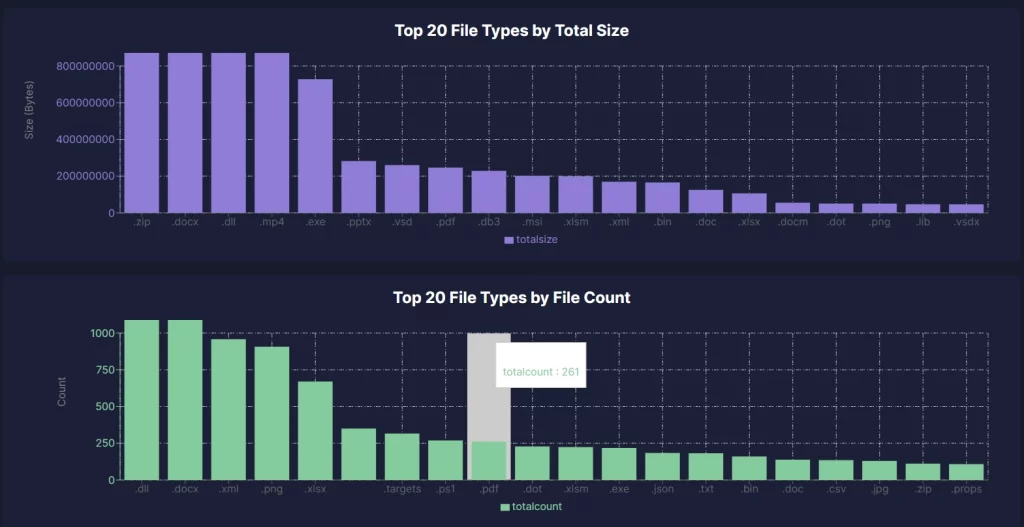
Squirrel for SharePoint File Type Reporting

Save on SharePoint storage costs with Squirrel, the seamless solution for archiving documents and retaining version history in Azure.

Want to Reduce SharePoint Costs?

Best Practices with Microsoft 365 Compliance Center

Best Practices with Microsoft 365 Compliance Center

Maximizing Archiving in SharePoint Online

As businesses continue to generate and store massive amounts of data, effective document management becomes increasingly important. SharePoint Online, one of Microsoft 365’s core collaboration tools, allows organisations to store, share, and manage documents effortlessly. However, simply storing data isn’t enough—effective archiving is essential to ensure compliance, optimize storage costs, and preserve critical information for the long term.

Squirrel Main Dashboard
Archiving is not just about saving space; it’s about maintaining control over your data’s lifecycle, ensuring that documents are retained or removed according to legal, regulatory, and operational requirements. Microsoft provides built-in archiving tools within the Microsoft 365 Compliance Center, which help organisations manage data retention, govern compliance, and enable efficient document lifecycle management. This post will explore how you can leverage these features and how Squirrel—an automated document archiving solution for SharePoint—can further enhance your archiving strategy.
Key Takeaway Description
Retention Labels Classify and manage document lifecycles in SharePoint Online for compliance purposes. Labels can be applied manually or automatically.
Retention Policies Apply broad retention rules across entire SharePoint sites to ensure consistency in document management and compliance.
Microsoft Information Protection (MIP) Use MIP to classify and protect sensitive documents through encryption and restricted access, ensuring only authorised users can view or edit documents.
Squirrel Integration Squirrel enhances SharePoint Online by automatically archiving documents to Azure Blob Storage, optimising costs and storage management.
Stub Files Squirrel leaves stub files in place of archived documents, allowing users to easily rehydrate files with one click, maintaining a seamless user experience.
Version Control Squirrel preserves document versions and metadata, ensuring full restoration of documents with their complete history.
Cost Savings Archiving older or inactive documents to Azure Blob Storage with Squirrel reduces SharePoint storage costs significantly.
Compliance and Security Combining Microsoft 365 Compliance Center with Squirrel ensures compliance with regulatory requirements while maintaining secure and encrypted document archives.
Best Practices Regularly test your archiving strategy, ensure encryption keys are managed correctly, and adjust archiving policies to match evolving business and legal requirements.

Microsoft 365 Compliance Center Overview

The Microsoft 365 Compliance Center is your command center for managing data retention, information protection, and compliance across all Microsoft 365 services, including SharePoint Online. It is designed to help organisations address a range of data governance needs, from basic archiving and retention to advanced compliance requirements such as legal holds and information governance.

Through this centralized interface, you can configure policies that determine how long your content is kept, when it is deleted, and how you can ensure compliance with both internal policies and external regulations. Let’s dive into two of the most important tools offered by the Compliance Center for archiving and retention in SharePoint Online: Retention Labels and Retention Policies.

Retention Labels

Retention labels are one of the primary ways you can classify and manage the lifecycle of documents in SharePoint Online. By applying retention labels, you essentially instruct SharePoint on how to handle a document over its lifetime—whether that means retaining it for a specified period, archiving it, or deleting it after it’s no longer needed.

Key Features of Retention Labels:

  • Classification and Lifecycle Control: Retention labels allow organisations to classify documents based on predefined criteria such as document type, content, or sensitivity. This classification directly informs how long the document will be retained, when it should be archived, and when it should be deleted.
  • Automatic and Manual Application: Labels can be applied manually by users or automatically based on rules that examine the document’s content or metadata. For example, you could configure a rule to automatically apply a retention label to all documents containing sensitive information, like financial data or client records.
  • Retention Without Deletion: One of the standout features of retention labels is the ability to preserve documents without necessarily deleting them. This means you can configure a document to be retained and archived beyond its active use, ensuring it is still accessible for legal or compliance reasons while not cluttering up active document libraries.
  • Label Policies: Retention labels are part of a larger retention strategy where you can define policies that group multiple labels together, helping ensure that documents across various departments, such as HR, Finance, or Legal, are archived or retained according to specific rules.

How Retention Labels Work in SharePoint Online:

Retention labels work seamlessly within SharePoint Online by attaching directly to documents or entire libraries. For instance, you could apply a retention label to every document within a particular site collection or document library to ensure that all documents are kept for a period of 7 years (a common legal requirement) before being archived or deleted.

Once the label is applied, SharePoint enforces the retention period defined by the label. If a document needs to be archived after 5 years, the system ensures that the document is preserved in its archived state and is either automatically moved to an archive library or retained in place for further compliance purposes.

Retention Policies

While retention labels are highly useful for classifying and managing individual documents, Retention Policies provide a broader, more holistic approach to data retention across entire SharePoint Online environments. These policies allow you to define retention rules that apply to entire site collections or even across multiple services within Microsoft 365, such as Exchange or OneDrive.

Key Features of Retention Policies:

  • Site-Wide Application: Retention policies apply to all content within a specific site, ensuring that every document, list, or library is managed under a single set of retention rules. This is particularly helpful when you need to ensure compliance across an entire department or project.
  • Consistent Retention Across Workloads: One of the most powerful aspects of retention policies is their ability to govern retention across multiple Microsoft 365 services. This means you can apply a single retention policy that ensures consistency across SharePoint, OneDrive, and Exchange—important for organisations with complex workflows that span multiple platforms.
  • Archiving and Deletion Triggers: Retention policies can be configured to trigger document archiving or deletion based on various conditions. For instance, documents might be archived after a set period of inactivity, or they might be retained for legal reasons until a case is closed. These automated triggers help organisations stay compliant without requiring constant manual intervention.

How Retention Policies Work in SharePoint Online:

Retention policies in SharePoint Online work by monitoring the activity of documents and applying the rules defined in the policy. For example, a retention policy might specify that all documents within a specific project site must be archived after 3 years of inactivity. SharePoint automatically applies these rules, ensuring that the documents are moved to a more cost-effective archive location or deleted once the retention period has ended.

Microsoft Information Protection (MIP)

In addition to retention labels and policies, organisations often need to go a step further when it comes to protecting sensitive data, especially in industries that require strict compliance with regulations like GDPR or HIPAA. This is where Microsoft Information Protection (MIP) comes into play. MIP helps organisations classify, label, and protect sensitive information across SharePoint Online, as well as other Microsoft 365 services.

How MIP Works in SharePoint Online:

MIP allows organisations to classify and label documents based on sensitivity. For example, documents that contain financial data, intellectual property, or personally identifiable information (PII) can be labelled as “Confidential” or “Highly Sensitive.” These sensitivity labels can then trigger various protection measures, such as encryption or restricted access, to ensure that only authorised users can view or edit the document.

MIP integrates directly with Azure Information Protection (AIP) to apply encryption and other protections to files. Once a sensitivity label is applied, the file is protected, regardless of where it is stored or shared. This is particularly important for SharePoint Online, where documents are often shared widely across teams and departments.

Encryption and Compliance with MIP:

When it comes to archiving, MIP adds another layer of complexity due to its encryption capabilities. Files that are encrypted by MIP are secured with a set of encryption keys managed either by Microsoft or by the customer (in cases where Customer Key is used). This can introduce challenges when archiving encrypted files, as organisations must ensure that the encryption keys remain accessible for the duration of the archive period.

Potential Challenges:

  • Key Rollover: Encryption keys can change over time, a process known as “key rollover.” If a document is archived for several years, and the encryption key is rolled over or no longer accessible, it may become difficult—or even impossible—to decrypt the document when it is needed in the future.
  • Decryption Limitations: While MIP ensures that sensitive data remains protected, it can also limit how and when documents can be decrypted. For instance, if a document is archived with Squirrel but has MIP encryption applied, Squirrel will not be able to decrypt the document because it cannot access the MIP encryption keys.

To mitigate these challenges, it’s crucial for organisations to carefully manage their encryption policies and key lifecycles, ensuring that they remain in sync with archiving strategies.

How Squirrel Complements SharePoint Online Archiving

While Microsoft provides robust tools for retention and protection, these features alone may not be sufficient for organisations managing large-scale SharePoint environments. This is where Squirrel steps in, offering a powerful, automated archiving solution designed specifically for SharePoint Online.

Squirrel extends and complements Microsoft’s native archiving capabilities, providing additional flexibility, cost savings, and features that make managing the document lifecycle more efficient.

Here’s how Squirrel adds value:

Squirrel’s Seamless Integration with SharePoint Online

Squirrel is built to work hand-in-hand with SharePoint Online, leveraging Microsoft’s APIs to ensure a seamless and transparent experience for administrators and users alike. The integration with SharePoint allows Squirrel to automatically archive documents based on predefined policies, moving them to more cost-effective storage without requiring manual intervention from users or IT teams.

Unlike Microsoft’s native retention labels and policies, which primarily focus on compliance and governance, Squirrel is designed to optimise storage costs by moving older, inactive documents to Azure Blob Storage, freeing up valuable SharePoint storage space.

Squirrel’s Key Features for SharePoint Online Archiving

  • Automated Document Archiving: Squirrel allows organisations to set up lifecycle policies that automatically archive documents from SharePoint Online based on various criteria such as document age, inactivity, or size. Once archived, the documents are moved to Azure Blob Storage, significantly reducing storage costs while maintaining accessibility.
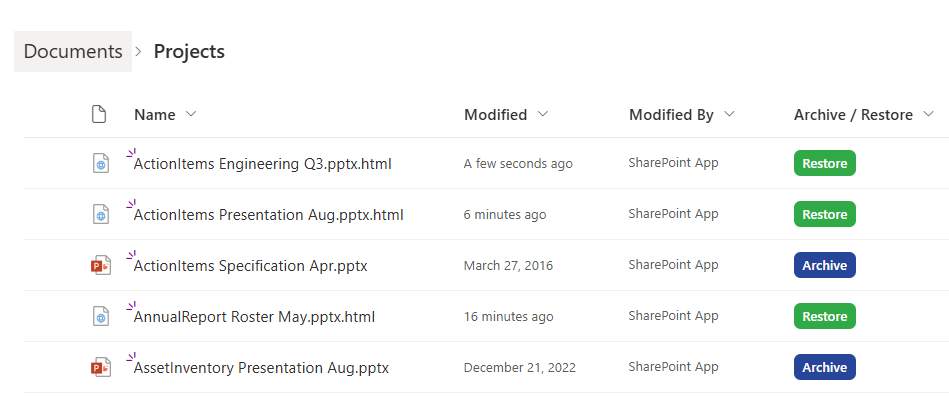
  • Stub Files for Easy Rehydration: One of Squirrel’s standout features is its use of “stub files.” When a document is archived, Squirrel replaces the original file in SharePoint with a small placeholder (stub file) that maintains the file’s original name and location. Users can simply click the stub file to “rehydrate” the document back to its original state, restoring all versions and metadata in the process. This creates a seamless experience for users, as they can retrieve archived documents with minimal effort.
  • Version Control and Metadata Preservation: When Squirrel archives a document, it doesn’t just move the current version—it archives all versions of the document along with its metadata (e.g., tags, permissions, audit logs). This ensures that when the document is rehydrated, it retains all the historical information that may be required for legal or regulatory purposes.  
  • Data Encryption and Security: Like Microsoft, Squirrel takes data security seriously. All documents archived by Squirrel are encrypted and stored securely in Azure Blob Storage. Importantly, Squirrel manages its own encryption layer, which means that while MIP-encrypted documents can still be archived, Squirrel does not handle their decryption. Instead, it stores these documents in their encrypted state, ensuring compliance without compromising security.  
  • Cost-Effective Storage: By archiving inactive or infrequently accessed documents to Azure Blob Storage, Squirrel helps organisations significantly reduce their SharePoint storage costs. Given that Azure Blob Storage is much cheaper than SharePoint storage, this can result in substantial savings for organisations managing large volumes of data.  
  • Compliance and Retention: Squirrel works in tandem with Microsoft’s retention policies, ensuring that documents are archived according to legal or regulatory requirements. This dual approach ensures that documents are both securely stored and accessible when needed.

Best Practices for Archiving SharePoint Documents

Effectively managing your SharePoint Online environment requires a comprehensive archiving strategy that addresses both storage optimisation and regulatory compliance. By combining the capabilities of Microsoft 365 Compliance Center with a dedicated archiving solution like Squirrel, organisations can create a more efficient, secure, and cost-effective data management system.

Here are some best practices to help you get the most out of both tools:


1. Leverage Retention Labels and Policies for Compliance

Start by establishing clear data retention policies that align with your organisation’s compliance requirements. Microsoft 365 Compliance Center’s retention labels and policies are powerful tools that help ensure your documents are managed according to internal guidelines and external regulations.

Best Practice: Use retention labels to classify documents based on content sensitivity, legal requirements, or department-specific needs (e.g., legal, HR, or finance documents). For example:

  • Apply retention labels to documents that must be archived for a specific period (e.g., 7 years) before deletion.
  • Use retention policies to enforce document retention and archival for entire SharePoint sites or libraries, ensuring consistency across your environment.

Retention labels and policies should be reviewed regularly to ensure they remain up-to-date with evolving compliance regulations and business needs.


2. Implement Sensitivity Labels for Additional Security

For organisations dealing with sensitive information, such as personally identifiable information (PII), financial data, or intellectual property, Microsoft Information Protection (MIP) is essential. Sensitivity labels not only classify data but also protect it through encryption and restricted access.

Best Practice: Apply sensitivity labels to protect sensitive files and ensure only authorised users can access them. If you archive documents with Squirrel, be aware that MIP encryption will remain intact, and you’ll need to manage encryption keys carefully to ensure access during the archiving period.

Key Consideration: Before archiving, ensure you have a process in place to maintain access to encryption keys, especially if your organisation rotates encryption keys or enforces key rollover policies. Failure to maintain these keys may result in an inability to decrypt archived documents when they are restored.


3. Use Squirrel for Cost-Effective Archiving

While Microsoft 365 Compliance Center provides robust data governance, it does not directly address storage cost optimisation. This is where Squirrel’s automated archiving solution comes into play, enabling you to move large volumes of inactive or infrequently accessed documents from SharePoint to Azure Blob Storage, where the cost of storage is significantly lower.

Best Practice: Configure Squirrel to automatically archive documents based on criteria such as:

  • Document age (e.g., archive documents older than 1 year).
  • Inactivity (e.g., archive documents that haven’t been accessed in 6 months).
  • File Type (e.g. archive files based on file extension)

By archiving these documents to Azure Blob Storage, you’ll free up SharePoint storage, potentially saving your organisation thousands of dollars annually.

Bonus Tip: Monitor your SharePoint storage usage and adjust Squirrel’s archiving policies regularly to ensure that only the most relevant data remains in active storage. You can also archive entire site collections or large document libraries that are no longer actively used but need to be retained for compliance purposes.


4. Maintain Metadata and Version History with Squirrel

One common challenge when archiving documents is the risk of losing important metadata and version history. Fortunately, Squirrel ensures that all versions and metadata associated with a document are preserved during the archiving process. This is especially useful when dealing with legal or regulatory requirements where version history must be maintained.

Best Practice: Enable Squirrel’s version control feature to ensure that when a document is archived, all versions are stored and can be restored alongside the original document. This allows your team to easily rehydrate a document back to its original state without losing any historical context.

This level of detail is essential for audit trails, legal discovery, or compliance checks, where the full history of a document’s changes must be available.


5. Use Squirrel’s Stub Files for Seamless Rehydration

Squirrel’s use of stub files makes it easy for users to access archived documents without disrupting their workflow. When a file is archived, a lightweight placeholder remains in SharePoint Online, allowing users to rehydrate the file with a single click. This eliminates the need for manual document retrieval, making the process transparent to end users.

Best Practice: Leverage stub files to create a seamless experience for your users. When Squirrel archives a document, users won’t even notice it’s been moved to Azure Blob Storage. They can simply click the stub file when they need access, and the document will be rehydrated with all its versions and metadata intact.

This feature can be especially useful in environments where users frequently need access to older documents but don’t want the hassle of navigating an archiving system.


6. Regularly Test and Validate Your Archiving Strategy

A successful archiving strategy isn’t something you “set and forget.” Regular testing and validation are crucial to ensure that your retention policies, sensitivity labels, and archiving workflows are functioning as expected.

Best Practice: Perform regular checks to:

  • Ensure that documents are being archived according to your retention policies.
  • Verify that archived documents can be successfully rehydrated using Squirrel’s stub files.
  • Test the accessibility of MIP-encrypted documents to ensure that encryption keys are still valid and accessible during the archiving period.

Incorporating these tests into your data governance routine will help avoid surprises when you need to restore critical documents or meet regulatory audits.

Conclusion

Effectively managing the lifecycle of your SharePoint Online documents requires a balance between compliance, security, and storage optimisation. Microsoft 365 Compliance Center offers powerful tools for retention and protection, but integrating a dedicated archiving solution like Squirrel can significantly enhance your organisation’s ability to manage large volumes of data cost-effectively.

By using Microsoft’s retention labels, policies, and sensitivity labels in tandem with Squirrel’s automated archiving, version control, and stub file rehydration features, you can create a comprehensive archiving strategy that meets your organisation’s needs for both compliance and efficiency.

Whether you’re archiving to reduce storage costs, retain documents for regulatory reasons, or secure sensitive data, combining these tools ensures that your organisation stays compliant, secure, and cost-effective—all while providing a seamless experience for end users.

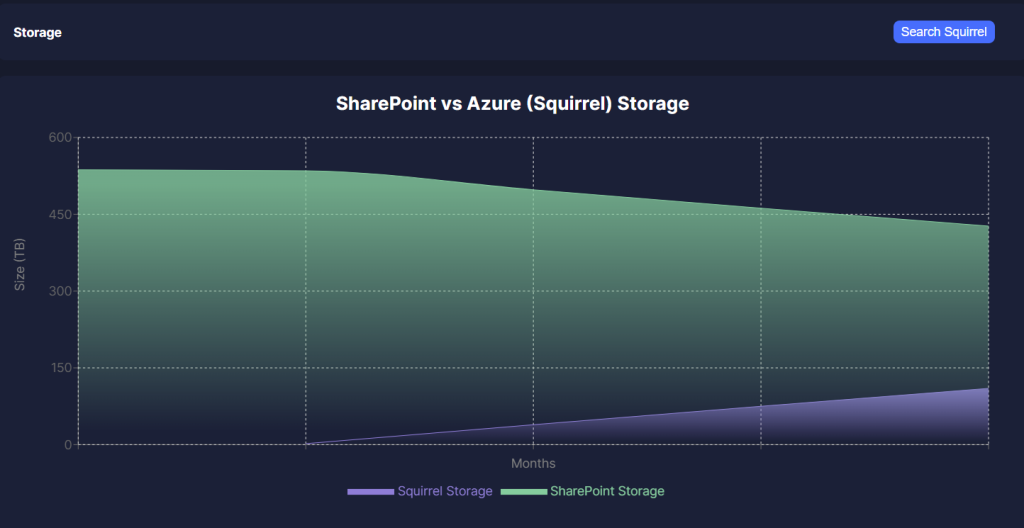
Reduce SharePoint Storage Costs with Squirrel

Squirrel automatically archives inactive documents to Azure Blob Storage, which is significantly cheaper than storing them within SharePoint Online. By optimising storage costs, organisations can save thousands annually without compromising data accessibility.

Squirel Storage Comparison

Cost-Efficient Archiving for SharePoint Online with Squirrel

Curious about Squirrel?