Looking for an AvePoint Alternative for SharePoint Archiving?

Looking for an AvePoint Alternative for SharePoint Archiving?

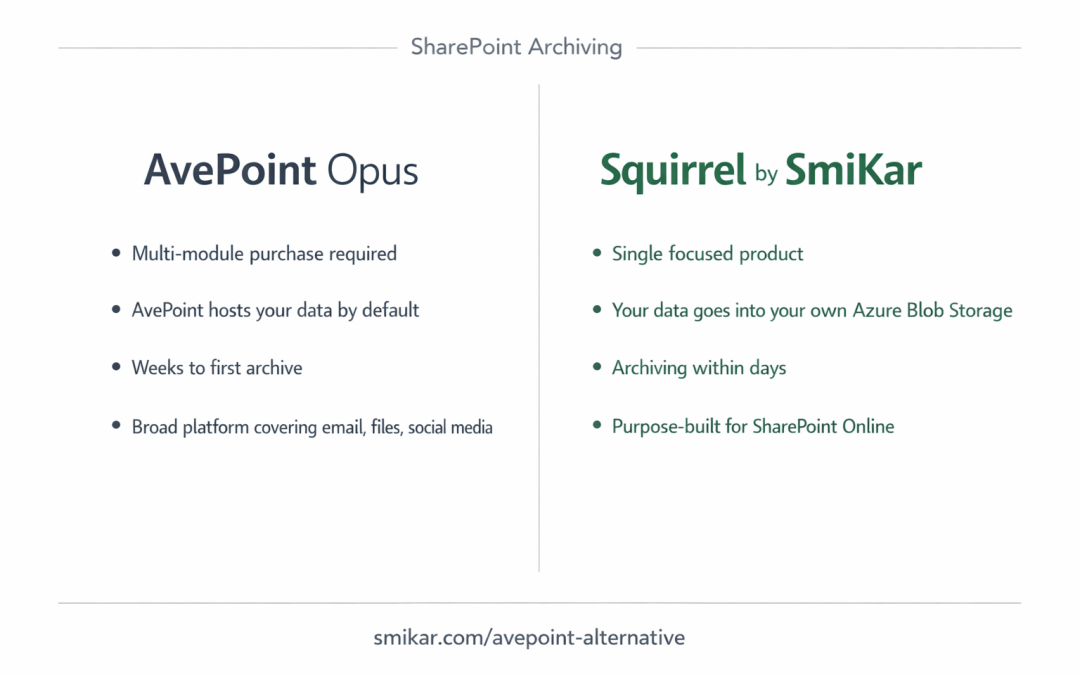
AvePoint Alternative for SharePoint Archiving. Squirrel by SmiKar

AvePoint Opus is a capable platform. If your organisation needs to archive email, file servers, social media, and physical records alongside SharePoint it may well be the right fit.
But if your primary requirement is SharePoint Online storage cost reduction, and you want archived data stored in your own Azure Blob Storage account rather than a vendor-hosted environment, without a complex multi-module purchase and a lengthy provisioning process before you can archive a single document , Squirrel is worth a serious look.
This page gives you an honest, factual comparison of both products so you can make the right decision for your organisation.
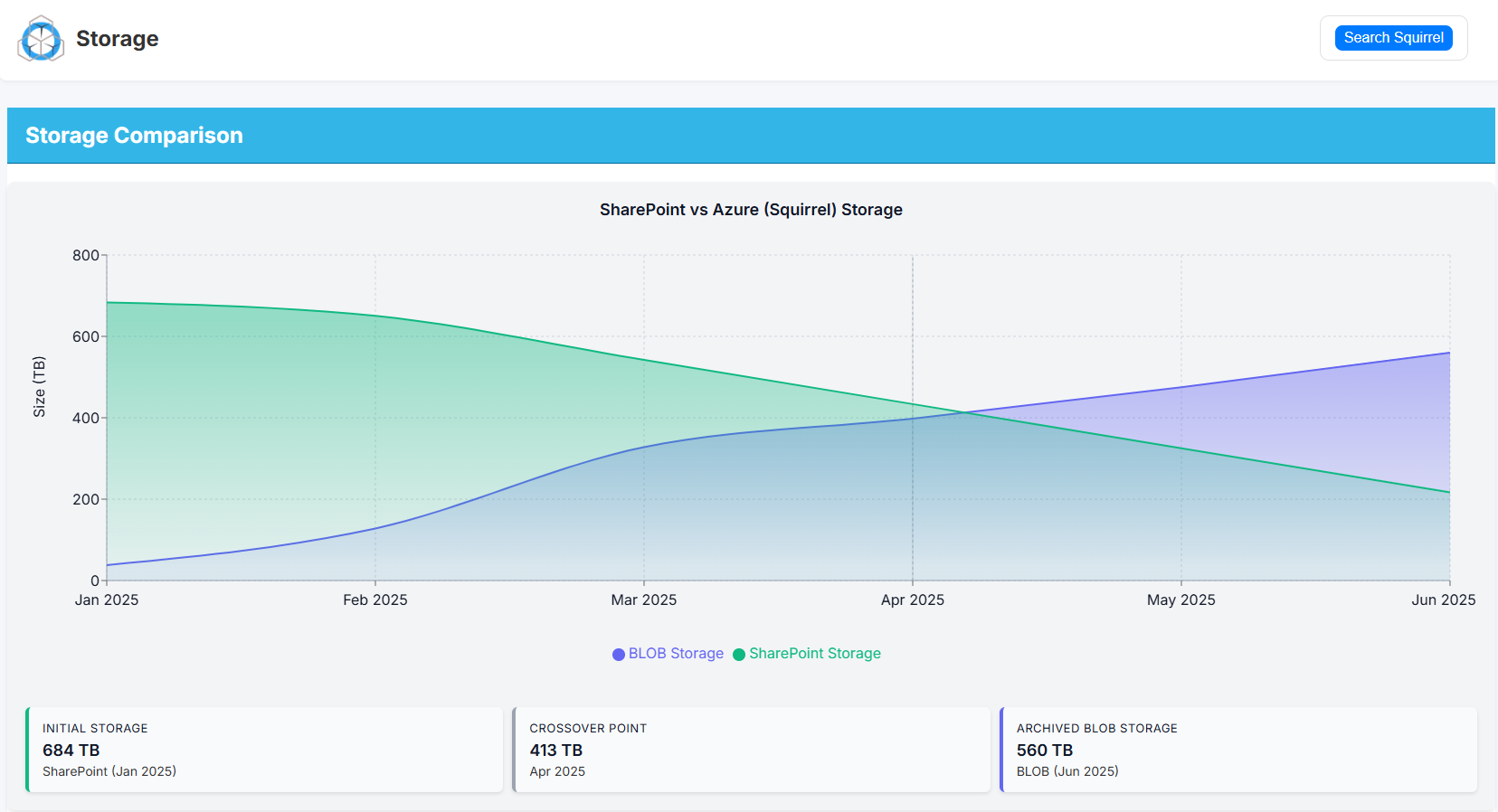
squirrel storage size

Three Reasons Enterprise IT Teams Choose Squirrel Over AvePoint for SharePoint Archiving

Your archived data lands in your own Azure Blob Storage — not ours

Squirrel connects to your Microsoft 365 tenant and processes data through SmiKar’s secure Squirrel appliance. Archived documents are written directly into your own Azure Blob Storage account in your own Azure tenant. Your data never sits in SmiKar infrastructure — it goes straight into storage you own and control.

AvePoint Opus stores archived content in AvePoint-hosted Azure storage by default. Their Bring Your Own Storage option, which puts data into your own storage account, is priced higher per user per year than their standard plan.

For organisations in financial services, healthcare, government, or any sector with data residency requirements — paying extra to keep your own data in your own storage is a difficult position to justify to a compliance team. With Squirrel your archived data lands in your own Azure tenant as standard.

A focused setup engagement, not a drawn-out provisioning process

AvePoint’s own documentation recommends professional services for initial setup and configuration of AvePoint Opus. Their onboarding process involves a planning workshop, a provisioning phase, and a follow-up check-in four to six weeks later. Professional services are priced separately on application.

Squirrel includes a professional setup engagement to configure the environment correctly from day one. Our team works with you to get everything configured, tested, and running. Most enterprises are archiving within days of starting the engagement — not weeks into a provisioning process that has barely begun.
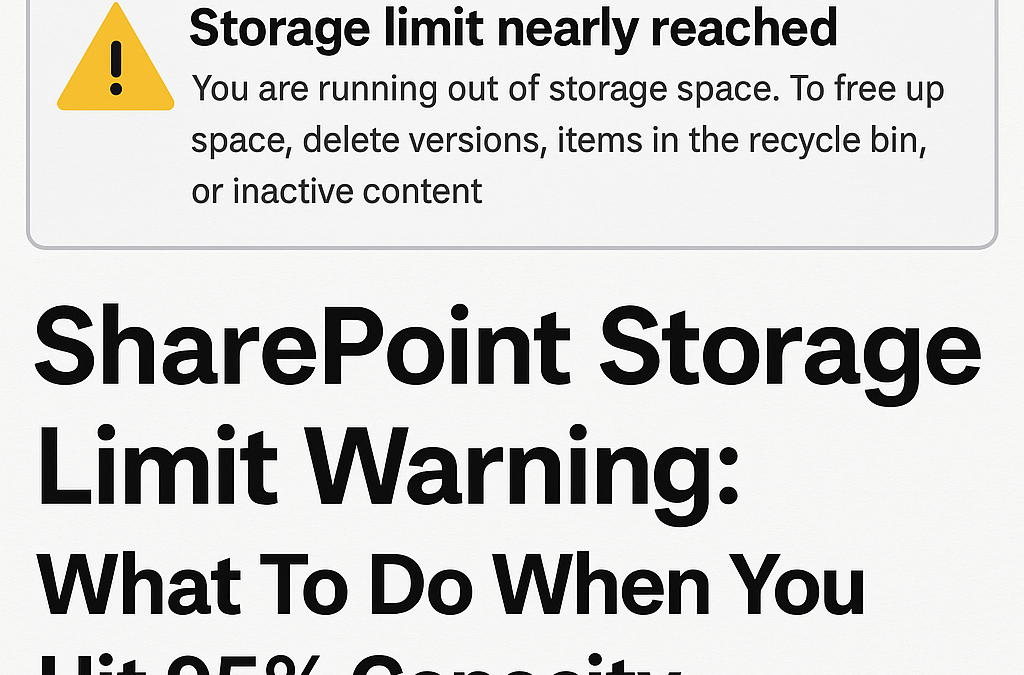
When your SharePoint storage warning is flashing at 95% capacity, the speed of that difference matters.

Purpose-built for SharePoint, not a platform trying to do everything

AvePoint Opus is an information lifecycle management platform covering SharePoint Online, Exchange Online, file servers, social media, physical records, and more. That breadth comes with corresponding complexity — multiple modules to purchase, a pricing structure that varies by user count and data volume across several components, and a substantial minimum commitment before the platform is operational.

Squirrel is purpose-built for one thing: SharePoint Online archiving. It does that one thing exceptionally well. The product is simpler to configure, faster to deploy, and easier for IT teams to manage on an ongoing basis. If your requirement is specifically SharePoint Online storage cost reduction a specialist tool built for that exact problem will outperform a broad platform every time.

Squirrel vs AvePoint Opus: Feature Comparison

Feature Squirrel by SmiKar AvePoint Opus
SharePoint Online archiving Yes — core product Yes — one module of many
Archived data in your own Azure Blob Storage Yes — standard, no extra cost No — AvePoint hosted by default. Own storage costs more
Document-level stub files in SharePoint Yes Yes — via ReCenter access link
Self-service user restore Single click in SharePoint UI Via separate ReCenter portal
Microsoft Copilot compatible archiving Yes — Nutshell AI stub summaries Not confirmed
Departed user O365 archiving Yes — Chipmunk product Partial coverage
Preservation Hold Library management Yes — dedicated feature Not a specific feature
Setup engagement Focused — archiving within days Lengthy planning and provisioning process
Typical time to first archive Days Weeks
Pricing model Straightforward — platform fee plus per TB Complex — multiple modules priced separately
Restore fees None Not publicly confirmed
Email archiving No Yes
File server archiving No Yes
Microsoft Partner Yes Yes
Purview and eDiscovery compatible Yes Yes

Which Solution is Right for Your Organisation?

Choose Squirrel if:

  • Your primary requirement is reducing SharePoint Online storage costs
  • You need archived data stored in your own Azure Blob Storage with no third-party data retention
  • You want to be archiving within days not weeks
  • You need departed user Microsoft 365 data archiving alongside SharePoint archiving
  • Your environment is Microsoft 365 and SharePoint Online focused
  • You want predictable straightforward pricing without multiple module purchases
  • You need Microsoft Copilot to remain effective across archived content via Nutshell AI stub summaries

AvePoint Opus may be a better fit if:

  • You need to archive email, file servers, social media, or physical records alongside SharePoint
  • You need a single platform vendor that also covers backup, migration, and governance across your entire Microsoft 365 estate
  • You already use AvePoint for backup or migration and want a single vendor relationship

We would rather help you make the right decision than win a deal that is not the right fit. If your requirement is specifically SharePoint Online archiving with data sovereignty, fast deployment, and straightforward pricing, request a Squirrel demo and we will show you exactly how it works and where your data goes, within 48 hours.

Built for SharePoint. Not Bolted On.

Squirrel is purpose-built for SharePoint Online archiving — not one module inside a platform trying to do everything.
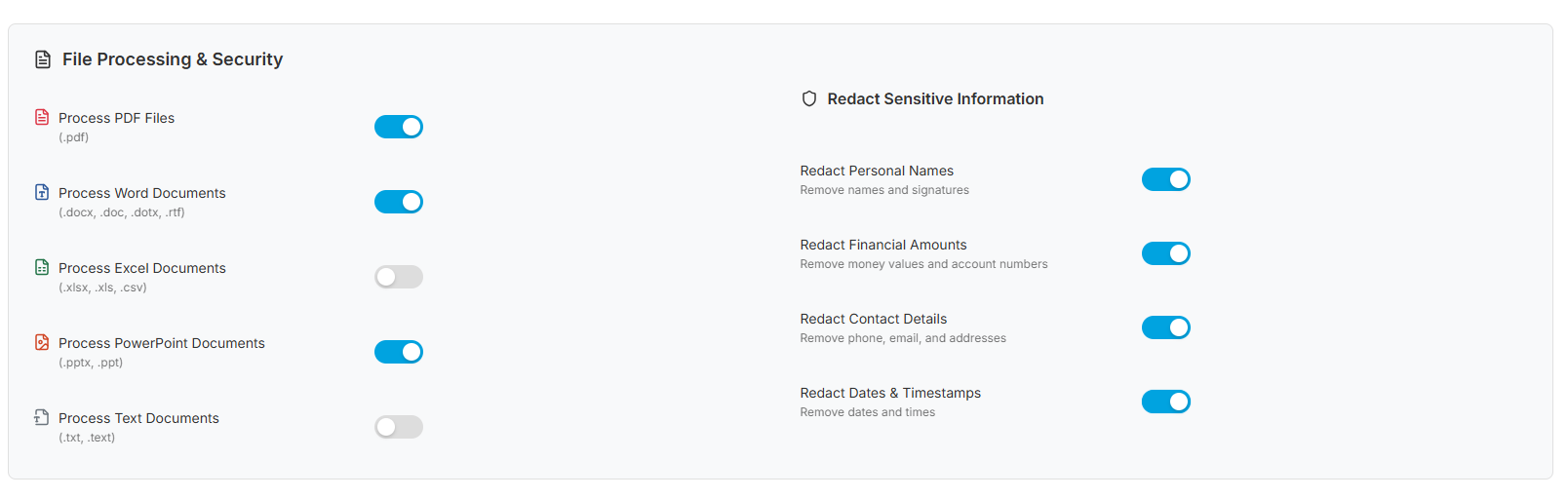
Nutshell AI Settings 2

If your problem is SharePoint storage costs, a product built exclusively for that problem will always outperform a broad platform with SharePoint as one of many features.

A Specialist Tool for a Specific Problem

Ready for a Demo?

DISCLAIMER:

All information about AvePoint Opus on this page is based on publicly available sources including AvePoint’s website, Azure Marketplace listing, and published pricing documentation, and is accurate to the best of our knowledge at the time of publication. Product features and pricing may change. If you believe any information is inaccurate or out of date please contact us and we will update it promptly. AvePoint and AvePoint Opus are trademarks of AvePoint Inc. SmiKar Software is not affiliated with or endorsed by AvePoint.
Preservation Hold Library

Preservation Hold Library

The Preservation Hold Library: The Hidden SharePoint Storage Cost No One Talks About

And How Squirrel’s Recycle Bin Monitoring Stops Storage Blowouts Without Breaking Retention

Most organisations assume that when files are deleted from SharePoint to reduce storage, the data is actually removed. It seems logical: delete the file, empty the recycle bin, and available space should increase. But in Microsoft 365 environments where retention or compliance policies are enabled, this is simply not what happens. Instead, SharePoint silently moves deleted or modified files into a hidden repository known as the Preservation Hold Library (PHL). This library is not visible to standard users, is rarely checked by administrators, and continues to grow silently in the background. And importantly, it consumes the same high-cost SharePoint storage as the primary site content.

Squirrel Recycle Bin Capture

This is why many organisations see storage usage rise even after large clean-up projects. In some cases, deleting old files actually increases total storage usage. And once the tenant reaches its allocated limit, Microsoft begins charging monthly overage fees that grow as storage continues to increase. For companies dealing with active collaboration, heavy file churn, or large historical project archives, the financial impact can escalate quickly.

Squirrel now provides a way to prevent this completely — without disabling retention, breaking compliance, or changing how users work. But before explaining how, we need to clearly understand what the Preservation Hold Library is and why it behaves the way it does.

Why the Preservation Hold Library Exists

Microsoft 365 is designed to support regulatory, governance, and legal protection standards. Many organisations are required to retain business records for a set period — often 2, 5, or even 7+ years — even if users attempt to delete or overwrite them. To enforce this, SharePoint does not allow permanent deletion when any of the following are active:

  • Retention Policies
  • Retention Labels
  • Litigation Hold
  • eDiscovery Hold

If a file is modified or deleted, SharePoint is obligated to keep the original, unaltered copy. That preserved copy must remain accessible for audit or legal discovery for the duration of the retention period. Rather than blocking users from deleting files—which would be disruptive—SharePoint allows the deletion to appear to succeed, but quietly stores the preserved version in the Preservation Hold Library, invisible to the person who deleted it.

The result is that the organisation stays compliant, the user continues working as normal, but storage consumption increases in ways that are neither obvious nor intuitive.

Why Storage Goes Up When Files Are Deleted

 This is the part that causes the most confusion.

Let’s consider a simple real-world scenario:

A project team completes a body of work and decides to clean up hundreds of gigabytes of old documents. They delete the files from the library and even empty the recycle bin. The site now appears to be almost empty.

However, a week later the Microsoft 365 storage report shows that total SharePoint storage has gone up, not down.

This happens because every file that was deleted was automatically copied into the Preservation Hold Library. And if those files had multiple versions — which is common with documents that evolve over time — every one of those versions is also retained. So deleting 200GB of documents may easily result in 300GB+ being stored in the PHL.

The more aggressively users try to clean up data in a retention-controlled environment, the faster the PHL grows.

This is why many organisations see storage spike immediately after “data clean-up initiatives.”

Why This Becomes a Cost Problem

When your organisation exceeds its Microsoft 365 storage allocation, Microsoft charges for additional storage every month. These are not one-time charges — they accumulate indefinitely and increase as retained data accumulates.

Meanwhile, storing that same data in Azure Blob Storage costs a fraction of the price — often 20× to 100× cheaper depending on the tier.

Storage Location Approx. Cost per TB/month Notes
SharePoint Storage (Overage Billing) $60–$120+ Cost grows continuously
Azure Blob Cool Tier $1–$3 Same data, far lower cost
Azure Blob Archive Tier $0.20–$1 For long-term retention data

So the problem is not just that the PHL grows — it’s that it grows in the most expensive place possible.

This is why many organisations see storage spike immediately after “data clean-up initiatives.”

Why Traditional Fixes Don’t Work

Most organisations try the obvious steps first:

  • Deleting old files

  • Emptying recycle bins

  • Asking users to clean their sites

  • Using third-party file cleanup tools

  • Manually exporting content to external drives

None of these work, because retention overrides deletion. As long as retention is active, SharePoint is obligated to preserve the file — whether or not users want it deleted.

This isn’t a technical problem.
It’s a governance rule.
So the solution must respect governance.

And that’s where Squirrel’s new feature comes in.

How Squirrel Stops the PHL From Growing (Without Breaking Retention)

Squirrel has always archived inactive content into low-cost Azure Blob storage while leaving a stub file behind in SharePoint so users can still open the document as if it were still stored there.

Now, Squirrel adds the ability to intercept deletions.

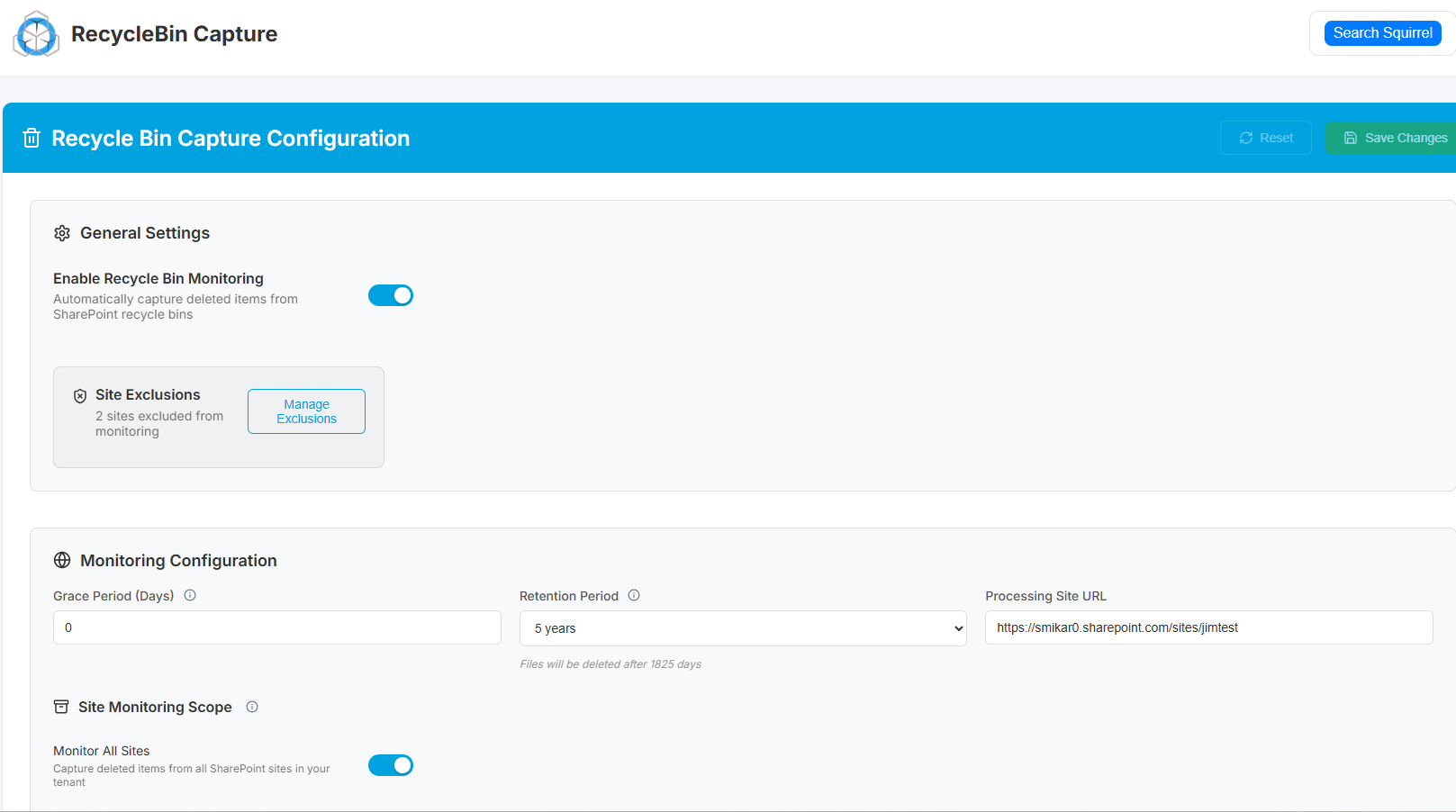
Recycle Bin Monitoring (New Feature)

When enabled:

  • A user deletes a file in SharePoint.
  • Squirrel detects the deletion.
  • Squirrel archives the file directly to your Azure Blob storage, under your retention policies.
  • Squirrel leaves a stub behind in SharePoint so users can still open the file in the same way as before.

The result:

  • The file is still retained (compliant)

  • The file is still accessible (stub handles retrieval)

  • But SharePoint never stores it in the PHL

  • Storage stops growing

  • Costs drop to a fraction of what they were

This does not disable retention.
This does not circumvent compliance.
This simply changes where the retained file lives.

Instead of being stored in Microsoft’s high-cost SharePoint database tiers, it is stored in your much cheaper Azure Blob storage, fully controlled by you.

Why This Is the Correct, Safe, Long-Term Strategy

This approach:

  • Respects retention rules

  • Preserves audit and discovery access

  • Prevents storage blowouts

  • Avoids manual cleanup cycles

  • Does not require retraining users

  • Does not change how people interact with files

Nothing about how users work changes.
Nothing about your compliance posture changes.
Only the storage location changes — and the cost of that storage drops dramatically.

Summary

Challenge Why It Happens Impact Squirrel’s Solution
SharePoint storage keeps increasing Deleted/modified files are preserved in PHL under retention Tenant exceeds storage allocation and incurs monthly costs Intercept deletions and archive files to Azure Blob
Cleanup does not reduce storage Retention requires files to be preserved Storage goes up, not down Squirrel prevents files from entering PHL
Need to retain access and audit history Compliance requires recoverability Cannot bulk delete safely Stub files maintain access while storage moves to Azure

Frequently Asked Questions

Q: Why does SharePoint storage increase even when files are deleted?

A: If retention policies or legal holds are active, SharePoint cannot permanently remove content. Instead, deleted files are copied into the Preservation Hold Library, which still consumes storage.

Q: Where is the Preservation Hold Library and why can’t users see it?

A: The PHL is a hidden system library. It is only visible to Site Collection Administrators and does not appear in normal document library views. Microsoft hides it to prevent accidental modification or deletion of retained records.

Q: Does emptying the Recycle Bin remove the files from the Preservation Hold Library?

A: No. The Recycle Bin is only the first stage of deletion. If retention is enabled, the file is preserved in the PHL even after the recycle bin is emptied. Storage usage does not decrease.

Q: If we turn off retention policies, will the PHL empty itself automatically?

A: No. Disabling a retention policy does not purge existing retained data. The files remain until the retention period expires or they are removed using a controlled remediation process.

Q: Can we delete or purge the Preservation Hold Library to reclaim storage?

A: Not while retention applies. Purging data still under retention is a compliance violation and can expose the organisation to legal and regulatory risk.

Q: Why does deleting old project sites or folders sometimes increase storage?

A: Because deleting large amounts of data triggers large batch preservation events, which can cause the PHL to grow significantly, especially when multiple versions of files are retained.

Q: Can we still meet legal and regulatory retention requirements if we archive data outside of SharePoint?

A: Yes, as long as the archived data is stored in a compliant, tamper-resistant, and retrievable format. Squirrel preserves metadata and access integrity while storing files in your Azure Blob Storage, which meets retention requirements.

Q: How does Squirrel prevent the Preservation Hold Library from growing?

A: Squirrel’s Recycle Bin Monitoring intercepts deletion events. Instead of letting the file fall into the PHL, Squirrel archives it directly to Azure Blob Storage and leaves a lightweight stub file in SharePoint for seamless access.

Q: Do users still access archived or deleted files in the same way?

A: Yes. When users click the stub in SharePoint, Squirrel retrieves the file from Azure and opens it normally. There is no change to user workflow and no retraining required.

Q: How much can we reduce storage costs by archiving instead of using the PHL?

A: Typically 20 to 100 times less, depending on the Azure storage tier. SharePoint storage overages are costly, while Azure Blob Storage is designed for long-term, low-cost retention.

Stop SharePoint Storage Blowouts Caused by the Preservation Hold Library

Squirrel intercepts deletions before SharePoint can store them in the Preservation Hold Library, archiving the file to your Azure Blob storage instead. Retention is preserved, access is maintained, and storage costs drop dramatically.

squirrel storage size

With Squirrel’s Recycle Bin Monitoring, deleted and modified files are captured and archived automatically — preventing the Preservation Hold Library from silently consuming expensive SharePoint storage.

Retention Without the Storage Cost

Want to reduce your SharePoint Storage costs?

SharePoint Storage Limit Warning

SharePoint Storage Limit Warning

SharePoint Storage Limit Warning

What To Do When You Hit 95% Capacity

When your Microsoft 365 tenant reaches the SharePoint storage limit, the impact is immediate. File uploads start failing, Teams sites stop provisioning, indexing slows down, and storage overage charges begin applying automatically. For organisations storing large volumes of documents, drawings, media files, or project data, hitting the SharePoint capacity threshold can become a recurring and expensive problem—especially when underlying retention policies prevent deletion.

squirrel storage size

How SharePoint Storage Allocation Works

Your tenant’s storage limit is determined by Microsoft 365 licensing:

  • 10 GB base storage per tenant

  • + 10 GB per licensed user

Example:

Licensed Users Total SharePoint Storage Allocation
250 users 10 GB + (250 × 10 GB) = 2.51 TB
1,000 users 10 GB + (1,000 × 10 GB) = 10.01 TB
10,000 users 10 GB + (10,000 × 10 GB) = 100.01 TB

This storage is shared across:

  • SharePoint Online sites

  • Microsoft Teams files

  • OneDrive for Business accounts

  • The Preservation Hold Library (if retention or legal hold is enabled)

Over time, these workloads accumulate content faster than expected, especially in organisations with:

  • Project or engineering document repositories

  • Large Teams channels and video call recordings

  • Active retention / compliance policies

  • High staff turnover (departing user OneDrives pile up)

  • Multiple business units collaborating in shared libraries

What Happens When You Hit the SharePoint Storage Limit

When your storage consumption reaches 90–95%, you may see:

Symptom Impact
Uploads fail or sync errors appear Users can’t save files
New Teams/SharePoint sites fail to create Collaboration is blocked
SharePoint search/indexing slows Content becomes harder to find
Performance degradation in Teams/SharePoint Daily operations affected
Microsoft begins billing storage overage fees Recurring operational cost

Overage charges are not one-off—they continue every month.

Why Deleting Files Usually Doesn’t Work

Most organisations attempt deletion first. Two problems arise:

  • Retention policies prevent permanent deletion
    Files go to the Preservation Hold Library, which still consumes storage.

  • Users can’t reliably determine what is safe to delete
    Deletion risks breaking collaboration context, version history, and audit trails.

So even when large folders are removed, overall tenant storage doesn’t change.

Step 1: Identify Where Storage Is Being Consumed

Check Storage Usage in Microsoft 365 Admin Center

  • Go to SharePoint Admin Center

  • Select SitesActive Sites

  • Sort by Storage Used

Look specifically for:

Hotspot Storage Pattern
OneDrive of former employees Large, unused, often years old
Project / department sites Heavy media, drawings, reports
Teams collaboration sites Files duplicated across channels
Preservation Hold Library Hidden retained data growing silently

This analysis identifies where optimisation efforts provide immediate value.

Step 2: Address Departed Employee OneDrives (Fastest Storage Win)

When staff leave, their OneDrive is typically preserved for compliance reasons. Over time, this results in massive storage accumulation that provides no operational value.

Correct Approach (No Risk)

  • Export or archive the user’s OneDrive

  • Store it in long-term low-cost cloud storage

  • Remove the original OneDrive container from the tenant

This process instantly frees capacity.

Chipmunk automates this:

  • Archives departed user OneDrive, Exchange, and Teams data

  • Preserves metadata and searchability

  • Allows controlled, auditable access for investigation or continuity

  • Safely removes the original OneDrive to reclaim storage

More info: https://www.smikar.com/chipmunk-automated-user-archiving/

Step 3: Archive Inactive SharePoint Content Without Breaking Access

For SharePoint sites that contain old project or historical content, the goal is to move inactive files to cheaper storage while keeping them accessible.

The Archive Pattern That Works

  • Identify files older than X months

  • Move them to Azure Blob or cold storage

  • Leave a lightweight placeholder (stub) behind

  • Users can still open the file normally

This allows:

  • No change to user experience

  • No broken links

  • No permission changes

  • No retraining

This is the core function of Squirrel:

  • Automatically archives files from SharePoint to Azure Blob Storage

  • Leaves stub files so users access archived content as usual

  • Supports metadata retention, version history capture, and audit compliance

  • Reduces storage consumption significantly and permanently

More info: https://www.smikar.com/squirrel

Step 4: Prevent the Storage Problem from Returning

Once storage is stabilised:

Governance Task Frequency
Archive inactive files Monthly scheduled job
Auto-archive departing users Triggered at license removal
Monitor storage trends Monthly review
Lifecycle policies by library Standard practice

This shifts the organisation from reactive cleanup to predictable storage lifecycle management.

Summary

Problem Solution Outcome
SharePoint storage limit reached Identify largest storage locations Visibility to act
Departed user OneDrives consuming storage Archive using Chipmunk Immediate storage recovery
Legacy data sitting in SharePoint Archive to Azure with Squirrel Lower storage cost, no user disruption
Storage continually grows Apply automated lifecycle policies Stable long-term storage costs

Frequently Asked Questions

Q: What happens when you hit the SharePoint storage limit? A: File uploads fail immediately. Microsoft Teams stops provisioning new sites. SharePoint indexing slows down. Microsoft begins applying overage charges automatically at their published per GB rate. The impact is felt across your entire Microsoft 365 tenant, not just individual sites.

Q: How do I check my current SharePoint storage usage? A: Go to the Microsoft 365 admin centre, select SharePoint under Admin centres, then go to Settings and Storage limits. This shows your total allocated storage, current usage, and remaining capacity across your entire tenant.

Q: Why is my SharePoint storage growing so fast? A: The most common causes are document versioning retaining large numbers of old file versions, the Preservation Hold Library accumulating copies of modified and deleted documents under retention policies, Teams file storage growing as more channels and sites are created, and inactive content from old projects and departed users remaining in primary storage indefinitely.

Q: Can I delete the Preservation Hold Library to reclaim storage? A: No. The Preservation Hold Library cannot be deleted while retention policies are active. Attempting to delete it would be a compliance violation. The correct approach is to manage what goes into it and archive content before it becomes subject to a retention event.

Q: What is the cheapest way to get more SharePoint storage? A: Archiving inactive documents to Azure Blob Storage is significantly cheaper than purchasing additional Microsoft 365 storage. Azure Blob Cool tier costs approximately $0.01 per GB per month compared to Microsoft’s SharePoint overage rate. Squirrel automates this archiving process so storage costs reduce continuously rather than requiring manual intervention.

Q: Will archiving documents affect how users find and access them? A: No. When Squirrel archives a document it leaves a stub file in the original SharePoint location. The stub retains the file name and metadata so the document still appears in SharePoint Search results. Users can restore the full document with a single click directly from SharePoint with no IT involvement required.

Reduce your SharePoint Storage with Squirrel

Squirrel vs. Microsoft 365 Archiving: Key Differences Explained

Squirrel vs. Microsoft 365 Archiving: Key Differences Explained

Squirrel vs. Microsoft 365 Archiving

Which Solution Saves You More?

Managing SharePoint storage efficiently is crucial as data grows—discover how Squirrel Archiving stacks up against Microsoft 365’s built-in options to cut costs and improve accessibility.

Site Archive Settings

SharePoint Online Archiving Solutions

As organizations grow, so does their SharePoint storage. With Microsoft’s built-in options and third-party solutions like Squirrel Archiving, businesses often wonder: Which archiving solution is best for my organization?

This post compares Squirrel Archiving with Microsoft 365’s native archiving features to help IT administrators, compliance officers, and decision-makers choose the right approach for reducing SharePoint storage costs while ensuring easy file access and compliance.

Comparing Squirrel Archiving vs. Native Microsoft 365 Archiving

Feature Squirrel Archiving Microsoft 365 Archiving
Storage Type Azure Blob Storage (low-cost, flexible) SharePoint Online Storage (costly, limited)
Automated Policies Yes – Customizable rules for auto-archiving Limited – Only retention policies available
User Experience End-users can restore files via SharePoint UI, SharePoint synced folders, and Microsoft Teams (including private Teams channels) Requires admin intervention for restores
Stub Files (Click to Restore) Yes – Maintains file presence in SharePoint No – Archived files are moved elsewhere
Storage Cost Savings Saves up to 75% on storage costs Costs remain high for additional storage
Restoration Time

 Instant restoration from stubs, can be performed by end user

Manual recovery process, takes between 24 to 48 hours to restore files. Requires Administrator to start restoration.
Integration with SharePoint

Seamless, appears as part of SharePoint UI

Files are not visible after archiving

Understanding SharePoint Archiving

What is SharePoint Archiving?

Archiving in SharePoint Online is the process of moving old or inactive documents from primary storage to cheaper long-term storage while keeping them accessible when needed. This helps organizations reduce storage costs, improve performance, and meet compliance requirements.

Why is Archiving Important?

Avoid Microsoft’s Expensive Overages – SharePoint Online comes with fixed storage limits. Additional storage costs $0.20 per GB per month, which can add up quickly. 

Improve SharePoint Performance – Large libraries slow down search and collaboration.

Ensure Compliance & Retention – Many industries require long-term data retention.

Enable Easy Data Recovery – Users need quick access to archived files without IT intervention.

Storage and Cost Efficiency

Microsoft 365 provides additional SharePoint storage at $0.20 per GB per month. For organizations with terabytes of data, this can quickly add up. Squirrel moves files to Azure Blob Storage, offering up to a 70% cost reduction compared to Microsoft’s pricing.

Automated Archiving & User Experience

Microsoft’s native archiving tools focus on retention policies, but these do not move data to cheaper storage automatically. Admins must manually move files, making it inefficient. Squirrel automates archiving based on custom rules (e.g., last modified date, last accessed date, file type, folder location, sharepoint online site), ensuring that inactive files are archived without manual intervention.

Additionally, Microsoft’s approach does not provide stub files in SharePoint, meaning users may struggle to find their archived files. Squirrel, on the other hand, replaces archived files with clickable stubs, allowing one-click restoration without IT assistance.

Compliance & Retention Policies

Both Microsoft 365 and Squirrel support retention policies, but Microsoft’s approach retains files within costly SharePoint storage, whereas Squirrel offloads them to Azure while ensuring archived files remain accessible for compliance needs. This makes Squirrel more cost-effective for long-term storage.

Data Restoration & Accessibility

Comparison of Data Restoration Methods

Feature Squirrel Archiving Microsoft 365 Archiving
User Restore Access Users can restore files via SharePoint UI, synced folders, and Teams (including private channels) Requires IT intervention
Restore Buttons Available in SharePoint and Teams Not available
Stub Files Yes – Clickable stubs remain in SharePoint No – Files are moved and not visible
Self-Service Archiving Yes – Users can archive files without IT No – Admins must manually configure policies
Restoration Time Instant via stub file or button Manual and time-consuming

Squirrel offers restore buttons directly in SharePoint, as well as stub files that allow users to restore their files with a single click. These features extend to SharePoint synced folders and Microsoft Teams (including private Teams channels), making it seamless for users to access their archived content from anywhere. Additionally, Squirrel enables end-users to archive their own files without IT involvement, providing full flexibility for content lifecycle management.

With Microsoft’s built-in archiving, users need IT intervention to retrieve archived files, whereas Squirrel allows self-service restores through the familiar SharePoint interface. This reduces IT workload and enhances productivity.

Squirrel offers restore buttons directly in SharePoint, as well as stub files that allow users to restore their files with a single click. These features extend to SharePoint synced folders and Microsoft Teams (including private Teams channels), making it seamless for users to access their archived content from anywhere. Additionally, Squirrel enables end-users to archive their own files without IT involvement, providing full flexibility for content lifecycle management.

Which One Should You Choose?

Use Case Best Option
You need cost-effective archiving Squirrel Archiving
You want to automate the process Squirrel Archiving
Users need self-service restore and archive Squirrel Archiving
You only need basic retention policies Microsoft 365 Archiving

Dedicated Deployment & Data Ownership

Unlike multi-tenant cloud services, Squirrel is deployed as a dedicated instance for each client. There is no shared infrastructure across clients, ensuring higher security and better performance.

  • Deployed in the same region as the SharePoint tenant to comply with data residency requirements.

  • Uses the client’s own Azure Blob Storage, ensuring organizations retain full ownership of their archived data.

  • While data traverses Squirrel’s appliance, it remains encrypted and compressed before being stored, adding an extra layer of security.

Frequently Asked Questions (FAQ)

How does Squirrel integrate with SharePoint?

Squirrel seamlessly integrates with SharePoint Online, allowing users to archive and restore files via buttons in the UI, stub files, SharePoint synced folders, and Microsoft Teams.

Where is my data stored when using Squirrel?

Squirrel uses your own Azure Blob Storage, deployed in the same region as your SharePoint tenant, ensuring compliance with data residency requirements.

Is Squirrel a shared or dedicated service?

Each Squirrel deployment is dedicated to a single client. There is no shared infrastructure across clients, ensuring security and isolation.

Does Squirrel encrypt my archived data?

Yes, all archived data is encrypted and compressed before being stored in Azure Blob Storage.

Can users restore their own files without IT help?

Yes! Squirrel provides self-service restore options, allowing users to restore files with a single click via stub files, SharePoint synced folders, or Microsoft Teams.

Can users archive their own files too?

Yes! Unlike Microsoft 365 Archiving, which requires IT to set retention policies, Squirrel allows end-users to manually archive their own files, reducing IT workload.

Does Squirrel affect SharePoint search?

No. While files are archived, stub files remain in SharePoint, ensuring searchability and a seamless user experience.

What happens if my organization decides to stop using Squirrel?

Since your archived files are stored in your own Azure Blob Storage, you retain full ownership of your data, even if you stop using Squirrel.

Final Verdict: Squirrel Wins for Cost & Automation

For organizations that want to reduce SharePoint costs, automate archiving, and allow self-service restores, Squirrel is the superior choice. It provides a seamless user experience, dramatically lowers storage costs, and ensures compliance-friendly archiving.

Microsoft 365’s native archiving is useful for basic retention policies but lacks automation and cost-saving benefits. If your organization is looking for a smarter way to manage SharePoint storage and compliance, Squirrel is the solution you need.

Squirrel: The Smarter Way to Archive and Restore in SharePoint

Tired of bloated SharePoint storage and slow file access? Squirrel automates archiving, reducing storage costs by up to 70%, while keeping your files just a click away. With self-service restore buttons, stub files, and seamless integration into SharePoint, Teams, and synced folders, Squirrel ensures fast, cost-effective content management—without IT headaches.

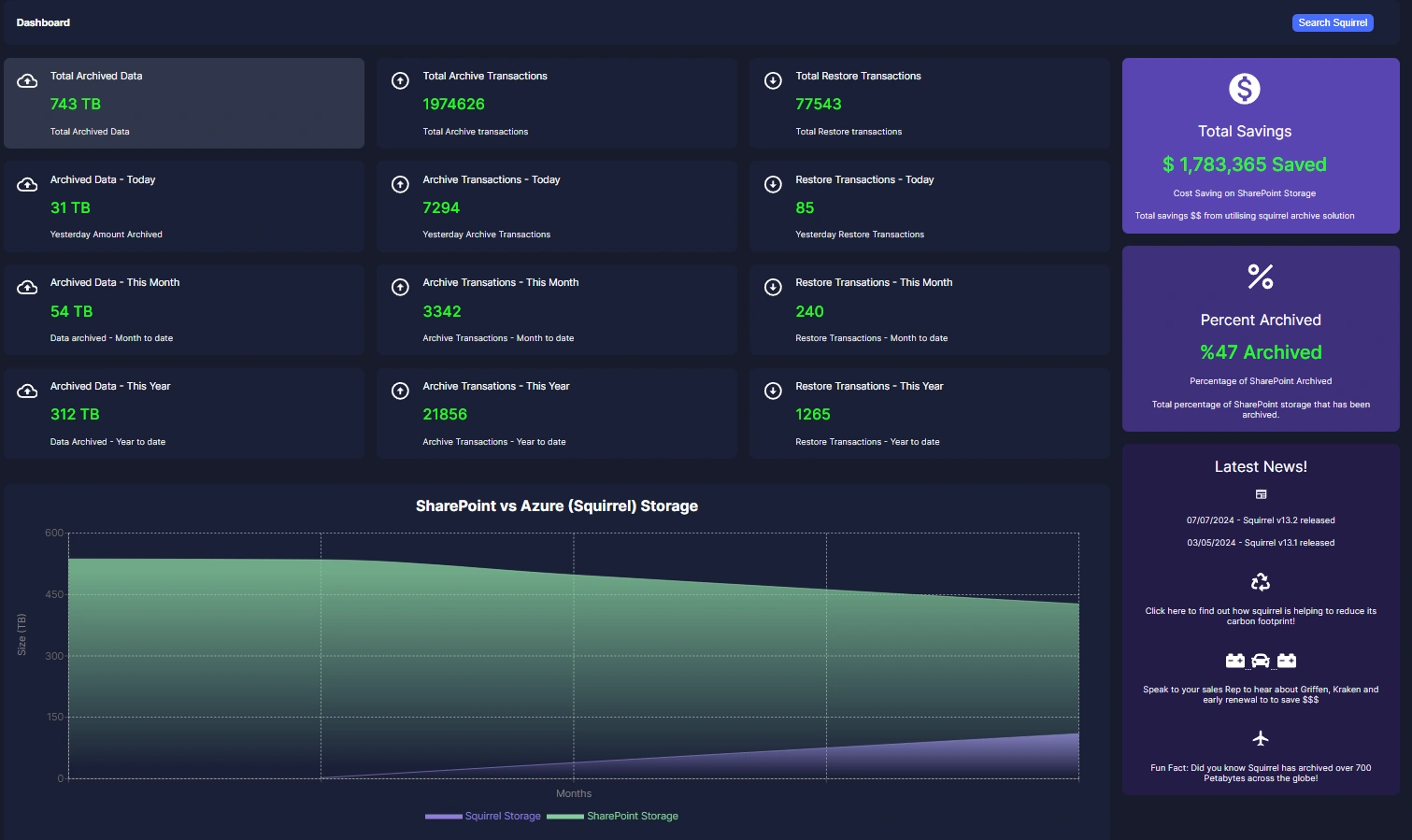
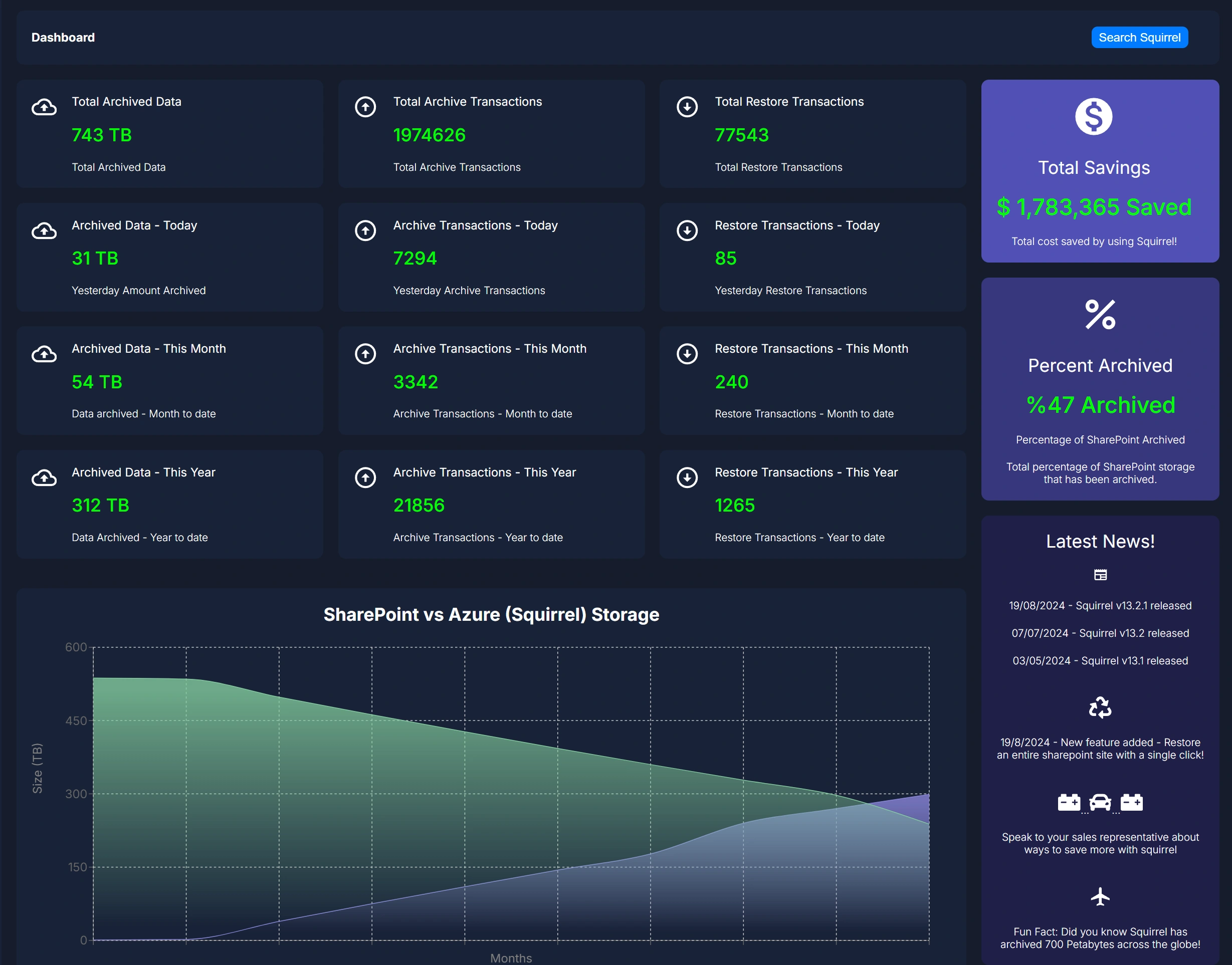
Squirrel for SharePoint Dashboard

Stop overpaying for SharePoint storage! Squirrel archives files to your own Azure Blob Storage, cutting costs by up to 70%—while keeping data secure and accessible.

Want to Cut SharePoint Storage Costs?

How to Restore Archived SharePoint Site

How to Restore Archived SharePoint Site

Full Guide to Recovering Your  SharePoint Data

Need to bring back archived files in SharePoint? This step-by-step guide walks you through restoring all previously archived files in a SharePoint Online site using Squirrel, ensuring a seamless and efficient recovery process.

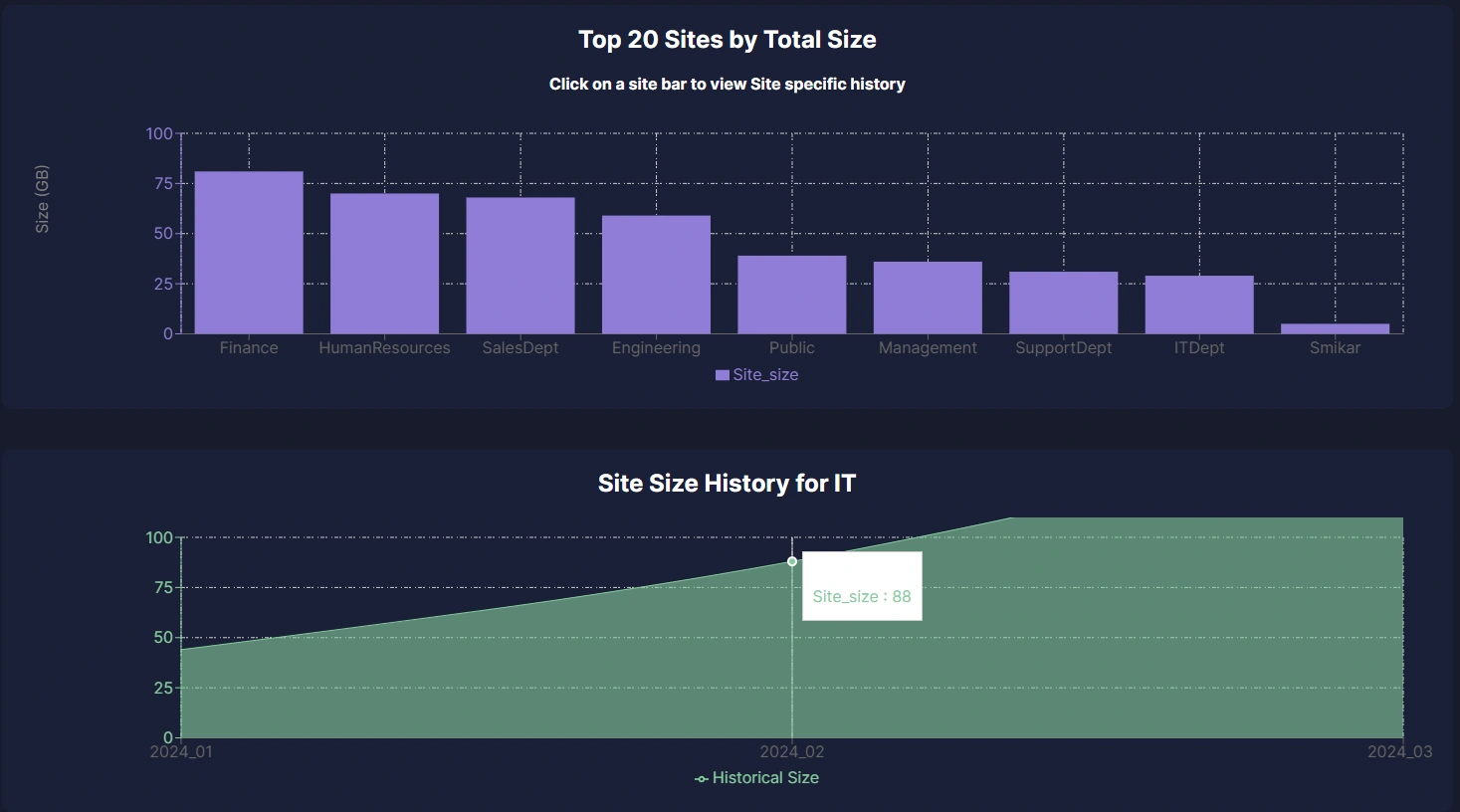
Squirrel for SharePoint Site Size Reporting

How to Restore All Files from Archive in a SharePoint Online Site with Squirrel

Restoring an entire SharePoint Online site from Squirrel is a simple and efficient process that ensures all previously archived files are returned to their original location within SharePoint. This functionality is particularly useful when a site requires full access to archived content, whether for compliance, business needs, or reactivation of an old project.

Important Note: This process will restore only the files that were archived in the selected SharePoint site. Any files that were not archived will remain untouched. For this example, we will be restoring all files in the Engineer site, which was previously archived in our earlier blog post.

Why Restore an Archived SharePoint Site?

There are several reasons why you might need to restore an entire site’s archived files:

  • Business Needs – If a project is reactivated or a department needs historical data, restoring all files ensures they have everything they need.


  • Compliance & Legal Requirements – Some industries require companies to retain and restore archived documents for audits and regulatory compliance.


  • Collaboration & Access – If users need to work on a previously archived site, restoring the files provides immediate access to original content.


  • Accidental Archiving or Policy Changes – If a site was archived in error or business policies change, restoring files allows for a seamless rollback.

Regardless of the reason, Squirrel makes the restoration process straightforward while maintaining data integrity.

Access the Squirrel Dashboard

To begin the restoration process, follow these steps: 

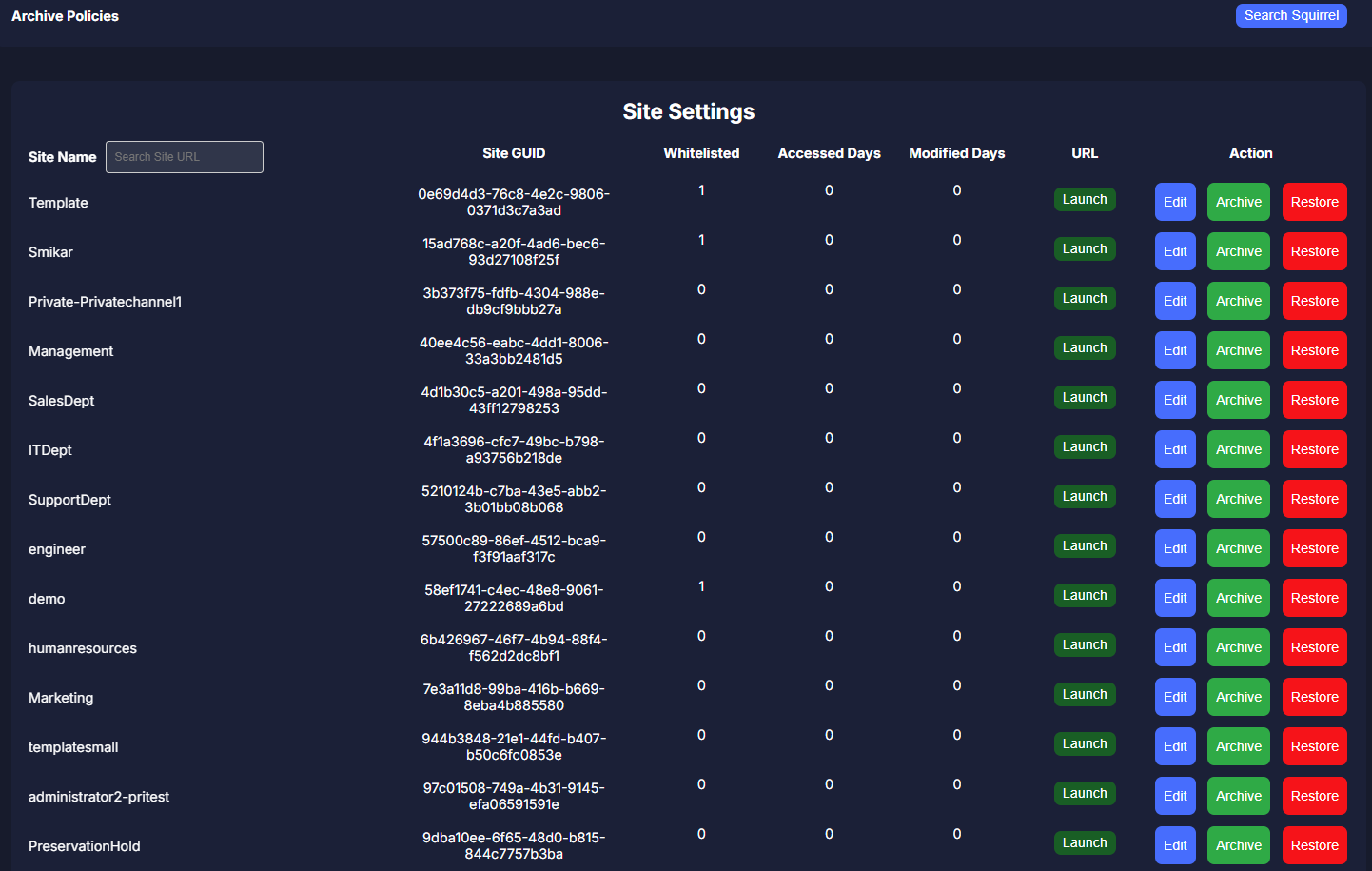
Log into your Squirrel web portal then navigate to the Site Archive Settings section of the dashboard.

This section provides an overview of all the SharePoint Sites in your environment, as well as the ability to whitelist a site from a global archive policy, implement the sites own archive policy. But also gives the administrator the ability to either Archive or Restore a complete site..

The dashboard ensures that administrators can quickly find the site they need to restore without navigating through complex menus.

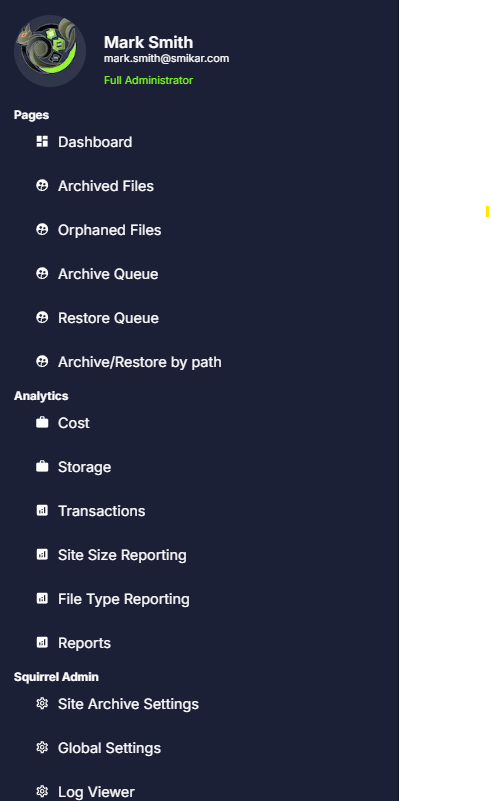
Squirrel Menu

Select the SharePoint Site for Restoration

Locate the Engineer site in the list of archived sites then click on the Restore button to proceed.

Site Archive Settings

Confirm the Restoration Process

Before proceeding with the full restore, Squirrel review the information carefully.

Click Confirm Restore to initiate the process.

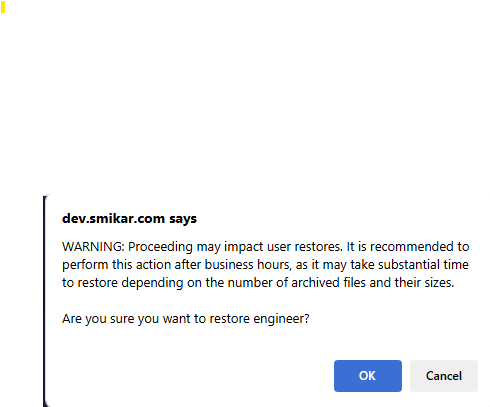
A warning prompt will appear, notifying that the restore process may take time and could impact user access. It is recommended to perform restores outside of business hours.

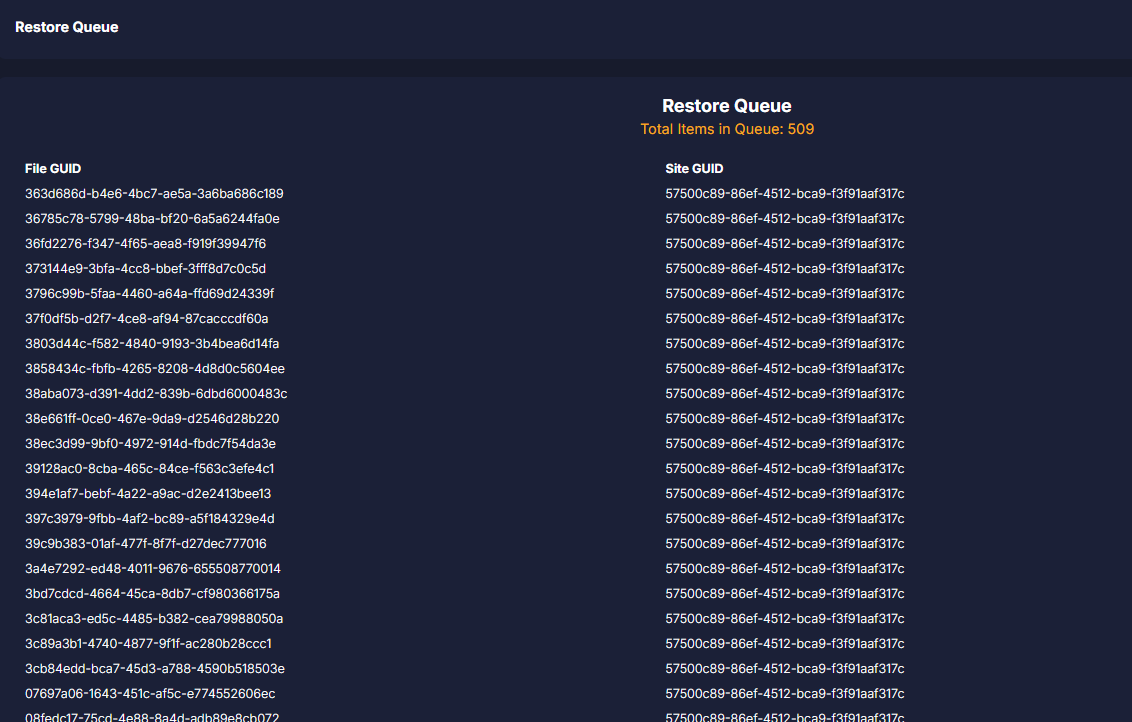
Once confirmed, the site restoration will begin, and you will be redirected to the Restore Queue for progress tracking.

Restore Site Prompt

Monitor the Restore Progress

The Restore Queue displays the current status of all active restores.

Navigate to the Restore Jobs section to check the details of the restoration process.

Squirrel provides real-time updates, showing progress bars for large restores.

Depending on the site’s size, restoration may take a few minutes to several hours.

Squirrel ensures that even during large-scale restorations, users can track the progress and plan accordingly.

Restore Queue

Verify the Restored Files

Once the restoration process is complete, it’s important to verify that all files have been properly restored:

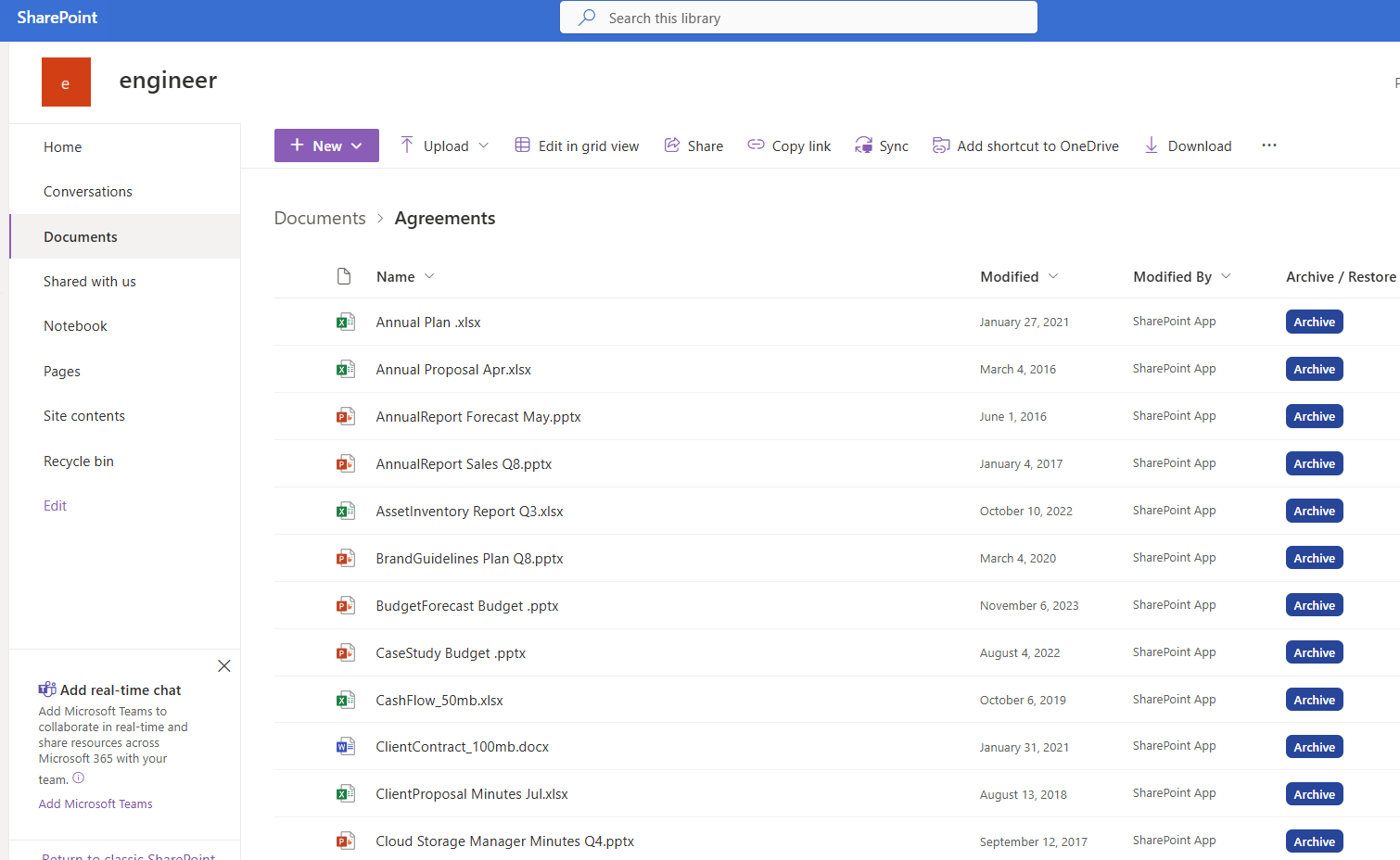
Open SharePoint Online and navigate to the Engineer site.

Access the document library to confirm that the previously archived files have been restored to their original locations.

Check file metadata such as last modified date and version history to ensure integrity.

At this stage, users should be able to access all files as they were before archiving

SharePoint UI Documents

Restoring Individual Files vs Restoring an Entire Site

Squirrel supports three restore approaches depending on what you need.

Restoring individual documents

When a user needs a specific archived document, they can restore it themselves directly from within SharePoint by clicking the stub file in the document library. The document rehydrates from Azure Blob Storage and is back in SharePoint within seconds. No IT involvement is required and no administrator action is needed.

This is the most common restore scenario and the one that keeps your helpdesk from being flooded with restore requests.

Restoring an entire SharePoint site

When a project site needs to be fully reactivated — for a compliance audit, a legal matter, or a project that has resumed — administrators can restore all archived files from a site in a single action from the Squirrel dashboard. The restore process returns all previously archived files to their original locations within SharePoint with full metadata and version history intact.

Restoring a folder and all its contents

If you need to restore a specific folder and everything inside it — rather than individual files or an entire site — Squirrel supports folder-level restore directly from the dashboard. Administrators can select a specific folder from an archived site and restore all files within it in a single action. Every file returns to its original location within the folder structure, with full metadata, version history, and permissions intact.

This is particularly useful when a specific project folder or department library needs to be reactivated without restoring the entire site.


What Is Preserved When You Restore Archived SharePoint Files


One of the most common concerns when restoring archived content is whether the files come back exactly as they were. With Squirrel every restored document retains its original file name and location, full version history, metadata including creation date, modified date, and author, SharePoint permissions and access controls, and document classification labels.

Nothing is lost through the archiving and restore cycle. The document returns to SharePoint exactly as it was before it was archived.

FAQ

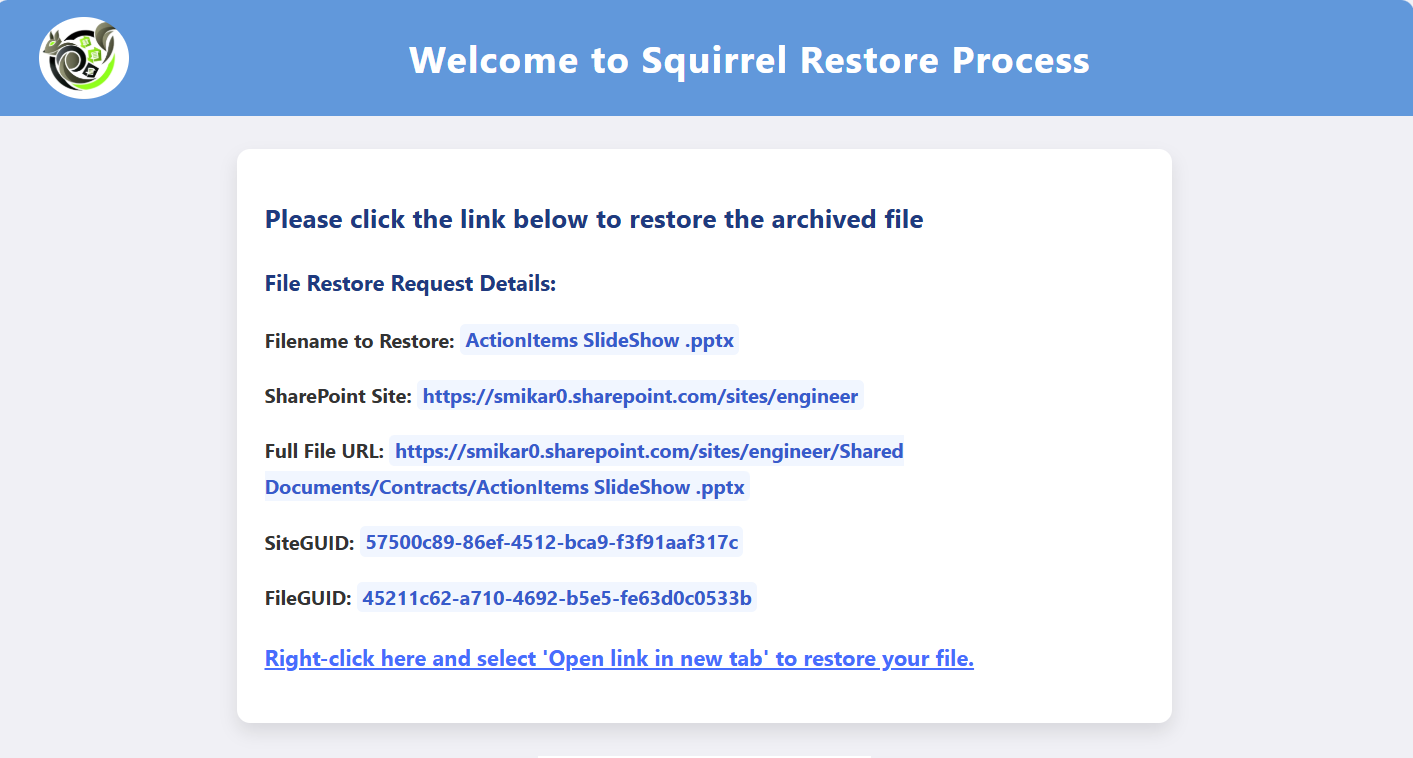
Q: How do users restore archived SharePoint files? A: Users click the stub file left in the original SharePoint location. The file rehydrates from Azure Blob Storage and is available in SharePoint within seconds. No IT ticket is required and no administrator action is needed.

Q: How long does it take to restore an archived SharePoint file? A: Individual file restores typically complete within seconds. Restoring an entire SharePoint site with a large volume of archived files may take longer depending on the total data volume — Squirrel provides progress updates in the dashboard throughout the process.

Q: Are restored files identical to the originals? A: Yes. Squirrel preserves the original file name, location, metadata, version history, permissions, and classification labels through the archiving process. Restored files are identical to the originals in every respect.

Q: Can end users restore archived files without IT involvement? A: Yes. Squirrel’s self-service restore feature allows end users to restore their own archived documents directly from within SharePoint by clicking the stub file. This eliminates helpdesk tickets for restore requests and gives users immediate access to their archived content.

Q: What happens to the stub file after a document is restored? A: Once a document is fully restored to SharePoint, the stub file is replaced by the full document. The document appears in SharePoint exactly as it did before archiving. If the document is archived again in the future, a new stub file is created.

Q: Can you restore a single file from an archived SharePoint site without restoring the whole site? A: Yes. Squirrel supports granular restore at the individual file level. Administrators can search for and restore specific files from an archived site without triggering a full site restore. This is useful for responding to specific legal or compliance requests without disrupting the archive.

Conclusion

Restoring archived files from Squirrel is an easy and efficient way to bring back data when needed. Whether for compliance, business continuity, or user access, the step-by-step process ensures that all previously archived files in a SharePoint Online site can be restored seamlessly while maintaining SharePoint’s structure.

Key Takeaways:

Selective Restoration – Only previously archived files are restored, ensuring no unnecessary changes.

Fast & Reliable – The restore process is efficient, even for large SharePoint sites.

Seamless User Experience – Files are returned to their original location with no manual intervention needed.

Complete Control – Administrators can monitor the progress and verify restoration integrity.

With Squirrel, your SharePoint archiving and restoration processes remain secure, efficient, and hassle-free.

Stay tuned for more Squirrel guides and best practices!

Conclusion

Restoring archived files from Squirrel is an easy and efficient way to bring back data when needed. Whether for compliance, business continuity, or user access, the step-by-step process ensures that all previously archived files in a SharePoint Online site can be restored seamlessly while maintaining SharePoint’s structure.

Key Takeaways:

Selective Restoration – Only previously archived files are restored, ensuring no unnecessary changes.

Fast & Reliable – The restore process is efficient, even for large SharePoint sites.

Seamless User Experience – Files are returned to their original location with no manual intervention needed.

Complete Control – Administrators can monitor the progress and verify restoration integrity.

With Squirrel, your SharePoint archiving and restoration processes remain secure, efficient, and hassle-free.

Stay tuned for more Squirrel guides and best practices!

Squirrel: The Smartest Way to Restore Your SharePoint Data – Fast, Reliable, and Hassle-Free!

Lost important SharePoint files? With Squirrel, you can instantly restore archived data and get your team back on track with minimal downtime. 

Squirrel for SharePoint Dashboard

No more struggling with missing files—Squirrel seamlessly rehydrates your SharePoint sites, ensuring all archived content is restored exactly where you need it.

Want to see Squirrel in Action?

How to Archive a SharePoint Site

How to Archive a SharePoint Site

Effortlessly Archive Entire SharePoint Sites

Managing SharePoint storage can be challenging as data grows over time. Archiving full sites ensures compliance, reduces costs, and keeps your SharePoint environment efficient without losing access to important files.

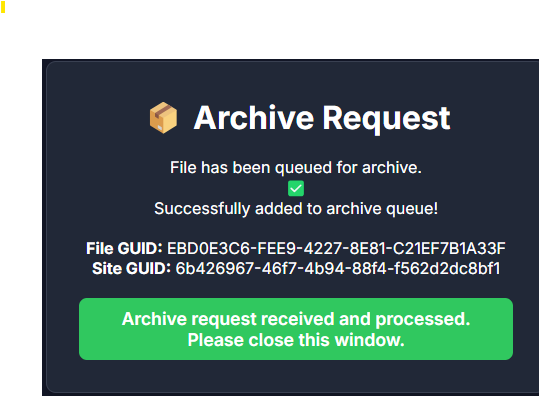
Archive Request Complete

Complete SharePoint Online Archiving


Managing SharePoint Online storage efficiently is crucial for maintaining an organized and cost-effective environment. Squirrel provides a powerful solution for archiving entire SharePoint Online sites, ensuring that your important data is preserved while reducing storage consumption. This guide walks you through the process of archiving a complete SharePoint Online site using Squirrel.

Understanding the Need for Archiving

SharePoint Online is a robust collaboration platform, but as data accumulates over time, it can become challenging to manage. Large volumes of documents, outdated files, and inactive sites consume storage, leading to increased costs and potential performance issues. Archiving these sites allows organizations to:

  • Optimize SharePoint storage usage

  • Improve system performance by reducing clutter

  • Maintain compliance with data retention policies

  • Easily restore data when necessary

Before proceeding, let’s look at how an unarchived SharePoint Online site appears.

As you can see, all files in the Engineer site are still available in their original form, meaning they have not yet been archived. Now, let’s walk through the steps to archive this site using Squirrel.

SharePoint UI Documents

Access the Squirrel Dashboard

Log into your Squirrel web portal, then navigate to the dashboard and go to Site Archive Settings, where you manage archive tasks.

The Squirrel dashboard provides a centralized interface for monitoring and managing archive operations. Here, you can see all available sites and choose the ones that need to be archived.

Squirrel Menu

Select the SharePoint Site to Archive

In this example, I will be archiving the Engineer site. Locate the site under Archive Policies and ensure it is available for archiving. Sites that are actively used may not need archiving immediately, so it’s important to evaluate which sites should be archived based on storage usage and activity levels.

Site Archive Settings

Initiate the Archiving Process

Once you’ve selected the site for archiving, it’s time to begin the process.

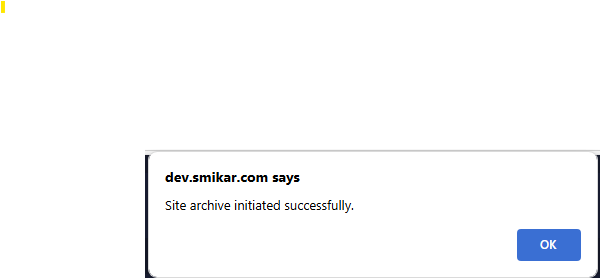
Click on the Archive button next to the Engineer site. A confirmation prompt will appear. Review the details to ensure the correct site is selected. Click OK to proceed.

After confirming, Squirrel will begin the archiving process. This may take some time depending on the size of the site and the number of files being archived.

Full Site Archive Prompt Confirmation

Monitor the Archiving Progress

Squirrel provides real-time monitoring so you can track the status of your archive job. 

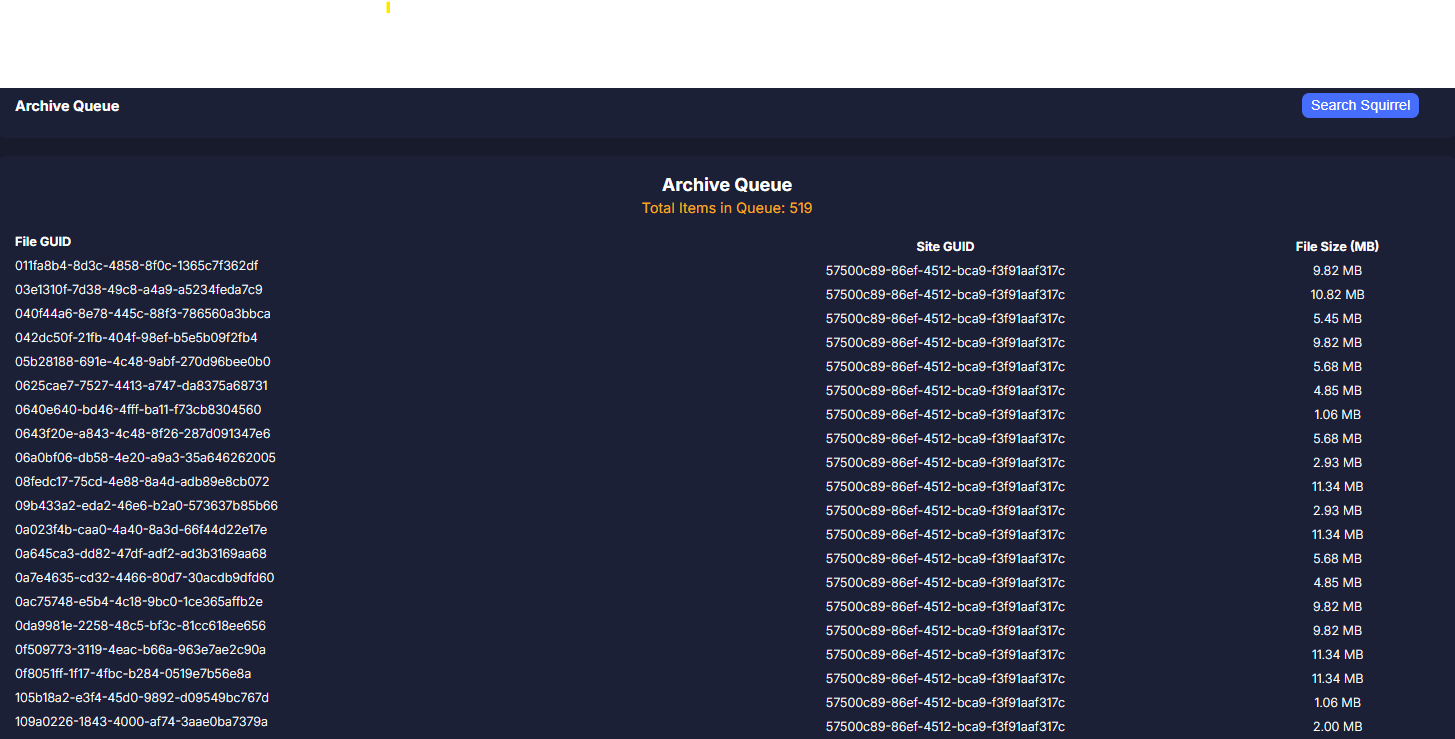
The site is now queued for archiving. You can check the progress in the Archive Queue section of the dashboard. The queue updates dynamically, so refreshing the page will show the latest progress.


Depending on the number of files, the archiving process might take a few minutes or hours. Once completed, files in SharePoint will be replaced with stub files, meaning they are archived and no longer consuming SharePoint storage.

Archive Queue

Verify the Archived Data

After the archive process completes, it’s important to verify the results. 

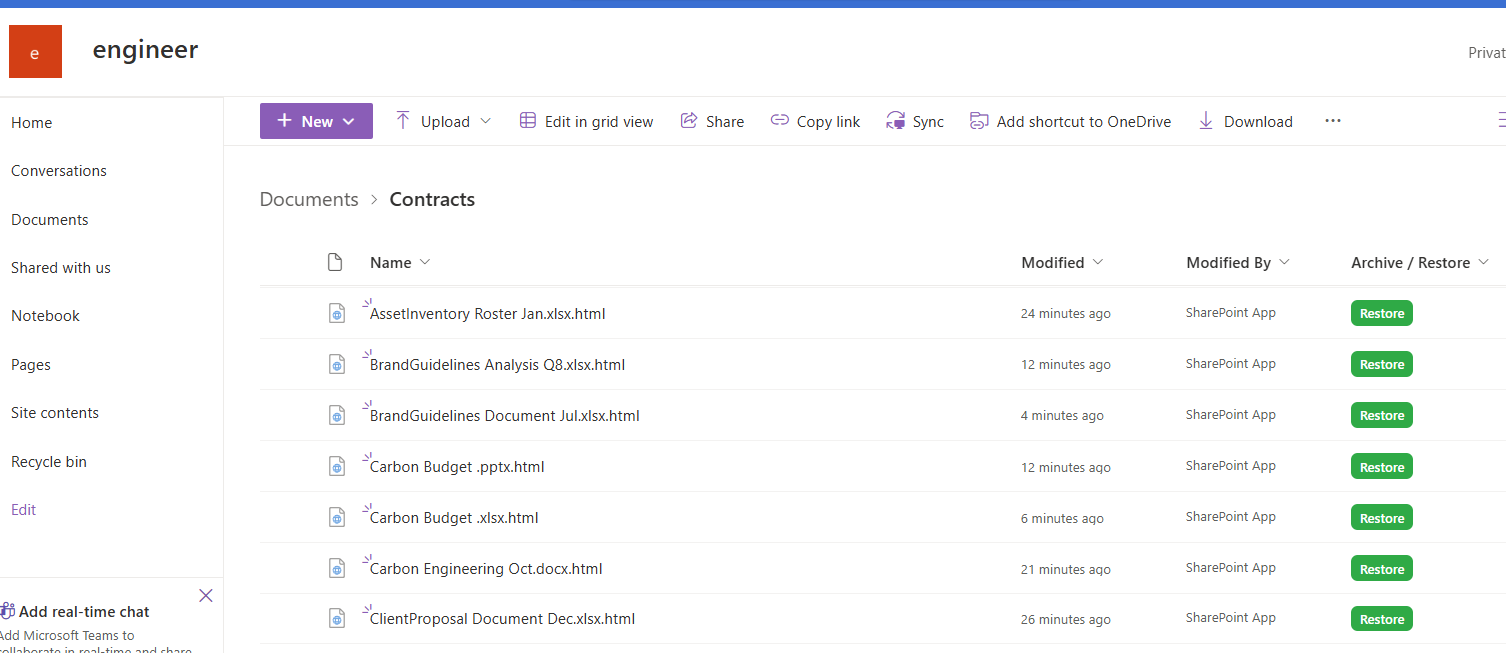
Navigate back to your SharePoint Online Document Library. Open any of the folders, and you will now see that the files have been replaced with stub files. These stub files act as placeholders, allowing users to restore files when needed without occupying SharePoint storage.

At this stage, the archiving process is complete, and your SharePoint site has been successfully optimized.

SharePoint Site Archived

Restore or Access Archived Files

One of the key benefits of Squirrel is its ability to restore files effortlessly. 

If a user needs a file that has been archived, they can simply click on the stub file or use the Restore button within the SharePoint Online UI. The system will automatically retrieve the archived version from Azure Blob Storage. Alternatively, an administrator can restore entire sites or specific folders from the Squirrel dashboard.

This ensures that data remains accessible while optimizing storage efficiency.

Stub Details

Conclusion

Archiving a complete SharePoint Online site with Squirrel is an efficient way to manage storage and ensure compliance with data retention policies. By following these steps, you can:

✅ Reduce SharePoint storage costs

✅ Improve site performance by removing inactive data

✅ Maintain compliance with regulatory requirements

✅ Ensure archived files remain accessible when needed

With Squirrel, organizations can maintain a clean and optimized SharePoint environment without losing access to important files. Try archiving your SharePoint sites today and experience the benefits firsthand!

Stay tuned for more Squirrel tips and guides!

Squirrel: Smart Archiving for SharePoint – Save Space, Stay Compliant!

Tired of SharePoint storage limits and rising costs? Squirrel helps you seamlessly archive entire sites while keeping your data accessible, secure, and compliant.

Squirrel Main Dashboard

Stop wasting space on inactive files! Squirrel automatically archives your SharePoint data, optimizing storage while ensuring seamless access when you need it.

Curious how much Squirrel can save you?