Microsoft 365 Archive vs Squirrel
Updated October 2026: Microsoft 365 Archive file-level archiving is generally available, an automatic file archive policy is in preview, the SharePoint reactivation fee was removed on 31 March 2025, and a reactivated file cannot be re-archived for 120 days. This comparison reflects Microsoft's current pricing and documented limitations, verified against Microsoft Learn.
Microsoft 365 Archive is Microsoft's native cold-storage feature for SharePoint. The site-level mode (whole-site hibernation) is generally available. The file-level mode is now generally available. Squirrel is a third-party archiver that moves SharePoint content into the customer's own Azure Blob Storage with stub files that work consistently across SharePoint, OneDrive sync, and Microsoft Teams, with scheduled, rule-based policies that go beyond the automatic file archive policy Microsoft has in preview. This post compares the two on the things that actually decide the call: what each can archive, whether policies are automated, how users get their files back, where the data ends up, what 10 TB costs on each, and which Microsoft 365 surfaces work with archived content.
Both products solve a real problem - SharePoint Online pricing charges $0.20 per GB per month over the entitlement, which gets expensive quickly - but they solve it differently. Microsoft 365 Archive is a storage tier inside SharePoint, with site-level and file-level operations. Squirrel is a policy-driven archive system that writes into Azure storage the customer owns, with stubs designed to work consistently across the SharePoint web UI, OneDrive sync, and Microsoft Teams.
For a comparison against the incumbent enterprise archiver in this space rather than Microsoft's native option, see AvePoint alternative for SharePoint archiving - it covers what AvePoint Opus does, where it stores archived data, and the constraint AvePoint themselves document around active retention policies. The wider field, including ShareGate and Archive360, is in Microsoft 365 Archive alternatives, and the Archive360 comparison is in Archive360 alternative for SharePoint archiving.
What Microsoft 365 Archive Covers Today
There are now two distinct modes inside Microsoft 365 Archive.
Site-level archive (generally available)
An administrator (or a retention policy) marks a SharePoint site as archived. The site is hibernated and, in Microsoft's own words, "content in this tier is no longer directly accessible to anyone." Site reactivation is administrator-initiated. Microsoft's archive states page documents it as instant for the first seven days ("Recently archived") and up to 24 hours after that. There has been no reactivation fee for SharePoint content since 31 March 2025; Microsoft's pricing page states that in its place "re-archiving any newly reactivated content is restricted for a four-month period." The site retains its metadata and permissions, and Microsoft Purview eDiscovery and Content Search can still reach archived content (with longer export times).
One caveat Microsoft documents matters for collaboration-heavy tenants: a SharePoint site connected to a Team that has private or shared channels cannot be cleanly archived. In the SharePoint admin centre, archiving such a site is blocked outright; via PowerShell or the Graph API only the main site (and its standard channels) is archived, while the private and shared channel sites are left active and unarchived. Squirrel archives content across all of these surfaces, including private channels.
File-level archive (generally available)
Microsoft announced file-level archive on 30 March 2026, and it reached general availability in mid-2026. Per Microsoft's management page, it is "enabled by default for all SharePoint sites when Microsoft 365 Archive is enabled." The operating model is materially different from the site-level mode:
- The archive action is initiated by end users with edit permissions, file by file or with a folder-level "Archive all files" action, or scripted by an admin through PowerShell and the Graph API. The generally available mode does not archive anything by age or type on its own; an automatic policy is in preview and covered below.
- A marker is left where the file used to be. Any user with read access can reactivate it from the SharePoint or OneDrive web UI, and there is no fee to do so.
- Reactivation is instant for the first seven days. After that, Microsoft documents it as taking up to 24 hours, and up to 48 hours for large folders.
- "Files that are reactivated cannot be archived again for 120 days."
- File-level archive is for SharePoint sites only - not OneDrive.
- File-level archive does not reduce site storage usage. Microsoft's FAQ is explicit: "Archiving a file doesn't reduce reported storage usage, change storage calculations, or affect quota enforcement." At tenant level the bytes are reclassified from active to archived storage, which is what the archive rate applies to.
- Microsoft's FAQ answer on Copilot is one sentence: "No, archived content isn't used by Microsoft Copilot."
Microsoft also documents several limitations for file-level archive. Archived files do not behave correctly in Word Online, PowerPoint Online, the Teams, OneDrive, and SharePoint mobile apps, macOS with the OneDrive sync client, older Windows versions (Windows 10 and earlier) with the OneDrive sync client, older Office desktop apps that have not been updated since March 1, 2026, and Clipchamp and Power BI. OneNote files, SharePoint pages, SharePoint agents, and content in the Site Assets library cannot be archived at the file level at all. Microsoft's own guidance is to "use file-level archive thoughtfully and ensure users understand how to reactivate files at their original location."
Some of these gaps may close over time, but the coverage profile remains narrower than mature third-party archivers offer in the SharePoint surfaces they support.
Automatic file archive policy (preview)
Microsoft is adding a policy that archives files automatically, which changes the "manual only" picture above. Per Microsoft's cmdlet reference, it archives files "based on their last access date", it is a SharePoint Advanced Management feature, and it is marked as currently in preview. Microsoft also has a second automatic route, Purview retention archiving, which moves files under a retention policy into the same tier: see Purview retention archiving for SharePoint. The full walkthrough of the policy cmdlets, licensing and limits is on SharePoint file archive policy.
What each side can filter on:
| Filter | Microsoft's file archive policy (preview) | Squirrel |
|---|---|---|
| Last accessed | 6 to 48 months (default 24) | Days, optional |
| Last modified | Not documented | Days (default 730) |
| File type | Include and exclude lists | Allow and deny lists per site, plus a tenant-wide exclude list |
| File size | Not documented | Minimum size, tenant-wide or per site |
| Folder or library | Not documented; scope is by site | Exclude libraries and folders, with wildcard folder patterns |
| Filename pattern | Not documented | Substring match on the full path, tenant-wide |
| Sensitivity labels | Not documented | Skips files carrying chosen MIP labels |
| Scope | All SharePoint sites, all OneDrive sites or selected sites, with site exclusions | Site inclusion list, with per-site policies that override the tenant defaults |
| Test before enabling | What-If mode and run reports | Preview, which counts and changes nothing |
| Types that can never be archived | .js, .css, .json, .aspx, .xsl, OneNote types and others, whatever you configure | OneNote notebooks, SharePoint pages, Site Assets, lists and agents are out of scope; no built-in extension block list is documented |
Squirrel's filters come from its administration guides. Microsoft's come from its cmdlet reference and may change before general availability.
The gap narrows to criteria and destination. Microsoft keeps archived files in its own tier inside SharePoint, where they are excluded from Copilot and cannot be archived again for 120 days after reactivation. Squirrel moves the bytes into Azure Blob Storage in your own subscription and leaves a stub.
Where Squirrel Goes Beyond Microsoft 365 Archive
Six properties carry the comparison.
1. Scheduled, rule-based policy automation. Squirrel archives run on a schedule. Policies can target by last modified date, last accessed date, file type, folder path, library, or whole site - in any combination - with a minimum file size, filename patterns and sensitivity-label skips on top. Microsoft's automatic file archive policy is in preview and, as documented so far, archives by last-access age and file type, scoped by site. The generally available file-level mode is still clicked by an end user, one file or folder at a time, or triggered through PowerShell and Graph scripts an admin writes and runs. Site-level archive can be driven by retention policies but only at whole-site granularity.
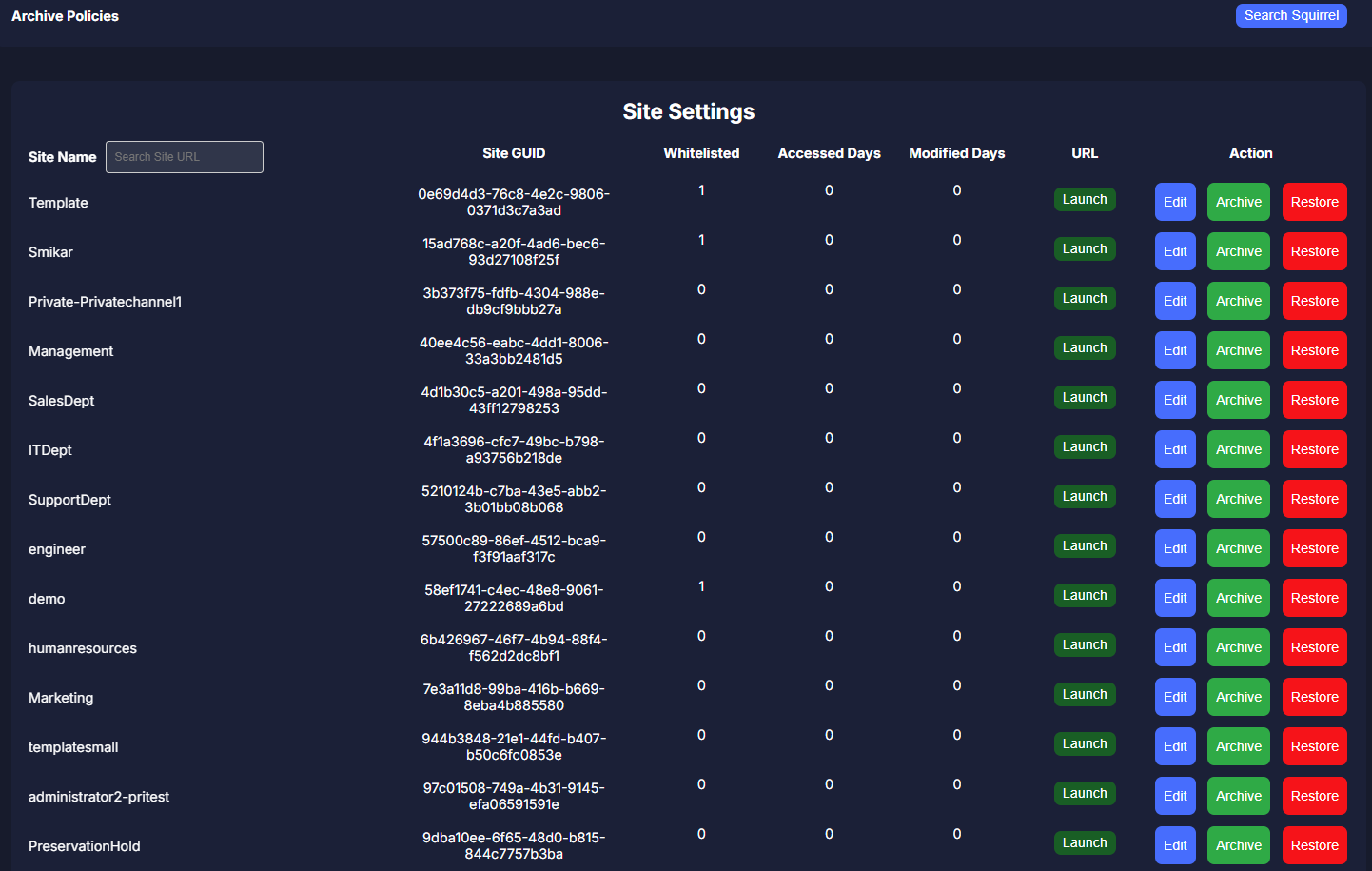
2. Stubs that work consistently across SharePoint surfaces. Squirrel stubs are visible in the SharePoint web UI, the OneDrive sync client on Windows (current and older) and macOS, and Microsoft Teams (including private channels). Microsoft 365 Archive's file-level marker has documented gaps in macOS OneDrive sync, older Windows OneDrive sync, all three mobile apps, Word Online, PowerPoint Online, Clipchamp, and Power BI. In practice this matters most for the many users who work in a SharePoint library synced to their device through OneDrive: with Microsoft 365 Archive, an archived file cannot be reliably reactivated from that synced folder - the user is pushed back to the SharePoint web UI to get it. Squirrel uses stubbing instead: a lightweight placeholder file stays in the OneDrive-synced folder, so OneDrive sync doesn't break and the folder tree stays intact in File Explorer. Users click the stub to rehydrate the file on demand from Azure - restoring from where they already work, not from a separate web UI.
3. End-user restore in seconds - always. Both Squirrel and M365 Archive file-level support end-user-initiated restore, and neither charges a fee for it. The difference is timing. Squirrel restores complete in seconds regardless of how long the file has been archived. Microsoft's file-level archive reactivates instantly within the first seven days but can take up to 24 hours after that, with a 120-day block before a restored file can be re-archived.
4. Customer-owned Azure storage. Archived data is written into the customer's own Azure Blob Storage account in the customer's own Azure subscription. The customer chooses the region and the access tier (Hot, Cool, Cold, or Archive). M365 Archive keeps content inside SharePoint at a tier Microsoft sets. If a customer stops using Squirrel, the archive stays in their own storage account and Squirrel bulk-restores sites, libraries or folders back into SharePoint before the subscription ends.
5. Copilot can still see archived content via Nutshell. Microsoft's FAQ states that "archived content isn't used by Microsoft Copilot" - files archived with M365 Archive disappear from Copilot's knowledge. Squirrel can be combined with the Nutshell AI summary feature, which embeds an AI-generated summary of each archived document into the stub. Because the stub is still indexed by SharePoint Search and visible to Copilot, archived content remains discoverable in Copilot answers even after the underlying file has been moved to Azure.
6. The bytes actually leave SharePoint. Microsoft's file-level archive "can't be used to reduce storage usage or store data beyond a site's allocated quota"; the file is reclassified, not moved. Squirrel moves the file body, its version chain and its search-index weight into the customer's Azure storage. The stub keeps the item in place, so item counts, the 5,000 list-view threshold and the 300,000-item sync guidance are unchanged, but the site's storage volume drops. That is the difference between an archive that changes the bill and one that changes the estate.
Side-by-Side Comparison
| Capability | Microsoft 365 Archive | Squirrel |
|---|---|---|
| Site-level archive | Generally available | Yes |
| File-level archive | Generally available (manual or scripted); automatic policy in preview | Generally available (scheduled policy or end user) |
| Teams sites with private/shared channels | Only partially supported - main site archives, private and shared channel content stays active | Supported, including private channels |
| Who initiates file archive | End user with edit permissions, or admin PowerShell/Graph script; an automatic last-access policy is in preview | Scheduled, rule-based lifecycle policy (or end user) |
| Lifecycle policy automation | Site-level: retention/inactivity. File-level: last access and file type, scoped by site (preview). | Last modified, last accessed, file type, folder path, library, site |
| Archive rate | $0.05 per GB per month, above the included allocation | Azure tier price on the customer's own invoice (Cool is about $0.01 per GB per month), plus the Squirrel subscription |
| Marker / stub in SharePoint web | Yes (file-level archive) | Yes |
| OneDrive sync (current Windows) | Yes | Yes |
| OneDrive sync (macOS) | Documented limitation | Yes |
| OneDrive sync (older Windows) | Documented limitation | Yes |
| Microsoft Copilot visibility | Excluded - "archived content isn't used by Microsoft Copilot" | Discoverable via Nutshell AI summary in stub |
| End-user restore | Yes (file-level); sites need a SharePoint admin | Yes |
| Restore time | First 7 days: instant. After that: up to 24 hours, up to 48 hours for large folders. Site reactivation: the same. | Seconds |
| Reactivation fee | None for SharePoint since 31 March 2025 (unlicensed OneDrive accounts: $0.60 per GB) | None |
| Re-archive after restore | Blocked for 120 days (files) / four months (reactivated content) | No lockout; policy can archive it again |
| Effect on site storage usage | Site-level: bytes reclassified from active to archived. File-level: none. | Archived bytes leave SharePoint; the stub keeps the item in place |
| Archive scope | Files in SharePoint sites (file-level), whole sites (site-level). Cannot archive OneNote files, SharePoint pages, SharePoint agents, or Site Assets. | Document library content. OneNote, SharePoint pages, and Site Assets are out of scope for both products. |
| Storage location | Inside SharePoint, at Microsoft's archive tier | Customer's own Azure Blob Storage subscription |
| Storage tier choice | Single archive rate set by Microsoft | Hot, Cool, Cold, or Archive - customer chooses |
| Deployment model | Native Microsoft 365 feature (pay-as-you-go billing through an Azure subscription) | Managed SaaS; archived data written to the customer's own Azure Blob Storage account |
How Users Actually Restore a File
Microsoft 365 Archive (site-level). An administrator opens the SharePoint Admin Center, locates the archived site, and initiates reactivation. Within the first seven days it is instant; after that Microsoft documents it as taking up to 24 hours. End users have no direct path - they see "The site is archived" and raise a ticket.
Microsoft 365 Archive (file-level). The user sees a marker where the file used to be, clicks to reactivate, and waits. For files archived less than 7 days, the file is back at once. For files archived 7 days or more, Microsoft documents reactivation as taking up to 24 hours. There is no fee, but after the file is restored it cannot be re-archived for 120 days. If the user is on macOS, an older Windows version, mobile, Word Online, PowerPoint Online, Clipchamp, or Power BI, the experience may not work as expected - Microsoft has documented these surfaces as having known limitations.
Squirrel. The user opens SharePoint, OneDrive sync, or Microsoft Teams. The file is right where it was, shown as a stub. Click. Within seconds, the file is rehydrated from the customer's Azure Blob Storage and opens normally, with its version history. No 7-day threshold, no 24-hour worst case, no 120-day re-archive lockout. The same restore button is available from the SharePoint command bar to rehydrate an entire folder or library in one action.
Lifecycle Policies
Microsoft 365 Archive policy support depends on the mode:
- Site-level archive can be driven by retention policies or administrator action. Granularity is limited to whole sites.
- File-level archive is a manual end-user action or PowerShell/Graph scripting in general availability. A policy that archives files not accessed for a set number of months, optionally filtered by file type, is in preview.
Squirrel policies are rule-based and combinable, running on a schedule:
- Archive files in this library that have not been modified in 365 days.
- Archive files of these types (PSD, MOV, DWG, ZIP) regardless of age.
- Archive everything in this folder path.
- Archive files in this site that have not been accessed in 180 days.
The result is an automated archive pipeline that does not require administrator click-through or user click-through per file or per site.
Where the Data Ends Up
This is the data-ownership question that often decides the call for enterprises in regulated sectors.
Microsoft 365 Archive keeps archived content inside SharePoint, in the same multi-tenant infrastructure as the active workload, billed at the archive rate. Microsoft controls the region (it follows the SharePoint tenant), the storage tier, and the keys.
Squirrel writes archived content into the customer's own Azure Blob Storage account in the customer's own Azure subscription. The customer chooses the region. The customer chooses the access tier - Hot for actively-restored content, Cool or Cold for typical archive workloads, Archive for long compliance retention. The customer can apply their own Azure-level controls (immutable storage, lifecycle management, network restrictions) on top. There is no SmiKar-hosted copy of customer content. Squirrel is delivered as a managed SaaS - the archived data is written directly to the customer's own Azure Blob Storage account in their tenant. Squirrel is also listed on the Azure Marketplace.
If a customer stops using Squirrel, the archive stays in their own Azure storage account. Before the subscription ends, Squirrel bulk-restores sites, libraries or folders back into SharePoint. There is no export or exit fee.
A 10 TB worked example
Take a tenant that is 10 TB (10,240 GB) over its included SharePoint allocation, with that 10 TB made up of files nobody has touched in over a year. Here is what each option does with it, using Microsoft's published archive rate and Azure Cool list pricing.
| Microsoft 365 Archive | Squirrel | |
|---|---|---|
| Monthly storage cost for 10 TB | 10,240 GB x $0.05 = $512 a month on the Microsoft 365 pay-as-you-go meter | 10,240 GB x about $0.01 on Azure Cool = about $102 a month on the customer's own Azure invoice, plus the Squirrel subscription |
| Time to first access | Instant within the first 7 days, then up to 24 hours | Immediate from the stub |
| After a reactivation | Cannot be re-archived for four months (120 days for a file) | The file can be archived again by policy |
| Effect on quota | Site-level: bytes reclassified as archived. File-level: none | The bytes leave SharePoint |
| Copilot | Archived content is not used | With Nutshell, the summary stays discoverable |
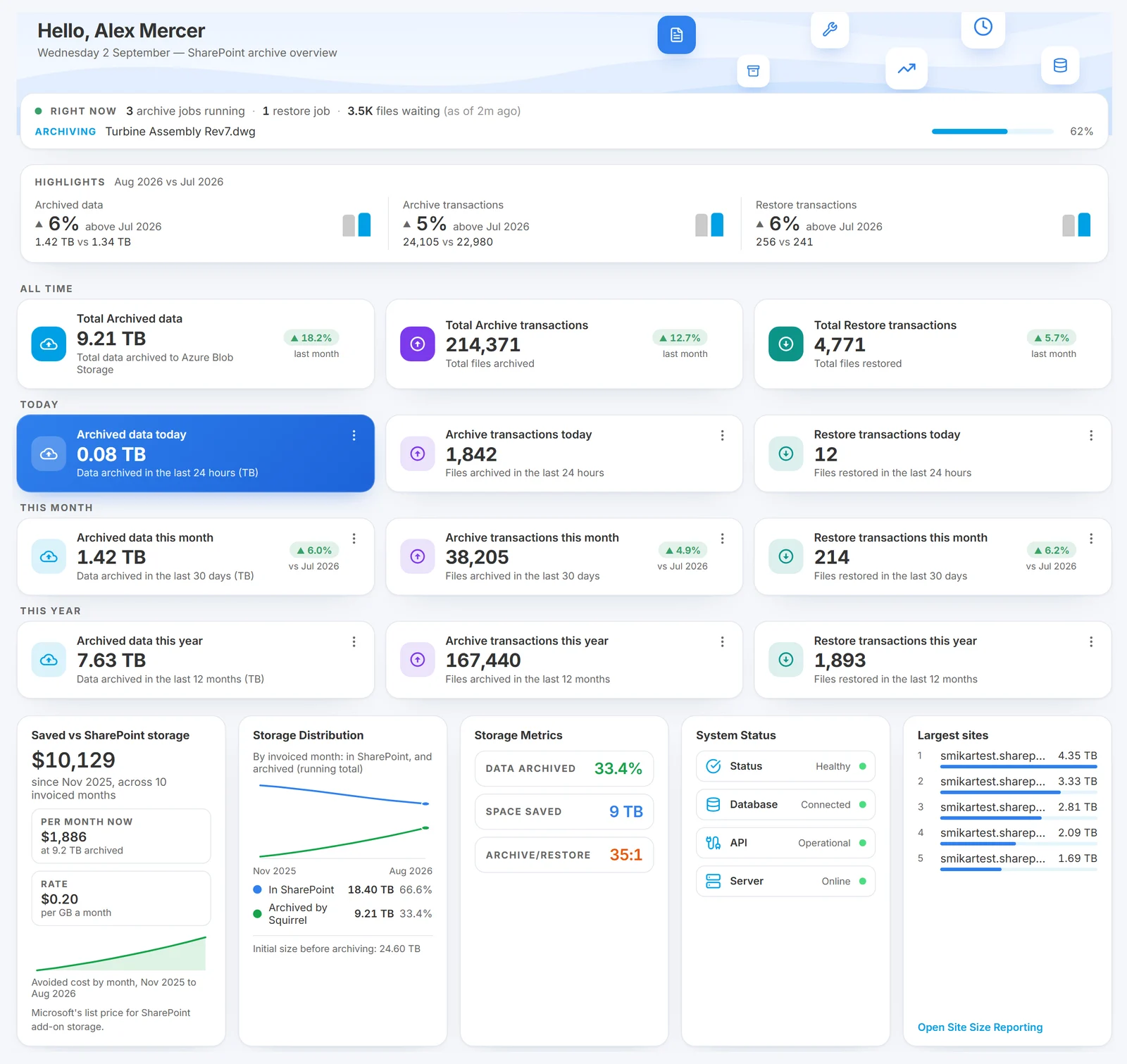
Three caveats. Microsoft's meter only runs once archived plus active storage exceeds the allocation, so a tenant still under its allocation pays nothing for Microsoft 365 Archive; the comparison bites once you are over it, which is the position that sends people looking. Azure Cool list prices vary by region and the figure above is the storage line only; check the Azure pricing page for your region. And Squirrel has no public per-GB price - the subscription is quoted per engagement, which is why the table says "plus the Squirrel subscription" rather than a number. To model your own tenant, use the SharePoint storage cost calculator.
What Microsoft says about Azure Blob, answered
Microsoft's FAQ has an entry titled "How does Azure Blob compare to Microsoft 365 Archive?" It makes the case for keeping data in place in SharePoint on four points. They are fair points, and each deserves a straight answer.
"Archiving happens quickly, usually within minutes, regardless of the amount or size of content being archived." True, because a site archive is a reclassification: no bytes move. Squirrel physically moves the file body into the customer's Azure storage, so a large first pass takes longer than a flag change. After that, policies run on a schedule and the archive keeps pace with the estate without anyone clicking. The trade is a longer first pass for an archive that actually reduces what SharePoint holds.
"No need to manage data in a separate security and compliance domain, therefore allowing your security and compliance tooling to operate seamlessly - including eDiscovery, retention policies, and more." Squirrel writes into the customer's own Azure subscription, under the same Microsoft Entra tenant and in the same region as the SharePoint tenant. There is no vendor cloud and no second identity system; the storage account sits under the same Azure controls as the rest of the customer's estate. Purview retention labels and legal holds survive archive and restore, and the stub, which stays in SharePoint, is what Purview sees. One concession: full-text eDiscovery of an archived file's body needs the file restored first. The stub carries the filename, metadata, dates and, with Nutshell, a summary; it does not carry the full body text.
"Admin search indexes remain intact." The stub stays in the SharePoint search index with the original filename, metadata and dates, and with Nutshell a summary of the content, so search still finds it. The same index feeds Copilot, which is where the two approaches part: Microsoft's own archive is excluded from Copilot by design; a Nutshell stub is not.
"Sites are archived and rehydrated without loss of metadata, security, versioning, and more." Squirrel's stub preserves the file's metadata and dates, inherits its permissions from the library, and restore brings the original back with its full version history. Where Microsoft's point lands hardest is a whole dormant site: if nobody needs anything from it day to day, hibernating it in place with site-level archive is the simpler move, and Squirrel does not argue with that. Squirrel's value is in live sites, where old files sit next to active work and the site cannot be hibernated as a unit.
Which to Choose
| Scenario | Best fit |
|---|---|
| You need scheduled, rule-based archive policies | Squirrel |
| You need archive coverage across SharePoint web, OneDrive sync, and Microsoft Teams | Squirrel |
| You need archived content discoverable by Microsoft Copilot | Squirrel (via Nutshell) |
| You need restores to complete in seconds, not "up to 24 hours" | Squirrel |
| You need archiving to reduce site storage usage at file level | Squirrel |
| You need archived data in your own Azure subscription | Squirrel |
| You only need to hibernate occasional inactive sites at a reduced rate | Microsoft 365 Archive |
| Your whole site is dormant and nobody needs it day to day | Microsoft 365 Archive (site-level) |
| You want a native Microsoft 365 feature with no third-party deployment | Microsoft 365 Archive |
| Your users mostly archive their own files individually in modern desktop apps | Microsoft 365 Archive (file-level GA) |
For most enterprises managing SharePoint storage at scale, the deciding factors are policy automation, surface coverage, restore speed, Copilot visibility, and data ownership - which is why Squirrel is the more common choice in that segment.
Frequently Asked Questions
Does Microsoft 365 Archive now support file-level archive?
Yes. Microsoft announced file-level archive on 30 March 2026, and it reached general availability in mid-2026. It is enabled by default for all SharePoint sites when Microsoft 365 Archive is enabled. Users with edit permissions can archive individual files or a whole folder, any user with read access can reactivate them, and admins can script it through PowerShell/Graph. There is no generally available automated lifecycle policy; an automatic last-access policy is in preview. Several Microsoft 365 surfaces (Office Online, mobile apps, macOS OneDrive sync, older Windows OneDrive sync) have documented limitations, and file-level archive does not reduce site storage usage.
How long does Microsoft 365 Archive take to restore?
For both sites and files, reactivation is instant for the first seven days after archiving. After that, Microsoft documents reactivation as taking up to 24 hours, and up to 48 hours for large folders. A reactivated file cannot be archived again for 120 days. Squirrel restores are initiated by end users from SharePoint, OneDrive sync, or Microsoft Teams and complete in seconds regardless of how long the file has been archived.
Does Microsoft 365 Archive charge a reactivation fee?
Not for SharePoint content. Microsoft removed the reactivation fee on 31 March 2025 and replaced it with a four-month restriction on re-archiving reactivated content (120 days for an individual file). The change does not apply to OneDrive: reactivating an archived unlicensed OneDrive account is billed at $0.60 per GB, plus $0.05 per GB per month for the archived storage. Squirrel charges no restore fee, and restoring a file does not block it from being archived again by policy.
Does Microsoft 365 Archive work with Microsoft Copilot?
No. Microsoft's FAQ states: "No, archived content isn't used by Microsoft Copilot." Once content is archived with Microsoft 365 Archive, it is excluded from Copilot's knowledge. Squirrel combined with Nutshell AI embeds an AI summary of each archived document into the SharePoint stub, so archived content remains discoverable by Copilot and SharePoint Search even when the underlying file has been moved to Azure. The full explainer with both failure modes (M365 Archive's deliberate exclusion and standard HSM archiving's index removal) is in Microsoft Copilot and archived SharePoint content: the visibility gap.
Which Microsoft 365 surfaces does Squirrel work in?
Squirrel's stub files appear in the SharePoint web UI, the OneDrive sync client on Windows (current and older) and macOS, and Microsoft Teams (including private channels). Squirrel does not place stubs in Office Online (Word Online, PowerPoint Online, Excel Online) or Office desktop apps - users access and restore archived files through the SharePoint or OneDrive sync surfaces where the stub is visible.
Can OneNote files, SharePoint pages, and Site Assets be archived?
With Microsoft 365 Archive's file-level mode, no - Microsoft documents these as unsupported. Squirrel is also document-library-focused and does not archive OneNote notebooks, SharePoint pages, SharePoint agents, or Site Assets. For these content types, both products leave them in their original location.
Where is the archived data physically stored with Squirrel?
In the customer's own Azure Blob Storage account, in the customer's own Azure subscription, in the region the customer chooses. There is no SmiKar-hosted copy of the data.
Does Squirrel encrypt archived content?
Yes. Content is encrypted and compressed before being written to Azure Blob Storage. SmiKar holds the encryption keys for archive operations and provides each customer with a copy of their keys for independent access.
Can users archive files themselves, or only administrators?
Both. Squirrel runs scheduled policies set by administrators, and also exposes an archive button in SharePoint and Teams that end users can use to archive their own content.
What happens if we stop using Squirrel?
The archive stays in the customer's own Azure Blob Storage account. Before the subscription ends, Squirrel bulk-restores sites, libraries or folders back into SharePoint, so nothing is left as a stub without a service behind it. There is no export or exit fee.
Does Squirrel affect SharePoint search?
No. Stub files remain in SharePoint and are indexed by SharePoint search, so archived content continues to appear in search results.
What are the limitations of Microsoft 365 Archive?
The main Microsoft 365 Archive limitations documented by Microsoft are: no generally available automated lifecycle policy (file-level archive is user-initiated or scripted, and a last-access policy is in preview); reactivation that is instant for seven days but then takes up to 24 hours, for files and for sites; a 120-day block before a restored file can be re-archived, and four months for reactivated site content; no reduction in site storage usage from file-level archive; and known surface gaps where archived files do not behave correctly - macOS and older Windows OneDrive sync, the SharePoint, OneDrive and Teams mobile apps, Word Online, PowerPoint Online, Clipchamp, and Power BI. OneNote files, SharePoint pages, SharePoint agents, and Site Assets cannot be archived at all. Archived content is also excluded from Microsoft Copilot.
Is there a Microsoft 365 Archive alternative?
Yes. Squirrel is a Microsoft 365 Archive alternative built for enterprises that need scheduled, rule-based archive policies, consistent stub coverage across SharePoint web, OneDrive sync, and Microsoft Teams, second-level restores with no re-archive lockout, Copilot visibility via Nutshell AI summaries, and archived data stored in the customer's own Azure Blob Storage. The head-to-head above covers M365 Archive vs Squirrel on every one of those points. Microsoft 365 Archive remains the simpler fit when you only need to hibernate the occasional retired site at Microsoft's reduced rate.
Related reading
- Microsoft 365 Archive alternatives for SharePoint
- Purview retention archiving for SharePoint (MC1472601) - how retention policies can now archive inactive SharePoint files into Microsoft 365 Archive, and the Copilot indexing trade-off.
- SharePoint Online archiving - the complete enterprise guide
- SharePoint document lifecycle
- How to archive a complete SharePoint Online site with Squirrel
- Restore an archived SharePoint site
- OneDrive quota enforcement July 2026 (MC1310684)
- Exchange Online Archiving: what it is and what it does not cover
- Microsoft 365 backup vs archive vs retention vs inactive mailbox - what each one actually does, and which of them reduces storage.
- OneDrive archiving: how to archive OneDrive, and the gaps - Microsoft 365 Archive excludes OneDrive; the real options for active users and leavers.
- Archive360 alternative for SharePoint archiving - the enterprise governance platform compared with Squirrel.
See Real Customer Outcomes
Three Squirrel customers across petabyte enterprise, FTSE 250 industrial, and mid-market financial services have eliminated over $2.1 million per year in Microsoft 365 storage overage between them. Read the customer case study compilation - including a Fortune 500 healthcare brand with a 1.4+ PB SharePoint estate, a FTSE 250 engineering group whose tenant went from 460 TB to 165 TB, and a mid-market firm using Squirrel during a planned file-server migration to SharePoint Online.
Want to Cut SharePoint Storage Costs?
Mark Smith co-founded SmiKar Software in 2015 and has spent the past decade helping organisations solve Microsoft 365 data management challenges. He works with the SmiKar team to build solutions for SharePoint archiving, storage optimisation, governance and compliance, supporting customers from growing businesses through to Fortune 500 enterprises.
More about SmiKar