Microsoft 365 Departed User Archiving
When an employee leaves your organisation, a clock starts ticking. Microsoft begins deleting their data — OneDrive files, Exchange Online emails, Teams conversations — within days of their account being disabled. For most large enterprises this is happening continuously, quietly, and without IT teams necessarily knowing until someone asks for data that no longer exists.
This guide covers everything IT leaders and administrators at large enterprises need to know about Microsoft 365 departed user archiving: what data is at risk, how long you have before it is deleted, what Microsoft’s native tools can and cannot do, how to automate the entire archiving process, and how to make a decision that satisfies your compliance team.
What Is Microsoft 365 Departed User Archiving?
Microsoft 365 departed user archiving is the process of capturing and preserving an employee’s OneDrive, Exchange Online, and Teams data when they leave your organisation — before Microsoft’s deletion timelines expire and that data is permanently lost.
Unlike standard document archiving, departed user archiving is triggered by a people event rather than a content policy. The moment an employee’s account is disabled in Microsoft Entra ID, the clock starts. Without an archiving solution in place, your organisation has a narrow window to capture that data before it is gone forever.
For large enterprises with ongoing staff turnover, this is not a one-time exercise. It is a continuous operational requirement that affects every departure — resignations, redundancies, retirements, and contract endings alike.
What Data Is at Risk When an Employee Leaves?
OneDrive for Business
OneDrive files belonging to a departed user are retained for 93 days after their account is disabled. After that Microsoft permanently deletes them. During the 93-day window an administrator can access and copy the files, but this requires manual intervention before the deadline.
Exchange Online
Exchange Online mailboxes follow a different timeline. If no licence or retention policy is in place, the mailbox is typically soft-deleted 30 days after the account is disabled and permanently deleted 30 days after that. Emails, calendar items, contacts, and tasks are all at risk.
Microsoft Teams
Teams channels the departed user participated in remain accessible to other team members. However, private chat messages and files stored in the departed user’s personal OneDrive are subject to the same deletion timelines as their OneDrive content. Once those timelines expire, the chat history and associated files cannot be recovered.
Microsoft’s Default Deletion Timelines
| Data Type | Default Retention After Account Disabled | Permanently Deleted |
|---|---|---|
| OneDrive files | 93 days | Day 93 |
| Exchange Online mailbox | Soft-deleted at 30 days | Permanently deleted at 60 days |
| Teams private chat history | Tied to OneDrive deletion | Day 93 |
| Teams channel content | Retained while channel exists | When channel or site is deleted |
Why Manual Departed User Data Management Fails at Scale
Most organisations handle departed user data in one of three ways, all of which carry significant cost or risk.
Keeping licences active
Keeping a Microsoft 365 licence active after an employee leaves preserves all their data indefinitely. The problem is cost. At $36 per user per month for Microsoft 365 E3, retaining 100 departed users on active licences for an average of three months while IT handles manual data management costs over $10,000 per year in unnecessary licence spend — and that is before accounting for the IT time involved.
Manual data export
IT teams can manually export OneDrive files, Exchange mailboxes, and Teams data before an account is disabled. The problem is scale and consistency. For enterprises processing dozens of departures per month, manual export is time consuming, error prone, and relies entirely on IT remembering to do it before the account is disabled or the deletion window closes. One missed departure can mean permanently lost data.
Microsoft retention policies
Microsoft Purview retention policies can prevent data from being deleted after an account is disabled. However they require careful configuration, add complexity to your Purview environment, do not necessarily allow you to remove the licence, and do not provide a searchable, organised archive of departed user data that HR, legal, or management teams can easily access.
What a Proper Departed User Archiving Solution Does
A purpose-built Microsoft 365 departed user archiving solution automates the entire process — detecting departures, capturing data, organising it into a searchable archive, and confirming completion so licences can be safely removed. Here is what it should deliver:
- Automatic detection of disabled accounts in Microsoft Entra ID with no manual trigger required
- Archiving of OneDrive, Exchange Online, and Teams data in a single automated workflow
- Storage of archived data in your own Azure Blob Storage — not a third-party vendor’s infrastructure
- Searchable, organised archive accessible to authorised HR, legal, and IT staff
- Confirmation notification when archiving is complete so licences can be removed immediately
- Full audit trail of every archiving action for compliance and governance purposes
- Scalability to handle high volumes of departures without additional IT workload
- Compatibility with Microsoft Purview legal holds and eDiscovery
How Chipmunk Automates Microsoft 365 Departed User Archiving
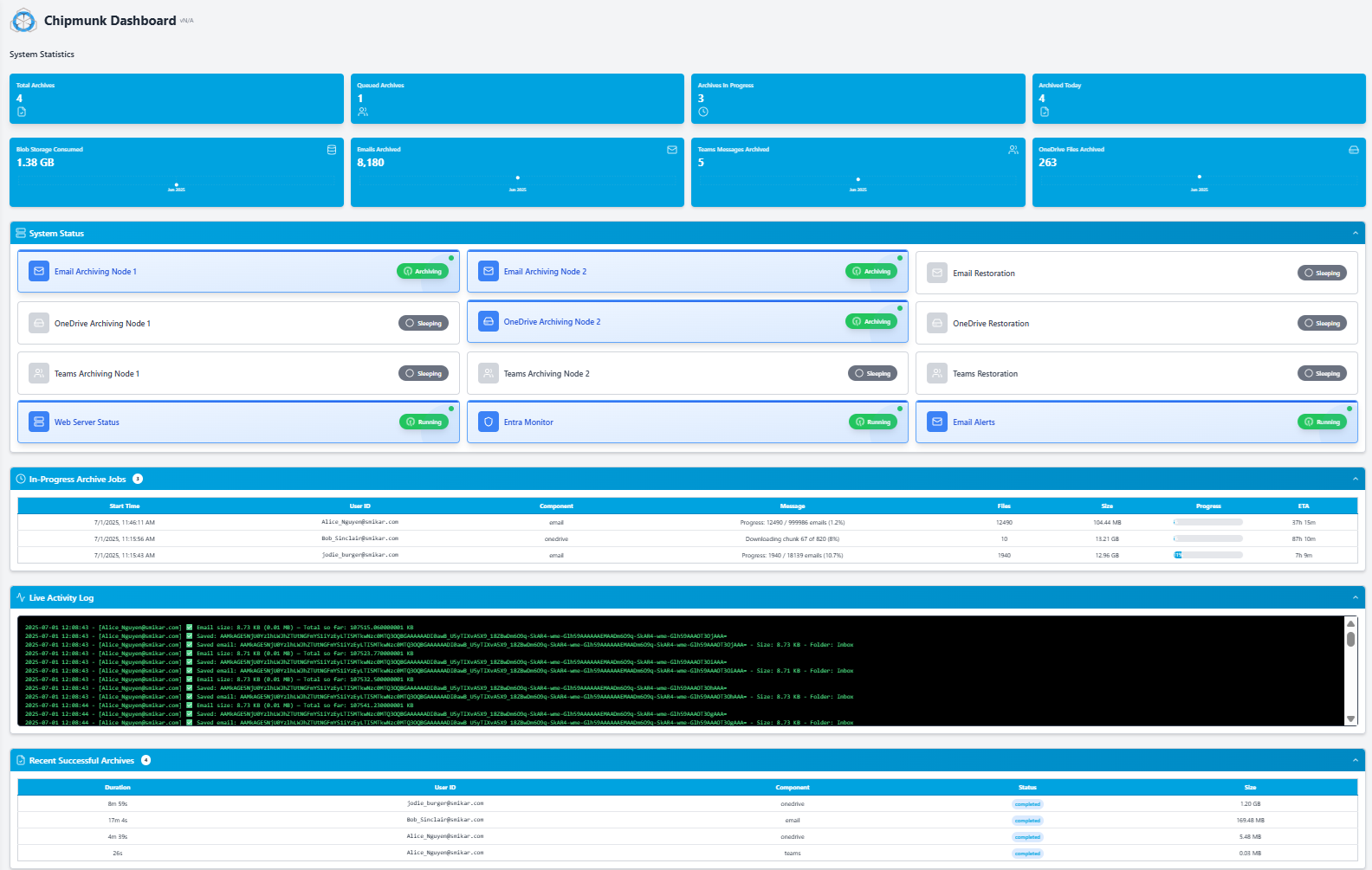
Chipmunk is SmiKar’s purpose-built Microsoft 365 departed user archiving solution. It monitors your Microsoft Entra ID continuously and automates the entire archiving workflow the moment an account is disabled.
Automatic departure detection
Chipmunk monitors your Entra ID for accounts that have been disabled or deactivated. The moment a departure event is detected, Chipmunk creates an archiving job automatically. No manual trigger is required from your IT team.
Complete data capture
Chipmunk captures the full contents of the departed user’s OneDrive, their complete Exchange Online mailbox including sent items, calendar, and contacts, and their Microsoft Teams chat history and associated files. All three data sources are captured in a single automated workflow.
Data written to your own Azure Blob Storage
Captured data is processed through SmiKar’s secure Chipmunk appliance and written directly into your own Azure Blob Storage account in your own Azure tenant. Your data never sits in SmiKar infrastructure — it goes straight into storage you own and control. Chipmunk organises archived data by user, making it straightforward to locate a specific user’s data when needed.
Licence removal confirmation
Once archiving is complete, Chipmunk sends a confirmation notification to your nominated IT administrators. The Microsoft 365 licence can then be safely removed — typically on the same day the account is disabled — with complete confidence that nothing has been lost.
Searchable, restorable archive
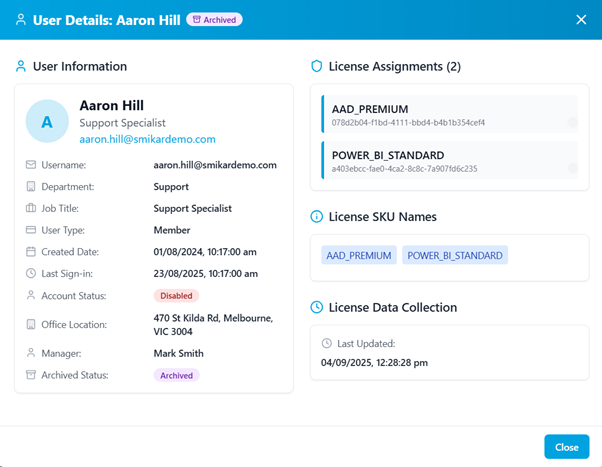
Archived data is stored in a structured, searchable format. Authorised HR teams, legal teams, and IT administrators can search across completed archives, export specific items for compliance or legal purposes, and restore data to another active user or a secure destination when needed.
Microsoft 365 Departed User Archiving for Compliance
For organisations in regulated industries, retaining departed user data is not optional. A range of regulatory frameworks create scenarios where access to former employee data is essential months or years after their departure.
- GDPR — organisations must be able to respond to data subject access requests for former employees and demonstrate lawful basis for retention
- Financial services — FCA, MiFID II, and similar frameworks require retention of communications for specified periods
- Healthcare — clinical and administrative communications must be retained in line with applicable regulations
- Employment law — records relevant to disputes, redundancies, and tribunal proceedings must be accessible
- eDiscovery — legal proceedings may require access to former employee emails and files at any time
Chipmunk addresses all of these requirements. Archived data is stored with full integrity in your own Azure tenant, with a complete audit trail of every archiving action. Data can be exported in standard formats for legal proceedings, regulatory audits, and eDiscovery requests. Because all data resides in your own Azure tenant, data residency requirements are met by design.
The Cost of Getting Departed User Archiving Wrong
The financial risk extends well beyond unnecessary licence costs. Consider these scenarios:
A financial services firm is asked by the FCA to produce all communications from a specific employee over an 18-month period. If that employee left two years ago and their Exchange data was not retained, the firm cannot comply — and faces regulatory consequences that dwarf any licence savings.
A legal dispute arises involving a project managed by a former employee. The opposing party requests all emails and files related to the project. If the data was not archived before the deletion window closed, it cannot be produced — potentially undermining the organisation’s legal position.
An HR team needs to review a former employee’s communications as part of a grievance or tribunal proceeding. If the data was not preserved at departure, the investigation is compromised before it begins.
Chipmunk prevents all of these scenarios by archiving data automatically the moment the departure is detected — before any of these risks have time to materialise.
Frequently Asked Questions About Microsoft 365 Departed User Archiving
Q: What happens to Microsoft 365 data when an employee leaves? A: Microsoft begins deleting departed user data within days of an account being disabled. OneDrive files are retained for 93 days before permanent deletion. Exchange Online mailboxes are typically soft-deleted within 30 days and permanently deleted within 60 days. Teams chat history tied to the user’s OneDrive follows the same 93-day timeline. Without an archiving solution in place this data is permanently lost once the window closes.
Q: How do I archive a departed user’s Microsoft 365 data? A: The most reliable approach is an automated archiving solution like Chipmunk that detects account disablement in Microsoft Entra ID and automatically captures OneDrive, Exchange Online, and Teams data without any manual IT intervention. Manual approaches work but are time consuming, error prone, and do not scale for enterprises with ongoing staff turnover.
Q: Do I need to keep a Microsoft 365 licence active after an employee leaves? A: Not if you archive the data first. Chipmunk archives all OneDrive, Exchange Online, and Teams data before the licence is removed. Once archiving is confirmed complete the licence can be safely removed with no risk of data loss. For enterprises processing hundreds of departures per year, this licence saving alone typically covers the cost of Chipmunk many times over.
Q: Where is archived departed user data stored with Chipmunk? A: Archived data is written directly into your own Azure Blob Storage account in your own Azure tenant. Data is processed through SmiKar’s secure Chipmunk appliance but never stored in SmiKar infrastructure. You retain full ownership and control of all archived data.
Q: How long does it take to archive a departed user’s Microsoft 365 data with Chipmunk? A: Archiving typically completes within hours of the departure being detected, depending on the volume of data in the user’s account. Chipmunk sends a confirmation notification when archiving is complete so your IT team knows when it is safe to remove the licence.
Q: Can we search and access archived departed user data? A: Yes. Chipmunk stores archived data in a structured, searchable format organised by user. Authorised administrators can search across all archived user data, export specific items for legal or compliance purposes, and restore data to another active user or a secure destination. Access is controlled by role-based permissions.
Q: Is Chipmunk compatible with Microsoft Purview eDiscovery? A: Yes. Archived data is stored in your own Azure tenant and can be included in eDiscovery processes. Chipmunk maintains a full audit trail of every archiving action that supports legal hold and eDiscovery requirements.
Q: What is the difference between Chipmunk and Microsoft retention policies for departed users? A: Microsoft retention policies prevent data from being deleted but do not remove the requirement to maintain an active licence and add complexity to your Purview configuration. Chipmunk archives the data automatically, allows you to remove the licence immediately, and stores the data in your own Azure Blob Storage at a fraction of the ongoing licence cost. The two approaches can also be used together.
Automate Microsoft 365 Departed User Archiving with Chipmunk
Chipmunk monitors your Microsoft Entra ID and automatically archives OneDrive, Exchange Online, and Teams data the moment an employee account is disabled. Your IT team receives a confirmation and can remove the licence immediately. No manual work, no deletion risk, no ongoing licence costs.