
How to Protect Your Data When Employees Leave
When someone leaves your organisation — whether they resign, retire, or are let go — it’s easy to think the hard work is over. But the moment an employee’s last day arrives, a new risk window opens. If their access isn’t revoked properly or their data isn’t captured, organisations face security breaches, data loss, compliance issues, and rising costs.
This is why a well-designed user off-boarding process is just as important as onboarding. And it’s where Chipmunk can dramatically simplify and secure your operations.
The Risks of Poor Off-Boarding
Many organisations underestimate how much business knowledge is locked inside user accounts. When those accounts are deleted or licenses are removed without planning, it can create significant problems. Former users may still have access to email, Teams, or shared documents if access isn’t revoked cleanly. Microsoft 365 automatically purges inactive accounts after a short grace period, which can permanently erase critical business records.
This lack of planning also creates compliance risks. Without a record of former employees’ data, you may fail audits or be unable to respond to legal discovery requests. Beyond legal and security issues, poor off-boarding also impacts day-to-day operations. When user accounts disappear, managers lose visibility into projects, conversations, and files, which disrupts workflows and knowledge continuity.
The Best-Practice Off-Boarding Process
A robust off-boarding process should follow a structured sequence to ensure no step is missed. While the exact tasks may vary between organisations, these core stages are widely recognised as best practice:
-
HR Initiation and Communication. HR formally notifies IT and relevant managers of the employee’s departure, confirms the exit date, and collects any company-owned equipment. This communication triggers the technical off-boarding workflow.
-
Pre-Exit Access Planning. IT reviews all accounts, licenses, and roles the user holds, including Microsoft 365 services, line-of-business apps, VPN, and administrative privileges. A plan is made to disable these systematically to avoid disruptions.
-
Data Capture and Archiving. Before the account is disabled, all user data must be preserved — OneDrive, Exchange mailbox, and Teams chats. This protects business knowledge and ensures compliance.
-
This is where Chipmunk comes in. With a single action, Chipmunk captures and archives the user’s entire digital footprint inside your own Azure tenant, creating a secure and immutable record that remains accessible to authorised teams.
- License Recovery and Account Deactivation. Once data is captured, IT can safely disable the account, revoke MFA, remove from groups, and free up Microsoft 365 licenses for reuse. This step immediately reduces costs and closes security gaps.
- Content Ownership Reassignment. Shared content such as Teams channels, SharePoint sites, or shared mailboxes should be reassigned to other users or managers to maintain project continuity.
- Audit and Compliance Logging. All actions taken should be logged for audit purposes. Chipmunk automatically generates a complete record of the archived data and the actions taken, supporting legal and governance needs.
- Retention and Eventual Deletion.Archived user data should be retained according to your organisation’s policy or industry regulations. After the retention period expires, it can be securely deleted to reduce storage costs.
Following these steps ensures every departure is handled consistently, securely, and in full compliance — protecting both your data and your reputation.
User Off-Boarding Checklist
Secure Every Departure — Step by Step
1. HR Initiation
-
Notify IT and line managers of departure
-
Confirm final working day
-
Begin collection of company devices
2. Access Planning
-
Inventory all user accounts and admin roles
-
Document MFA status, group memberships, shared mailboxes
-
Prepare account disablement sequence – Disable User Account
3. Data Capture & Archiving
-
Chipmunk detects disbled account and starts the archiving process of the users data
-
Capture user’s OneDrive, Exchange mailbox, and Teams data
-
Store securely inside your Azure tenant
4. License Recovery & Account Deactivation
-
Disable sign-ins and revoke MFA
-
Remove from all security groups
-
Reclaim Microsoft 365 licenses
5. Content Ownership Reassignment
-
Reassign Teams channels to managers
-
Transfer shared mailboxes or delegated access
-
Ensure project continuity for remaining staff
6. Audit & Compliance Logging
-
Record every off-boarding action
-
Capture evidence of data archiving
-
Maintain logs for governance and legal needs
7. Retention & Eventual Deletion
-
Apply retention policy for archived data
-
Schedule secure deletion after policy expiry
-
Validate removal and update records
Where Most Organisations Struggle
Despite having good intentions, off-boarding is often messy and manual. Different IT staff follow different steps, with little visibility into all the places a user’s data lives. Exporting content from OneDrive or Teams can be clumsy and error-prone, and often ties up IT resources for days.
Because there’s no single repository of archived user data, information gets lost, and managers have no easy way to recover it. This creates a gap between what organisations want — secure, compliant off-boarding — and what they can realistically deliver with limited time and tools.
Introducing Chipmunk: Automated Microsoft 365 Off-Boarding
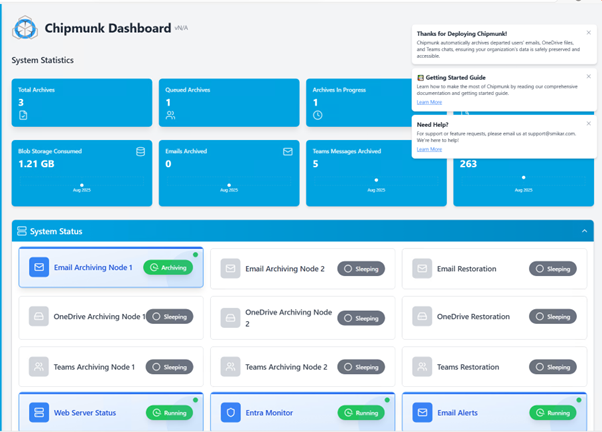
Chipmunk was built to solve this problem. It automates the most critical and time-consuming part of off-boarding: capturing and preserving departing users’ data. Chipmunk collects OneDrive files, Exchange mailboxes, and Teams chats, automatically.
Once captured, the data is stored securely in your own Azure tenant, under your full control. It’s compliant, and easily searchable by authorised staff such as managers, HR, or legal teams. Chipmunk’s approach frees up costly Microsoft 365 licenses immediately after off-boarding and maintains a full audit trail of every action taken, which is critical for compliance. Most importantly, because Chipmunk operates inside your Azure environment, your data never leaves your control.
How Chipmunk Fits Into Your Off-Boarding Workflow
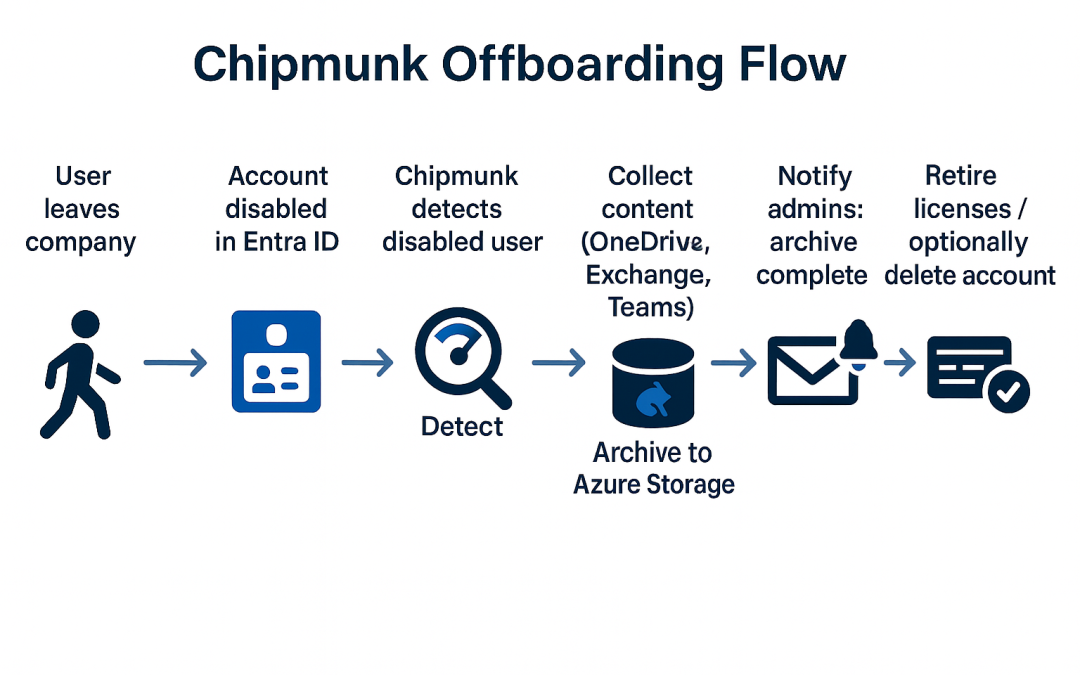
With Chipmunk in place, the process becomes seamless. HR notifies IT when a user is leaving. IT disables the user account then Chipmunk, which automatically captures all the user’s data across Microsoft 365 — OneDrive, Exchange, and Teams. That content is stored securely in Azure, where it can be searched and retrieved if needed later.
Once the archive is complete, IT receives an email from Chipmunk saying the users data has been archived and can then disable the user’s account, reclaim the licenses, and revoke all access. What previously took days of manual work can now be completed in a fraction of the time, with complete confidence and zero data loss.
Make Off-Boarding a Strength, Not a Weakness
User off-boarding is a critical moment in the employee lifecycle — and often the most neglected. Without a clear process, organisations risk losing valuable knowledge, breaching compliance rules, or leaving security gaps that can be exploited.
With Chipmunk, you can turn off-boarding from a risky manual chore into a fast, secure, and automated process that protects your organisation every time someone leaves.
How Chipmunk Automates the Offboarding Data Step
The most time-consuming and risk-prone part of the offboarding process is capturing departed user data before Microsoft’s deletion clock starts. Done manually this requires IT teams to identify the account, export OneDrive files, export the Exchange mailbox, capture Teams data, verify everything is saved correctly, and only then remove the licence. For an enterprise processing dozens of departures per month this is unsustainable.
Chipmunk automates this entire step. The moment a user account is disabled in Microsoft Entra ID, Chipmunk detects the departure and begins archiving OneDrive, Exchange Online, and Teams data automatically. No manual trigger is required. When archiving is complete your IT team receives a confirmation notification and can immediately remove the Microsoft 365 licence.
Every archive is consistent, complete, and logged with a full audit trail. For enterprises dealing with high volumes of departures or mergers and acquisitions involving large-scale account closures, Chipmunk scales without any additional IT overhead.
Microsoft 365 Offboarding Checklist
Use this checklist to ensure every departure is handled consistently and completely.
- HR notifies IT of the departure date in advance
- Identify all Microsoft 365 services the user has access to — OneDrive, Exchange, Teams, SharePoint sites, shared mailboxes
- Archive OneDrive, Exchange Online, and Teams data before or immediately after account disable — Chipmunk does this automatically
- Disable the account in Microsoft Entra ID
- Revoke all active sessions and MFA devices
- Remove the user from all Microsoft 365 groups, Teams, and distribution lists
- Reassign shared content — Teams channels, SharePoint sites, shared mailboxes — to a manager or successor
- Confirm archiving is complete — Chipmunk sends a confirmation notification
- Remove the Microsoft 365 licence
- Document the offboarding with a full audit trail for compliance purposes
- Set a retention review date for archived data in line with your policy
Frequently Asked Questions About Microsoft 365 User Offboarding
Q: What is the correct order for Microsoft 365 user offboarding? A: Archive the user’s data first, then disable the account, revoke access, reassign shared content, confirm archiving is complete, and finally remove the licence. Removing the licence before archiving is the most common mistake and risks permanent data loss.
Q: How do you offboard a Microsoft 365 user without losing their data? A: Archive their OneDrive, Exchange Online, and Teams data before or immediately after disabling the account. Chipmunk automates this — the moment an account is disabled in Entra ID, Chipmunk captures all three data sources and writes them to your own Azure Blob Storage account.
Q: When should you remove a Microsoft 365 licence after an employee leaves? A: As soon as archiving is confirmed complete. With Chipmunk this can happen the same day the account is disabled — eliminating the weeks or months many enterprises spend keeping licences active while waiting for manual data exports to be completed.
Q: What happens if you delete a Microsoft 365 user without archiving their data? A: Microsoft begins deleting data immediately. OneDrive files are retained for 93 days then permanently deleted. Exchange Online mailboxes are typically deleted within 30 days. Teams data is subject to similar timelines. Once the retention window closes the data cannot be recovered.
Q: How do you handle offboarding when multiple employees leave at once? A: Chipmunk uses queue-based processing to handle spikes in departures without manual intervention. Whether it is one departure or a hundred during a restructure, every account is processed consistently and completely with no additional IT workload.
Q: Does Microsoft 365 offboarding need to comply with GDPR? A: Yes. GDPR requires organisations to have a lawful basis for retaining personal data after employment ends, and to be able to respond to data subject access requests. Chipmunk archives departed user data in a structured, searchable format in your own Azure tenant — satisfying both retention requirements and data subject access obligations.
Chipmunk: Automate Off-Boarding and Cut Costs
Free up Microsoft 365 licenses instantly while keeping all user data safely stored for compliance, audits, and future access.
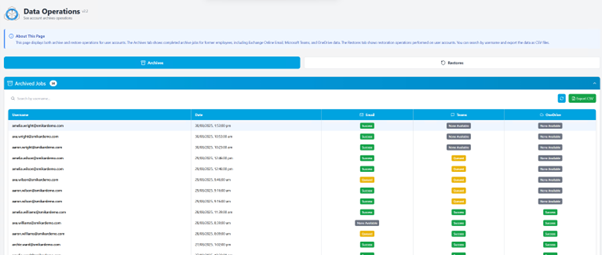
Ensure no knowledge is lost by automatically capturing and archiving departing employees’ OneDrive, Exchange and Teams content before accounts are removed.
Secure Every Departing User’s Data