If your SharePoint Online storage costs are climbing, your document libraries are slowing down, or your compliance team is asking hard questions about where your data is - you need a SharePoint archiving strategy.
This guide covers everything IT leaders and administrators at large enterprises need to know about SharePoint archiving in 2026: what it is, how it works, what Microsoft’s own tools can and cannot do, what to look for in a third-party solution, and how to make a decision that holds up under compliance scrutiny.
In short: SharePoint archiving moves inactive documents and sites out of SharePoint Online's primary storage into a lower-cost tier, while keeping them searchable and restorable - so you cut storage cost and speed up document libraries without deleting anything. You can archive with Microsoft's built-in Microsoft 365 Archive or a third-party tool like Squirrel that stores the data in your own Azure storage.
Ways to archive in SharePoint Online
| Option | What it does | Reduces SharePoint storage? | Users keep finding the files? |
|---|---|---|---|
| Move to an archive library or site | Tidies content into a separate location inside SharePoint | No, the bytes stay in the tenant pool | Yes, in the new location |
| Microsoft 365 Archive, site level | An administrator moves a whole site into Microsoft's cold tier | Yes at tenant level, at $0.05 per GB per month above the allocation | No, the site is closed until an administrator reactivates it |
| Microsoft 365 Archive, file level | Users archive individual files; any reader can reactivate them | At tenant level yes, billed at $0.05 per GB above the allocation; the site's own storage figure does not fall | Listed, but not openable until reactivated, which can take up to 24 hours |
| Purview retention policies and labels | Keeps or deletes content on a schedule | No, retained content stays and the Preservation Hold Library grows | Yes |
| Stub-based archive to your own Azure | A policy moves inactive files to Azure Blob Storage you own and leaves a stub with the same name, metadata and dates | Yes, the bytes leave SharePoint | Yes, search still finds the stub and any user with permission restores the file |
The rest of this guide explains each option, what Microsoft's own tools can and cannot do, and how to choose between them.
To see how much of your tenant is inactive, run the free SharePoint Storage Explorer. To see how file-level archiving into your own Azure storage works, read about Squirrel.

What is SharePoint Archiving?
SharePoint archiving is the process of moving inactive documents, files, and sites out of SharePoint Online into lower cost storage while keeping them accessible to users and compliant with your organisation’s retention policies.
Technically, this is a form of hierarchical storage management (HSM) applied to SharePoint Online: active ("hot") content stays in premium SharePoint storage, while inactive ("cold") content is offloaded to a cheaper tier such as Azure Blob Storage. A stub is left in the original location so the file remains visible and restorable. A purpose-built SharePoint HSM tool like Squirrel runs this on automated lifecycle policies and writes the archived data into your own Azure tenant.
The key distinction from simply deleting files is that archived content is preserved rather than removed. Users can still find archived documents through SharePoint Search and restore them on demand. IT teams gain the storage reduction and cost savings. Compliance teams retain the audit trails and retention controls they need.
In practice, most SharePoint archiving solutions work by moving content to Azure Blob Storage, which costs significantly less per GB than SharePoint Online primary storage. A lightweight placeholder called a stub file stays in the original SharePoint location, retaining the document name and metadata so end users experience no disruption.
How to tell whether you need to archive
SharePoint Online includes a base storage allocation with your Microsoft 365 subscription, but for large enterprises this runs out quickly. Microsoft charges for additional storage at a rate that is substantially higher than equivalent Azure Blob Storage costs. As organisations accumulate years of documents, project files, and team site content, the majority becomes inactive but continues consuming expensive primary storage at the same rate as your most accessed files.
In a mature tenant most of the stored volume has not been opened in years, so most of the storage cost is going on content nobody uses.
Work out what your storage is actually costing
Open the SharePoint admin center, go to Active sites, and sort by storage used. That gives you the ranking in one screen. If a site's figure there is far larger than the files you can see in its libraries, read why SharePoint storage does not add up before acting on the number: versions, the Preservation Hold Library, the recycle bins and reporting lag account for most of the gap. The arithmetic behind the bill: Microsoft 365 tenants receive 1 TB of SharePoint storage plus 10 GB per licensed user. For an organisation with 1,000 users that is 11 TB of included storage, which sounds substantial until you account for document versioning, the Preservation Hold Library, Teams file storage, and years of accumulated content that nobody has reviewed or deleted. The allocation also moves in the other direction: every licence you return takes 10 GB with it, which is how a tenant ends up over quota without adding a single file. If that has happened to you, see why your SharePoint storage quota dropped.
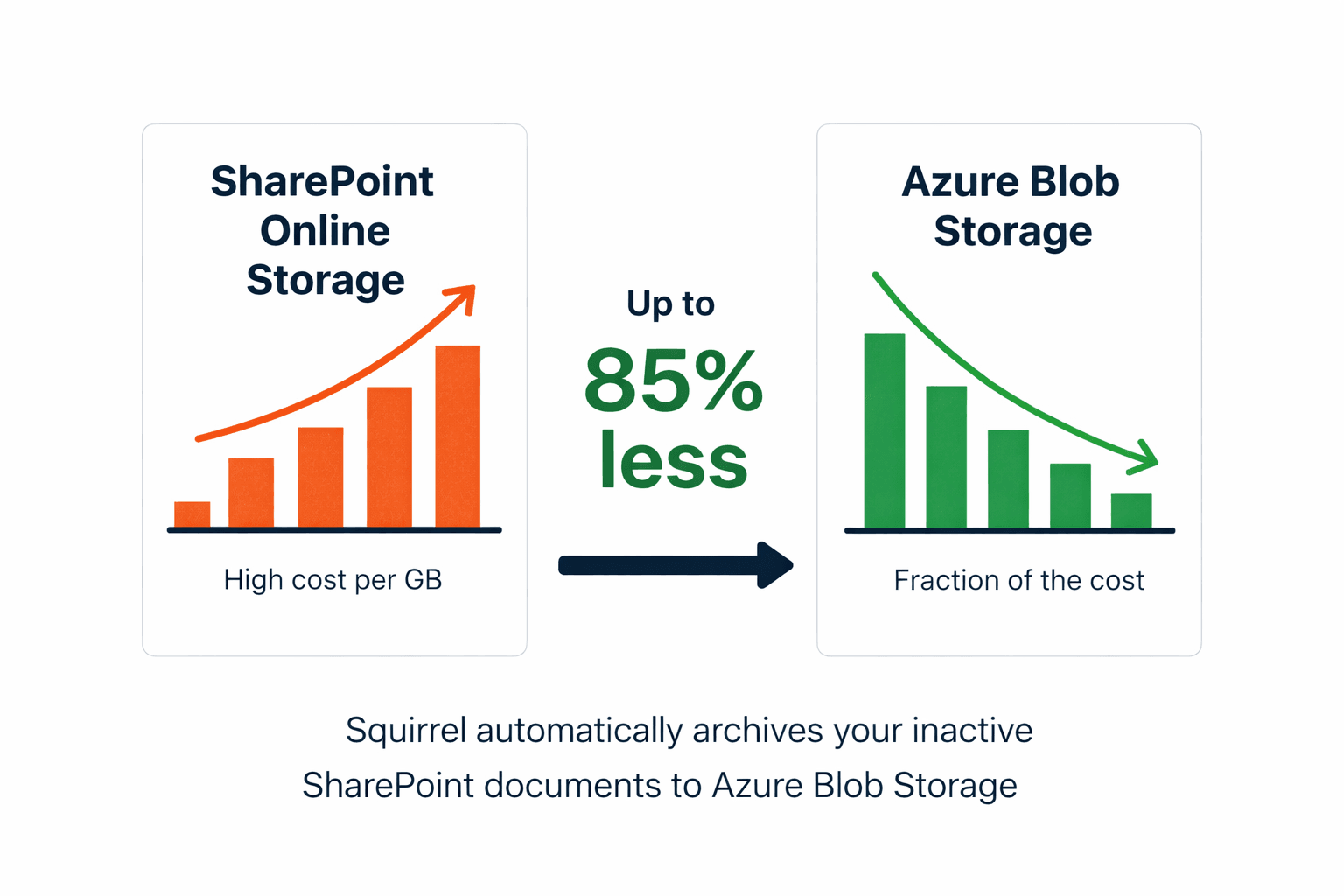
Once you exceed your included allocation, the choices are to buy the Extra File Storage add-on at $0.20 per GB per month, $2,400 per terabyte per year, or to reduce what you hold; a tenant that stays over its limit risks being set read-only. The full pricing breakdown across every SharePoint Online plan, including the overage rate and how the Microsoft 365 Archive option compares, is covered in SharePoint Online pricing. The Azure Blob Storage Cool tier, where most SharePoint archiving solutions move your inactive data, costs a fraction of that. For organisations managing several terabytes of inactive content, the monthly saving from archiving is substantial and compounds over time.
If you want to see exactly where your tenant pool is being consumed before deciding whether to archive or buy more storage, SharePoint Storage Explorer is a free Windows tool that breaks down site, library, and file-type consumption across your tenant. The archiving question is really a cold-data question, so size that first: how much of your SharePoint storage has not been modified in two, three or five years gives three routes to the figure, and how to check SharePoint storage size consolidates every measuring method, from the admin center to PowerShell, in one guide.
Check whether library size is slowing SharePoint down
Look for libraries past 100,000 items and views that are not indexed. SharePoint Online performance degrades as document libraries grow. Large libraries with tens of thousands of files experience slower search, longer page load times, and higher indexing overhead. Microsoft itself recommends keeping individual document libraries under 300,000 items for optimal performance. Many enterprise environments significantly exceed this threshold.
Archiving inactive documents out of primary SharePoint storage directly improves performance for active users. Smaller libraries index faster, search returns more relevant results, and the platform feels faster overall.
Confirm whether retention rules block you from deleting
Many industries require organisations to retain documents for defined periods under regulations including GDPR, HIPAA, FCA rules, and sector-specific standards. Keeping all of that data in expensive SharePoint Online primary storage for seven years or more is not financially viable. But deleting it early is a compliance risk.
A well-implemented SharePoint archiving solution provides a third option: move the data to lower cost storage while preserving all metadata, permissions, and audit trails. The data remains legally accessible and discoverable through eDiscovery tools, but it no longer occupies expensive primary storage.
Check your OneDrive quotas against MC1310684
Microsoft is also closing a long-standing gap where admin-set OneDrive quotas could exceed the licensed entitlement. From early July 2026 OneDrive users above their licensed quota are placed in read-only state, forcing organisations to either reclaim the overflow or move it elsewhere. In practice that overflow tends to land in SharePoint document libraries, which pushes the SharePoint pool above its allocation. See the MC1310684 changes explained for the at-risk cohort breakdown and the remediation checklist.
Check whether the Preservation Hold Library is the cause
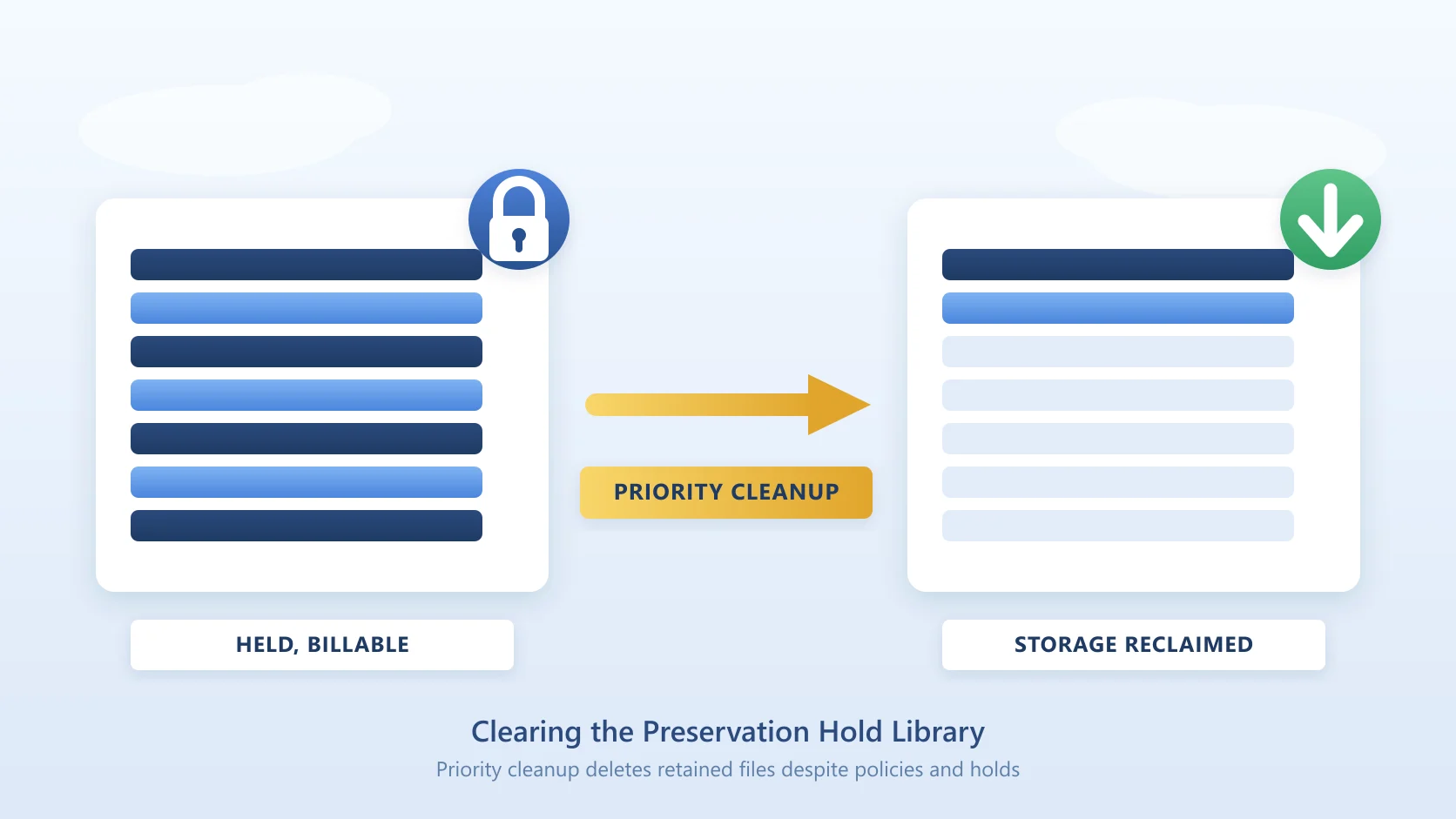
Compare a site's total storage against the sum of its visible libraries. A large gap is usually the Preservation Hold Library. One of the most common causes of unexpected SharePoint storage growth is the Preservation Hold Library. When retention policies are applied in Microsoft Purview, SharePoint quietly copies modified and deleted documents into this hidden library to preserve them for compliance purposes. For organisations with active retention policies, the Preservation Hold Library can grow to several times the size of the visible document library without IT teams realising it.
To find every Preservation Hold Library in the tenant and how much each one holds, follow how to find the Preservation Hold Library size. A SharePoint archiving solution that monitors and manages the Preservation Hold Library prevents this hidden storage sink from causing storage overages and unexpected costs.
How SharePoint Archiving Works
While the specific implementation varies between solutions, most SharePoint archiving tools follow the same core process.
1. Identify inactive content using lifecycle policies
The archiving solution scans your SharePoint environment and identifies content that meets your archiving criteria. This is typically based on last modified date, last accessed date, file type, document library, or SharePoint site. A read-only scan of last-modified ages shows how much content each threshold would catch before you commit to it.
2. Move content to lower cost storage
Documents that meet the archiving criteria are moved from SharePoint Online to the target storage location, typically Azure Blob Storage Cool or Archive tier. The best solutions store archived data within your own Azure tenancy rather than a vendor-hosted environment, ensuring you retain full ownership and control of your data and that data residency requirements are met.
3. Leave a stub file in SharePoint
Rather than removing the document from SharePoint entirely, the archiving solution leaves a stub file in the original location. The stub retains the original file name, metadata, and folder path. Users searching SharePoint will still find the document. When they need the full file, a single click triggers the restore process and the document rehydrates from archive storage back into SharePoint, typically within seconds.
This stub file approach is what distinguishes purpose-built SharePoint archiving solutions from simply moving files manually to Azure Blob Storage. Without the stub, users have no way to find or restore archived content through the normal SharePoint interface.
4. Maintain audit trails and compliance controls
Every archiving and restore action is logged with full detail including document name, location, user, timestamp, and action taken. Archived documents retain all original metadata, permissions, and classification labels. This ensures the archived data remains legally discoverable and accessible to compliance and legal teams while no longer consuming primary storage costs.
How to Archive Files in SharePoint
There are three practical ways to archive files in SharePoint, and they differ in what happens to the file and what the end-user sees.
1. Move to an archive library or archive site. The simplest low-tech pattern: create a dedicated document library or SharePoint site called "Archive" and move inactive files into it. This keeps the files in SharePoint and preserves permissions, but the storage cost is unchanged - the files still live in SharePoint Online pool storage at $0.20/GB/month over the tenant entitlement. Useful for organisational tidiness, not for cost reduction.
2. Archive with Microsoft 365 Archive. Microsoft's built-in archive now works at two levels. An admin can archive a whole site - it leaves active use until an admin reactivates it; there has been no reactivation fee since 31 March 2025, but a reactivated site cannot be re-archived for four months. Or, with file-level archive (now generally available and on by default), a user can archive individual files and reactivate them on demand at no fee. Either way the archived data stays in a Microsoft-managed cold tier inside your Microsoft 365 storage, and content must be reactivated before it opens.
3. Archive at the file level with a third-party solution like Squirrel. Squirrel identifies inactive files based on your lifecycle policies (age, last access, file type, folder path, site), moves the file content to your own Azure Blob Storage, and leaves a stub file in the original SharePoint location. End-users still see the file in SharePoint search and can click to restore the file themselves, without an admin ticket. This is the pattern most enterprises land on because it combines the cost reduction of cold storage with a user experience that doesn't require anyone to change how they work.
For the native site-archiving procedure step by step, the admin center path, the Set-SPOSiteArchiveState cmdlet and the reactivation rules, see how to archive a SharePoint site.
How to Archive a SharePoint Page
Archiving a SharePoint page (a modern SharePoint page or news post, not a file in a document library) is a different operation from archiving a file. Pages carry different metadata, different retention behaviour, and different Microsoft-supported archive mechanisms.
Practical options:
- Unpublish or move to a hidden library. Unpublishing removes the page from the site's default navigation and search index while preserving the underlying content. Site owners can restore it at any time. This is the standard Microsoft-supported way to take a page out of active circulation without deleting it.
- Archive the entire site containing the page. SharePoint pages can't be archived on their own with Microsoft 365 Archive, but archiving the whole site takes every page in it out of active use in one operation. Reactivation makes them all accessible again.
- Export to PDF for long-term retention. For regulated content that needs a stable, immutable snapshot for records management, converting the page to PDF and storing it in a records library (or in Azure Blob Storage) is the pattern most compliance teams reach for.
Note on scope: Squirrel archives SharePoint document library files - the file-level archiving pattern above. It does not archive SharePoint pages, SharePoint news posts, OneNote notebooks, or Site Assets. For pages specifically, the Microsoft-native options are the right tool.
Microsoft’s Native SharePoint Archiving Tools: What They Can and Cannot Do
Before evaluating third-party SharePoint archiving solutions, it is worth understanding what Microsoft’s own tools offer and where their limitations lie. There are two primary Microsoft options to consider.
Microsoft Purview retention policies
Microsoft Purview allows organisations to apply retention policies to SharePoint content, ensuring documents are kept for defined periods and then either deleted or moved to a review stage. These policies are well suited for compliance and legal hold requirements.
However, Purview retention policies do not reduce your SharePoint storage costs. Content subject to a retention policy stays in SharePoint Online primary storage, consuming the same quota at the same cost. The Preservation Hold Library, which Purview uses to preserve copies of modified or deleted documents, actually increases your storage consumption rather than reducing it. Purview solves a compliance problem, not a storage cost problem.
Microsoft 365 Archive
Microsoft 365 Archive is Microsoft's own service for moving inactive SharePoint content to a lower-cost cold tier. As of 2026 it works at two levels: an administrator can archive an entire site, and, with file-level archive (now generally available and enabled by default), users can archive individual files they have edit access to. Archived content stays in the search index, but it has to be reactivated before it can be opened - recently archived files reactivate instantly, older content takes longer.
Where it differs from a purpose-built tool is control and experience rather than granularity. Archived data stays in a Microsoft-managed cold tier inside your Microsoft 365 storage, billed pay-as-you-go, rather than in your own Azure account. There has been no reactivation fee for sites or files since 31 March 2025, but a reactivated site cannot be re-archived for four months and a reactivated file cannot be re-archived for 120 days. Archived content is deliberately excluded from Microsoft 365 Copilot grounding, and archived files have known limitations in several clients - Word and PowerPoint on the web, the Teams, OneDrive and SharePoint mobile apps, the macOS and Windows 10 sync clients, and older Office builds. OneNote, SharePoint pages, agents and Site Assets can't be archived at all. For the site-level procedure, the admin center path, the PowerShell and the current limitations, SharePoint archive site is the maintained reference on Microsoft 365 Archive.
Purpose-built third-party solutions like Squirrel take a different approach: rule-based lifecycle policies on more criteria than Microsoft's preview file archive policy (which uses last access date and file type), one-click stub restore instead of a separate reactivation step, and archived data written to your own Azure Blob Storage - your region, your tier, no vendor lock-in - while keeping content available to Copilot through AI Summarisation stub summaries. For the full feature-by-feature breakdown, see the Squirrel vs Microsoft 365 Archive comparison, and for the incumbent third-party vendor see the AvePoint alternative breakdown. If a Copilot rollout is what is driving the clean-up, preparing SharePoint for Microsoft 365 Copilot covers what to archive before you switch it on and how to keep that content findable afterwards.
SharePoint Archiving vs Microsoft 365 Archive
Microsoft 365 Archive changed significantly in 2026 - file-level archiving is now generally available and enabled by default, so the choice is no longer about granularity. The real decision is about control, cost model, Copilot grounding, and app compatibility. Here is how Microsoft's built-in tier compares with a purpose-built solution like Squirrel.
| Microsoft 365 Archive | Squirrel | |
|---|---|---|
| Granularity | Whole sites (admin) and individual files (GA, on by default) | Individual documents |
| What triggers it | Manual or scripted for files, admin action for sites; an automatic last-access policy is in preview | Automated lifecycle policies (age, last access, type, path) |
| Opening archived content | Must be reactivated first; recently-archived files reactivate instantly, older content takes longer | One click on the stub rehydrates it on demand |
| Where the data lives | Microsoft-managed cold tier inside your Microsoft 365 storage, pay-as-you-go | Your own Azure Blob Storage account, your region and tier |
| Reactivation fees | None since 31 March 2025 | None from Squirrel |
| Re-archive lockout | Four months for a site, 120 days for a file | None |
| Microsoft 365 Copilot | Archived content is excluded from Copilot grounding by design | Stubs carry AI summaries, so content stays available to Copilot |
| App compatibility | Known issues with archived files in Word / PowerPoint online, mobile apps, macOS and Windows 10 sync, older Office | Works through the normal SharePoint stub and restore, no client dependency |
| Can't be archived | OneNote, SharePoint pages, agents, Site Assets; publishing and channel sites | Document-library files only (same content-type exclusions) |
Both move inactive content off SharePoint's active tier, though Microsoft's file-level archive does not reduce a site's storage figure. Microsoft 365 Archive is the simplest option if you are happy keeping archived data inside Microsoft's managed tier and archiving manually or with its preview last-access policy. A purpose-built tool makes sense when you want archived data in your own Azure storage, a wider set of policy criteria, content that stays available to Copilot, and no 120-day re-archive lockout.
What the storage costs, per terabyte
The storage rate is the number everyone quotes, so here are the three side by side for 1 TB (1,000 GB) over a year, using Microsoft's published list rates. Azure rates vary by region.
| Where the bytes sit | Rate | Per TB per year |
|---|---|---|
| Extra SharePoint storage (add-on or pay-as-you-go) | $0.20 per GB per month | $2,400 |
| Microsoft 365 Archive | $0.05 per GB per month, charged only once active plus archived storage exceeds your allocation | $600 |
| Azure Blob Storage Cool tier, in your own subscription (where stub-based tools write) | About $0.01 per GB per month, locally redundant, excluding transaction charges | About $120 |
These are storage rates only. A third-party archiving tool adds its own fee to the Azure bill, and Microsoft 365 Archive costs nothing while your total stays inside the allocation. SharePoint pricing has the allocation arithmetic and worked examples at 5, 20 and 100 TB, and the storage calculator runs your own volume.
What you keep when content leaves the active tier
The worry with any archive is what it costs you in search, Copilot and compliance. Microsoft's own tier and a stub-based archive answer differently:
| Microsoft 365 Archive | Stub-based archive to your own Azure (Squirrel) | |
|---|---|---|
| Search | Microsoft states that full content search works for end-user search, Purview Content Search and eDiscovery | The stub stays in the library with the original name, metadata and dates, so SharePoint search finds it, and an AI summary embedded in the stub makes the content findable too |
| Opening the file | Content in the archive tier is not directly accessible until it is reactivated: instant for the first seven days, up to 24 hours after that | One click on the stub restores the file in seconds, however long it has been archived |
| Microsoft 365 Copilot | Microsoft: "archived content isn't used by Microsoft Copilot" | The stub summaries keep archived content available to Copilot |
| Purview retention and holds | Microsoft states archived content keeps the same compliance standards | Labels and holds survive archive and restore, and Squirrel is compatible with Purview eDiscovery and legal hold requirements |
| Where the bytes sit | Microsoft's cold tier inside your tenant | Azure Blob Storage in your own subscription |
Which trade-off fits depends on whether people need to open archived files without waiting, and whether you want the bytes in your own subscription.
How to choose a SharePoint archive solution
Seven checks separate solutions that work at enterprise scale from ones that create a helpdesk problem. No two SharePoint archive solutions are built the same. For large enterprises evaluating options, these are the criteria that matter most.
Check it archives files, not just whole sites
Avoid solutions that only archive at the site level. Enterprise environments contain a mix of active and inactive content within the same sites and libraries. You need a solution that can identify and archive individual documents based on usage data, leaving active content in place and keeping the user experience intact through stub files.
Confirm where the archived data actually lands
The archived data should be stored in your own Azure Blob Storage account within your own Microsoft Azure tenancy. Solutions that store your data in a vendor-hosted environment introduce unnecessary data governance risk, complicate data residency compliance, and create a dependency on a third party for access to your own documents. Your data should never leave your control.
Test whether an end user can restore without a ticket
If restoring an archived document requires an IT ticket, your helpdesk will become overwhelmed and users will quickly lose trust in the system. The restore process must be self-service, available directly within the SharePoint interface, and fast enough that users do not notice any meaningful delay.
Verify archived content still appears in SharePoint Search
Archived documents must remain findable through SharePoint Search. If users cannot search for archived content, they will not know it exists and will create duplicate documents or assume the original has been deleted. The best solutions enhance archived content discoverability by embedding AI-generated summaries into stub files, ensuring search results remain meaningful even for content that has been archived.
Check metadata, permissions and labels survive the round trip
All metadata, permissions, and classification labels must be preserved through the archiving process - including both sensitivity labels (Microsoft Purview Information Protection) and retention labels (Records Management / Data Lifecycle Management), which serve different compliance purposes and must both survive the archive cycle intact. For the breakdown of how each label type works and what archiving needs to preserve, see sensitivity labels vs retention labels in SharePoint. The solution must maintain a complete audit trail of every archiving and restore action to support compliance audits, legal holds, and eDiscovery requests. Confirm compatibility with Microsoft Purview before deploying any archiving solution in a regulated environment.
Require policy-driven archiving, not manual selection
Manual archiving is not a strategy. The solution must support automated lifecycle policies that run continuously in the background, identifying and archiving content that meets your defined criteria without requiring ongoing administrative effort. Rules on last-modified or last-accessed date, file type, folder path, library and site should be adjustable without re-running a project.
Ask what a restore costs before you sign
Some archiving solutions charge per restore, which creates a perverse incentive against users accessing their own archived content. Look for solutions with predictable pricing based on archived data volume, with no charge for restores. This ensures the cost of running the archiving solution is entirely predictable and does not increase as usage grows.
How to keep archiving defensible under audit
An archive is defensible when retention still applies to archived content, the data sits in a region you chose, and a legal hold reaches it without a restore. For organisations in regulated industries, SharePoint archiving is not just a cost reduction exercise. It is part of the data governance framework that keeps the organisation compliant with legal and regulatory obligations.
The key compliance requirements to address when implementing a SharePoint archiving strategy are retention period enforcement, data residency, audit trail integrity, and eDiscovery compatibility.
Enforce retention periods through the archive
Documents must be retained for defined periods under GDPR, HIPAA, FCA regulations, and other industry-specific standards. A SharePoint archiving solution can enforce these retention periods automatically, ensuring documents are preserved for the required duration and flagged for review or deletion when the period expires. This reduces the risk of documents being deleted prematurely or retained unnecessarily.
Meet data residency requirements
Many organisations operate under data residency requirements that dictate which geographic region data can be stored in. A SharePoint archiving solution that stores data in your own Azure tenancy in your chosen region satisfies these requirements by design. Confirm that your chosen solution deploys in the same region as your Microsoft 365 tenancy and does not transfer data across regions without your explicit configuration.
Keep eDiscovery and legal holds working
If a document is subject to a legal hold in Microsoft Purview, your archiving solution must respect that hold and not archive or delete the document until the hold is lifted. Confirm that your chosen solution integrates correctly with Microsoft Purview eDiscovery before deployment, and test the legal hold behaviour in a non-production environment before going live.
SharePoint archiving best practices
Seven habits separate an archive that lasts from a one-off clean-up:
- Measure before you choose. Find out how much is inactive with files not modified in years and the free SharePoint Storage Explorer.
- Trim before you archive. Version history and recycle bins often hold more than the inactive files do; reduce SharePoint storage gives the order.
- Archive on rules, not requests. Last modified, last accessed, file type and library, so inactive content leaves on a schedule.
- Test the rule before it runs. A preview that counts what a rule would catch without changing anything prevents the first surprise. Squirrel's Preview does exactly that.
- Start with sites that are not regulated or active, then widen the scope.
- Keep retention labels and holds intact, and test one legal hold before the full rollout; archiving for compliance covers retention, holds and disposal.
- Decide who restores and how fast. Self-service restore keeps the helpdesk queue empty.
Frequently Asked Questions About SharePoint Archiving
Is SharePoint still relevant in 2026?
Yes. SharePoint Online remains Microsoft's primary content and collaboration platform for Microsoft 365 tenants and underpins document storage for Teams, OneDrive for Business (technically a SharePoint site per user), and most modern intranet deployments. What has changed is the operating pattern: enterprises now separate active collaboration content (kept in SharePoint) from long-term records and inactive documents (archived to cheaper storage like Azure Blob). SharePoint is still where the work happens - the archive tier is where old content lives once it stops being touched.
What is a SharePoint archive?
A SharePoint archive is a lower-cost storage tier that holds inactive SharePoint documents outside the primary SharePoint pool while keeping them retrievable. With a purpose-built solution, the SharePoint archive storage lives in your own Azure Blob Storage: the document moves there, a stub file stays in SharePoint, and the file rehydrates on demand. It keeps old content accessible without paying SharePoint Online's per-GB overage rate to store it.
What is the difference between SharePoint archiving and SharePoint backup?
SharePoint backup creates a point-in-time copy of your environment for disaster recovery purposes. SharePoint archiving moves inactive content to lower cost storage to manage the data lifecycle and reduce ongoing costs. Backup is about restoring your environment after data loss. Archiving is about managing content you no longer need in primary storage but must retain. Most enterprises need both.
Is SharePoint archiving the same as Microsoft 365 Archive?
Not quite. "SharePoint archiving" is the general practice of moving inactive content to cheaper storage while keeping it retrievable. Microsoft 365 Archive is Microsoft's own built-in way of doing it - a cold tier inside your Microsoft 365 storage that, as of 2026, archives both whole sites and individual files. Third-party tools such as Squirrel are another way to do SharePoint archiving, storing the data in your own Azure Blob Storage with automated policies and one-click restore. See the SharePoint Archiving vs Microsoft 365 Archive comparison above for the full breakdown.
What can't Microsoft 365 Archive archive?
For sites, Microsoft states that publishing sites, channel sites and some legacy site templates cannot be archived, and Teams sites with private or shared channels are only partly supported. For files, OneNote, SharePoint pages, SharePoint agents and the Site Assets library cannot be archived, and archived files have known problems in Word and PowerPoint for the web, the Teams, OneDrive and SharePoint mobile apps, the macOS and Windows 10 sync clients and older Office builds. A reactivated file cannot be archived again for 120 days. Microsoft 365 Archive alternatives lays the limits out in a table.
Is content in Microsoft 365 Archive still searchable?
Yes. Microsoft states that full content search works for end-user search, Purview Content Search and eDiscovery, although the content cannot be opened until it is reactivated and Purview exports of archived content can take longer. Microsoft also states that archived content is not used by Microsoft 365 Copilot.
How much does Microsoft 365 Archive cost?
$0.05 per GB per month, charged only once archived plus active storage exceeds your SharePoint allocation, through pay-as-you-go billing linked to an Azure subscription. There has been no reactivation fee for SharePoint content since 31 March 2025. SharePoint pricing has the allocation and the worked examples.
Does Microsoft 365 include SharePoint archiving?
Yes, in two forms. Microsoft Purview retention policies enforce compliance holds but do not reduce storage costs. Microsoft 365 Archive is a separate pay-as-you-go service that moves inactive sites and files to a lower-cost cold tier inside your Microsoft 365 storage; archived content stays searchable but must be reactivated before it opens. A purpose-built third-party solution differs by running rule-based policies on more criteria, storing archived data in your own Azure storage, keeping content available to Microsoft 365 Copilot, and avoiding the 120-day re-archive lockout on reactivated files.
How much does SharePoint archiving reduce storage costs?
Organisations using purpose-built SharePoint archiving solutions typically move the majority of a mature tenant's inactive content out of expensive SharePoint pool storage. The exact saving depends on how much inactive content exists in the environment and which Azure Blob Storage tier archived content is moved to. Azure Blob Cool tier costs a fraction of SharePoint Online overage pricing per GB, and Archive tier costs even less for content that is rarely accessed.
Will users be able to find and access archived documents?
With a properly implemented SharePoint archiving solution, yes. When a document is archived, a stub file remains in the original SharePoint location retaining the file name and metadata. Users searching SharePoint will still find the document in results. Clicking on the stub file triggers the restore process and the document rehydrates from archive storage, typically within seconds. No IT involvement is required.
Is SharePoint archiving safe for compliance purposes?
Yes, provided the solution is implemented correctly. Archived documents must retain all metadata, permissions, and audit trails. The archiving solution must be compatible with Microsoft Purview retention policies and legal holds. Data should be stored in your own Azure tenancy to satisfy data residency requirements. A well-implemented archiving solution strengthens rather than weakens your compliance posture by enforcing retention policies automatically and reducing the risk of premature deletion.
What is a stub file in SharePoint archiving?
A stub file is a small placeholder that remains in SharePoint after a document has been archived. It retains the original document name, location, and metadata so the document still appears in search results and folder structures. When a user clicks the stub file, the archiving solution retrieves the full document from archive storage and restores it to SharePoint. The stub file approach ensures archiving is invisible to end users and requires no change to how people work.
How long does it take to implement a SharePoint archiving solution?
Implementation time varies by solution and environment complexity. SaaS-based solutions run within your existing Microsoft 365 and Azure tenancy with no on-premises infrastructure to install. The main configuration time is spent defining your lifecycle policies and deciding which SharePoint sites and libraries to include in the initial archiving scope.
Squirrel: Purpose-Built SharePoint Archiving for Large Enterprises
Squirrel is SmiKar’s enterprise SharePoint archiving platform. It automatically identifies inactive SharePoint documents and moves them to your own Azure Blob Storage account based on your lifecycle policies, leaving stub files in SharePoint so users experience no disruption.
Enterprises using Squirrel typically move the bulk of their inactive SharePoint content into lower-cost Azure Blob Storage. Archived documents remain fully searchable through SharePoint Search and Microsoft Copilot via AI Summarisation stub summaries - see Microsoft Copilot and archived SharePoint content for the technical detail on how this works and why Microsoft 365 Archive does not. Users can restore any archived document with a single click, with no IT ticket required.
Squirrel runs as a managed service and writes archived data only to Azure Blob Storage in your own subscription, in the region you choose. All metadata, permissions, and audit trails are preserved through the archiving process, and Squirrel is compatible with Microsoft Purview eDiscovery and legal hold requirements Squirrel is also listed on the Azure Marketplace.
- Significant, ongoing reduction in SharePoint Online storage costs
- Document-level archiving with stub files and self-service restore
- Archived data stored in your own Azure subscription, under your control
- Rule-based lifecycle policies and AI Summarisation stub summaries
- Compatible with Microsoft Purview, eDiscovery, and legal hold
- No on-premises infrastructure to install
See Real Customer Outcomes
Three Squirrel customers have eliminated more than $2.1 million per year in Microsoft 365 storage cost between them - a Fortune 500 consumer healthcare brand owner running a 1.4+ PB SharePoint estate, a FTSE 250 engineering group whose tenant was reversed from 460 TB to 165 TB, and a mid-market financial services firm using Squirrel during a planned file-server migration to SharePoint Online. Read the customer case study compilation for the deployment details and the per-terabyte economics that translate to any tenant size.
Why Enterprises Choose Squirrel for SharePoint Archiving
Cost is rarely the only reason enterprises adopt Squirrel, and often not the main one. The bigger drivers are keeping SharePoint fast as libraries grow past Microsoft's performance thresholds; keeping archived content discoverable by Microsoft Copilot through AI Summarisation stub summaries, where Microsoft 365 Archive removes it from Copilot grounding entirely; meeting governance and compliance obligations with metadata, permissions, and audit trails preserved through the archive cycle; and escaping vendor lock-in because archived data lives in the customer's own Azure Blob Storage, under their control. Lower storage cost follows from all of that rather than being the headline. Request a demo and we will walk through how Squirrel fits your tenant.
Related guides on SharePoint storage and archiving
- SharePoint archiving vs deletion - when removing content is the right answer and when it creates a compliance problem.
- Purview retention archiving for SharePoint (MC1472601) - how retention policies can now archive inactive SharePoint files into Microsoft 365 Archive, and the Copilot indexing trade-off.
- SharePoint archiving best practices for compliance - retention, legal hold and defensible disposal when the archive has to satisfy an auditor.
- SharePoint analytics and storage reporting - what SharePoint reports natively, and how to get a per-library and per-file-type breakdown before you plan an archive.
- Enterprise SharePoint Archiving Buyer's Checklist (2026) - the eight buyer questions that reveal the real differences across Microsoft 365 Archive, AvePoint Opus, Archive360 and Squirrel.
- SharePoint Online pricing - every plan, the pool storage math, and the $0.20/GB overage rate above the pool.
- SharePoint archiving alternatives - the alternatives to native SharePoint archiving compared side by side: data ownership, self-service restore, retrieval cost and Copilot visibility.
- AvePoint alternative - how Squirrel stacks up against the incumbent enterprise archiver.
- Squirrel vs Microsoft 365 Archive - the head-to-head with Microsoft's own archiving tier.
- SharePoint Storage Explorer - the free Windows tool that breaks down where your pool is actually being consumed.
- How to archive a SharePoint site with Microsoft 365 Archive - the steps, states, pricing and reactivation rules when an entire site needs to be archived.
- How to check SharePoint storage size - three ways to see what's actually consuming your tenant.
- SharePoint storage does not add up - why the admin center reports far more than the files you can see: versions, the Preservation Hold Library, recycle bins and reporting lag.
- SharePoint storage quota dropped - the 1 TB plus 10 GB per licence formula, which licences count, and why the allocation fell.
- Find the Preservation Hold Library size - locate every Preservation Hold Library across the tenant and measure what each one holds.
- SharePoint files not modified in years - how many GB have not changed in two, three or five years, by three routes.
- How to move SharePoint Online documents to Azure Blob Storage - the architecture pattern behind cost-effective archiving.
- SharePoint vs Azure Blob Storage cost calculator - model the savings before you commit to a project.
- SharePoint storage full or almost full: how to free up space before you buy more - the six places the space hides when storage is already over the allocation.
- SharePoint Online limits 2026 - every current limit Microsoft documents: storage per licence, per-site quota, file size, items, versions, sync and holds.
- Retention policies vs retention labels - the two Microsoft Purview retention constructs, what each does, and which wins when both apply.
- A SharePoint file shows 'Archived' and won't open: how to reactivate it
- Microsoft 365 backup vs archive vs retention vs inactive mailbox - what each one actually does, and which of them reduces storage.
- Buy more SharePoint storage: options, cost and alternatives - the Extra File Storage add-on, pay-as-you-go, and what each actually costs.
- SharePoint and OneDrive storage changes, November 2026 (MC1330893, MC1477185, MC1465765) - the pay-as-you-go billing options and the end of the OneDrive allowance above 5 TB.
Answers to the specific questions admins ask
Archiving usually starts with one concrete problem rather than a strategy. These cover the questions that come up most often.
- Restore an archived SharePoint site - how to bring back a site that has already been archived, and how long Microsoft's own reactivation takes.
- Archive a shared mailbox - whether a shared mailbox can have an online archive, what licence it needs, and how to enable it.
- Reclaim SharePoint version history storage - why setting a version limit does not trim existing versions, and the PowerShell that reclaims the space.
- Export a Teams chat - the manual routes, Purview eDiscovery for admins, and what survives after a user leaves.
- Export a Microsoft 365 mailbox to PST - the current export paths and where each one breaks down at scale.
- Unlicensed OneDrive accounts - the 60, 93 and 365 day timeline Microsoft applies once a licence is removed. The Microsoft 365 leaver data cost calculator puts a figure on each option for keeping a former employee's mailbox, OneDrive and Teams chats.
Ready to see Squirrel on your tenant?
Mark Smith co-founded SmiKar Software in 2015 and has spent the past decade helping organisations solve Microsoft 365 data management challenges. He works with the SmiKar team to build solutions for SharePoint archiving, storage optimisation, governance and compliance, supporting customers from growing businesses through to Fortune 500 enterprises.
More about SmiKar