Full Guide to Recovering Your SharePoint Data
There are two very different things people mean by "restoring an archived SharePoint site", and the right answer depends on which one you're dealing with:
If you are here because users are locked out of a site Microsoft archived, the fix is in the first sections. If you are weighing up whether to keep using Microsoft 365 Archive at all, the file-level alternative that never locks anyone out, Squirrel, is compared further down.
-
The whole site was archived by Microsoft. You click into a SharePoint site and see the warning "The site is archived. A SharePoint administrator archived this site. If you need access, ask an admin to reactivate it." This is Microsoft's SharePoint Archive feature. The fix is to reactivate the site from the SharePoint admin centre - see the reactivation steps below.
-
Files inside the site were archived by Squirrel. The site is live but documents have been moved to Azure Blob Storage and replaced with stub files. The fix is to restore the files (one at a time, a folder at a time, or the whole site) from the Squirrel dashboard - see the restore guide below.
This guide covers both, plus a third case that now produces the same message: a former employee's OneDrive.
Reactivating a SharePoint Site Archived by Microsoft
If you're seeing the warning "A SharePoint administrator archived this site. If you need access, ask an admin to reactivate it", the site was archived through Microsoft 365 Archive. Nothing was deleted; the site was made inaccessible, and only an administrator can bring it back.
Steps to reactivate
- Open the SharePoint admin centre and go to Sites → Active sites. Archived sites are also listed on the Archived sites page.
- Select the site, choose Archive on the command bar, then Reactivate. A site in the "Archived" state asks you to confirm first.
- The site enters the "Reactivating" state and returns to Active sites when done. Permissions, document libraries and content come back exactly as they were.
If the site was deleted rather than archived, that is a different case: restore it from Deleted sites within 93 days, after which it is permanently removed.
Who can reactivate, and how long it takes
- Who. A SharePoint Administrator or Global Administrator, from the SharePoint admin centre or with the
Set-SPOSiteArchiveStatePowerShell cmdlet (the Graph API also has a betasite: unarchiveendpoint). Site owners and members cannot do it, whatever the message implies. - How long. For the first seven days a site is "Recently archived" and reactivation is instant. After that it is "Archived" and Microsoft says reactivation can take up to 24 hours; folder-level "Reactivate all files" on large folders can take up to 48 hours. See Microsoft's archive states and manage Microsoft 365 Archive pages.
- What it costs. The reactivation fee for SharePoint sites was removed on 31 March 2025, per Microsoft 365 Archive pricing. The catch that replaced it: reactivated content cannot be re-archived for four months (files: 120 days). The fee removal does not apply to OneDrive accounts, covered below.
- The "Request to reactivate" button. Users only see it if an administrator has set a redirect URL with
Set-SPOTenant -ArchiveRedirectUrl, pointing at a form or a ticket queue. Without it the message offers no route at all. Details are on Microsoft's end-user experience page.
The same message on a former employee's OneDrive
Since January 2025 the same "site is archived" message has appeared on a different kind of site: the OneDrive of a user whose licence was removed. Microsoft archives an unlicensed OneDrive automatically at day 93, after making it read-only at day 60. Nobody chose to archive it, and it does not appear on the Archived sites page.
Reactivation is different too. Go to SharePoint admin centre → Reports → OneDrive accounts → View more details, select the account and choose Reactivate, or use the same Set-SPOSiteArchiveState cmdlet. It requires unlicensed-account billing, and it is billed: $0.60/GB for the account you reactivate, plus $0.05/GB/month for every unlicensed OneDrive in the tenant older than 93 days. The account stays active for 30 days, then archives again. At day 275 it drops out of eDiscovery, and at 365 cumulative unpaid days it is subject to deletion even under a retention policy or hold.
If the account is no longer listed at all, the position is worse. In an April 2026 Microsoft Q&A thread a former employee's OneDrive showed the archived message but was missing from Active sites, Archived sites, Get-SPODeletedSite and the OneDrive accounts report; the answer was that there is no supported mechanism to restore it and the content is effectively unrecoverable. The full timeline and fee schedule is in unlicensed OneDrive accounts. The prevention is to archive the leaver's OneDrive, mailbox and Teams chats to your own Azure storage at offboarding, before the licence is removed, which is what Chipmunk does.
The read-only and archived states, the three ways to unarchive a OneDrive account and what each costs are set out step by step in unlicensed OneDrive accounts: what happens and what it costs.
A file-level alternative that avoids the lock-out
Microsoft's SharePoint Archive works at the whole-site level: the entire site goes offline, only an admin can bring it back, and once reactivated it cannot be archived again for four months. For a site people still occasionally need, that is disruptive.
Squirrel takes a different approach. It archives inactive documents at the file level and leaves a stub in place, so the site stays live. Users restore what they need themselves in a single click from inside SharePoint - no admin ticket, no reactivation step - and archived data lives in your own Azure Blob Storage, under your control. Nobody hits the "ask an admin to reactivate it" wall.
See how the two approaches compare in Squirrel vs Microsoft 365 Archive, or talk to us about Squirrel.
How to Restore Files Archived by Squirrel
The remainder of this guide is for the second scenario - files inside a SharePoint site that have been archived by Squirrel to Azure Blob Storage and replaced with stub files. You'll see stubs in the document library with the original file name plus .html.
How to Restore All Files from Archive in a SharePoint Online Site with Squirrel
Restoring an entire SharePoint Online site from Squirrel is a simple and efficient process that ensures all previously archived files are returned to their original location within SharePoint. This functionality is particularly useful when a site requires full access to archived content, whether for compliance, business needs, or reactivation of an old project.
Important Note: This process will restore only the files that were archived in the selected SharePoint site. Any files that were not archived will remain untouched. For this example, we will be restoring all files in the Engineer site, which was previously archived in our earlier blog post.
Why Restore an Archived SharePoint Site?
There are several reasons why you might need to restore an entire site’s archived files:
- Business Needs – If a project is reactivated or a department needs historical data, restoring all files ensures they have everything they need.
- Compliance & Legal Requirements – Some industries require companies to retain and restore archived documents for audits and regulatory compliance.
- Collaboration & Access – If users need to work on a previously archived site, restoring the files provides immediate access to original content.
- Accidental Archiving or Policy Changes – If a site was archived in error or business policies change, restoring files allows for a seamless rollback.
Regardless of the reason, Squirrel makes the restoration process straightforward while maintaining data integrity.
Access the Squirrel Dashboard
To begin the restoration process, follow these steps:
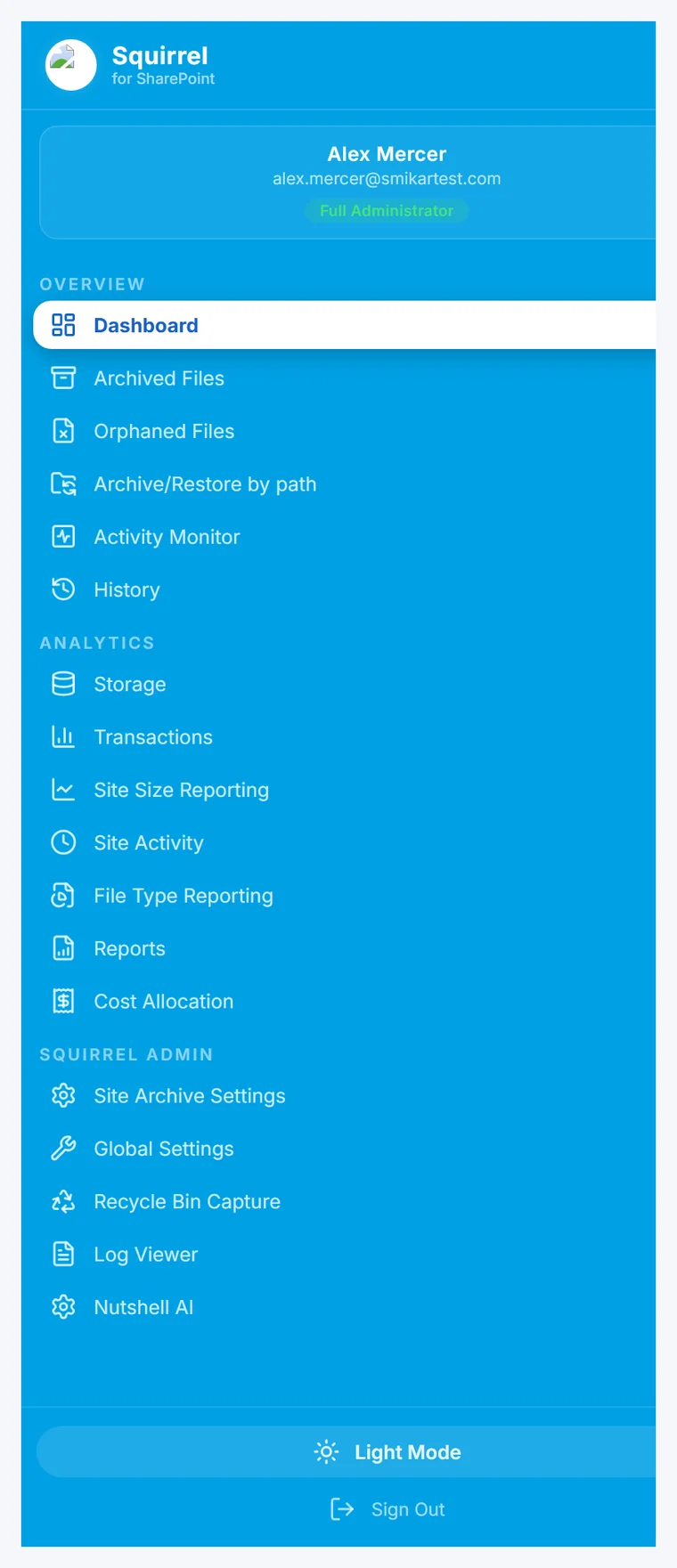
Log into your Squirrel web portal then navigate to the Site Archive Settings section of the dashboard.
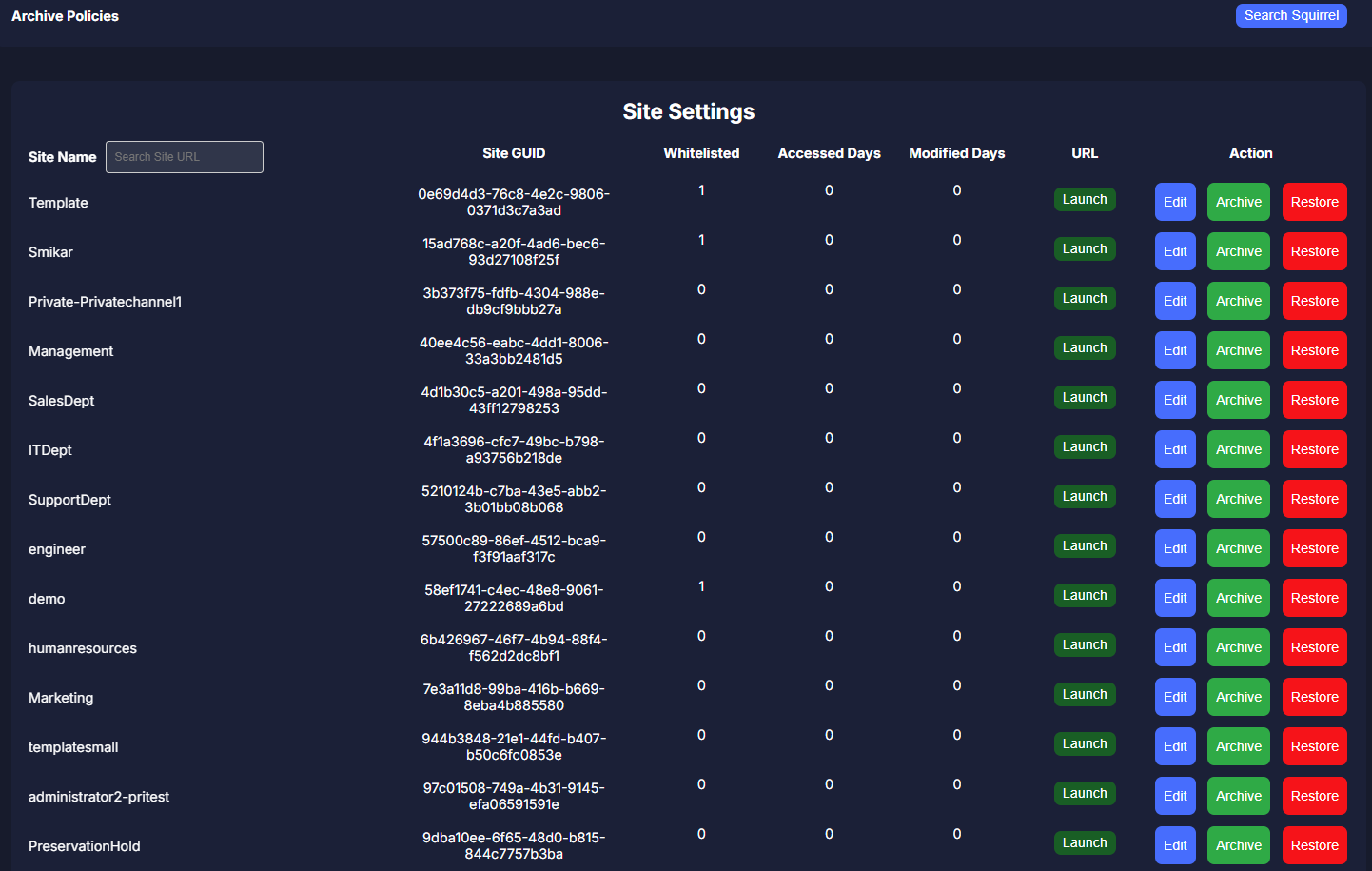
This section provides an overview of all the SharePoint Sites in your environment, as well as the ability to whitelist a site from a global archive policy, implement the sites own archive policy. But also gives the administrator the ability to either Archive or Restore a complete site..
The dashboard ensures that administrators can quickly find the site they need to restore without navigating through complex menus.
Select the SharePoint Site for Restoration
Locate the Engineer site in the list of archived sites then click on the Restore button to proceed.
Confirm the Restoration Process
Before proceeding with the full restore, Squirrel review the information carefully.
Click Confirm Restore to initiate the process.
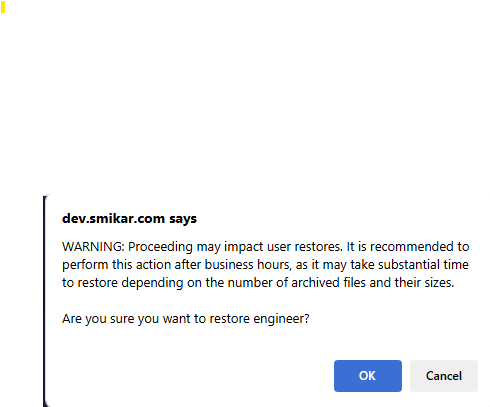
A warning prompt will appear, notifying that the restore process may take time and could impact user access. It is recommended to perform restores outside of business hours.
Once confirmed, the site restoration will begin, and you will be redirected to the Restore Queue for progress tracking.
Monitor the Restore Progress
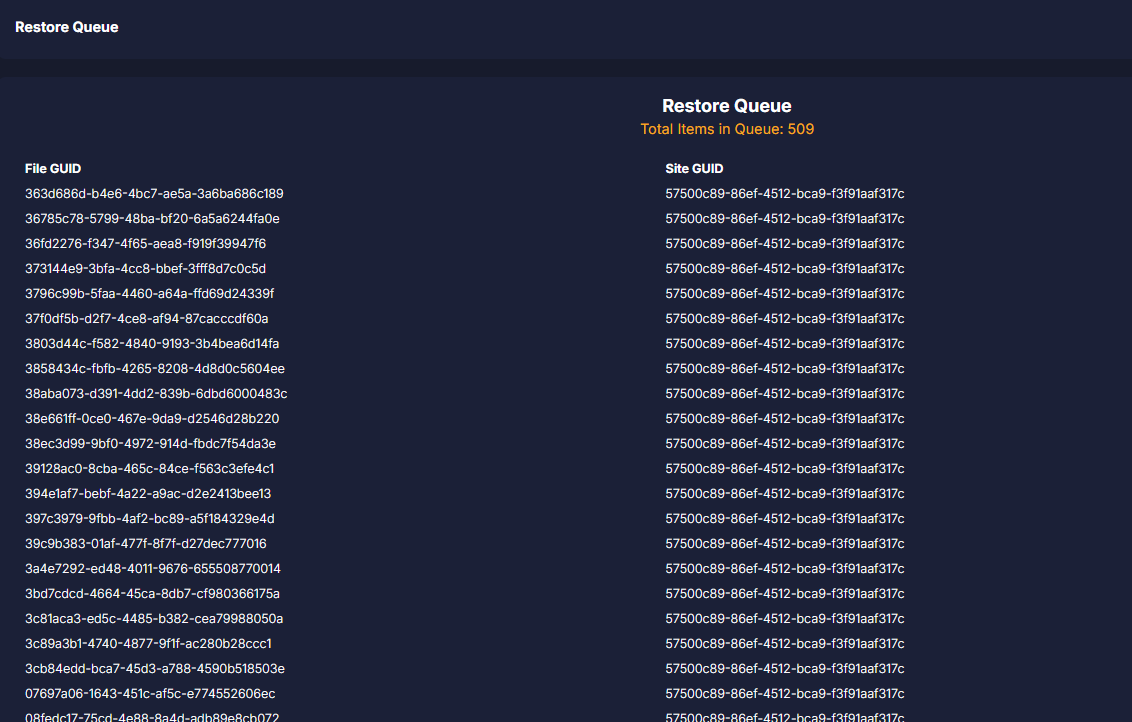
The Restore Queue displays the current status of all active restores.
Navigate to the Restore Jobs section to check the details of the restoration process.
Squirrel provides real-time updates, showing progress bars for large restores.
Depending on the site’s size, restoration may take a few minutes to several hours.
Squirrel ensures that even during large-scale restorations, users can track the progress and plan accordingly.
Verify the Restored Files
Once the restoration process is complete, it’s important to verify that all files have been properly restored:
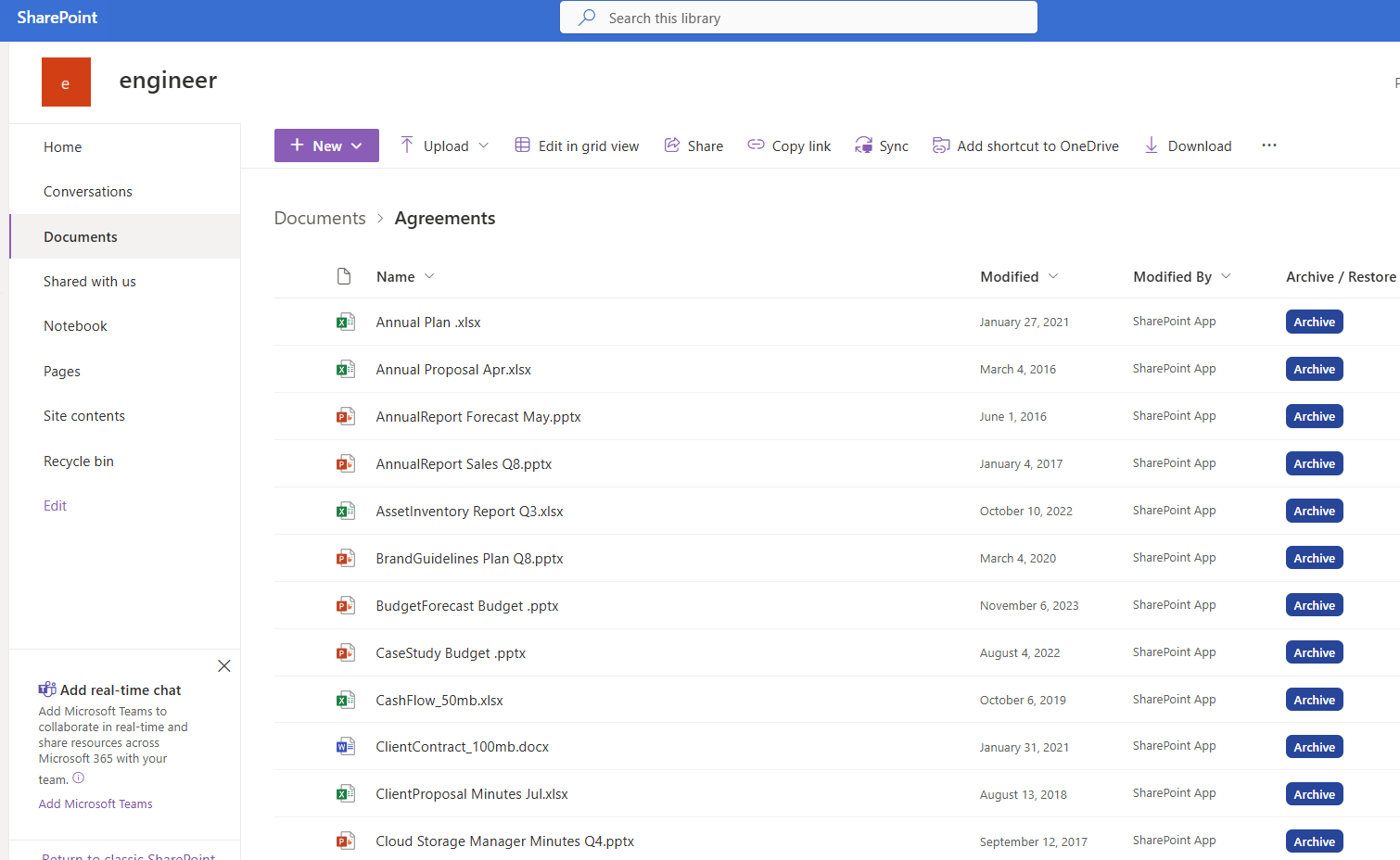
Open SharePoint Online and navigate to the Engineer site.
Access the document library to confirm that the previously archived files have been restored to their original locations.
Check file metadata such as last modified date and version history to ensure integrity.
At this stage, users should be able to access all files as they were before archiving
Restoring Individual Files vs Restoring an Entire Site
Squirrel supports three restore approaches depending on what you need.
Restoring individual documents
When a user needs a specific archived document, they can restore it themselves directly from within SharePoint by clicking the stub file in the document library. The document rehydrates from Azure Blob Storage and is back in SharePoint within seconds. No IT involvement is required and no administrator action is needed.
This is the most common restore scenario and the one that keeps your helpdesk from being flooded with restore requests.
Restoring an entire SharePoint site
When a project site needs to be fully reactivated - for a compliance audit, a legal matter, or a project that has resumed - administrators can restore all archived files from a site in a single action from the Squirrel dashboard. The restore process returns all previously archived files to their original locations within SharePoint with full metadata and version history intact.
Restoring a folder and all its contents
If you need to restore a specific folder and everything inside it - rather than individual files or an entire site - Squirrel supports folder-level restore directly from the dashboard. Administrators can select a specific folder from an archived site and restore all files within it in a single action. Every file returns to its original location within the folder structure, with full metadata, version history, and permissions intact.
This is particularly useful when a specific project folder or department library needs to be reactivated without restoring the entire site.
What Is Preserved When You Restore Archived SharePoint Files
One of the most common concerns when restoring archived content is whether the files come back exactly as they were. With Squirrel every restored document retains its original file name and location, full version history, metadata including creation date, modified date, and author, SharePoint permissions and access controls, and document classification labels.
Nothing is lost through the archiving and restore cycle. The document returns to SharePoint exactly as it was before it was archived.
FAQ
Q: What does "El sitio está archivado. Un administrador de SharePoint archivó este sitio. Si necesita acceso, pida a un administrador que lo reactive." mean, and how do I get the site back?
A: It is the Spanish version of the same Microsoft 365 Archive message: the site is archived, a SharePoint administrator archived it, and you need to ask an administrator to reactivate it. A SharePoint Administrator or Global Administrator reactivates it from the SharePoint admin centre (Active sites, select the site, Archive, Reactivate) or with the Set-SPOSiteArchiveState cmdlet. It is instant within seven days of archiving and can take up to 24 hours after that. If the URL is a former employee's OneDrive, reactivation is under Reports, OneDrive accounts instead, and it is billed.
Q: How do users restore archived SharePoint files?
A: Users click the stub file left in the original SharePoint location. The file rehydrates from Azure Blob Storage and is available in SharePoint within seconds. No IT ticket is required and no administrator action is needed.
Q: How long does it take to restore an archived SharePoint file?
A: Individual file restores typically complete within seconds. Restoring an entire SharePoint site with a large volume of archived files may take longer depending on the total data volume - Squirrel provides progress updates in the dashboard throughout the process.
Q: Are restored files identical to the originals?
A: Yes. Squirrel preserves the original file name, location, metadata, version history, permissions, and classification labels through the archiving process. Restored files are identical to the originals in every respect.
Q: Can end users restore archived files without IT involvement?
A: Yes. Squirrel’s self-service restore feature allows end users to restore their own archived documents directly from within SharePoint by clicking the stub file. This eliminates helpdesk tickets for restore requests and gives users immediate access to their archived content.
Q: What happens to the stub file after a document is restored?
A: Once a document is fully restored to SharePoint, the stub file is replaced by the full document. The document appears in SharePoint exactly as it did before archiving. If the document is archived again in the future, a new stub file is created.
Q: Can you restore a single file from an archived SharePoint site without restoring the whole site?
A: Yes. Squirrel supports granular restore at the individual file level. Administrators can search for and restore specific files from an archived site without triggering a full site restore. This is useful for responding to specific legal or compliance requests without disrupting the archive.
Conclusion
Restoring archived files from Squirrel is an easy and efficient way to bring back data when needed. Whether for compliance, business continuity, or user access, the step-by-step process ensures that all previously archived files in a SharePoint Online site can be restored seamlessly while maintaining SharePoint’s structure.
Key Takeaways:
- Selective Restoration – Only previously archived files are restored, ensuring no unnecessary changes.
- Fast & Reliable – The restore process is efficient, even for large SharePoint sites.
- Seamless User Experience – Files are returned to their original location with no manual intervention needed.
- Complete Control – Administrators can monitor the progress and verify restoration integrity.
With Squirrel, the SharePoint archiving solution that archives into your own Azure storage, your SharePoint archiving and restoration processes remain secure, efficient, and hassle-free - restores are immediate, self-service, and carry no restore fee from Squirrel.
Next steps
Related guides
- SharePoint Online pricing and licensing - what the storage actually costs per GB and per TB once the pooled allowance runs out.
- SharePoint Storage Limit Warning - fix it without overage charges
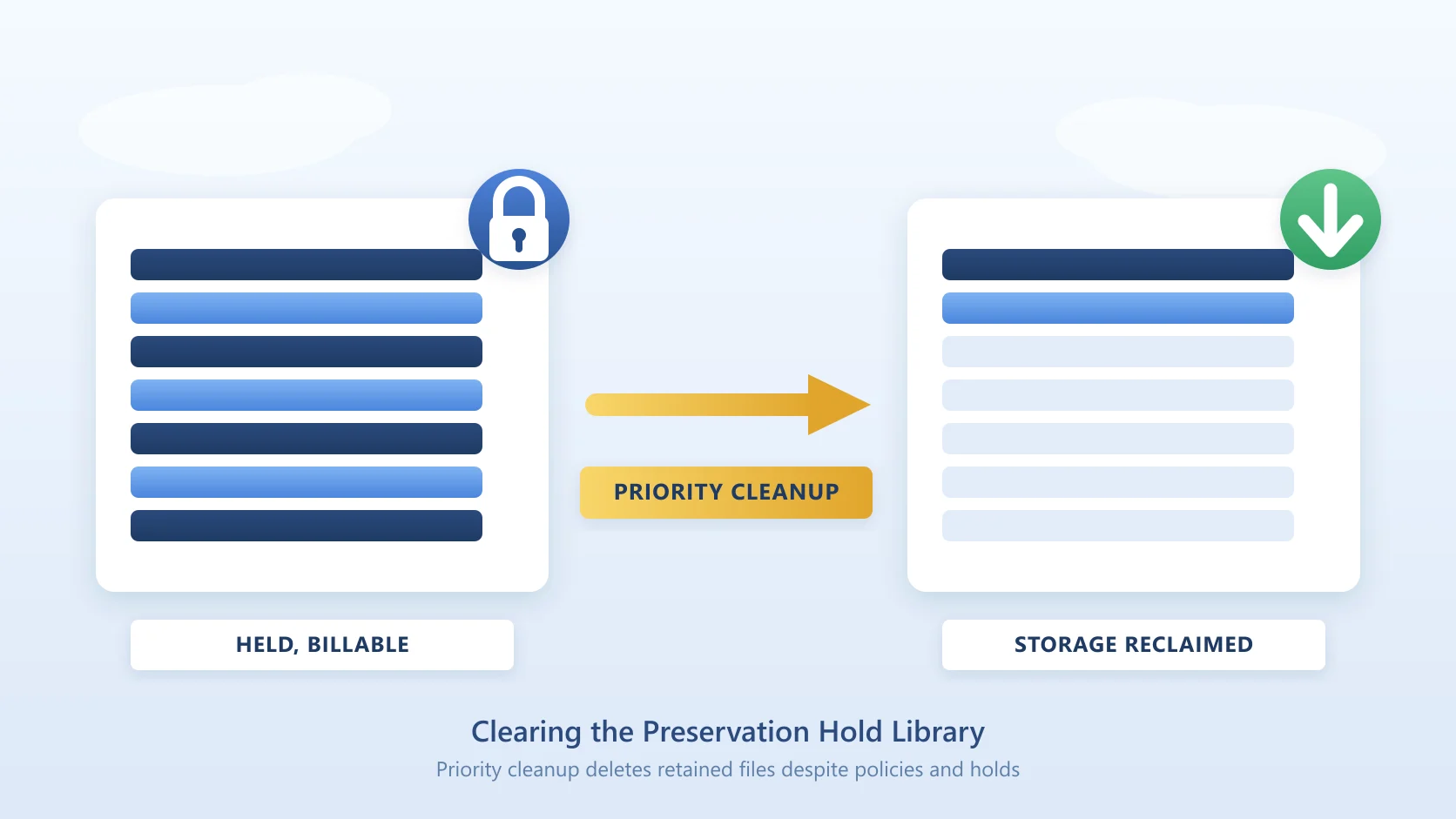
- How to reduce SharePoint Preservation Hold Library storage costs
- How to archive a complete SharePoint Online site
- SharePoint archiving alternatives - if admin-only reactivation and the four-month re-archive lock are the problem, these are the alternatives to native SharePoint archiving.
- Unlicensed OneDrive accounts - the full timeline and reactivation fees for a leaver's OneDrive.
- Squirrel data rehydration - the full restore flow
- Departed Microsoft 365 users - archive their data with Chipmunk
- A SharePoint file shows 'Archived' and won't open: how to reactivate it
If You Got Here From the Lock-Out Message, That Is the Trade-Off
Most people reading this arrived because a site went dark without warning and someone had to ask an admin to bring it back. That is not a fault, it is how site-level archiving works: the unit is the whole site, so archiving it removes access for everyone in it at once.
The costs of that model are worth knowing before you archive the next site:
- Users cannot help themselves. Reactivation needs a SharePoint admin, so every archived site your users still need becomes a ticket.
- The fee went, the lock stayed. Microsoft removed the site reactivation fee on 31 March 2025, but reactivated content cannot be re-archived for four months (120 days for files), so a site reactivated for one file stays on full-price storage for a third of a year. Unlicensed OneDrive accounts are still billed $0.60 per GB to reactivate.
File-level archiving avoids the lock-out by changing the unit. Squirrel moves inactive documents to Azure Blob Storage in your own subscription and leaves a stub in place of each one, so the site stays live, the files stay visible in the library where they always were, and a user who needs one restores it themselves without raising a ticket. Nothing goes dark, there is no re-archive lock, and there is no fee to bring content back.
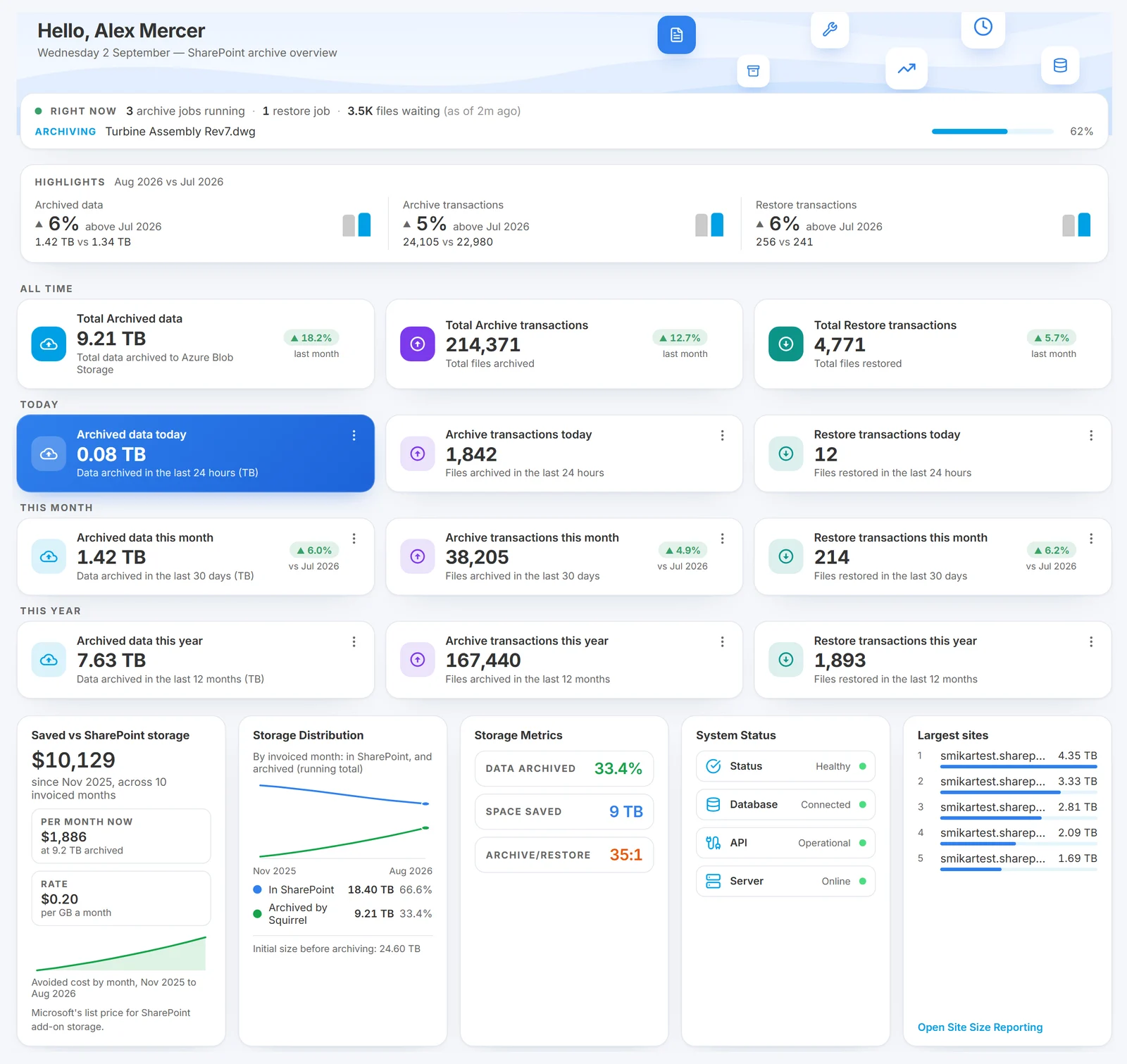
The Squirrel dashboard, where archiving runs on policy rather than per-site decisions.
The full comparison is in Squirrel vs Microsoft 365 Archive, and the storage-cost side in SharePoint archiving: the complete enterprise guide.
See how Squirrel archives SharePoint | Talk to us about your tenant
Mark Smith co-founded SmiKar Software in 2015 and has spent the past decade helping organisations solve Microsoft 365 data management challenges. He works with the SmiKar team to build solutions for SharePoint archiving, storage optimisation, governance and compliance, supporting customers from growing businesses through to Fortune 500 enterprises.
More about SmiKar