Can You Delete Preservation Hold Library Content?
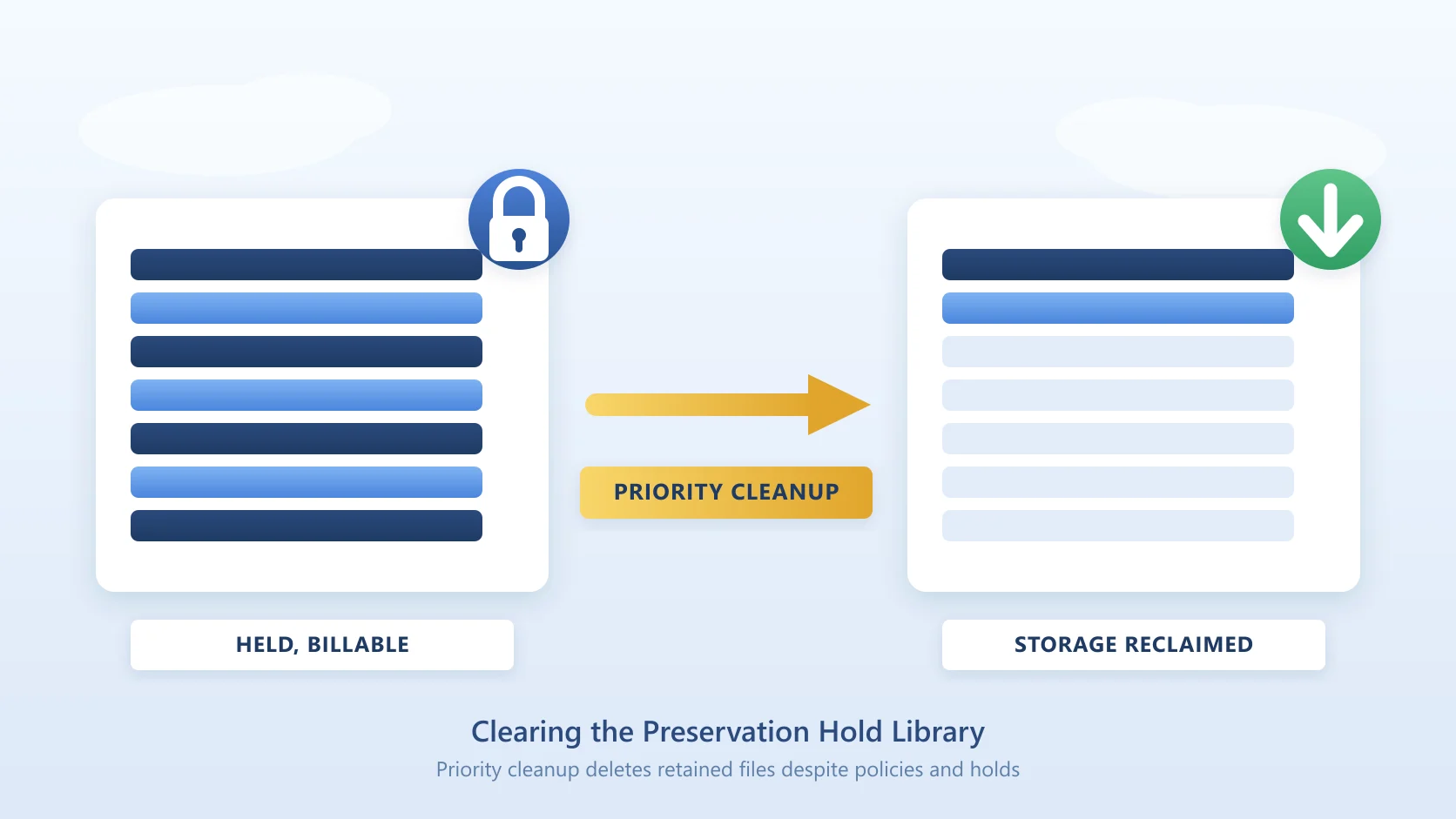
Yes, and this is new. Microsoft's priority cleanup feature in Purview Data Lifecycle Management deletes files from the Preservation Hold Library even when a retention policy or an eDiscovery hold would normally keep them. Microsoft names Preservation Hold Library cleanup as one of its two intended SharePoint and OneDrive use cases.
For years the honest answer was no. The Preservation Hold Library is a system library that exists because retention is active, you cannot delete it, and you cannot empty it ahead of the retention period. The only levers were removing the retention configuration or moving content out of SharePoint before it ever reached the hold.
Priority cleanup deletes what it matches. If the content must be kept and the problem is where it is stored, the alternative is to move it out of SharePoint storage with its labels intact, which is what Squirrel does and is covered at the end of this page.
That changed with the announcement carried in message centre post MC1261587. Priority cleanup is the feature it introduced, and the Microsoft Learn page for the SharePoint and OneDrive side is titled "Override holds to clean up files for Copilot and reclaim storage", which tells you plainly what it is for.
If you want the background on why the library fills up in the first place, that is covered separately in the Preservation Hold Library explained and the storage cost trap it creates. This page is the operational how-to.
What Priority Cleanup Actually Does
Priority cleanup uses retention labels with auto-apply policies underneath, but you never touch those labels directly. The policies deliberately supersede what Microsoft calls the principles of retention, which is the ordinary rule that the longest retention period wins. That override is the entire point.
Two things are worth being precise about, because they are commonly misread.
It is not an instant hard delete on SharePoint and OneDrive. Matched items are moved to the second-stage recycle bin, and from there they follow the normal deletion process with the normal timings. Microsoft's wording is that items "go through the same processes with the same time periods to ensure a compliant deletion process". The Exchange behaviour is different, which is why you cannot cover mailboxes and files in one policy.
It overrides Preservation Lock only conditionally. On SharePoint and OneDrive, priority cleanup overrides Preservation Lock only where the retention settings are configured for delete-only. On Exchange it overrides it outright.
Two exclusions apply everywhere. You cannot use priority cleanup on items marked as a record or regulatory record. And although it overrides eDiscovery holds, anything already copied into an eDiscovery review set is out of reach, and is only removed when the whole case is deleted.
Before You Start
Priority cleanup requires Microsoft 365 E5 or the E5 Compliance add-on. It is part of the premium tier of Purview Data Lifecycle Management, so an E3 tenant will not have it regardless of roles assigned. Check this before anything else.
It is then enabled by default at tenant level. If you are licensed for it and still cannot see it, either your permissions are wrong or someone has turned it off.
Roles
- Priority Cleanup Admin is required to create and manage policies and to enable or disable the feature. It sits in the Organization Management role group automatically, and has to be added manually to any other role group.
- Priority Cleanup Viewer grants visibility without the ability to change anything.
- Content Explorer List Viewer and Content Explorer Content Viewer are needed to see item content and detail during simulation and approval.
Approvals
For SharePoint and OneDrive the approval model is lighter than the Exchange one, and this catches people out who have read the mailbox documentation first.
- A priority cleanup admin approval is required for every policy.
- An eDiscovery admin approval is required only where an identified item is also under one or more eDiscovery holds. That approver needs Search And Purge, Hold, Review, the two Data Classification Viewer roles, and Disposition Management assigned in advance, or policy creation fails outright with an error.
- A separate retention admin approval is not required to override retention settings on SharePoint and OneDrive. It is required on Exchange.
Auditing
Auditing has to be enabled at least one day before you create your first policy. It is not optional here: simulation results cannot be viewed without it.
How to Clear the Preservation Hold Library, Step by Step
- In the Microsoft Purview portal, go to Solutions, then Data Lifecycle Management, then Priority cleanup, and select Create a priority cleanup.
- Name the policy. The name is visible to end users, because it surfaces to them as a retention label. The description is visible only to admins and approvers, so put the real detail there.
- Choose Adaptive or Static scope. Adaptive scopes have to exist before you start. For OneDrive accounts use a user scope; for sites use a SharePoint site or Microsoft 365 Group scope.
- On the Tell us what you're looking for page, enter the KeyQL query. For Preservation Hold Library content Microsoft's documented query is:
ParentLink:PreservationHoldLibrary
The policy uses the same search index as eDiscovery content search, so the properties available to you are the ones documented for content search. Narrow it with AND, OR and NOT rather than running it wide on the first pass.
- On Choose when content should be deleted, take the delete-as-soon-as-possible option unless the items genuinely need holding for a further defined period.
- Assign the eDiscovery admin approver, for the case where matched items turn out to be under an eDiscovery hold.
- Run simulation. This is mandatory on SharePoint and OneDrive, not merely advised as it is on Exchange, and it must be rerun for any change to the policy other than the description.
- Tick the acknowledgement that you understand the policy overrides eDiscovery holds and retention settings, then submit.
- Copy the Cleanup ID from the confirmation page. It is the only practical way to trace the policy through the audit log later.
- A second priority cleanup admin reviews the simulation results and turns the policy on.
The two-person rule that trips people up
The last person to edit the policy cannot be the person who turns it on. If you create it, edit it, and rerun simulation yourself, you cannot then enable it. Microsoft's own recommendation is that only one priority cleanup admin edits after creation, and the other enables. Plan who does what before you start, or you will be stuck at the final step.
After You Turn It On
Microsoft states the policy can take up to seven days to apply to items and trigger approvals, and a further period of up to seven days for approved items to be deleted. Status moves through In simulation, then Enabled (Pending), then Enabled (Success).
Two audit operations are specific to this feature on SharePoint and OneDrive:
PriorityCleanupTagAppliedwhen an item is identified, including where that removed an existing retention label.PriorityCleanupFileRecycledwhen an item is actually deleted.
Neither has a friendly name in the portal yet, so search the audit log using the operation name or the Cleanup ID.
What users see: the file shows an applied retention label carrying the same name as your policy. If a user removes or replaces that label, the policy reapplies it automatically.
The OneDrive Leaver Problem This Solves
This is the case worth knowing about even if you have no immediate PHL cost problem.
When items in a OneDrive Preservation Hold Library still have an unexpired retention period, the OneDrive site itself cannot be deleted. So when someone leaves, their OneDrive can sit there, undeletable and billable, until the longest retention period expires. That can be years.
Priority cleanup is Microsoft's answer: create a policy after the person has left and their OneDrive is blocked from deletion, clear the held files, then delete the site and reclaim the storage.
If departed-user data is a recurring problem rather than a one-off, the pattern most organisations end up wanting is to capture that content into their own storage before the account is decommissioned, which is what Chipmunk does for OneDrive, Exchange and Teams.
How to Turn Priority Cleanup Off
Some organisations do not want this capability available at all, and Microsoft explicitly flags that regulated tenants using Preservation Lock may want it off as a safeguard.
- Go to Solutions, then Data Lifecycle Management.
- Select Priority cleanup settings at the top right.
- Turn off the control on the Configuration page and save.
Three things to understand before you do:
- Turning it off is tenant-wide across both workloads. You cannot disable it for SharePoint and leave it on for Exchange.
- Existing policies keep running. They can be deleted, but they cannot be modified while the control is off.
- New policies cannot be created until you turn the control back on and save again.
What Priority Cleanup Does Not Fix
Priority cleanup is a remediation tool, not a prevention one. It clears what has accumulated. It does nothing to stop the Preservation Hold Library filling again next quarter, because the mechanism that fills it is unchanged: retention is still active, and every edit or deletion of a retained file still deposits a copy.
That is fine if your problem is a one-off, such as a departed user's OneDrive or a batch of stale Teams recordings, which is exactly how Microsoft frames the typical usage: continual for meeting recordings, and "after a user leaves the organization" for the Preservation Hold Library.
It is not fine if the library is growing steadily across a large tenant, because you are then committing to a permanent cycle of query, simulate, approve, delete, with a two-person rule and an eDiscovery approver in the loop each time. The approval burden is deliberate, and it does not get lighter with repetition.
Where the growth is structural rather than incidental, the durable fix is to stop retained content landing in expensive SharePoint storage in the first place. That is the approach covered in replacing the Preservation Hold Library, where Squirrel captures deleted and modified content into your own Azure Blob Storage account under your own subscription, so retention obligations are met without the tenant footprint. Squirrel works alongside Microsoft Purview rather than replacing it.
Before deciding which of those you need, measure. Finding the size of every Preservation Hold Library in your tenant sets out the PnP PowerShell to get the number.
Next steps
Frequently Asked Questions
Do I need E5 for priority cleanup?
Yes. Priority cleanup sits in the premium tier of Purview Data Lifecycle Management and requires Microsoft 365 E5 or the E5 Compliance add-on. On E3 the feature is not available, and no combination of roles will surface it.
Can the Preservation Hold Library be deleted?
No. The library itself is system-created and cannot be removed while retention is active on the site. Priority cleanup deletes the content inside it, which is a different thing and the practical outcome most admins are after.
Does priority cleanup permanently delete files immediately?
Not on SharePoint and OneDrive. Items are moved to the second-stage recycle bin and then follow the standard deletion process and timings. Only after that are they gone.
Do I need an eDiscovery admin to approve every cleanup?
No. On SharePoint and OneDrive, eDiscovery admin approval is required only where an identified item is also subject to an eDiscovery hold. A priority cleanup admin approval is always required.
Does it override Preservation Lock?
On SharePoint and OneDrive, only where the retention settings are configured for delete-only. On Exchange it overrides Preservation Lock outright.
Can I use it on records?
No. Items marked as a record or a regulatory record are out of scope. They may still appear in simulation results, which Microsoft documents as a known behaviour rather than an indication they will be deleted.
What query targets the Preservation Hold Library?
ParentLink:PreservationHoldLibrary, entered in the KeyQL editor during policy creation.
Can I turn priority cleanup off for SharePoint but leave it on for Exchange?
No. The tenant-level control covers both workloads together.
Will this stop the Preservation Hold Library growing again?
No. It clears accumulated content but changes nothing about the mechanism that fills it. Retention stays active and continues to preserve copies.
Related reading
- The SharePoint Preservation Hold Library explained - what it is, why it exists, and why storage rises when files are deleted
- Find the size of every Preservation Hold Library in your tenant - the PnP PowerShell to measure it before you act
- The Preservation Hold Library cost trap - what the accumulated content actually costs
- How to replace the Preservation Hold Library - the pattern for structural rather than one-off growth
- The SharePoint recycle bin - where priority cleanup deposits items, and why emptying the first stage frees nothing
- SharePoint storage full or almost full: how to free up space before you buy more - the other places the space hides when clearing the hold library was not enough.
When Clearing It Once Is Not Enough
Priority cleanup is the right tool for a departed user's OneDrive or a batch of stale recordings. If your Preservation Hold Library refills every quarter, the query-simulate-approve cycle becomes the job rather than the fix.
Squirrel captures deleted and modified SharePoint content into your own Azure Blob Storage account, in your own subscription and region, so retention is satisfied without the content sitting in SharePoint storage you pay a premium for. Retention policies and legal holds continue to apply. Questions: sales@smikar.com.
Mark Smith co-founded SmiKar Software in 2015 and has spent the past decade helping organisations solve Microsoft 365 data management challenges. He works with the SmiKar team to build solutions for SharePoint archiving, storage optimisation, governance and compliance, supporting customers from growing businesses through to Fortune 500 enterprises.
More about SmiKar