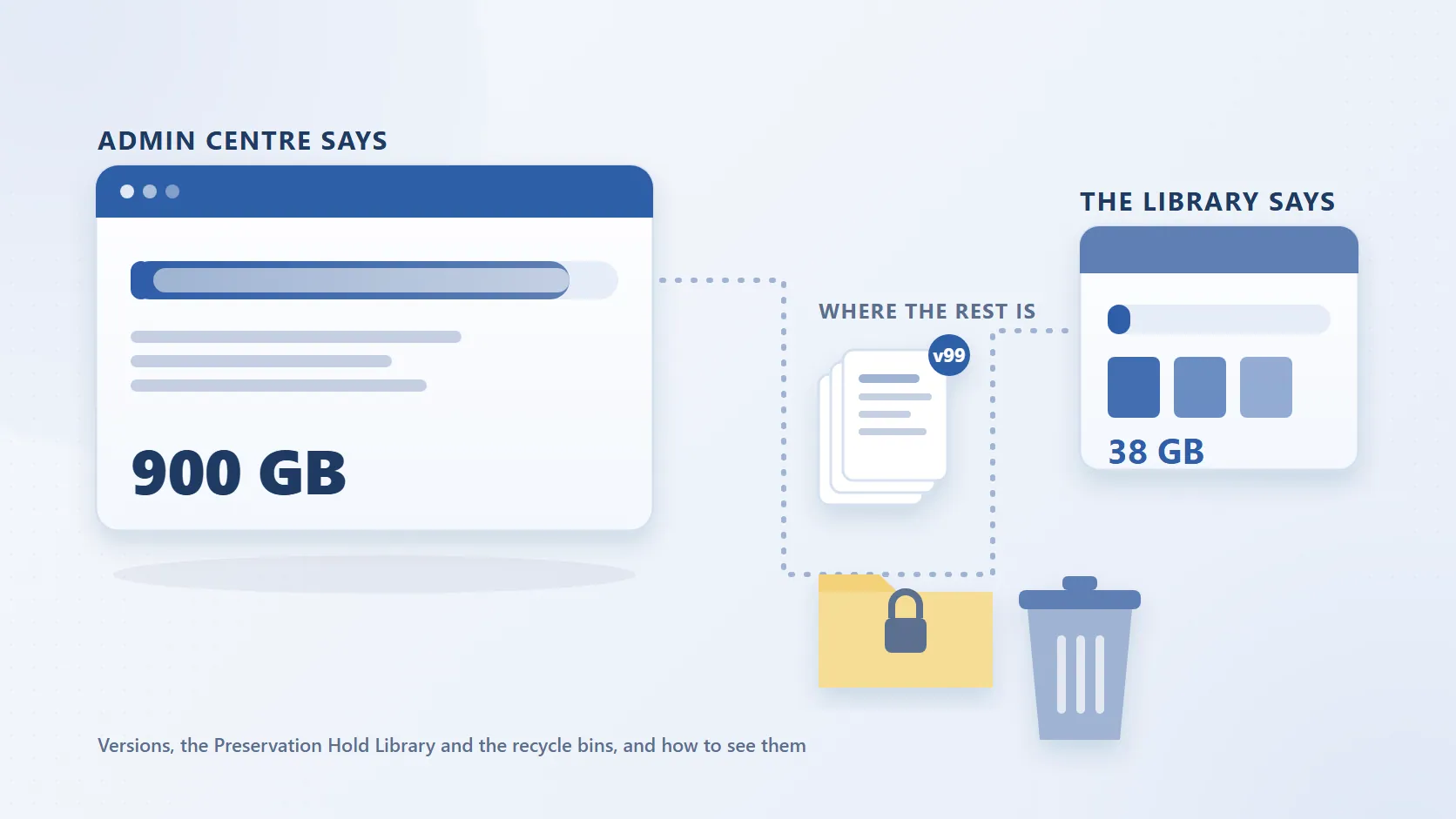
Admin centre says 900 GB, the library says 38 GB. Here is where the rest is.
Open Active sites in the SharePoint admin centre and a site shows 900 GB of storage used. Open the site, select every file in its document library, and the total is 38 GB. Neither figure is wrong. The site total counts things the library view does not show, and until you know where those bytes sit, every cleanup is aimed at the 38 GB you can see rather than the 860 GB you cannot.
This is a question that comes up constantly in Microsoft 365 admin circles, and the answer is almost always the same six places, listed below in the order admins usually resolve them, each with a check that takes about five minutes. If the tenant total has moved rather than a site's usage, the allocation itself may have fallen, which is covered in why your SharePoint storage quota dropped.
| Where the bytes are | What the library view misses | Five-minute check |
|---|---|---|
| Version history | Every version, counted in full | Version storage usage report, or a deep scan with file versions |
| Preservation Hold Library | Copies of deleted and edited files kept under a hold | Type the library URL, or read its row in Storage Metrics |
| Both recycle bins | 93 days of deleted content | Second-stage recycle bin, or Get-PnPRecycleBinItem |
| Subsites and hidden libraries | Everything outside the library you opened | Storage Metrics, sorted by size |
| Previews and metadata | Thumbnails and properties added after upload | Compare a file's size in the library with Storage Metrics |
| The reporting lag | The last 24 to 48 hours, in binary gigabytes | Re-check after two days and compare units |
1. Version history is counted in full
SharePoint stores every version of a file at its full size. A 30 MB PowerPoint deck saved 500 times is 15 GB of storage that still looks like a 30 MB file in the library. The old default kept up to 500 major versions; Microsoft's automatic limits from 2024 apply to new libraries, and setting or lowering a limit does not trim what a library already holds.
How to check it. For one file, open its menu, choose Version history, and multiply the count by the file size. For a whole site, queue Microsoft's version storage usage report, saved into a library on the site:
New-SPOSiteFileVersionExpirationReportJob -Identity https://contoso.sharepoint.com/sites/projects `
  -ReportUrl "https://contoso.sharepoint.com/sites/projects/Shared Documents/VersionReport.csv"
The CSV has one row per version with a Size column in bytes, so a pivot on FileUrl gives version bytes per file; versions held in the Preservation Hold Library are included, and Get-SPOSiteFileVersionExpirationReportJobProgress reports when it is complete (the Learn tutorial explains the columns). Across many sites the faster route is a deep scan with file versions in SharePoint Storage Explorer, which records version count and version bytes for every file and sorts a library by version count, so the deck carrying 15 GB is at the top. Trimming, and why it is irreversible, is covered in SharePoint version history storage.
2. The Preservation Hold Library
If a retention policy, retention label, litigation hold or eDiscovery hold applies to the site, deleting or editing a file does not remove it. SharePoint keeps a copy in the hidden Preservation Hold Library, which appears in neither Site contents nor the recycle bin. Every copy counts, and the library cannot be emptied by hand while the policy applies; SharePoint removes items on its own schedule once the retention period ends. A cleanup on a held site moves data from a library you can see into one you cannot, which is what an admin on Microsoft Q&A found at 90% of the tenant allocation with a seven-year hold in place.
How to check it. As a site collection administrator, type the URL directly:
https://<tenant>.sharepoint.com/sites/<site>/PreservationHoldLibrary/Forms/AllItems.aspx
Access denied means you are not a site collection administrator on that site. The size is easier to read from Site settings, then Storage Metrics under Site Collection Administration, where the Preservation Hold Library is a row with its total size and share of the parent. When that row is larger than the libraries users work in, you have found the gap. Find the size of every Preservation Hold Library has a PnP PowerShell script for the whole tenant, and the Preservation Hold Library guide explains what goes in and when it leaves. Do not expect the space back quickly once a policy ends: the cleanup job considers items only after 30 days in the library, and expired items then spend a further 93 days in the second-stage recycle bin.
3. Both recycle bins
A deleted file goes to the site recycle bin, then to the second-stage (site collection) recycle bin, and stays recoverable for 93 days from the original deletion. Throughout that window it counts. Microsoft's SharePoint limits page says so in a footnote: the space the recycle bin uses is part of the organisation's total storage limit, and it recommends emptying it regularly. So deleting 100 GB from a library produces a 100 GB drop in the library and none in the site, which is what an admin on Microsoft Q&A reported after removing more than 100 GB and watching the total stay put.
Emptying the first-stage bin frees nothing, because the items move to the second stage; and if the content is under a hold, emptying the second stage frees nothing either, because the copy is already in the Preservation Hold Library. One thing that does not count: whole sites in the admin centre's deleted sites list are excluded from the organisation's usage.
How to check it. Go to Site settings, then Recycle bin under Site Collection Administration, and follow the Second-stage recycle bin link. For a figure rather than a list, connect PnP PowerShell to the site and run Get-PnPRecycleBinItem | Measure-Object -Property Size -Sum. How the SharePoint recycle bin works has the steps to empty both stages.
4. Subsites and hidden libraries
The Active sites figure is for the site collection: the root site, every subsite beneath it, and every library and list on each. The Documents library you opened is one library on one web. The rest is often in a subsite created years ago for a project or department, or in libraries that never appear in the navigation: Site Assets, Site Pages, the Style Library, libraries created by apps and, on Teams-connected sites, the folders behind each channel.
How to check it. Storage Metrics lists every library, list and subsite in the site collection with its total size and percentage of the parent, and you can drill into any row. Sort by size; if a row of type Site accounts for 500 GB, open it and repeat.
5. Preview images and metadata overhead
Even a file with a single version reports larger in Storage Metrics than in the library. Microsoft's explanation is that Storage Metrics reports the storage actually consumed, and after upload a set of background services generate thumbnails and preview images for hover cards and previews; files with many images get larger ones. A Microsoft moderator on Microsoft Q&A, answering an admin whose 3.3 MB file showed as 8 MB with one version, called it by design and said there is no way to predict how much space a document will use once uploaded. Microsoft's support article on Storage Metrics and versions makes the related point: add a 100 MB file, change only its title, and the total reported is 200 MB, because a metadata edit creates a new version counted at full size. This is rarely the biggest of the six, but it is why no sum of file sizes ever matches the admin centre exactly.
How to check it. Drill down to a folder in Storage Metrics and compare a file's figure there with its size in the library.
6. The 24 to 48-hour lag, and binary gigabytes
The Active sites figures are not live. Microsoft's site storage limits page states that storage usage does not include changes made within the last 24 to 48 hours. The same page notes that SharePoint measures storage in binary gigabytes, where 1 GB is 2^30 bytes; a tool reporting in decimal units shows about 7% more for the same content, enough to make a reconciliation look wrong when it is not.
How to check it. Note the figure, make no further changes, and look again after two days. When comparing tools, confirm both use the same unit.
Putting the six together
An illustrative reconciliation for the 900 GB site; the numbers are typical rather than real.
| Component | GB |
|---|---|
| Files visible in the Documents library | 38 |
| Versions of those files and of files in other libraries | 310 |
| Preservation Hold Library | 380 |
| Both recycle bins | 95 |
| Subsites and hidden libraries | 60 |
| Previews and metadata overhead | 17 |
| Site total in Active sites | 900 |
Deleting more of the 38 GB would add to the 95 GB, or to the 380 GB if the site is under a hold. The 690 GB in versions and held copies is where the storage is, and neither is visible from inside a library.
See it per site with SharePoint Storage Explorer
The checks above take five minutes each on one site. Across a few hundred sites they are a project, and that is what SharePoint Storage Explorer is for: a free, read-only Windows tool that registers an app in your tenant, scans the sites you choose, and reports storage by site, library, folder and file, with the largest of each, the file-type breakdown and content age by last-modified date.
Two points matter here. Site totals in Storage Explorer include the Preservation Hold Library and both recycle bins, so a site whose total sits far above the sum of its visible libraries is one whose held and deleted content is doing the damage, and the gap is on screen without a script. And a deep scan with file versions records version count and version bytes for every file, so a library can be sorted by version count. A light scan is enough for the first comparison; run the deep scan with file versions on the sites it flags.
When the remaining bytes are cold or held, archive them
Once the lag has passed, the bins are empty and the version chains are trimmed, what remains is usually old project files nobody has opened in years and held copies that cannot be deleted. Files not modified in years shows three ways to measure the first group.
Squirrel archives inactive files from SharePoint document libraries into Azure Blob Storage in your own Azure subscription, on rule-based policies by last modified, last accessed, file type, folder path, library or site. Each archived file is replaced by a stub with the original filename, metadata and dates, and permissions inherited from the library; opening the stub restores the original with its version history, immediately from the Azure Cool tier, with no restore fee from Squirrel. Purview retention labels and holds survive archive and restore, and Recycle Bin Capture archives files that users delete or edit instead of leaving copies to build up in the Preservation Hold Library.
Archiving reduces storage volume, not item count. Every archived file leaves a stub, so a library with 200,000 items still has 200,000 items and the 5,000-item list view threshold and 300,000-item sync guidance are unchanged. What leaves is the bytes, the version chains and the search-index weight, which is what the 900 GB was made of.
Frequently asked questions
Q: Why does Storage Metrics show double the size of my files?
A: Because Storage Metrics counts every version at full size, plus the previews and metadata SharePoint adds after upload. Microsoft's support note gives the example of a 100 MB file that reports as 200 MB after one change to its title, because the edit created a second version.
Q: Do recycle bins and versions count toward the quota?
A: Yes, both. Every version counts in full, and content in both recycle bins counts for the full 93 days; Microsoft's limits page calls the recycle bin part of the organisation's total storage limit and recommends emptying it regularly. The exception is deleted sites in the admin centre, which are excluded from usage.
Q: Why did deleting change nothing for four days?
A: Two effects stack. The admin centre excludes changes made in the last 24 to 48 hours, so nothing moves for up to two days. After that the deleted content is still in the recycle bins for 93 days, or, if the site is under a retention policy or hold, in the Preservation Hold Library until the retention period ends. The total falls when the second-stage bin is emptied or the held content expires.
Q: What is the PreservationHoldLibrary URL and can I delete from it?
A: It is at https://<tenant>.sharepoint.com/sites/<site>/PreservationHoldLibrary/Forms/AllItems.aspx, and only site collection administrators can open it. You cannot delete from it while the policy, label or hold still applies; SharePoint removes items on its own schedule once their retention period ends, and they then pass through the second-stage recycle bin for 93 days. The way to reduce it is to narrow what goes in, or to archive content on a policy before it is deleted or edited so the retained copy does not accumulate in SharePoint.
Q: Does the admin centre count subsites in the site total?
A: Yes. The Active sites figure is for the whole site collection: the root site, every subsite and every library and list on each. Storage Metrics shows the same total broken down by library, list and subsite with each row's share of its parent, so it is the quickest way to find a subsite carrying most of the total.
Next steps
Mark Smith co-founded SmiKar Software in 2015 and has spent the past decade helping organisations solve Microsoft 365 data management challenges. He works with the SmiKar team to build solutions for SharePoint archiving, storage optimisation, governance and compliance, supporting customers from growing businesses through to Fortune 500 enterprises.
More about SmiKar