SharePoint storage full or almost full: how to free up space before you buy more
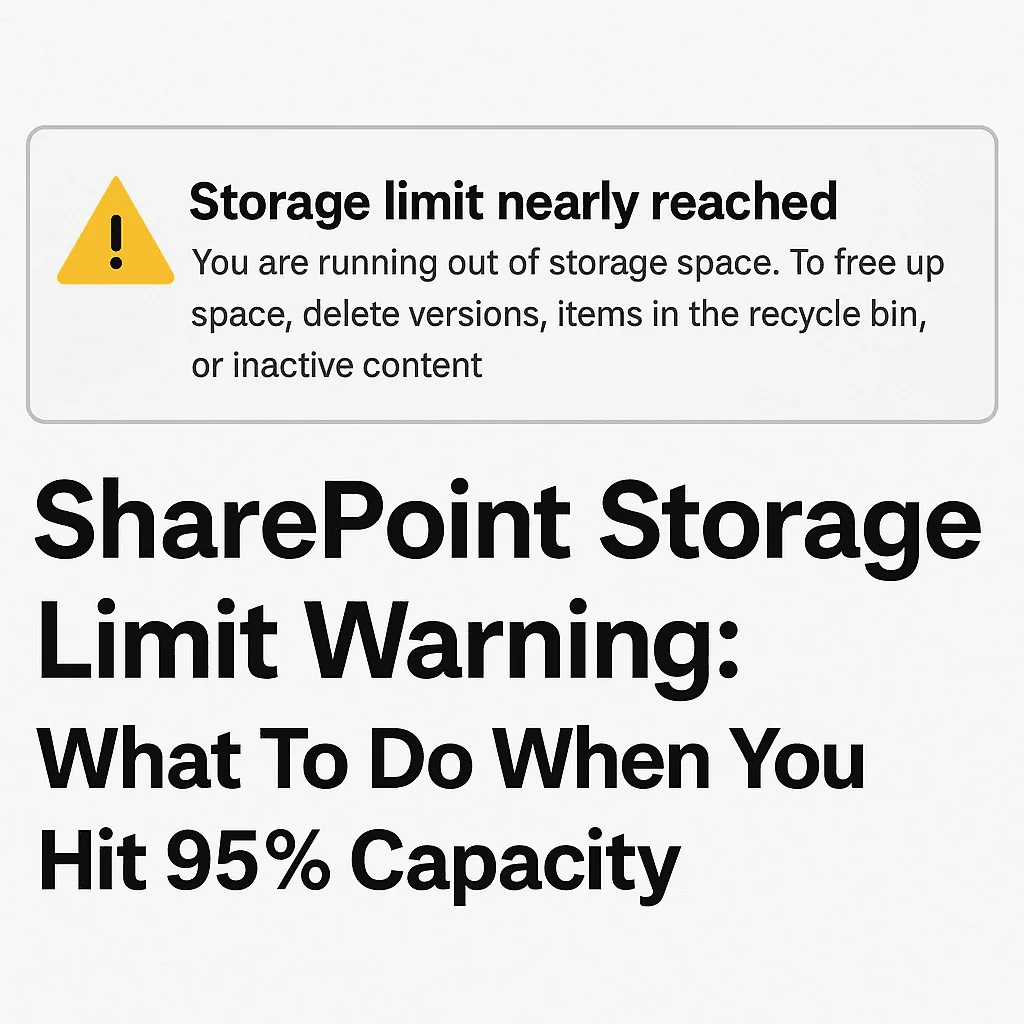
The banner in the SharePoint admin centre leaves little room for interpretation. What usually follows is a round of deleting old files, a refresh of the Storage page, and no visible change. Then a second round, and a decision to buy extra storage because nothing else seems to work.
Two facts should slow that decision down. Microsoft does not automatically bill a tenant for exceeding its SharePoint allocation; extra storage is an add-on you buy deliberately, at $0.20 per GB per month (see SharePoint Online licensing and pricing). And the real consequence of staying over the limit is a state, not a charge: Microsoft's SharePoint limits page says a tenant operating above its limit risks being put into read-only mode until usage drops or capacity is bought. Serious, but it leaves time to find where the space went and act on the cause. This is the checklist, in the order most admins hit the surprises.
How to free up SharePoint storage: the short version
- Empty both stages of the recycle bin. Deleted items count against storage for 93 days until a site collection administrator purges them.
- Trim version history where nothing holds it. Switch the tenant to automatic version limits and run the batch delete jobs; every version is counted at full size.
- Check the Preservation Hold Library. Under a retention policy or hold, deleted and edited files are kept in a hidden library that cannot be emptied by hand.
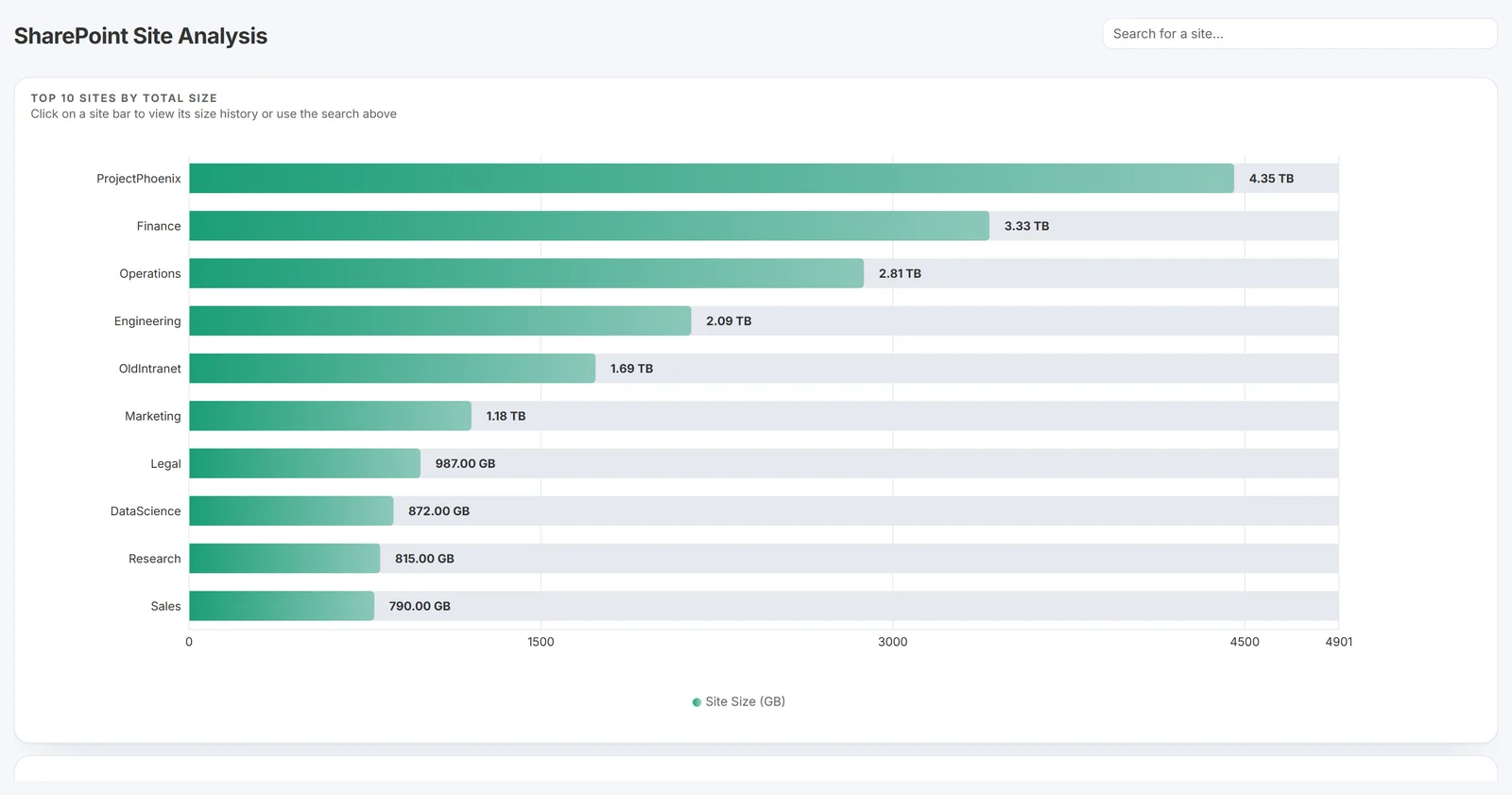
- Find the largest sites, libraries, file types and version chains. The admin centre gives site totals; a scan gives what is behind them.
- Archive inactive content out of SharePoint. Whole dormant sites with Microsoft 365 Archive, or inactive files by age with a stub-based archive into your own Azure storage.
- Wait 24 to 48 hours before judging the result. The admin centre storage figures lag.
Each step is explained below, starting with why the first round of deleting changed nothing.
Why deleting files did not free any space
Version history is counted in full
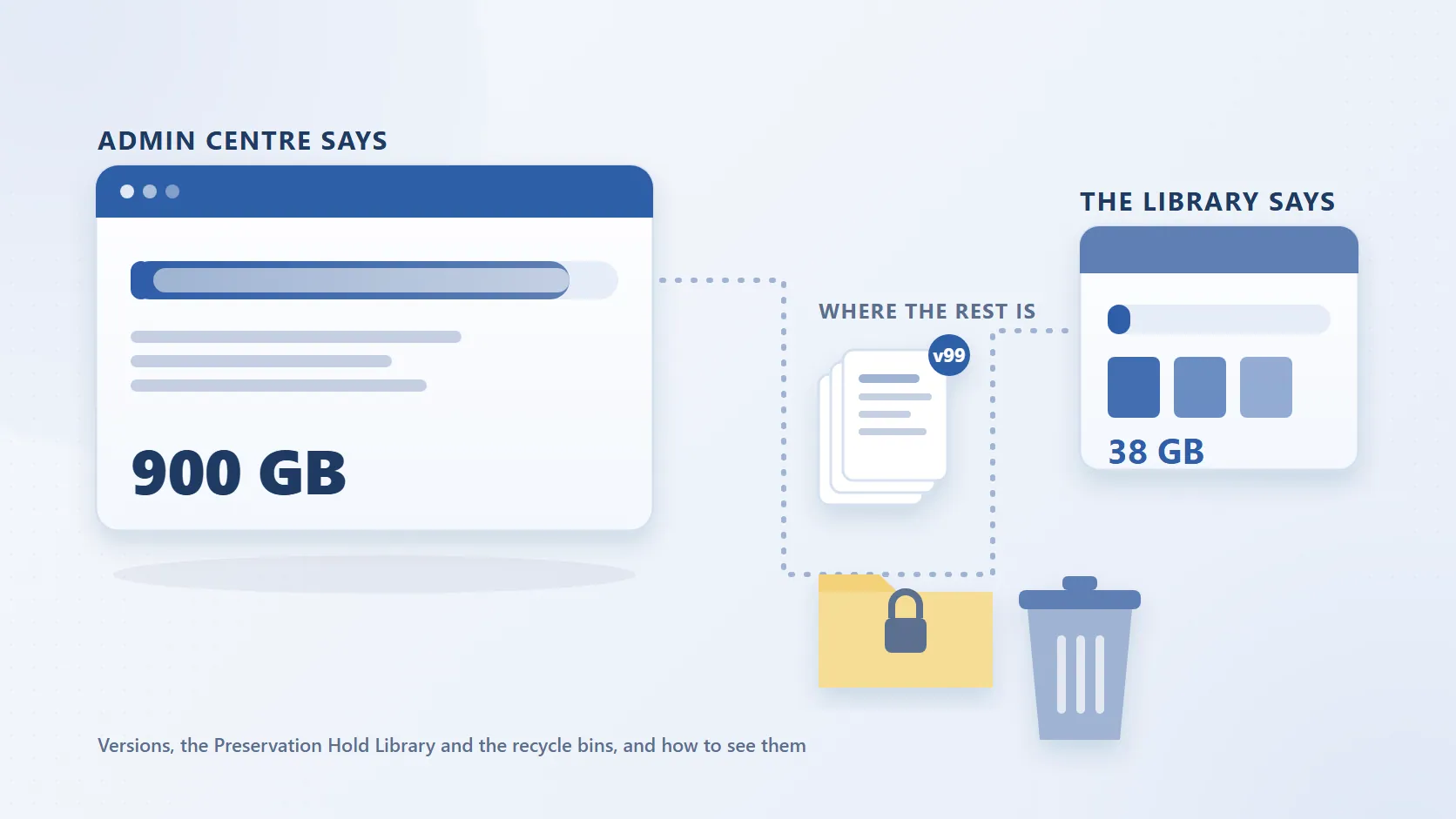
Every version SharePoint keeps is stored and counted at its full size. The long-standing default kept up to 500 major versions of each file; Microsoft began rolling out automatic version limits in 2024, but libraries created under the old default still carry it. A 2 GB spreadsheet saved a hundred times is not 2 GB of storage, it is 200 GB. Deleting a few hundred old files while thousands of others carry long version chains barely moves the total, and trimming can disappoint too: on an 8.7 TB tenant discussed on Tech Community, trimming versions recovered less than 0.5%. How versions accumulate, and how to set limits without losing what you need, is covered in SharePoint version history and storage.
The two-stage recycle bin holds items for 93 days
A deleted file goes to the site recycle bin, then to the site collection (second-stage) recycle bin, and stays recoverable for 93 days in total. Throughout that time it counts against the tenant's storage. Microsoft's limits page recommends monitoring and emptying the recycle bin regularly for exactly this reason. So a bulk deletion of 100 GB shows as a 100 GB reduction in the library and no reduction in the tenant total, which is what an admin on Microsoft Q&A reported after deleting more than 100 GB and seeing no change. A site collection administrator can empty both stages by hand. See how the SharePoint recycle bin works.
The Preservation Hold Library keeps what you delete
If a retention policy, retention label or eDiscovery hold applies to the site, deleting or editing a file causes SharePoint to keep a copy in the site's hidden Preservation Hold Library. Those copies count against storage, they do not appear in the library or the recycle bin, and they cannot be emptied by hand while the policy applies; SharePoint removes them on its own schedule once the retention period has ended, unless an administrator runs a priority cleanup, which needs a justification and a second approver. This is the mechanism behind the Microsoft Q&A case of a tenant at 90% with a seven-year hold: every cleanup attempt moved data into the hold library instead of removing it. The Preservation Hold Library guide explains what goes in, when it leaves, and how to see how large it has grown.
The admin centre lags by 24 to 48 hours
Storage figures in the SharePoint admin centre are not live. Changes to a site's usage can take 24 to 48 hours to appear on the Active sites list and the tenant Storage page. Check again after two days before concluding a cleanup had no effect, and be aware that SharePoint measures storage in binary gigabytes (1 GB = 1,073,741,824 bytes), so figures from other tools can differ slightly.
Step 1: See what is actually using the storage
The admin centre shows the total and the largest sites, not which libraries, folders, file types or version chains are behind those numbers, and that is what you need before deciding what to archive or delete.
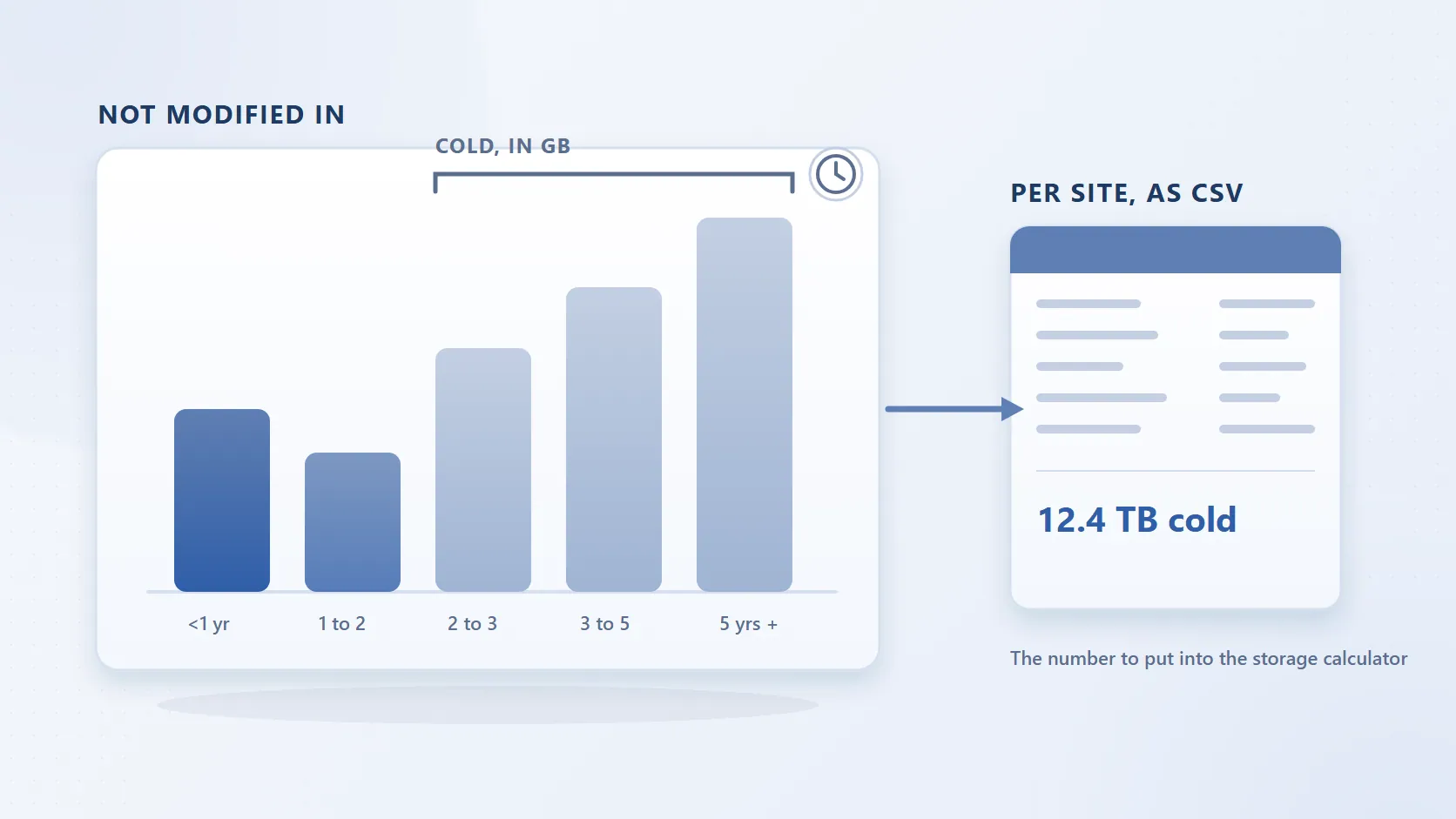
Run SharePoint Storage Explorer first. It is a free, read-only Windows tool that registers an app in your tenant, scans the sites you choose, and reports the largest sites, libraries, folders and files, the file-type breakdown, and content age by last-modified date. A light scan gives site and library totals; a deep scan enumerates every file, and with file-level versions enabled it reports version count and version bytes per file, which is the only practical way to find the 2 GB spreadsheet with a hundred versions. It changes nothing in the tenant; the install and setup guide covers the app registration.
The manual route. In the SharePoint admin centre, go to Sites, then Active sites, and sort by Storage used. In each large site, Site settings, then Storage metrics, shows libraries and folders by size; Settings, then Storage limits, shows the tenant total. Version and Preservation Hold Library sizes have to be inferred site by site.
Whichever way you look, keep the allocation in mind. Your tenant's SharePoint storage is 1 TB plus 10 GB per licence:
| Licensed users | Total SharePoint storage allocation |
|---|---|
| 250 users | 1 TB + (250 × 10 GB) = 3.5 TB |
| 1,000 users | 1 TB + (1,000 × 10 GB) = 11 TB |
| 10,000 users | 1 TB + (10,000 × 10 GB) = 101 TB |
That allocation is shared by every SharePoint site, the files behind every Teams channel, both recycle bins and every Preservation Hold Library. It excludes the OneDrive created for each licensed user, which is allocated separately. And it moves: when licences are returned, 10 GB each leaves with them, which is how one admin on Microsoft Q&A came to be using 7.2 TB of a 4.2 TB allocation without adding a file.
The hot spots of data are usually predictable:
| Hot spot | What you find |
|---|---|
| Project and engineering sites | Drawings, models, recordings and exports, mostly untouched after the project closed |
| Teams channel sites | Files and meeting recordings duplicated across channels |
| Version history | A few large, frequently edited files carrying hundreds of versions each |
| Preservation Hold Library | Retained copies of deleted and edited files, growing silently under policy |
Step 2: Departed users, their OneDrives and the licences you reclaim
Two things happen when staff leave. Their licence is reclaimed, and 10 GB leaves the SharePoint allocation with it. And their OneDrive becomes unlicensed, which Microsoft handles on a fixed timetable under its unlicensed OneDrive accounts policy: read-only at day 60, archived at day 93, removed from eDiscovery at day 275, and subject to deletion after 365 cumulative unpaid days, "even if retention policies, settings, or holds exist". Reactivating an archived account costs $0.60 per GB plus $0.05 per GB per month, and once billing is enabled the monthly fee applies to every unlicensed account in the organisation.
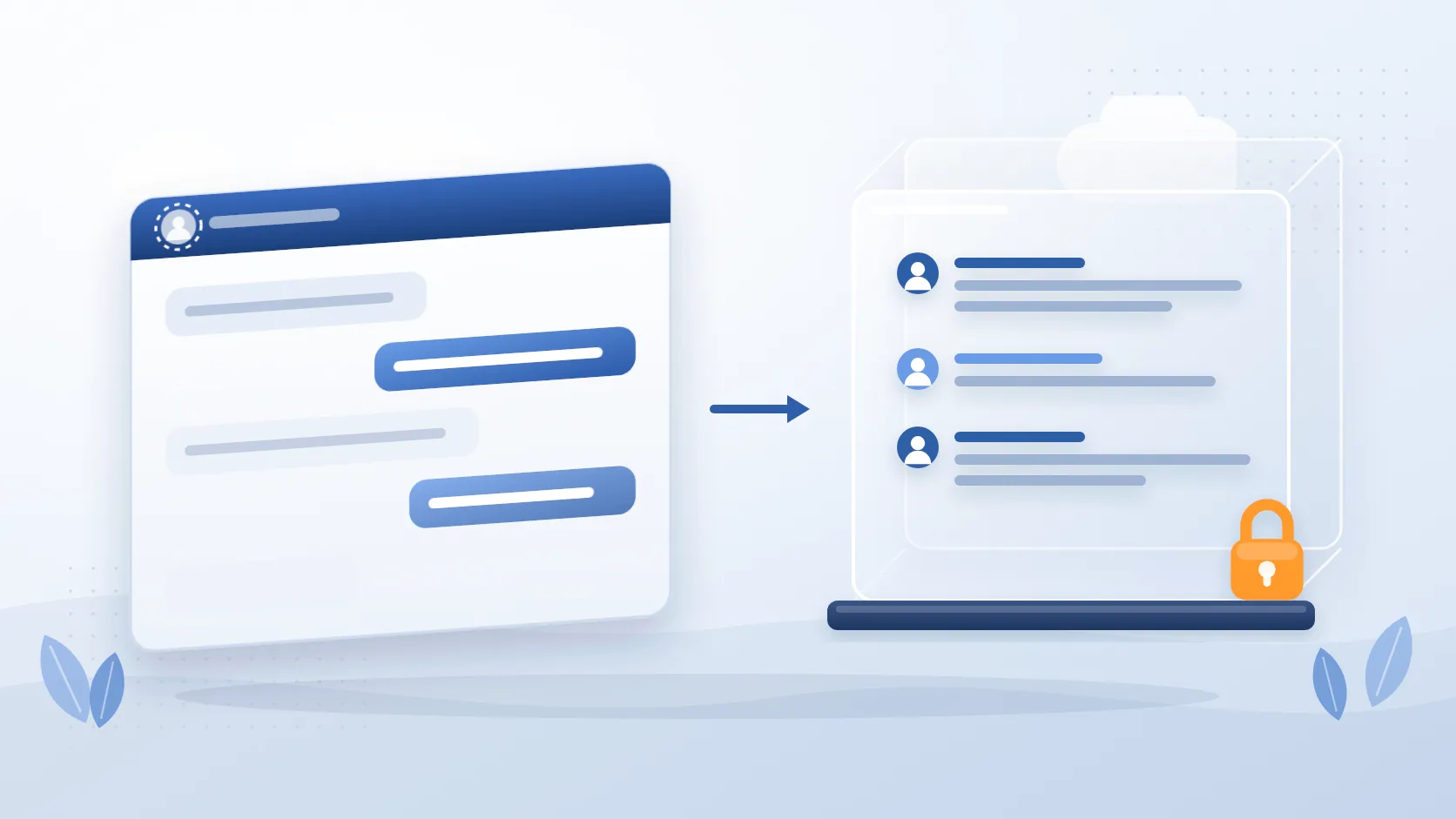
An unlicensed OneDrive is not in the SharePoint allocation, so archiving it does not free SharePoint space directly, but it stops the account becoming a recurring charge or a lost record and lets you reclaim the licence cleanly. Chipmunk archives the departed user's OneDrive, Exchange Online mailbox and Teams chats into your own Azure Blob Storage, searchable and exportable for legal, HR and manager requests, so the licence can be reclaimed and the OneDrive removed. See how Chipmunk archives departed-user data and OneDrive archiving.
Step 3: Archive inactive content without breaking access
For sites full of old project files and historical records, the goal is to move inactive files to cheaper storage while users can still find and open them without involving IT.
The pattern that works is archive-with-stub. A policy identifies files not modified or accessed in a set period, moves each to Azure Blob Storage, and leaves a small stub with the original name, metadata and dates in its place. The folder tree is unchanged, links keep resolving, permissions are inherited from the library, and a user who needs the file opens the stub and gets the original back with its version history. No retraining, no broken links, no permission changes.
This is what Squirrel does:
- Archives inactive files from SharePoint document libraries into Azure Blob Storage in your own Azure subscription, on rule-based lifecycle policies (last modified, last accessed, file type, folder path, library, site).
- Leaves a stub in place that users see in SharePoint, OneDrive sync and Teams; opening it restores the file immediately from the Azure Cool tier, with no restore fee.
- Preserves metadata, version history and Microsoft Purview retention labels and holds through archive and restore, and records every archive and restore in an audit trail.
- Reduces the SharePoint total, because the archived bytes leave the tenant rather than being reclassified inside it.
- With Recycle Bin Capture, archives files that users delete or modify instead of leaving copies to build up in the Preservation Hold Library.
More on the mechanics: self-service archiving, restoring archived files and Recycle Bin Capture. For the full picture, read the SharePoint archiving guide, how to reduce Preservation Hold Library storage and how to reduce SharePoint storage. If Teams is heavily used, much of the consumption is channel files landing in SharePoint; see SharePoint vs OneDrive vs Teams.
Step 4: Stop the problem coming back
Once storage is under control, the work is to keep it there:
| Governance task | Cadence |
|---|---|
| Archive inactive files on policy | Continuous |
| Archive departing users' data and reclaim the licence | Triggered when the account is disabled |
| Set version limits on new libraries | Standard practice at library creation |
| Review the largest sites and the Preservation Hold Library | Monthly |
| Rescan with SharePoint Storage Explorer | Quarterly, or before any storage purchase |
If you still need to buy, know what you are buying. The Office 365 Extra File Storage add-on is $0.20 per GB per month in 1 GB increments; it buys headroom, not a fix. Microsoft 365 Archive is cheaper at $0.05 per GB per month for archived sites, but site reactivation can take up to 24 hours after the first week, users see "The site is archived" until an admin acts, and its file-level mode "doesn't change site storage usage or quota behavior". See Microsoft 365 Archive alternatives.
Frequently asked questions
Q: Why is my SharePoint storage still full after deleting files?
A: Four reasons, usually in combination. Deleted items sit in the two-stage recycle bin for 93 days and count toward storage until purged. Under a retention policy or hold, a copy of every deleted or edited file is kept in the Preservation Hold Library, which you cannot empty by hand. Version history is counted in full, so the files you deleted may have been small next to the version chains left behind. And the admin centre takes 24 to 48 hours to reflect changes.
Q: How long until the admin centre shows the space I freed?
A: Allow 24 to 48 hours for the Active sites list and the tenant Storage page to update. If the total has not moved after two days, the space is still being held somewhere: check the second-stage recycle bin and, if retention applies, the Preservation Hold Library.
Q: Does the recycle bin count toward SharePoint storage?
A: Yes. Both the site recycle bin and the site collection recycle bin count against the tenant's storage for the full 93-day retention period. A site collection administrator can empty them early, unless the items are under a retention policy or hold, in which case they are preserved in the Preservation Hold Library regardless.
Q: Can I delete from the Preservation Hold Library?
A: Not by hand while the retention policy, label or hold that put the content there still applies. An administrator can remove held items with a Microsoft Purview priority cleanup, which requires a justification and a second approver; see clearing the Preservation Hold Library with priority cleanup. Otherwise SharePoint removes items on its own schedule once their retention period has ended. The way to reduce it is to change what goes in: shorten or narrow the policies where you can, and archive content on a policy before it is deleted or edited so the retained copy does not accumulate in SharePoint. Squirrel's Recycle Bin Capture does exactly that.
Q: Does Microsoft charge automatically when I exceed the SharePoint storage limit?
A: No. Extra storage is an add-on you buy, at $0.20 per GB per month. The consequence of staying over the limit is the risk of the tenant being placed in read-only mode, where users cannot add or modify content until usage is reduced or capacity is purchased.
Q: What is the SharePoint Online storage limit, and can I set a limit per site?
A: The tenant allocation is 1 TB plus 10 GB per licence, shared by every site. An administrator can set a limit on an individual site to stop it consuming everything, but the tenant allocation is the ceiling, and returning licences lowers it.
Q: Should I buy more SharePoint storage or archive instead?
A: Buy only for the headroom you cannot avoid. Archiving inactive files to Azure Blob Storage costs a fraction of the add-on per GB, the saving recurs every month, and with a stub-based archive users keep access to everything that moved. Buying more storage leaves the growth in place and brings you back to the same banner later.
Q: Will archiving documents affect how users find and access them?
A: Not with a stub-based archive. Squirrel leaves a stub in the original location with the same name and metadata, so the document still appears in SharePoint Search, OneDrive sync and Teams. Opening the stub restores the original, with its version history, without IT involvement.
Next steps
Mark Smith co-founded SmiKar Software in 2015 and has spent the past decade helping organisations solve Microsoft 365 data management challenges. He works with the SmiKar team to build solutions for SharePoint archiving, storage optimisation, governance and compliance, supporting customers from growing businesses through to Fortune 500 enterprises.
More about SmiKar