How to Reduce SharePoint Online Storage
The best ways to reduce SharePoint Online storage without deleting files are, in the order that yields the most: trim version history, empty both stages of the recycle bin, find and deal with the Preservation Hold Library, and archive inactive files to your own Azure storage with a stub left in place so nothing disappears from the library. Each is covered below with what it typically reclaims and what it will not touch. Every SharePoint Online tenant gets 1 TB plus 10 GB per licensed user. Once you exceed it, Microsoft charges $0.20 per GB per month for additional storage, which works out to $2,400 per TB per year, billed on top of your per-user licences, and a tenant that stays over its limit is at risk of being placed in read-only mode. Most SharePoint tenants are carrying far more than they need: version history, recycle bins, retention copies and years of inactive files silently inflate the total. This guide covers the levers that actually move the number, from the quickest wins to the durable fix, and under each one gives what it typically reclaims, using figures administrators have reported on Microsoft Q&A and the Microsoft Tech Community and what it will not touch.
The archiving step at the end of that list is what Squirrel does on a policy; the steps before it are the ones you can do today with what Microsoft provides.
For how SharePoint storage is priced and where the allocation comes from, see SharePoint storage pricing and every SharePoint Online limit in 2026.
Where SharePoint Storage Actually Goes
Before deleting anything, it helps to know what consumes the allocation. The usual culprits, in rough order of impact:
- Version history. Every version of every file is stored in full and counts against your quota. A 10 MB file edited 50 times can consume around 500 MB on its own. Across a large tenant, version history is frequently the single biggest consumer of storage.
- Inactive files. Documents that have not been touched in years still sit in SharePoint storage at the full rate.
- The Preservation Hold Library. When a retention policy is in place, deleting a file does not free space. A copy is written to a hidden Preservation Hold Library and continues to count against your quota.
- Recycle bins. Deleted files remain in the two-stage recycle bin for up to 93 days, still consuming storage the whole time.
- Large redundant files. Media, design files, ISOs and old migration dumps that never needed to live in SharePoint.
The rest of this guide works through each of these, starting with the step that makes the others measurable.
Step 0: See What Is Using the Storage
The slices are wildly uneven from one tenant to the next: a tenant with deep version chains gets most of its space back from trimming, while a tenant with broad retention policies gets almost nothing from it and needs to look at the Preservation Hold Library instead. Before deleting anything, get a baseline you can measure each step against.
The SharePoint admin centre gives you the tenant total and a per-site list, not how much of a site is version history, which library is carrying the weight, or how much has not been modified in years. SharePoint Storage Explorer is a free, read-only Windows tool that registers an app in your tenant, scans the sites you choose and reports the largest sites, libraries, folders and files, the file-type breakdown and last-modified age. It has two scan modes:
- Light scan for the baseline. Site, library, folder and file sizes, file types and last-modified age, without version detail. Run it across the whole tenant first.
- Deep scan with file versions for the per-file figures. With Include file-level versions switched on, the deep scan records the version count and version bytes for every file. Scope it to the sites the light scan flagged.
The site total is the figure SharePoint reports for the site and it includes the Preservation Hold Library and the recycle bins, so a site whose total sits well above the sum of its visible libraries is showing you where the hidden storage is; the admin centre total will never equal a sum of file sizes, for the reasons in why SharePoint storage does not add up. Write down the tenant total, the ten largest sites and their version bytes before you start. For the native routes, how to check the size of SharePoint storage covers Active sites, the Storage Metrics page and PowerShell.
1. Trim Version History (Usually the Biggest Win)
Because every version is stored at full size, version history is where the largest, fastest reductions usually come from. Microsoft now defaults new document libraries to Automatic version limits (also called intelligent versioning), which thins out older versions over time and can reduce version storage by around 94-96% over six months compared with fixed count limits.
The important catch: changing a version limit only affects new versions. It does not retroactively delete the existing version history already consuming your quota. To reclaim that space you must run a trimming job against existing content.
This is the highest-value cleanup for most tenants, and it has enough moving parts, the automatic algorithm, the PowerShell trimming jobs, the "run a What-If analysis first" warning, that it deserves its own walkthrough. See SharePoint version history storage: find and reduce it for the full method, including the exact New-SPOSiteFileVersionBatchDeleteJob commands.
What it typically reclaims: it depends entirely on how the tenant is used. In one Microsoft Q&A thread, trimming versions took a 649 GB library down by 369 GB. In a Tech Community post about an 8.7 TB tenant, the same exercise saved under 0.5 per cent because the weight was in inactive files, not versions. The deep scan with file versions tells you which you are.
What it will not touch: versions of files under a retention policy, label or hold. Deleting a version of a held file moves it to the Preservation Hold Library instead of freeing the space, so on a heavily retained tenant the job reshuffles storage rather than reclaiming it. It also does nothing for large files with one or two versions.
2. Empty the Recycle Bins
Deleted content is not gone. It moves through a two-stage recycle bin, first the site recycle bin, then the site collection (second-stage) recycle bin, and continues to count against your storage quota for the full 93-day retention window before it is purged automatically.
If you have just deleted a large volume of content and need the space back sooner, an administrator can empty both stages manually. Be deliberate about it: once purged from the second-stage recycle bin, files are gone. The full process, including PowerShell, is in SharePoint Recycle Bin: how to recover deleted files.
What it typically reclaims: exactly what was deleted in the last 93 days and no more. The site total from a Storage Explorer scan includes both recycle bin stages, so the gap between a site's total and the sum of its libraries is the ceiling on what emptying them can return.
What it will not touch: anything a retention policy or hold covers. Purging a held file from the second-stage bin keeps a copy in the Preservation Hold Library, which continues to count, and emptying the bins does nothing about the version history of the files that remain.
3. Clear the Preservation Hold Library Trap
If your organisation applies retention policies or labels, deleting or editing a file does not reclaim space. Microsoft writes a copy of the affected content to the Preservation Hold Library, a hidden library that counts against your tenant quota. You cannot simply delete Preservation Hold Library content; it is protected by the retention policy by design. Managing it means finding which policies are driving the growth and whether the retention period genuinely needs to be that long. How to find the Preservation Hold Library size finds every one across the tenant; the Preservation Hold Library storage trap and how to replace it cover the options.
What it typically reclaims: nothing on the day, because the library is protected by design. The space comes back only when the retention period on the policies driving it expires, or when the policies are narrowed so that new deletions stop landing there. One administrator on Microsoft Q&A had a tenant at 90 per cent of its storage with a seven-year hold blocking every clean-up; the fix is a retention review with the compliance owner, not a delete button.
What it will not touch: shortening a retention period only releases content whose period has already run, and the versions of held items sit here too, which is why tactic 1 gives so little back on a heavily retained tenant. Microsoft's priority cleanup can now delete this content ahead of the retention period, overriding the policies and holds that protect it, though it carries a mandatory simulation, a two-person rule and an approval workflow. See how to clear the Preservation Hold Library.
4. Clean Up Your Largest Sites
Storage is almost always heavily skewed toward a handful of sites: abandoned project sites, the Teams team that became a dumping ground, the migration site nobody deleted. Step 0 tells you which they are; the native routes, the admin centre Active sites view, Get-SPOSite and the per-site Storage Metrics page, are in how to check the size of SharePoint storage. Sites that are genuinely finished can be deleted. Sites that are still needed but bloated are candidates for the archive step below.
What it typically reclaims: the site's full total, versions and recycle bins included. Microsoft states that deleted sites in the Recycle Bin do not count toward the organization's total storage usage, so the figure should fall once the admin centre catches up, which excludes the last 24 to 48 hours. The light scan gives the exact figure per site before you touch anything.
What it will not touch: a deleted site stays restorable in the deleted sites list for 93 days before it is permanently deleted, but Microsoft states it does not count toward your storage in the meantime. A site covered by a retention policy or hold is retained rather than purged until the hold is released. It also does nothing for the item counts and version chains in the sites you keep.
5. Remove Large Redundant Files
Once you know where the weight is, the manual sweep is straightforward: media libraries, old project archives, design source files, ISO images and one-off migration dumps that never needed to be in SharePoint. Moving these out of active document libraries frees storage immediately. What it typically reclaims: the largest-files and file-type reports from step 0 give the exact number before anyone deletes anything; a handful of ISO images, video exports and migration ZIP files frequently outweigh the entire version history of a small tenant.
What it will not touch: the versions of the files you keep, and anything under a hold, which goes to the Preservation Hold Library on deletion. A deleted file also sits in the recycle bin for 93 days unless an administrator purges it, so the space arrives when tactic 2 is done.
The Durable Fix: Archive Inactive Content to Azure
Manual cleanup buys back space, but a growing tenant fills it again: version history rebuilds, new inactive files accumulate, and within a year or two the storage bar is back in the red. The durable answer is to stop paying the SharePoint rate for content that is no longer active, and the first question is how much of the tenant qualifies. How to find SharePoint files not modified in years gives three routes to the figure for two, three or five years, and on most tenants of any age that is the largest single slice.
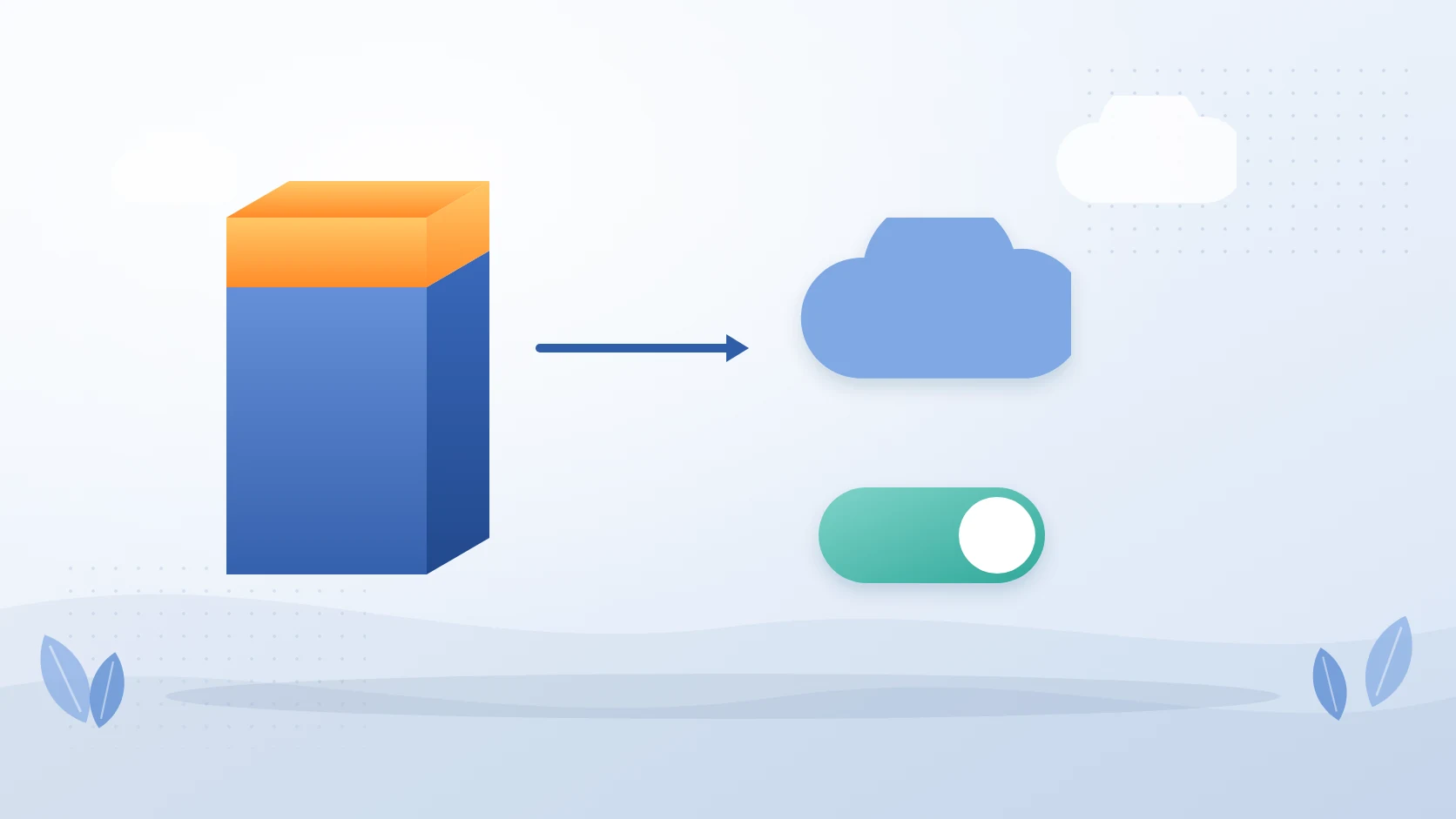
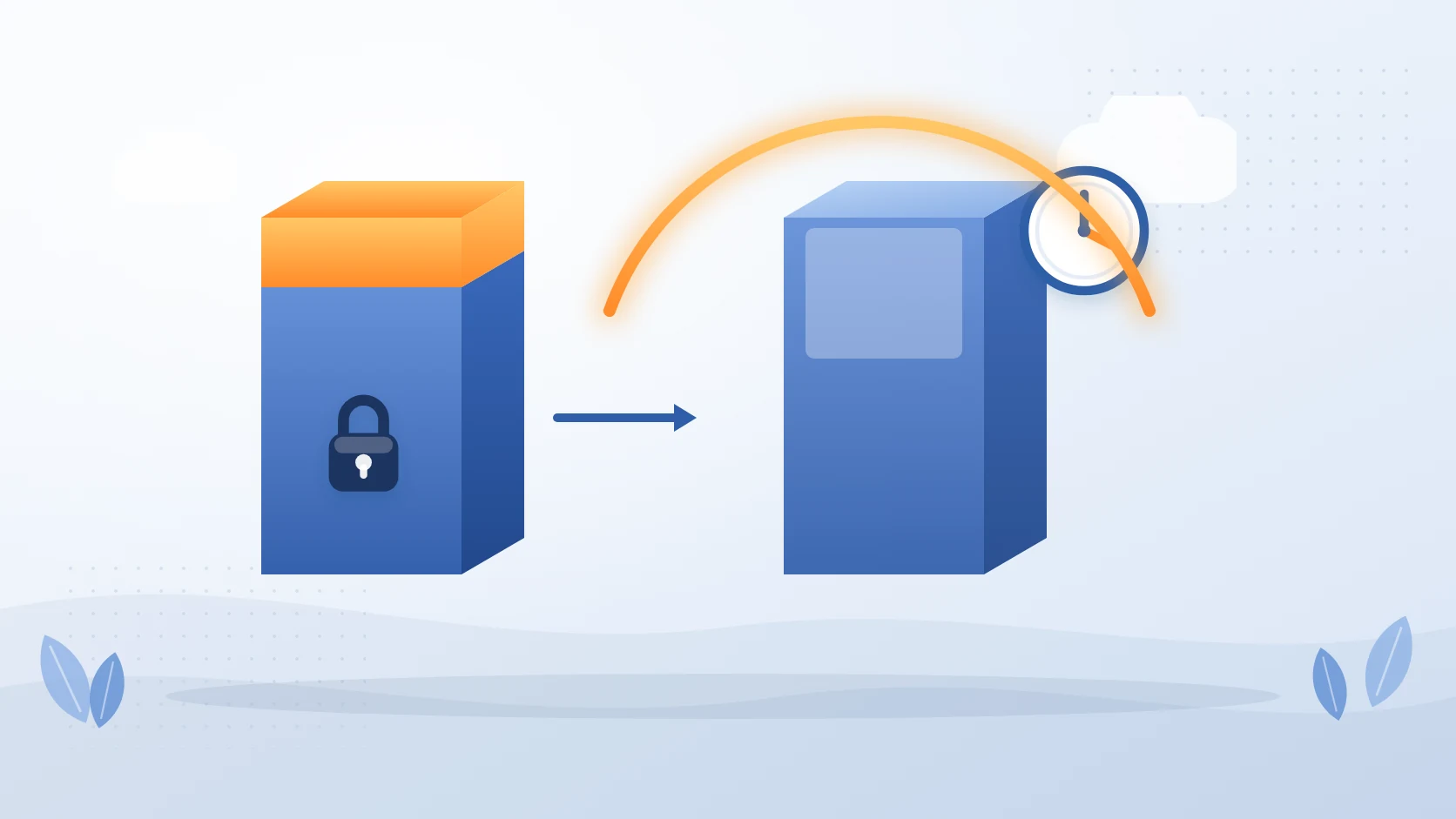
SharePoint archiving moves inactive documents out of the SharePoint allocation into lower-cost storage while keeping them accessible. Squirrel does this on a scheduled, policy-driven basis, and writes the archived data into your own Azure Blob Storage account, in your own Azure subscription, at the access tier you choose. A stub with the original filename stays in SharePoint with the metadata and dates intact; users see it in SharePoint, in OneDrive sync and in Microsoft Teams, and restore the original with its version history themselves, immediately and with no restore fee from Squirrel. If you stop using Squirrel the archive stays in your account and Squirrel bulk-restores it back into SharePoint before the subscription ends.
The economics are the point: SharePoint's additional storage costs $2,400 per TB per year, and the same data in the Azure Blob Cool tier costs around $120 per TB per year, in storage your organisation owns and controls. Paired with Nutshell AI, which embeds a summary in each stub, archived content stays discoverable by SharePoint Search and Microsoft 365 Copilot. For a comparison with Microsoft's native option, see Microsoft 365 Archive vs Squirrel.
What it typically reclaims: the bytes and the full version chain of every file the policy matches, on a schedule, so the reduction holds. A FTSE 250 engineering group running Squirrel took its tenant from 460 TB to 165 TB; the detail is in the customer case studies.
What it will not touch: item counts. Every archived file is replaced by a stub, so the 5,000-item list view threshold and the 300,000-item sync guidance are unchanged; what leaves the library is bytes, version chains and search-index weight. Squirrel archives document library content only, not OneNote, SharePoint pages, lists, Site Assets or active users' OneDrive. Files under a Purview retention label or hold can be archived and the label or hold survives, but the Preservation Hold Library itself stays where it is.
A Practical Order of Operations
The sequence that reclaims the most space with the least risk:
- Light scan across the tenant, deep scan with file versions on the ten largest sites, baseline written down.
- Trim existing version history where the deep scan shows it is worth it.
- Empty recycle bins if you need recently deleted space back immediately.
- Review Preservation Hold Library growth and the retention policies driving it.
- Delete finished sites and sweep out large redundant files.
- Put a scheduled archiving policy in place so inactive content stops accumulating.
Steps 0 to 4 are one-time cleanups. Step 5 keeps the storage bar out of the red for good.
Teams channel files count against SharePoint rather than anyone's OneDrive, which is why heavy Teams use shows up as a SharePoint storage problem; see SharePoint vs OneDrive vs Teams.
Next steps
Frequently Asked Questions
Why is my SharePoint storage full even after deleting files?
Deleting files does not immediately free space. Deleted content sits in the two-stage recycle bin for up to 93 days, and if a retention policy applies, a copy is also written to the Preservation Hold Library, which counts against your quota. Version history of the files that remain keeps consuming storage regardless.
I deleted 250 GB and the storage did not change. Why?
Three reasons, usually together. The deleted files are in the two-stage recycle bin for up to 93 days and still count. If a retention policy or hold covers them, a copy has been written to the Preservation Hold Library, which counts too and cannot be emptied. And the admin centre figures update on a lag, so even a genuine reduction takes time to show. One administrator on Microsoft Q&A deleted 100 GB and saw no change for exactly these reasons; why SharePoint storage does not add up walks through finding each piece.
What is the fastest way to reduce SharePoint storage?
For most tenants, trimming existing version history, because every version is stored in full. After that, emptying recycle bins and reviewing the Preservation Hold Library are the next quickest wins. See SharePoint version history storage for the exact steps.
How much does extra SharePoint storage cost?
Microsoft charges $0.20 per GB per month for storage above your allocation of 1 TB plus 10 GB per licensed user. That is $2,400 per TB per year, on top of your per-user licences.
Does archiving reduce SharePoint storage?
Yes. Archiving moves inactive files out of the SharePoint allocation into lower-cost storage. With Squirrel, archived data is written to your own Azure Blob Storage at a fraction of the SharePoint additional storage rate, while a stub keeps the file visible and restorable in SharePoint. It reduces bytes, not item counts, so it fixes a storage limit rather than a list view threshold.
Related reading
- Why SharePoint storage does not add up
- How to find SharePoint files not modified in years
- How to find the Preservation Hold Library size
- Find over-quota OneDrives and SharePoint sites with PowerShell
- SharePoint analytics: what to track and how to report on it
- SharePoint version history storage: find and reduce it
- How to check the size of SharePoint storage
- SharePoint Recycle Bin: how to recover deleted files
- SharePoint Preservation Hold Library explained
- SharePoint Online archiving - the complete enterprise guide
- Every SharePoint Online limit in 2026
- SharePoint storage cost calculator - enter your volume and compare the SharePoint add-on rate against Azure Blob Hot, Cool and Archive.
Stop Paying the SharePoint Rate for Inactive Files
If your SharePoint storage bar is in the red, cleanup buys you time and archiving buys you a durable fix. See how Squirrel cuts SharePoint storage costs by moving inactive content into your own Azure storage, or contact us to talk through your tenant.
Mark Smith co-founded SmiKar Software in 2015 and has spent the past decade helping organisations solve Microsoft 365 data management challenges. He works with the SmiKar team to build solutions for SharePoint archiving, storage optimisation, governance and compliance, supporting customers from growing businesses through to Fortune 500 enterprises.
More about SmiKar