Why your SharePoint storage quota went down, and what to do now that you are over it.
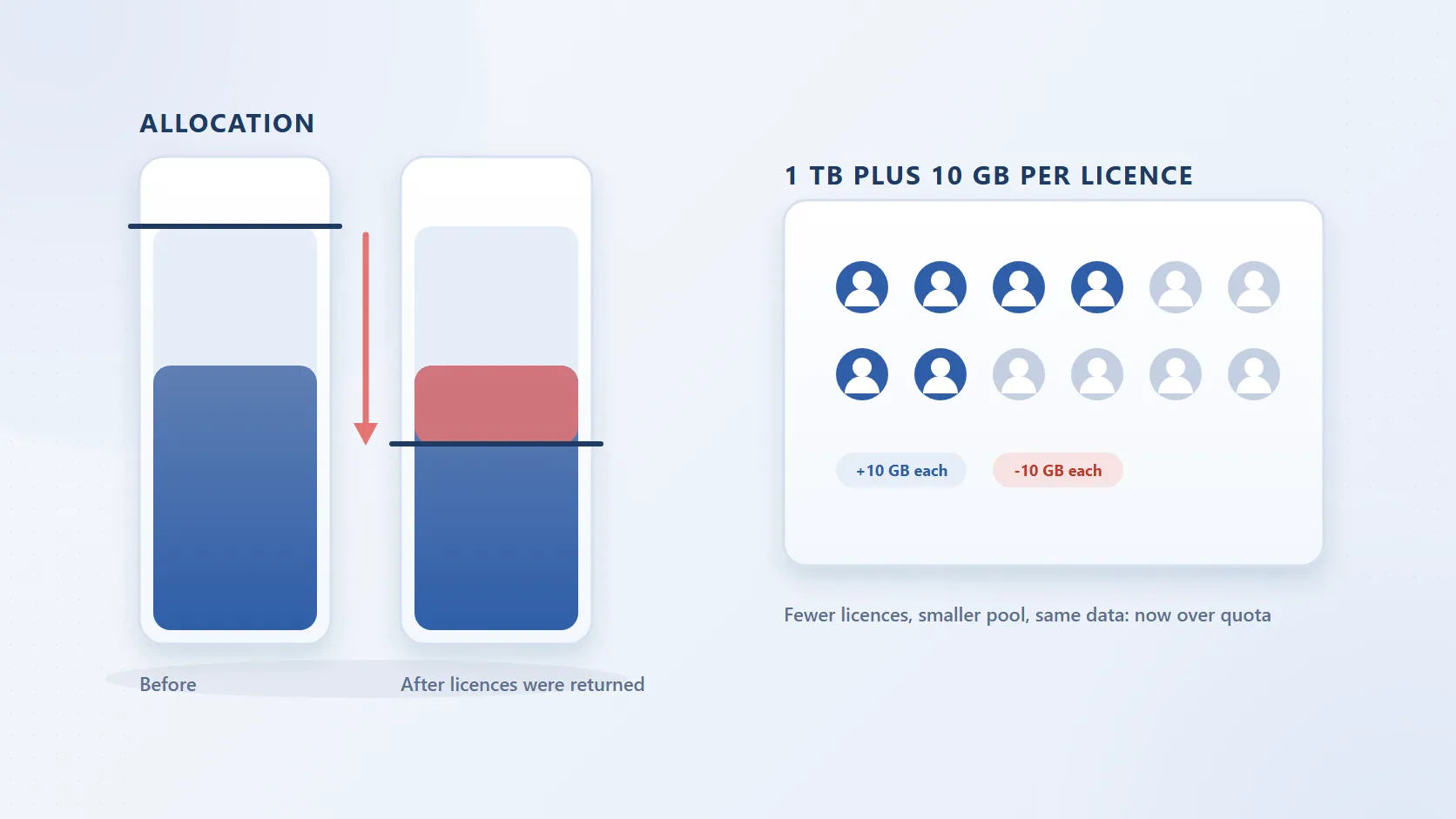
Nobody uploaded anything and no site grew, yet the storage bar on the Active sites page shows the tenant over its limit, and the total at the end of that bar is smaller than it was last month. Usage did not rise; the allocation fell. The SharePoint storage total is not a fixed number you bought once. It is recalculated from the licences in the tenant, and when licences leave, storage leaves with them. An admin on Microsoft Q&A found the tenant using 7.2 TB of a 4.2 TB allocation after returning licences, without adding a file.
The formula
SharePoint Online storage is pooled across the tenant: 1 TB for the organisation, plus 10 GB for every qualifying licence, plus any Office 365 Extra File Storage add-on you have bought. Every SharePoint site draws on it, including the sites behind Microsoft Teams, both recycle bins and every Preservation Hold Library.
| Qualifying licences | Allocation |
|---|---|
| 100 | 1 TB + (100 × 10 GB) = 2 TB |
| 420 | 1 TB + (420 × 10 GB) = 5.2 TB |
| 2,500 | 1 TB + (2,500 × 10 GB) = 26 TB |
Two things the formula excludes. Per-user OneDrive storage is provisioned separately and is not part of the tenant allocation, which Microsoft's SharePoint limits page states in a footnote; a departed user's OneDrive being removed frees nothing in the pool, while the licence being returned removes 10 GB from it. And frontline plans are the exception to the per-licence part: Microsoft 365 F1 and F3 and Office 365 F3 contribute to a flat 1 TB.
The total shows in the SharePoint admin centre under Sites, then Active sites, in the storage bar at the upper right: used against total for the subscription, measured in binary gigabytes and excluding changes made in the last 24 to 48 hours. The full set of limits is in every SharePoint Online limit.
Which licences add 10 GB
A licence adds 10 GB when it includes SharePoint Online as a service plan: Microsoft 365 Business Basic, Standard and Premium; Microsoft 365 E3 and E5; Office 365 E1, E3 and E5; the education and government equivalents; and the standalone SharePoint Plan 1 and 2, which Microsoft is retiring. The limits page adds that Visio Plan 2 and Project Plan 3 and 5 contribute approximately 10 GB each, and that Dynamics 365 licences contribute to Dataverse storage rather than SharePoint.
The ones that do not count are the surprises:
- Add-ons without a SharePoint service plan. Microsoft support, answering an admin on Microsoft Q&A who expected roughly 5.3 TB from Microsoft 365 E3, E5 Security and Teams Essentials seats and saw 3.8 TB, explained that only licences that include SharePoint Online contribute, and that E5 Security is a security add-on with no SharePoint entitlement.
- Microsoft Teams Essentials. It gives each user 10 GB of cloud storage in OneDrive but no SharePoint entitlement, and in the same thread Microsoft support said the tenant's 206 Teams Essentials seats added nothing to the SharePoint quota. The limits table does carry a footnote of 10 GB per user for Teams Essentials, so verify the figure in your own tenant rather than assume it.
- Trials. A trial's licences count while it runs; when it expires, the 10 GB per seat leaves with it.
- Reseller and CSP arrangements. Licences bought through a Cloud Solution Provider or a volume licensing agreement count, but the subscription is managed by the partner and the extra storage add-on has to be bought through them.
What each plan costs and includes is in SharePoint Online licensing and pricing.
The four reasons the pool shrinks
1. Licences returned or reduced at renewal. The common case. A renewal trues the seat count down, the unused licences go, and 10 GB leaves with each one: 120 seats returned is 1.2 TB gone. The content those people created stays in SharePoint, because it was never tied to their licence. This is the mechanism behind the 7.2 TB of 4.2 TB case.
2. A trial or promotional allocation expiring. An evaluation of 250 seats on a suite that includes SharePoint is 2.5 TB of allocation that disappears the day the trial lapses, and if usage grew into that headroom, the drop puts the tenant over.
3. A licence type change that no longer includes SharePoint. Moving users to a plan that contributes differently changes the total without changing headcount. Migrating 300 users to a frontline plan takes their 3 TB out of the per-licence part, because F1 and F3 contribute to a flat 1 TB.
4. A reporting correction. Occasionally the total changes because Microsoft's calculation of it changed. The Learn troubleshooting article for tenants out of storage space points admins who believe they should have more than the admin centre shows to a diagnostic in the Microsoft 365 admin centre, which identifies issues affecting the tenant storage quota and shows how it is allocated.
What over-quota actually does
A state, not a charge. Microsoft does not automatically bill a tenant for exceeding its SharePoint allocation; extra storage is an add-on you buy deliberately, at $0.20 per GB per month. What the limits page says instead is that a tenant that continues to operate above its limit is at risk of being put into read-only mode, where users may be unable to add or modify content until usage is reduced or capacity is purchased. The email that goes with it, quoted in Microsoft's out of storage space article, reads: "SharePoint Online is out of storage space. Sites are in read-only mode and changes can't be saved." If the lock has already been applied, see SharePoint sites read-only because storage is full for the messages and why buying storage may not unlock it at once.
No published grace period. Microsoft does not document how long a tenant can stay over before read-only mode is applied. Treat read-only as a state you can enter at any point while over, not a deadline to count down to.
Nothing is deleted. Files, versions, recycle bins and Preservation Hold Libraries stay where they are; the risk is to writes, not to what is stored. That is different from an unlicensed OneDrive, which Microsoft does archive and eventually delete on a fixed timetable.
One caution on Microsoft's pay-as-you-go SharePoint Storage as the fix: while a tenant is enrolled, the quota warning emails and admin centre banners stop, because the tenant is treated as within quota.
Buy, clean or archive
Three routes out, and most tenants use two of them.
| Route | What it does | Cost profile |
|---|---|---|
| Buy | Office 365 Extra File Storage, 1 GB increments, or pay-as-you-go via Azure | $0.20 per GB per month, recurring, grows with the estate |
| Clean | Trim versions, empty second-stage recycle bins, wait out expired holds | Staff time; one-off reclaim; trimmed versions are gone |
| Archive | Move inactive files to your own Azure Blob Storage, leave stubs | Azure Cool-tier rates on the archived bytes; users keep access |
Buy when you need headroom now and the licence count cannot change back. How to buy more SharePoint storage covers the add-on, the two pay-as-you-go services and who can buy which; Volume Licensing and CSP customers go through their partner. At 1 TB the add-on is $2,400 a year, and it buys permission to keep storing what you already have.
Clean when usage is inflated by things that are not content: version chains on a few heavily edited files, deleted items inside their 93 days, held copies whose retention has ended. How to reduce SharePoint storage has the sequence.
Archive when the storage is real content that must be kept but nobody opens: closed projects, historical records, held copies. Squirrel moves inactive files from SharePoint document libraries into Azure Blob Storage in your own Azure subscription on rule-based policies, replaces each with a stub carrying the original name, metadata and dates, and restores the original with its version history when the stub is opened, immediately from the Cool tier with no restore fee. Purview retention labels and holds survive archive and restore, and Recycle Bin Capture archives deleted and edited files instead of leaving copies to accumulate in the Preservation Hold Library. The archived bytes leave the SharePoint total. Microsoft 365 Archive is Microsoft's alternative at $0.05 per GB per month for archived sites, with reactivation taking up to 24 hours after the first week, and its file-level mode does not change site storage usage or quota behaviour.
The SharePoint storage calculator models the add-on against archiving at your tenant size.
Check what is using the space first
Whichever route you take, size it before you spend. The admin centre shows the total and the largest sites, not what the space is made of. SharePoint Storage Explorer is a free, read-only Windows tool that registers an app in your tenant and scans the sites you choose. A light scan gives site and library totals, and site totals include the Preservation Hold Library and both recycle bins, so the gap between a site's total and its visible libraries is on screen immediately. A deep scan with file versions adds version count and version bytes per file for the sites that stand out. Where the hidden gigabytes sit, with a five-minute check for each, is in SharePoint storage doesn't add up.
There is a governance point in the formula itself. Every licence reclaimed from a leaver takes 10 GB out of the allocation while leaving that person's SharePoint content in it; an organisation that offboards 200 people a year loses 2 TB of allocation against content that does not shrink. Archiving the departed user's OneDrive, mailbox and Teams chats with Chipmunk lets the licence go cleanly, and Squirrel archives their inactive SharePoint content so usage falls with the allocation.
Frequently asked questions
Q: Does Microsoft delete data when I am over quota?
A: No. Exceeding the allocation puts the tenant at risk of read-only mode, in which users may be unable to add or modify content until usage is reduced or capacity is purchased. Existing files, versions, recycle bins and Preservation Hold Libraries stay in place, and Microsoft does not automatically bill for the excess; extra storage is an add-on you choose to buy.
Q: How long is the grace period?
A: Microsoft does not publish one. Its limits page says a tenant that continues to operate above its limit is at risk of read-only mode, with no stated interval, so there is no safe number of days to plan around.
Q: Does OneDrive count toward the SharePoint pool?
A: No. Each licensed user's OneDrive is provisioned separately, 1 TB on most plans, and Microsoft's limits page states the tenant allocation does not include it. Content in OneDrive does not consume the SharePoint allocation, and removing a leaver's OneDrive does not free any of it. Files shared in Teams channels are in SharePoint and count; files shared in Teams chats are in OneDrive and do not.
Q: Why did my quota fall after a renewal?
A: Because the renewal reduced the number of qualifying licences, and the allocation is 1 TB plus 10 GB per licence: returning 80 seats removes 800 GB. A trial that lapsed at renewal has the same effect, as does moving users to a plan without SharePoint or one that contributes to a flat 1 TB, such as F1 and F3.
Q: Can I see which licences are counted?
A: Yes, two ways. In the Microsoft 365 admin centre, under Billing and then Your products, open each subscription and check whether SharePoint Online is among its included services; if not, the licence adds nothing. For Microsoft's own view of the calculation, the storage diagnostic linked from the Learn article on tenants out of storage space identifies issues affecting the tenant quota and shows how it is allocated.
Next steps
Mark Smith co-founded SmiKar Software in 2015 and has spent the past decade helping organisations solve Microsoft 365 data management challenges. He works with the SmiKar team to build solutions for SharePoint archiving, storage optimisation, governance and compliance, supporting customers from growing businesses through to Fortune 500 enterprises.
More about SmiKar