Start With the Level of the Question
"Your storage is almost full" arrives as a single number in the SharePoint admin centre. Doing anything about it means turning that number into a location: which sites, which libraries, which folders, which files, and how much of the total is version history, retained copies and deleted items rather than documents anyone can see. SharePoint gives you a different tool at each level, none of them scale to the whole tenant on their own, and the hidden consumers are the ones the obvious views leave out.
Once you can see where the storage is, the inactive part of it is what Squirrel moves into your own Azure storage on a policy; that hand-off is in the last section.
This guide works down through the levels. For each one it gives the built-in place to read the figure, what that figure counts, the PowerShell to use when the built-in view stops scaling, and where SharePoint Storage Explorer fits as the tenant-wide view. It replaces two earlier guides on this site, on finding the largest sites and on getting a document library's size, which now redirect here.
1. The Tenant Total: Active Sites and the Usage Reports
Go to Active sites in the SharePoint admin centre, signed in as a SharePoint Administrator. The storage bar in the upper right shows the storage used and the total for the subscription; if the organisation uses Multi-Geo, pointing at the bar splits the figure between geo locations.
The total is the tenant allocation: 1 TB plus 10 GB per eligible licence, plus any extra storage purchased. It moves when licences are added or removed, which is why a tenant that was comfortably inside its limit can be over it after a restructure. The rules are in SharePoint Online limits and the reasons an allocation shrinks are in why your SharePoint storage quota dropped.
For the trend rather than the snapshot, the Microsoft 365 admin centre's usage reports (Reports > Usage) include a SharePoint site usage report with storage plotted over 7, 30, 90 and 180 days.
Two caveats apply to every figure in this guide. Storage usage does not include changes made in the last 24 to 48 hours, so a clean-up that finished this morning will not show until the day after tomorrow, and the same lag applies to every PowerShell property that reads the same data. And SharePoint calculates storage in binary gigabytes, where 1 GB is 2^30 bytes, so a tool that reports decimal gigabytes shows a few percent more. If the bar is already red, SharePoint storage limit warning covers what to do this week.
2. One Site: Storage Metrics
The Active sites list tells you which site is large. To see what inside it is large, open the site's Storage Metrics page: from the site, Settings > Site information > View all site settings, then Storage Metrics under Site Collection Administration. The direct URL is:
https://<tenant>.sharepoint.com/sites/<site>/_layouts/15/storman.aspx
Storage Metrics lists every library and list in the site, including the hidden ones, with its total size, its share of the parent and the date it was last modified. Click a library and you get its folders; click a folder and you get its files. It is the one built-in view that shows folder sizes, and it is where a large site resolves into a specific target: a media library, a folder of migration dumps, a records library nobody has opened in years.
A library's size here is its current files plus every retained version of them, with no split between the two. The page also has a row for the site's Recycle Bin and, on any site that has ever been under a retention policy, label or hold, a row for the Preservation Hold Library. Both count toward the site's total, both are invisible in the site itself, and on a site under long retention the hold library row can be larger than everything users can see. Section 7 covers both.
3. Rank Every Site
For a quick ranking, select the Storage used column header on Active sites. Storage is skewed in almost every tenant, with a handful of sites accounting for most of the total, and this sort finds them without scripting.
For a ranking you can keep and compare month on month, export it. The script below uses PnP.PowerShell to list every site with its storage, quota, template and last content change, largest first, and writes a CSV. You need the module, an Entra ID app registration for sign-in (Register-PnPEntraIDAppForInteractiveLogin creates one and gives you the client ID) and SharePoint Administrator rights.
# Requires PnP.PowerShell, an Entra app registration for sign-in
# (Register-PnPEntraIDAppForInteractiveLogin) and SharePoint Administrator rights.
$clientId = "<your-app-client-id>"
Connect-PnPOnline -Url "https://contoso-admin.sharepoint.com" -Interactive -ClientId $clientId

# Add -IncludeOneDriveSites to Get-PnPTenantSite to include OneDrive accounts.
Get-PnPTenantSite |
  Select-Object Title, Url, Template,
    @{ n = "UsedGB";  e = { [math]::Round($_.StorageUsageCurrent / 1024, 2) } },   # reported in MB
    @{ n = "QuotaGB"; e = { [math]::Round($_.StorageQuota / 1024, 2) } },
    LastContentModifiedDate |
  Sort-Object UsedGB -Descending |
  Export-Csv -Path "C:\Reports\SiteStorage.csv" -NoTypeInformation
StorageUsageCurrent is in megabytes and carries the same 24 to 48 hour lag as the admin centre. OneDrive accounts are left out unless you add -IncludeOneDriveSites, and per-user OneDrive storage is not part of the tenant SharePoint allocation, so a large OneDrive is not what is filling the bar. LastContentModifiedDate is the quickest way to find sites that are both large and idle, the first candidates for archiving. The SharePoint Online Management Shell equivalent is Get-SPOSite -Limit All sorted by StorageUsageCurrent; see SharePoint Online PowerShell.
4. Libraries and Folders
The modern library view does not show a library's size, and it does not show folder sizes at all, which is why "how big is this folder" is such a common question. Storage Metrics answers it for one site at a time: the library row is the library's size including versions, and clicking into it lists each folder with its size and share of the parent.
For a scripted answer, PnP PowerShell reads the same storage metric for a library or a folder:
Connect-PnPOnline -Url "https://contoso.sharepoint.com/sites/Projects" -Interactive -ClientId $clientId

# Whole library
Get-PnPFolderStorageMetric -List "Documents"

# One folder, by site-relative path
Get-PnPFolderStorageMetric -FolderSiteRelativeUrl "Shared Documents/2019 Projects" |
  Select-Object @{ n = "SizeGB"; e = { [math]::Round($_.TotalSize / 1GB, 2) } }, TotalFileCount, LastModified
TotalSize is in bytes and includes subfolders. Pair it with Get-PnPList -Includes ItemCount when you also need the item count, because bytes are the storage question and items are the performance question: views slow down above the 5,000-item list view threshold and sync guidance stops at 300,000 items, so a library with modest storage and a very high item count needs restructuring rather than archiving. The thresholds are in SharePoint Online limits.
Across a tenant, SharePoint Storage Explorer's document library view lists every library in every site with its storage, file count, folder count, largest file and versions storage, and its file browser shows the cumulative size of any folder including subfolders and exports any folder to CSV.
5. The Largest Files
Storage Metrics finds large files one folder at a time. To list them across a site or the tenant, query the search index, which already holds every document's size. This lists every document over 100 MB the signed-in account can see, largest first:
Connect-PnPOnline -Url "https://contoso.sharepoint.com" -Interactive -ClientId $clientId

Submit-PnPSearchQuery -Query "IsDocument:true AND Size>104857600" `
  -SortList @{ Size = "Descending" } -SelectProperties "Path","Size","LastModifiedTime" -All |
  Select-Object Path, @{ n = "SizeMB"; e = { [math]::Round([long]$_.Size / 1MB, 1) } }, LastModifiedTime |
  Export-Csv -Path "C:\Reports\FilesOver100MB.csv" -NoTypeInformation
Search results are security-trimmed to the account running the query, and Size is the current version only, so files that are large in versions rather than in their current size will not appear; section 6 covers those.
The same list without a script is SharePoint Storage Explorer's Top 100 files report: the hundred largest files across every scanned site, with site, library, path, modified date and who created and last modified them, exportable to CSV. It needs a deep scan, because only a deep scan reads individual files; after a light scan the report is empty.
6. Version History
Every version of a file counts against storage in full, and on a heavily edited library the version chain can be larger than the current documents. For content under a retention policy or an eDiscovery hold, the library's version limits are ignored until retention ends, so the chains keep growing whatever the settings say.
Storage Metrics does not separate versions from current content. Two things do. The first is the version storage usage report in the SharePoint Online Management Shell, which writes a CSV into a library in the site you name:
Connect-SPOService -Url "https://contoso-admin.sharepoint.com"

New-SPOSiteFileVersionExpirationReportJob -Identity "https://contoso.sharepoint.com/sites/Projects" `
  -ReportUrl "https://contoso.sharepoint.com/sites/Projects/Shared Documents/Reports/VersionReport.csv"
Get-SPOSiteFileVersionExpirationReportJobProgress reports on the job, which is queued and can take days on a large site. Run it before trimming anything and use Microsoft's what-if analysis to see what each limit would reclaim, because the trim itself is irreversible. The report, the limits and the trim job are covered in SharePoint version history storage.
The second is SharePoint Storage Explorer. A light scan gives each site a versions storage estimate, calculated as storage used minus file sizes, which is enough to see whether version history is the problem. A deep scan with file versions enumerates every file's version chain and reports version count and version bytes per file, so the file browser can sort a library by version count and show which files carry the weight. It is the slowest mode, so run it on the sites the estimate flagged.
7. The Preservation Hold Library and the Recycle Bins
These are the two places storage hides from everyone who is not a site collection administrator, and between them they explain most of the cases where SharePoint storage does not add up.
The Preservation Hold Library is a hidden system library SharePoint creates on any site under a Microsoft Purview retention policy, retention label, litigation hold or eDiscovery hold. When a user edits or deletes a file under retention, the original is copied there, versions included, and the copy counts against storage exactly as the live file did. It does not appear in Site contents; Storage Metrics shows it as a row, and site collection administrators can open it at /sites/<site>/PreservationHoldLibrary/Forms/AllItems.aspx. It cannot be emptied while the policy applies, and expired items leave on Microsoft's schedule through the second-stage recycle bin. What it is and why it grows is one guide; finding the size of every Preservation Hold Library in the tenant, with a PnP script that reads the hidden library on each site, is another.
The recycle bins are the other hidden consumer. Deleted items go to the first-stage bin, then to the second-stage bin when a user empties it, and both stages share a single 93-day window from the original deletion. Content in either bin counts against the site's storage until it is purged or ages out, and only a site collection administrator can empty the second stage. The mechanics are in SharePoint recycle bin: both stages and the 93-day limit.
The combination catches people out constantly: one administrator on Microsoft Q&A deleted around 100 GB and watched the tenant figure fail to move, because the content sat in the recycle bin and, under retention, had also been copied into the hold library. If you delete under retention, expect the total to stay flat or rise.
8. The Tenant-Wide View: SharePoint Storage Explorer
Every built-in view above shows one level, for one site, with no way to compare across the tenant without a script. SharePoint Storage Explorer is SmiKar's free, read-only Windows tool for SharePoint administrators that scans the tenant and puts every level in one place. It registers an app in your tenant for the scan, never writes to SharePoint, and keeps the results on the machine it runs on.
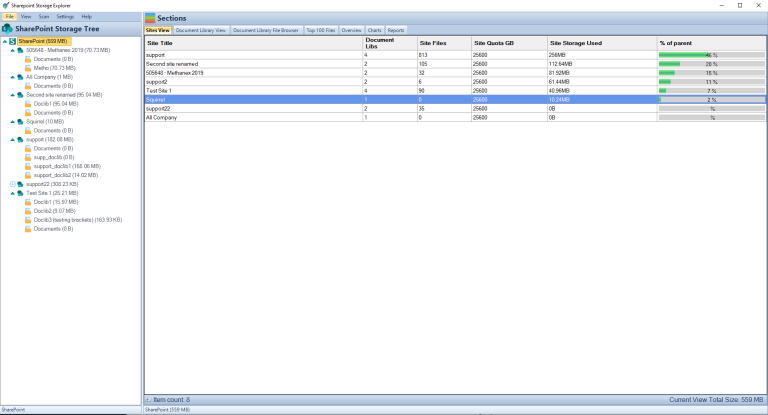
The sequence that works is a light scan first, then a deep scan where it is needed. A light scan reads site and library totals and gives you the site overview: every site, largest first, with storage, file count, owner, last modified date, growth against the previous scan and a versions estimate. Sort by growth to find the sites that will hit the limit next; filter last modified older than twelve months and sort by size to find the large idle sites that are the obvious archive candidates. Then run a deep scan on the sites that matter, which reads every file and populates the Top 100 files, the file-type breakdown and per-folder sizes in the file browser. Run a deep scan with file versions only on the one or two sites where the estimate says the answer is in version history; it is the mode that records version counts and version bytes per file, and the slowest.
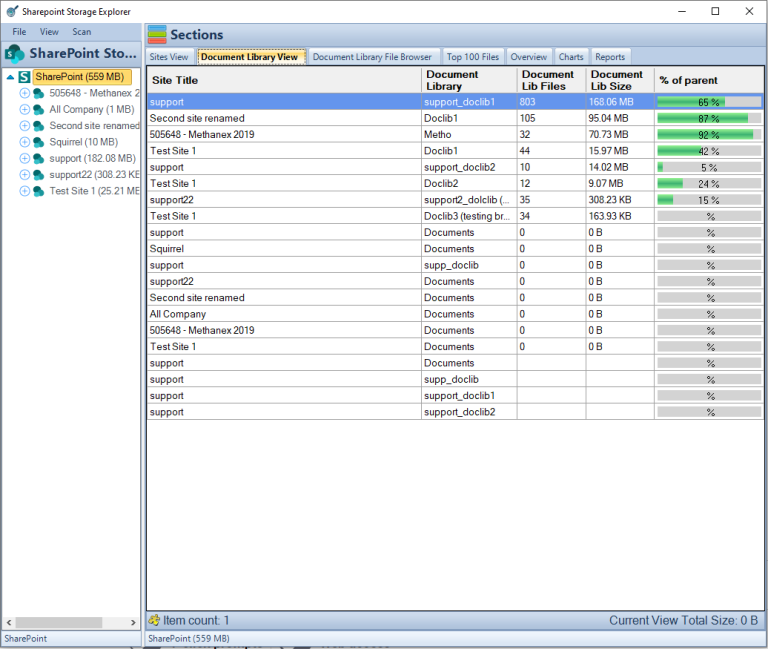
Storage Explorer's site totals include the Preservation Hold Library and both recycle bins, while its document library view lists the libraries users can see, so a site whose total sits far above the sum of its visible libraries has its storage in held copies, deleted items or versions, and the gap between the two views is the size of that hidden storage. Every view exports to CSV, and the Reports tab assembles a tenant summary, a site-detail report and a cleanup-targets report as PDF or Word.
9. What to Do Once You Know
Knowing where the storage is turns a warning into a plan. The order is in how to reduce SharePoint Online storage: trim versions where no retention applies, empty the second-stage recycle bins, account for the Preservation Hold Library before deleting anything under retention, and deal with the largest files. Before choosing between deleting and archiving, size the cold data: how much SharePoint data has not been touched in years totals, in GB, the files nobody has modified in two, three or five years, which is the number a business case is built on. If the figures you collect disagree, why SharePoint storage does not add up reconciles them.
For the inactive content, on most tenants the largest category by far, the durable fix is archiving rather than another clean-up next year. Squirrel applies a policy, by last modified or last accessed date, file type, folder path, library or site, and moves matching document library files into Azure Blob Storage in your own Azure subscription, leaving a stub so users, SharePoint search and Microsoft 365 Copilot still find the file, with self-service restore. Purview retention labels and holds survive the archive and the restore. Archiving reduces storage volume, not item count: every archived file is replaced by a stub, so the 5,000-item and 300,000-item thresholds are unchanged, and what leaves the library is bytes, version chains and search-index weight. A FTSE 250 engineering group took its tenant from 460 TB to 165 TB this way; put your own cold-data figure into the SharePoint storage calculator to compare the costs.
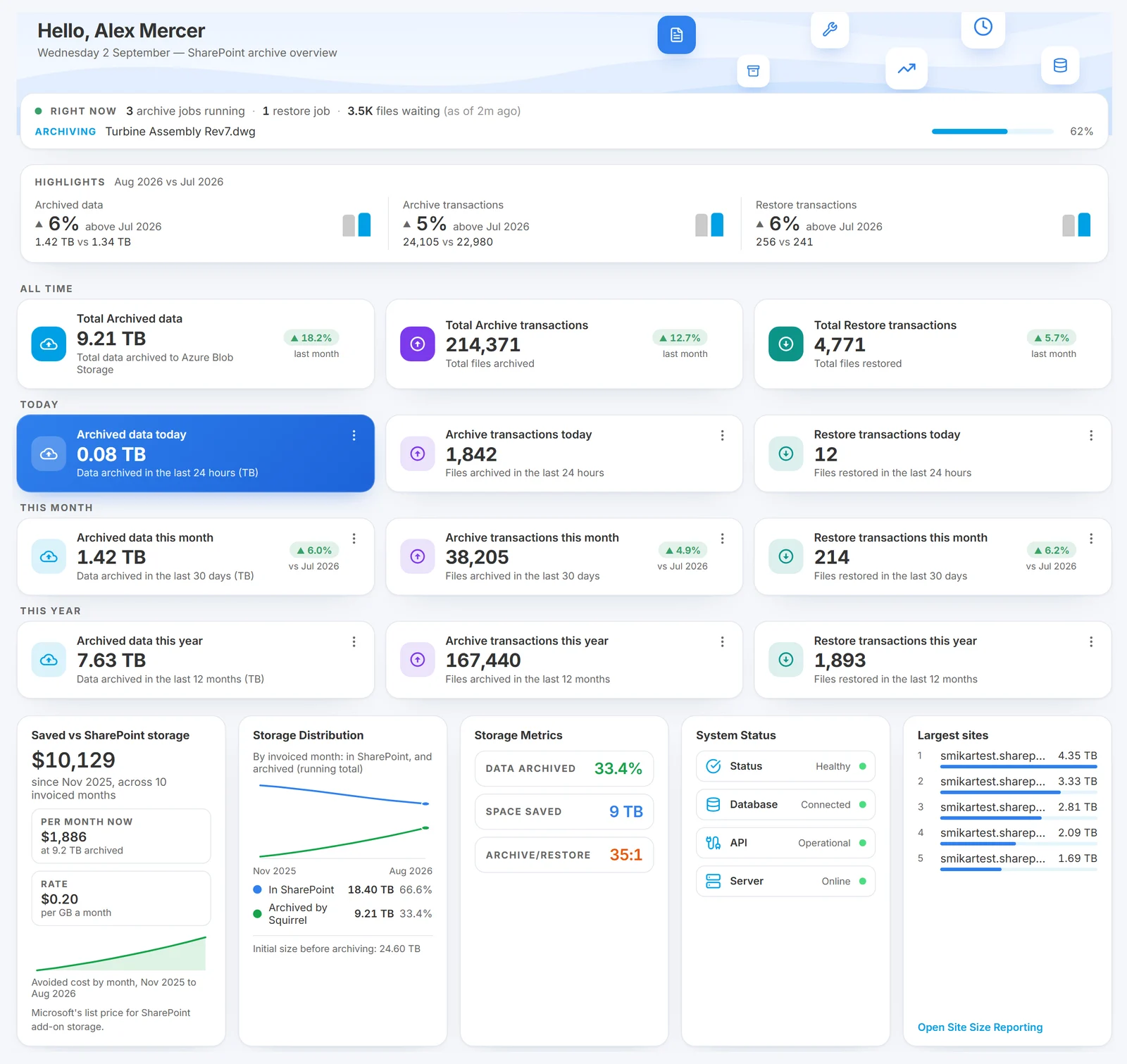
Once you know which sites hold the cold content, Squirrel, a SharePoint archiving solution that moves inactive files into your own Azure Blob Storage, archives it on a policy and leaves stubs so users keep finding the files.
Frequently Asked Questions
How do I check total SharePoint storage for the tenant?
Open Active sites in the SharePoint admin centre; the storage bar in the upper right shows the storage used and the total allocation, which is 1 TB plus 10 GB per eligible licence plus any purchased storage, excluding changes from the last 24 to 48 hours. For the trend, use the SharePoint site usage report under Reports > Usage in the Microsoft 365 admin centre.
How do I find the largest SharePoint sites?
Select the Storage used column header on Active sites to sort every site from largest to smallest. For an exportable ranking, run Get-PnPTenantSite or Get-SPOSite -Limit All sorted by StorageUsageCurrent, which is in megabytes. SharePoint Storage Explorer's site overview gives the same ranking after a light scan, with growth against the previous scan.
How do I get the size of a document library?
Open the site's Storage Metrics page (Site settings > Site Collection Administration > Storage Metrics, or /_layouts/15/storman.aspx); each library is listed with its size including version history, and clicking into it shows folder sizes. In PnP PowerShell, Get-PnPFolderStorageMetric -List "<library>" returns the same figure in bytes, and -FolderSiteRelativeUrl does the same for one folder.
How do I find the largest files?
Query the search index: Submit-PnPSearchQuery -Query "IsDocument:true AND Size>104857600" -SortList @{ Size = "Descending" } lists every document over 100 MB the account can see, largest first. Or run a deep scan in SharePoint Storage Explorer and open the Top 100 files report; it needs a deep scan because a light scan does not read individual files.
Why does the admin centre number differ from Storage Metrics?
Mostly lag: the admin centre, and every PowerShell property that reads its data, excludes changes from the last 24 to 48 hours, while Storage Metrics reflects the site more closely. Beyond that, adding up the libraries you can see never matches either figure, because the Preservation Hold Library, the recycle bins and version history are in the totals but not in the visible libraries.
Why is storage not going down after I deleted files?
Deleted content sits in the two-stage recycle bin for 93 days and counts until it is purged or ages out. Under a retention policy or hold, a copy of every deleted file and its versions goes to the Preservation Hold Library, which you cannot empty while the policy applies. And the admin centre takes 24 to 48 hours to reflect anything. Check the second-stage bin and the hold library row on Storage Metrics before concluding the deletion had no effect.
Is SharePoint Storage Explorer free?
Yes. It is a free Windows tool from SmiKar for SharePoint administrators, with no subscription or per-seat licence, and it runs read-only against SharePoint Online. A light scan gives a tenant baseline; a deep scan with file versions produces the per-file figures, including version counts and version bytes, that a storage audit needs.
Related reading
- How to reduce SharePoint Online storage
- How much SharePoint data has not been touched in years
- Why SharePoint storage does not add up
- Find the size of every Preservation Hold Library
- SharePoint version history storage
- SharePoint recycle bin: both stages and the 93-day limit
- SharePoint storage limit warning
- SharePoint Online archiving: the complete enterprise guide
- SharePoint vs Azure Blob Storage cost calculator
Mark Smith co-founded SmiKar Software in 2015 and has spent the past decade helping organisations solve Microsoft 365 data management challenges. He works with the SmiKar team to build solutions for SharePoint archiving, storage optimisation, governance and compliance, supporting customers from growing businesses through to Fortune 500 enterprises.
More about SmiKar