How to set up pay-as-you-go SharePoint storage
Pay-as-you-go SharePoint storage is set up in the Microsoft 365 admin center under Billing > Pay-as-you-go: you create a billing policy that points at an Azure subscription and resource group, then connect the Microsoft 365 SharePoint Storage service to that policy. Once it is connected, storage used above the tenant's included quota is billed by consumption, and the tenant is treated as within quota.
This page walks through Microsoft's procedure in the order you will do it, including the parts that cannot be changed afterwards and the budget behavior that surprises people. For what the change is, who it applies to and when it reaches general availability, see the November 2026 storage changes (MC1330893).
Availability
- Microsoft 365 SharePoint Storage has been in public preview for commercial tenants since June 2026, and Microsoft's Message Center post MC1330893 puts general availability worldwide from early November to the end of November 2026.
- It is not available to education, GCC or Microsoft 365 operated by 21Vianet tenants.
- Microsoft's pay-as-you-go pricing table lists Microsoft 365 SharePoint Storage at $0.20 per GB per month, counted on the gigabytes that exceed the SharePoint tenant quota. The same table shows it on the invoice as $0.00667 per GB per day.
Before you begin
You need all of the following in place:
| Requirement | Detail |
|---|---|
| Admin role | Microsoft's setup article lists SharePoint Administrator, Billing Administrator, AI Administrator or Global Administrator. Its storage article names SharePoint Administrator or Global Administrator. Use the least-privileged role you have |
| New Azure subscription from the admin center | Only if you want to create one during setup: you must be a Billing Account Owner or Billing Account Contributor |
| Licensing | The tenant must have at least one SharePoint license, or a license that includes SharePoint |
| Azure subscription | In the same tenant as Microsoft 365. You can create one during setup |
| Azure resource group | In that subscription. You can create one during setup |
| Azure rights | Owner or Contributor on the subscription and the resource group |
Step 1: Create the billing policy
- Sign in to the Microsoft 365 admin center and go to Billing > Pay-as-you-go.
- On the Billing policies tab, select Add a billing policy.
- On the Billing details page, enter a name for the policy.
- In the Subscription list, select an existing Azure subscription, or select Create a new subscription.
- In the Resource group list, select an existing resource group, or select Create a new resource group.
- In the Region list, select a region. Microsoft states that this determines where the tenant ID and usage data are stored.
- Read the pay-as-you-go billing terms of service and privacy statement, then select the I accept the pay-as-you-go billing terms of service checkbox.
- Select Next.
You cannot edit the subscription or resource group on a billing policy once it exists. Microsoft states this in the article. Choose them deliberately, because changing your mind means creating a new policy.
Step 2: Choose users
On the Choose users page you can select All users or a Specific group, but this choice only applies to Microsoft Copilot pay-as-you-go services. For SharePoint storage the All users option is applied automatically. Select Next.
Step 3: Set a budget (optional)
You can skip this step and add a budget later. If you set one:
- On the Budget page, select Set a budget for this policy.
- Enter the budget limit.
- Choose when the budget resets: the first day of the month, the quarter or the year.
- In Recipients, select the groups that should receive alert emails. Microsoft's budget article says only mail-enabled security groups are currently supported.
- The alert default is 100% of the budget. Select Add more to add other percentages. You can add up to four more thresholds, between 1% and 99%.
- Select Next.
A budget does not stop the service or the billing. Microsoft states this twice in its articles: reaching 100% of your budget does not stop usage, and the only way to stop billing is to disconnect the service. Treat a budget as an alarm, not a cap. Alert emails can also be delayed by up to 24 hours, and spending data can take up to four hours to appear in the graph.
Step 4: Review, create and connect
- On the Review and create policy page, check the details and select Create policy.
- On the New billing policy created page, select Connect your services to connect now, or Done to connect later.
- If you selected Connect your services, you land on the Pay-as-you-go page. Select Microsoft 365 SharePoint Storage.
- In the side panel, select the Billing policies tab.
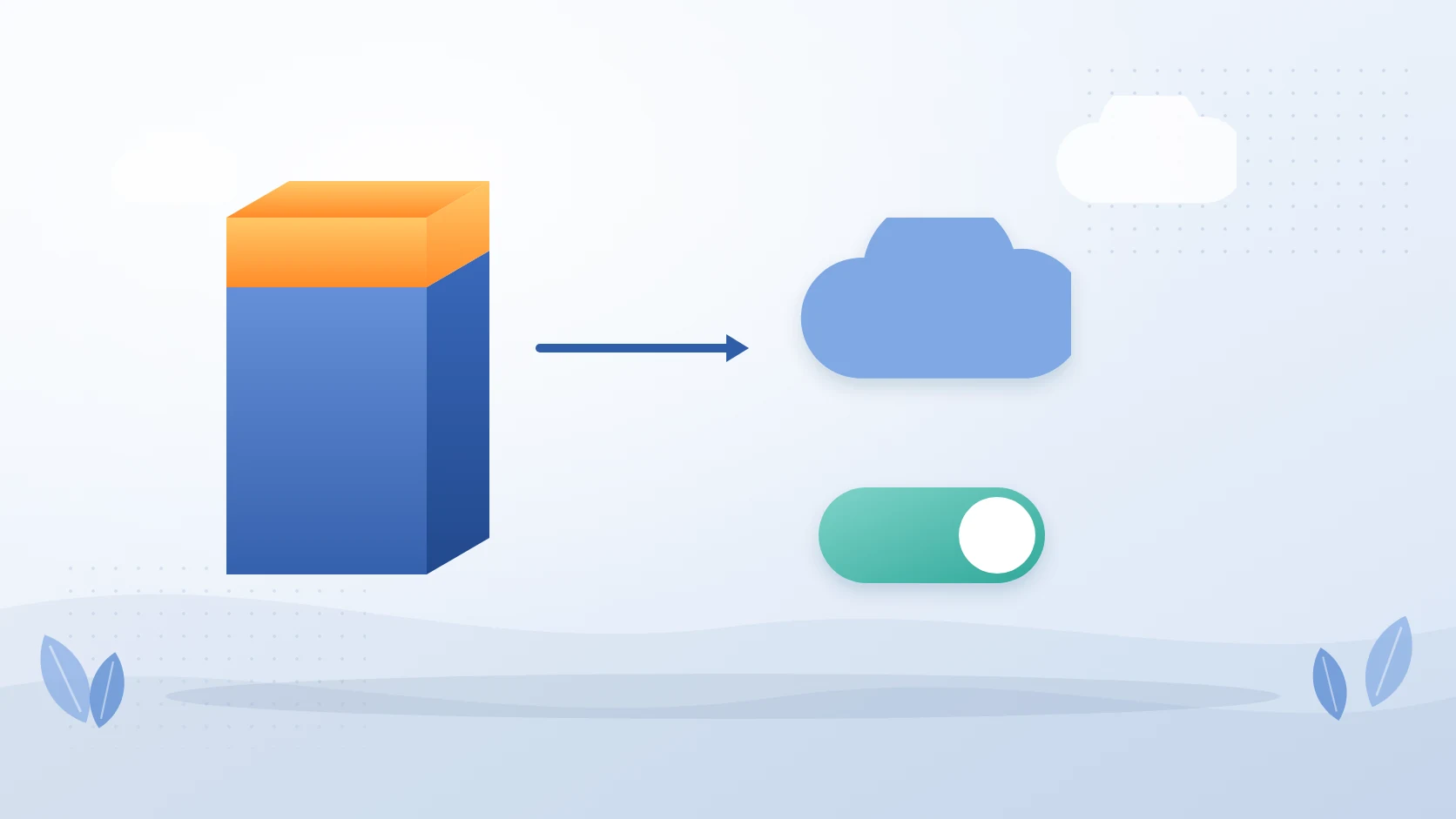
- Find your policy and set its Connection status toggle to Connected.
- Select Save and close the panel.
If you chose Done earlier, connect it later from Billing > Pay-as-you-go > Services tab: for the service, select Connect a policy in the Billing policy column, then set the toggle to Connected and select Save.
What changes once it is connected
- The tenant is treated as within quota. While the tenant is enrolled, Microsoft says you do not receive quota-related email notifications or banner notifications in the SharePoint admin center, because the tenant is considered within quota.
- Users see no change. MC1330893 states there is no impact to users.
- Multi-geo tenants. Microsoft's storage article says billing is based on each geo's storage quota and usage from June 2026. Before that, it was based on the tenant's quota.
This also means the usual early warning goes quiet. If you rely on the quota emails to know you are running out, set a budget with alert thresholds so something still tells you.
What it costs
At $0.20 per GB per month, each gigabyte over quota costs $2.40 a year, so 1 TB over quota is about $2,400 a year. Only the bytes above the tenant quota are billed. That is the same rate as the Office 365 Extra File Storage add-on, but billed on consumption through the Azure subscription on the billing policy instead of as a committed purchase. Microsoft adds that these services use an Azure subscription for billing but do not count toward a Microsoft Azure Consumption Commitment (MACC) you may have. Microsoft also publishes a SharePoint pay-as-you-go cost calculator that estimates cost from your usage.
Watching what it costs
- On Billing > Pay-as-you-go, select the billing policy and open the Budget tab. Spending shows the current month and a chart for the last six months.
- You can also follow usage and costs in Microsoft Cost Management for Azure. You need at least read access to the billing resource group.
- To change a budget later, open the policy on the Pay-as-you-go page, select the Budget tab, then Settings. Global Reader can view budgets but not spending data.
Disconnecting
- Go to Billing > Pay-as-you-go and select the Services tab.
- Select the service, then open the Billing policies tab in the side panel.
- Turn the Connected toggle off, select Save and close the panel.
- Review your billing and usage to confirm no further charges are being applied. If several services share the policy, repeat for each.
You can delete the billing policy once nothing is connected to it.
If you disconnect while the tenant is over its storage quota, enforcement resumes immediately. Microsoft states this in its storage article. A tenant that has been running over quota on pay-as-you-go can therefore go straight to the read-only state described in SharePoint sites read-only because storage is full. Get under quota first, then disconnect.
Before you turn it on
Pay-as-you-go bills for the bytes above your quota, so it is worth knowing what those bytes are before you commit to paying for them.
- Find where the storage sits. Active sites in the SharePoint admin center gives totals per site. The free SharePoint Storage Explorer reports it by site, library, folder and file, and see what is using your SharePoint storage explains the other routes.
- Check what deleting really frees. Version history, the two-stage recycle bin and the Preservation Hold Library all keep space after files are deleted. See SharePoint storage full or almost full.
- Compare the alternatives. The Office 365 Extra File Storage add-on is sold in 1 GB increments. If your subscription came through Volume Licensing or a Cloud Solution Provider, Microsoft says you cannot buy it directly and should contact your representative or partner. Buying more SharePoint storage compares the options.
- Decide who watches the bill. Name the budget alert recipients and the person who reviews spending, and tell finance that charges are usage-based.
Squirrel is the option that reduces the bytes instead of paying for them. It archives inactive files from SharePoint document libraries into your own Azure storage and leaves a pointer page in place, so a user restores a file in one click. Archiving reduces bytes, not item counts, so it does nothing for a limit on the number of items.
Frequently asked questions
Where do I set up pay-as-you-go SharePoint storage?
In the Microsoft 365 admin center, under Billing > Pay-as-you-go. Create a billing policy, then connect Microsoft 365 SharePoint Storage to it.
What do I need before I start?
An Azure subscription and a resource group in the same tenant (both can be created during setup), Owner or Contributor rights on them, an admin role such as SharePoint Administrator, and at least one SharePoint license in the tenant.
Does a budget stop the charges?
No. Reaching 100% of a budget does not stop the service or the billing. The only way to stop billing is to disconnect the service.
Can I change the Azure subscription or resource group later?
No. Microsoft states that you cannot edit the subscription or resource group associated with a billing policy. Create a new policy instead.
What happens when I disconnect?
If the tenant is within its quota, nothing changes. If it is over quota, enforcement resumes immediately.
Will I still get quota warnings?
No, not while the tenant is enrolled. Microsoft says the quota emails and SharePoint admin center banners stop because the tenant is considered within quota.
Is pay-as-you-go storage available to education or GCC tenants?
No. It is not available to education, GCC or Microsoft 365 operated by 21Vianet tenants.
How much does it cost?
Microsoft's pricing table lists SharePoint Storage at $0.20 per GB per month, billed only on storage above the tenant quota. That is roughly $2,400 a year for each terabyte over quota.
Related reading
- SharePoint and OneDrive storage changes, November 2026 - MC1330893, MC1477185 and MC1465765 side by side.
- SharePoint sites read-only because storage is full - the messages, and what to do while locked.
- Buy more SharePoint storage - the add-on, and what each option costs.
- SharePoint storage pricing - the pooled allowance and the standalone plan retirement.
- See what is using your SharePoint storage - usage by site, library and file.
- SharePoint Storage Explorer - free tool that reports storage down to the folder.
Mark Smith co-founded SmiKar Software in 2015 and has spent the past decade helping organisations solve Microsoft 365 data management challenges. He works with the SmiKar team to build solutions for SharePoint archiving, storage optimisation, governance and compliance, supporting customers from growing businesses through to Fortune 500 enterprises.
More about SmiKar