SharePoint Storage Limit Warning

SharePoint Storage Limit Warning

SharePoint Storage Limit Warning

What To Do When You Hit 95% Capacity

When your Microsoft 365 tenant reaches the SharePoint storage limit, the impact is immediate. File uploads start failing, Teams sites stop provisioning, indexing slows down, and storage overage charges begin applying automatically. For organisations storing large volumes of documents, drawings, media files, or project data, hitting the SharePoint capacity threshold can become a recurring and expensive problem—especially when underlying retention policies prevent deletion.
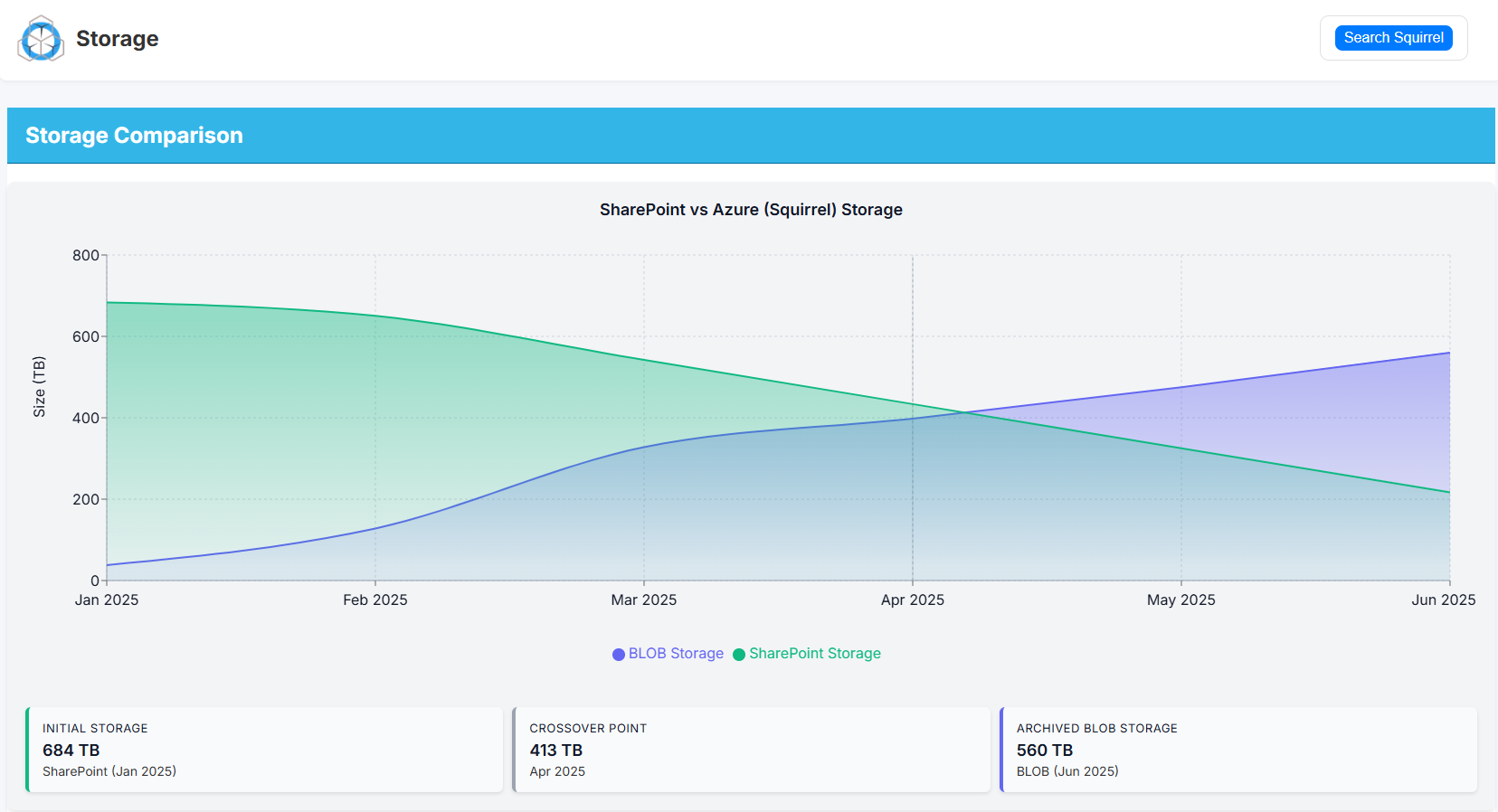
squirrel storage size

How SharePoint Storage Allocation Works

Your tenant’s storage limit is determined by Microsoft 365 licensing:

  • 10 GB base storage per tenant

  • + 10 GB per licensed user

Example:

Licensed Users Total SharePoint Storage Allocation
250 users 10 GB + (250 × 10 GB) = 2.51 TB
1,000 users 10 GB + (1,000 × 10 GB) = 10.01 TB
10,000 users 10 GB + (10,000 × 10 GB) = 100.01 TB

This storage is shared across:

  • SharePoint Online sites

  • Microsoft Teams files

  • OneDrive for Business accounts

  • The Preservation Hold Library (if retention or legal hold is enabled)

Over time, these workloads accumulate content faster than expected, especially in organisations with:

  • Project or engineering document repositories

  • Large Teams channels and video call recordings

  • Active retention / compliance policies

  • High staff turnover (departing user OneDrives pile up)

  • Multiple business units collaborating in shared libraries

What Happens When You Hit the SharePoint Storage Limit

When your storage consumption reaches 90–95%, you may see:

Symptom Impact
Uploads fail or sync errors appear Users can’t save files
New Teams/SharePoint sites fail to create Collaboration is blocked
SharePoint search/indexing slows Content becomes harder to find
Performance degradation in Teams/SharePoint Daily operations affected
Microsoft begins billing storage overage fees Recurring operational cost

Overage charges are not one-off—they continue every month.

Why Deleting Files Usually Doesn’t Work

Most organisations attempt deletion first. Two problems arise:

  • Retention policies prevent permanent deletion
    Files go to the Preservation Hold Library, which still consumes storage.

  • Users can’t reliably determine what is safe to delete
    Deletion risks breaking collaboration context, version history, and audit trails.

So even when large folders are removed, overall tenant storage doesn’t change.

Step 1: Identify Where Storage Is Being Consumed

Check Storage Usage in Microsoft 365 Admin Center

  • Go to SharePoint Admin Center

  • Select SitesActive Sites

  • Sort by Storage Used

Look specifically for:

Hotspot Storage Pattern
OneDrive of former employees Large, unused, often years old
Project / department sites Heavy media, drawings, reports
Teams collaboration sites Files duplicated across channels
Preservation Hold Library Hidden retained data growing silently

This analysis identifies where optimisation efforts provide immediate value.

Step 2: Address Departed Employee OneDrives (Fastest Storage Win)

When staff leave, their OneDrive is typically preserved for compliance reasons. Over time, this results in massive storage accumulation that provides no operational value.

Correct Approach (No Risk)

  • Export or archive the user’s OneDrive

  • Store it in long-term low-cost cloud storage

  • Remove the original OneDrive container from the tenant

This process instantly frees capacity.

Chipmunk automates this:

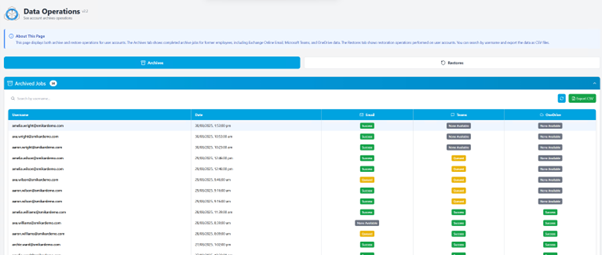
  • Archives departed user OneDrive, Exchange, and Teams data

  • Preserves metadata and searchability

  • Allows controlled, auditable access for investigation or continuity

  • Safely removes the original OneDrive to reclaim storage

More info: https://www.smikar.com/chipmunk-automated-user-archiving/

Step 3: Archive Inactive SharePoint Content Without Breaking Access

For SharePoint sites that contain old project or historical content, the goal is to move inactive files to cheaper storage while keeping them accessible.

The Archive Pattern That Works

  • Identify files older than X months

  • Move them to Azure Blob or cold storage

  • Leave a lightweight placeholder (stub) behind

  • Users can still open the file normally

This allows:

  • No change to user experience

  • No broken links

  • No permission changes

  • No retraining

This is the core function of Squirrel:

  • Automatically archives files from SharePoint to Azure Blob Storage

  • Leaves stub files so users access archived content as usual

  • Supports metadata retention, version history capture, and audit compliance

  • Reduces storage consumption significantly and permanently

More info: https://www.smikar.com/squirrel

Step 4: Prevent the Storage Problem from Returning

Once storage is stabilised:

Governance Task Frequency
Archive inactive files Monthly scheduled job
Auto-archive departing users Triggered at license removal
Monitor storage trends Monthly review
Lifecycle policies by library Standard practice

This shifts the organisation from reactive cleanup to predictable storage lifecycle management.

Summary

Problem Solution Outcome
SharePoint storage limit reached Identify largest storage locations Visibility to act
Departed user OneDrives consuming storage Archive using Chipmunk Immediate storage recovery
Legacy data sitting in SharePoint Archive to Azure with Squirrel Lower storage cost, no user disruption
Storage continually grows Apply automated lifecycle policies Stable long-term storage costs

Frequently Asked Questions

Q: What happens when you hit the SharePoint storage limit? A: File uploads fail immediately. Microsoft Teams stops provisioning new sites. SharePoint indexing slows down. Microsoft begins applying overage charges automatically at their published per GB rate. The impact is felt across your entire Microsoft 365 tenant, not just individual sites.

Q: How do I check my current SharePoint storage usage? A: Go to the Microsoft 365 admin centre, select SharePoint under Admin centres, then go to Settings and Storage limits. This shows your total allocated storage, current usage, and remaining capacity across your entire tenant.

Q: Why is my SharePoint storage growing so fast? A: The most common causes are document versioning retaining large numbers of old file versions, the Preservation Hold Library accumulating copies of modified and deleted documents under retention policies, Teams file storage growing as more channels and sites are created, and inactive content from old projects and departed users remaining in primary storage indefinitely.

Q: Can I delete the Preservation Hold Library to reclaim storage? A: No. The Preservation Hold Library cannot be deleted while retention policies are active. Attempting to delete it would be a compliance violation. The correct approach is to manage what goes into it and archive content before it becomes subject to a retention event.

Q: What is the cheapest way to get more SharePoint storage? A: Archiving inactive documents to Azure Blob Storage is significantly cheaper than purchasing additional Microsoft 365 storage. Azure Blob Cool tier costs approximately $0.01 per GB per month compared to Microsoft’s SharePoint overage rate. Squirrel automates this archiving process so storage costs reduce continuously rather than requiring manual intervention.

Q: Will archiving documents affect how users find and access them? A: No. When Squirrel archives a document it leaves a stub file in the original SharePoint location. The stub retains the file name and metadata so the document still appears in SharePoint Search results. Users can restore the full document with a single click directly from SharePoint with no IT involvement required.
Reduce your SharePoint Storage with Squirrel

Mastering the User Off-Boarding Process

Mastering the User Off-Boarding Process

How to Protect Your Data When Employees Leave

When someone leaves your organisation — whether they resign, retire, or are let go — it’s easy to think the hard work is over. But the moment an employee’s last day arrives, a new risk window opens. If their access isn’t revoked properly or their data isn’t captured, organisations face security breaches, data loss, compliance issues, and rising costs.

This is why a well-designed user off-boarding process is just as important as onboarding. And it’s where Chipmunk can dramatically simplify and secure your operations.

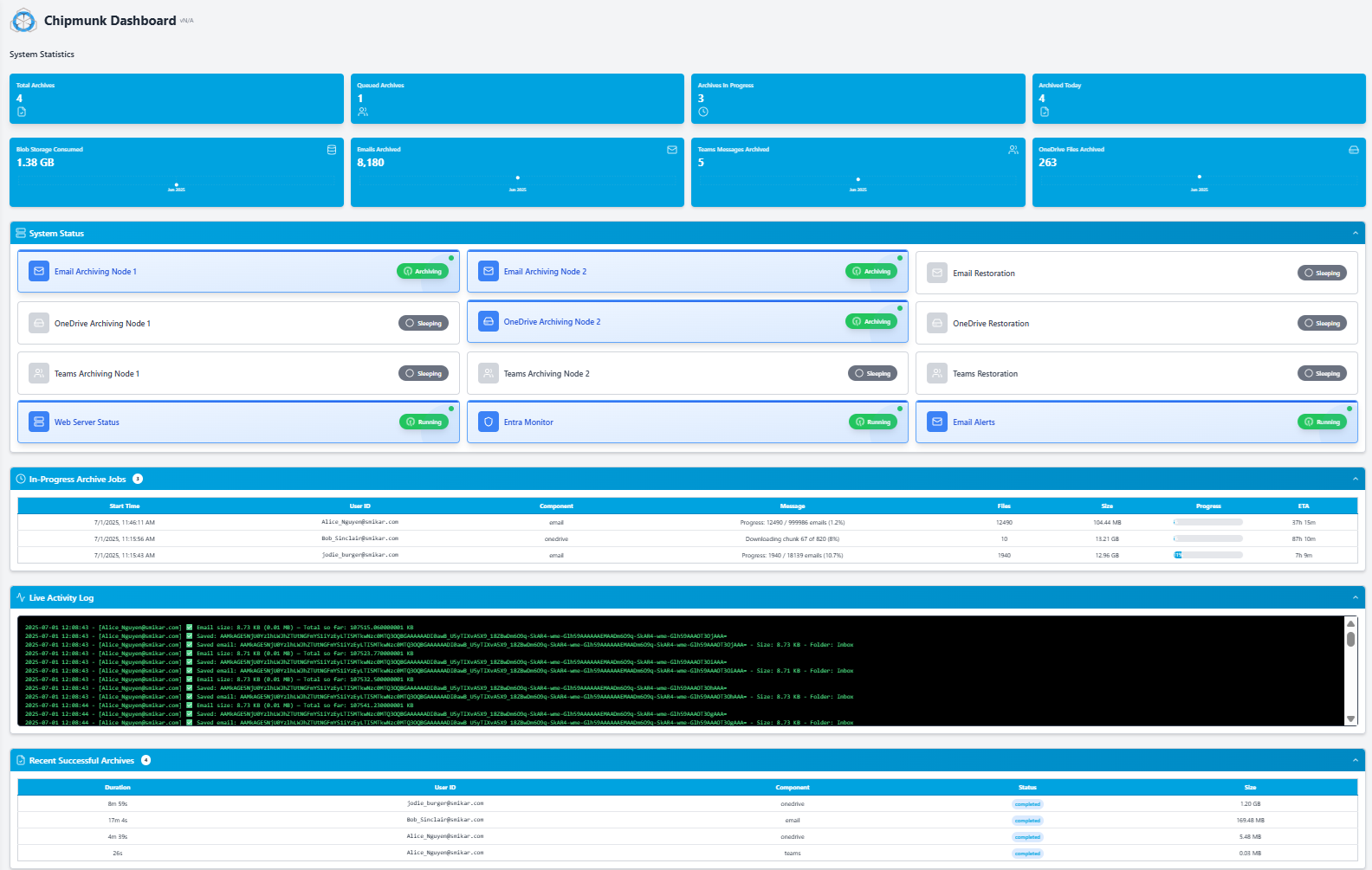
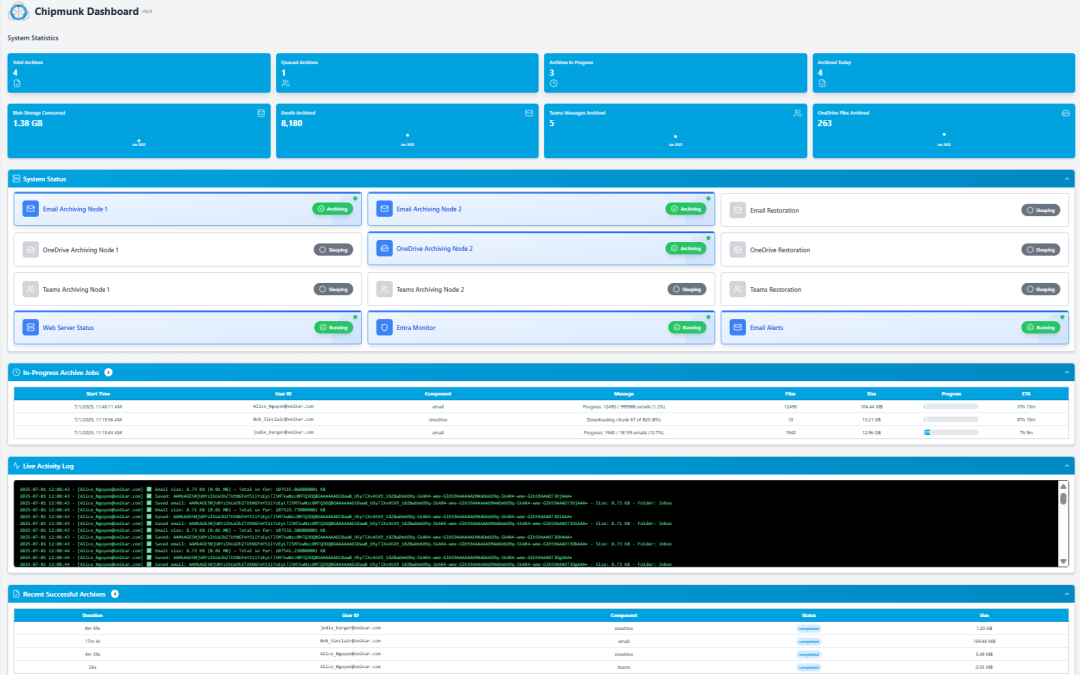
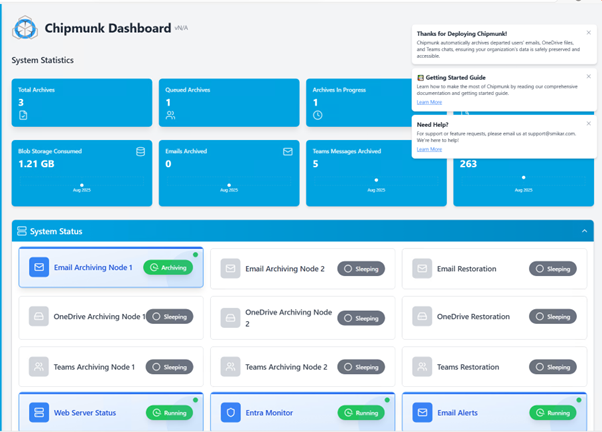
chipmunk main dashboard

The Risks of Poor Off-Boarding

Many organisations underestimate how much business knowledge is locked inside user accounts. When those accounts are deleted or licenses are removed without planning, it can create significant problems. Former users may still have access to email, Teams, or shared documents if access isn’t revoked cleanly. Microsoft 365 automatically purges inactive accounts after a short grace period, which can permanently erase critical business records.

This lack of planning also creates compliance risks. Without a record of former employees’ data, you may fail audits or be unable to respond to legal discovery requests. Beyond legal and security issues, poor off-boarding also impacts day-to-day operations. When user accounts disappear, managers lose visibility into projects, conversations, and files, which disrupts workflows and knowledge continuity.

The Best-Practice Off-Boarding Process

A robust off-boarding process should follow a structured sequence to ensure no step is missed. While the exact tasks may vary between organisations, these core stages are widely recognised as best practice:

  • HR Initiation and Communication. HR formally notifies IT and relevant managers of the employee’s departure, confirms the exit date, and collects any company-owned equipment. This communication triggers the technical off-boarding workflow.

  • Pre-Exit Access Planning. IT reviews all accounts, licenses, and roles the user holds, including Microsoft 365 services, line-of-business apps, VPN, and administrative privileges. A plan is made to disable these systematically to avoid disruptions.

  • Data Capture and Archiving. Before the account is disabled, all user data must be preserved — OneDrive, Exchange mailbox, and Teams chats. This protects business knowledge and ensures compliance.

  • This is where Chipmunk comes in. With a single action, Chipmunk captures and archives the user’s entire digital footprint inside your own Azure tenant, creating a secure and immutable record that remains accessible to authorised teams.

  • License Recovery and Account Deactivation. Once data is captured, IT can safely disable the account, revoke MFA, remove from groups, and free up Microsoft 365 licenses for reuse. This step immediately reduces costs and closes security gaps.
  • Content Ownership Reassignment. Shared content such as Teams channels, SharePoint sites, or shared mailboxes should be reassigned to other users or managers to maintain project continuity.

  • Audit and Compliance Logging. All actions taken should be logged for audit purposes. Chipmunk automatically generates a complete record of the archived data and the actions taken, supporting legal and governance needs.

  • Retention and Eventual Deletion.Archived user data should be retained according to your organisation’s policy or industry regulations. After the retention period expires, it can be securely deleted to reduce storage costs.

Following these steps ensures every departure is handled consistently, securely, and in full compliance — protecting both your data and your reputation.

User Off-Boarding Checklist

Secure Every Departure — Step by Step

1. HR Initiation

  • Notify IT and line managers of departure

  • Confirm final working day

  • Begin collection of company devices

2. Access Planning

  • Inventory all user accounts and admin roles

  • Document MFA status, group memberships, shared mailboxes

  • Prepare account disablement sequence – Disable User Account

3. Data Capture & Archiving

  • Chipmunk detects disbled account and starts the archiving process of the users data

  • Capture user’s OneDrive, Exchange mailbox, and Teams data

  • Store securely inside your Azure tenant

4. License Recovery & Account Deactivation

  • Disable sign-ins and revoke MFA

  • Remove from all security groups

  • Reclaim Microsoft 365 licenses

5. Content Ownership Reassignment

  • Reassign Teams channels to managers

  • Transfer shared mailboxes or delegated access

  • Ensure project continuity for remaining staff

6. Audit & Compliance Logging

  • Record every off-boarding action

  • Capture evidence of data archiving

  • Maintain logs for governance and legal needs

7. Retention & Eventual Deletion

  • Apply retention policy for archived data

  • Schedule secure deletion after policy expiry

  • Validate removal and update records

Where Most Organisations Struggle

Despite having good intentions, off-boarding is often messy and manual. Different IT staff follow different steps, with little visibility into all the places a user’s data lives. Exporting content from OneDrive or Teams can be clumsy and error-prone, and often ties up IT resources for days.

Because there’s no single repository of archived user data, information gets lost, and managers have no easy way to recover it. This creates a gap between what organisations want — secure, compliant off-boarding — and what they can realistically deliver with limited time and tools.

Introducing Chipmunk: Automated Microsoft 365 Off-Boarding

Chipmunk was built to solve this problem. It automates the most critical and time-consuming part of off-boarding: capturing and preserving departing users’ data. Chipmunk collects OneDrive files, Exchange mailboxes, and Teams chats, automatically.

Once captured, the data is stored securely in your own Azure tenant, under your full control. It’s compliant, and easily searchable by authorised staff such as managers, HR, or legal teams. Chipmunk’s approach frees up costly Microsoft 365 licenses immediately after off-boarding and maintains a full audit trail of every action taken, which is critical for compliance. Most importantly, because Chipmunk operates inside your Azure environment, your data never leaves your control.

How Chipmunk Fits Into Your Off-Boarding Workflow

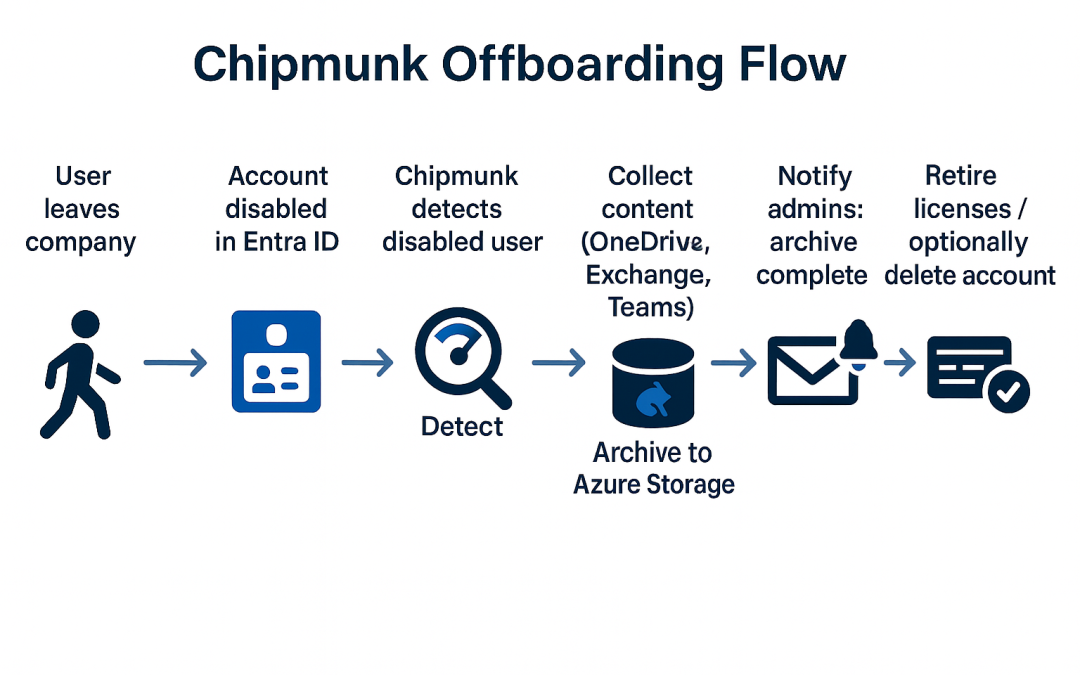
With Chipmunk in place, the process becomes seamless. HR notifies IT when a user is leaving. IT disables the user account then Chipmunk, which automatically captures all the user’s data across Microsoft 365 — OneDrive, Exchange, and Teams. That content is stored securely in Azure, where it can be searched and retrieved if needed later.

Once the archive is complete, IT receives an email from Chipmunk saying the users data has been archived and can then disable the user’s account, reclaim the licenses, and revoke all access. What previously took days of manual work can now be completed in a fraction of the time, with complete confidence and zero data loss.

Make Off-Boarding a Strength, Not a Weakness

User off-boarding is a critical moment in the employee lifecycle — and often the most neglected. Without a clear process, organisations risk losing valuable knowledge, breaching compliance rules, or leaving security gaps that can be exploited.

With Chipmunk, you can turn off-boarding from a risky manual chore into a fast, secure, and automated process that protects your organisation every time someone leaves.

How Chipmunk Automates the Offboarding Data Step

The most time-consuming and risk-prone part of the offboarding process is capturing departed user data before Microsoft’s deletion clock starts. Done manually this requires IT teams to identify the account, export OneDrive files, export the Exchange mailbox, capture Teams data, verify everything is saved correctly, and only then remove the licence. For an enterprise processing dozens of departures per month this is unsustainable.

Chipmunk automates this entire step. The moment a user account is disabled in Microsoft Entra ID, Chipmunk detects the departure and begins archiving OneDrive, Exchange Online, and Teams data automatically. No manual trigger is required. When archiving is complete your IT team receives a confirmation notification and can immediately remove the Microsoft 365 licence.

Every archive is consistent, complete, and logged with a full audit trail. For enterprises dealing with high volumes of departures or mergers and acquisitions involving large-scale account closures, Chipmunk scales without any additional IT overhead.

Microsoft 365 Offboarding Checklist

Use this checklist to ensure every departure is handled consistently and completely.

  • HR notifies IT of the departure date in advance
  • Identify all Microsoft 365 services the user has access to — OneDrive, Exchange, Teams, SharePoint sites, shared mailboxes
  • Archive OneDrive, Exchange Online, and Teams data before or immediately after account disable — Chipmunk does this automatically
  • Disable the account in Microsoft Entra ID
  • Revoke all active sessions and MFA devices
  • Remove the user from all Microsoft 365 groups, Teams, and distribution lists
  • Reassign shared content — Teams channels, SharePoint sites, shared mailboxes — to a manager or successor
  • Confirm archiving is complete — Chipmunk sends a confirmation notification
  • Remove the Microsoft 365 licence
  • Document the offboarding with a full audit trail for compliance purposes
  • Set a retention review date for archived data in line with your policy


Frequently Asked Questions About Microsoft 365 User Offboarding

Q: What is the correct order for Microsoft 365 user offboarding? A: Archive the user’s data first, then disable the account, revoke access, reassign shared content, confirm archiving is complete, and finally remove the licence. Removing the licence before archiving is the most common mistake and risks permanent data loss.

Q: How do you offboard a Microsoft 365 user without losing their data? A: Archive their OneDrive, Exchange Online, and Teams data before or immediately after disabling the account. Chipmunk automates this — the moment an account is disabled in Entra ID, Chipmunk captures all three data sources and writes them to your own Azure Blob Storage account.

Q: When should you remove a Microsoft 365 licence after an employee leaves? A: As soon as archiving is confirmed complete. With Chipmunk this can happen the same day the account is disabled — eliminating the weeks or months many enterprises spend keeping licences active while waiting for manual data exports to be completed.

Q: What happens if you delete a Microsoft 365 user without archiving their data? A: Microsoft begins deleting data immediately. OneDrive files are retained for 93 days then permanently deleted. Exchange Online mailboxes are typically deleted within 30 days. Teams data is subject to similar timelines. Once the retention window closes the data cannot be recovered.

Q: How do you handle offboarding when multiple employees leave at once? A: Chipmunk uses queue-based processing to handle spikes in departures without manual intervention. Whether it is one departure or a hundred during a restructure, every account is processed consistently and completely with no additional IT workload.

Q: Does Microsoft 365 offboarding need to comply with GDPR? A: Yes. GDPR requires organisations to have a lawful basis for retaining personal data after employment ends, and to be able to respond to data subject access requests. Chipmunk archives departed user data in a structured, searchable format in your own Azure tenant — satisfying both retention requirements and data subject access obligations.

Chipmunk: Automate Off-Boarding and Cut Costs

Free up Microsoft 365 licenses instantly while keeping all user data safely stored for compliance, audits, and future access.

chipmunk archives

Ensure no knowledge is lost by automatically capturing and archiving departing employees’ OneDrive, Exchange and Teams content before accounts are removed.

Secure Every Departing User’s Data

Search for Chipmunk in Microsoft Marketplace to get Started.

SharePoint Archiving Best Practices for Compliance

SharePoint Archiving Best Practices for Compliance

SharePoint Archiving Best Practices for Compliance and Cost Savings in 2026

SharePoint Online has become the backbone of document management for many organizations. From project files to legal contracts, HR records to financial reports, it holds critical business data that grows relentlessly.

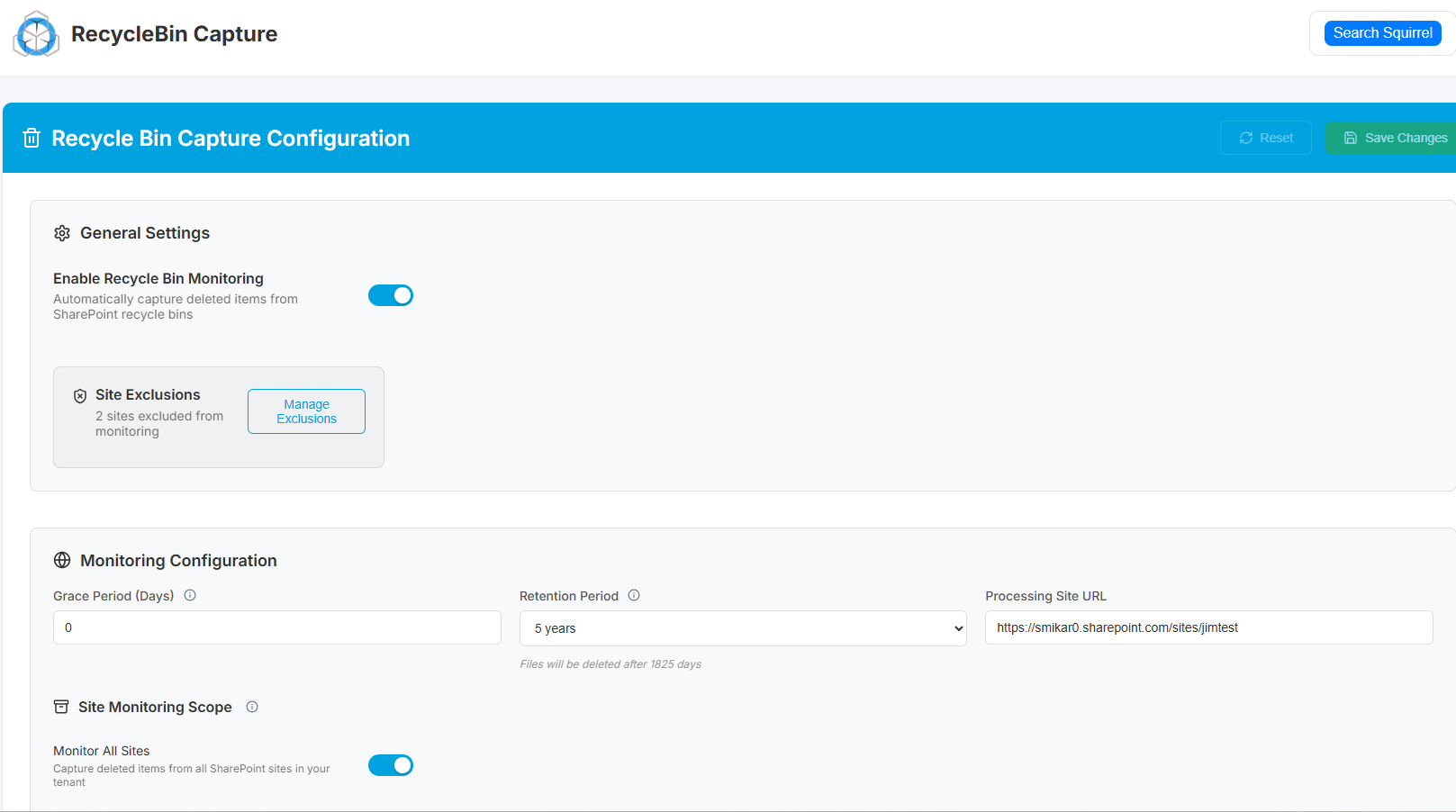
Squirrel Recycle Bin Capture

But as usage increases, so do two unavoidable challenges:

  • Escalating storage costs – Microsoft charges around $180–$200 per terabyte (TB) per month once you exceed your licensed allocation. For large tenants, that quickly becomes six figures per year.

  • Tightening compliance obligations – Frameworks like GDPR, HIPAA, SOX, ISO 27001, NIST, and the Australian Essential 8 demand strict retention, defensible deletion, and auditability.

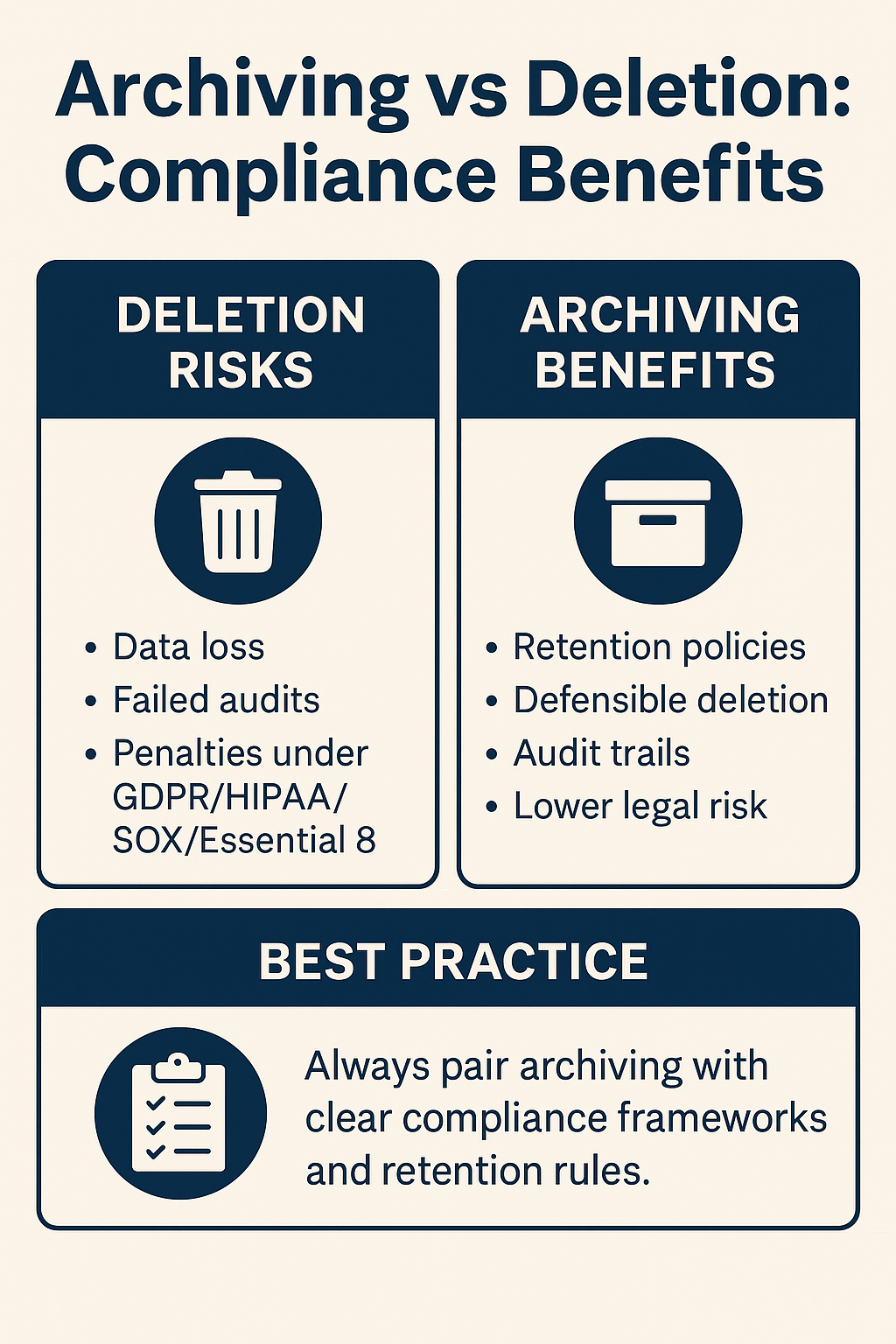
The dilemma? Simply deleting files may reduce storage bills, but it risks non-compliance. Retention policies may satisfy regulators, but they don’t stop your storage from exploding in cost.

The solution is archiving: systematically moving inactive content out of costly SharePoint storage into secure, compliant, and lower-cost storage — without losing access or auditability. This article explores SharePoint archiving best practices to achieve both compliance and cost efficiency.

Understand the Difference Between Retention and Archiving

One of the most common mistakes organizations make is assuming Microsoft’s retention features are equivalent to archiving. They are not.

Retention policies (Microsoft Purview):
These prevent documents from being deleted or altered during a specified period. For example, you can set a 7-year retention for financial files. However, those files remain in your active SharePoint environment, consuming expensive storage.

Archiving:
This is about moving older or less frequently accessed content to a different tier of storage (e.g., Azure Blob). Users may still see stubs or shortcuts in SharePoint, but the heavy lifting of storage cost is moved elsewhere. Metadata, security, and accessibility are preserved.

Example:
A construction company keeps every project’s documents for 10 years. If they rely solely on retention, those files remain live in SharePoint, pushing storage bills above $250,000 annually. With archiving, the same files are securely stored in Azure Blob at a fraction of the cost, while still being retrievable for audits or disputes.

Best practice: Use retention to ensure legal minimums are met. Use archiving to keep costs sustainable while retaining compliance. Both should work together.

Align Archiving with Compliance Requirements

Archiving decisions cannot be random; they must reflect the regulatory landscape your business operates in.

Industry frameworks and requirements:

  • Financial services (SOX, SEC, APRA CPS 234 in Australia): Often mandates financial record retention for 7 years or more. Non-compliance can result in penalties and reputational damage.

  • Healthcare (HIPAA): Requires health records to remain accessible, immutable, and secured for extended periods. Archiving provides a way to meet those obligations without costly live storage.

  • Public sector (Essential 8, ISO 27001): Emphasizes governance, protection against accidental loss, and traceability. Archiving ensures agencies can produce records on demand.

Real risks and penalties:

  • Under GDPR, improper handling of data can result in fines of up to €20M or 4% of annual global turnover.

  • The SEC has fined firms millions for failing to retain communication records properly.

  • In healthcare, HIPAA penalties can run up to $1.5M per year, per violation.

Best practice checklist:

  • Map each compliance framework you fall under.

  • Translate requirements into archiving rules (e.g., “Archive project data after 2 years of inactivity, retain for 7 years in immutable storage”).

  • Document the rationale — auditors will want to see not just the process but the justification.

archiving and compliance

Create a Clear Archiving Policy

An archiving policy is more than a technical setting. It is a formal governance document that defines what, how, and why data is archived. Without it, you risk inconsistency, shadow IT, or gaps that auditors will notice.

A good archiving policy should cover:

  • Scope – Define what libraries, sites, or content types are included. Example: “All completed project sites will be archived 12 months after project close.”

  • Archiving rules – Define triggers such as inactivity (no edits in 24 months), age (files older than 3 years), or event-based (employee departure).

  • Exemptions – Identify exceptions (e.g., files under legal hold).

  • Retention length – How long archived content stays before defensible deletion (aligned with regulation).

  • Access controls – Who can request or restore archived content.

  • Audit process – How archiving will be verified and reported.

Example policy excerpt:

“All SharePoint documents not accessed in the past 36 months will be archived to Azure Blob storage via Squirrel. Archived files will be retained for 7 years, encrypted at rest, and logged for all access. Exceptions apply to documents under MIP label ‘Legal Hold.’ Restores must be requested via IT Service Desk.”

Best practice: Publish your archiving policy in your governance documentation. Communicate it to business units so users understand that archiving is not deletion — their files remain accessible when needed.

Automate the Archiving Process

Manual archiving is not sustainable. Expecting staff to move files manually, export libraries, or classify documents invites error and inconsistency. Worse, it creates compliance blind spots.

Why automation matters:

  • Consistency: Automation ensures the same rules are applied across all libraries.

  • Compliance: Automated logs and policy enforcement prove due diligence.

  • Scale: Organizations with millions of documents cannot rely on manual intervention.

Example without automation:
A legal department instructs staff to “move files older than 3 years to a separate library.” Compliance drops because staff forget, misunderstand, or leave.

Example with automation:
Squirrel applies rules automatically (e.g., archive files older than 24 months), replaces them with stubs in SharePoint, and logs every action. Compliance is achieved without staff intervention.

Best practice:

  • Use metadata or MIP labels to drive archiving decisions.

  • Apply idle-time rules (last modified >24 months).

  • Replace files with stubs so users can still access them seamlessly.

  • Ensure every archive event is logged for audit.

Ensure Secure, Auditable Storage

For compliance, archiving is not just about moving files to cheaper storage. The storage itself must be secure, auditable, and compliant.

Key requirements:

  • Immutability: Archived files must be protected against tampering or deletion until their retention period ends. Azure Blob supports Write Once Read Many (WORM) options.

  • Encryption: Data should be encrypted at rest and in transit. Azure provides automatic encryption with customer-managed keys.

  • Audit trails: Every access or restore event should be logged and reportable.

  • Accessibility: Files must remain retrievable within reasonable timeframes for eDiscovery or regulator requests.

Best practice:
Use Azure Blob as the underlying storage with Squirrel providing:

  • Stub file placeholders in SharePoint so users do not feel the archive gap.

  • Immutable storage configurations.

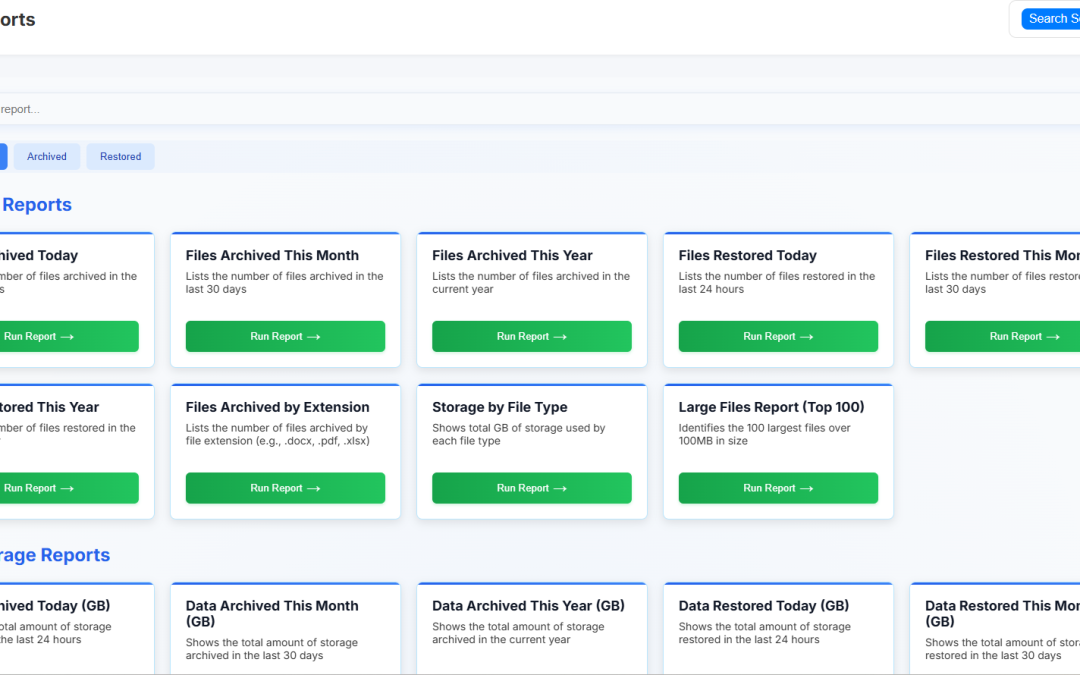
  • Full reporting dashboards to satisfy audits.

This ensures compliance is not compromised while achieving cost savings.

Review and Update Policies Regularly

Archiving policies cannot be “set and forget.” Regulations change, and so does your business.

Examples of change:

  • GDPR interpretations continue to evolve.

  • Australia’s Essential 8 maturity model has updated requirements.

  • NIST releases revisions that shift compliance expectations.

Best practice:

  • Conduct an annual governance review.

  • Involve IT, Legal, and Compliance teams.

  • Review audit logs from your archiving solution to ensure policies are being enforced.

  • Adjust rules as needed (e.g., change idle time from 24 months to 18 months if storage costs spike).

Proactive reviews protect you against regulatory surprises and maintain stakeholder trust.

How Squirrel Automates Compliant SharePoint Archiving

Squirrel is purpose-built for enterprise SharePoint archiving. It automates the identification and archiving of inactive documents based on your lifecycle policies, moving them from SharePoint Online to your own Azure Blob Storage account while preserving everything your compliance team needs.

Every archived document retains its original metadata, permissions, version history, and classification labels. Every archiving and restore action is logged with a full audit trail including document name, location, user, timestamp, and action taken. Archived content remains discoverable through SharePoint Search and Microsoft Copilot via Nutshell AI stub summaries. And all data is stored in your own Azure tenant — satisfying data residency requirements by design.

Squirrel is compatible with Microsoft Purview eDiscovery and legal hold processes. Documents subject to a legal hold are flagged and excluded from archiving until the hold is lifted. This means your archiving strategy works alongside your compliance framework rather than creating conflicts with it.


SharePoint Archiving Compliance Checklist

Use this checklist when evaluating or implementing a SharePoint archiving strategy for your organisation.

  • Define retention periods for each document type in line with your regulatory obligations
  • Confirm your archiving solution preserves metadata, permissions, and version history
  • Ensure archived data is stored in a tamper-resistant, auditable format
  • Confirm compatibility with Microsoft Purview legal hold and eDiscovery before deployment
  • Verify data residency — archived data should remain in your chosen Azure region
  • Establish a defensible deletion process for documents that have passed their retention period
  • Document your archiving policy and review it annually
  • Test restore processes regularly to confirm archived content is accessible when needed
  • Ensure your archiving audit trail meets the requirements of your specific regulatory framework


FAQs

Q: Does SharePoint archiving satisfy GDPR requirements?

A: Yes provided the archiving solution preserves all metadata, permissions, and audit trails, stores data in a tamper-resistant format, supports data subject access requests, and allows for defensible deletion when the retention period expires. Squirrel meets all of these requirements and stores data in your own Azure tenant within your chosen region.

Q: What is the difference between Microsoft Purview retention policies and SharePoint archiving?

A: Microsoft Purview retention policies prevent documents from being deleted or altered during a specified period but keep them in expensive SharePoint Online primary storage. SharePoint archiving moves inactive documents to lower cost storage while preserving all compliance controls. The two approaches are complementary — retention policies define what must be kept, archiving determines where it is stored most cost-effectively.

Q: Can archived SharePoint documents be used in eDiscovery?

A: Yes. Squirrel is compatible with Microsoft Purview eDiscovery. Archived documents retain their metadata and can be included in eDiscovery searches. Documents subject to legal holds are flagged and excluded from archiving until the hold is lifted.

Q: Is it compliant to store SharePoint documents in Azure Blob Storage?

A: Yes. Azure Blob Storage supports GDPR, HIPAA, SOX, ISO 27001, and a range of other compliance frameworks. Squirrel stores archived data in your own Azure Blob Storage account within your own Azure tenant, giving your organisation full ownership and control of archived content.

Q: How long should SharePoint documents be retained?

A: Retention periods vary by document type and regulatory framework. GDPR generally requires data to be kept no longer than necessary for its original purpose. Financial records under SOX require seven years. HIPAA medical records require a minimum of six years. HR and employment records vary by jurisdiction. Your compliance team should define retention periods for each document category in line with your specific obligations.

Q: Does Squirrel support defensible deletion?

A: Yes. Squirrel’s lifecycle policies can be configured to flag documents for review or deletion when their retention period expires. All deletion actions are logged with a full audit trail, providing defensible evidence that documents were retained for the required period and deleted in accordance with policy.

Conclusion

SharePoint archiving is no longer optional. Organizations face spiraling storage costs and tightening compliance obligations. Deletion puts compliance at risk; retention policies inflate costs. Archiving delivers the best of both worlds: regulatory alignment and financial sustainability.

Best practices include:

  • Understanding the distinction between retention and archiving.

  • Aligning policies with compliance frameworks.

  • Documenting and communicating a clear archiving policy.

  • Automating the process to eliminate errors.

  • Using secure, auditable storage.

  • Balancing compliance with hard cost savings.

  • Reviewing policies regularly to stay aligned with evolving regulations.

With solutions like Squirrel, organizations can automate SharePoint archiving, reduce costs by 70% or more, and remain fully compliant with frameworks like GDPR, HIPAA, SOX, ISO 27001, and Essential 8.

Learn more about how Squirrel ensures compliant SharePoint archiving →

Archiving and Compliance in SharePoint doesnt have to be hard.

With Squirrel, you can reduce your SharePoint Online costs, archive to cheaper Azure Storage and remain compliant with your regulations.

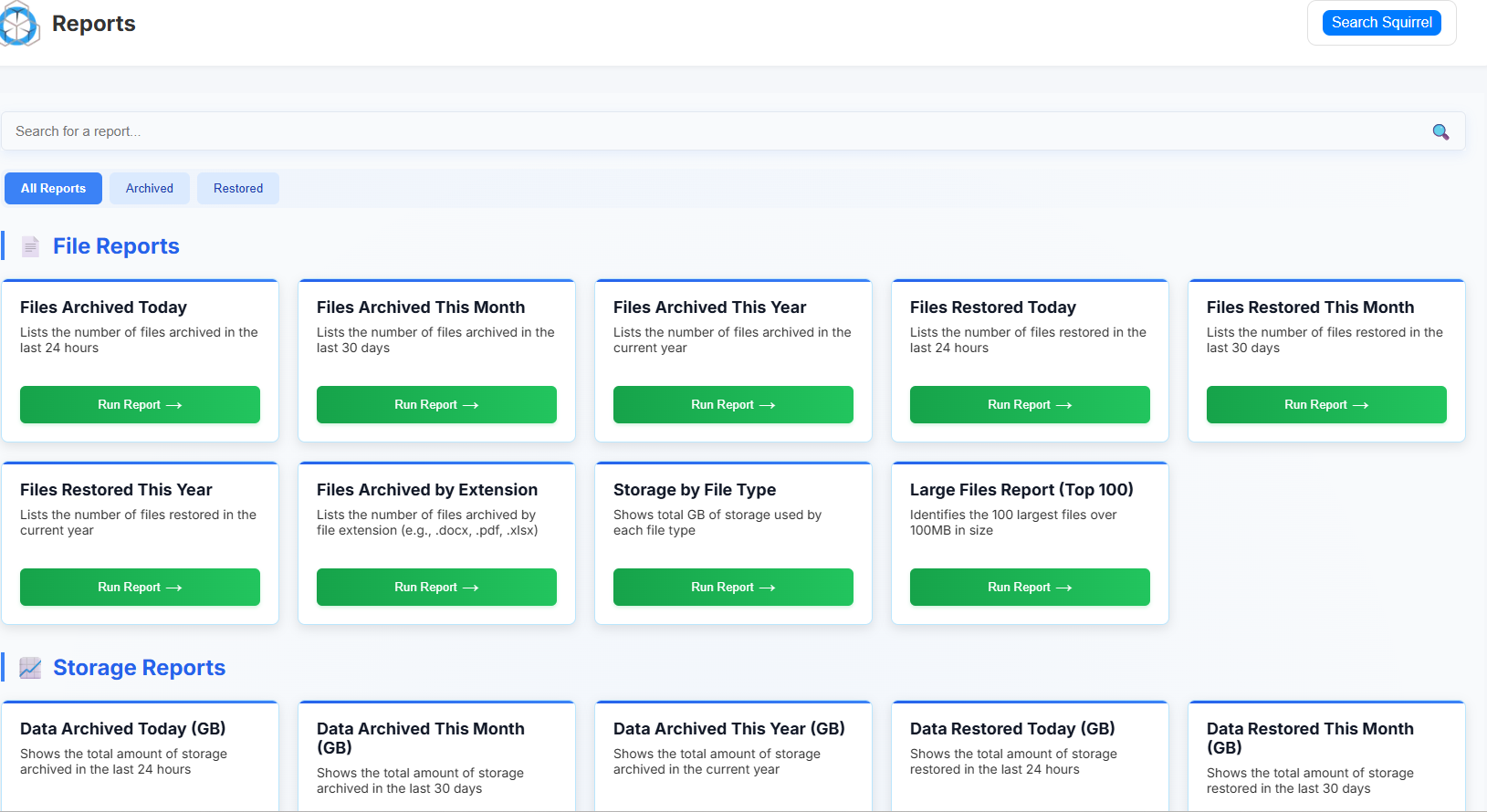
Squirrel SharePoint Reports

Stay compliant and archive your SharePoint Data with Squirrel

Ready To Start Reducing your SharePoint Costs?

Stop paying for Microsoft 365 licenses

Stop paying for Microsoft 365 licenses

How to Stop Paying for Microsoft 365 Licenses After an Employee Leaves

When someone leaves your company, the natural step is to disable their Microsoft 365 account. But what many businesses don’t realize is that they often continue paying for that user’s license — just to retain access to their OneDrive files, Teams chats, and emails.

chipmunk dashboard

Over time, this adds up to thousands in unnecessary costs.

In this article, we’ll explain:

  • Why Microsoft 365 makes it difficult to offboard users without data loss

  • What happens to a user’s data when their license is removed

  • How to stop paying for ex-employee licenses while retaining access to critical data

  • A simpler, automated solution using Chipmunk

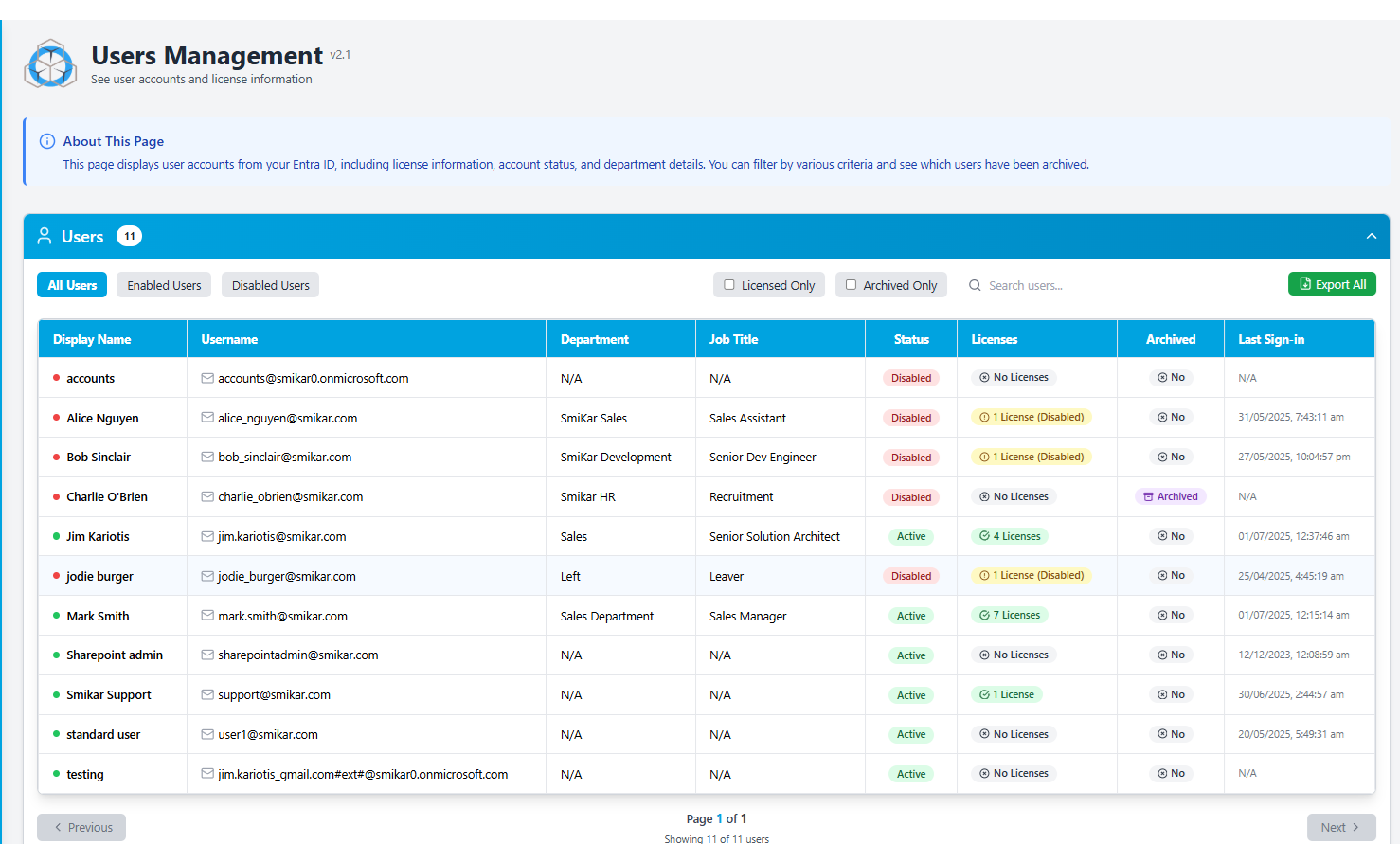
office 365 users tab

The Problem: You’re Still Paying for Departed User Licenses

When an employee leaves, their account is typically:

  • Disabled in Entra ID (formerly Azure Active Directory)
  • But the Microsoft 365 license remains assigned

Why? Because once the license is removed, Microsoft begins deleting that user’s data.

That means IT teams often keep licenses active just to preserve data — even if that data may never be used again.

If you’re paying $30/month for each departed user’s license, that’s:

  • 100 users = $3,000/month

  • 100 users = $36,000/year

And this is just to hold onto data that should already be safely archived.

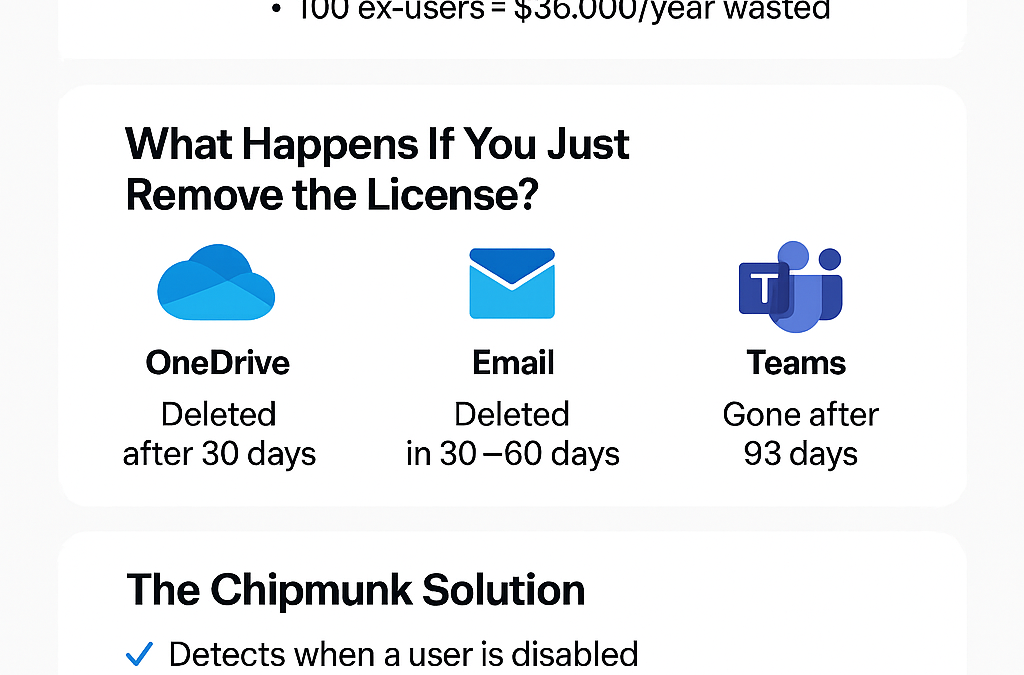
What Happens to Microsoft 365 Data When a License is Removed?

Unless you’ve set up retention policies or manually archived the data, Microsoft will begin deleting user data after a license is removed.

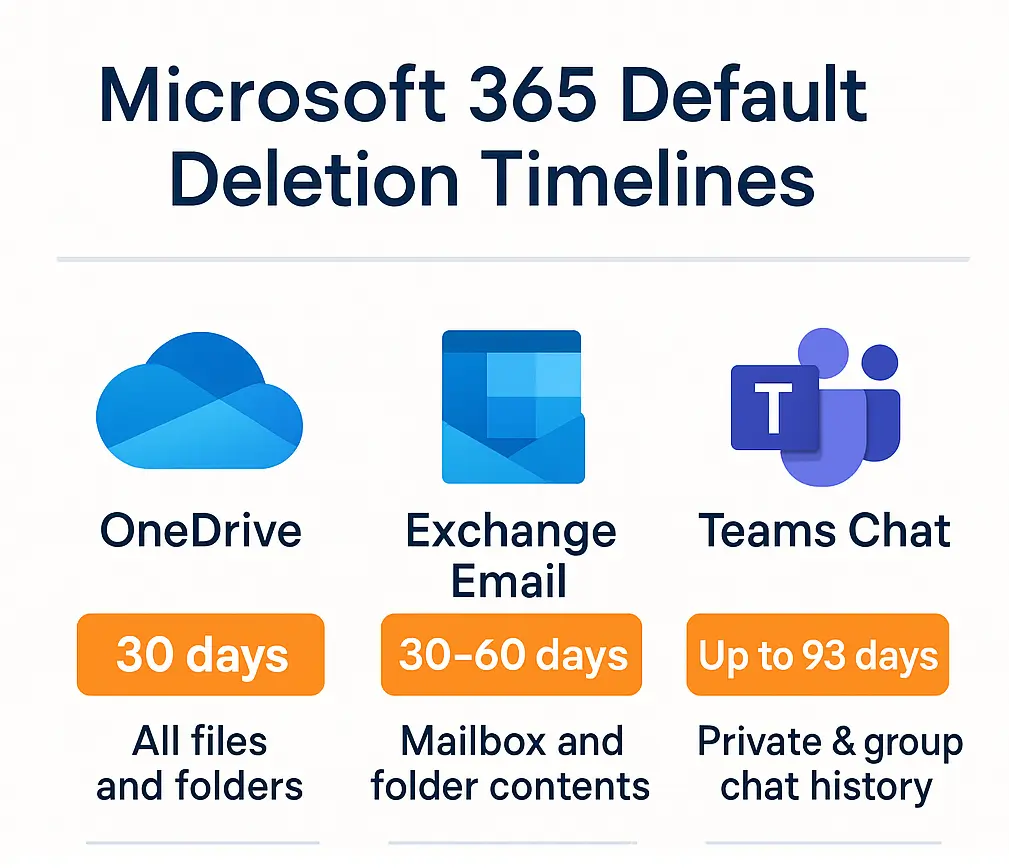
Here’s what typically happens:

Service Retention After License Removal Outcome
OneDrive 30 days Files permanently deleted
Exchange Email 30–60 days Mailbox content deleted
Teams Chats Up to 93 days Chats and message history deleted

If you remove a license and haven’t backed up the data, you could permanently lose important files, emails, or conversations needed for handovers, audits, or legal compliance.

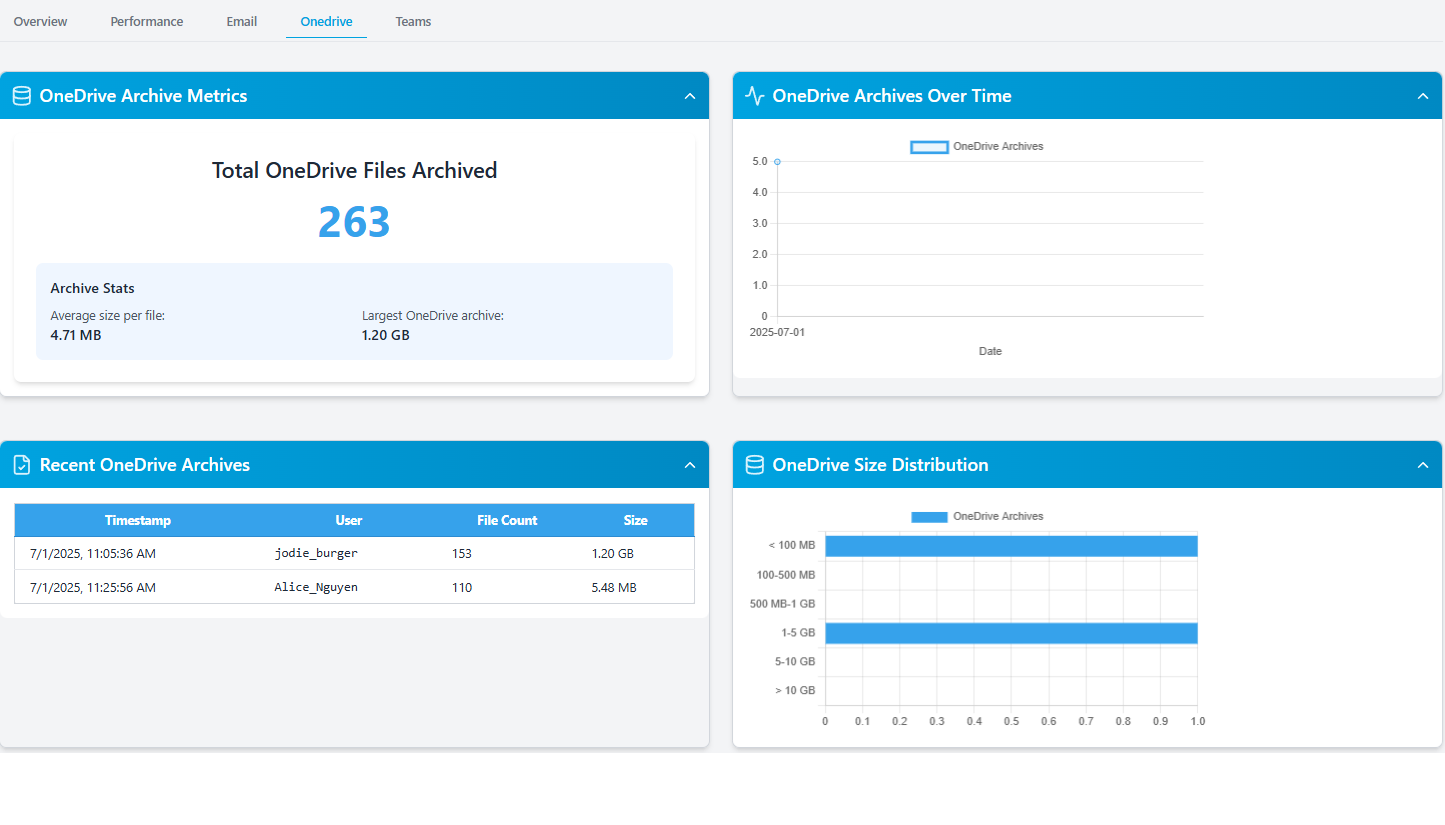
onedrive tab

Why This Is a Costly Problem?

Microsoft offers tools like retention policies and inactive mailboxes, but they are:

  • Difficult to configure correctly

  • Don’t cover everything (Teams chat is a common gap)

  • Often still require the license to remain in place

This means many organizations choose to keep paying for the license instead of risking data loss.

Over time, this becomes a hidden cost — one that can run into tens or hundreds of thousands of dollars per year, depending on your organization size and turnover rate.

The Right Way to Handle Offboarding: Archive Then Delete

The best solution is simple:

Archive all of the user’s data when they leave, then safely remove their license.

That means:

  • Downloading and saving their OneDrive data

  • Exporting all Exchange emails

  • Capturing Teams conversations

  • Storing the data securely for future reference

Doing this manually is time-consuming and error-prone. It also requires different tools for each data type, making it difficult to maintain consistency or ensure compliance.

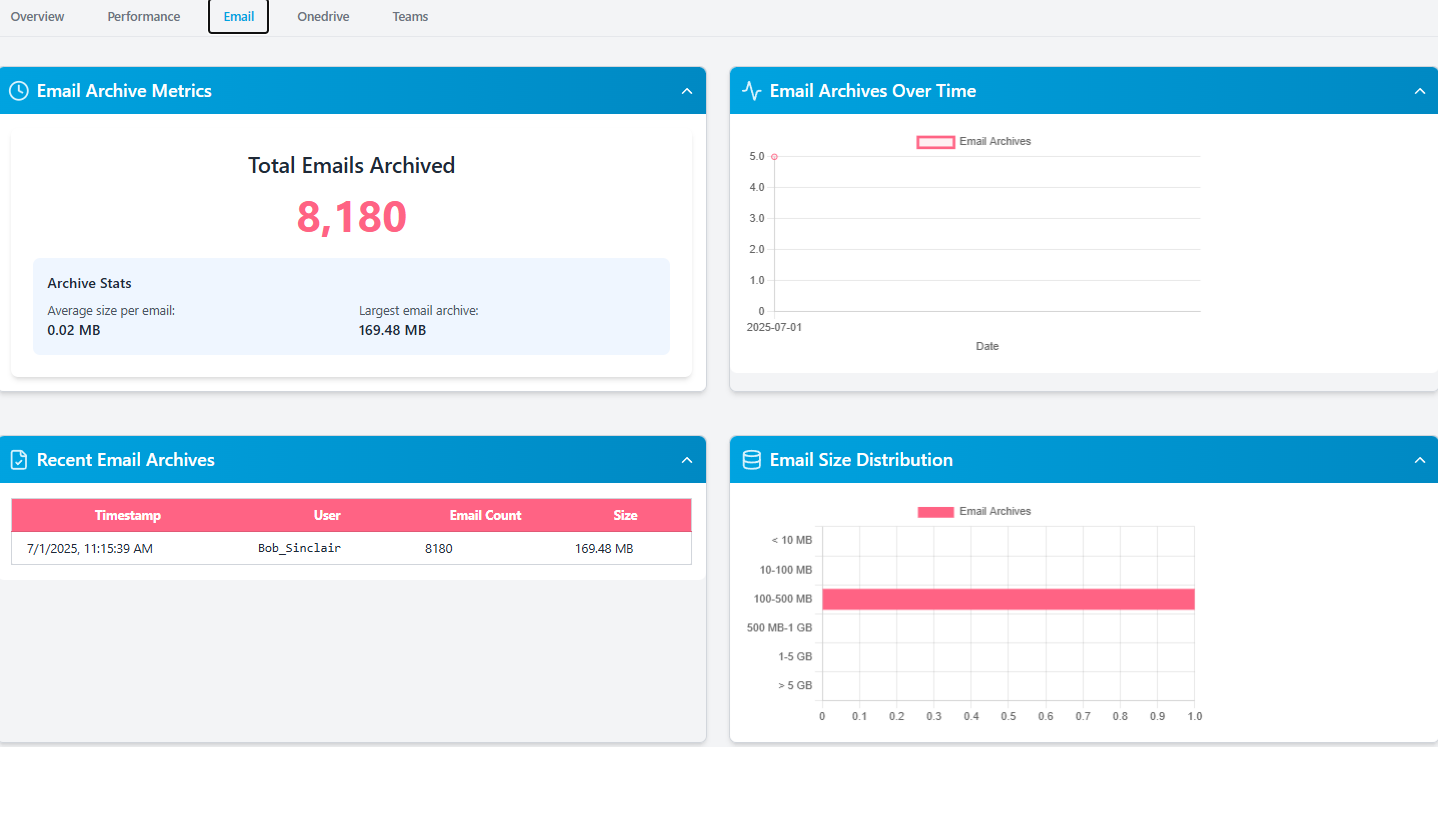
email tab

Introducing Chipmunk: Automated Offboarding for Microsoft 365

Chipmunk is a purpose-built solution to solve this problem.

It automates the entire offboarding process by:

  • Detecting when a Microsoft 365 user is disabled in Entra ID

  • Automatically backing up their:

    • OneDrive files (with full folder structure)

    • Exchange emails (saved in .eml format)

    • Microsoft Teams messages (including private chats and attachments)

  • Uploading the data to your own Azure Blob Storage

  • Logging every action for full auditability

Once Chipmunk completes the archive, you can safely remove the license — no risk of data loss, no ongoing Microsoft billing.

How It Works (Step by Step)

  • A user is disabled in Microsoft Entra ID
  • Chipmunk automatically detects the change
  • It backs up OneDrive, Email, and Teams data
  • The archive is securely stored in your Azure Blob Storage
  • You delete the Microsoft license with confidence that nothing has been lost

No scripts. No retention policies. No risk.

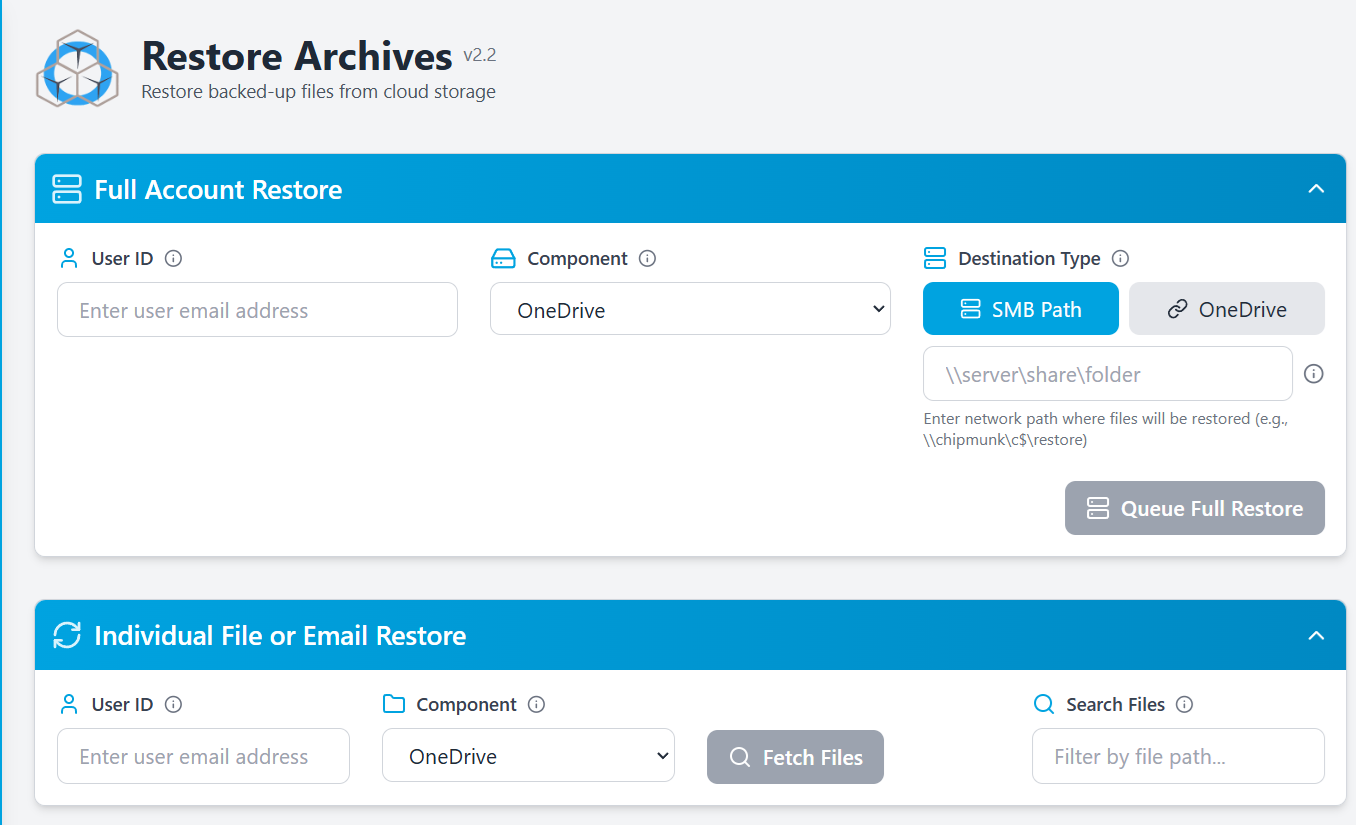
archive restores

Built for Compliance and Peace of Mind

Chipmunk helps your organization meet data retention and compliance requirements across multiple regulatory frameworks, including:

  • ISO 27001

  • GDPR

  • HIPAA

  • SEC 17a-4

  • Microsoft Purview compatibility

By automatically archiving all content from disabled Microsoft 365 users and storing it securely in your own Azure tenant, Chipmunk ensures your data is fully retained, auditable, and under your control — without reliance on ongoing Microsoft licensing or complex configurations.

Summary: Don’t Let Data Loss or Licensing Waste Sneak Up on You

Without Chipmunk With Chipmunk
Continue paying $30+/user/month Remove license immediately after archiving
Manual exports or retention policies Fully automated archiving
Data gaps in Teams, OneDrive, Exchange All covered automatically
Compliance risk, audit blind spots Secure, logged, and audit-ready archives
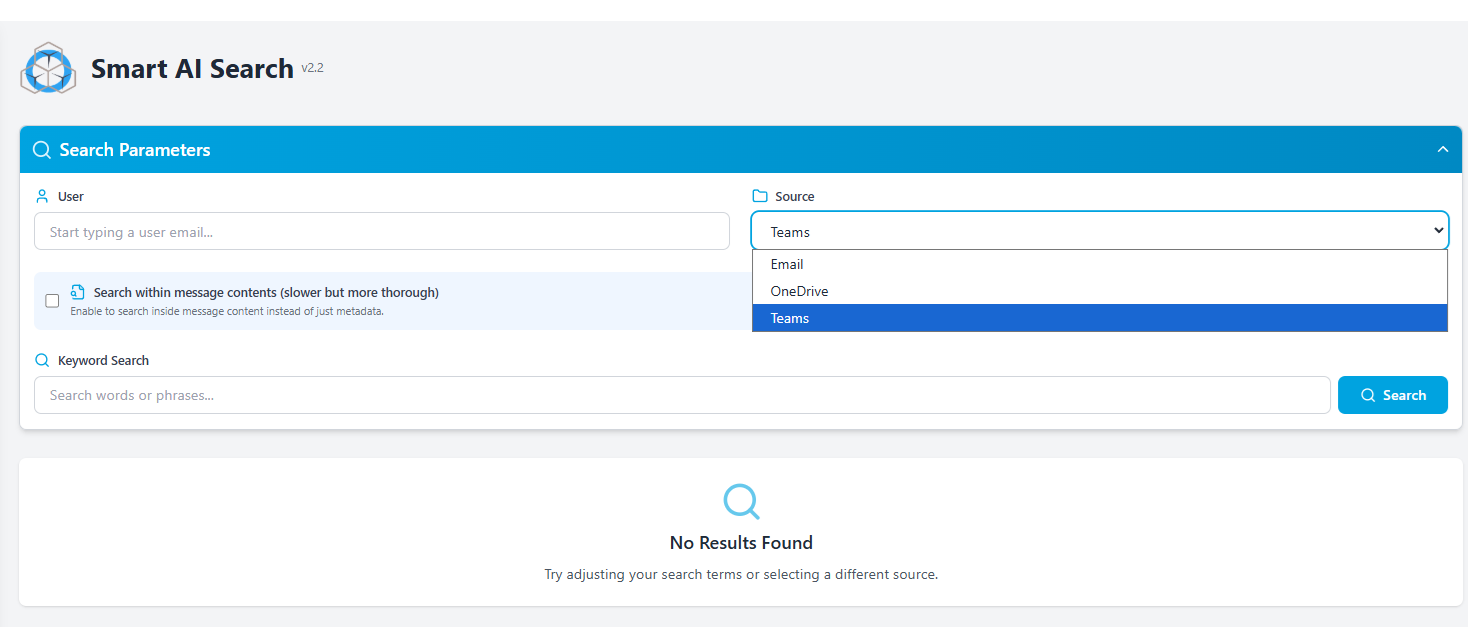
smart ai search

What Chipmunk Does That Manual Offboarding Cannot


Manual offboarding requires IT teams to identify departed users, download their OneDrive files, export their Exchange mailbox, capture their Teams data, verify everything has been saved correctly, and only then remove the licence. For enterprises processing dozens or hundreds of departures per year this is time consuming, error prone, and inconsistent.

Chipmunk replaces this entire process with a single automated workflow. The moment a user account is disabled in Microsoft Entra ID, Chipmunk detects the departure event and begins archiving their OneDrive, Exchange Online mailbox, and Teams data automatically. When archiving is complete your IT team receives a confirmation notification and can immediately remove the Microsoft 365 licence — with complete confidence that nothing has been lost.

For large enterprises processing high volumes of departures, Chipmunk scales without any additional IT effort. Every departure is handled consistently, every archive is complete, and every licence removal is safe.

The Cost of Delayed Licence Removal

For a 1,000 person enterprise with 10% annual staff turnover, that is 100 departures per year. If each departed user’s licence is kept active for an average of three months while IT manually handles offboarding, the unnecessary licence cost for a Microsoft 365 E3 plan is over $10,000 per year — just from the delay.

Chipmunk reduces that delay from weeks to hours. The archiving completes automatically and IT is notified to remove the licence the same day the account is disabled.

Ready to Save on Microsoft 365 Licensing?

If your organization is still paying for ex-employee licenses just to preserve their data — it’s time to stop.

Chipmunk gives you a fully automated, secure, and cost-effective way to archive departed user data across OneDrive, Teams, and Exchange — and safely delete the license.

Frequently Asked Questions About Microsoft 365 Licence Removal

Q: What happens to OneDrive data when a Microsoft 365 licence is removed? A: Microsoft retains OneDrive data for 93 days after an account is disabled. After that it is permanently deleted. If the licence is removed before that period ends and no retention policy is in place, the data may be deleted sooner. Chipmunk archives all OneDrive data before the licence is removed so nothing is at risk.

Q: Can I remove a Microsoft 365 licence without losing the employee’s emails? A: Yes, if you archive the Exchange Online mailbox first. Chipmunk automatically captures the full Exchange Online mailbox including sent items, calendar, and contacts before the licence is removed, so all email history is preserved in your own Azure Blob Storage.

Q: How long do I need to keep a departed employee’s Microsoft 365 data? A: This depends on your regulatory obligations and internal policy. GDPR requires data to be kept only as long as necessary. Financial services regulations may require seven years for certain communications. Employment law varies by jurisdiction. Chipmunk stores archived data for as long as your policy requires at a fraction of the cost of keeping an active Microsoft 365 licence.

Q: What happens to Microsoft Teams data when an employee leaves? A: Teams channels the departed user participated in continue to exist for other team members. However, the departed user’s personal Teams chats and any files they uploaded to their own OneDrive are at risk once their account is disabled. Chipmunk captures Teams chat history and associated files as part of the automated archiving workflow.

Q: Is there a way to automatically archive departed user data without manual IT work? A: Yes. Chipmunk monitors your Microsoft Entra ID continuously and automatically starts the archiving workflow the moment a user account is disabled. OneDrive, Exchange Online, and Teams data are all captured without any manual trigger from your IT team. You receive a confirmation notification when archiving is complete and the licence can be safely removed.

Q: How much does it cost to keep a Microsoft 365 licence just to retain data? A: Microsoft 365 E3 costs $36 per user per month. For 100 departed users kept on licence for three months while IT handles manual offboarding, that is $10,800 in unnecessary licence costs. Chipmunk archives the data automatically so licences can be removed the same day the account is disabled.

Departed M365 Users

Departed M365 Users

Microsoft’s Countdown to Data Deletion

When someone leaves your organization, the first step IT usually takes is to disable their Microsoft 365 account. But have you ever stopped to ask:

“What happens to all their data — their files, emails, and chats — after that?”

The answer might surprise you.

If you’re not actively managing this, Microsoft will automatically delete that data — often in as little as 30 days.

This post explains exactly what gets deleted (and when), why this is a problem, and what you can do to protect that data — without paying for unnecessary licenses.

Microsoft’s Countdown to Data Deletion

Let’s start with a simple truth:

Disabling a user in Microsoft 365 doesn’t save their data forever.

Instead, Microsoft starts a ticking clock. Unless you take action, data begins disappearing — fast.

Here’s what typically happens:

Service Default Retention What’s Deleted Can You Recover It?
OneDrive 30 days All files and folders Maybe, but not always
Exchange 30–60 days Mailbox content Sometimes
Teams Chat Up to 93 days All chat history and attachments Usually not

So if an employee leaves on January 1st, by April their Teams messages, OneDrive files, and mailbox may be completely gone.

chipmunk dashboard

Why This Matters — And Who Should Care

Most people assume Microsoft keeps this data for legal or security reasons. But that’s not how it works.

Microsoft isn’t your backup provider. Its job is to deliver service, not long-term data retention.

This creates big risks for:

  • IT teams, who might need to retrieve a user’s files later

  • Legal and compliance officers, who must retain emails and chat records

  • HR and management, who need access to handover materials, customer comms, etc.

And unless you assign a license to the user’s account forever, that data is eventually lost.

A Real-World Scenario

Let’s say you’re offboarding an employee named Sarah. She’s been with the company for 5 years.

She has:

  • 200 GB of OneDrive files

  • 50,000 emails in Exchange

  • Years of chats with project teams in Microsoft Teams

You disable her Microsoft 365 account. Now what?

  • 30 days later, her OneDrive starts purging

  • 60 days later, her mailbox may be gone

  • By day 93, her Teams chat history is unrecoverable

Now legal asks for chat logs from a project she was on 6 months ago… and it’s too late.

Can’t I Just Use Microsoft Retention Policies?

Yes — but it’s not as easy as it sounds.

You’d need to:

  • Set up custom retention policies in Microsoft Purview

  • Create inactive mailboxes (which still require licenses)

  • Use PowerShell scripts to export OneDrive manually

  • Deal with Teams data that isn’t easily exportable

And even then, you’re not guaranteed to retain everything — especially chat data.

It’s complex, time-consuming, and risky.

The Simpler Option: Use Chipmunk

Chipmunk is a tool built specifically to solve this exact problem.

It watches for when you disable a user and automatically backs up their:

  • OneDrive files and folder structure

  • Exchange emails

  • Teams chats (including private and group chats)

All the data is stored in your own Azure Blob Storage, so:

  • You own the data

  • You don’t need to keep paying Microsoft licenses

  • You can access it anytime — for audits, legal cases, or handovers

No scripts. No licenses. No data loss.

How It Works — In Plain English

Here’s how Chipmunk fits into your offboarding process:

  • User is disabled in Microsoft Entra ID (formerly Azure AD)
  • Chipmunk detects it automatically
  • It downloads all key data — OneDrive, Email, and Teams
  • It uploads the data into organized folders in your Azure storage
  • It updates your central dashboard with status and logs
  • It emails you the results of the archive activity for each user.
  • You don’t have to remember to do anything. It just works in the background.

Bonus: Save on Microsoft Licenses

Did you know keeping a disabled user’s data often requires a paid Microsoft 365 license?

That could mean paying $20–$40/month per user just to retain inactive data.

With Chipmunk, you can archive it once — and delete the user safely.

For companies with hundreds of staff turnover each year, that’s tens of thousands in savings.

Compliant. Secure. Yours.

Chipmunk is built for:

  • Data compliance (GDPR, ISO, HIPAA-ready)

  • Cost reduction (free up licenses without losing data)

  • IT simplicity (no need to learn Microsoft Purview or eDiscovery)

And because all archived data is stored in your own Azure tenant, you stay in control at all times.

M365-Retention-Times

TL;DR

What Happens by Default What Chipmunk Does
Microsoft deletes data after 30–93 days Chipmunk backs it up automatically
You must set complex retention rules No configuration needed
Teams chat is hard to retain Chipmunk grabs it for you
Ongoing license may be required Chipmunk lets you delete users safely
Risk of permanent data loss Permanent backup in Azure

Ready to Never Lose Ex-Employee Data Again?

Don’t wait for day 93.

If you want peace of mind, predictable offboarding, and full control of your M365 user data — Chipmunk can help.

The Four Options Enterprises Have — and Which One Actually Works

When an employee leaves, most organisations fall into one of four approaches to handling their Microsoft 365 data.

Option 1 — Keep the licence active

Keeping the Microsoft 365 licence active after the employee leaves preserves all their data indefinitely. The problem is cost. At $36 per user per month for Microsoft 365 E3, retaining 100 departed users on active licences costs $43,200 per year — for accounts that nobody is using.

Option 2 — Apply a Microsoft retention policy

Microsoft Purview retention policies can prevent data from being deleted after an account is disabled. This avoids the immediate deletion risk but still requires careful configuration, adds to your Microsoft Purview complexity, and does not necessarily allow you to remove the licence.

Option 3 — Manually export and save the data

IT teams can manually export OneDrive files, Exchange mailboxes, and Teams data before an account is disabled. The problem is scale and consistency. For enterprises processing dozens of departures per year, manual export is time consuming, error prone, and relies on IT remembering to do it before the account is disabled.

Option 4 — Automated archiving with Chipmunk

Chipmunk monitors your Microsoft Entra ID continuously. The moment an account is disabled, Chipmunk automatically captures OneDrive, Exchange Online, and Teams data and writes it to your own Azure Blob Storage account. Your IT team receives a confirmation notification and can remove the licence immediately. No manual work, no risk of data loss, no ongoing licence costs.

Why Getting This Wrong Is More Expensive Than It Looks

The financial risk of unmanaged departed user data goes beyond the licence cost. Consider these scenarios:

A former employee was the only person who worked on a key client contract. Six months after they left, a dispute arises and legal needs the email correspondence. If the data was not archived before the 30 day deletion window closed, it is gone permanently.

A financial services organisation is audited and asked to produce all communications from a specific employee over a two year period. If those Exchange mailboxes were not retained after the employee left, the organisation cannot comply — and faces regulatory consequences.

An HR team needs to review a former employee’s files as part of a tribunal proceeding. If OneDrive data was deleted after the 93 day window, the files cannot be recovered.

Chipmunk prevents all three scenarios by archiving data automatically the moment the departure is detected — before any of these risks materialise.

Frequently Asked Questions About Departed Microsoft 365 Users

Q: How long does Microsoft keep OneDrive data after an employee leaves? A: Microsoft retains OneDrive data for 93 days after an account is disabled before permanently deleting it. During this period an administrator can restore the data. After 93 days it cannot be recovered.

Q: What happens to Exchange Online emails when an employee leaves? A: If no licence or retention policy is in place, the Exchange Online mailbox is typically deleted 30 days after the account is disabled. The mailbox can be converted to a shared mailbox to retain it without a licence, but this still requires manual action and management.

Q: What happens to Microsoft Teams data when an employee leaves? A: Teams channels the departed user participated in remain accessible to other team members. However, private chats and files stored in the departed user’s personal OneDrive are subject to the standard deletion timelines. Chipmunk captures Teams chat history and associated files as part of the automated archiving workflow.

Q: Can I recover Microsoft 365 data after the deletion window closes? A: No. Once Microsoft’s retention window closes and data is permanently deleted, it cannot be recovered. This is why it is critical to archive departed user data before disabling the account or as soon as possible after.

Q: Do I need to keep a Microsoft 365 licence active to retain a departed employee’s data? A: No — if you archive the data first. Chipmunk archives OneDrive, Exchange Online, and Teams data to your own Azure Blob Storage account before the licence is removed. Once archiving is confirmed complete the licence can be safely removed with no risk of data loss.

Q: What is the cheapest way to retain departed employee data long term? A: Archiving to Azure Blob Storage is significantly cheaper than maintaining active Microsoft 365 licences. Azure Blob Cool tier costs approximately $0.01 per GB per month. For a departed employee with 10 GB of data across OneDrive, Exchange, and Teams, the annual retention cost in Azure Blob Storage is approximately $1.20 — compared to $432 per year for a Microsoft 365 E3 licence.