How to Remove a Departed User's Microsoft 365 License (and Keep Their Data)
When someone leaves your company, the natural step is to disable their Microsoft 365 account. But what many businesses don’t realize is that they often continue paying for that user’s license - just to retain access to their OneDrive files, Teams chats, and emails.
Over time, this adds up to thousands in unnecessary costs.
In this article, we’ll explain:
- Why Microsoft 365 makes it difficult to offboard users without data loss
- What happens to a user’s data when their license is removed
- How to stop paying for ex-employee licenses while retaining access to critical data
- A simpler, automated solution using Chipmunk
The timeline once the licence is removed
Removing the licence does not delete anything on the day. It starts a set of clocks, and they run at different speeds for mail, files and chats.
| Data | What happens after the licence is removed | Where Microsoft documents it |
|---|---|---|
| Mailbox | The mailbox is disabled immediately. If the account is then deleted, the mailbox is recoverable for 30 days and then gone, unless a Litigation Hold or retention policy was applied while the mailbox was still licensed, in which case it becomes an inactive mailbox that needs no ongoing licence. | Inactive mailboxes |
| OneDrive (account kept, licence removed) | Read-only at day 60, archived at day 93, removed from eDiscovery at day 275, and subject to deletion at 365 cumulative unpaid days even where a retention policy or hold exists. Reactivating an archived OneDrive costs $0.60 per GB plus $0.05 per GB per month, and once billing is switched on the monthly fee applies to every unlicensed account in the tenant. | Unlicensed OneDrive accounts |
| OneDrive (account deleted) | The manager named in the delete-user wizard gets access, and the OneDrive is kept for the tenant's OneDrive retention setting, 30 days by default and configurable up to 3,650, before deletion. | OneDrive retention and deletion |
| Teams chats | Kept for 30 days after the account is deleted unless a Teams retention policy applies. There is no way to delegate a leaver's chats to a colleague and no admin-centre option to preserve them at removal. | Office 365 for IT Pros |
The rest of this page is about the fourth option, archiving the data into your own Azure before any of those clocks matter. If you want the cost of each route for your own numbers first, the Microsoft 365 leaver data cost calculator works them out side by side.
The Problem: You’re Still Paying for Departed User Licenses
When an employee leaves, their account is typically:
- Disabled in Entra ID (formerly Azure Active Directory)
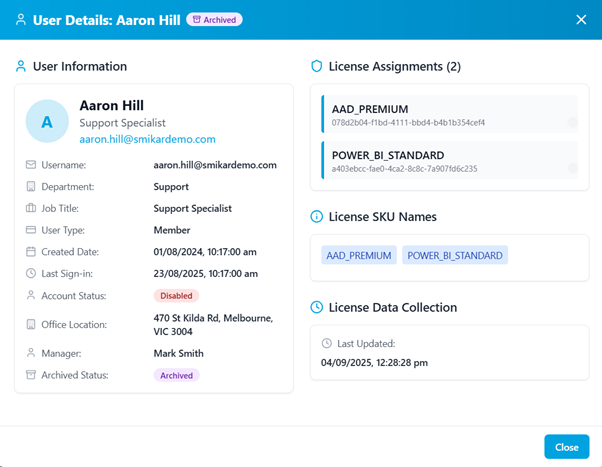
- But the Microsoft 365 license remains assigned Why? Because once the license is removed, Microsoft begins deleting that user’s data.
That means IT teams often keep licenses active just to preserve data - even if that data may never be used again.
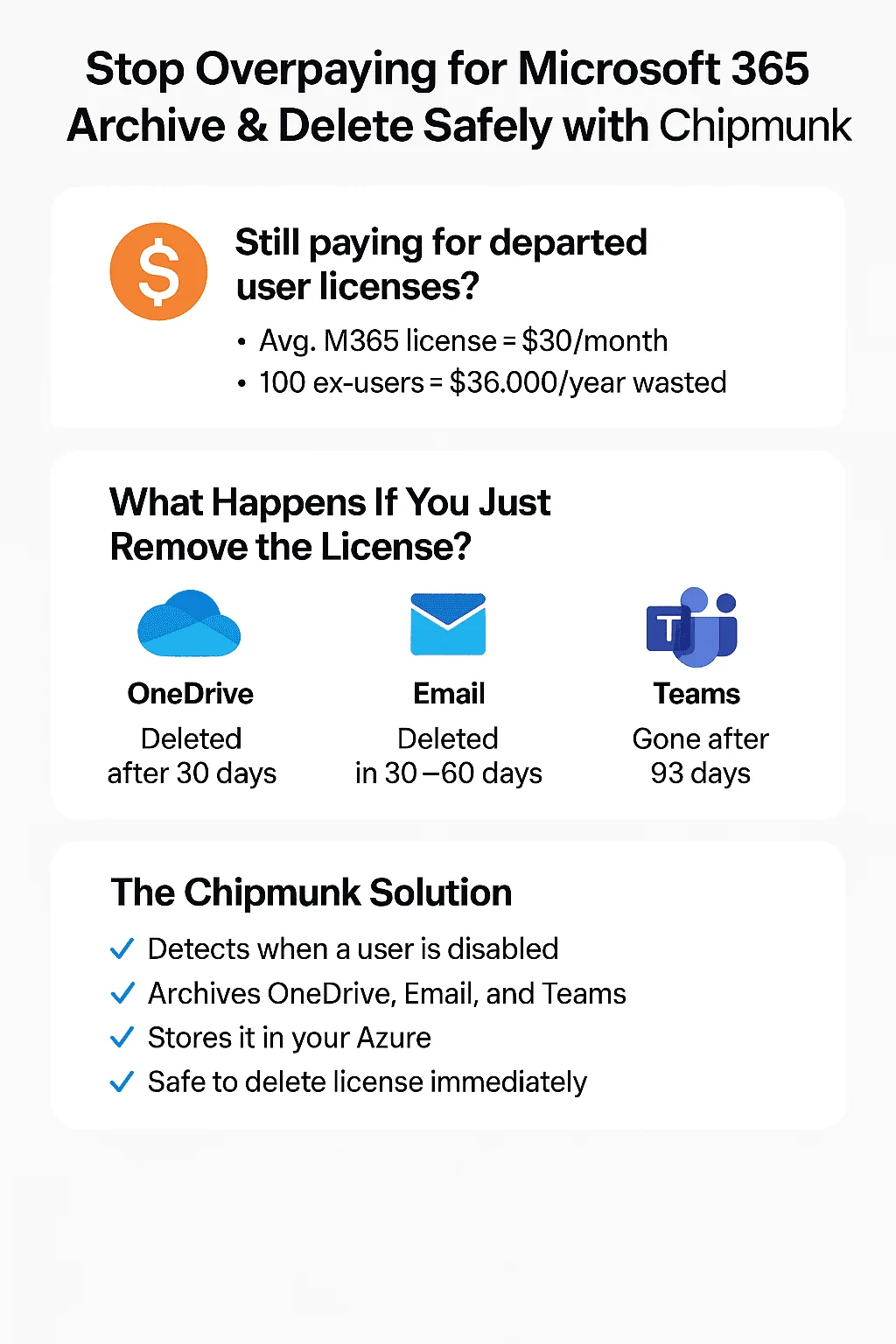
If you’re paying $30/month for each departed user’s license, that’s:
- 100 users = $3,000/month
- 100 users = $36,000/year And this is just to hold onto data that should already be safely archived.
What Happens to Microsoft 365 Data When a License is Removed?
Unless you’ve set up retention policies or manually archived the data, Microsoft will begin deleting user data after a license is removed.
Here’s what typically happens:
| Service | Retention After License Removal | Outcome |
|---|---|---|
| OneDrive | 30 days | Files permanently deleted |
| Exchange Email | 30 days | Mailbox content deleted |
| Teams Chats | Follows mailbox / OneDrive | Chats and message history deleted |
| If you remove a license and haven’t backed up the data, you could permanently lose important files, emails, or conversations needed for handovers, audits, or legal compliance. |
Why This Is a Costly Problem?
Microsoft's built-in options - retention policies, inactive mailboxes, shared mailboxes, and Exchange Online Archiving - all have limitations for departed-user preservation, and the choice between the three mailbox types carries different licence implications. They are:
- Difficult to configure correctly
- Don’t cover everything (Teams chat is a common gap)
- Often still require the license to remain in place This means many organizations choose to keep paying for the license instead of risking data loss.
Over time, this becomes a hidden cost - one that can run into tens or hundreds of thousands of dollars per year, depending on your organization size and turnover rate.
The Right Way to Handle Offboarding: Archive Then Delete
The best solution is simple:
Archive all of the user’s data when they leave, then safely remove their license. That means:
- Downloading and saving their OneDrive data
- Exporting all Exchange emails
- Capturing Teams conversations
- Storing the data securely for future reference Doing this manually is time-consuming and error-prone. It also requires different tools for each data type, making it difficult to maintain consistency or ensure compliance.
Introducing Chipmunk: Automated Offboarding for Microsoft 365
Chipmunk is a purpose-built solution to solve this problem.
It automates the entire offboarding process by:
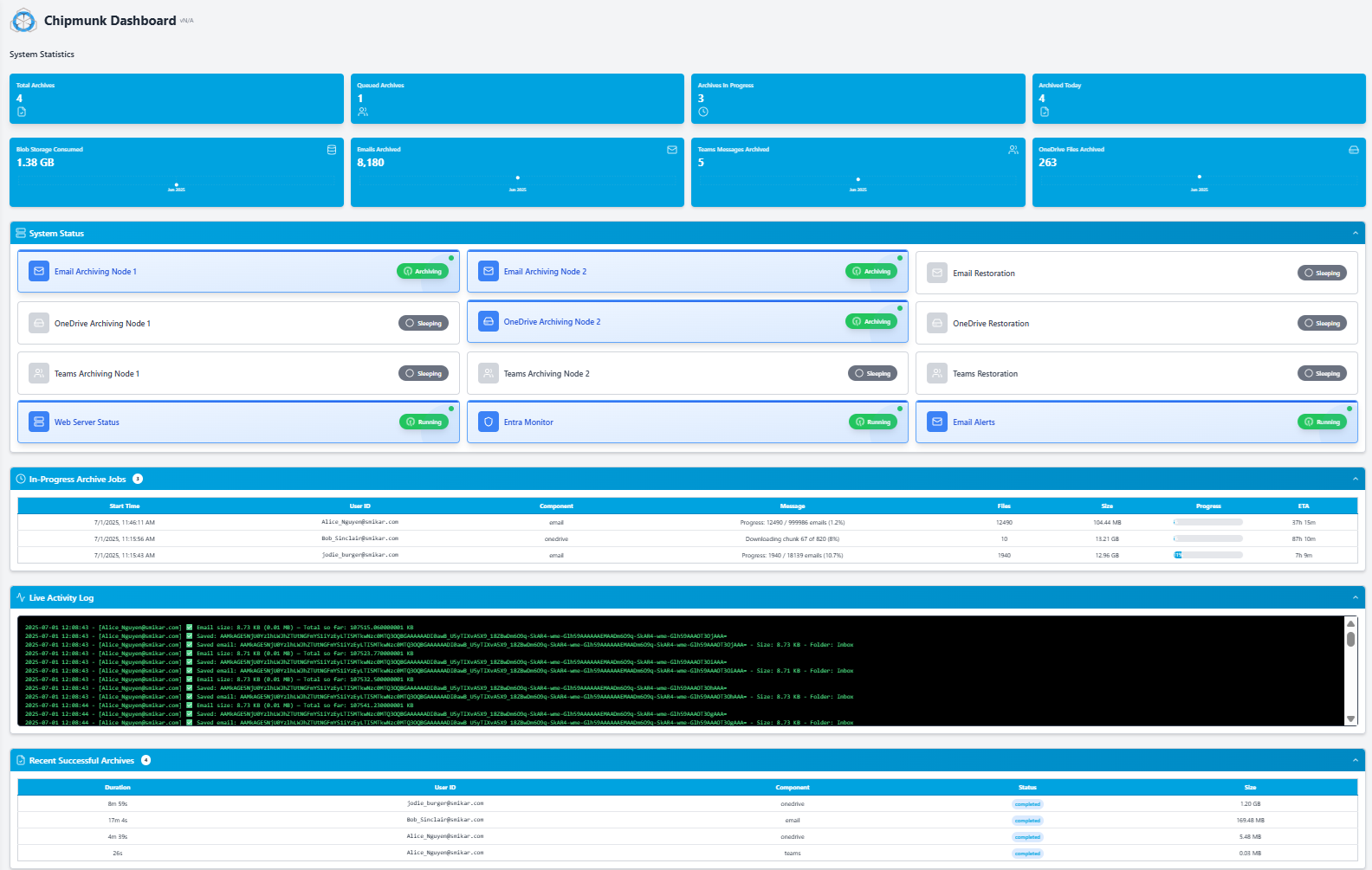
- Detecting when a Microsoft 365 user is disabled in Entra ID
- Automatically backing up their:
- OneDrive files (with full folder structure)
- Exchange emails (saved in .eml format)
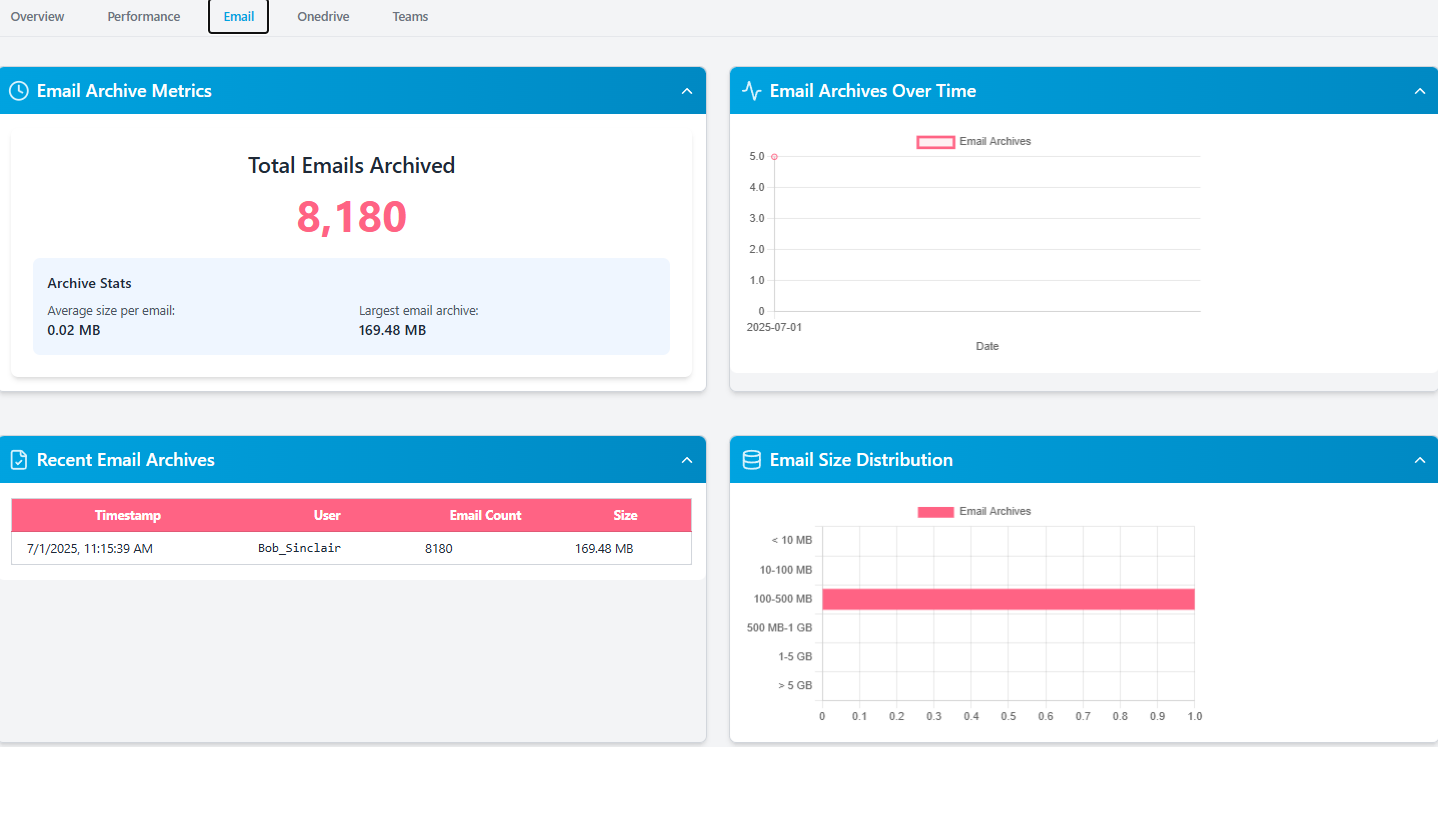
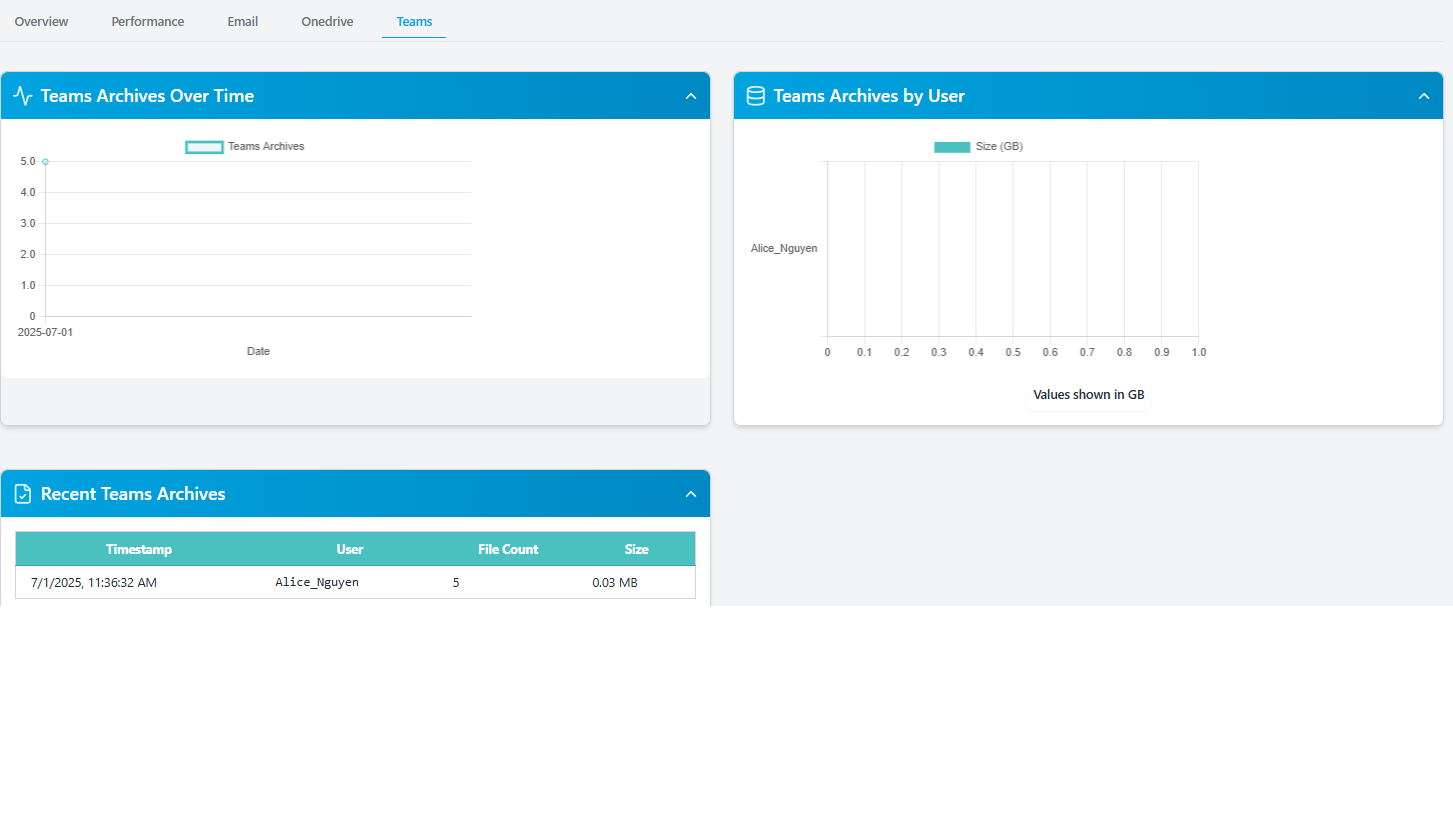
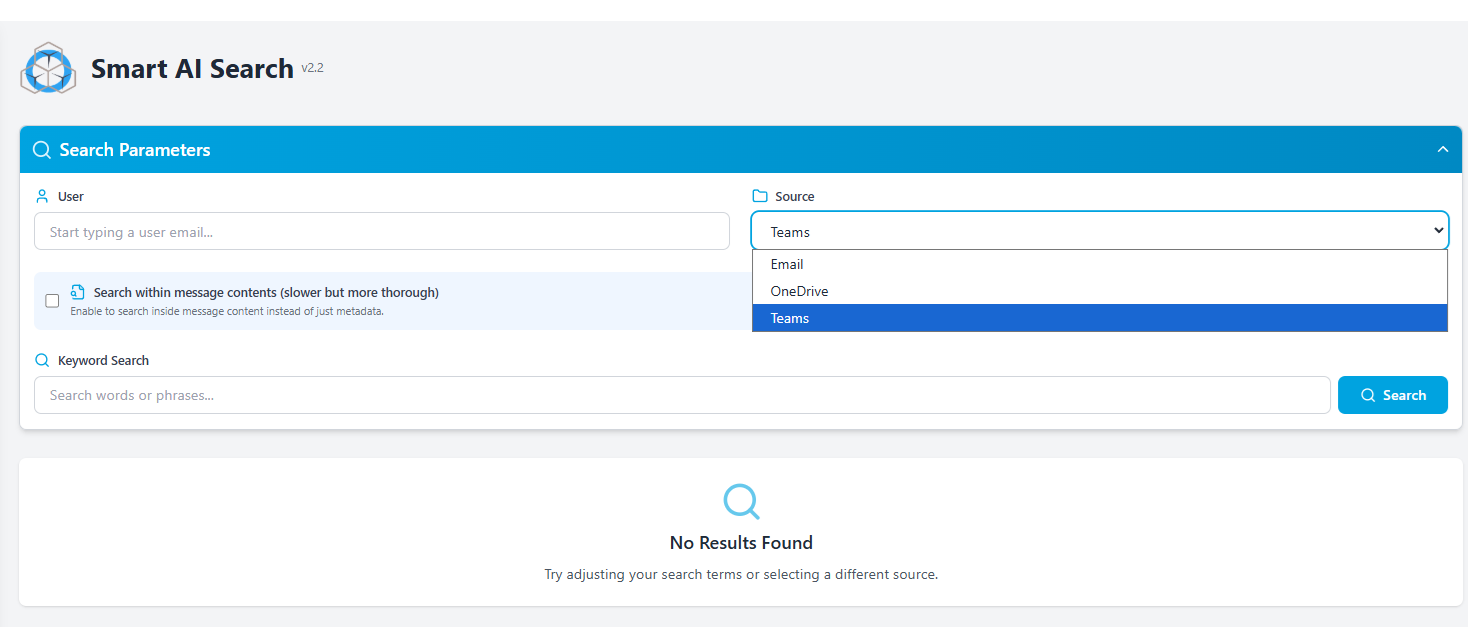
- Microsoft Teams messages (including private chats and attachments)
- Uploading the data to your own Azure Blob Storage
- Logging every action for full auditability Once Chipmunk completes the archive, you can safely remove the license - no risk of data loss, no ongoing Microsoft billing.
How It Works (Step by Step)
- A user is disabled in Microsoft Entra ID
- Chipmunk automatically detects the change
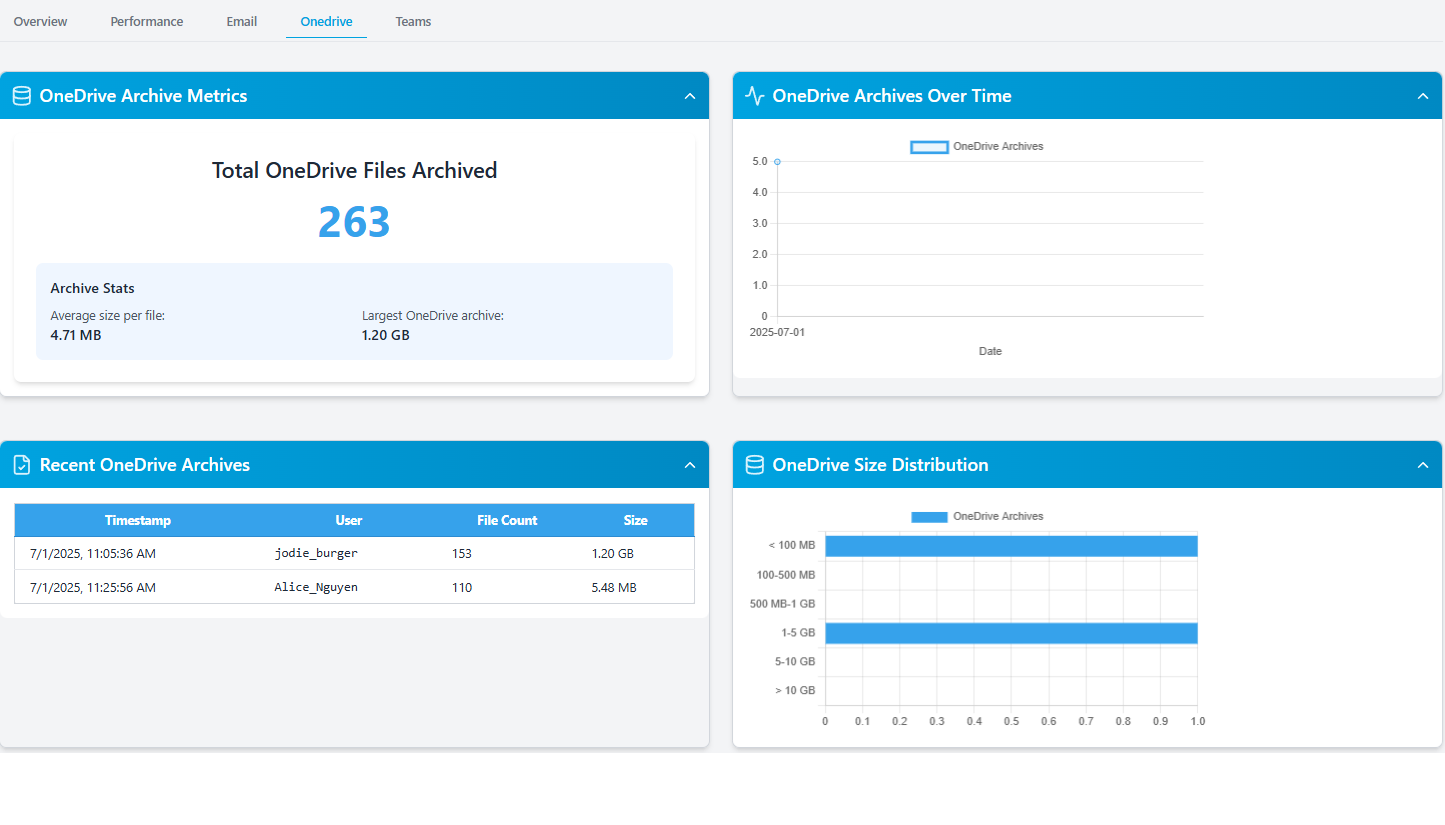
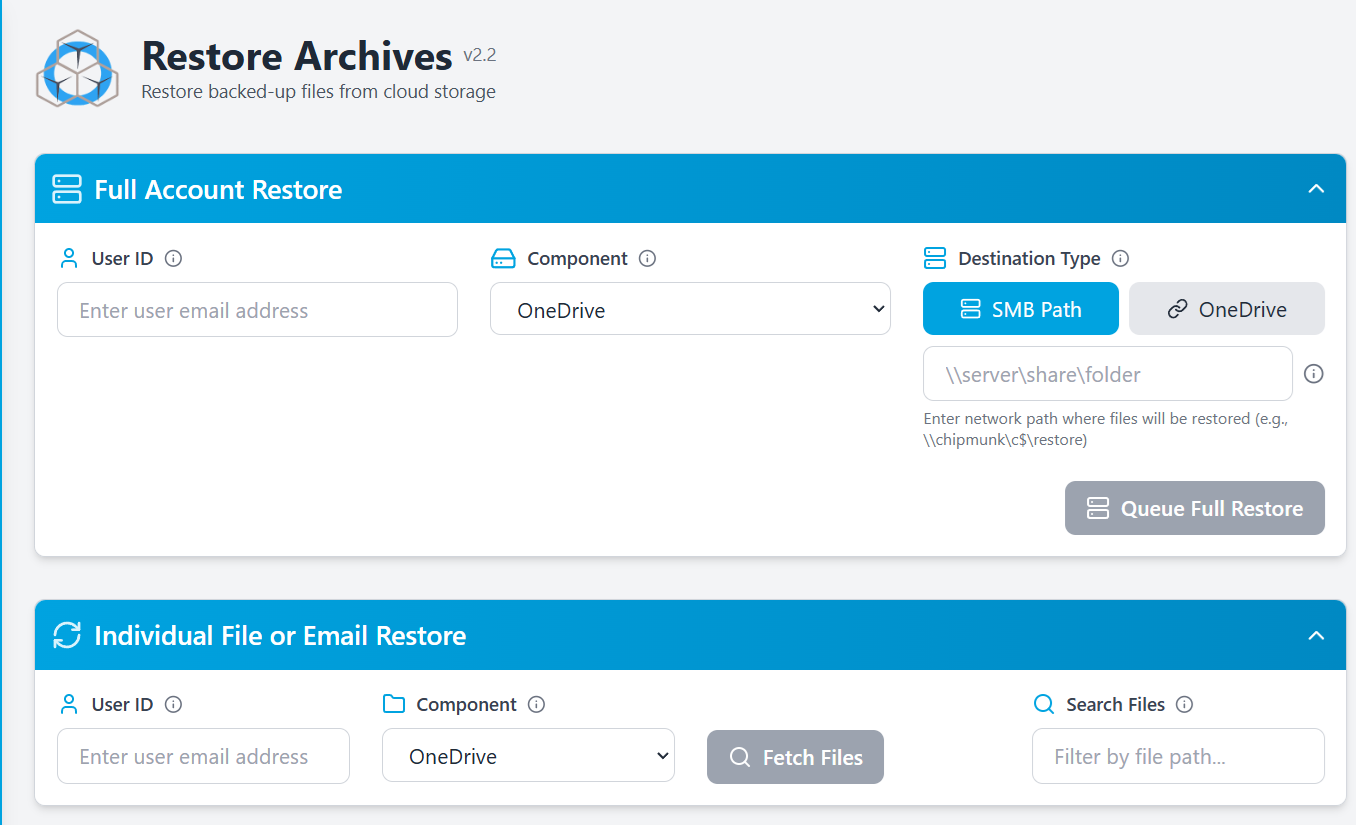
- It backs up OneDrive, Email, and Teams data
- The archive is securely stored in your Azure Blob Storage
- You delete the Microsoft license with confidence that nothing has been lost No scripts. No retention policies. No risk.
Built for Compliance and Peace of Mind
Chipmunk helps your organization meet data retention and compliance requirements across multiple regulatory frameworks, including:
- ISO 27001
- GDPR
- HIPAA
- SEC 17a-4 By automatically archiving all content from disabled Microsoft 365 users and storing it securely in your own Azure tenant, Chipmunk ensures your data is fully retained, auditable, and under your control - without reliance on ongoing Microsoft licensing or complex configurations.
Summary: Don’t Let Data Loss or Licensing Waste Sneak Up on You
| Without Chipmunk | With Chipmunk |
|---|---|
| Continue paying $30+/user/month | Remove license immediately after archiving |
| Manual exports or retention policies | Fully automated archiving |
| Data gaps in Teams, OneDrive, Exchange | All covered automatically |
| Compliance risk, audit blind spots | Secure, logged, and audit-ready archives |
 |
What Chipmunk Does That Manual Offboarding Cannot
Manual offboarding requires IT teams to identify departed users, download their OneDrive files, export their Exchange mailbox, capture their Teams data, verify everything has been saved correctly, and only then remove the licence. For enterprises processing dozens or hundreds of departures per year this is time consuming, error prone, and inconsistent.
Chipmunk replaces this entire process with a single automated workflow. The moment a user account is disabled in Microsoft Entra ID, Chipmunk detects the departure event and begins archiving their OneDrive, Exchange Online mailbox, and Teams data automatically. When archiving is complete your IT team receives a confirmation notification and can immediately remove the Microsoft 365 licence - with complete confidence that nothing has been lost.
For large enterprises processing high volumes of departures, Chipmunk scales without any additional IT effort. Every departure is handled consistently, every archive is complete, and every licence removal is safe.
The Cost of Delayed Licence Removal
For a 1,000 person enterprise with 10% annual staff turnover, that is 100 departures per year. If each departed user’s licence is kept active for an average of three months while IT manually handles offboarding, the unnecessary licence cost for a Microsoft 365 E3 plan is over $10,000 per year - just from the delay.
Chipmunk reduces that delay from weeks to hours. The archiving completes automatically and IT is notified to remove the licence the same day the account is disabled.
Ready to Save on Microsoft 365 Licensing?
If your organization is still paying for ex-employee licenses just to preserve their data - it’s time to stop.
Chipmunk gives you a fully automated, secure, and cost-effective way to archive departed user data across OneDrive, Teams, and Exchange - and safely delete the license.
Frequently Asked Questions About Microsoft 365 Licence Removal
Q: Can I remove the license from a disabled user without losing their data?
A: Disabling an account in Entra ID does not stop the billing - the Microsoft 365 license stays assigned, and simply removing it puts the user's OneDrive, mailbox, and Teams data on a deletion clock. The safe order is: archive the user's data first (Chipmunk captures OneDrive, the full Exchange Online mailbox, and Teams chats into your own Azure Blob Storage), then remove the license, then delete the account. The data stays accessible and searchable; the license goes back into your pool.
Q: What happens to OneDrive data when a Microsoft 365 licence is removed?
A: Removing the licence alone does not delete OneDrive data - the files remain accessible to admins while the account exists. Once the account is deleted, Microsoft retains the OneDrive data for 30 days by default (configurable up to 3650 days in the SharePoint admin center), then permanently deletes it. Chipmunk archives OneDrive, mailbox, and Teams data before the licence is removed so nothing is at risk.
Q: Can I remove a Microsoft 365 licence without losing the employee’s emails?
A: Yes, if you archive the Exchange Online mailbox first. Chipmunk automatically captures the full Exchange Online mailbox including sent items, calendar, and contacts before the licence is removed, so all email history is preserved in your own Azure Blob Storage.
Q: How long do I need to keep a departed employee’s Microsoft 365 data?
A: This depends on your regulatory obligations and internal policy. GDPR requires data to be kept only as long as necessary. Financial services regulations may require seven years for certain communications. Employment law varies by jurisdiction. Chipmunk stores archived data for as long as your policy requires at a fraction of the cost of keeping an active Microsoft 365 licence.
Q: What happens to Microsoft Teams data when an employee leaves?
A: Teams channels the departed user participated in continue to exist for other team members. However, the departed user’s personal Teams chats and any files they uploaded to their own OneDrive are at risk once their account is disabled. Chipmunk captures Teams chat history and associated files as part of the automated archiving workflow.
Q: Is there a way to automatically archive departed user data without manual IT work?
A: Yes. Chipmunk monitors your Microsoft Entra ID continuously and automatically starts the archiving workflow the moment a user account is disabled. OneDrive, Exchange Online, and Teams data are all captured without any manual trigger from your IT team. You receive a confirmation notification when archiving is complete and the licence can be safely removed.
Q: How much does it cost to keep a Microsoft 365 licence just to retain data?
A: Microsoft 365 E3 costs $39 per user per month at Microsoft's list price from 1 July 2026. For 100 departed users kept on licence for three months while IT handles manual offboarding, that is $11,700 in unnecessary licence costs. Chipmunk archives the data automatically so licences can be removed the same day the account is disabled.
Mark Smith co-founded SmiKar Software in 2015 and has spent the past decade helping organisations solve Microsoft 365 data management challenges. He works with the SmiKar team to build solutions for SharePoint archiving, storage optimisation, governance and compliance, supporting customers from growing businesses through to Fortune 500 enterprises.
More about SmiKar