The best ways to manage version history in SharePoint
The best ways to manage version history in SharePoint Online are, in order: set the organisation default to Automatic so that new libraries thin out old versions by age; override at site or library level only where a team genuinely needs a fixed count; trim the versions that already exist with a scheduled job, after running the impact report, because changing a limit never touches them; understand that retention policies and eDiscovery holds override every limit you set; find the files whose version chains cost the most; and archive inactive files out of SharePoint storage with their versions intact. Each is covered below with Microsoft's current rules and the exact commands.
Every version SharePoint keeps is a full copy of the file, not a difference from the previous one, and every copy counts against the tenant's storage. A 50 MB presentation edited a hundred times occupies about 5 GB. Multiply that across the actively edited documents in a large tenant and version history is routinely the largest single consumer of SharePoint storage, which is why it is the first thing to manage and the first thing that goes wrong.
How many versions SharePoint keeps by default
This is where most guides are out of date, because Microsoft changed the default. New document libraries now use Automatic version limits, which Microsoft describes as "recommended for optimized version storage" because it "combines the data recovery benefits that version history offers while optimizing for its storage". Under Automatic, SharePoint thins older versions by age instead of keeping every one:
- Every version from the first 30 days, within a 500-version ceiling.
- One version per hour between 30 and 60 days.
- One version per day between 60 and 180 days.
- One version per week beyond 180 days, up to the 500 maximum.
Microsoft's planning guidance reports that Automatic limits reduce version storage by roughly 94 to 96 percent over six months compared with a flat count, while keeping the recent versions people actually restore from.
Libraries created before the change, and any library set to a manual limit, keep what they were set to. For most older tenants that is the old flat default of 500 major versions per file, all stored in full.
| Mode | What it keeps | Where it fits |
|---|---|---|
| Automatic | Thinned by age, up to 500 versions | The organisation default; most content |
| Manual, count only | A fixed number of major versions regardless of age | Libraries where a team needs a predictable count |
| Manual, count plus expiration | Versions within the count, deleted once older than the expiry period | The smallest footprint; files not edited for a long time can lose all their versions |
Limits apply at three levels. Organisation defaults apply to every new library on existing and new sites, and to the default libraries of new OneDrive accounts. A site owner can break inheritance for a site, and again for an individual library. A library therefore follows its own setting if it has one, otherwise its site's, otherwise the organisation's.
Way 1: Set Automatic as the organisation default
If you do nothing else, do this. Connect with the SharePoint Online Management Shell as a SharePoint Administrator and set the tenant default:
Connect-SPOService -Url https://<your-tenant>-admin.sharepoint.com
Set-SPOTenant -EnableAutoExpirationVersionTrim $true
That governs libraries created from now on. It changes nothing on the libraries you already have, which is why the remaining ways matter for any established tenant.
Way 2: Override at site or library level where a fixed count matters
Some libraries need a predictable number of versions: contract repositories, controlled documents, anything an auditor expects to be able to walk back through. Break inheritance for those sites or libraries and set a manual limit; leave everything else on Automatic.
Two rules from Microsoft's documentation apply to manual limits:
- Count plus expiration works as an either-or. In Microsoft's example, "if you configure a library to store 500 major versions with a 365-day expiration, the system stores no more than 500 versions, and automatically deletes any version older than 365 days."
- Do not go below 100 versions or 30 days. The admin interface will not accept less, and although the API allows it, Microsoft's guidance is that "any value less than 100 versions or less than 30 days expiration time limit isn't recommended and can result in the user activity causing an inadvertent data loss."
To apply a count limit across every document library in the tenant with PnP PowerShell, loop the sites and set the limit on each library. The example uses 100, the lowest value Microsoft recommends:
$sites = Get-SPOSite -Limit All
foreach ($site in $sites) {
    Connect-PnPOnline -Url $site.Url -Interactive
    $libraries = Get-PnPList | Where-Object { $_.BaseTemplate -eq 101 }
    foreach ($library in $libraries) {
        Set-PnPList -Identity $library -MajorVersions 100
        Write-Host "Set 100 major versions on $($library.Title) in $($site.Url)"
    }
}
Base template 101 selects document libraries only. Verify on any library afterwards under Library settings, then Versioning settings.
Way 3: Trim the versions you already have
A new limit does not reach back. Versions above a library's limit are removed as new versions are created, so a file nobody edits again keeps every version it has. Lowering a limit on a library full of dormant documents reclaims nothing until you trim.
Trimming is a scheduled job, and it is permanent. Microsoft's documentation is explicit: "Versions deleted using scheduled jobs are permanently deleted. This version deletion workflow bypasses the normal recycle bin and deleted versions can't be recovered from recycle bin." So the order is fixed: report first, trim second.
- Run the version storage report and its impact analysis. The report job enumerates existing versions for a site and shows what each trim mode would remove and how much space it would return. Queue it with
New-SPOSiteFileVersionExpirationReportJob; on a large site it can take days to complete. - Queue the trim. To trim to the Automatic pattern, which is the safest choice, run:
New-SPOSiteFileVersionBatchDeleteJob -Identity https://<your-tenant>.sharepoint.com/sites/<site> -Automatic
Use New-SPOListFileVersionBatchDeleteJob to trim a single library, and the matching Get-SPOSiteFileVersionBatchDeleteJobProgress and Get-SPOListFileVersionBatchDeleteJobProgress cmdlets to watch progress. The count-based and age-based variants of the trim job, and the PnP script that lists the heaviest files first, are in SharePoint version history storage: find and reduce it.
A version a user deletes by hand behaves differently: it goes to the site recycle bin and can be restored for the normal period. Only limit-driven and job-driven deletions bypass the bin.
Way 4: Know what retention does to version limits
The most common reason a trim job reclaims far less than the report suggested is retention. Microsoft's rules, from the version limits documentation:
- Retention policy or eDiscovery hold: "the versioning limits for the document library are ignored. This exemption continues until the retention period of the document is reached (or the eDiscovery hold is released)."
- A trim job meets a held version: "it will stamp an expiration date on the version instead of deleting it." When the date arrives, the version is deleted only if the hold has since been lifted; otherwise the date is extended.
- Locked, read-only sites: trimming of expired versions is suspended until the site is unlocked.
- Retention labels without a policy or hold: limits are honoured and versions are trimmed to make room, but users cannot delete versions themselves.
- Items declared as records: version deletion is blocked outright.
On top of that, in a tenant with retention policies every version of a modified or deleted file is also copied into the hidden Preservation Hold Library, which can double or triple the effective storage of a heavily edited file. If your storage is near its limit and a retention policy is in force, version limits alone will not get you back under it. The options for held content are on finding the size of every Preservation Hold Library and clearing it with priority cleanup.
Way 5: Find which files' versions cost the most
Storage Metrics shows a site total that includes versions but does not say which files carry them. The version storage report answers that for one site at a time. Across a tenant, the faster route is a deep scan with file versions in SharePoint Storage Explorer, which records the version count and version bytes of every file and sorts any library by either, so the deck carrying 15 GB of versions is at the top of the list. A light scan gives the site-level version estimate only; version counts per file need the deep scan.
Knowing the culprits changes the decision. A handful of huge files with thousands of versions is a trim job on one library; hundreds of thousands of files each with a modest chain is an archiving problem.
Way 6: Archive inactive files with their versions intact
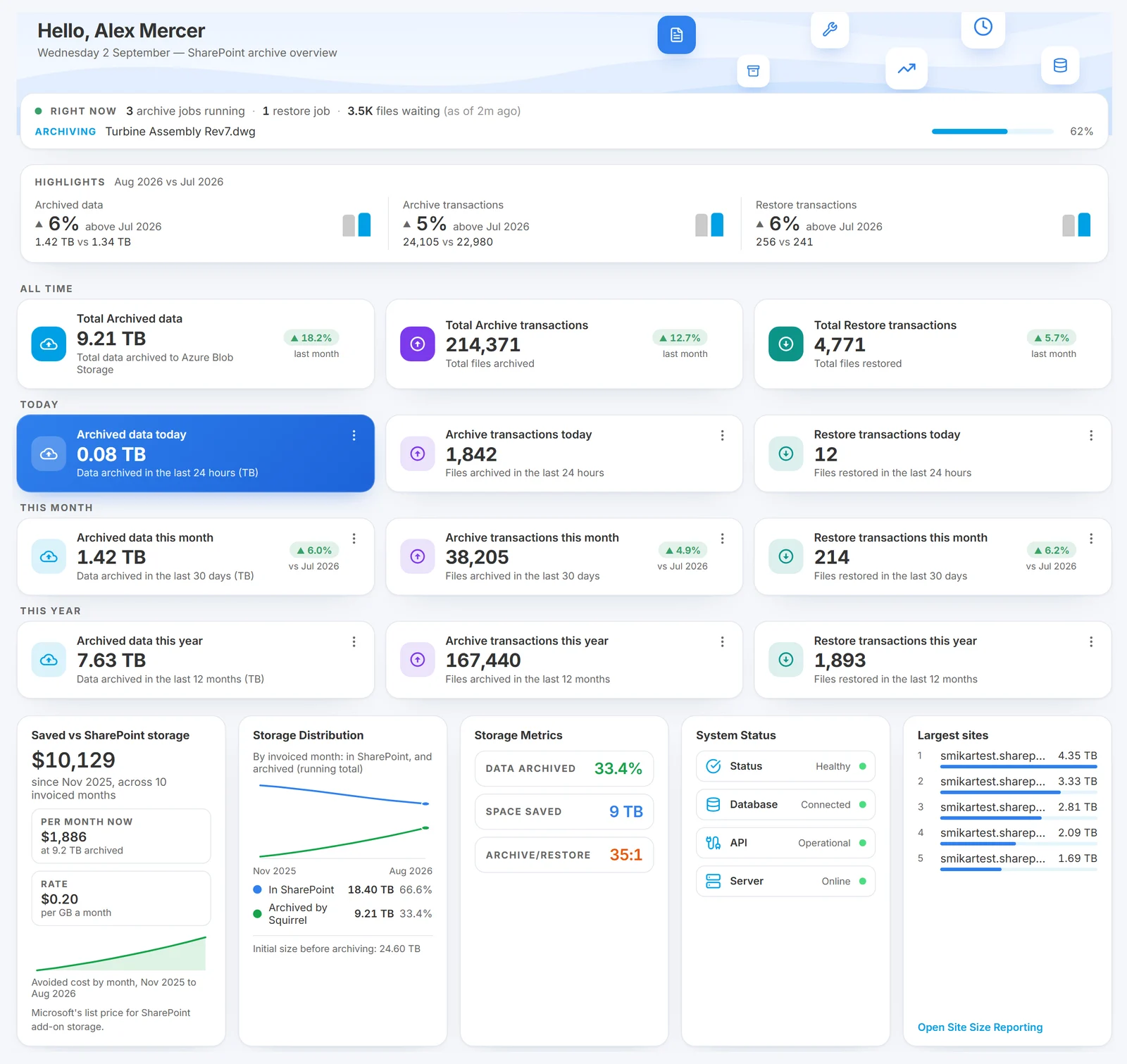
Trimming deletes recovery points to save space. For content that is inactive but must be kept, that is the wrong trade. Squirrel moves an inactive file and all of its versions, up to the configured version limit, out of SharePoint into an Azure Blob Storage account in your own subscription, and leaves a stub in the library with the same name, metadata and dates. The versions come back with the file when any user with permission restores it, immediately and with no restore fee from Squirrel. Storage goes down because the bytes leave SharePoint; nothing is deleted; and Purview retention and sensitivity labels are preserved through the round trip. Rule-based policies do this on a schedule, by age, size, path, file type or label, so version bloat on inactive content stops accumulating.
Which way to use when
| Situation | Best way |
|---|---|
| New tenant, or a tenant with mostly new libraries | Way 1: Automatic as the organisation default |
| A library an auditor walks back through | Way 2: manual count on that library, at or above 100 |
| Storage near the limit and libraries full of old versions | Way 3: report, then trim, then Way 6 for the inactive files |
| Trim reclaimed almost nothing | Way 4: a retention policy or hold is keeping the versions |
| You do not know where the versions are | Way 5: deep scan with file versions, then decide |
| Inactive content that must be kept with its history | Way 6: archive with versions intact |
What the audit log records
Every change to version limits, at organisation, site or library level, is written to the Microsoft Purview audit log, along with each report job, each bulk trim job, each version a user deletes, and each version removed by expiry or bulk deletion. That record is what to point an auditor at when a trim job is questioned.
Frequently asked questions
Q: How many versions does SharePoint keep by default?
A: New document libraries default to Automatic limits: all versions for the first 30 days, then one per hour to 60 days, one per day to 180 days and one per week beyond, up to 500 versions. Libraries created before the change, or set to a manual limit, keep their own setting, which for older libraries is usually the old flat default of 500 major versions.
Q: Does lowering the version limit delete the versions a library already has?
A: No. A new limit applies as new versions are created, so files nobody edits again keep every version they have. To reclaim that space, run the version storage report and then queue a trim job, and treat it as permanent: versions removed by a trim job bypass the recycle bin.
Q: What is the minimum version limit SharePoint allows?
A: The admin interface will not go below 100 major versions or a 30-day expiry. Lower values are possible through the API, but Microsoft advises against them because ordinary user activity can then cause inadvertent data loss.
Q: Why did trimming versions reclaim almost no storage?
A: Usually because the content is under a retention policy or an eDiscovery hold. Version limits are ignored for held content until the retention period ends or the hold is released, and a trim job stamps an expiry date on those versions instead of deleting them. Items declared as records block version deletion entirely.
Q: Do file versions count towards the SharePoint storage quota?
A: Yes, in full. Each version is a complete copy of the file, and where a retention policy applies, modified and deleted versions are also copied into the Preservation Hold Library, which counts as well.
Q: How do I see how much storage versions use per site?
A: Storage Metrics on a site shows totals that include versions. The version storage report job lists the versions on one site. For every site and every file at once, a deep scan with file versions in SharePoint Storage Explorer reports version counts and version bytes per file and per site.
Next steps
Related reading
Mark Smith co-founded SmiKar Software in 2015 and has spent the past decade helping organisations solve Microsoft 365 data management challenges. He works with the SmiKar team to build solutions for SharePoint archiving, storage optimisation, governance and compliance, supporting customers from growing businesses through to Fortune 500 enterprises.
More about SmiKar