SHAREPOINT STORAGE EXPLORER
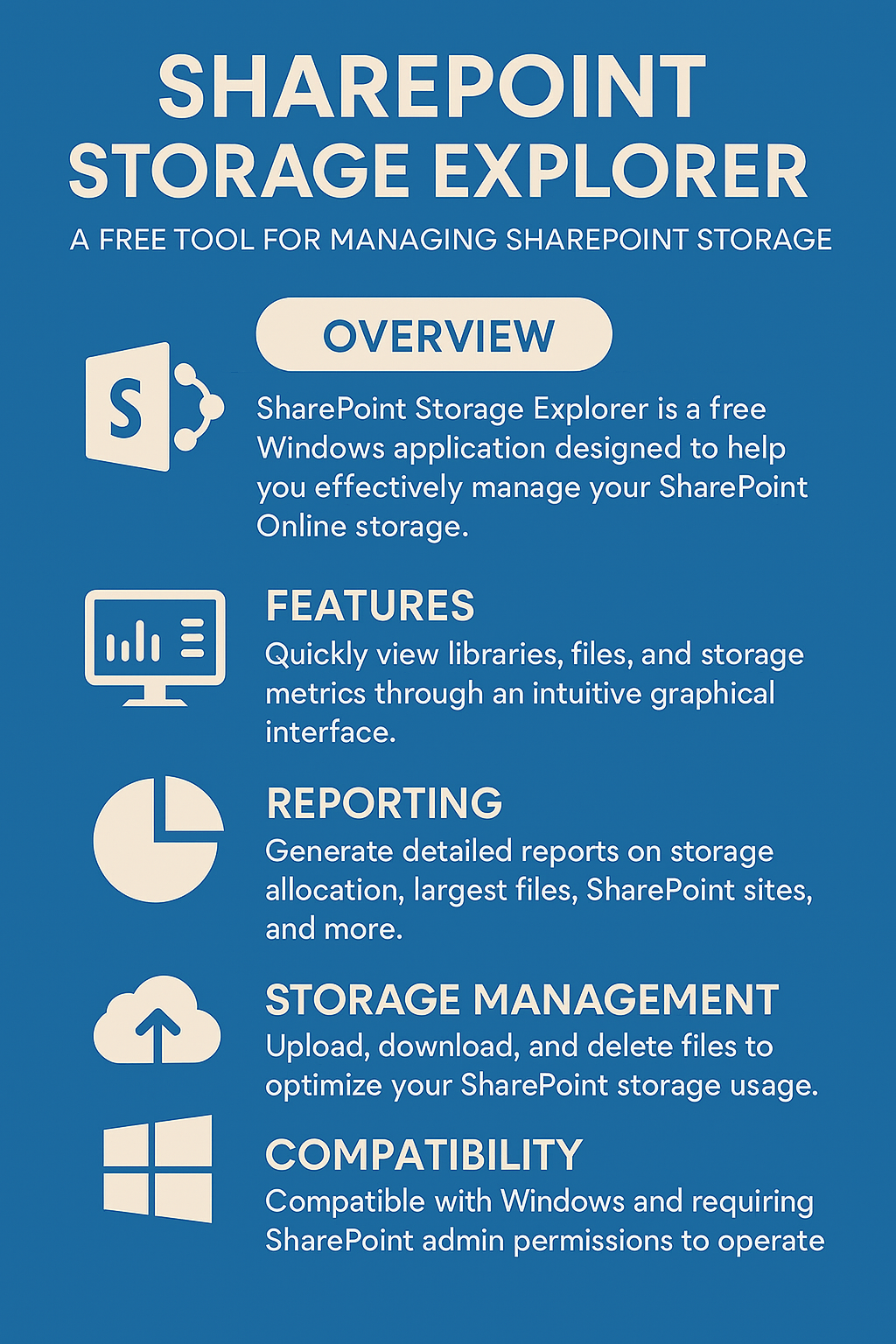
SharePoint Storage Explorer (SSE) by SmiKar is a FREE tool designed to simplify the management and exploration of your SharePoint storage. With its intuitive interface, SSE allows you to navigate your SharePoint environment effortlessly and generate detailed storage reports, helping you optimise your storage usage without any cost.
Stop Wasting Storage Space in SharePoint Online
Free Tool to Analyze and Optimize your SharePoint Online Document Libraries
Welcome to SharePoint Storage Explorer – the pinnacle of SharePoint storage management tools. Designed for ultimate efficiency and tailored to suit businesses of every size, our tool reshapes the way you interact with your SharePoint environment. By merging sophisticated analytics with comprehensive reporting and an intuitive user interface,
SharePoint Storage Explorer not only simplifies your storage management tasks but also propels your organization towards maximum productivity and cost-effectiveness. Embrace the power of advanced technology and make data-driven decisions that will positively impact your organization’s storage strategy.
Effortless Navigation
Comprehensive Storage Reports
Cost-Free Management
Gain insights in to your SharePoint Online Storage Consumption Download our completely FREE TOOL Send download link to:SharePoint Storage Explorer
Comprehensive Storage Overview
Experience an unmatched level of visibility into your SharePoint storage, empowering you to manage it with confidence.
Advanced Reporting and Analytics
Leverage our extensive suite of reports and analytics for an in-depth understanding of your storage usage patterns and trends.
Enhanced File Management
Our intuitive file browser transforms file organization and management from a task into an experience.
Strategic Storage Optimization
Tackle large files and underutilized content strategically, optimizing your valuable storage space.
Data-Driven Decisions
Make informed, data-backed decisions that enhance your SharePoint strategy, powered by our detailed insights.
The Microscope for Your SharePoint Online Storage Consumpton
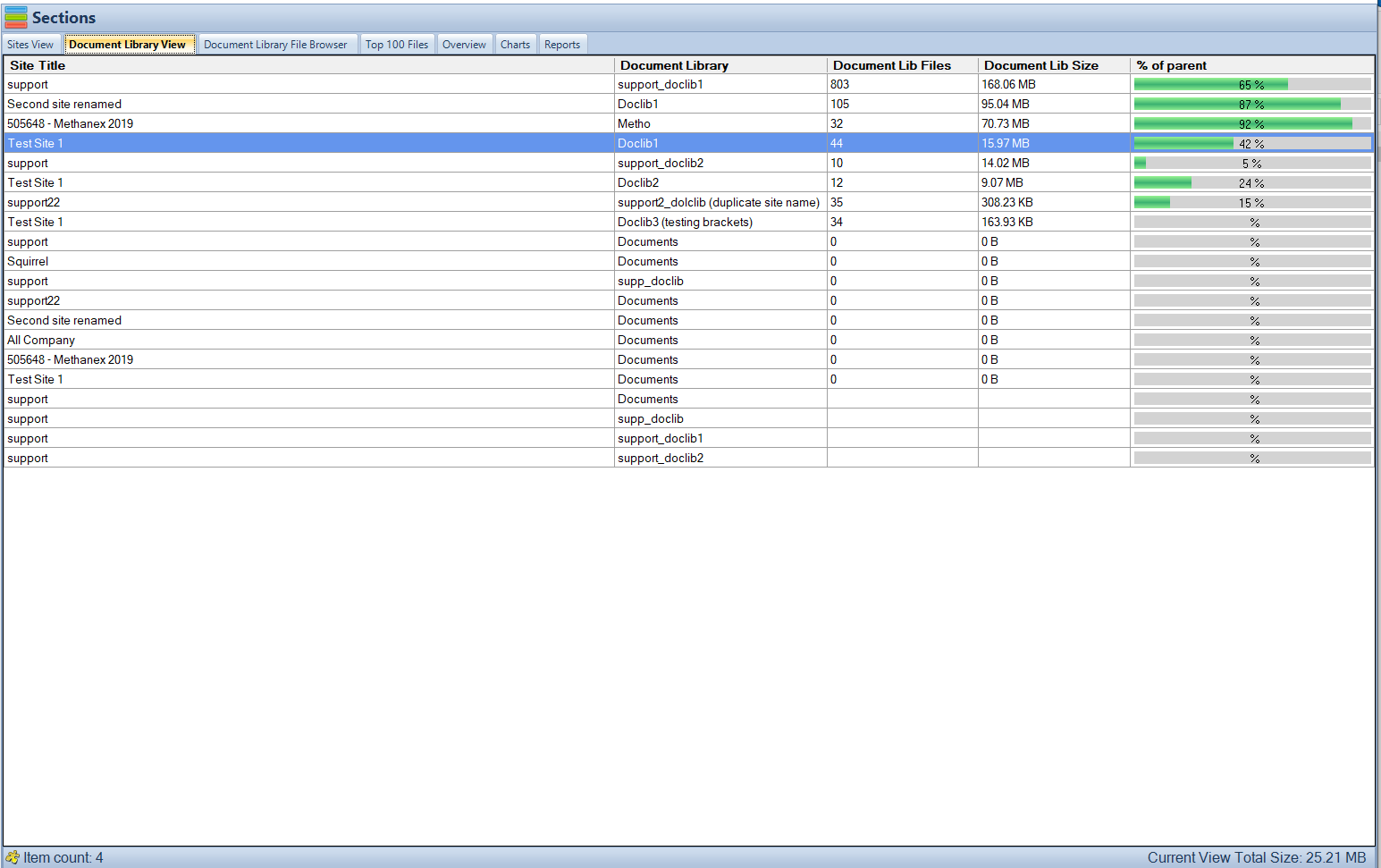
The ‘Document Library View’ offers a microscopic look into the heart of SharePoint Online – its document libraries.
This feature enables you to delve into each library, revealing a world of details about storage usage, file composition, and user interaction.
It’s like having a powerful lens that brings the minutiae of your data to the forefront, enabling effective data management and pinpointing areas that need attention.
A Panoramic Storage Perspective
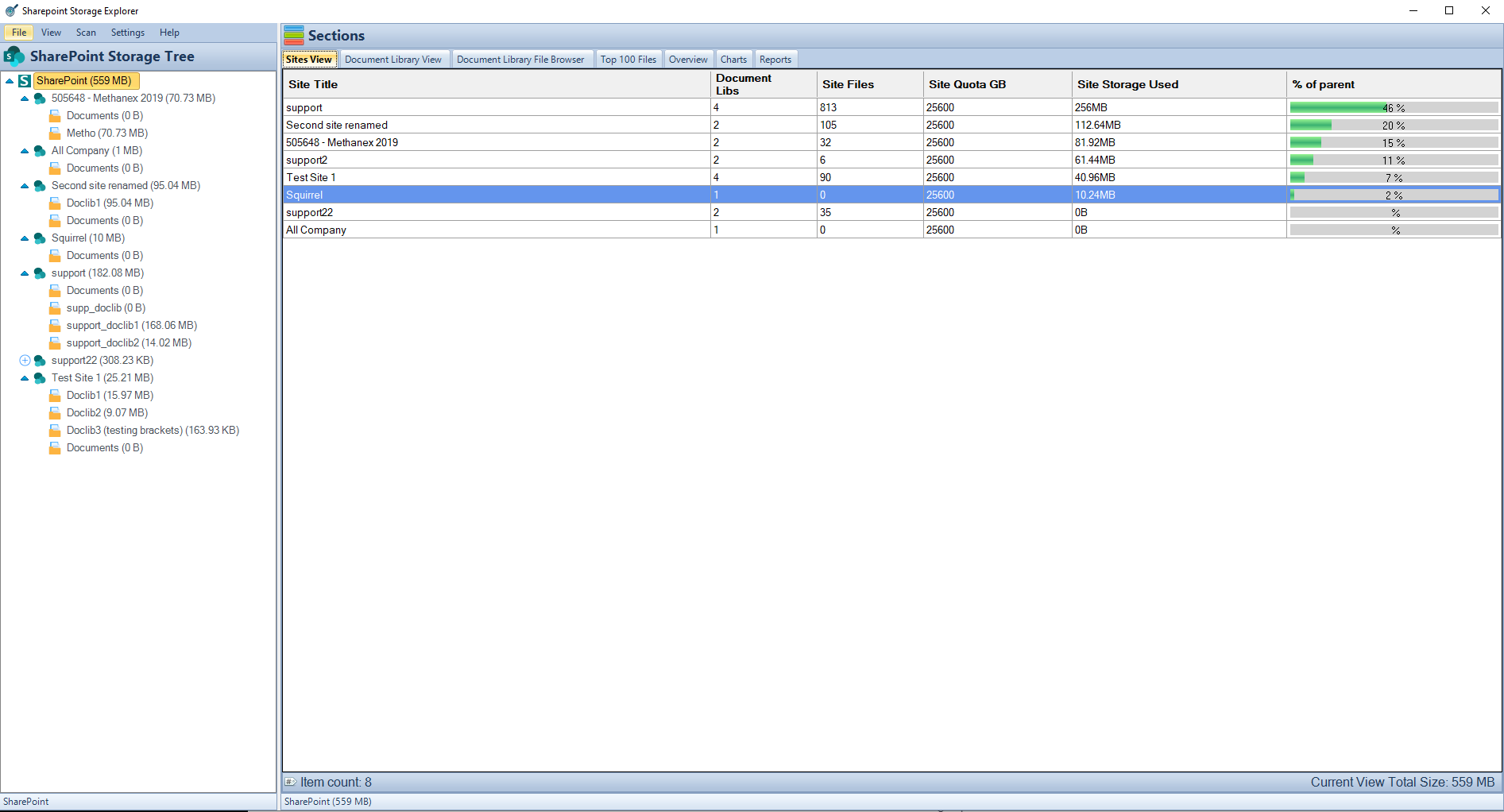
Our ‘Site View’ feature offers an expansive perspective of your SharePoint Online environment.
It’s like having a bird’s-eye view of a complex landscape, where every detail of storage consumption and user activity is made visible. Tailored for both administrators and IT professionals, this feature provides deep insights into site health, enabling proactive management.
Whether it’s identifying rapidly growing sites or understanding usage patterns, the Site View equips you with the data needed to make strategic decisions.
Effortless Navigation and Management
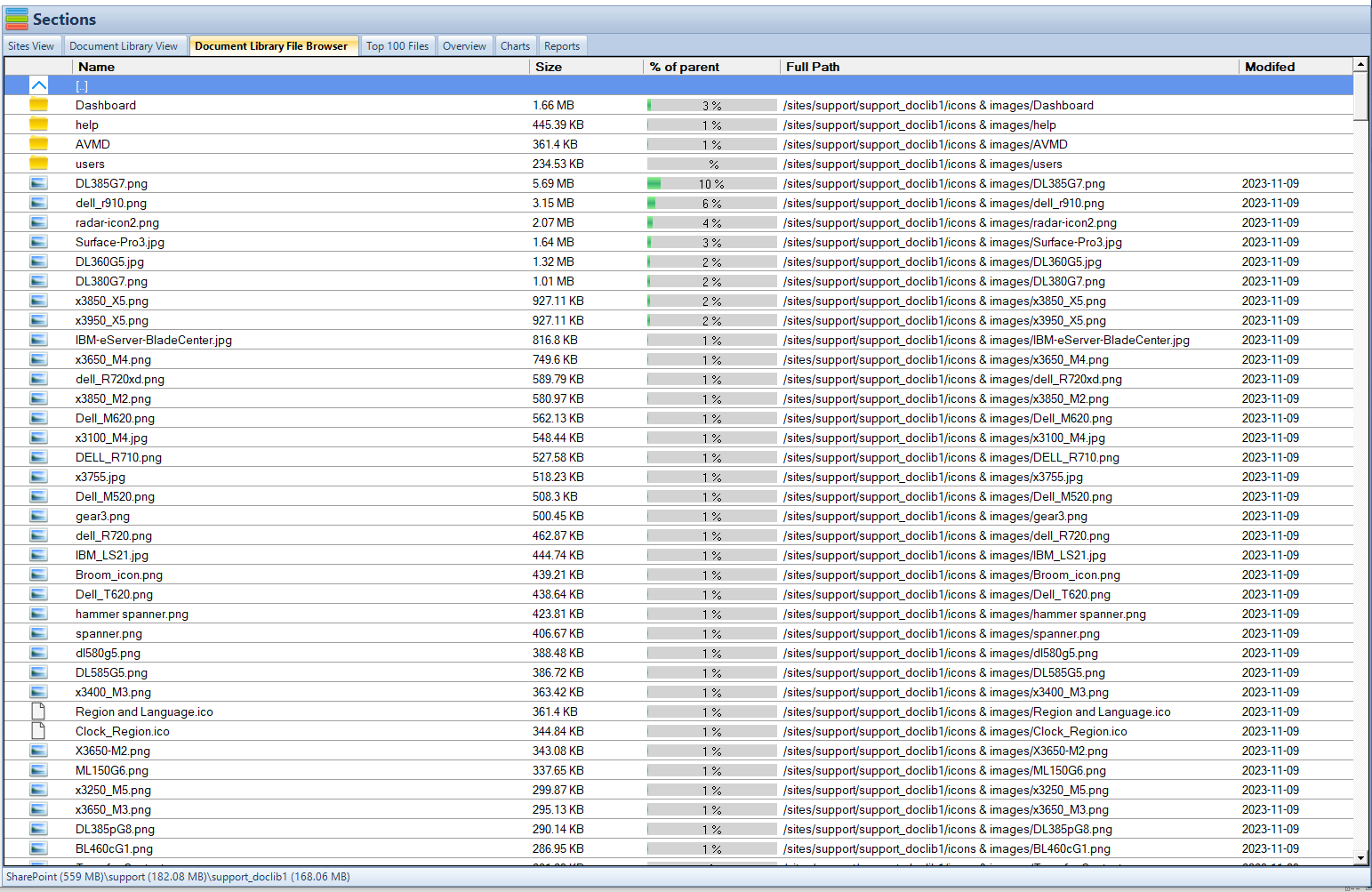
The ‘Document Library File Browser’ is your efficient assistant in the complex world of SharePoint Online files. It transforms the often cumbersome task of file management into a seamless and intuitive experience.
With this feature, browsing, organizing, and modifying files become as simple as a few clicks. This not only enhances productivity but also ensures that file operations are straightforward and efficient, making it a favorite among users.
Top 100 Files: Focusing on the Big Players
Our ‘Top 100 Files’ feature is like a spotlight that focuses on the largest files in your SharePoint Online environment.
These files often consume disproportionate amounts of storage space, and identifying them is the first step in taking targeted action. This feature simplifies the task of managing these space-hungry files, whether through archiving, deletion, or relocation, thereby optimizing your overall storage usage.
Overview with File Type Breakdown: The Strategic Dashboard
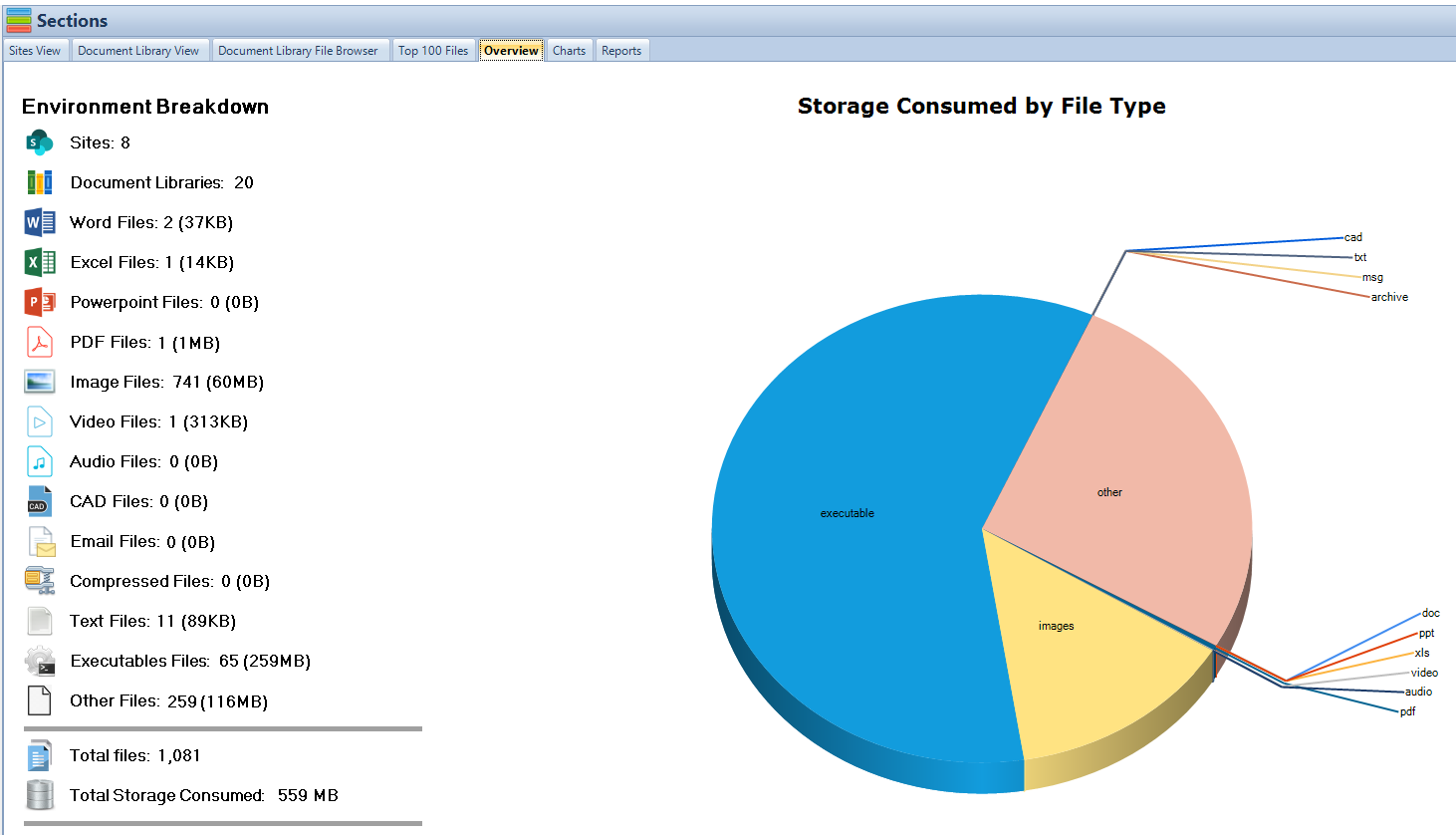
The ‘Overview’ tab is your strategic dashboard, offering a comprehensive view of your SharePoint Online storage.
It breaks down file types, showing their total size and distribution in an easily digestible format. This macro view is essential for understanding the diversity of your stored data and serves as a foundation for developing informed storage strategies.
Scans all your Documents
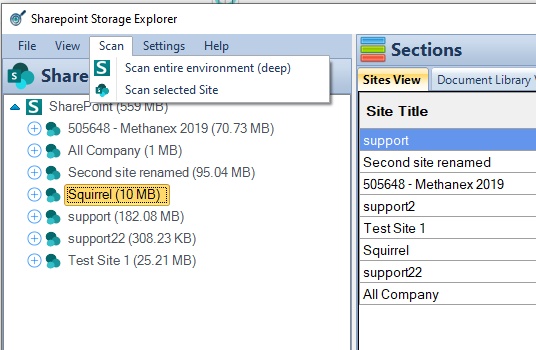
Our software features two levels of SharePoint scanning to tailor to your needs. The ‘Light Scan’ quickly assesses document sizes for a general overview of storage consumption, ideal for routine checks.
For a more detailed analysis, the ‘Deep Scan’ dives deeper, taking longer but providing highly accurate measurements and comprehensive insights.
This thorough scan is essential for optimizing storage management and enhancing your reporting capabilities. Both options are designed to help maintain an organized and efficient SharePoint environment.
Reports: The Encyclopedia of Your SharePoint Data
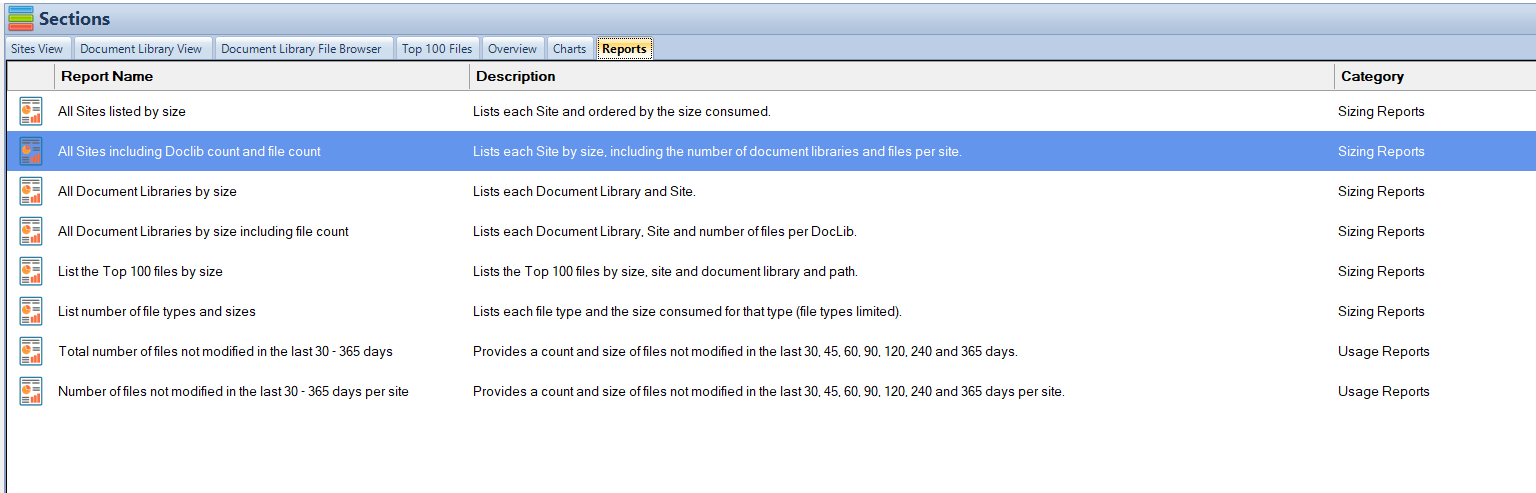
Our comprehensive reporting suite is the encyclopedia of your SharePoint Online data. It’s a treasure trove of information, offering detailed reports that cover every facet of your SharePoint Online environment.
From site sizes to file counts, these reports are user-friendly, and designed to facilitate thorough analysis.
Whether you’re preparing for a board meeting or strategizing for the next quarter, these reports ensure you have all the necessary information for effective storage management.
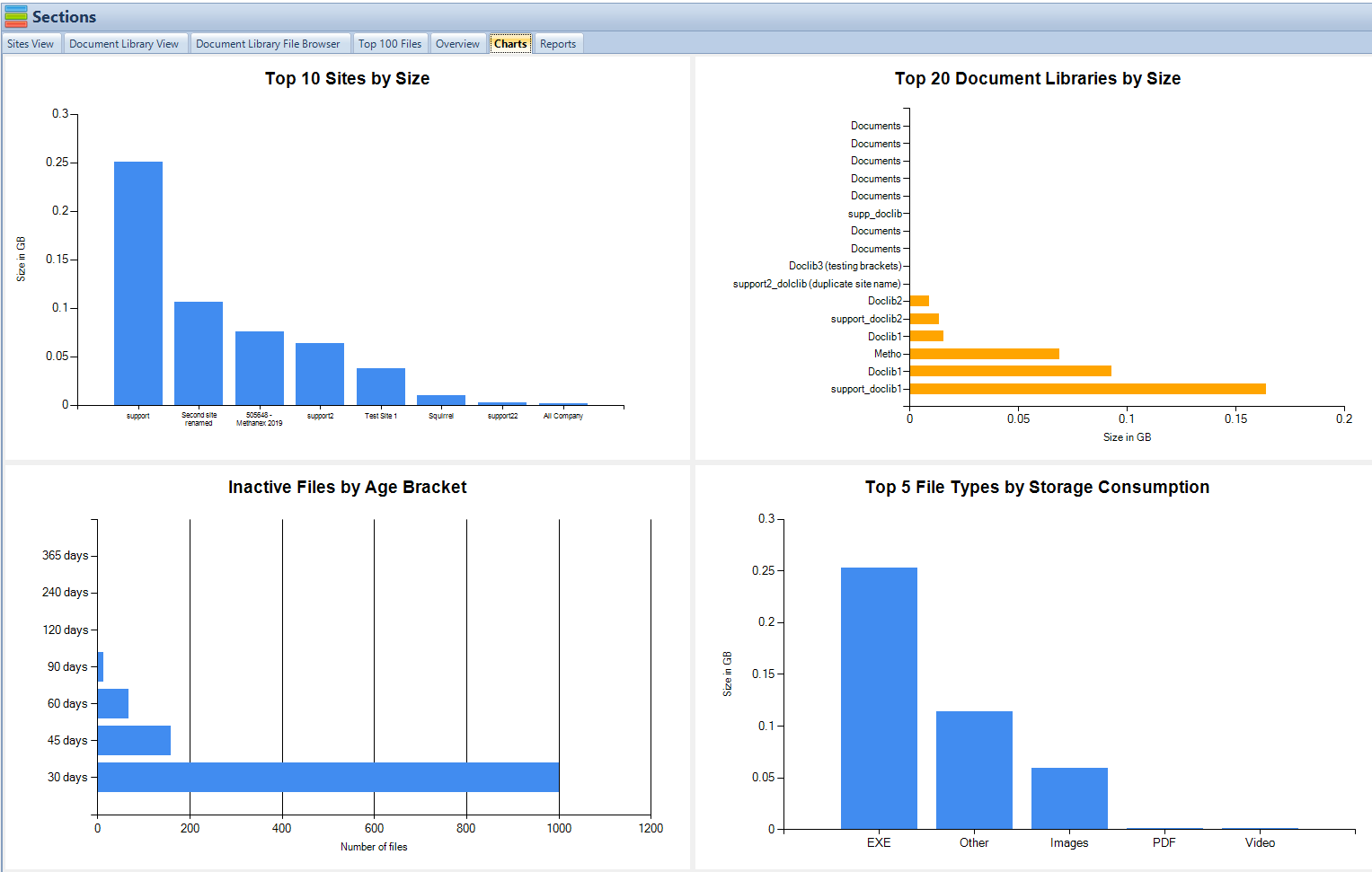
Charts and Analytics: Your Data Storyteller
Our ‘Charts and Analytics’ feature turns raw data into a compelling visual story. With interactive charts that cover various aspects like ‘Top 10 Sites by Size’ and ‘Top 5 File Types by Storage Consumption,’ these analytics provide a clear and intuitive understanding of your storage landscape.
This feature is indispensable for data-driven decision-making, offering a visually engaging narrative of your SharePoint storage utilization.
Gain insights in to your SharePoint Online Storage Consumption Download our completely FREE TOOL Send download link to:SharePoint Storage Explorer
Is your SharePoint Online storage becoming a black box?
Maybe you’re facing challenges like:
Limited Visibility: Struggling to understand how much storage each site and document library is consuming?
Hidden Giants: Worried about large files hogging valuable space, but unsure where to find them?
Data Decisions Dilemma: Having difficulty making informed choices about archiving, deleting, or migrating content due to a lack of insights?
If these problems sound familiar, you’re not alone. SharePoint Online offers a powerful collaboration platform, but managing storage effectively can be a complex task.
This is where SharePoint Storage Explorer comes in! It’s a free tool designed to help you regain control of your SharePoint Online storage.
SharePoint Storage Explorer: Your Storage Management Solution
SharePoint Storage Explorer empowers you to:
Gain Detailed Insights: Get a comprehensive view of your storage usage, including breakdowns by site, document library, file type, and even individual files.
Identify Optimization Opportunities: Easily pinpoint areas for improvement, like large files or inactive content, allowing you to optimize your storage utilization.
Make Data-Driven Decisions: With deep insights at your fingertips, you can make informed choices about managing your SharePoint Online storage effectively.
Struggling to See What’s Taking Up SharePoint Space?
SharePoint Storage Explorer offers two powerful features to shed light on your storage consumption
How does SharePoint Storage Explorer help in managing SharePoint storage?
Is SharePoint Storage Explorer really free?
What is SharePoint Storage Explorer?
Can SharePoint Storage Explorer handle large SharePoint environments?
Does SharePoint Storage Explorer provide reporting features?
How user-friendly is SharePoint Storage Explorer?
Can SharePoint Storage Explorer help identify unused or old files?
Is there any support or community for SharePoint Storage Explorer users?
How does SharePoint Storage Explorer ensure data security?
How do I get started with SharePoint Storage Explorer?
Gain insights in to your SharePoint Online Storage Consumption Download our completely FREE TOOL Send download link to:SharePoint Storage Explorer
Reducing SharePoint Costs Doesn’t Have to Be Hard.