

SharePoint archiving with an audit trail
Squirrel keeps an audit trail of everything it does to a SharePoint file. Each archive, each restore and each captured deletion is recorded with the file, the site, the time and the person who asked for it. Administrators read that record in four places in the Squirrel portal: the Log Viewer, File History, the Archived Files list and the Reports page. The Log Viewer and every report export to CSV, so the evidence goes straight into an audit pack.
An archive moves files out of SharePoint, so an auditor asks three questions about it: what moved, who moved it, and where it is now. This page sets out what a SharePoint archiving service should record to answer them, and how Squirrel, SmiKar's SharePoint archiving product, records each one.
What the audit trail records
| Event | What is recorded | Where you read it |
|---|---|---|
| A file is archived by the nightly policy run, by a user's Archive button or by an administrator | The file, its SharePoint path, its size including versions, the date archived, and the person where a person started it | Archived Files, File History, Log Viewer |
| A file or folder is restored | Who asked for it, when, the site, the file or folder, and whether the restore completed | File History, Log Viewer, History |
| A user deletes a file and Recycle Bin Capture preserves it | The original location, the date deleted, who deleted it and the original size | Recycle Bin Capture, File History |
| Someone signs in to the Squirrel portal | The login attempt and the account | Log Viewer |
| An administrator changes a retention setting | The change, logged with the administrator's email address | Squirrel's logs |
| An archive or restore fails | The error, the file and the time | Log Viewer |
The Log Viewer: every action, searchable
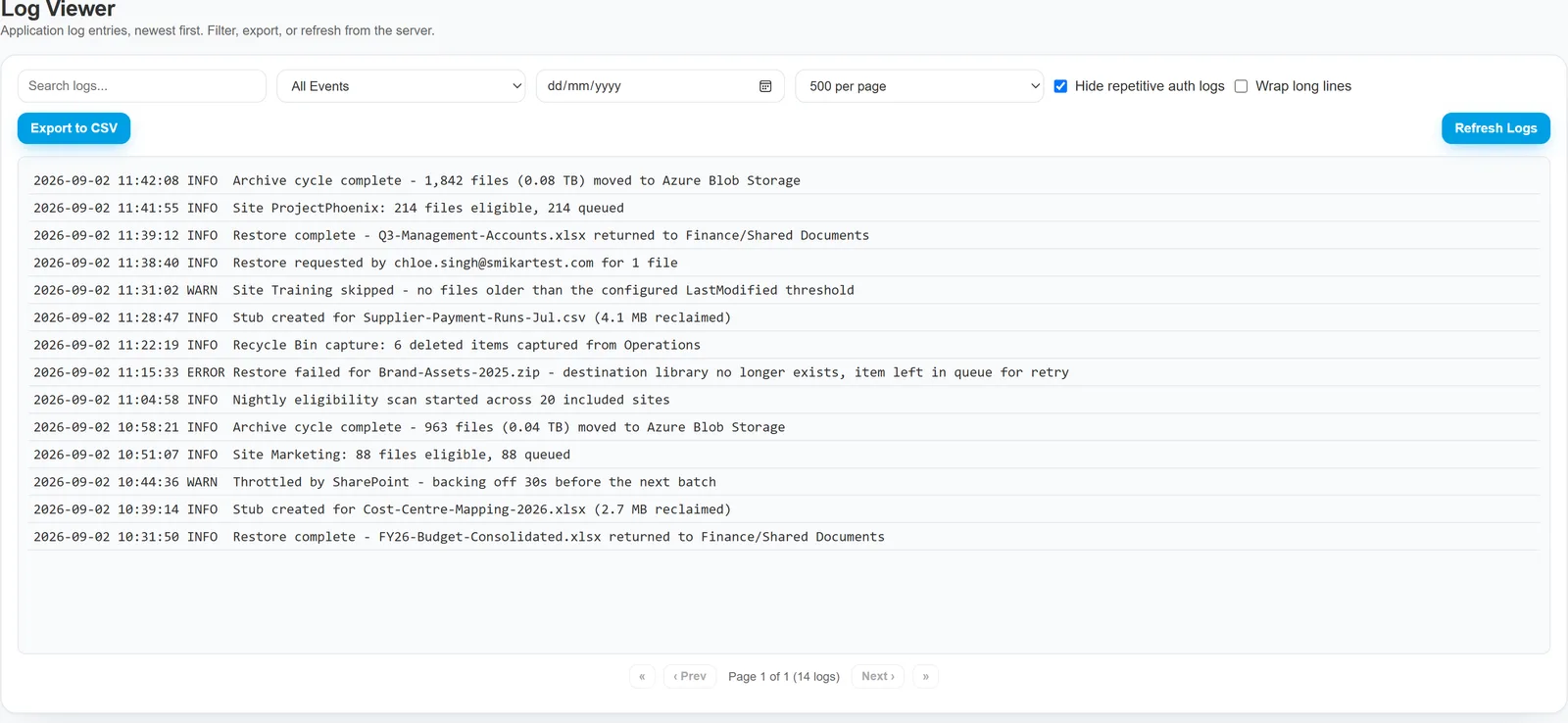
The Log Viewer is the full record. It lists login attempts, archive and restore actions, system processes, errors and warnings, newest first. Each entry carries three things:
- Timestamp: the date and time of the event.
- Event type: Info, Warning or Error.
- Details: the action taken (archive, restore, login), the user involved, the file or site and the outcome.
Four controls find the entries you need:
- Search by username, file identifier or action, for example "restore".
- Filter by event type to see only errors or warnings.
- Pick a date to see one day's activity.
- Export to CSV to hand the current view to an auditor or open it in Excel.
File History: what happened to one file or folder
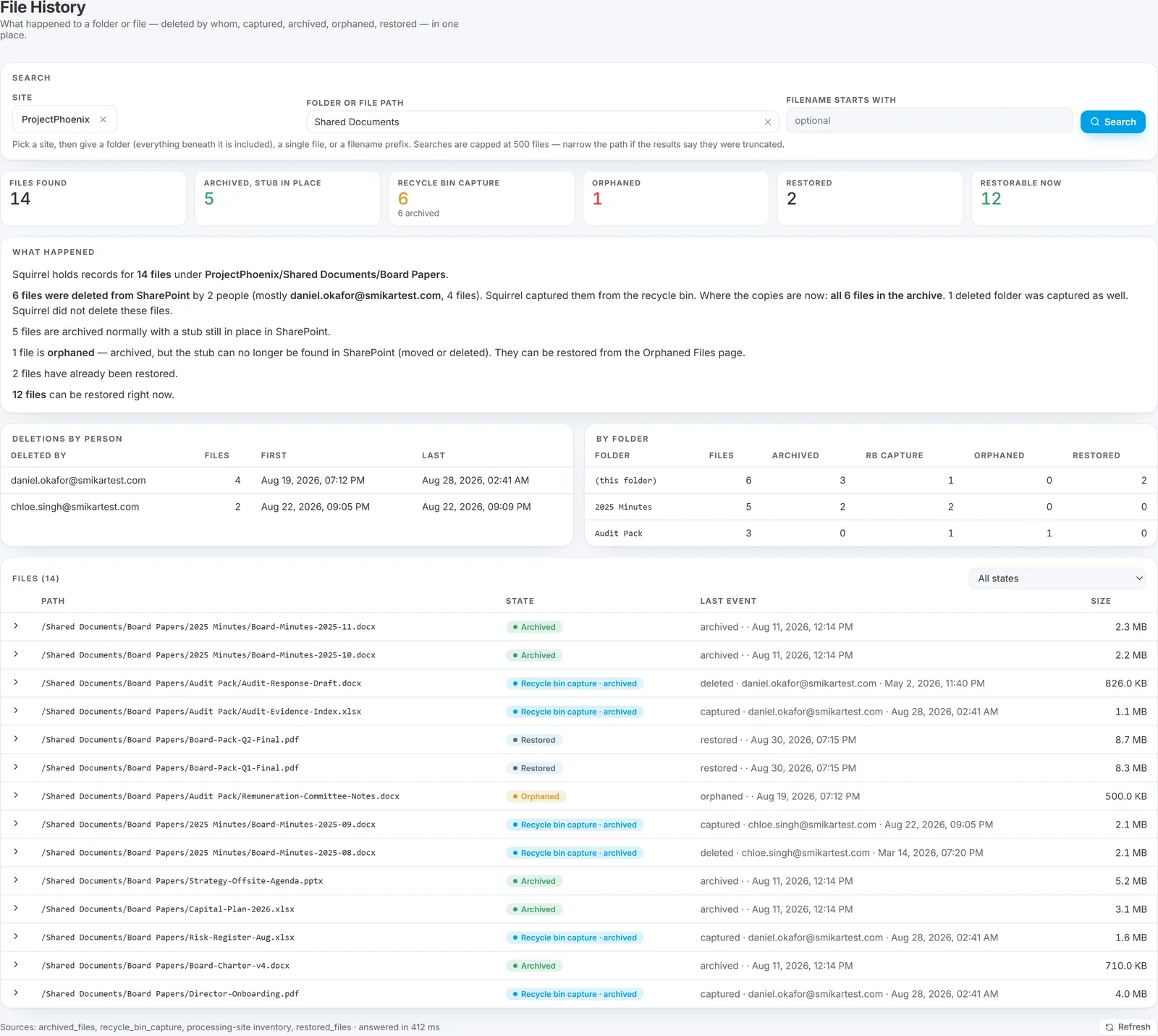
Auditors and help desks rarely ask for a log. They ask what happened to a contract, or where a project folder went. File History answers that in one search. Pick a site, give it a folder path or the start of a filename, and it returns:
- Six counts: files found, archived with a stub in place, deleted by a user and captured, orphaned, already restored, and restorable now.
- A plain-English summary of what happened, for example that six files were deleted by two people and all six copies are held in the archive.
- Deletions by person: who deleted files in that folder, how many, and the first and last time.
- A timeline for each file: when it was stubbed, archived, deleted, captured or restored, and by whom where a person was involved.
- A link to where a restored file is now, and a link to the page that restores each archived file.
Switch the search to By user to see what one person restored: each folder restore and file restore, with the site, the date and the status.
File History reads Squirrel's own records of the archive, the recycle bin captures and the restore history, so it is safe to run at any time.
Reports and history for auditors
The Reports page generates CSV reports on demand, in three groups:
| Group | Reports |
|---|---|
| File reports | Files archived and files restored today, this month and this year; files archived by extension; storage by file type; the 100 largest files |
| Storage reports | Data archived and data restored, in GB, today, this month and this year |
| Site reports | Data archived and data restored per site over the last 30, 90, 180 and 365 days |
The History page lists completed archive and restore activity: what ran, when, and whether it succeeded. Archived files stay on the Archived Files list after they are restored, with their status updated, so the list is a record of everything that has been through the archive.
Who can read the audit trail
Squirrel uses your Microsoft 365 identities, so there is one directory to manage. There are three roles:
| Role | Signs in with | Sees |
|---|---|---|
| Squirrel administrator | A Microsoft 365 account with multi-factor authentication | Every page, including the Log Viewer, reports and settings |
| Archive administrator | A Microsoft 365 account with multi-factor authentication | A restricted view: archived files, archive and restore by path, the activity monitor and History |
| End user | Works in SharePoint, Teams and synced folders | Their own libraries, where archive and restore follow their SharePoint permissions |
Auditing SharePoint itself
Squirrel's audit trail covers what the archive did. For what users did in SharePoint, two things sit alongside it:
- The Microsoft 365 audit log records SharePoint activity such as file access, deletion and sharing. How to view and search the SharePoint audit log covers the native tools and how long they keep records.
- Burrow, the security add-on to Squirrel, reads the SharePoint audit log for you, raises alerts on the activity that matters and keeps the history searchable through Hunt, so "what did this user do in March" is one search.
Audit trail questions to ask any archiving vendor
Use these when you compare SharePoint archiving services. Each has an answer you can test in a proof of concept.
- Is every archive and every restore logged with the user and the time?
- Can you trace one file from the day it was archived to the day it was restored?
- Can the log be searched by user, by file and by date?
- Can the log and the reports be exported for an auditor?
- Who can read the log, and how do they sign in?
- When a user deletes a file, is there a record of who deleted it and where the copy is?
Squirrel's answer to each is on this page. The SharePoint archiving buyer's checklist has the wider set of tests.
Frequently asked questions
What SharePoint archiving services include audit trail capabilities?
Squirrel by SmiKar includes an audit trail as standard. Every archive and restore is logged with the file, the site, the time and the user, the Log Viewer is searchable and exports to CSV, File History shows the timeline of any file or folder, and Recycle Bin Capture records who deleted a file and when. Microsoft 365 records SharePoint activity in its own audit log, which you search in Microsoft Purview. When you compare services, check that archive and restore actions are logged with the user and the time, and that the log can be exported.
Does Squirrel log who restored a file?
Yes. A restore started by a person is recorded with their name, the time, the site and the file or folder. The By user search in File History lists everything one person restored.
Can the audit trail be exported?
Yes. The Log Viewer exports the current view to CSV, and every report downloads as a CSV file for Excel, Power BI or an audit pack.
How do I find out who deleted a file from SharePoint?
With Recycle Bin Capture switched on, Squirrel preserves deleted files into your Azure storage and stamps each one with its original location, the date it was deleted and who deleted it. File History then shows deletions by person for any folder.
Does the audit trail cover files users archive themselves?
Yes. A file archived with the Archive button in SharePoint follows the same archive process as the nightly policy run, and the Log Viewer shows who archived it and when.
Next steps
Related reading
- SharePoint archiving best practices for compliance - what a compliant archive has to preserve, including legal hold.
- SharePoint archiving with automated retention policies - archive rules that run nightly and retention periods for archived files.
- SharePoint archiving with easy search and retrieval - how archived files are found and restored.
- SharePoint audit log: how to view, search and keep it - Microsoft's own record of SharePoint activity.
- Squirrel Recycle Bin Capture - how deleted files are preserved into your Azure storage.
- SharePoint archiving buyer's guide and checklist - the tests to run before you choose.
Mark Smith co-founded SmiKar Software in 2015 and has spent the past decade helping organisations solve Microsoft 365 data management challenges. He works with the SmiKar team to build solutions for SharePoint archiving, storage optimisation, governance and compliance, supporting customers from growing businesses through to Fortune 500 enterprises.
More about SmiKar