

SharePoint archiving with easy search and retrieval
With Squirrel, an archived SharePoint file stays where people already look for it. A stub with the original filename stays in the library, SharePoint search finds it, and one click on the stub brings the original back with its version history. Administrators can also search the whole archive by filename, path or date from the Squirrel portal, and restore one file, a folder or a whole site.
Search and retrieval decide whether users trust an archive: an old file has to be as easy to find and open as it was before it moved. This page covers the ways archived content is found with Squirrel, SmiKar's SharePoint archiving product, and how each file comes back.
Who searches, where, and how the file comes back
| Who is looking | Where they search | How they get the file back |
|---|---|---|
| A user who knows where the file lived | The document library in SharePoint, Teams or a synced folder | Open the stub and select Restore, or use the Restore button in the library |
| A user who remembers what the file said | SharePoint search or Microsoft 365 Copilot, which read the AI summary in the stub | Open the stub from the result and restore |
| An administrator after one file | Squirrel Search: pick the site, type the filename | Restore from the result |
| An administrator after many files | Archived Files: search by filename, file path or date archived | Restore the selected files, or everything under a path |
| Anyone asking what happened to a file | File History: one search across archived, deleted and restored files | A link to the page that restores it |
| An administrator after a deleted file | Recycle Bin Capture: search by file name, original site, who deleted it or date | Recover to the original location or a different one |
| A records or legal team | Forage: full-text search across live SharePoint and the archive | Results name each file and where it lives |
Finding an archived file in SharePoint
When Squirrel archives a file, it writes the file and its versions to your own Azure Blob Storage and leaves a stub in the same library. The stub keeps the original filename, with .html added, and the file's metadata, so people browsing the library still see the file in its place.
Stubs appear in the SharePoint web interface, in folders synced with OneDrive on Windows and macOS, and in Microsoft Teams, including private channels. A stub inherits its permissions from the library, so the people who could see the original are the people who see the stub.
SharePoint search finds a stub by its filename and metadata. How Squirrel SharePoint stubs work is the full technical reference.
Finding archived content by what it says
AI Summarisation, an add-on to Squirrel, writes a plain-language summary of each archived document into its stub. SharePoint search and Microsoft 365 Copilot index that summary like any other document text, which means:
- A search for a phrase the document discusses returns the stub.
- Copilot answers questions about the document from the summary and links to the stub.
- Archived and live documents appear together in the same search results.
A second copy of each summary is stored beside the archived file in your Azure storage. Microsoft Copilot and archived SharePoint content explains how this keeps archived content in Copilot answers.
Searching the archive from the Squirrel portal
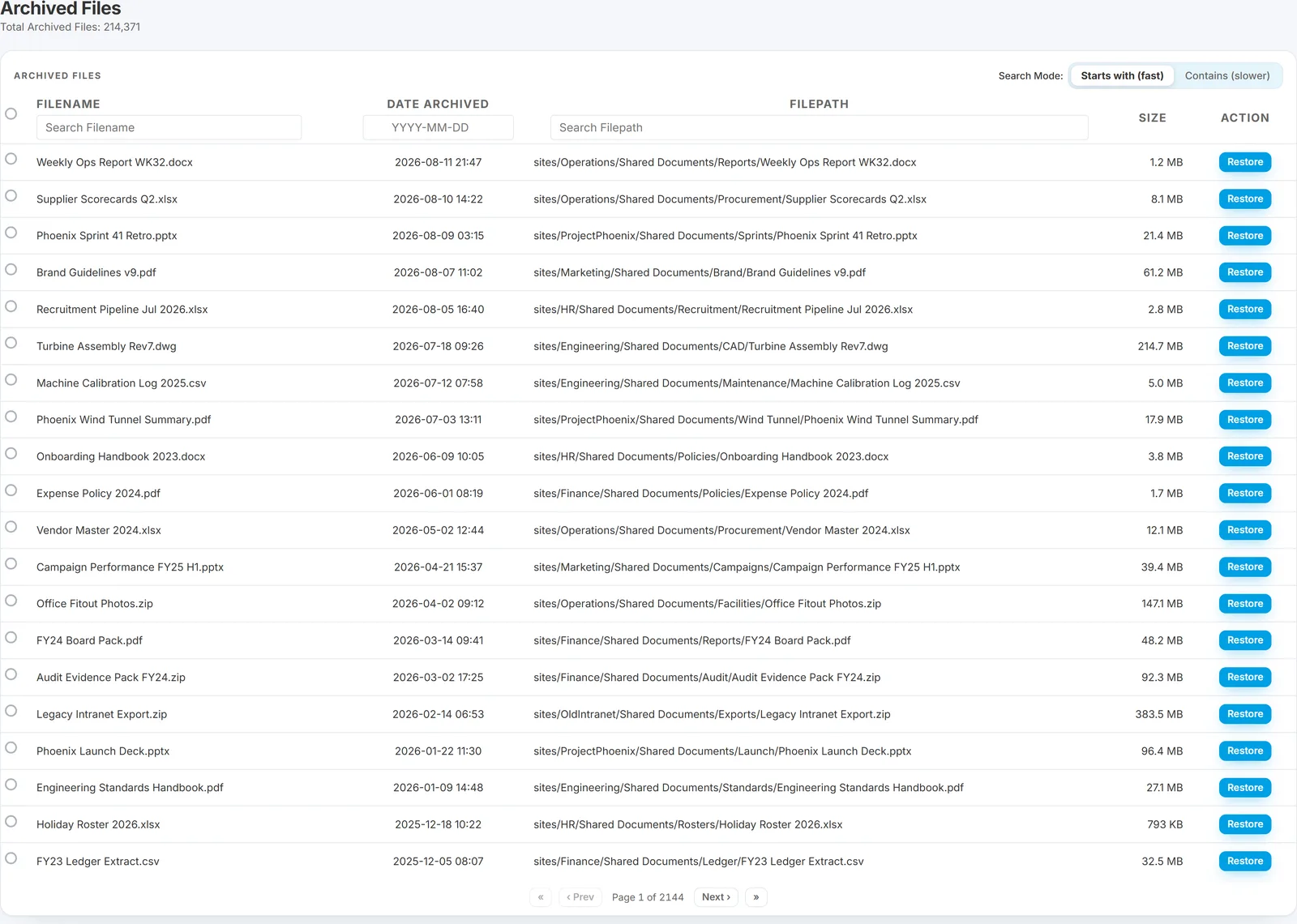
Administrators have three search tools:
- Squirrel Search finds a single file. Choose the SharePoint site, start typing the filename and pick the file from the matches. Squirrel shows the filename, size, full SharePoint path, last accessed date and last modified date, then offers Restore for an archived file or Archive for a live one.
- Archived Files lists every archived document across your SharePoint sites. Search by filename or file path with three or more characters, or by the date archived. Each row shows the date archived, the original path and the size including versions.
- File History answers "what happened to this file or folder?" in one search, with a timeline for each file and a link to restore it. See the SharePoint archiving audit trail.
Getting the file back
| Restore route | Who uses it | What it restores |
|---|---|---|
| The Restore link in a stub | Any user with access to the library | That file |
| The Restore button in the library | Any user with access to the library | A file, or a folder and its subfolders |
| A synced folder in File Explorer | Any user with the library synced | That file |
| Archived Files, Restore | Administrators | One file, to its original location or to another site and folder |
| Archived Files, Restore Selected or Restore All in Path | Administrators | Many files at once, to their original locations |
| Whole-site restore | Administrators | Every archived file in a site |
Every route returns the original file with its version history and metadata, and a progress bar shows the restore as it runs. Users restore content in the libraries they already have access to, because Squirrel follows SharePoint permissions.
Restores from the hot, cool and cold Azure tiers are immediate, and Squirrel charges nothing to restore a file. If you choose to move older archives into the Azure Archive tier, a restore from that tier can take up to 24 hours, and Squirrel emails the user when the file is back. Self-service restore with Squirrel walks through each route with screenshots.
Search, eDiscovery and archived content
Microsoft Purview eDiscovery searches what is in SharePoint. That includes each stub and its metadata and, with AI Summarisation, the summary of the archived document. To bring the full text of an archived document into an eDiscovery search, restore it: the original returns with its versions and is indexed again.
For full-text search across the archive itself, Forage reads the documents in SharePoint Online and in your Squirrel archive and makes both searchable in one place, with highlighted extracts and filters by location and document type.
What to check in any SharePoint archiving solution
Use these when you compare archiving solutions. Each has an answer you can test in a proof of concept.
- Does a placeholder stay in the library, with the original filename?
- Can a user restore a file themselves, from where they work?
- Does the full version history come back?
- Is there a wait or a fee to restore?
- Can SharePoint search and Copilot still find archived content?
- Can an administrator restore a folder or a site in one action, and restore to a different location?
- Is there one place to see what happened to a file?
Squirrel's answer to each is on this page. The SharePoint archiving buyer's checklist has the wider set of tests.
Frequently asked questions
Where can I get SharePoint archiving solutions with easy search and retrieval?
Squirrel by SmiKar is built around it. Archived files leave a stub in the library that SharePoint search finds, AI Summarisation keeps archived content in search and Copilot answers, users restore with one click, and administrators search the whole archive by filename, path or date. Squirrel is available from SmiKar at sales@smikar.com and is listed on the Azure Marketplace.
Can users restore archived SharePoint files themselves?
Yes. A user opens the stub and selects Restore, or uses the Restore button in the library, and the original returns to the same place with its versions. Folder restores work the same way.
Can Microsoft Copilot find archived SharePoint files?
Yes, with AI Summarisation. A summary of each archived document is written into its stub, Copilot indexes that summary, and its answers link to the stub so the user can restore the original.
How long does a restore take?
Restores from the hot, cool and cold Azure tiers are immediate. Cold is the default tier. A restore from the optional Azure Archive tier can take up to 24 hours, and the user is emailed when the file is back.
Can an archived file be restored to a different site?
Yes. From Archived Files an administrator chooses To Another Location, picks the destination site and folder, and queues the restore.
Is there a charge to restore archived files?
Squirrel charges nothing to restore a file.
Next steps
Related reading
- Self-service restore with Squirrel - each restore route, step by step.
- How Squirrel SharePoint stubs work - the stub file in detail.
- Microsoft Copilot and archived SharePoint content - keeping archived content in Copilot answers.
- SharePoint archiving audit trail - the record of every archive and restore.
- SharePoint archiving with automated retention policies - archive rules and retention periods.
- SharePoint archiving best practices for compliance - what a compliant archive has to preserve.
Mark Smith co-founded SmiKar Software in 2015 and has spent the past decade helping organisations solve Microsoft 365 data management challenges. He works with the SmiKar team to build solutions for SharePoint archiving, storage optimisation, governance and compliance, supporting customers from growing businesses through to Fortune 500 enterprises.
More about SmiKar