The request comes up constantly in Microsoft 365 admin circles, nearly always worded the same way. There are terabytes of finished projects, old drawings and historical records sitting in SharePoint Online. The organisation already pays for Azure. It wants those inactive files out of SharePoint and into its own Azure storage at a fraction of the price per GB, so it can stop buying extra SharePoint storage. And the files still have to be findable and openable by the people who own them. One Tech Community poster, looking at 40 to 50 TB of old file servers, put that requirement precisely: the documents must remain "searchable/findable by our users without the intervention of the IT Department" (Tech Community).
That sentence is the whole problem. Copying files into a Blob container is easy, and two Microsoft tools will do it. Leaving users able to find and open the file afterwards is a different job. This page covers three routes, what each leaves behind in SharePoint, and how Azure Blob compares with Azure Files and Microsoft 365 Archive for the same purpose.
Why move inactive SharePoint documents to Azure Blob Storage
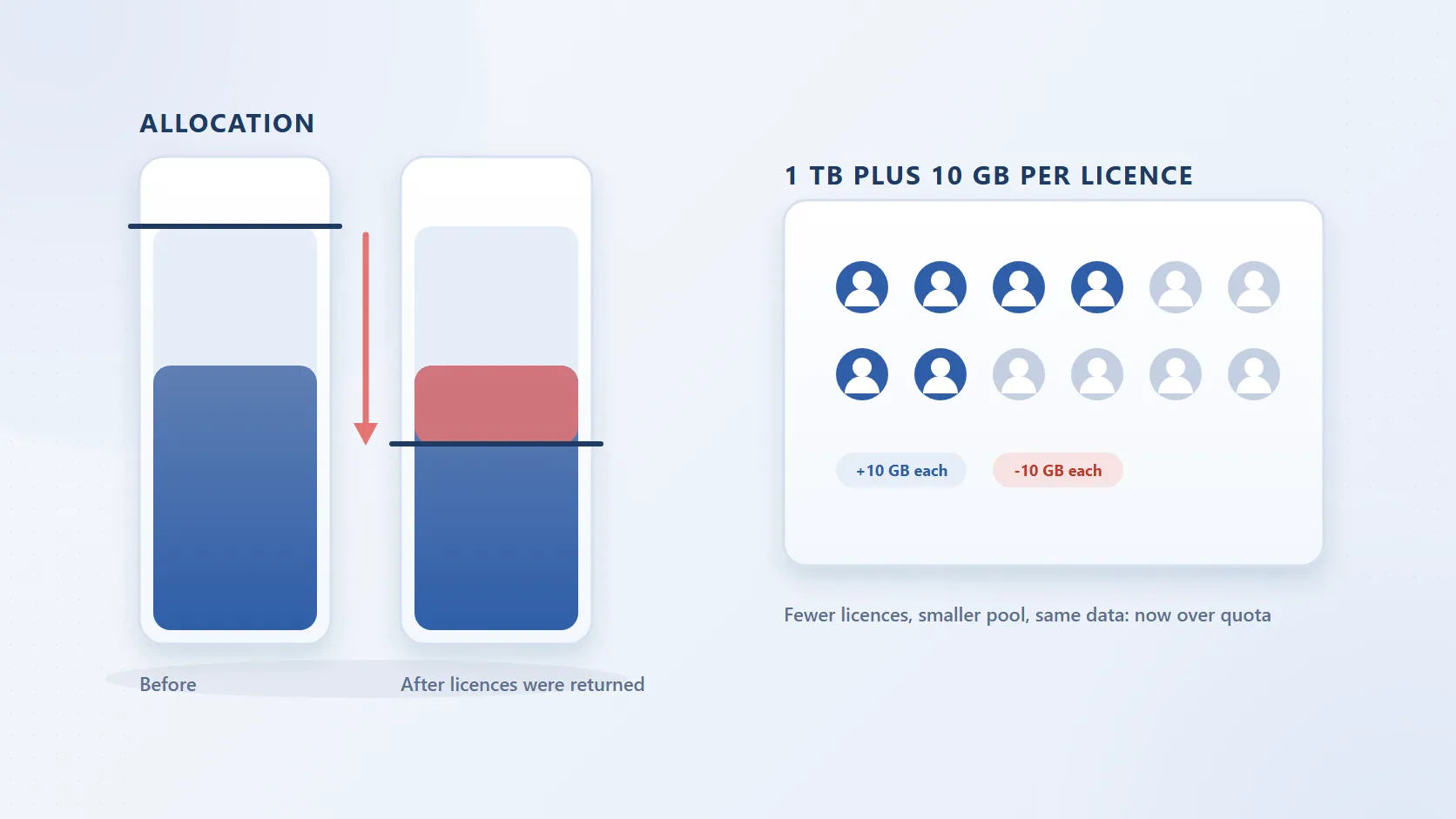
The price per GB is a different order of magnitude. A tenant gets 1 TB plus 10 GB per licence; beyond that, extra SharePoint storage is the Office 365 Extra File Storage add-on at $0.20 per GB per month. Azure Blob Storage is priced by access tier: Hot at roughly $0.018 per GB per month, Cool at roughly $0.01, Cold at roughly $0.0036 and Archive at under $0.002 (locally redundant list prices, which vary by region). Ten TB of inactive documents on the add-on costs about $2,000 a month; the same 10 TB in Azure Cool costs about $100 plus transactions. The SharePoint storage calculator runs the numbers for your tenant.
Retention obligations mean you cannot simply delete. Seven-year retention on financial records, project-lifetime retention in engineering, litigation holds and regulatory record-keeping all mean the files must be kept somewhere. An admin at 90% of quota with a seven-year hold blocking every cleanup attempt (Microsoft Q&A) is the typical case: the content has to move, not disappear. Azure Blob supports immutable (WORM) storage for exactly this requirement.
Buying more storage does not end the loop. The add-on buys headroom, not a fix. Inactive content keeps accumulating, so the next purchase arrives on schedule, and meanwhile the tenant carries the risk Microsoft describes on its SharePoint limits page: operating above the limit can put the environment into read-only mode. A policy that keeps moving the inactive tier out is what breaks the cycle. Already at the "your storage is almost full" banner? Start with what to check before buying more.
Findability is the requirement people discover afterwards. A Blob container is not something a project manager can browse. If files are copied out and the originals deleted, the folder tree is gone, every shared link and Teams reference breaks, and every request for an old file becomes a ticket. Decide first how a user will find and open a moved file; that matters more than the copy mechanism.
Route 1: Power Automate
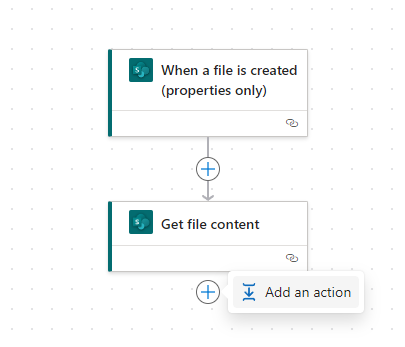
Power Automate is the fastest way to prove the copy works: the SharePoint connector reads a file's content, the Azure Blob Storage connector writes it to a container, and a flow with a trigger and two actions moves a file. It suits small, selective transfers: one library, one file type, or files that match a rule when created or modified.
Know the limits before you build on it. Microsoft's SharePoint connector reference states that the connector supports file sizes up to 100 MB and that larger uploads or downloads "might fail due to buffer size limits"; drawings, recordings and CAD exports routinely exceed that. The Get file content action returns the current version's bytes only: no earlier versions, no column metadata, no permissions, no retention label. Carrying metadata means extra steps to write item properties as blob metadata or index tags, a pattern worked through on Tech Community but yours to maintain. And a flow is a copy: add a Delete file step to reclaim SharePoint space and nothing is left behind in the library. No stub, no link, no way for a user to know the file was ever there.
Step 1: Create a new flow
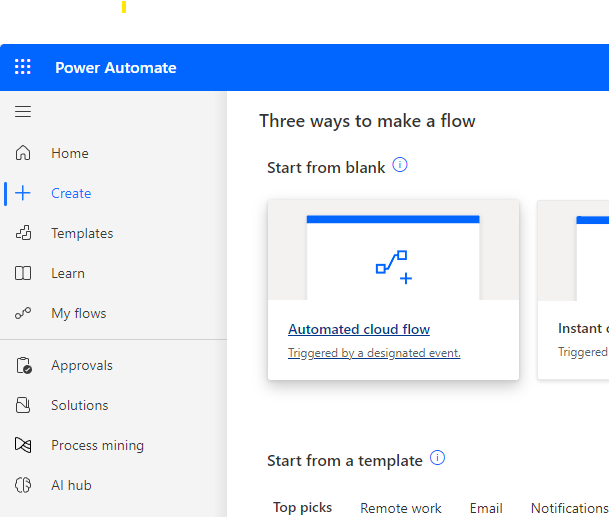
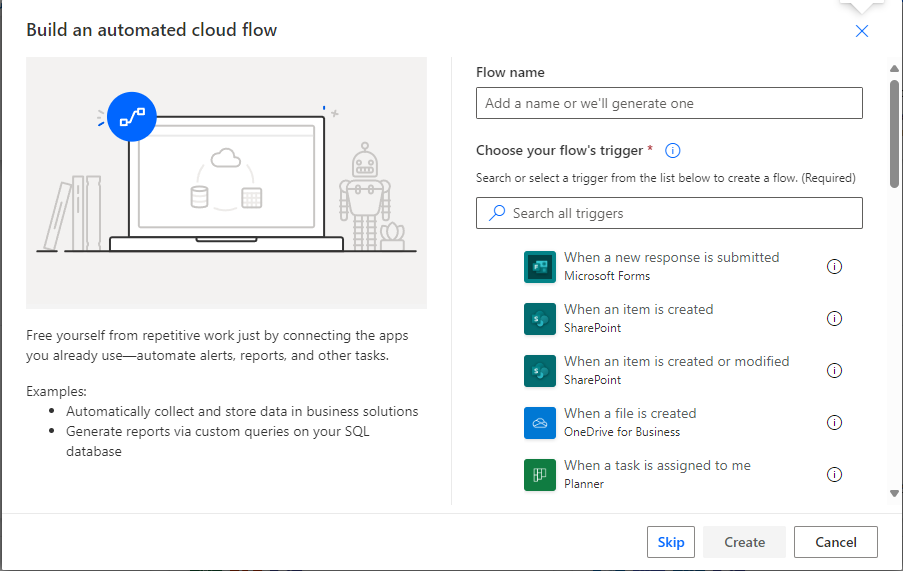
Sign in to Power Automate, select Create, then Automated cloud flow. Choose the trigger that describes when a file should move. For a test, the When a file is created trigger under SharePoint starts the flow whenever a file lands in a library.
Step 2: Configure the SharePoint trigger
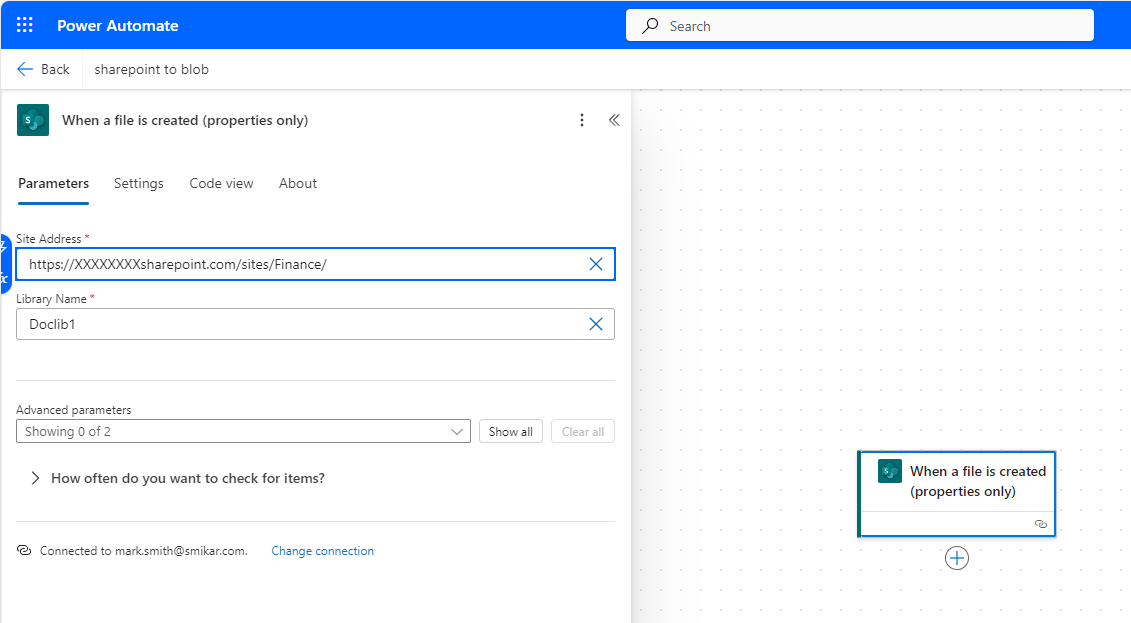
In the trigger, set Site Address to the site (for example https://contoso.sharepoint.com/sites/Finance) and Library Name to the library to watch.
Step 3: Add the SharePoint "Get file content" action
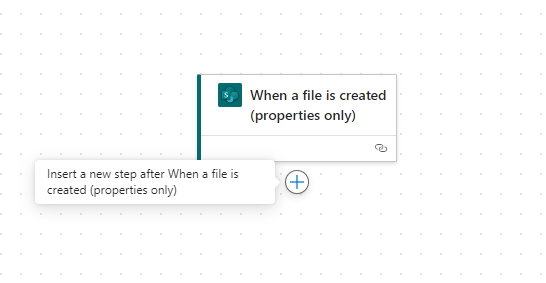
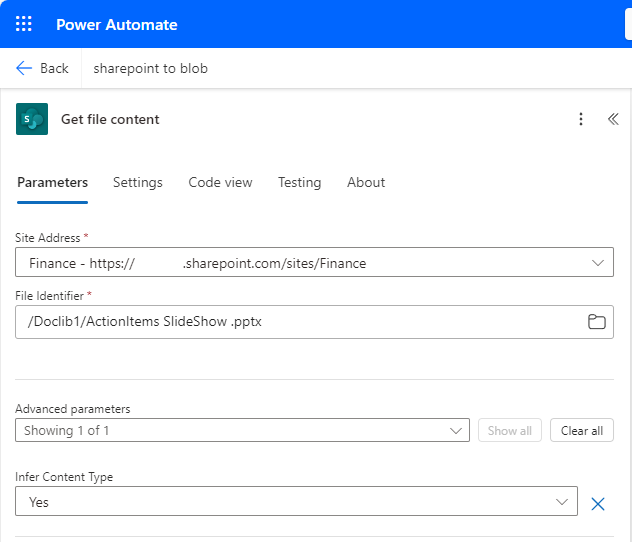
Select New step, search for Get file content under SharePoint, and configure it:
- Site Address: the same site as the trigger.
- File Identifier: the file to read. For a test, browse the site and pick a single file, for example /Doclib1/ActionItems SlideShow.pptx in the Doclib1 library on the Finance site. In a real flow this is the dynamic Identifier value from the trigger.
Step 4: Add the Azure Blob Storage "Create blob" action
Select New step, search for Azure Blob Storage and select Create blob. The first time, Power Automate asks for a connection:
- Connection Name: a label for the connection.
- Authentication Type: Service Principal, Access Key or Microsoft Entra ID integrated. An access key is quickest for a test; use a service principal or Entra ID for anything that will keep running.
- Azure Storage account name or blob endpoint: the account name or endpoint.
Then set the blob parameters:
- Folder Path: the container, and any folder prefix, the file should land in.
- Blob Name: the file name, typically the dynamic File name with extension from the trigger.
- Blob Content: the File Content output from the Get file content step.
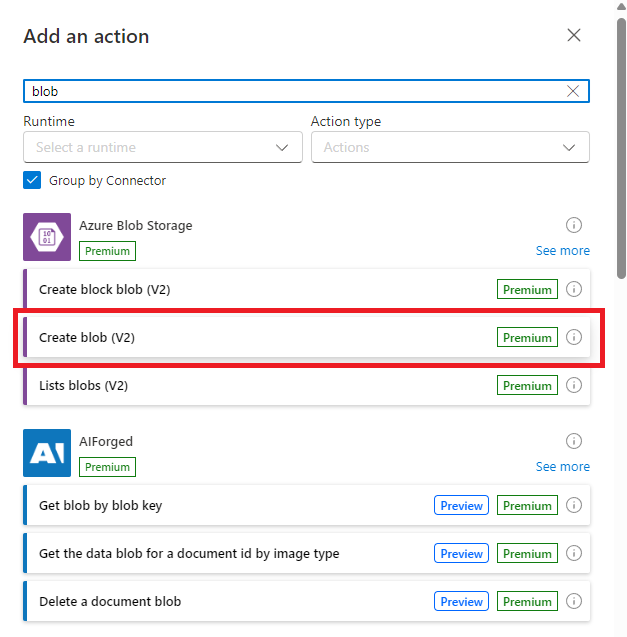
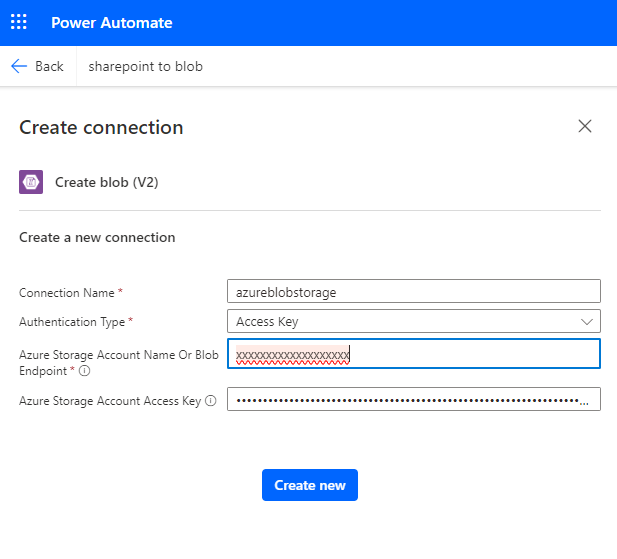
Step 5: Test and monitor the flow
Save the flow and upload a file to the library. The run should appear in the run history with the file written to the container. The failures you meet first are throttling on busy libraries and the 100 MB limit.
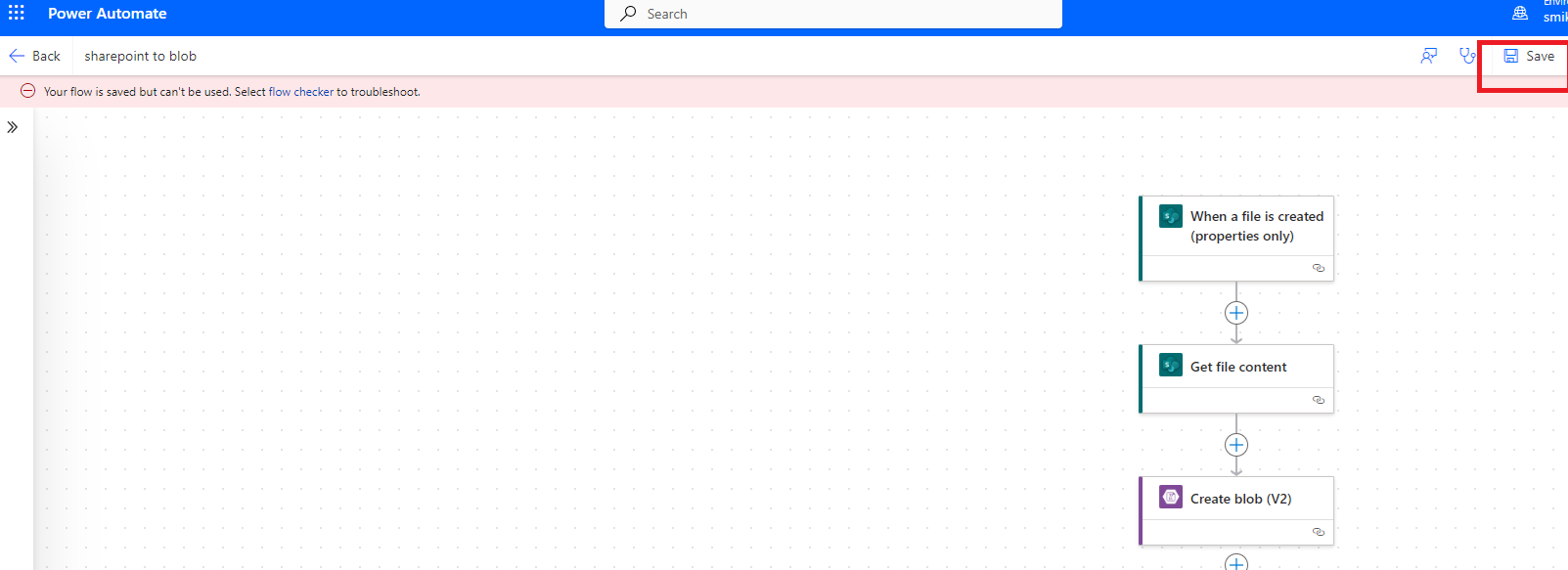
The flow above moves one file per trigger. Scaling it to a library means looping over Get files (properties only), staying inside throttling limits, rebuilding folder paths and writing metadata yourself. Workable for a few thousand small files; not an archive, because nothing in SharePoint points to what moved.
Route 2: Azure Data Factory
Azure Data Factory (ADF) is the bulk option. It is a managed pipeline service that handles terabytes, retries on failure, runs on a schedule, and has no 100 MB ceiling. It takes more setup: an Entra ID app registration with access to the site, linked services for both ends, datasets, and a pipeline. The trade is that it moves bytes, not SharePoint semantics. File content is copied as a binary object; column metadata is a separate list export, versions are not copied, permissions do not exist in Blob, and no stub or link is left in the library (Microsoft Q&A).
Step 1: Create a Data Factory
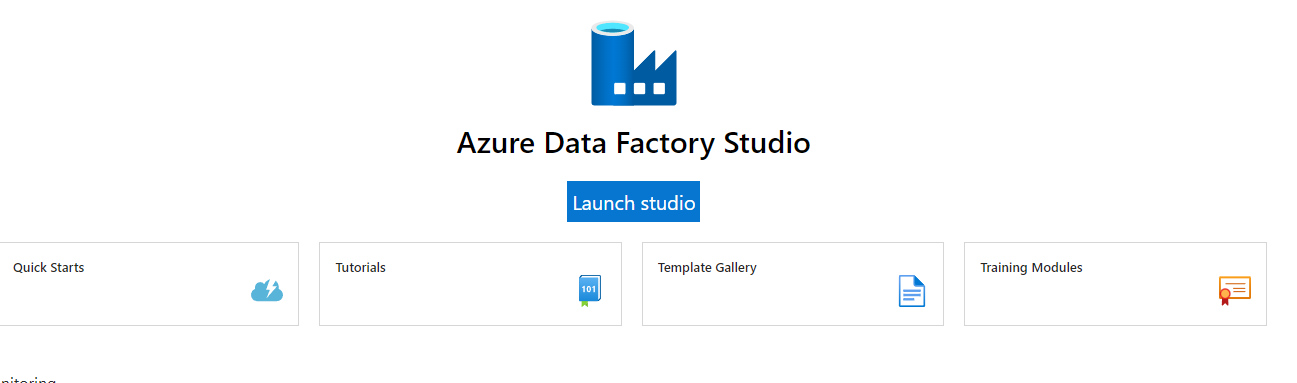
In the Azure portal, search for Data Factory, select Create, complete Subscription, Resource Group, Region and a name, and select Review + create. Open the resource and select Launch studio.
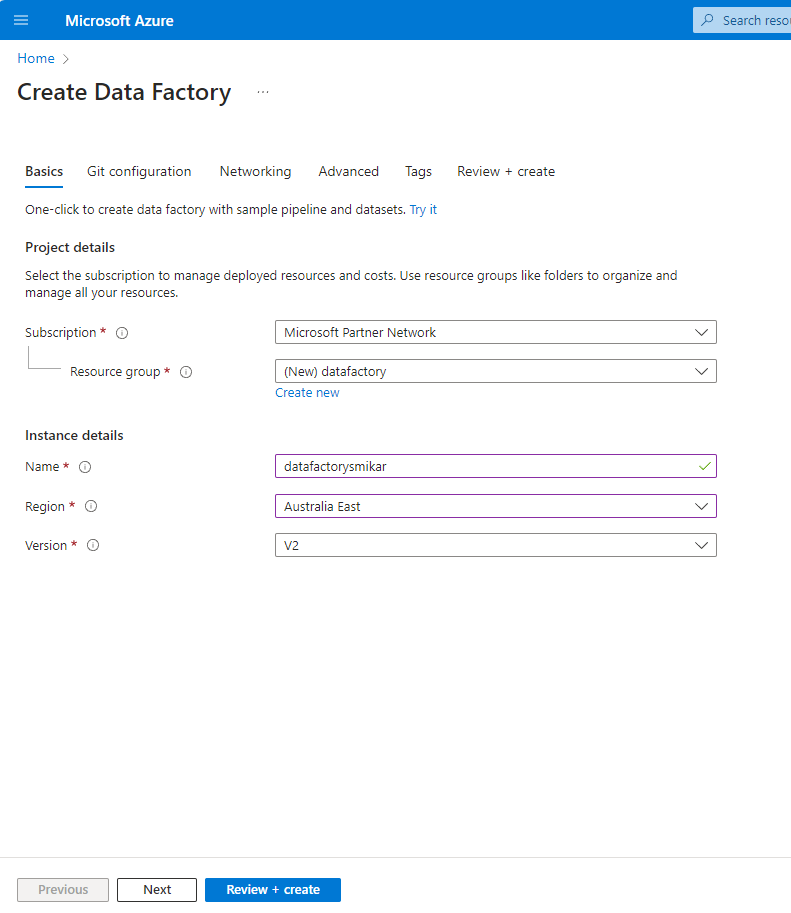
Step 2: Create linked services for SharePoint Online and Azure Blob Storage
In Data Factory Studio, open Manage (the toolbox icon), then Linked services, then New.
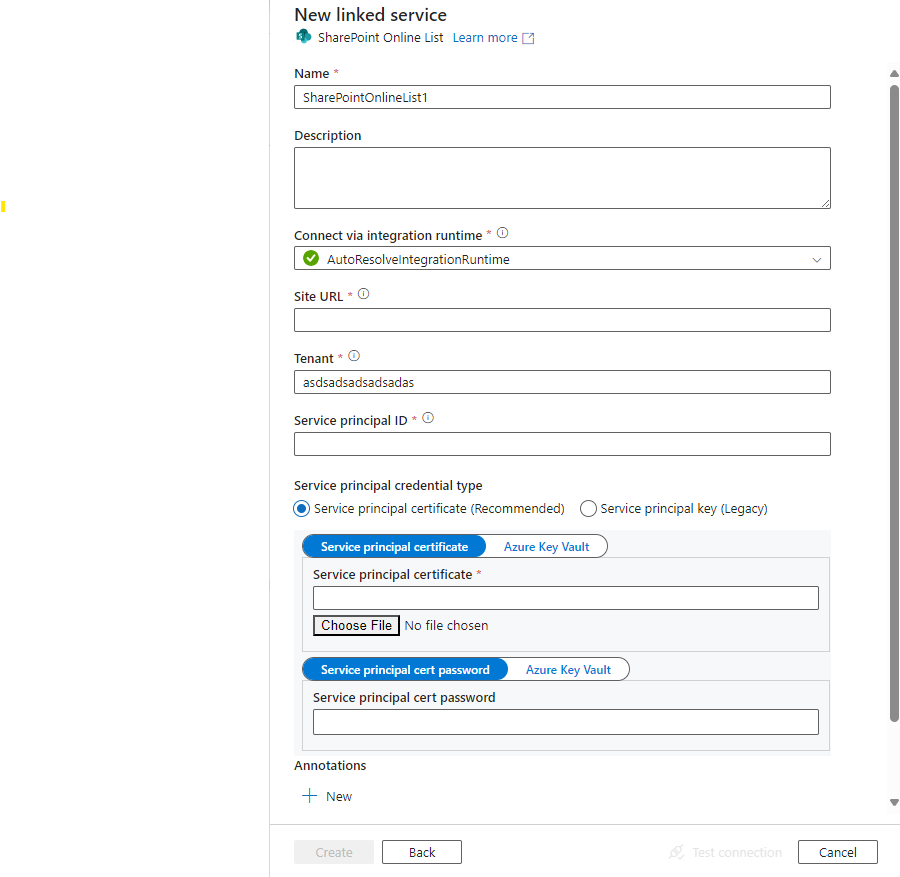
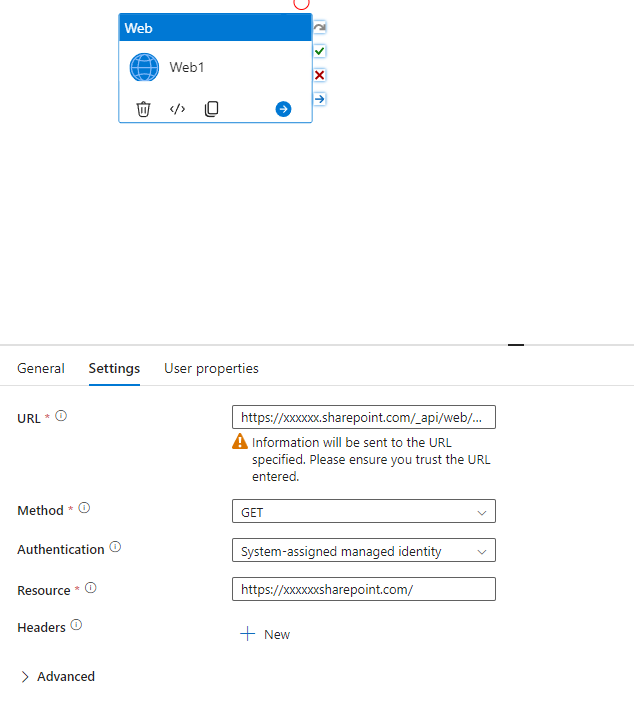
For the source, search for and select SharePoint Online List, then complete:
- Name: a name for the linked service.
- Connect via integration runtime: AutoResolveIntegrationRuntime.
- SharePoint Online site URL: the site you are copying from.
- Tenant: your Microsoft Entra tenant ID.
- Service Principal ID and Service Principal Key: the app registration you granted access to the site.
Select Test connection, then Create.
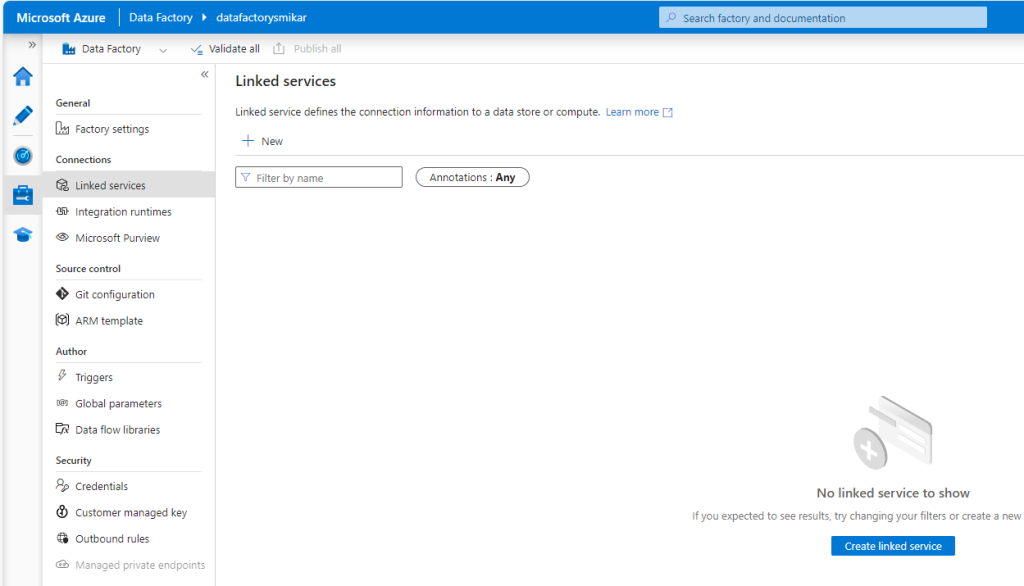
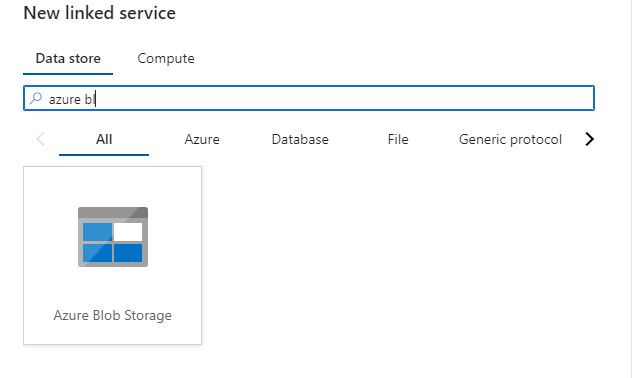
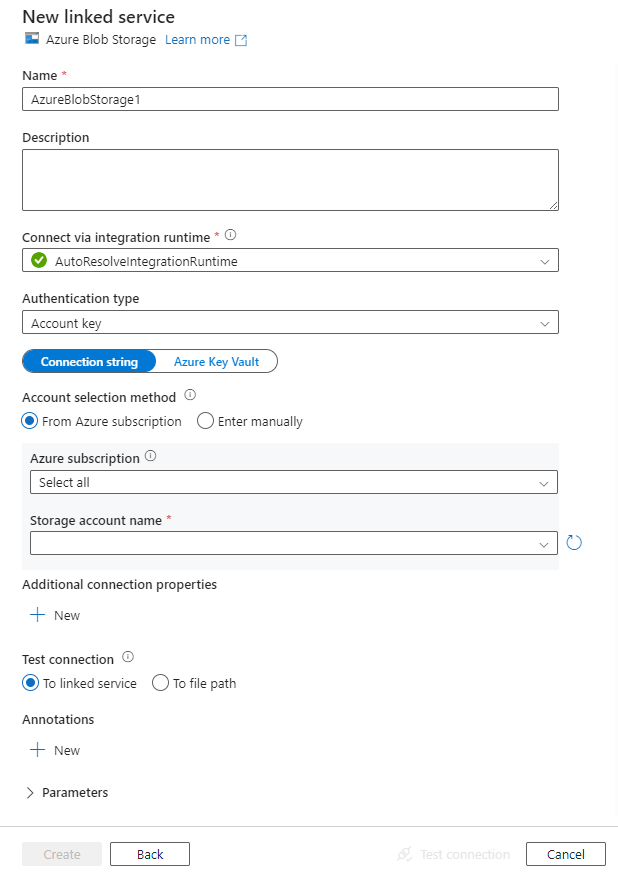
For the destination, select New again, choose Azure Blob Storage, and complete the name, integration runtime, authentication method (account key for a test; managed identity for anything that stays running), subscription and storage account. Test the connection and create it.
Step 3: Create the source and sink datasets
Open Author (the pencil icon), select +, then Dataset.
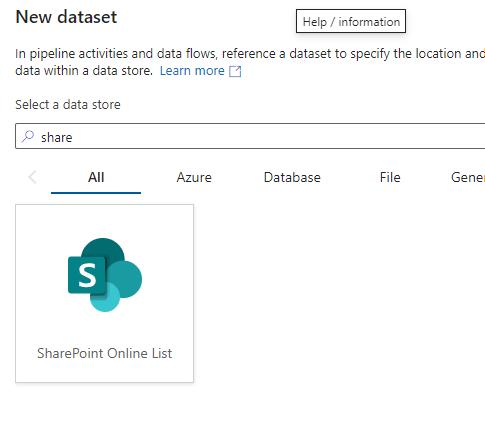
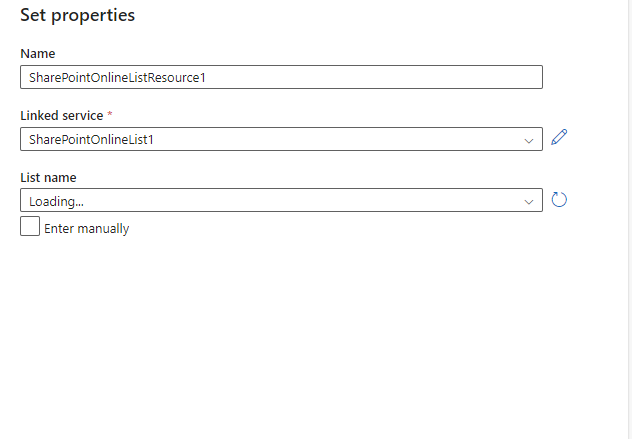
For the source, choose SharePoint Online List, name the dataset, select the SharePoint linked service and enter the document library name. Select OK.
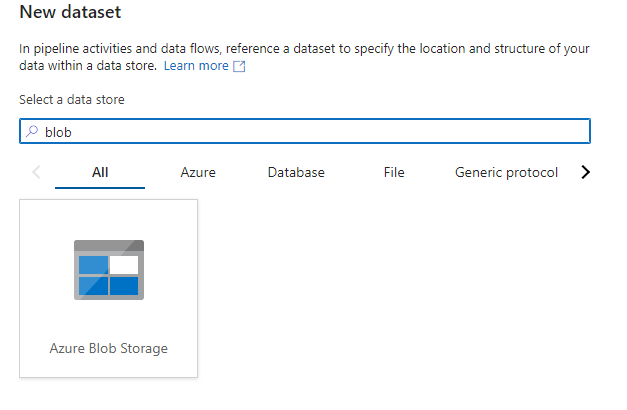
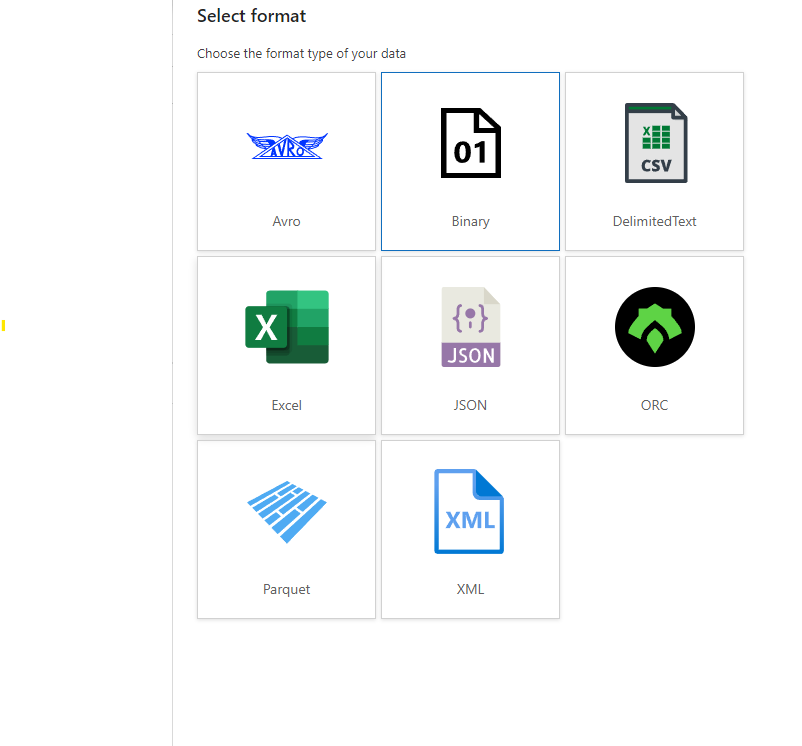
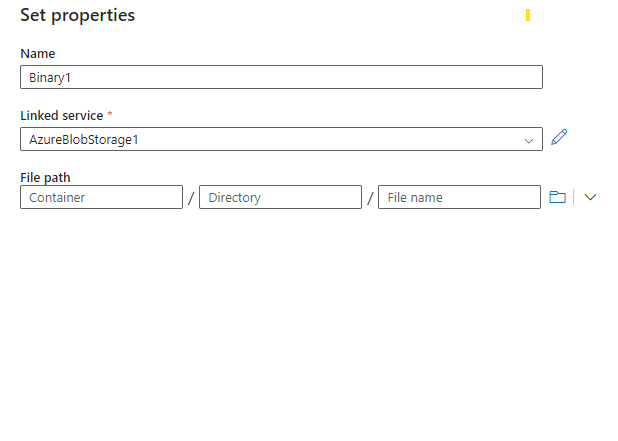
For the sink, select + and Dataset again, choose Azure Blob Storage with Binary as the format. Name it, select the Blob linked service, browse to the container and folder path, and leave the file name blank so files keep their names. Select OK.
Step 4: Build a pipeline with a Copy activity
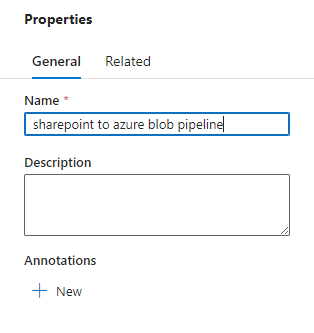
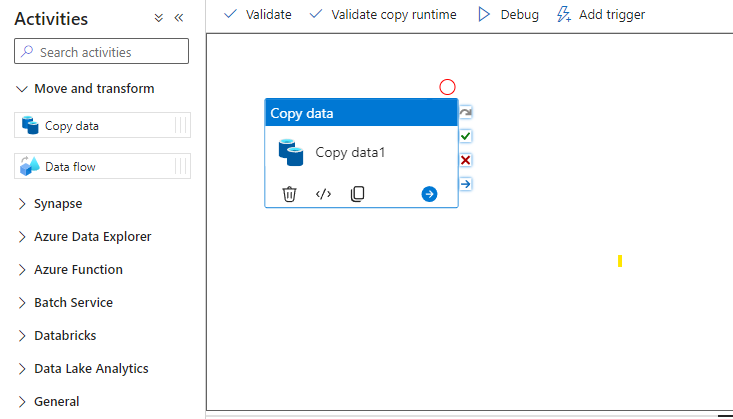
Select + and Pipeline, name it, expand Move & transform in the Activities pane and drag Copy data onto the canvas. Configure it in the lower pane:
- General: a name for the activity.
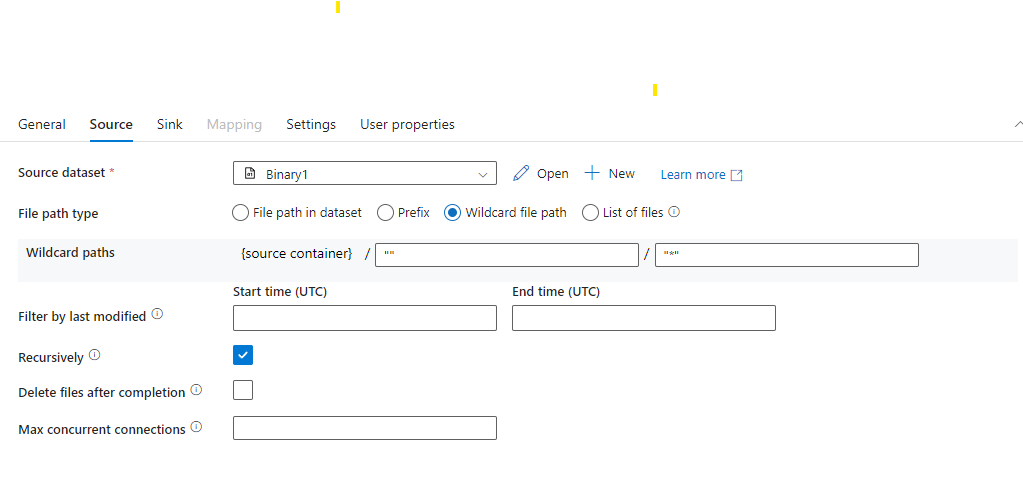
- Source: the SharePoint dataset, with file path type set to wildcard and wildcard file name
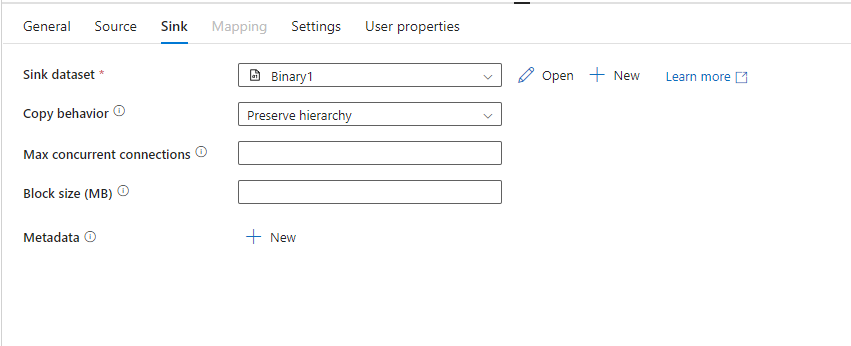
*to match every file. - Sink: the Blob dataset, with Copy behavior set to Preserve hierarchy so the folder structure is recreated.
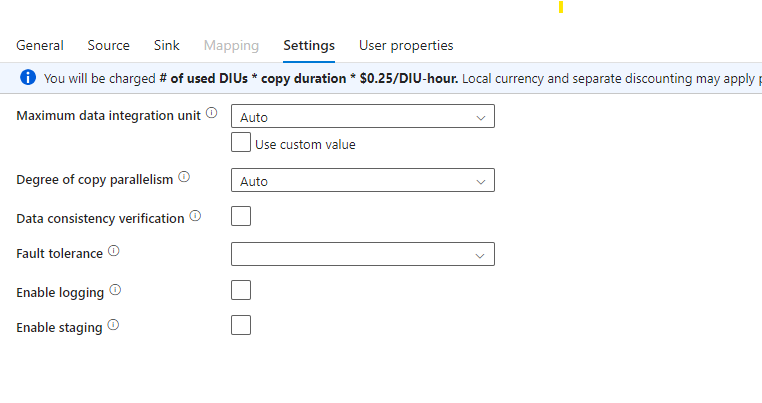
- Settings: leave staging off; enable incremental copy only if the pipeline will run repeatedly.
Step 5: Validate, publish and trigger the pipeline
Select Validate in the pipeline toolbar, fix any errors, then Publish all. Select Add trigger, then Trigger now for a one-off run or create a schedule, and watch the run under Monitor.
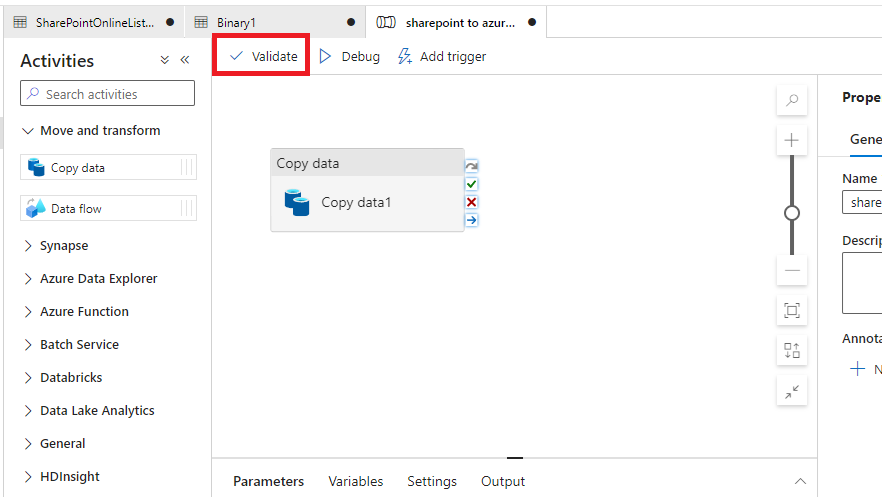
What you have at the end is a binary copy of the library's current files, folder hierarchy preserved. The library still contains every original, so nothing has been reclaimed; delete the site afterwards and it contains nothing at all. There is no stub, no restore path, and no way for a user to get a file back except asking someone with access to the storage account. Acceptable for decommissioning a dead site into cold storage; not an archive users can work with.
Route 3: Squirrel
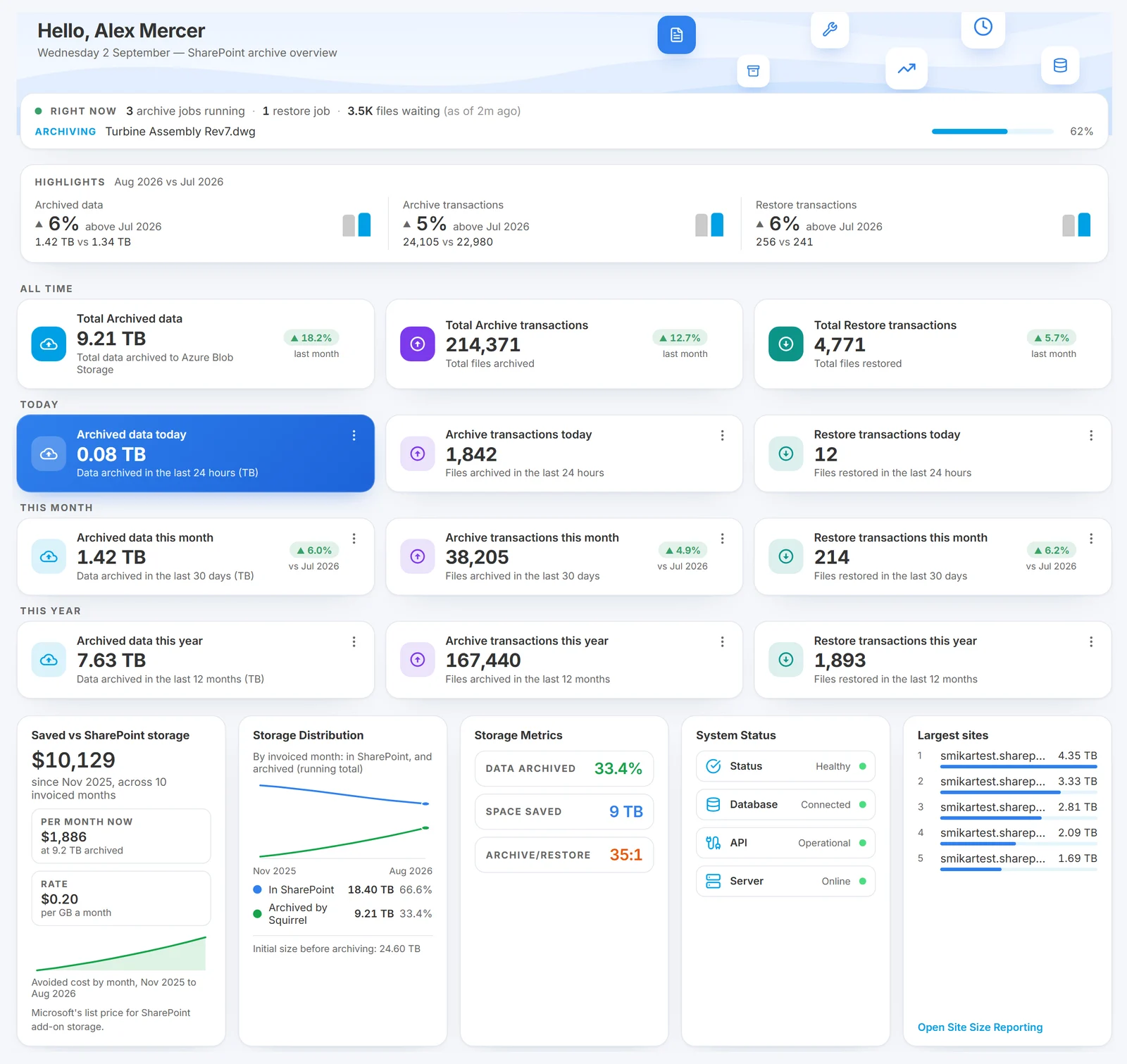
Squirrel is built for the third case: a continuous, policy-based archive of inactive document library files into Azure Blob Storage in your own subscription, with each file still reachable from where it was.
Policies, not scripts. Administrators set a global lifecycle policy for every document library in the tenant and override it per site or library where needed. Policies are rule-based: last modified date, last accessed date, file type, folder path, library and site. A policy such as "archive anything not modified or accessed in 18 months, except the Contracts library" runs continuously, so the inactive tier keeps leaving SharePoint as content ages rather than in a one-off project.
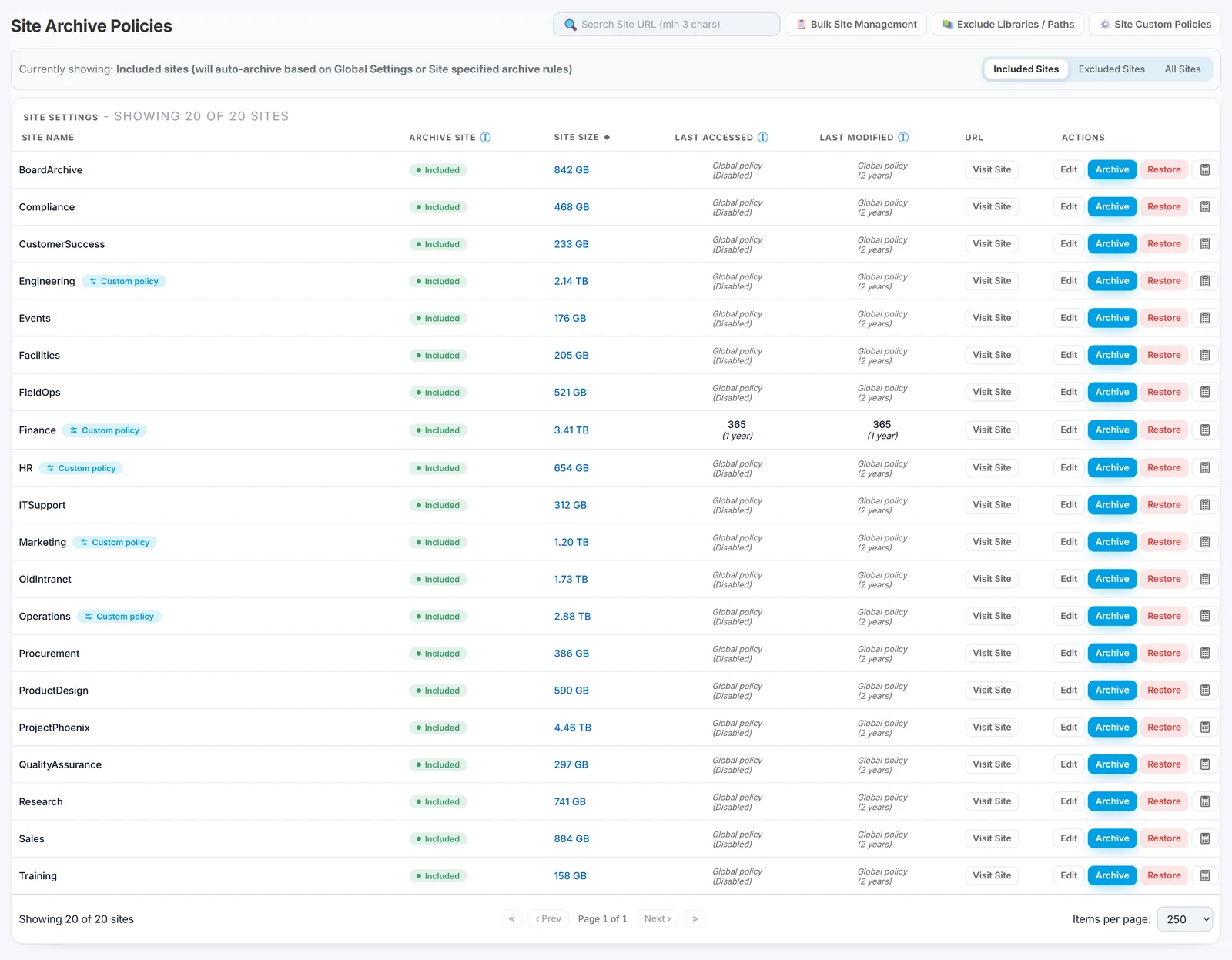
What happens to a file. When a file matches a policy, Squirrel compresses, encrypts and hash-checks it, then writes it to the Azure Blob Storage account in your subscription, in your region, on the tier you chose. The original is removed from SharePoint and replaced with a stub: a small file with the original name plus .html, in the same folder, with the same metadata and dates. Column values, and Microsoft Purview retention labels and holds, survive archive and restore.
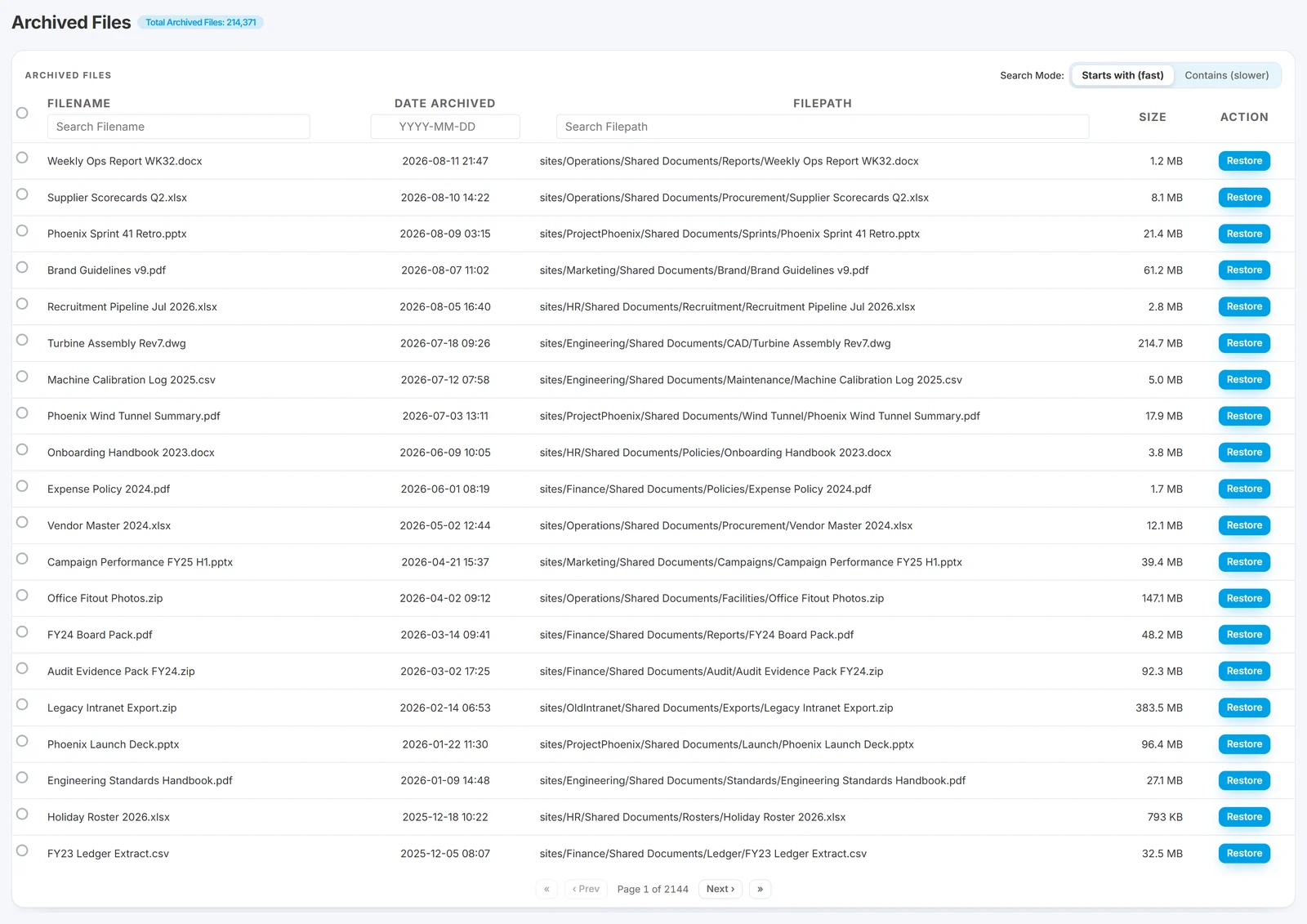
How a user gets it back. The stub inherits the library's permissions, so anyone who could open the original sees it in SharePoint, in OneDrive sync on Windows and Mac, and in Microsoft Teams. Opening it restores the original, with its full version history, from the Azure Cool tier immediately, with no rehydration wait and no restore fee. External guests with library access can restore too. No ticket, no IT involvement: the requirement the Tech Community poster set out.
Search and Copilot. The stub stays in the SharePoint search index under its original name and metadata, and with Nutshell AI it carries a summary of the document, so SharePoint Search and Microsoft 365 Copilot can still find and use archived content without a restore.
Governance. Every archive and restore is audited. Azure immutable (WORM) tiers are supported for content under hold. Recycle Bin Capture archives files users delete or modify instead of leaving copies to build up in the Preservation Hold Library. Squirrel runs as a dedicated instance per customer in the same Azure region as your tenant, and the archive lives in your storage account: if you stop using Squirrel the data stays, the stubs still restore, and there is no export fee.
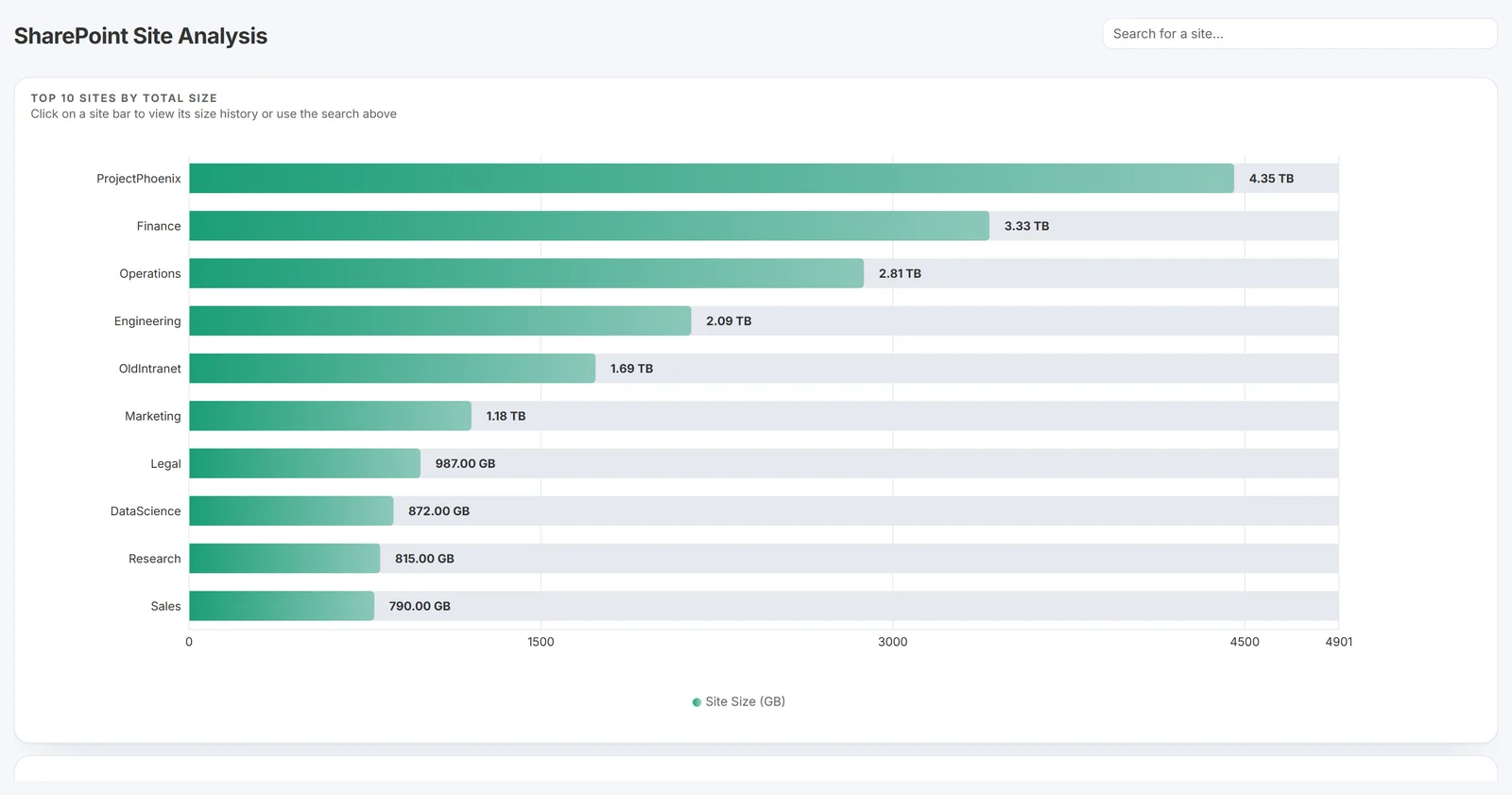
This is the route SmiKar customers run at scale: a Fortune 500 healthcare brand owner has archived more than 600 TB, a FTSE 250 engineering group brought its SharePoint footprint from 460 TB to 165 TB, and three customers together save more than $2.1M a year. SmiKar, a Microsoft Partner, has built Azure and Microsoft 365 tooling since 2015.
What the do-it-yourself routes lose
| What matters to users and auditors | Power Automate or Data Factory copy | Squirrel |
|---|---|---|
| Something left in SharePoint where the file was | Nothing; the item is gone. | A stub with the original name, folder, metadata and dates. |
| Self-service restore | None; a user asks whoever has access to the storage account. | Open the stub; the original comes back immediately. |
| Permissions | Dropped; Blob has no concept of SharePoint permissions. | The stub inherits the library's permissions; the file restores into the same library. |
| Version history | Current version only. | Restored with the file. |
| Retention labels and holds | Not carried; Purview cannot see the Blob copy. | Survive archive and restore. |
| Audit trail | Whatever you log yourself. | Every archive and restore recorded. |
| OneDrive sync and Teams | See nothing. | See the stub. |
| Original URL and shared links | Lost. | The stub sits at the original path. |
| Getting a file back into SharePoint | A re-upload creates a new item, or a new version if the original still exists; links break. | The original is restored in place. |
| Metadata | Only what you write to blob metadata yourself. | Preserved on the stub and on restore. |
Azure Blob or Azure Files for a SharePoint archive?
Both are Azure Storage, both cost far less than SharePoint per GB, and both come up in the same admin threads, but they solve different problems.
Azure Files is an SMB (or NFS) file share reached through a mapped drive, which is why one Microsoft Q&A answer proposed syncing a site to a PC, copying it to an Azure file share, then deleting the site (Microsoft Q&A). That works as a one-off, but a file share needs SMB on TCP port 445, which many ISPs and corporate firewalls block, so in practice a VPN, ExpressRoute or a private endpoint; identity-based access with line of sight to a domain controller (on-premises AD DS), Microsoft Entra Domain Services, or Microsoft Entra Kerberos for hybrid identities; and it then lives outside every SharePoint sharing link, Teams tab, retention policy and search index. There is no way to attach an Azure file share to a SharePoint or Teams site; when asked, Microsoft said it sat on a backlog (Microsoft Q&A), and nothing has shipped. Azure Files has no Cold or Archive tier either. It is the right target for lifting an on-premises file server into Azure and the wrong one for an archive of SharePoint content.
Azure Blob Storage is object storage: cheaper, with Hot, Cool, Cold and Archive tiers and lifecycle rules to move objects between them, immutable storage for records under hold, and no shares to provision. Its limitation is the mirror image of Azure Files: users cannot browse a container natively. Azure Storage Explorer and the portal are admin tools, not something a project manager opens. That is why the stub pattern exists: Blob holds the bytes cheaply, and the stub in SharePoint is how a person finds and opens the file. See the Azure Blob vs Azure Files comparison and the Blob tiers overview.
Microsoft 365 Archive or Azure Blob?
Microsoft 365 Archive is Microsoft's own cold tier for SharePoint and the right first comparison. The current facts on Microsoft Learn:
- Archived storage costs $0.05 per GB per month, charged only when active plus archived storage exceeds the included allocation; active storage above it is $0.20 per GB per month. There is no reactivation fee, but reactivated content cannot be re-archived for four months.
- A site is instantly reactivatable for 7 days after archiving. After that, reactivation can take up to 24 hours, and up to 48 hours for large folders. Users who open an archived site see "The site is archived. A SharePoint Administrator archived this site. If you need access, ask an admin to reactivate it."
- File-level archive is enabled by default and lets users with edit rights archive files and any user with read access reactivate them, but Microsoft is explicit that it "doesn't change site storage usage or quota behavior" and "can't be used to reduce storage usage". Reactivated files cannot be archived again for 120 days, and Word and PowerPoint Online, Teams, the mobile apps, macOS sync and older Office desktop builds show unsupported or misleading errors for archived files.
- Microsoft's FAQ states plainly: "No, archived content isn't used by Microsoft Copilot."
- Retention labels, holds and eDiscovery continue to apply, because the data never leaves the tenant.
Microsoft's FAQ has a section on how Azure Blob compares, arguing against moving data out on three points: no separate security domain to manage, the admin search index stays intact, and no metadata is lost. Each is fair against a Power Automate or Data Factory copy. Against Squirrel the picture is different:
- Security domain. Squirrel writes to a storage account in your own Azure subscription, under the same tenant boundary, in the same region, governed by the same Microsoft Entra identities you already administer. No second vendor tenant holds your data.
- Search index. The stub stays in the SharePoint index under the original name and metadata, and Nutshell adds a content summary. Archived files remain discoverable to users, SharePoint Search and Copilot, which Microsoft 365 Archive does not offer.
- Metadata. Column values, dates, retention labels and holds are preserved through archive and restore.
The other differences are practical. Squirrel restores are immediate from the Cool tier, not up to 24 hours. It works at file level and does reduce SharePoint storage, which Microsoft 365 Archive's file-level mode does not. And the data sits in Azure Blob at Azure Blob prices, in a storage account you own, rather than at $0.05 per GB inside SharePoint. Microsoft 365 Archive remains sensible for whole sites that are dormant and need no user access. See Microsoft 365 Archive alternatives and Copilot and archived SharePoint content.
Frequently asked questions
Is there an archive solution for SharePoint that moves data to cost-effective cloud storage automatically?
Yes. The question is asked in those words on Microsoft Q&A, and there are two automatic options. Microsoft 365 Archive moves whole sites to a cold tier inside SharePoint at $0.05 per GB per month, with reactivation taking up to 24 hours. Squirrel moves individual inactive files into Azure Blob Storage in your own subscription on a policy and leaves a stub in SharePoint so users restore them themselves. Power Automate and Azure Data Factory can be scheduled, but neither leaves anything in SharePoint for a user to find.
How do I migrate 5,000 unused SharePoint sites (about 10 TB) to Azure Blob or Azure Files?
Decide first whether anyone will need to open the content from SharePoint again. If the sites are dead and access requests will be rare and IT-handled, an Azure Data Factory pipeline per site, or Microsoft 365 Archive at site level, is adequate. If people will still look for the files, run a Squirrel policy scoped to those sites so every file moves to Blob and the sites keep their folder trees as stubs; the 10 TB leaves the SharePoint allocation and users restore what they need. The Q&A thread that asked this received no native answer, because no Microsoft tool exports sites to Azure Storage.
Can I attach an Azure file share to a SharePoint or Teams site?
No. SharePoint and Teams cannot mount an Azure Files share as a library or a tab; when asked on Microsoft Q&A the answer was that it was on a backlog, and it has not shipped. Users reach Azure Files through a mapped drive over SMB, which needs port 445 or a VPN and an identity source the share can trust. To keep files reachable from SharePoint, the stub pattern over Azure Blob is the working design.
Does Power Automate keep the folder structure and metadata?
Not by itself. The Create blob action writes to whatever folder path you give it, so you build the path from the item's SharePoint path in each run. Get file content returns the current version's bytes only; column metadata has to be read separately and written as blob metadata or index tags, versions are not copied, and permissions and retention labels are not carried. The connector also stops at 100 MB per file.
Can users still open a file after it is moved to Azure Blob?
Only if something in SharePoint still points to it. After a Power Automate or Data Factory copy there is nothing; a user would need access to the storage account and a tool to browse it. After a Squirrel archive the stub remains in the original folder with the original name and permissions, in SharePoint, OneDrive sync and Teams, and opening it restores the file, with its version history, immediately and without an IT ticket.
Related guides on SharePoint storage and archiving
- SharePoint Online archiving - the complete enterprise guide - the broader context.
- How to archive a complete SharePoint Online site - site-level archiving walkthrough.
- How to check SharePoint storage size - find the biggest savings opportunities first.
- SharePoint vs Azure Blob Storage cost calculator - estimate savings before you start.
- SharePoint "your storage is almost full": what to check before buying more - if your tenant is already at the limit.
Mark Smith co-founded SmiKar Software in 2015 and has spent the past decade helping organisations solve Microsoft 365 data management challenges. He works with the SmiKar team to build solutions for SharePoint archiving, storage optimisation, governance and compliance, supporting customers from growing businesses through to Fortune 500 enterprises.
More about SmiKar