Facts on this page were checked against Microsoft Learn on 3 September 2026.
Microsoft 365 Archive is the feature behind the message "The site is archived", and it is the first option most administrators evaluate when SharePoint storage is almost full. This page is a maintained reference on how it works at both levels, what it charges, what it cannot archive, and how search, Purview and Copilot behave. Every claim about the Microsoft feature links to the Learn page it comes from.
How to archive a SharePoint site: the short version
- Turn on Microsoft 365 Archive. Link an Azure subscription for pay-as-you-go billing in the Microsoft 365 admin centre, then enable Archive under Settings, Org settings, Pay-as-you-go services. You need the SharePoint Administrator or Global Administrator role. Details under prerequisites and setup.
- Archive the site. In the SharePoint admin centre open Active sites, select the site, choose Archive, and confirm. A hub site must be unregistered first, and a Teams-connected site with private or shared channels cannot be archived from the admin centre. Details under site-level archive.
- Archive many sites with PowerShell.
Set-SPOSiteArchiveState -Identity <site url> -ArchiveState Archivedarchives one site; loop it for a list. The same cmdlet with-ArchiveState Activereactivates. - Know what users will see. Everyone gets "The site is archived. A SharePoint Administrator archived this site. If you need access, ask an admin to reactivate it." There is no read-only view. Details under what users see.
- Reactivate when someone needs it. Active sites, select the site, Archive, Reactivate. Instant within seven days of archiving, then up to 24 hours. There has been no fee since 31 March 2025, but the site cannot be re-archived for four months. Details under who can reactivate.
- Know what it costs. $0.05 per GB per month for archived storage, charged only on the portion above the tenant's included allocation. Details under what it costs.
If you want only the old half of a live site archived, and users able to open what moved without asking an administrator, skip to when a file-level archive to your own Azure fits better. Everything else below expands each step in Microsoft's own wording.
What Microsoft 365 Archive is
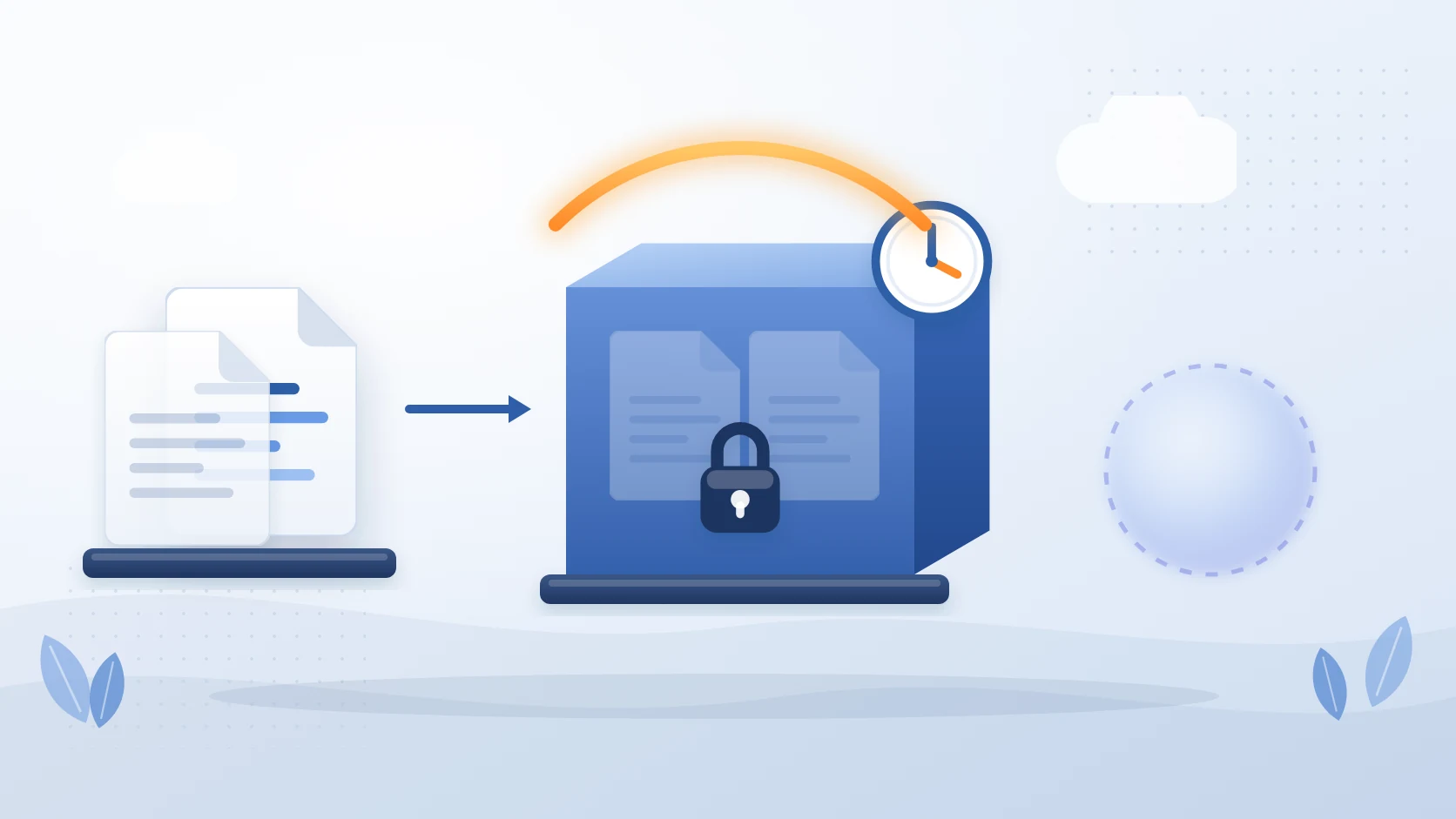
Microsoft 365 Archive is a pay-as-you-go cold tier inside SharePoint Online. In Microsoft's words, it "allows you to retain inactive data by moving it into a cold storage tier within SharePoint" (overview). The data does not leave the tenant or SharePoint; it is reclassified from active to archived storage and becomes inaccessible until reactivated: "Content in this tier is no longer directly accessible to anyone."
If you are reading because Microsoft 365 Archive locks users out of sites, or because file-level archive did not reduce your storage, the file-level alternative in your own Azure, Squirrel, is compared at the end.
It operates at two levels:
- Site-level archive. A SharePoint Administrator archives an entire site from the SharePoint admin centre, PowerShell or the Graph API. Everything goes together: "Document libraries, folder structures, and files", "Lists and list data", "Permissions and all metadata". Users lose access to the whole site until an administrator reactivates it.
- File-level archive. Users with edit permission archive individual files or whole folders inside a live site. The site stays active; only the selected files become inaccessible until someone with read access reactivates them.
Microsoft lists "Copilot optimization" first among the advantages: "Copilot is not trained on archived content, maximizing response relevancy."
Site-level archive
Archiving from the admin centre
Site archive is an administrator-only action (manage). In the SharePoint admin centre, go to Active sites, select one or more sites, select Archive, and select Archive again to confirm. Archived sites then appear on the Archived sites page. Group-connected sites can be archived, but "only the site is archived and the rest of the group remains active."
Two constraints apply. "To archive a hub site, you first need to unregister it as a hub site." And a Teams-connected site with private or shared channels cannot be archived from the admin centre; it returns "The group connected site with channel sites associated can't be archived."
Archiving with PowerShell or Graph
Bulk operations use the Set-SPOSiteArchiveState cmdlet, which both archives and reactivates; the Graph API exposes beta site: archive and site: unarchive endpoints. Neither route blocks Teams-connected sites with channel sites, but "Only the main site associated with the Team and its standard channels is archived. Private and shared channel sites remain active." Archiving the site does not archive the Team; the FAQ says "Admins have to archive both the team and the site independently."
The three archive states
Microsoft documents three archive states, which apply to both archived files and archived sites:
| State | What Microsoft says | Allowed operations |
|---|---|---|
| Recently archived | "This state is the first stage after a site or file is archived and lasts for seven days. During this stage, reactivations are instantaneous." | Reactivate, Delete |
| Archived | "A site or file enters this state seven days after it is archived. In this stage, reactivations can take up to 24 hours." | Reactivate, Delete |
| Reactivating | "If a site or file is reactivated from the 'Archived' state, it remains in this stage until reactivation completes." | None for sites; Delete for files |
What users see
Once a site is archived, "End users cannot directly access archived content" (end-user experience). Learn shows the message only as a screenshot; the wording, as reported verbatim on Microsoft Q&A, is:
The site is archived. A SharePoint Administrator archived this site. If you need access, ask an admin to reactivate it.
There is no read-only view and no self-service restore for sites. A Request to reactivate button can be added, but only if an administrator sets a redirect URL with Set-SPOTenant -ArchiveRedirectUrl <url>; "The Request to reactivate button won't be visible if a redirect URL is not set." The same message also appears on unlicensed OneDrive accounts, which the OneDrive service archives on day 93 (see What it cannot archive).
Who can reactivate a site, and what comes back
Only a SharePoint Administrator or Global Administrator can reactivate a site: from Active sites, select it, select Archive on the command bar, then Reactivate. The manage page still says that reactivating from the "Archived" state shows "a confirmation pop-up that shows an estimated price for reactivation"; the pricing page states the SharePoint reactivation fee has been removed (see What it costs).
On reactivation, "its permissions, lists, pages, files, folder-structure, site-level policies, and other metadata will revert to the prearchival state". Two things do not come back, both deletions already scheduled: "Content in the recycle bin expires naturally, and that expiration continues while archived", and "Content marked to be deleted by retention policies will still be deleted as normal."
The four-month re-archive restriction
From the pricing page: "reactivating archived content became free of charge, but re-archiving any newly reactivated content is restricted for a four-month period." A site brought back for an audit stays in active storage, at the active rate if you are over quota, for at least four months.
File-level archive
File-level archive is generally available and, importantly for anyone who has just switched the feature on, "File-level archiving is enabled by default for all SharePoint sites when Microsoft 365 Archive is enabled."
Who can archive and reactivate
- Archive: "Users with edit permissions can easily archive files on SharePoint sites that are enabled for file archiving." Users select one or more files and choose Archive.
- Reactivate: "Any user with read access to an archived file is able to reactivate it." They open the file's location in SharePoint on the web, select it and choose Reactivate. "Reactivation can take up to 24 hours to complete. The user who initiated the reactivation receives an email when the process is finished."
In general availability, nothing archives files by age or inactivity on its own; file-level archive is a manual user action or an admin script. Microsoft has an automatic file archive policy based on last access date in preview, covered in SharePoint file archive policy and compared with Squirrel in Squirrel vs Microsoft 365 Archive.
Controlling it with PowerShell
Administrators can switch file-level archive off for the tenant, for individual sites, or for new sites:
Set-SPOTenant -AllowFileArchive $true
Set-SPOSite -Identity <site_url> -AllowFileArchive $true
Set-SPOTenant -AllowFileArchiveOnNewSitesByDefault $true
All three default to $true. The tenant flag overrides the site flag, and "When set to False, no new files can be archived by users, but existing archived files can be reactivated." Get-SPOSite exposes an ArchivedFileDiskUsed property, "the storage consumed by all archived files on that site in bytes."
Folder actions and limits
Archive all files and Reactivate all files act recursively on a folder tree; "Folders themselves don't have an archived or active state." Microsoft's limits:
- "A maximum of 500,000 archive or reactivate actions per site per day."
- "A folder can contain a maximum of 20,000 items" for either action.
- "Scheduling a recursive reactivation typically takes about 10 minutes, but can take up to 24 hours for large folders. After scheduling, files can take up to 24 hours to reactivate. For large folders, the full process can take up to 48 hours to schedule and complete."
The 120-day rule
"Files that are reactivated cannot be archived again for 120 days." It is enforced per file.
The quota rule most people miss
Microsoft states it plainly in the FAQ:
"File-level archive doesn't change site storage usage or quota behavior. Archived files are accounted for in site storage the same way as active files. Archiving a file doesn't reduce reported storage usage, change storage calculations, or affect quota enforcement. Because archived files continue to consume site storage, file-level archive can't be used to reduce storage usage or store data beyond a site's allocated quota."
At tenant level the bytes are "reclassified from active storage to archived storage", and "you're considered over your allotted quota only if your active storage usage exceeds your tenant quota limit." It can move a tenant back under its active limit, but it never makes a site's storage figure go down.
Application compatibility
Microsoft warns that some applications "might display incorrect error messages, fail to load correctly, or fail actions taken with archived content". The known list "includes but isn't limited to":
- Word and PowerPoint Online
- The Teams, OneDrive and SharePoint mobile apps
- macOS with the OneDrive sync client
- Windows 10 and earlier with the OneDrive sync client, and Windows devices "that aren't configured to receive frequent updates"
- Office desktop apps "that haven't had updates since March 1, 2026"
- Clipchamp and Power BI, which "fail to load archived content when attempting to import"
The end-user page adds: "For some Microsoft 365 applications, there is no clear indicator that a file is archived."
What file-level archive cannot touch
"File-level archive is available only for SharePoint sites." Within a site, "Certain file types can't be archived, including OneNote, SharePoint pages, and SharePoint agents", and "The Site Assets library on SharePoint sites does not support file-level archive." "Archived files retain all versions. When an archived file is reactivated, all existing versions are restored."
What it costs
Microsoft 365 Archive has no licence. It is a pay-as-you-go meter billed to an Azure subscription, and the rate card is Microsoft's pay-as-you-go pricing page.
Archived storage: $0.05 per GB per month (on the invoice, $0.00167/GB/day), with "No reactivation fee". Education tenants pay $0.02/GB/month. Active SharePoint storage above the tenant quota is $0.20/GB/month.
When the meter applies. It "is charged only when archived storage plus active storage in SharePoint exceeds the included or licensed allocated SharePoint storage capacity limit of the tenant. In other words, there's no additional storage cost for archived sites or files if the tenant hasn't consumed its already licensed storage quota." Only archived data above the quota line is billed.
Reactivation. "The reactivation fee for archived content in SharePoint was eliminated on March 31, 2025." The trade is the four-month re-archive restriction. "This change doesn't apply to OneDrive accounts."
The OneDrive exception. Archived unlicensed OneDrive accounts are billed at $0.05/GB/month plus $0.60 per GB reactivated (unlicensed OneDrive accounts). Enabling billing to reactivate one account means "from that month onward, the storage fee of $0.05/GB/Month is applicable for all unlicensed accounts within the organization for longer than 93 days." Microsoft's own example is 100 unlicensed accounts of 1 TB each: reactivating one costs $614.40, and the monthly fee for all 100 is $5,120. Unlicensed accounts "can't utilize unused SharePoint storage quota, even if Microsoft 365 Archive is configured within the tenant."
If billing breaks. "While Microsoft 365 Archive or billing is unavailable, archived content counts as active storage usage and counts toward standard Microsoft 365 storage consumption." Archived content stays archived and can still be reactivated, but new archive actions are blocked.
A worked example: 10 TB archived
A tenant 10 TB over its included allocation (1 TB plus 10 GB per licence) archives 10 TB of dormant sites. Using Microsoft's own convention of 1 TB = 1,024 GB:
- Left active as extra storage: 10,240 GB at $0.20 = $2,048 per month.
- In Microsoft 365 Archive: 10,240 GB at $0.05 = $512 per month, 75% less on Microsoft's list rates.
- Reactivating 1 TB later: $0 in fees. Instant if archived within the last seven days; otherwise it "can take up to 24 hours". That 1 TB returns to active storage at $0.20, adding $204.80 per month while the tenant stays over quota, and cannot be re-archived for four months, so one reactivation carries roughly $819 of active storage before the content can go back.
- If the 1 TB were an unlicensed OneDrive account: reactivation costs $614.40, and the account "remains active for a total of 30 days before it gets automatically archived again."
What it cannot archive
- OneNote notebooks, SharePoint pages, SharePoint agents and the Site Assets library cannot be archived at file level. They go along with everything else when a whole site is archived.
- OneDrive accounts cannot be archived by administrators: "OneDrive accounts (site template 21) can't be archived by admins." File-level archive is SharePoint-only.
- Publishing sites, channel sites and some legacy site templates are not supported for site archive.
- Teams with private or shared channels cannot be archived from the admin centre; through PowerShell or Graph only the main site and its standard channels are archived.
- Hub sites must be unregistered as hubs first.
- The Team itself is untouched when its site is archived, and vice versa.
Retention, eDiscovery, search and Copilot
Purview continues. "When a site is archived, compliance features such as eDiscovery and retention labels continue to apply." Asked whether content on legal hold can be archived, the FAQ answers "Yes, nearly all Microsoft Purview features continue to operate as normal." Retention keeps running inside the archive, and "Content under legal hold can't be deleted."
Content Search and eDiscovery. "Purview Content Search and eDiscovery can still directly export content but may take longer to export archived content."
End-user search. Archived content stays in the index (search overview): "Content that has been archived either via site archive or file archive can be found by end-users". Archived results are opt-in, behind the "Archived" pill in OneDrive web search and the "Archived" file-type filter in SharePoint web search. Then: "Content that has been archived at the file level can be reactivated by the current user. Content that is part of an archived site requires a SharePoint administrator to reactivate before it can be accessed."
Copilot. Asked whether archived content is returned in Copilot queries, the FAQ answers: "No, archived content isn't used by Microsoft Copilot." For content people still ask questions about, that is the main reason to look at alternatives; see Microsoft Copilot and archived SharePoint content.
How Microsoft says Azure Blob compares, and where that argument holds
Microsoft's FAQ has a section titled "How does Azure Blob compare to Microsoft 365 Archive?", aimed at organisations weighing an archive into their own Azure storage. Quoted in full:
"Microsoft 365 Archive allows you to keep data in place in SharePoint, providing benefits that aren't possible when data is migrated elsewhere:
- Archiving happens quickly, usually within minutes, regardless of the amount or size of content being archived.
- No need to manage data in a separate security and compliance domain, therefore allowing your security and compliance tooling to operate seamlessly-including eDiscovery, retention policies, and more.
- Admin search indexes remain intact.
- Sites are archived and rehydrated without loss of metadata, security versioning, and more."
Each point is true of Microsoft 365 Archive. Whether each is a disadvantage of an Azure Blob archive depends on how that archive is built; here is the comparison against a stub-based file-level archive such as Squirrel, which writes to the customer's own Azure subscription.
Speed. Microsoft's point holds. Site archive is a state change, not a data move. A file-level archive to Azure moves the bytes out of SharePoint, so it runs as a policy over time rather than as a single switch.
A separate security domain. This is where the argument is weakest. The customer's Azure subscription sits inside the same Microsoft Entra tenant, in the customer's chosen region, under the customer's own identities. Content moves into storage the organisation owns outright, encrypted and compressed, and Squirrel works alongside active Purview retention policies. Where Microsoft's point does hold is full-text discovery: Microsoft 365 Archive keeps the body of every archived file searchable to Purview without reactivation, whereas a stub carries the metadata, dates and, with AI Summarisation, a summary, so a full-text export of an archived file's body depends on restoring it.
Search indexes. A stub keeps the original filename, metadata and dates in the same library and folder, and SharePoint search returns it at its original location without a filter. Microsoft 365 Archive keeps archived items in the index too, but behind the "Archived" filter, and site-archived results cannot be opened without an administrator.
Lossless metadata. Site archive brings back permissions, lists, pages and metadata exactly as they were, a real strength for whole sites. Squirrel preserves metadata and dates on the stub and restores the original file with its version history, but stub permissions inherit from the library and sharing links on the original file are released at archive time.
Two points Microsoft's list does not mention:
- Restore. A Squirrel restore is self-service by anyone with access to the library, external guests included, immediate from the Azure Cool tier, with no fee from Squirrel and no re-archive lock. Microsoft 365 Archive's restore is instant only in the first seven days, then up to 24 hours, administrator-only for sites, and followed by a four-month (sites) or 120-day (files) re-archive restriction.
- Copilot. Archived content is invisible to Copilot under Microsoft 365 Archive. With AI Summarisation, Squirrel embeds a summary in each stub so SharePoint Search and Microsoft 365 Copilot can still discover archived content and lead users to the restore.
Where Microsoft 365 Archive is the better choice. Whole sites that are genuinely dormant, where nobody needs to find anything in them soon, are exactly what site archive is for: it is quicker to apply, needs no storage design, and reactivates the site precisely as it was. If you do not want to own Azure storage, or your candidates are entire sites rather than the old half of live libraries, Microsoft's option is the simpler one.
Prerequisites and setup
"Microsoft 365 Archive follows a pay-as-you-go model, and is configured through the Microsoft 365 admin center" (setup). Microsoft's four steps:
- "Create an Azure subscription and resource group."
- "Set up pay-as-you-go billing in the Microsoft 365 admin center."
- "Turn on Microsoft 365 Archive in the Microsoft 365 admin center." The toggle is under Settings > Org settings > Pay-as-you-go services > Settings > Storage services > Archive.
- "Manage Microsoft 365 Archive for sites in the SharePoint admin center."
You must be a SharePoint Administrator or Global Administrator; the Azure subscription is for billing only. Billing for unlicensed OneDrive accounts is a separate toggle on the same panel. Once the feature is on, "by default users can archive files on SharePoint sites"; for site archive only, set Set-SPOTenant -AllowFileArchive $false.
When Microsoft 365 Archive is the right choice
- Whole dormant sites. Closed projects, dissolved departments, superseded intranets, legacy Teams sites where nothing has changed in a year.
- Content that need not be found again soon. If a records request is the only plausible reason to look at it again, eDiscovery still reaches it without reactivation.
- No appetite for owning storage. There is no Azure storage account to design or pay for; the subscription exists only to receive the bill.
- Tenants near the active limit that can move whole sites. Reclassifying sites drops active usage below the quota line.
When a file-level archive to your own Azure fits better
- Active sites with an old half. Site archive is all or nothing, and Microsoft's file-level archive does not reduce site storage or quota use. A policy-based archive that moves inactive files out and leaves stubs keeps the site live and reduces what it consumes.
- Users who need to find and restore things themselves. Stubs stay in the library, keep the same folder structure and metadata, and restore on click without involving IT.
- Copilot and search. AI summaries keep archived material discoverable; Microsoft 365 Archive removes it from Copilot entirely.
- Frequent restores. No 24-hour wait, no admin ticket, no four-month or 120-day re-archive lock.
- Owning the data. The archive is in the organisation's own Azure storage account, in its own region and tier. If the Squirrel subscription ends, the archive stays there, stubs still restore, and there is no export fee.
- Deleted and overwritten files. Recycle Bin Capture archives deleted or modified files instead of leaving them in the Preservation Hold Library.
Squirrel archives inactive SharePoint document library files into Azure Blob Storage in the customer's own Azure subscription, on rule-based policies (last modified, last accessed, file type, folder path, library, site), with an audit trail of every archive and restore. For the head-to-head, see Squirrel vs Microsoft 365 Archive.
Frequently asked questions
Does file-level archive reduce my site storage quota?
No. Microsoft's FAQ says file-level archive "can't be used to reduce storage usage or store data beyond a site's allocated quota." At tenant level the bytes are reclassified from active to archived, which can bring active usage under the tenant limit, but the site's own figure does not fall.
Is Microsoft 365 Archive included in E3 or E5?
No. It is not part of any Microsoft 365 licence. "Microsoft 365 Archive follows a pay-as-you-go model": you link an Azure subscription for billing, and archived storage is metered at $0.05/GB/month once combined archived and active storage exceeds the tenant's included allocation. Under the allocation there is no charge, but pay-as-you-go billing is still required to switch the feature on.
How long does reactivation take?
In the seven-day "Recently archived" window "reactivations are instantaneous". After that, "reactivations can take up to 24 hours" for a site or a file. Reactivating a large folder with Reactivate all files "can take up to 48 hours to schedule and complete." Reactivating an archived unlicensed OneDrive account "takes up to 24 hours".
Is there a reactivation fee?
Not for SharePoint sites or files: the fee was "eliminated on March 31, 2025" and the rate card lists "No reactivation fee". The cost is indirect: reactivated content returns to the active meter and cannot be re-archived for four months (sites) or 120 days (files). Unlicensed OneDrive accounts are the exception at $0.60 per GB.
Can archived files be opened in Word Online or on a phone?
Not reliably. Microsoft lists Word and PowerPoint Online, the Teams, OneDrive and SharePoint mobile apps, the macOS sync client and older Windows and Office builds as applications that "might display incorrect error messages, fail to load correctly, or fail actions taken with archived content." Open the file's location in SharePoint on the web, which shows the archived state and the Reactivate action.
Does Copilot see archived content?
No. "Archived content isn't used by Microsoft Copilot." That applies to both site-level and file-level archive. Content people still want Copilot to answer from has to stay active, or be archived in a way that leaves something Copilot can index, which is what AI summaries in Squirrel stubs do.
Can I archive OneDrive with Microsoft 365 Archive?
Not by choice. Administrators cannot archive OneDrive accounts, and file-level archive "is available only for SharePoint sites." The OneDrive service archives unlicensed accounts after 93 days, and "you cannot prevent their archival." Reactivating one costs $0.60/GB and lasts 30 days, and under the policy in force from 1 July 2026 an unpaid unlicensed account is subject to deletion after 365 cumulative unpaid days "even if retention policies, settings, or holds exist". For leavers' OneDrive, mailbox and Teams chat data, see Chipmunk.
Can users access an archived SharePoint site?
No. Users see "The site is archived. A SharePoint Administrator archived this site. If you need access, ask an admin to reactivate it." and nothing else. There is no read-only mode and no self-service restore for sites; a Request to reactivate button appears only if an administrator has set -ArchiveRedirectUrl. Files archived at file level are different: anyone with read access can reactivate them.
Q: How do I archive a whole SharePoint site with Squirrel instead of Microsoft 365 Archive?
A: In Squirrel's Site Archive Settings, select the site and choose Archive. Every file in the site's document libraries moves to your own Azure Blob Storage and is replaced by a stub, so the site stays open and searchable and nobody is locked out; users restore single files by clicking the stub, and an administrator can restore the whole site in bulk from the same panel. Set age thresholds on the site instead if you want only the old content archived and current work left alone. The steps are in the full-site archive and restore guide, and restoring is covered in how to restore an archived SharePoint site.
Related guides
- How to restore or reactivate an archived SharePoint site: both the Microsoft message scenario and the Squirrel restore.
- SharePoint file archive policy - the automatic policy that archives files by last access date, in preview.
- Purview retention archiving for SharePoint (MC1472601) - how retention policies can now archive inactive SharePoint files into Microsoft 365 Archive, and the Copilot indexing trade-off.
- How to archive a SharePoint site: step by step for site-level and file-level patterns.
- Squirrel vs Microsoft 365 Archive: the head-to-head comparison.
- Microsoft Copilot and archived SharePoint content: the visibility gap that shapes many archive decisions.
- SharePoint Online pricing: the included allocation, extra storage and the archive tier.
- How Squirrel stubs work in SharePoint: what users see in the library after a file is archived.
- A SharePoint file shows 'Archived' and won't open: how to reactivate it
- SharePoint and OneDrive storage changes, November 2026 (MC1330893, MC1477185, MC1465765) - the pay-as-you-go billing options and the end of the OneDrive allowance above 5 TB.
Mark Smith co-founded SmiKar Software in 2015 and has spent the past decade helping organisations solve Microsoft 365 data management challenges. He works with the SmiKar team to build solutions for SharePoint archiving, storage optimisation, governance and compliance, supporting customers from growing businesses through to Fortune 500 enterprises.
More about SmiKar