
How to Schedule a Hyper-V Checkpoint.
Before I show you how to use SnapShot Master to create and schedule a Hyper-V checkpoint I will briefly describe what a checkpoint is.

What is a Hyper-V Checkpoint?
Hyper-V Checkpoints can be a lifesaver for IT administrators and developers alike. In this article, we’ll explore what a Hyper-V Checkpoint is and how to use it to roll back to a previous state in case of any issues.
Understanding Hyper-V Checkpoints
Hyper-V Checkpoints are essentially snapshots of a virtual machine that capture the VM’s state at a specific point in time. When you create a checkpoint, the virtual machine’s configuration and disk state are saved as differencing disks with .AVHD extension and an .XML file. If the VM was running during the checkpoint creation, additional files for the Virtual Machine Memory and Devices to be captured (.BIN and .VSV) may also be created.
Once a checkpoint has been created, any changes made to the virtual machine are saved to the differencing disk, leaving the original disk in a read-only state. This allows you to revert the virtual machine back to the checkpoint if any issues arise during upgrades, updates, or hardware reconfiguration.
Managing Hyper-V Checkpoints
SnapShot Master is a powerful software tool that can help IT administrators effectively manage their Hyper-V Checkpoints. With SnapShot Master, administrators can easily view all of their Hyper-V snapshots in one place, schedule the creation and deletion of snapshots on a schedule, and get detailed reporting on their Hyper-V snapshots.
By using SnapShot Master, administrators can avoid the hassle of manually managing their Hyper-V Checkpoints, which can be time-consuming and error-prone. Instead, they can rely on the software to handle the process automatically, ensuring that snapshots are created and deleted on a schedule that’s convenient for them.
SnapShot Master also provides detailed reporting on Hyper-V snapshots, giving administrators valuable insights into how their virtual machines are performing and helping them identify any issues that may need to be addressed. With this information, administrators can make informed decisions about how to optimize their virtual machines and ensure that they’re running at peak performance.
In summary, SnapShot Master is a must-have tool for any IT administrator who wants to effectively manage their Hyper-V Checkpoints. With its powerful features and intuitive interface, it makes it easy to schedule and manage snapshots, and provides valuable reporting that can help administrators optimize their virtual machines for maximum performance.
How to Schedule a Hyper-V Snapshot / Checkpoint
Hyper-V Checkpoint Tree
The Hyper-V Checkpoint Tree shows each and every checkpoint created for the virtual machine selected. Each subsequent checkpoint stems from the previous one with the delta changes stored on the checkpoint’s disk which is the difference between the current state and the last checkpoint created.
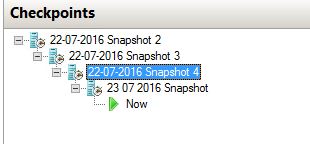
Scheduling a Hyper-V Checkpoint
List all your Hyper-V VMs
Now that you understand Hyper-V Checkpoints a little better, we can now start scheduling their creation.
Open your SnapShot Master console and let it sync with your Hyper-V environment and populate the console with your virtual machines.
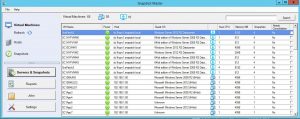
Select your Hyper-V VMs
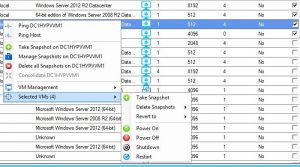
Once all your virtual machines have shown up, choose the VMs you want to create a checkpoint for by checking the checkbox. You can choose to either do a single machine or multiple machines. In this example Ill create a checkpoint for multiple VMs. Right Click any VM and from the menu go to Selected VMs then Take Snapshot.
Create your Hyper-V Checkpoints
Once all your virtual machines have shown up, choose the VMs you want to create a checkpoint for by checking the checkbox. You can choose to either do a single machine or multiple machines. In this example Ill create a checkpoint for multiple VMs. Right Click any VM and from the menu go to Selected VMs then Take Snapshot.
Hyper-V Checkpoints Scheduled Description
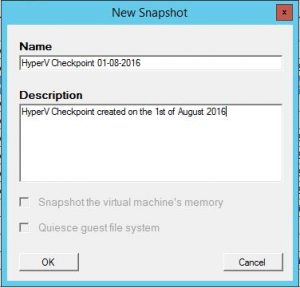
You can now give the Scheduled Hyper-V Checkpoint job a name then click OK. This makes identification of each of the Hyper-V Checkpoints at a later date.
Hyper-V Checkpoints Execution
Choose if you wish for the Hyper-V Checkpoint to run now, or to be scheduled for a later time. _If you excute now, you can skip the remaining steps, as SnapShot Master will kick off your Hyper-V Checkpoint straigh_t away.
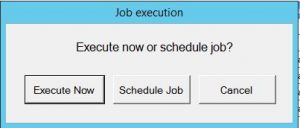
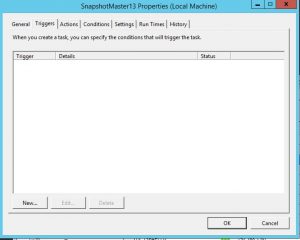
Hyper-V Checkpoints Schedule Window
The task scheduler window now starts up. Click on NEW to create a new scheduled task.
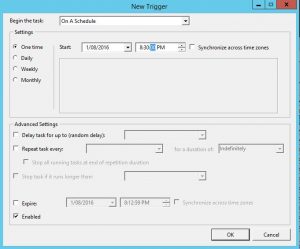
Hyper-V Checkpoints Schedule Date and Time
Choose a date and time that you want to schedule the Hyper-V Checkpoint for then click OK and then Click OK again on the task scheduling window. The Hyper-V Checkpoints will now be created at the time you have scheduled.
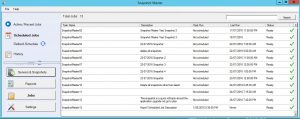
Hyper-V Checkpoints Scheduled Jobs
To view Job Status of your scheduled tasks within SnapShot Master, go to the JOBS tab and then Scheduled Jobs. You can see Active / Recent Jobs, Scheduled Jobs as well as Job History.
Hyper-V Checkpoints Email Alerts
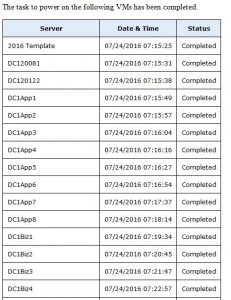
Now when the time you have scheduled the creation of the Hyper-V checkpoint comes, SnapShot Master will automate this. If you have email notifications setup within SnapShot Master, you will receive emails detailing when the job started and finalised.
To learn more about the features of SnapShot Master, click to Manage and Schedule your Hyper-V Checkpoints.
Mark Smith co-founded SmiKar Software in 2015 and has spent the past decade helping organisations solve Microsoft 365 data management challenges. He works with the SmiKar team to build solutions for SharePoint archiving, storage optimisation, governance and compliance, supporting customers from growing businesses through to Fortune 500 enterprises.
More about SmiKar