
Full Guide to Recovering Your SharePoint Data
There are two very different things people mean by "restoring an archived SharePoint site", and the right answer depends on which one you're dealing with:
-
The whole site was archived by Microsoft. You click into a SharePoint site and see the warning "The site is archived. A SharePoint administrator archived this site. If you need access, ask an admin to reactivate it." This is Microsoft's SharePoint Archive feature. The fix is to reactivate the site from the SharePoint admin centre - see the reactivation steps below.
-
Files inside the site were archived by Squirrel. The site is live but documents have been moved to Azure Blob Storage and replaced with stub files. The fix is to restore the files (one at a time, a folder at a time, or the whole site) from the Squirrel dashboard - see the restore guide below.
This guide covers both.
Reactivating a SharePoint Site Archived by Microsoft
If you're seeing the warning "A SharePoint administrator archived this site. If you need access, ask an admin to reactivate it", the site was archived through Microsoft's built-in SharePoint Archive feature. Only a SharePoint admin (with the right permissions) can bring it back.
Steps to reactivate
- Open the Microsoft 365 admin centre and go to SharePoint admin centre → Sites → Archived sites.
- Find the site in the list. If the site was archived recently it appears in the Archived view; older sites may be in Deleted sites.
- Select the site and click Reactivate.
- The site returns to the active state. Existing permissions, content, and document libraries are intact - nothing was deleted, the site was just made inaccessible.
What if Reactivate isn't available?
- Reactivation costs may apply depending on how long the site has been archived and the SharePoint Archive billing model on your tenant.
- Microsoft 365 Archive is a separate paid service that includes its own reactivation pricing. If you reactivate a site outside the included period, your tenant will be billed Microsoft's published rate.
- If the site has been deleted (rather than archived), you have 93 days to restore it from the SharePoint admin centre's Deleted sites view before it's permanently removed.
If you don't have SharePoint admin rights, contact someone who does - only a global admin or SharePoint admin can perform the reactivation.
A file-level alternative that avoids the lock-out
Microsoft's SharePoint Archive works at the whole-site level: the entire site goes offline, only an admin can bring it back, and reactivation can carry a charge depending on how long it has been archived. For a site people still occasionally need, that is disruptive.
Squirrel takes a different approach. It archives inactive documents at the file level and leaves a stub in place, so the site stays live. Users restore what they need themselves in a single click from inside SharePoint - no admin ticket, no reactivation step - and archived data lives in your own Azure Blob Storage, under your control. Nobody hits the "ask an admin to reactivate it" wall.
See how the two approaches compare in Squirrel vs Microsoft 365 Archive, or talk to us about Squirrel.
How to Restore Files Archived by Squirrel
The remainder of this guide is for the second scenario - files inside a SharePoint site that have been archived by Squirrel to Azure Blob Storage and replaced with stub files. You'll see stubs in the document library with the original file name plus .html.
How to Restore All Files from Archive in a SharePoint Online Site with Squirrel
Restoring an entire SharePoint Online site from Squirrel is a simple and efficient process that ensures all previously archived files are returned to their original location within SharePoint. This functionality is particularly useful when a site requires full access to archived content, whether for compliance, business needs, or reactivation of an old project.
Important Note: This process will restore only the files that were archived in the selected SharePoint site. Any files that were not archived will remain untouched. For this example, we will be restoring all files in the Engineer site, which was previously archived in our earlier blog post.
Why Restore an Archived SharePoint Site?
There are several reasons why you might need to restore an entire site’s archived files:
- Business Needs – If a project is reactivated or a department needs historical data, restoring all files ensures they have everything they need.
- Compliance & Legal Requirements – Some industries require companies to retain and restore archived documents for audits and regulatory compliance.
- Collaboration & Access – If users need to work on a previously archived site, restoring the files provides immediate access to original content.
- Accidental Archiving or Policy Changes – If a site was archived in error or business policies change, restoring files allows for a seamless rollback.
Regardless of the reason, Squirrel makes the restoration process straightforward while maintaining data integrity.
Access the Squirrel Dashboard
To begin the restoration process, follow these steps:
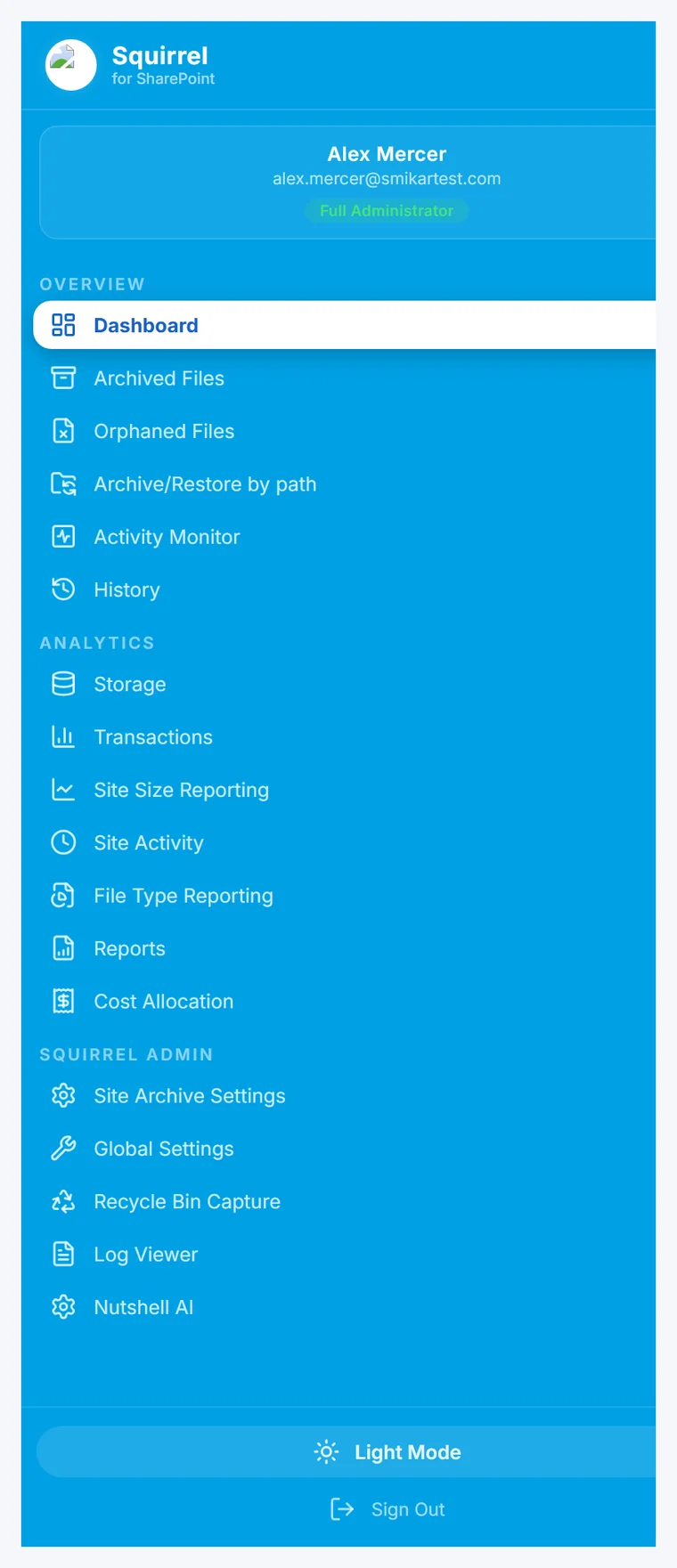
Log into your Squirrel web portal then navigate to the Site Archive Settings section of the dashboard.
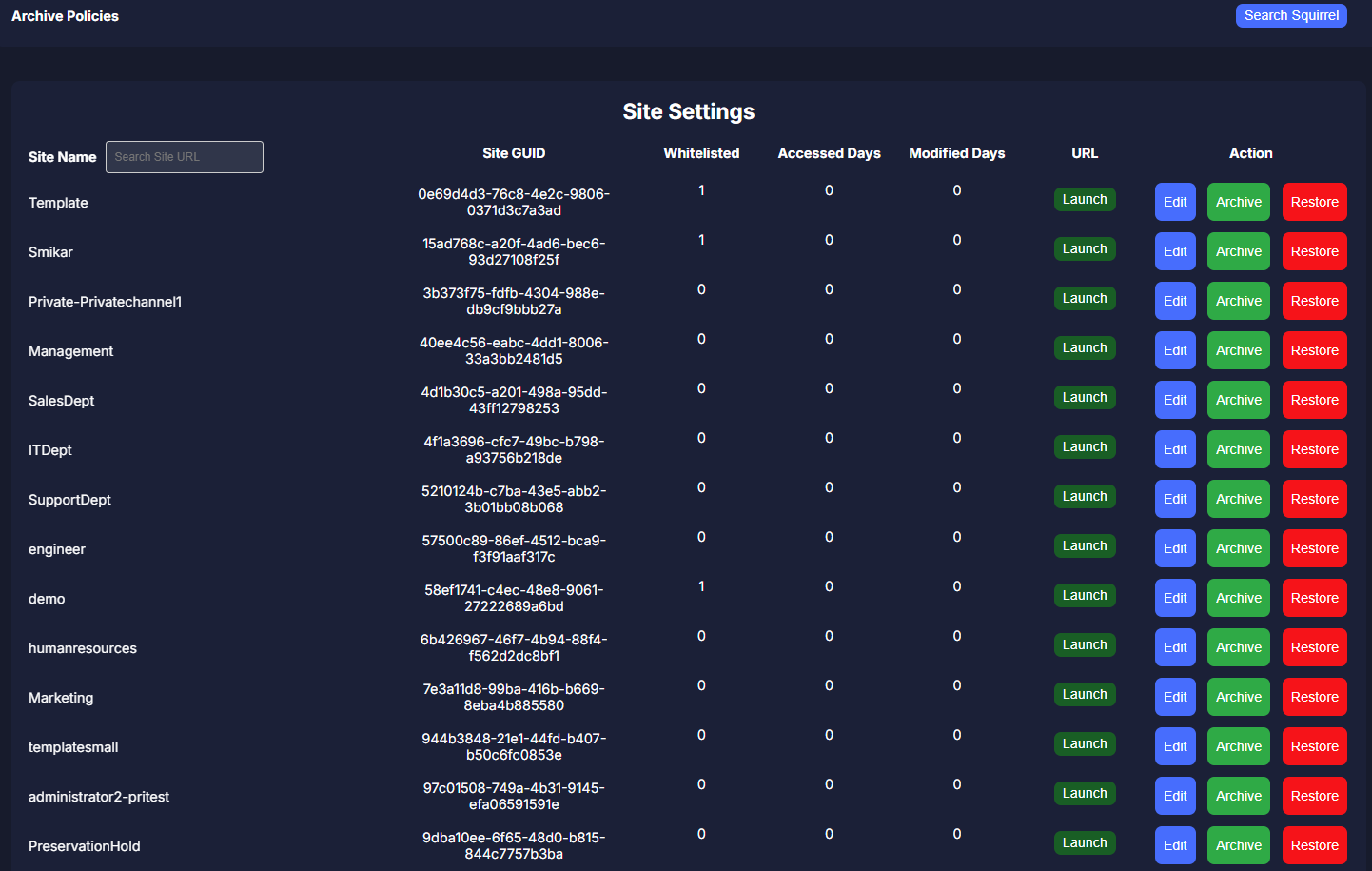
This section provides an overview of all the SharePoint Sites in your environment, as well as the ability to whitelist a site from a global archive policy, implement the sites own archive policy. But also gives the administrator the ability to either Archive or Restore a complete site..
The dashboard ensures that administrators can quickly find the site they need to restore without navigating through complex menus.
Select the SharePoint Site for Restoration
Locate the Engineer site in the list of archived sites then click on the Restore button to proceed.
Confirm the Restoration Process
Before proceeding with the full restore, Squirrel review the information carefully.
Click Confirm Restore to initiate the process.
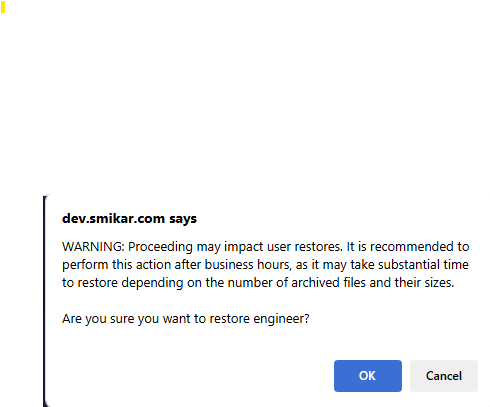
A warning prompt will appear, notifying that the restore process may take time and could impact user access. It is recommended to perform restores outside of business hours.
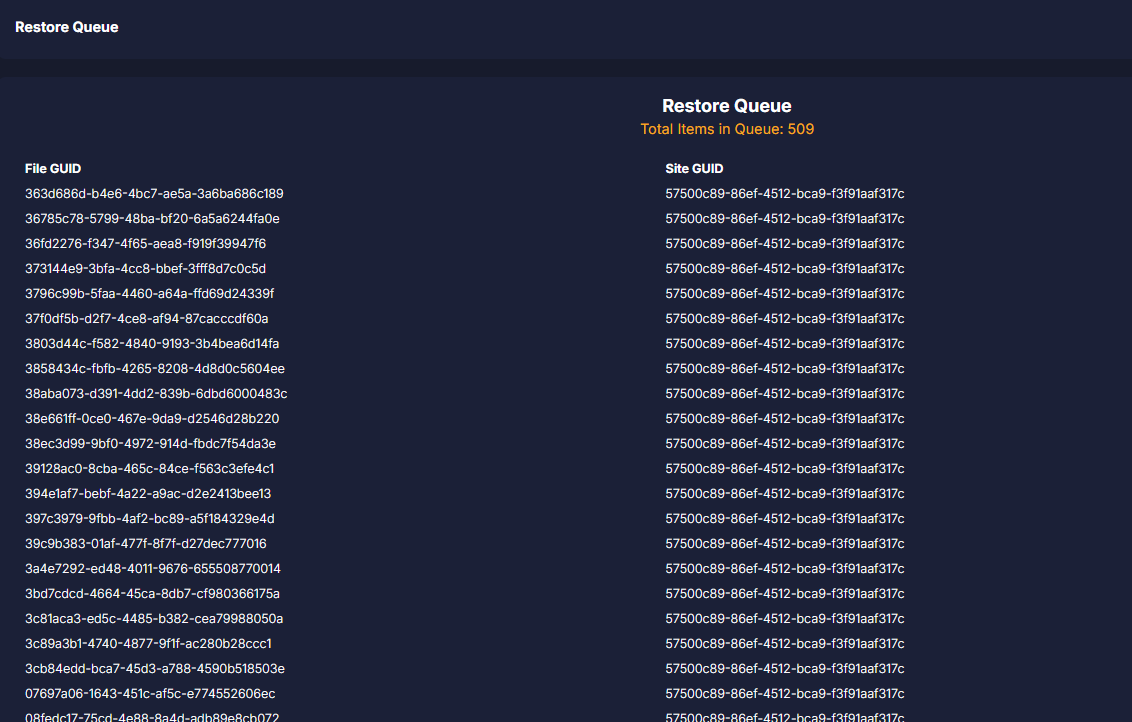
Once confirmed, the site restoration will begin, and you will be redirected to the Restore Queue for progress tracking.
Monitor the Restore Progress
The Restore Queue displays the current status of all active restores.
Navigate to the Restore Jobs section to check the details of the restoration process.
Squirrel provides real-time updates, showing progress bars for large restores.
Depending on the site’s size, restoration may take a few minutes to several hours.
Squirrel ensures that even during large-scale restorations, users can track the progress and plan accordingly.
Verify the Restored Files
Once the restoration process is complete, it’s important to verify that all files have been properly restored:
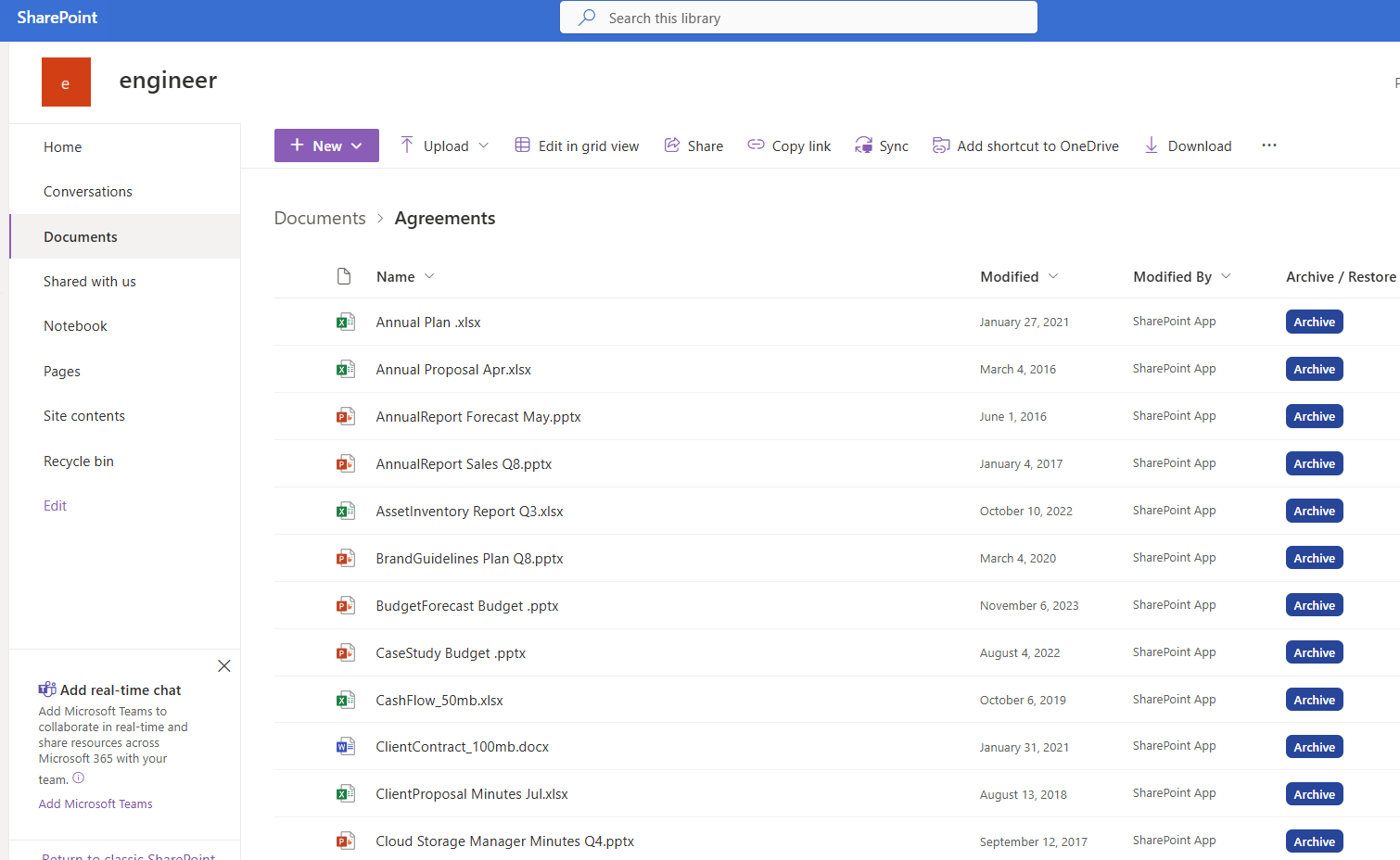
Open SharePoint Online and navigate to the Engineer site.
Access the document library to confirm that the previously archived files have been restored to their original locations.
Check file metadata such as last modified date and version history to ensure integrity.
At this stage, users should be able to access all files as they were before archiving
Restoring Individual Files vs Restoring an Entire Site
Squirrel supports three restore approaches depending on what you need.
Restoring individual documents
When a user needs a specific archived document, they can restore it themselves directly from within SharePoint by clicking the stub file in the document library. The document rehydrates from Azure Blob Storage and is back in SharePoint within seconds. No IT involvement is required and no administrator action is needed.
This is the most common restore scenario and the one that keeps your helpdesk from being flooded with restore requests.
Restoring an entire SharePoint site
When a project site needs to be fully reactivated - for a compliance audit, a legal matter, or a project that has resumed - administrators can restore all archived files from a site in a single action from the Squirrel dashboard. The restore process returns all previously archived files to their original locations within SharePoint with full metadata and version history intact.
Restoring a folder and all its contents
If you need to restore a specific folder and everything inside it - rather than individual files or an entire site - Squirrel supports folder-level restore directly from the dashboard. Administrators can select a specific folder from an archived site and restore all files within it in a single action. Every file returns to its original location within the folder structure, with full metadata, version history, and permissions intact.
This is particularly useful when a specific project folder or department library needs to be reactivated without restoring the entire site.
What Is Preserved When You Restore Archived SharePoint Files
One of the most common concerns when restoring archived content is whether the files come back exactly as they were. With Squirrel every restored document retains its original file name and location, full version history, metadata including creation date, modified date, and author, SharePoint permissions and access controls, and document classification labels.
Nothing is lost through the archiving and restore cycle. The document returns to SharePoint exactly as it was before it was archived.
FAQ
Q: How do users restore archived SharePoint files?
A: Users click the stub file left in the original SharePoint location. The file rehydrates from Azure Blob Storage and is available in SharePoint within seconds. No IT ticket is required and no administrator action is needed.
Q: How long does it take to restore an archived SharePoint file?
A: Individual file restores typically complete within seconds. Restoring an entire SharePoint site with a large volume of archived files may take longer depending on the total data volume - Squirrel provides progress updates in the dashboard throughout the process.
Q: Are restored files identical to the originals?
A: Yes. Squirrel preserves the original file name, location, metadata, version history, permissions, and classification labels through the archiving process. Restored files are identical to the originals in every respect.
Q: Can end users restore archived files without IT involvement?
A: Yes. Squirrel’s self-service restore feature allows end users to restore their own archived documents directly from within SharePoint by clicking the stub file. This eliminates helpdesk tickets for restore requests and gives users immediate access to their archived content.
Q: What happens to the stub file after a document is restored?
A: Once a document is fully restored to SharePoint, the stub file is replaced by the full document. The document appears in SharePoint exactly as it did before archiving. If the document is archived again in the future, a new stub file is created.
Q: Can you restore a single file from an archived SharePoint site without restoring the whole site?
A: Yes. Squirrel supports granular restore at the individual file level. Administrators can search for and restore specific files from an archived site without triggering a full site restore. This is useful for responding to specific legal or compliance requests without disrupting the archive.
Conclusion
Restoring archived files from Squirrel is an easy and efficient way to bring back data when needed. Whether for compliance, business continuity, or user access, the step-by-step process ensures that all previously archived files in a SharePoint Online site can be restored seamlessly while maintaining SharePoint’s structure.
Key Takeaways:
- Selective Restoration – Only previously archived files are restored, ensuring no unnecessary changes.
- Fast & Reliable – The restore process is efficient, even for large SharePoint sites.
- Seamless User Experience – Files are returned to their original location with no manual intervention needed.
- Complete Control – Administrators can monitor the progress and verify restoration integrity.
With Squirrel, the SharePoint archiving solution that archives into your own Azure storage, your SharePoint archiving and restoration processes remain secure, efficient, and hassle-free - restores are immediate, self-service, and carry no restore fee from Squirrel.
Related guides
- SharePoint Online pricing and licensing - what the storage actually costs per GB and per TB once the pooled allowance runs out.
- SharePoint Storage Limit Warning - fix it without overage charges
- How to reduce SharePoint Preservation Hold Library storage costs
- How to archive a complete SharePoint Online site
- SharePoint archiving alternatives - if the reactivation fee and the 120-day lockout are the problem, these are the alternatives to native SharePoint archiving.
- Squirrel data rehydration - the full restore flow
- Departed Microsoft 365 users - archive their data with Chipmunk
If You Got Here From the Lock-Out Message, That Is the Trade-Off
Most people reading this arrived because a site went dark without warning and someone had to ask an admin to bring it back. That is not a fault, it is how site-level archiving works: the unit is the whole site, so archiving it removes access for everyone in it at once.
The costs of that model are worth knowing before you archive the next site:
- Users cannot help themselves. Reactivation needs a SharePoint admin, so every archived site your users still need becomes a ticket.
- Bringing it back is billed. Microsoft applies a one-off reactivation fee of $0.60 per GB when an archived site is returned to active use.
- You cannot immediately undo the decision. A 120-day lockout prevents re-archiving a site after reactivation, so a site reactivated for one file stays on full-price storage for four months.
File-level archiving avoids the lock-out by changing the unit. Squirrel moves inactive documents to Azure Blob Storage in your own subscription and leaves a stub in place of each one, so the site stays live, the files stay visible in the library where they always were, and a user who needs one restores it themselves without raising a ticket. Nothing goes dark, and there is no reactivation fee to bring content back.
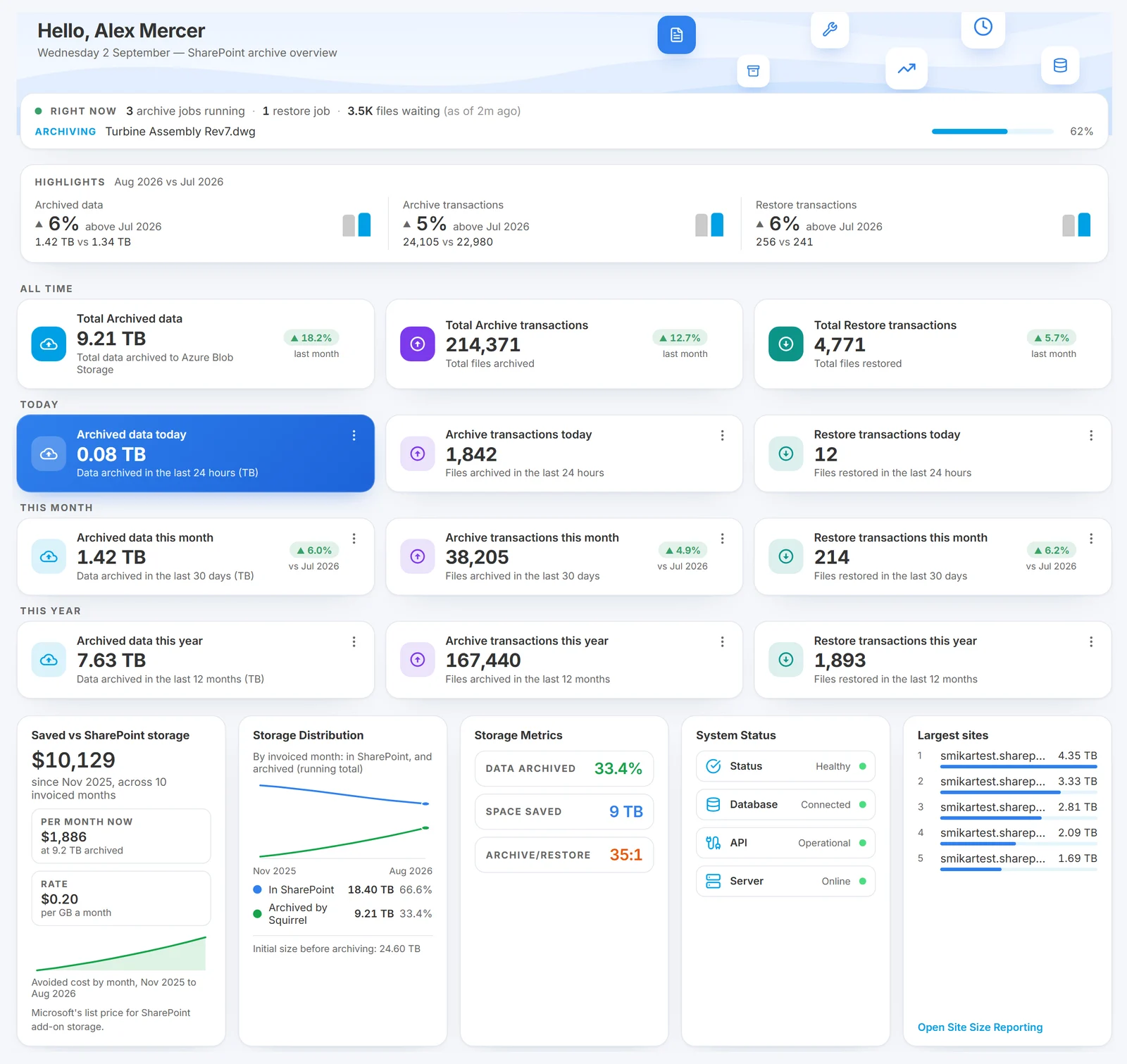
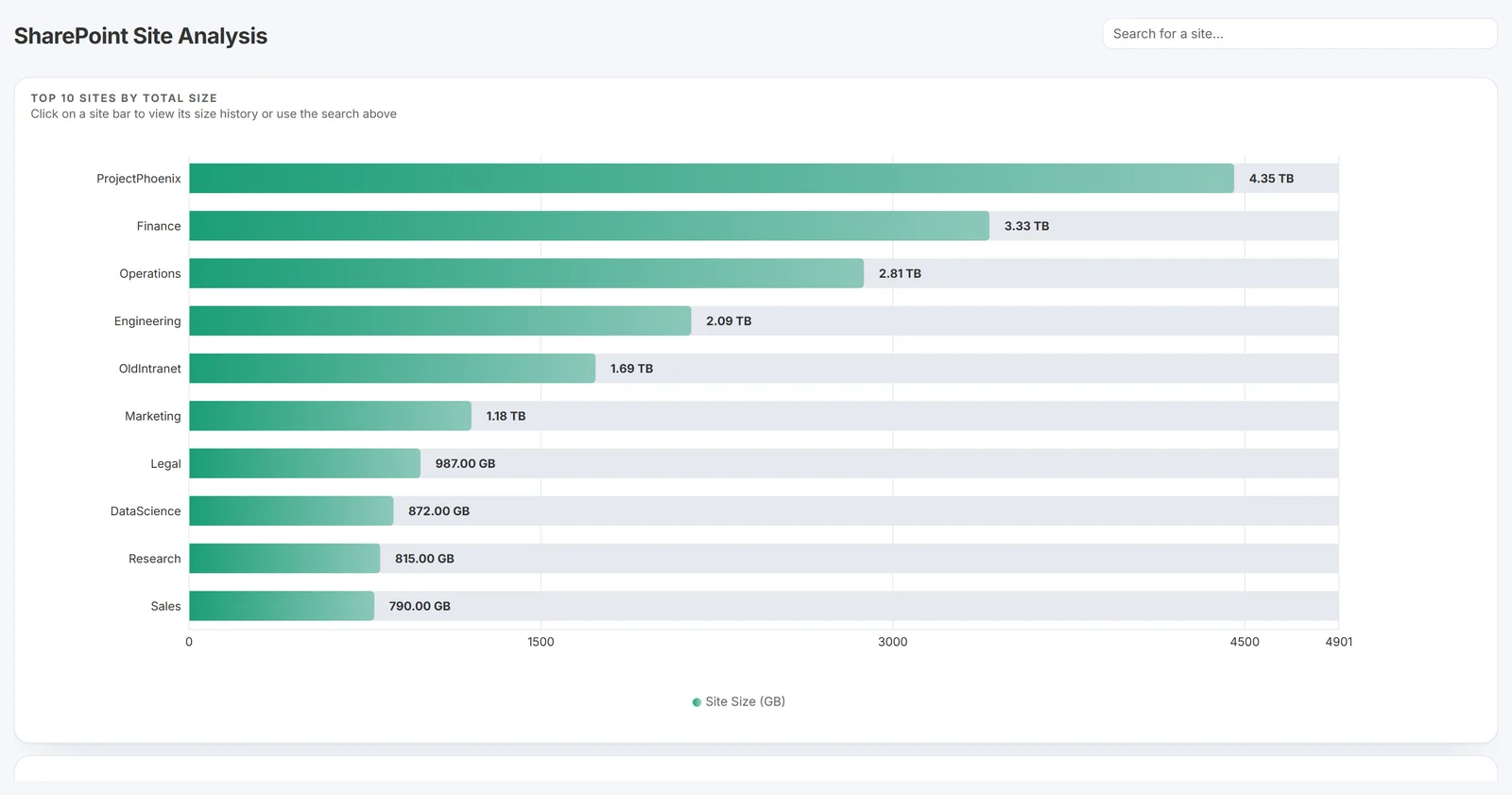
The Squirrel dashboard, where archiving runs on policy rather than per-site decisions.
The full comparison is in Squirrel vs Microsoft 365 Archive, and the storage-cost side in SharePoint archiving: the complete enterprise guide.
See how Squirrel archives SharePoint | Talk to us about your tenant
Mark Smith co-founded SmiKar Software in 2015 and has spent the past decade helping organisations solve Microsoft 365 data management challenges. He works with the SmiKar team to build solutions for SharePoint archiving, storage optimisation, governance and compliance, supporting customers from growing businesses through to Fortune 500 enterprises.
More about SmiKar