How to download from SharePoint
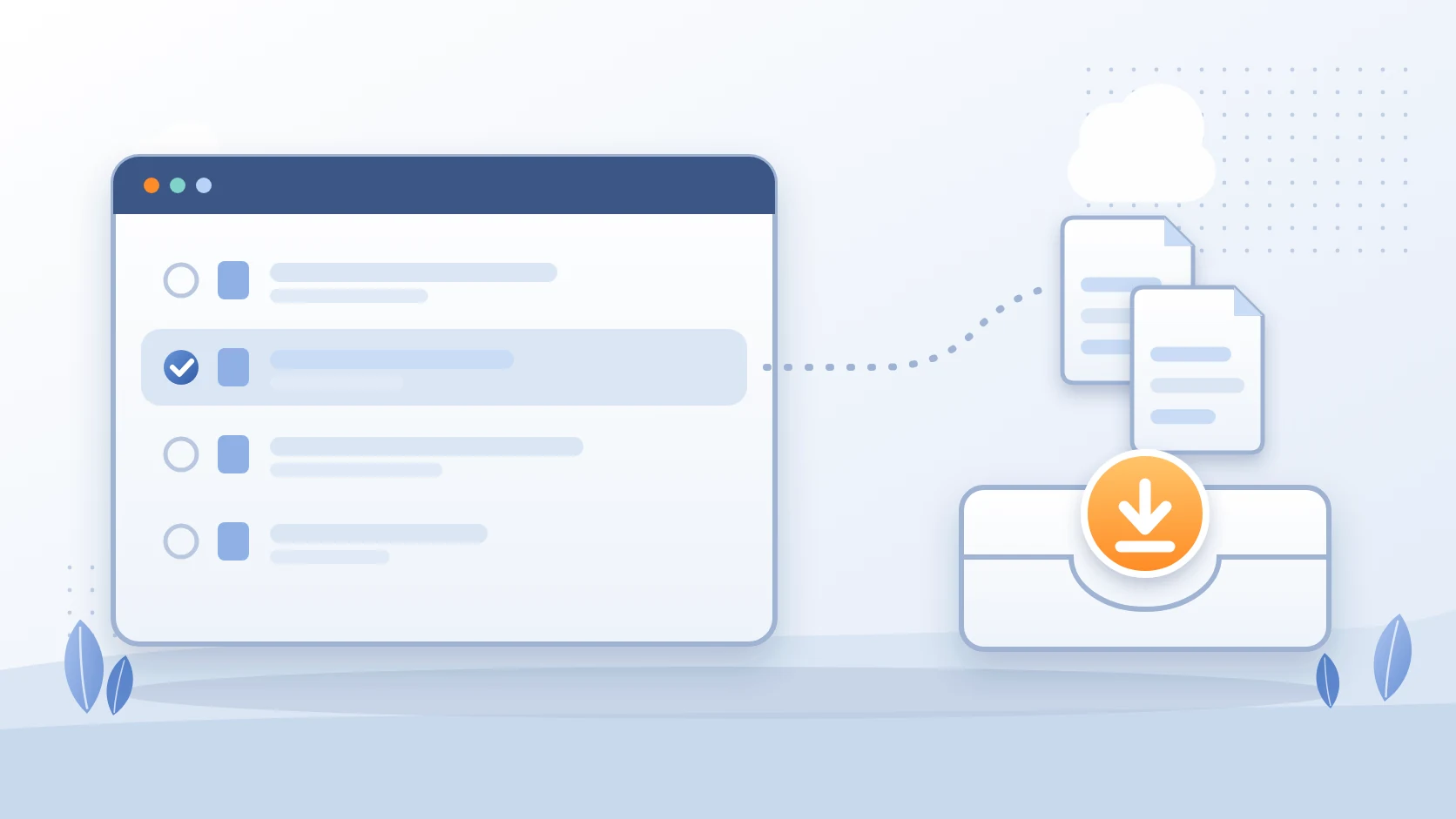
To download from SharePoint, open the document library, select the file or folder, and select Download in the top navigation or on the right-click menu. One file downloads as itself. Several files, or a folder, download as a single .zip file.
- Go to the SharePoint site and open the library that holds the file.
- Select the file or folder by clicking the circle check box that appears beside it.
- In the top navigation, select Download. You can also right-click the file or folder and select Download.
- If your browser prompts you, choose Save or Save As and pick a location. Some browsers start saving straight to the Downloads folder on your computer.
Microsoft's steps apply to SharePoint in Microsoft 365, SharePoint Server Subscription Edition and SharePoint Server 2019.
| What you select | What you get |
|---|---|
| One file | The file itself |
| Several files, or one or more folders | One .zip file containing everything you selected |
| Nothing, while you are inside a folder and Download is showing | Everything in that folder |
How to download a SharePoint folder or several files at once
Select more than one item and the Download button does the rest. Microsoft's description: "your browser will start downloading a .zip file containing all the files and folders you selected."
- Several files. Click the circle check box beside each one.
- A run of files. Select one file, scroll down the list, then hold the Shift key while you click the last item you want.
- Every file in a folder. Click the circle to the left of the header row, or press CTRL + A.
- A whole folder. Go up a level so the folder appears as a row, then select the folder itself. Microsoft notes that "you may need to go up or back a level to select the whole folder."
- The folder you are in. Microsoft's article says that selecting Download inside a folder, with nothing selected, downloads all contents of the folder. If Download is not showing, select the items first.
When the .zip arrives, open it on your computer and extract the files to use them.
SharePoint download limits
Microsoft's download article lists these limits:
| Limit | Value |
|---|---|
| File size | 250 GB |
| Total number of files | 10,000 |
| Folder size | 10,000 files |
| Several compressed files, such as .zip or .mp4 files | 10 GB per .zip file and 20 GB overall |
Three kinds of content behave differently:
- OneNote notebooks. Microsoft states: "You can't download OneNote notebooks." A folder that contains a notebook still downloads, and the .zip includes a .txt file with an error message in place of the notebook.
- Files encrypted by a sensitivity label or IRM. Encrypted files larger than 4 MB can be left out of a .zip download. Download those files one at a time.
- Very large downloads. Microsoft's limits page says that "uploading, downloading, or moving many files at once can take a long time." For a whole library, syncing is the better tool; see the section on large downloads below.
SharePoint Server
On SharePoint Server 2019, Microsoft states: "You can't download multiple files or folders from SharePoint Server 2019." Download files one at a time. For .zip downloads of a multiple selection, Microsoft's article names SharePoint Server Subscription Edition alongside SharePoint in Microsoft 365.
Why the Download button is missing in SharePoint
Work down this table. The first two rows are quick fixes for anyone; the rest are settings an owner or administrator has chosen.
| What you see | Cause | What to do |
|---|---|---|
| No Download in the top navigation | Nothing is selected. Microsoft: "The Download button will only appear when files or folders are selected." | Select the file or folder first |
| Download was there, then disappeared | The page was refreshed while you were looking at a folder | Go up one level and come back, or close the browser tab and open the folder again |
| A message at the top of the site: "Your organization doesn't allow you to download, print, or sync from this site" | The site has a block download policy, or your device is unmanaged and the organization limits it to web-only access | Use a managed work device, or ask your IT department |
| You opened a file from a link and can read it but not save it | The link was shared with Can't download | Ask the person who shared it for Can view access |
| Office documents open in the browser with no way to download them | Your permission level on the site is View Only | Ask a site owner for Read |
| A OneNote notebook will not download | Notebooks cannot be downloaded | Open the notebook in OneNote |
The sections below explain each setting, for the people who manage the site.
Unmanaged devices: limited, web-only access
An administrator can limit what people do from devices the organization does not manage. With Allow limited, web-only access, Microsoft says: "Users on unmanaged devices have browser-only access with no ability to download, print, or sync files. They also won't be able to access content through apps, including the Microsoft Office desktop apps." Files can still be previewed in the browser.
The setting is in the SharePoint admin center:
- Go to Access control in the SharePoint admin center.
- Select Unmanaged devices.
- Select Allow limited, web-only access, then select Save.
To apply it to one site instead, an administrator runs:
Set-SPOSite -Identity https://<SharePoint online URL>/sites/<name of site> -ConditionalAccessPolicy AllowLimitedAccess
The policy relies on Microsoft Entra Conditional Access, and the per-site command needs a Conditional Access policy with app-enforced restrictions created in the Microsoft Entra admin center first. A site-level setting must be at least as restrictive as the organization-level one. After reverting to Allow Full Access, Microsoft says it can take up to 24 hours for the change to take effect. One gap to know about: "Anyone" links are not affected by these policies, so a person with an "Anyone" link can still download the item.
The block download policy on a site
A SharePoint Administrator can block downloads from one site, with no Conditional Access policy involved:
Set-SPOSite -Identity https://contoso.sharepoint.com/sites/research -BlockDownloadPolicy $true
Users then "have browser-only access with no ability to download, print, or sync files", and they cannot open the content through apps, including the Microsoft 365 Apps such as Word, Excel and PowerPoint. The policy also prevents users from moving files to other SharePoint sites. It is part of SharePoint Advanced Management and is set site by site.
| Option | Parameter |
|---|---|
| Let site owners download | -ExcludeBlockDownloadPolicySiteOwners $true |
| Let members of specific groups download, by group ID | -ExcludedBlockDownloadGroupIds <comma separated group IDs> |
| Let members of specific SharePoint groups download, by name | -ExcludeBlockDownloadSharePointGroups <comma separated group names> |
| Make the site read-only as well | -ReadOnlyForBlockDownloadPolicy $true |
The policy can also be attached to a site sensitivity label, so every site with that label blocks downloads.
View Only permission
SharePoint's permission levels treat downloading differently. Microsoft's descriptions:
| Permission level | What Microsoft says it allows |
|---|---|
| Read | "View pages and items in existing lists and document libraries and download documents." |
| View Only | "View pages, items, and documents. Any document that has a server-side file handler can be viewed in the browser but not downloaded." |
View Only has a gap of its own: file types that cannot be opened in the browser, "such as video files and .png files, can still be downloaded." SharePoint permission levels covers every level.
"Can't download" sharing links
When someone shares a file or folder, they choose Can edit, Can view, Can't download or Can review. The two that matter here:
| Link permission | What it allows |
|---|---|
| Can view | "View and download files without changing them." |
| Can't download | "View without saving a local copy." |
To change it, select the file, select Share, and check File link settings in the sharing dialog. Can view is selected by default when access through a link is first allowed. A person keeps the highest permission they have through any source, so a "Can't download" link does not restrict someone who already has Read on the library.
When there is a lot to download
Sync the library. For a whole library, or a folder you will keep using, syncing is more reliable than a very large .zip. Open the library, select Documents or go to the subfolder you want, and select Sync. The files sync to a folder on your PC that has the name of your organization, and that folder is added to the left pane in File Explorer.
Use PowerShell. An administrator can script downloads. In PnP PowerShell, Get-PnPFile -Url "/sites/project/Shared Documents/Document.docx" retrieves the file and downloads it to the current folder. PnP PowerShell for SharePoint Online explains how to install the module and connect.
Downloading old files to free up SharePoint storage. Teams often download old project folders to a file share so they can delete them from SharePoint. The space comes back, but the files leave the library, along with their metadata and the search results people rely on. Archiving is the alternative: Squirrel archives files by last-modified age, site, library, folder or file type into your own Azure Blob Storage and leaves a stub in the library, so users can still find and open them.
Frequently asked questions
How do I download a folder from SharePoint?
Go up a level so the folder appears as a row in the library, click the circle check box beside it, and select Download. The browser downloads a .zip file containing the folder and everything in it.
How do I download multiple files from SharePoint at once?
Click the circle check box beside each file, or select one file and Shift-click the last one in the run, then select Download. SharePoint in Microsoft 365 puts them all in one .zip file.
Why is there no Download button in SharePoint?
The button appears only when a file or folder is selected, and it can disappear when a folder page is refreshed. If selecting an item does not bring it back, downloading has been restricted: by a block download policy on the site, an unmanaged device policy, a View Only permission level, or a link shared with Can't download.
Is there a size limit for downloading from SharePoint?
Microsoft lists a 250 GB file size limit, a total number of files limit of 10,000 and a folder size limit of 10,000 files. When several compressed files such as .zip or .mp4 files are downloaded together, the limit is 10 GB per .zip file and 20 GB overall.
Can I download an entire SharePoint document library?
Select everything with the circle to the left of the header row, or CTRL + A, and select Download, within the 10,000-file limit. For a large library, use the Sync button instead.
Where do files downloaded from SharePoint go?
To the location you choose if your browser asks, or to the Downloads folder on your computer if the browser saves without asking.
How do I stop people downloading files from a SharePoint site?
A SharePoint Administrator can run Set-SPOSite -Identity <SiteURL> -BlockDownloadPolicy $true for the site, or limit unmanaged devices to web-only access under Access control in the SharePoint admin center. For one file or folder, share it with Can't download.
Can I download a OneNote notebook from SharePoint?
Microsoft states that OneNote notebooks cannot be downloaded. A folder that contains one downloads as a .zip file with a .txt error message in place of the notebook.
Related reading
- SharePoint permission levels explained - Read, View Only and the other levels.
- SharePoint Advanced Management - the add-on that includes the block download policy.
- SharePoint external sharing - sharing settings for people outside the organization.
- SharePoint document library security - protecting the files in a library.
- Export a SharePoint list to Excel - getting list data out, as opposed to files.
- PnP PowerShell for SharePoint Online - scripting downloads with Get-PnPFile.
- SharePoint 'locked for shared use': check out, check in and fixes - when a file will not open for editing.
- SharePoint 'Access Denied' and 'You Need Permission': fixes - when the site itself will not open.
Mark Smith co-founded SmiKar Software in 2015 and has spent the past decade helping organisations solve Microsoft 365 data management challenges. He works with the SmiKar team to build solutions for SharePoint archiving, storage optimisation, governance and compliance, supporting customers from growing businesses through to Fortune 500 enterprises.
More about SmiKar