
Microsoft’s Countdown to Data Deletion
When someone leaves your organization, the first step IT usually takes is to disable their Microsoft 365 account. But have you ever stopped to ask:
“What happens to all their data — their files, emails, and chats — after that?”
The answer might surprise you.
If you’re not actively managing this, Microsoft will automatically delete that data — often in as little as 30 days.
This post explains exactly what gets deleted (and when), why this is a problem, and what you can do to protect that data — without paying for unnecessary licenses.
Microsoft’s Countdown to Data Deletion
Let’s start with a simple truth:
Disabling a user in Microsoft 365 doesn’t save their data forever.
Instead, Microsoft starts a ticking clock. Unless you take action, data begins disappearing — fast.
Here’s what typically happens:
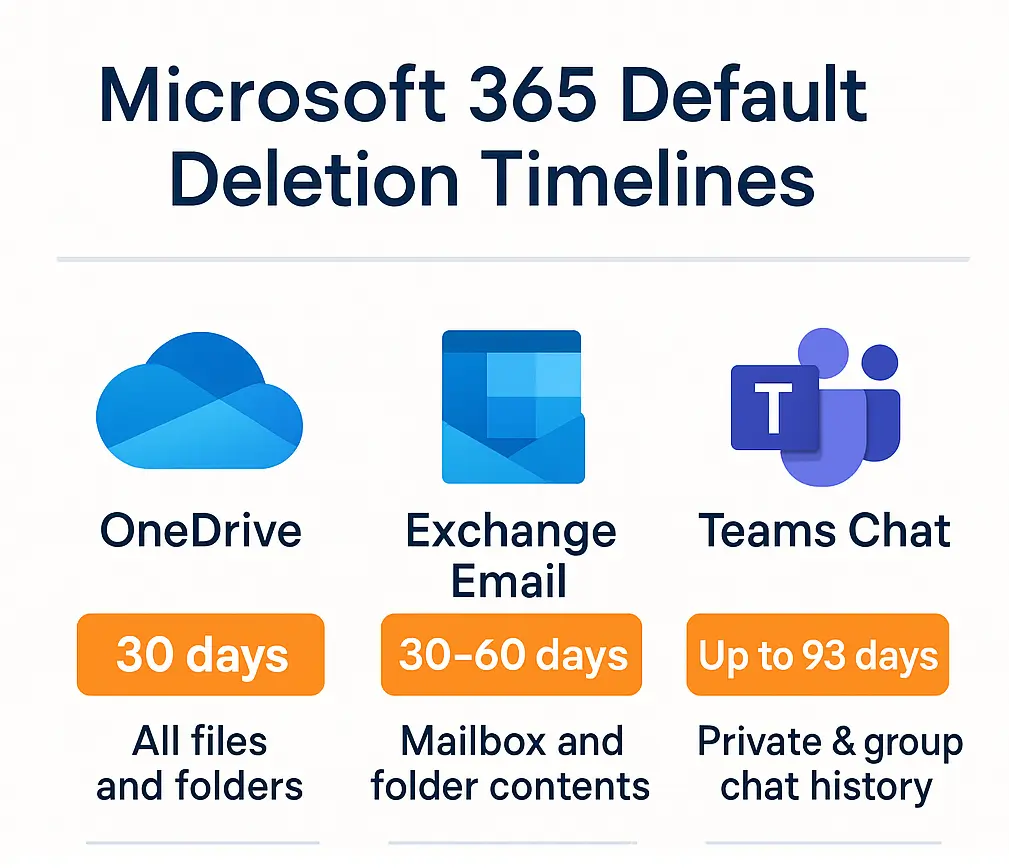
| Service | Default Retention | What’s Deleted | Can You Recover It? |
|---|---|---|---|
| OneDrive | 30 days | All files and folders | Maybe, but not always |
| Exchange | 30–60 days | Mailbox content | Sometimes |
| Teams Chat | Up to 93 days | All chat history and attachments | Usually not |
So if an employee leaves on January 1st, by April their Teams messages, OneDrive files, and mailbox may be completely gone.
Why This Matters — And Who Should Care
Most people assume Microsoft keeps this data for legal or security reasons. But that’s not how it works.
Microsoft isn’t your backup provider. Its job is to deliver service, not long-term data retention.
This creates big risks for:
-
IT teams, who might need to retrieve a user’s files later
-
Legal and compliance officers, who must retain emails and chat records
-
HR and management, who need access to handover materials, customer comms, etc.
And unless you assign a license to the user’s account forever, that data is eventually lost.
A Real-World Scenario
Let’s say you’re offboarding an employee named Sarah. She’s been with the company for 5 years.
She has:
-
200 GB of OneDrive files
-
50,000 emails in Exchange
-
Years of chats with project teams in Microsoft Teams
You disable her Microsoft 365 account. Now what?
-
30 days later, her OneDrive starts purging
-
60 days later, her mailbox may be gone
-
By day 93, her Teams chat history is unrecoverable
Now legal asks for chat logs from a project she was on 6 months ago… and it’s too late.
Can’t I Just Use Microsoft Retention Policies?
Yes — but it’s not as easy as it sounds.
You’d need to:
-
Set up custom retention policies in Microsoft Purview
-
Create inactive mailboxes (which still require licenses)
-
Use PowerShell scripts to export OneDrive manually
-
Deal with Teams data that isn’t easily exportable
And even then, you’re not guaranteed to retain everything — especially chat data.
It’s complex, time-consuming, and risky.
The Simpler Option: Use Chipmunk
Chipmunk is a tool built specifically to solve this exact problem.
It watches for when you disable a user and automatically backs up their:
-
OneDrive files and folder structure
-
Exchange emails
-
Teams chats (including private and group chats)
All the data is stored in your own Azure Blob Storage, so:
-
You own the data
-
You don’t need to keep paying Microsoft licenses
-
You can access it anytime — for audits, legal cases, or handovers
No scripts. No licenses. No data loss.
How It Works — In Plain English
Here’s how Chipmunk fits into your offboarding process:
- User is disabled in Microsoft Entra ID (formerly Azure AD)
- Chipmunk detects it automatically
- It downloads all key data — OneDrive, Email, and Teams
- It uploads the data into organized folders in your Azure storage
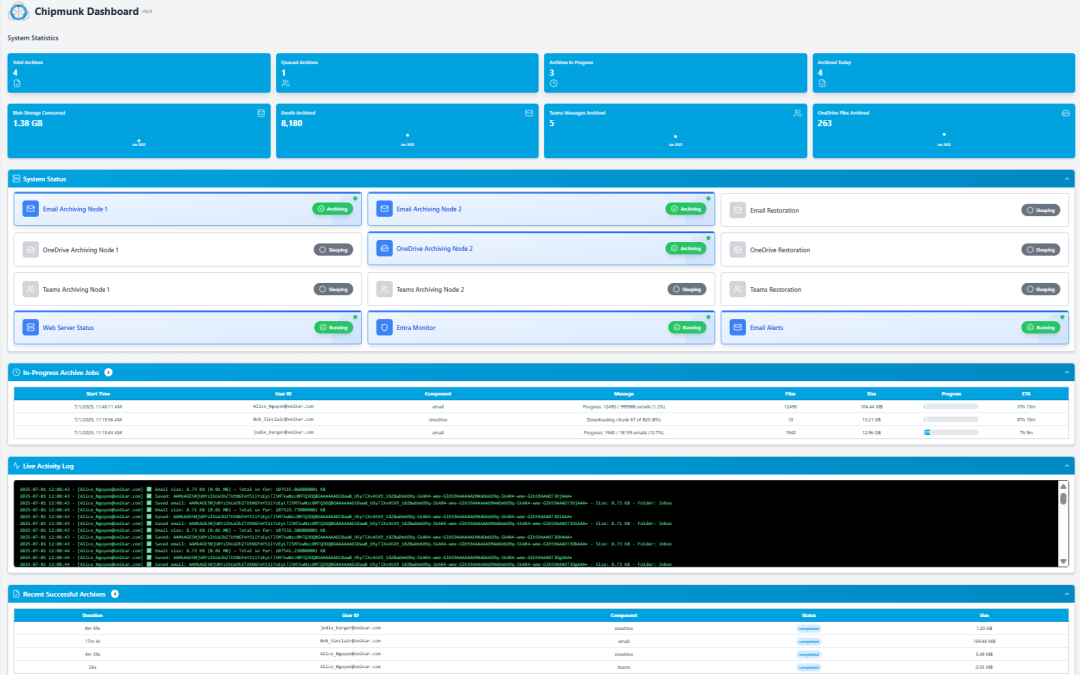
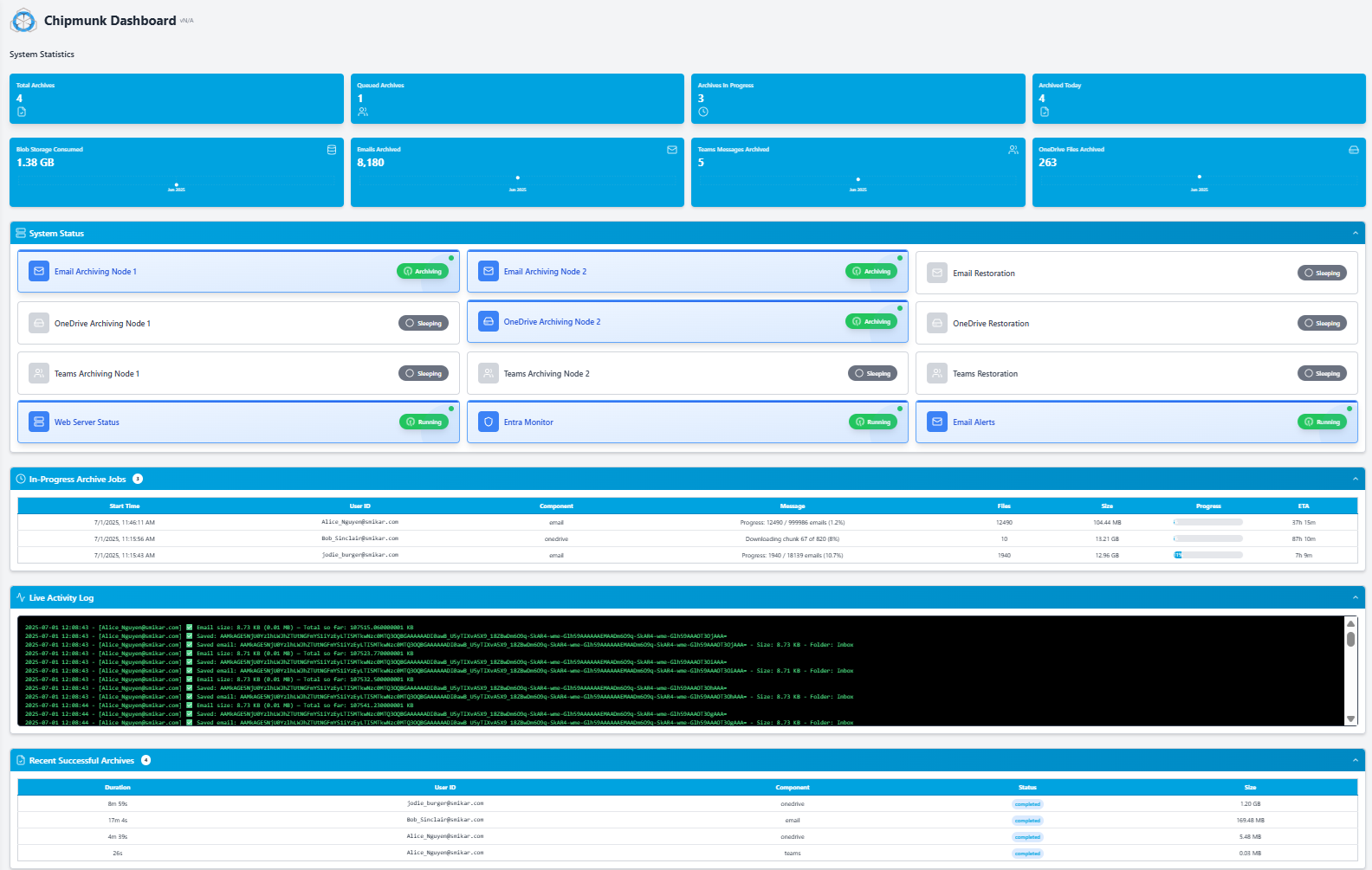
- It updates your central dashboard with status and logs
- It emails you the results of the archive activity for each user.
- You don’t have to remember to do anything. It just works in the background.
Bonus: Save on Microsoft Licenses
Did you know keeping a disabled user’s data often requires a paid Microsoft 365 license?
That could mean paying $20–$40/month per user just to retain inactive data.
With Chipmunk, you can archive it once — and delete the user safely.
For companies with hundreds of staff turnover each year, that’s tens of thousands in savings.
Compliant. Secure. Yours.
Chipmunk is built for:
-
Data compliance (GDPR, ISO, HIPAA-ready)
-
Cost reduction (free up licenses without losing data)
-
IT simplicity (no need to learn Microsoft Purview or eDiscovery)
And because all archived data is stored in your own Azure tenant, you stay in control at all times.
TL;DR
| What Happens by Default | What Chipmunk Does |
|---|---|
| Microsoft deletes data after 30–93 days | Chipmunk backs it up automatically |
| You must set complex retention rules | No configuration needed |
| Teams chat is hard to retain | Chipmunk grabs it for you |
| Ongoing license may be required | Chipmunk lets you delete users safely |
| Risk of permanent data loss | Permanent backup in Azure |
Ready to Never Lose Ex-Employee Data Again?
Don’t wait for day 93.
If you want peace of mind, predictable offboarding, and full control of your M365 user data — Chipmunk can help.
The Four Options Enterprises Have — and Which One Actually Works
When an employee leaves, most organisations fall into one of four approaches to handling their Microsoft 365 data.
Option 1 — Keep the licence active
Keeping the Microsoft 365 licence active after the employee leaves preserves all their data indefinitely. The problem is cost. At $36 per user per month for Microsoft 365 E3, retaining 100 departed users on active licences costs $43,200 per year — for accounts that nobody is using.
Option 2 — Apply a Microsoft retention policy
Microsoft Purview retention policies can prevent data from being deleted after an account is disabled. This avoids the immediate deletion risk but still requires careful configuration, adds to your Microsoft Purview complexity, and does not necessarily allow you to remove the licence.
Option 3 — Manually export and save the data
IT teams can manually export OneDrive files, Exchange mailboxes, and Teams data before an account is disabled. The problem is scale and consistency. For enterprises processing dozens of departures per year, manual export is time consuming, error prone, and relies on IT remembering to do it before the account is disabled.
Option 4 — Automated archiving with Chipmunk
Chipmunk monitors your Microsoft Entra ID continuously. The moment an account is disabled, Chipmunk automatically captures OneDrive, Exchange Online, and Teams data and writes it to your own Azure Blob Storage account. Your IT team receives a confirmation notification and can remove the licence immediately. No manual work, no risk of data loss, no ongoing licence costs.
Why Getting This Wrong Is More Expensive Than It Looks
The financial risk of unmanaged departed user data goes beyond the licence cost. Consider these scenarios:
A former employee was the only person who worked on a key client contract. Six months after they left, a dispute arises and legal needs the email correspondence. If the data was not archived before the 30 day deletion window closed, it is gone permanently.
A financial services organisation is audited and asked to produce all communications from a specific employee over a two year period. If those Exchange mailboxes were not retained after the employee left, the organisation cannot comply — and faces regulatory consequences.
An HR team needs to review a former employee’s files as part of a tribunal proceeding. If OneDrive data was deleted after the 93 day window, the files cannot be recovered.
Chipmunk prevents all three scenarios by archiving data automatically the moment the departure is detected — before any of these risks materialise.
Frequently Asked Questions About Departed Microsoft 365 Users
Q: How long does Microsoft keep OneDrive data after an employee leaves? A: Microsoft retains OneDrive data for 93 days after an account is disabled before permanently deleting it. During this period an administrator can restore the data. After 93 days it cannot be recovered.
Q: What happens to Exchange Online emails when an employee leaves? A: If no licence or retention policy is in place, the Exchange Online mailbox is typically deleted 30 days after the account is disabled. The mailbox can be converted to a shared mailbox to retain it without a licence, but this still requires manual action and management.
Q: What happens to Microsoft Teams data when an employee leaves? A: Teams channels the departed user participated in remain accessible to other team members. However, private chats and files stored in the departed user’s personal OneDrive are subject to the standard deletion timelines. Chipmunk captures Teams chat history and associated files as part of the automated archiving workflow.
Q: Can I recover Microsoft 365 data after the deletion window closes? A: No. Once Microsoft’s retention window closes and data is permanently deleted, it cannot be recovered. This is why it is critical to archive departed user data before disabling the account or as soon as possible after.
Q: Do I need to keep a Microsoft 365 licence active to retain a departed employee’s data? A: No — if you archive the data first. Chipmunk archives OneDrive, Exchange Online, and Teams data to your own Azure Blob Storage account before the licence is removed. Once archiving is confirmed complete the licence can be safely removed with no risk of data loss.
Q: What is the cheapest way to retain departed employee data long term? A: Archiving to Azure Blob Storage is significantly cheaper than maintaining active Microsoft 365 licences. Azure Blob Cool tier costs approximately $0.01 per GB per month. For a departed employee with 10 GB of data across OneDrive, Exchange, and Teams, the annual retention cost in Azure Blob Storage is approximately $1.20 — compared to $432 per year for a Microsoft 365 E3 licence.