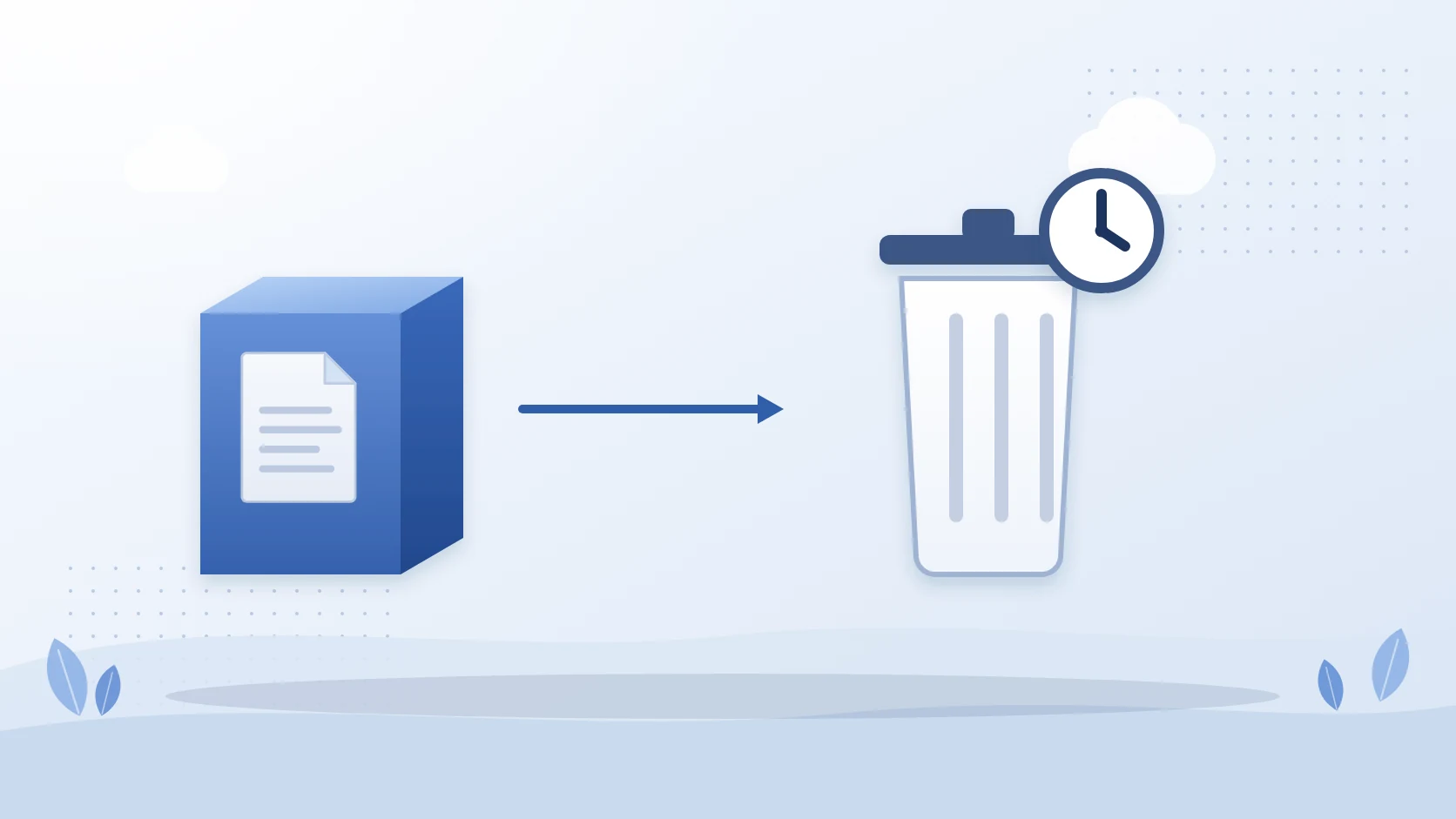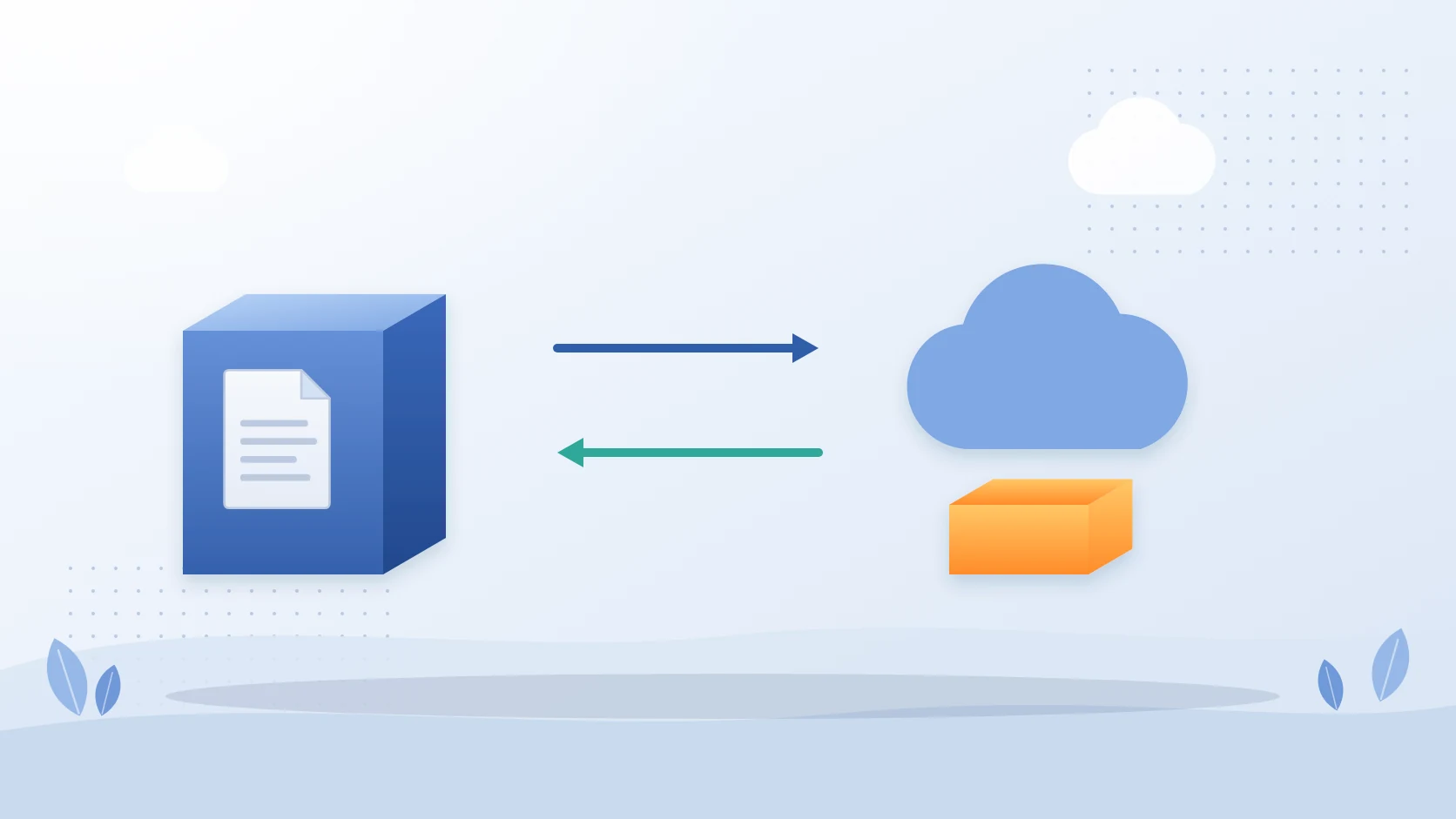
SharePoint site lock states
A SharePoint Administrator sets a site's lock state with PowerShell: Set-SPOSite -Identity <SiteURL> -LockState <State>, where the state is Unlock, ReadOnly or NoAccess. ReadOnly stops users adding, updating or deleting content, and a message on the site says it is under maintenance and read-only. NoAccess stops anyone opening the site and either redirects them to a URL you choose or shows a 403 error. Unlock makes the site available again.
This page covers what each state does, how to check and change it, the other reasons a site can be read-only, why an unlock command sometimes does not work, and how to lock a site without losing the chance to archive what is in it.
What each lock state does
| State | What users get |
|---|---|
| Unlock | The site is available to users. |
| ReadOnly | Users cannot add, update or delete content. A message appears on the site stating that it is under maintenance and read-only. |
| NoAccess | Users cannot open the site or its content. If you set a NoAccessRedirectUrl for the organization, they are redirected to it. Otherwise they see a 403 error. |
Administrators lock a site to freeze its content during a review or a migration, or before the site is archived or deleted. You cannot set the lock state on the root site.
Check a site's lock state
Get-SPOSite -Identity https://contoso.sharepoint.com/sites/finance | Select Url, LockState
Get-SPOSite -Limit All | Where-Object { $_.LockState -ne "Unlock" } | Select Url, LockState
The first command shows one site. The second lists every site in the tenant that is not fully unlocked, which is the quickest way to find sites that were locked and forgotten.
Lock or unlock a site
You need the permissions of a SharePoint Administrator or higher in Microsoft 365.
- Install the SharePoint Online Management Shell, or the module from the PowerShell Gallery.
- Connect to SharePoint as a SharePoint Administrator.
- Run the command with the state you want:
Set-SPOSite -Identity https://contoso.sharepoint.com/sites/finance -LockState ReadOnly
Set-SPOSite -Identity https://contoso.sharepoint.com/sites/finance -LockState NoAccess
Set-SPOSite -Identity https://contoso.sharepoint.com/sites/finance -LockState Unlock
To send people somewhere useful instead of a 403 error when a site is set to NoAccess, set the redirect once for the organization:
Set-SPOTenant -NoAccessRedirectUrl 'https://www.contoso.com'
Why a site can be read-only when you did not lock it
A site that opens but will not accept changes is not always in the ReadOnly lock state. Four things produce the same symptom, and each has its own fix:
| Cause | How to tell | Fix |
|---|---|---|
| An administrator set ReadOnly | LockState shows ReadOnly | Set-SPOSite -LockState Unlock |
| The site was closed by a site closure policy | The unlock command has no effect | Check for a closure policy on the site. Microsoft states that the PowerShell unlock command does not work for a site closed and made read-only through a site closure policy. |
| The whole tenant is over its storage quota | Every site and OneDrive is read-only at once | Free space or buy storage. SharePoint sites read-only because storage is full covers the messages and what to do first. |
| The site is archived | The page says a SharePoint Administrator archived the site | Reactivate it. How to restore an archived SharePoint site has the steps. |
Lock a site, then retire it
A read-only lock freezes a site without deciding what happens to it. When the aim is to retire the site, these are the routes:
- Delete it. The site goes to Deleted sites for 93 days and then is permanently deleted. How to delete a SharePoint site has the steps and the storage effect.
- Archive the whole site. Microsoft 365 Archive moves a site to a cold tier and can reactivate it later. How to archive a SharePoint site covers the steps, pricing and limits.
- Archive the inactive files and keep the site. Squirrel moves inactive files out of document libraries into Azure Blob Storage in your own subscription and leaves a stub with the original name, so the site stays in place and a user restores a file in one click. Squirrel writes a stub into the library for each archived file, and a read-only site does not accept writes, so archive first and lock afterward.
To see which sites hold the most data before you decide, the free SharePoint Storage Explorer reports storage by site, library and file.
Frequently asked questions
How do I make a SharePoint site read-only?
Connect to SharePoint Online PowerShell as a SharePoint Administrator and run Set-SPOSite -Identity <SiteURL> -LockState ReadOnly. Users can still open the site but cannot add, update or delete content.
How do I unlock a SharePoint site?
Run Set-SPOSite -Identity <SiteURL> -LockState Unlock. If nothing changes, check whether the site was closed through a site closure policy, or whether the whole tenant is locked because storage is full.
What does NoAccess show users?
If you set a NoAccessRedirectUrl for your organization, users are redirected to that URL. If you did not set one, they see a 403 error.
Who can change a site's lock state?
A SharePoint Administrator, or an administrator role above it, in Microsoft 365.
Can I lock the root site?
No. You cannot set the lock state on the root site.
Why is my SharePoint site read-only?
Four causes are common: an administrator set the ReadOnly lock state, a site closure policy closed the site, the tenant is over its storage quota, or the site has been archived. The table above shows how to tell them apart.
Does the unlock command work on a site closed by a policy?
No. Microsoft states that the PowerShell command to unlock a site does not work if the site was closed and made read-only through a site closure policy.
Related reading
- SharePoint sites read-only because storage is full - the tenant-wide lock, its messages and what to do first.
- How to restore or reactivate an archived SharePoint site - when the site is archived rather than locked.
- How to delete a SharePoint site - the Deleted sites list, the 93-day window and the storage effect.
- How to archive a SharePoint site - Microsoft 365 Archive steps, pricing and limits.
- SharePoint archiving: every option compared - what to do with the content in a site you are retiring.
Mark Smith co-founded SmiKar Software in 2015 and has spent the past decade helping organisations solve Microsoft 365 data management challenges. He works with the SmiKar team to build solutions for SharePoint archiving, storage optimisation, governance and compliance, supporting customers from growing businesses through to Fortune 500 enterprises.
More about SmiKar