The Limitations of Microsoft Teams
Microsoft Teams has emerged as a cornerstone of modern workplace collaboration, offering a suite of tools designed to streamline communication and project management. Despite its widespread adoption, it’s crucial to acknowledge that no platform is without its limitations. Understanding these constraints is essential for organizations to navigate potential roadblocks effectively and make informed decisions about their communication infrastructure.
Key Takeaway Table
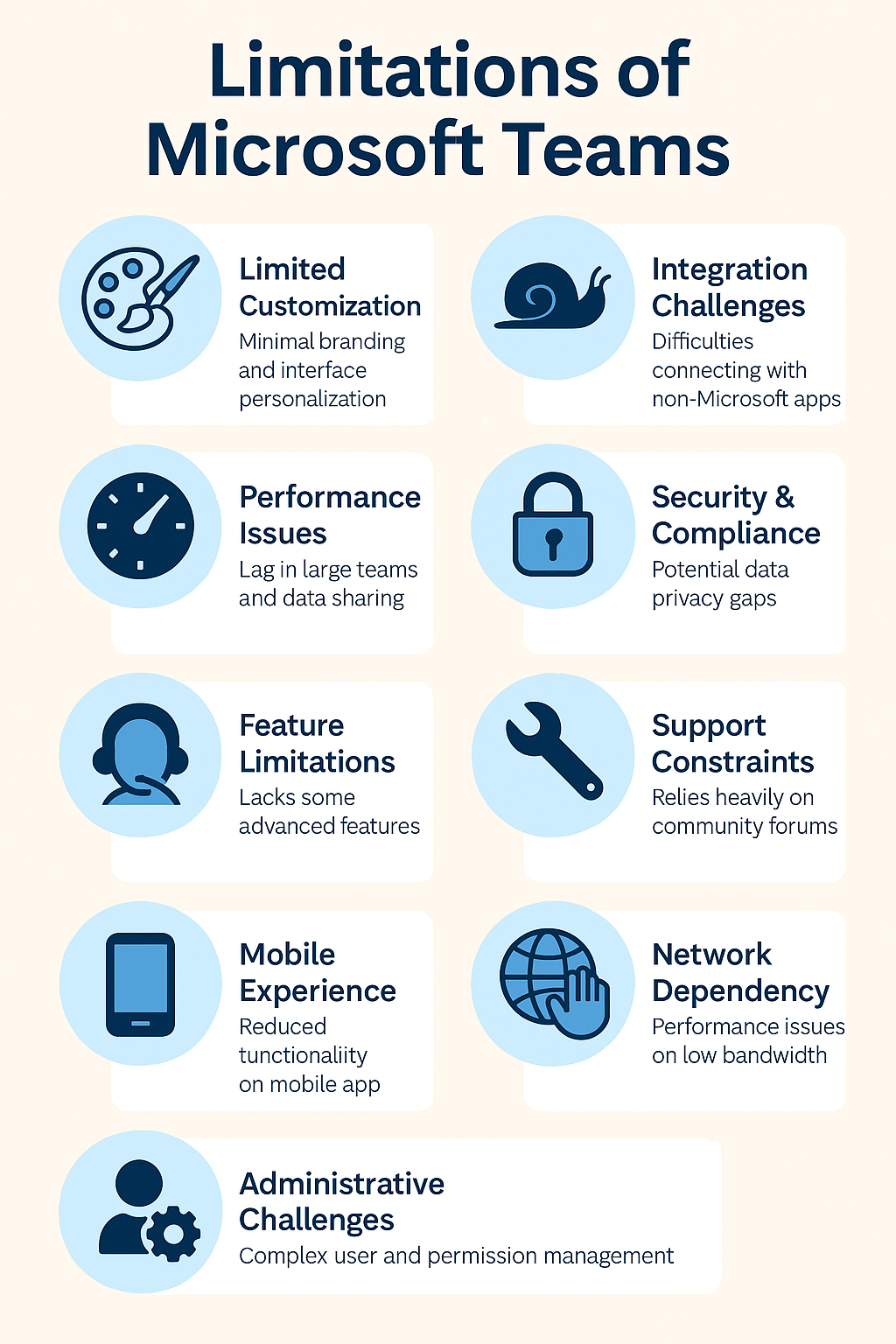
| Key Takeaways | Description |
|---|---|
| Customization Limits | Teams offers limited personalization, affecting brand identity integration. |
| Integration Challenges | Difficulty integrating non-Microsoft products can lead to workflow disruptions. |
| Performance Issues | May experience lag with large teams or extensive data sharing. |
| Usability | New users face a learning curve due to feature complexity. |
| Security & Compliance | Potential gaps in data privacy and international compliance. |
| Feature Set | Some advanced features are lacking or only in the paid version. |
| Support Limitations | Relies on community support, which may not meet all user needs. |
| Mobile Experience | The mobile app is less functional compared to the desktop version. |
| Network Reliance | Performance heavily depends on stable and strong internet connectivity. |
| Administrative Challenges | Admin controls can be insufficient for complex user management. |
Core Features of Microsoft Teams
At its core, Microsoft Teams provides chat-based collaboration, video conferencing, file storage, and integration with the Microsoft Office suite of products. Its user-friendly interface encourages real-time collaboration and communication within organizations of all sizes. However, its very integration with the Microsoft ecosystem, while a strength for some, can present limitations for others.
Limitations of Microsoft Teams
| Area of Limitation | Specific Limitation | Impact |
|---|---|---|
| Customization | Limited branding and interface customization | Reduced brand presence within the platform |
| Integration | Compatibility issues with external apps | Fragmented workflows |
| Performance | Speed issues in large groups | Decreased efficiency |
| Usability | Inconsistent user experience | Steeper learning curve |
| Security | Data privacy concerns | Potential risk exposure |
| Compliance | Varies with international standards | Compliance challenges |
| Features | Absence of some advanced features | Limited functionality |
| Support | Limited depth in technical support | Longer resolution times |
| Mobile Experience | Reduced functionality on mobile | Hindered collaboration on the go |
| Network Dependency | Poor performance on low bandwidth | Disruption in communication |
| Administration | Complex user management | Inefficient administrative processes |
Limitations in Customization
Microsoft Teams shines in providing a cohesive environment for team collaboration, but when it comes to personalizing that environment, users may find themselves at a crossroads. The platform offers limited options for branding and customization, which can be a setback for organizations looking to maintain a unique brand identity within their communication tools.
Integration and Compatibility Issues
While Teams integrates seamlessly with Microsoft’s own products, users often report challenges when incorporating external applications. This can lead to fragmented workflows, especially for teams that rely on a diverse set of tools outside the Microsoft ecosystem. Moreover, organizations heavily invested in non-Microsoft products may find this lack of flexibility to be a significant impediment.
Performance and Scalability Concerns
High-performance teams require tools that can keep up with their pace. In this regard, Microsoft Teams has been noted to sometimes lag, especially when dealing with large numbers of users or extensive data sharing. Organizations scaling up must consider whether Teams can sustain the increased load without compromising on speed or efficiency.
Usability Challenges
The user experience with Teams is generally straightforward, but inconsistencies persist. New users, in particular, may find the platform’s multitude of features overwhelming, leading to a steeper learning curve than some of its competitors. Consistency in user experience is key to ensuring that all team members can collaborate without friction.
Security and Compliance Gaps
Security is paramount in today’s digital workspace, and while Teams offers robust security features, gaps remain, particularly in data privacy and compliance with international standards. Businesses operating across borders need to be vigilant and may require additional measures to ensure compliance.
Feature Limitations
Some advanced features that users have come to expect from collaboration platforms are either absent or only available in the paid version of Teams. This can be a limitation for small businesses or startups that are budget-conscious but still require comprehensive collaboration tools.
Support and Troubleshooting Limitations
When issues arise, the quality of support can make or break the user experience. Microsoft Teams often relies on community forums for troubleshooting, which may not always provide the timely or specialized support some users need.
Limitations in Mobile Experience
The mobile experience with Teams is functional but can be improved. Notifications can be cumbersome, and the mobile app doesn’t always offer the same level of functionality as the desktop version, which can be a hindrance for users who need to collaborate on the go.
Network Dependency and Connectivity
Teams is heavily dependent on a stable and robust network connection. Users with limited bandwidth or those in areas with unreliable internet may find Teams less effective, leading to disruptions in communication and productivity.
Administrative and Management Limitations
Administrative controls are crucial for managing a collaborative platform, but Teams can sometimes fall short in offering the depth of control and monitoring tools that IT departments require. User management and administrative tasks can become cumbersome, impacting the overall efficiency.
Conclusion
While Microsoft Teams is a powerful tool for collaboration, it’s not without its shortcomings. By understanding these limitations, organizations can better plan for contingencies and decide if Teams is the right fit for their collaborative needs.
FAQs
- Is Microsoft Teams suitable for large enterprises?
- Teams is designed to scale, but large enterprises may encounter performance issues and should evaluate whether Teams aligns with their complex requirements.
- Can Microsoft Teams be used effectively with limited internet connectivity?
- Teams requires a reliable internet connection for optimal performance, which can be a challenge in areas with limited connectivity.
- How does the integration of third-party apps in Teams compare to its competitors?
- While Teams integrates well with Microsoft products, it may not offer the same level of integration for third-party apps as some competitors do.
- What are the main complaints from long-term users of Microsoft Teams?
- Common complaints include issues with customization, performance, and support.
- Are there any workarounds for some of the limitations of Microsoft Teams?
- Some limitations can be mitigated with additional configurations or third-party tools, but this may require extra resources and expertise.