How to log in to SharePoint Online
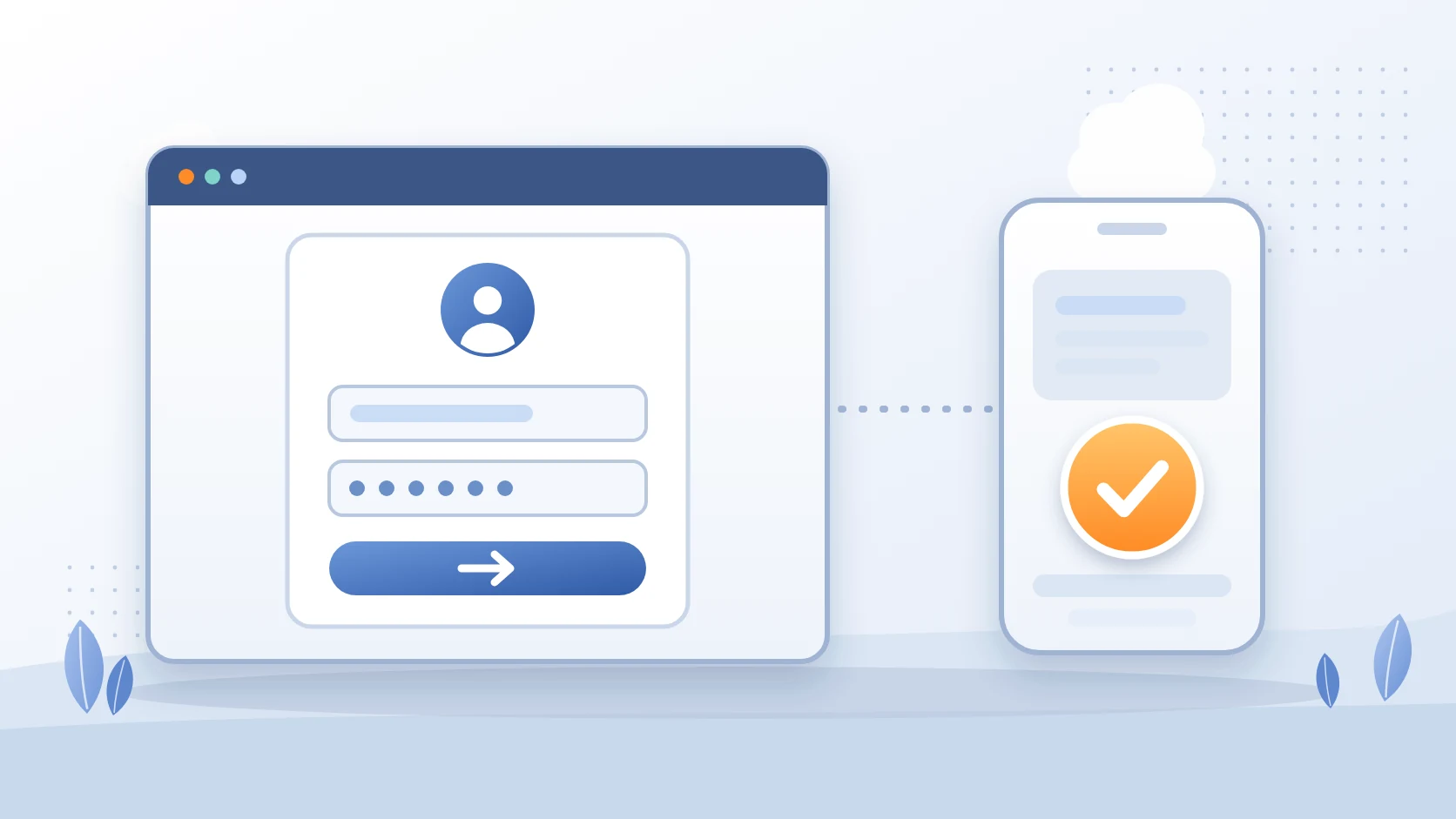
To log in to SharePoint Online, go to m365.cloud.microsoft, sign in with your work or school account, open the app launcher and select SharePoint. If you have the address of a site, paste it into your browser and sign in when Microsoft 365 asks you to. SharePoint has no separate user name or password: you sign in to Microsoft 365, and SharePoint opens with the same account.
Microsoft describes SharePoint as "a browser-based app that you connect to through your web browser", and sets one condition: "If your organization has assigned you a license that includes SharePoint, you can sign in."
| What you want to open | Where to go | Who can sign in |
|---|---|---|
| The SharePoint start page | m365.cloud.microsoft, then the app launcher, then SharePoint | Anyone whose licence includes SharePoint |
| One SharePoint site | The site's address, such as https://yourorganizationname.sharepoint.com/sites/project-x | People who have permission to that site |
| The SharePoint admin center | admin.microsoft.com, then Show all, then SharePoint under Admin centers | Accounts with the SharePoint Administrator or Global Administrator role |
Sign in from the Microsoft 365 home page
- Go to m365.cloud.microsoft and sign in to your work or school account.
- In the top-left corner, hover over the Copilot icon and click it to expand the navigation.
- Select the nine-dot App launcher icon, then select SharePoint.
- You are now signed in to SharePoint and on the SharePoint start page.
If SharePoint is not in the app launcher, type SharePoint in the launcher's Search box, or select More apps to see an alphabetical list of the Microsoft 365 apps available to you.
The older addresses still work as a starting point. Microsoft's general article on signing in to Microsoft 365 says "Go to www.microsoft365.com and select Sign In", and that link points to www.office.com. After you sign in, the name of the account you are signed in with is shown in the header; check it before you go looking for a site.
Sign in with a SharePoint site URL
If someone has sent you a link, or you know the address of the site, you can go straight there:
- Copy the SharePoint site URL, for example
https://yourorganizationname.sharepoint.com/sites/project-x. - Paste the URL into your browser's address bar and press Enter.
- You are redirected to the Microsoft 365 sign-in page.
- Sign in with your Microsoft 365 credentials.
The first part of the address is your organization's name, and it is the same for every site in the tenant. Microsoft adds one shortcut worth knowing: "If you sign in to Windows using your work or school account, you'll be signed in to SharePoint automatically."
Signing in proves who you are. Whether the site then opens depends on your permissions on that site; request access to a SharePoint site covers what to do when it does not.
The SharePoint start page
The start page is where you land after choosing SharePoint in the app launcher. Microsoft describes it as the place "where you can easily find and access SharePoint sites and portals within your organization." It used to be called the SharePoint home page.
| On the start page | What it shows |
|---|---|
| Search box | Sites you have recently visited and files you have recently viewed or edited, plus other sites, files and people in your organization |
| Following | SharePoint sites you are following. Click the star next to a site name to follow it |
| Recent | SharePoint sites you have recently visited, with See all for the full list |
| Frequent sites | Sites you visit often. The list is managed by Microsoft Graph and cannot be edited by users or admins |
| Featured links | Sites and portals featured by your organization |
| News from sites | Recent news from sites you follow or visit often |
| Create site | Create a new site, if your administrator has enabled it |
Microsoft notes that "a new Discover and Publish experience will replace SharePoint start in the future", and that your IT administrator can turn the new experiences on for your organization, so your start page may look different.
Log in to the SharePoint admin center
Administrators sign in somewhere else. Go to admin.microsoft.com, select Show all in the left navigation, and under Admin centers select SharePoint. The account needs the SharePoint Administrator or Global Administrator role. Site owners and site admins manage their own sites without access to the admin center, and Microsoft states that when a role changes "it takes about an hour for the change to take effect."
SharePoint admin center has the direct addresses, the roles and what to check when the admin center will not open. For PowerShell sign-in, see Connect-SPOService.
Multifactor authentication at sign-in
Many organizations require a second proof of identity. Microsoft's description: "after entering your password, you might be asked to approve a notification on your phone, provide a verification code, or use a passkey." Microsoft 365 tenants created after October 2019 have security defaults turned on by default.
Your administrator turns multifactor authentication (MFA) on; you cannot set it up before they do. The first time it applies to you:
- Sign in to Microsoft 365 using your work or school account.
- You are asked to provide additional security information.
- Follow the prompts to register one or more verification methods approved by your organization. Depending on its settings these can include Microsoft Authenticator, Authenticator Lite in Outlook, passkeys, Windows Hello for Business, SMS text messages, voice calls, and hardware or software tokens.
- Complete the verification process.
After that, MFA prompts "appear as part of the normal sign-in experience". Your organization decides how often: every time you sign in, only for specific applications, when you sign in from a new device, or when you are outside the corporate network. You can review, add or change your verification methods at any time from My Profile.
Signed in to the wrong account
This is a common problem for people with more than one Microsoft 365 account, such as a consultant with accounts at two clients. Microsoft explains why it happens: "Microsoft 365 uses single sign-on for each browser profile", so "all tabs within that browser profile will automatically use the same account." Open a site that belongs to your other account and the browser signs you in with the wrong one.
Microsoft gives three ways round it:
- Switch accounts. Select your name or picture at the top right of the browser window. This logs you out of your current account.
- Use a private window. It lets you "log in with a different account while keeping the first account logged in." In Microsoft Edge select New InPrivate window, in Google Chrome New Incognito window, and in Firefox or Safari New Private window.
- Use a browser profile for each account. In Microsoft Edge, set up one profile for each Microsoft 365 account, then pick the profile to work in both accounts at the same time.
Guests invited from another organization hit a version of this when the invitation was accepted with a different account from the one they are signing in with. SharePoint 'Access Denied' and 'You Need Permission' has the fix.
Sign-in problems and what they mean
| What you see | What it means | What to do |
|---|---|---|
| SharePoint is missing from the app launcher | The app is hidden, or your licence does not include SharePoint | Use the launcher's Search box or More apps. If it is still missing, Microsoft's advice is to contact your IT admin, who can make the app visible to you |
| "Access Denied" or "You need permission to access this site" | You are signed in, but your account has no permission on this site or file | Check you are in the right account, then request access. Admins can work through the access denied fixes |
| "Access Denied. Due to organization policy, you can't access this resource from this untrusted device." | Your organization blocks devices it does not manage | Sign in from a managed work device |
| An access restricted page when you are away from the office | Your organization allows SharePoint only from specific IP address ranges | Connect from a network your organization allows, or ask your IT administrator |
| "You are now in line to access this site" | A waiting room that replaces the 503 error when the service is busy | Wait. Microsoft: "The user doesn't need to refresh the page as the page handles it automatically." |
| "503" or "Server is busy" | Possible throttling in the SharePoint service | Wait and try again; if many people are affected, an admin should check Service health |
| "Your session is about to expire" | You have been inactive and an idle session policy is about to sign you out | Select Stay signed in |
| You lost or replaced the phone you use for MFA | Your registered verification method is gone | Contact your IT administrator to regain access |
| You have forgotten the account or password | The sign-in itself is failing | Microsoft's sign-in article links to "Forgot your account or password?" and to its sign-in helper tool |
Two of these deserve a closer look, because they confuse users and are set by administrators.
Signed out after a period of inactivity
Two settings sign people out of SharePoint in the browser when they stop using it.
Idle session sign-out in SharePoint. In the SharePoint admin center, an administrator goes to Access control, selects Idle session sign-out, and turns on Sign out inactive users automatically, choosing when to warn people and when to sign them out. Users get a warning with a Continue button, and are signed out if they do not select it. Microsoft is specific about what counts: "Activity is counted as requests sent to SharePoint, such as mouse clicks on a UI element like a button, list entry, or a link. Moving the mouse and scrolling aren't counted as activity." It applies to the whole organization, needs a Microsoft Entra ID P1 or P2 subscription, and takes about 15 minutes to take effect.
Idle session timeout for Microsoft 365. Set in the Microsoft 365 admin center under Org Settings, on the Security & privacy tab. It covers SharePoint, OneDrive, Outlook on the web, the Microsoft 365 web apps and the admin centers, and Microsoft states that turning it on "overrides the Outlook web app and SharePoint settings." Users see the Your session is about to expire window.
People are not signed out by either setting if they chose to stay signed in when they signed in, or if they are on a managed device with a supported browser. With several SharePoint tabs open, a person is signed out only when they are inactive on all of them.
Blocked outside the office network
With a network location policy, an administrator defines trusted IP address ranges, and "any user who attempts to access SharePoint and OneDrive from outside this network boundary (using a web browser, desktop app, or mobile app on any device) is blocked."
The setting is in the SharePoint admin center under Access control: select Network location and turn on Allow access only from specific IP address ranges. It can take up to 15 minutes to take effect. Microsoft's warning to administrators is blunt: "Make sure you include your own IP address so you don't lock yourself out." The restriction also covers the SharePoint admin center and PowerShell, and an administrator who is locked out has to contact Microsoft Support.
When it is not you
If SharePoint is slow or failing for many people at once, Microsoft says "a temporary service issue may be occurring". An administrator can confirm it on the Service health page in the Microsoft 365 admin center. SharePoint 'Sorry, something went wrong' explains how to check Service health and what to record for a support case.
Frequently asked questions
How do I log in to SharePoint Online?
Go to m365.cloud.microsoft, sign in with your work or school account, select the nine-dot App launcher icon and select SharePoint. You land on the SharePoint start page. If you have a site's address, paste it into the browser and sign in when you are redirected to the Microsoft 365 sign-in page.
What is the SharePoint Online login URL?
There is no separate SharePoint login page. You sign in to Microsoft 365 at m365.cloud.microsoft, or open a site address such as https://yourorganizationname.sharepoint.com/sites/project-x, which redirects you to the Microsoft 365 sign-in page.
Can I still sign in at office.com?
Yes. Microsoft's article on signing in to Microsoft 365 gives www.microsoft365.com, and its sign-in link points to www.office.com. After you sign in, open the app launcher and select SharePoint.
Why can't I see SharePoint in the app launcher?
Search for it in the launcher's Search box, or select More apps for the full alphabetical list. If it is not there, your account may have no licence that includes SharePoint, or the app may be hidden. Contact your IT admin.
Why does SharePoint sign me in with the wrong account?
Microsoft 365 uses single sign-on for each browser profile, so every tab in that profile uses the same account. Use a private window for the second account, or create a separate Microsoft Edge profile for each account.
Do I need MFA to sign in to SharePoint?
Only if your organization requires it. When it does, you are asked to register a verification method, such as Microsoft Authenticator, the next time you sign in, and after that the prompt is part of the normal sign-in.
Why does SharePoint keep signing me out?
Your organization has probably set an idle session policy, which signs people out of the browser after a period of inactivity. Choosing to stay signed in when you sign in, or using a managed work device, exempts you.
How do I sign in to the SharePoint admin center?
Go to admin.microsoft.com, select Show all, and select SharePoint under Admin centers. Your account needs the SharePoint Administrator or Global Administrator role.
Related reading
- SharePoint admin center - the URL, who can sign in and what each section does.
- SharePoint 'Access Denied' and 'You Need Permission': fixes - when you are signed in and the site still will not open.
- Request access to a SharePoint site - who receives a request and how owners approve it.
- SharePoint 'Sorry, something went wrong' - the generic error, Service health and the correlation ID.
- Connect-SPOService: connect to SharePoint Online with PowerShell - signing in from PowerShell, with MFA.
- SharePoint permission levels explained - what your account can do once you are in.
- How to download files and folders from SharePoint - getting files out once you are signed in.
Mark Smith co-founded SmiKar Software in 2015 and has spent the past decade helping organisations solve Microsoft 365 data management challenges. He works with the SmiKar team to build solutions for SharePoint archiving, storage optimisation, governance and compliance, supporting customers from growing businesses through to Fortune 500 enterprises.
More about SmiKar