OneDrive Files On-Demand
Files On-Demand lets you see and open every file in your OneDrive from File Explorer without downloading them all, so they do not use space on your computer. Files show as online-only until you open them, and you choose which ones to keep on the device.
This page covers what the icons mean, how to free up space or keep files available offline, how to turn the feature on, and what to expect when you are offline.
What the icons mean
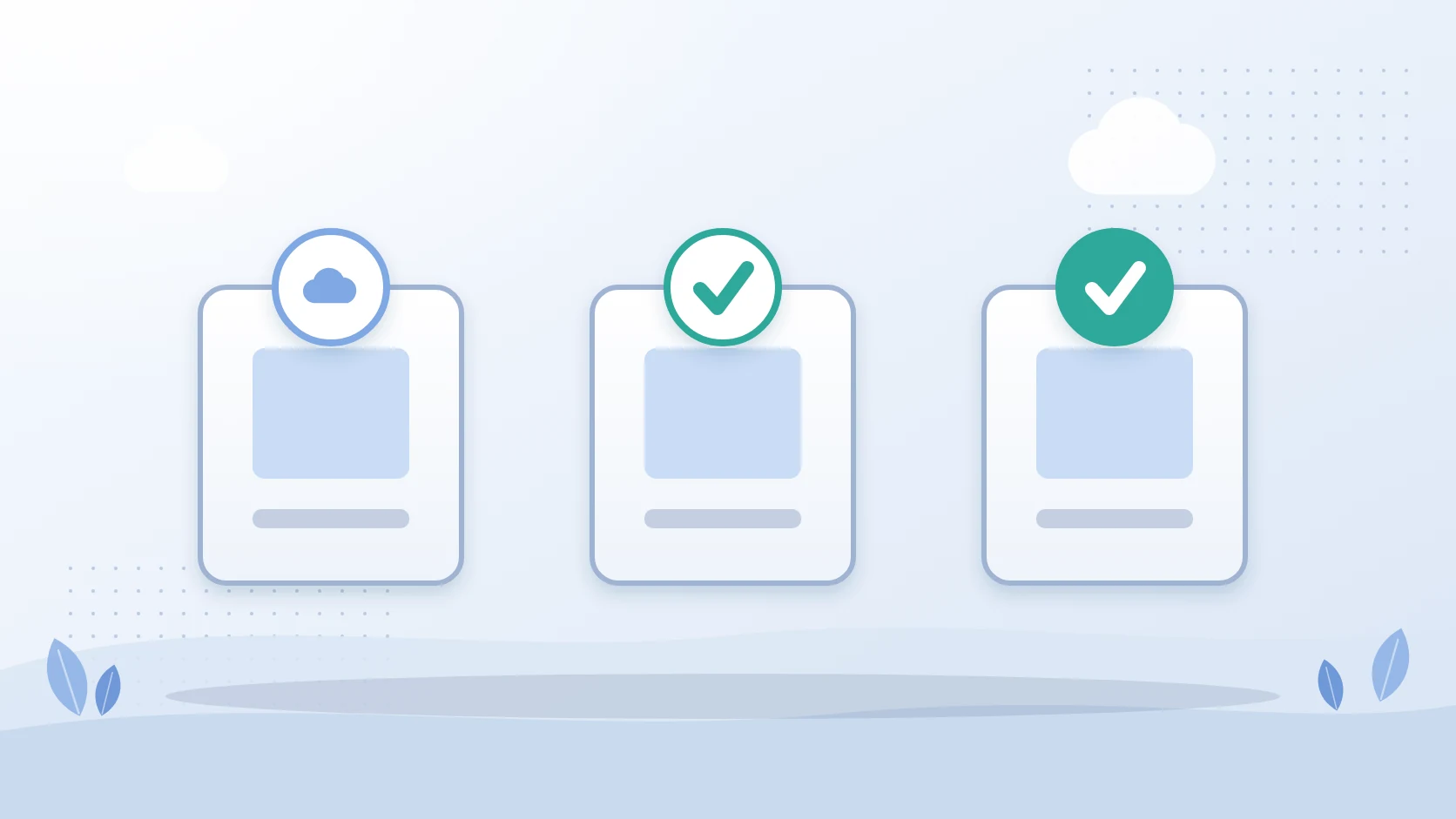
| Icon | Status | What it means |
|---|---|---|
| Blue cloud | Online-only | The file is only available online and takes no space on your computer. It opens only when you are connected |
| Green check mark | Locally available | You opened an online-only file, so it downloaded to your device. You can change it back to online-only |
| Green circle with a white check mark | Always keep on this device | The file is downloaded and takes up space, and it stays available offline |
Free up space or keep a file
- Right-click the file or folder in File Explorer.
- Choose Always keep on this device or Free up space.
New files added to a folder marked Always keep on this device download automatically. You can also mark individual files in an online-only folder as always available. If a file or folder was marked Always keep on this device by mistake, mark it Free up space instead.
With Storage Sense turned on, locally available files become online-only again after the time period you have selected.
Turn Files On-Demand on
- Make sure you are signed in to OneDrive on your device.
- Select the OneDrive cloud icon in the notification area, then the Help and Settings icon, then Settings.
- On the Sync and back up tab, expand Advanced settings and turn on Files On-Demand.
If Files On-Demand is enabled, the settings offer Free up disk space, which is the default, and Download all files. Microsoft describes Download all files as equivalent to the legacy option of turning Files On-Demand off. OneDrive build 23.066 or later has it enabled by default.
Requirements
- Windows 10 version 1709 or later, or Windows Server 2019.
- Files On-Demand is not yet supported when Windows Information Protection is enabled.
- It might not be compatible with some third-party antivirus solutions.
Working offline
You cannot open online-only files when your device is not connected to the internet. You can open a locally available file at any time, even without internet access, and always-available files stay on the device so they work offline. Desktop search can find online-only files by name but not by their contents.
For SharePoint libraries and administrators
Files On-Demand also applies to synced SharePoint libraries. Administrators who use the Configure team site libraries to sync automatically policy need Files On-Demand turned on, and those libraries sync as online-only files. OneDrive sync issues with SharePoint libraries covers syncing a library, stopping it and the automatic sync policy.
Frequently asked questions
What is OneDrive Files On-Demand?
A feature that lets you access all your OneDrive files in File Explorer without downloading them, so online-only files take no space on your computer.
What does the blue cloud icon mean in OneDrive?
The file is only available online. It takes no space on your computer and opens only when you are connected.
What does the green check mark mean?
The file is locally available. It downloaded when you opened it, and you can change it back to online-only with Free up space.
What does the green circle with a white check mark mean?
The file is marked Always keep on this device. It is downloaded, takes up space and stays available offline.
How do I free up space in OneDrive?
Right-click the file or folder in File Explorer and choose Free up space.
How do I turn Files On-Demand on?
Open OneDrive Settings, go to the Sync and back up tab, expand Advanced settings and turn on Files On-Demand.
Can I open online-only files without internet?
No. Online-only files need an internet connection. Locally available and always-available files open without one.
Related reading
- How to stop, pause or turn off OneDrive sync - pause, choose folders, stop a library or unlink a PC.
- How to uninstall OneDrive - unlink, hide or uninstall.
- OneDrive sync stuck on Sync pending or Processing changes - causes and fixes.
- OneDrive sync issues with SharePoint libraries - limits, fixes and automatic sync.
- SharePoint vs OneDrive vs Teams - where files live in each.
Mark Smith co-founded SmiKar Software in 2015 and has spent the past decade helping organisations solve Microsoft 365 data management challenges. He works with the SmiKar team to build solutions for SharePoint archiving, storage optimisation, governance and compliance, supporting customers from growing businesses through to Fortune 500 enterprises.
More about SmiKar